Claude is a family of advanced large language models (LLMs) built by Anthropic, an AI research company founded in 2021. These models power the Claude conversational assistant and developer tools.
When combined with CData Connect AI, you can use Claude to query and analyze live data from sources like Google Sheets using natural language, getting real-time insights without writing SQL or code.
In this article, we'll guide you through connecting Claude to a sample Google Sheet containing customer data, then show you how to ask questions about accounts, sales opportunities, support tickets, and product usage.
Prerequisites
You need the following to follow along with this guide:
Overview
Here's a quick overview of the steps:
- Copy the sample Google Sheet with customer data
- Sign up for CData Connect AI and configure Google Sheets connection
- Connect Claude to CData Connect AI via the connector marketplace
- Start exploring your data with natural language
Step 1: Copy the Sample Google Sheet
We'll start by copying a sample Google Sheet that contains customer data including accounts, opportunities, support tickets, and product usage information.
- Navigate to the sample customer health spreadsheet in your browser.
- Click File > Make a copy to save a copy to your Google Drive.
NOTE: Remember the name you give to the copy (e.g., "demo_organization"). You'll need this name when configuring the connection in Connect AI.
The spreadsheet contains four sheets with related customer data:
- account: Company information including name, industry, revenue, and employee count
- opportunity: Sales opportunities with stage, amount, probability, and close dates
- tickets: Customer support tickets with priority, status, and descriptions
- usage: Product usage metrics including job runs, records processed, and revenue data
Step 2: Configure Google Sheets Connectivity in Connect AI
Now we'll set up the connection to your Google Sheet in CData Connect AI.
Sign up or Log in to Connect AI
- Navigate to https://www.cdata.com/ai/signup/ to create a new account, or https://cloud.cdata.com/ to log in to your existing account.
- Complete the sign-up process or log in with your credentials.
Add a Google Sheets Connection
- Once logged in to Connect AI, click Sources in the left navigation menu and click Add Connection.

- Select Google Sheets from the Add Connection panel.

- In the connection configuration:
- Set the Spreadsheet property to the name of your copied Google Sheet (e.g., "demo_organization")
- Click Sign in to authenticate with Google using OAuth

- After successful authentication, navigate to the Permissions tab and configure user-based permissions as needed.

Step 3: Connect Claude to CData Connect AI
Follow these steps to add a CData Connect AI connector in Claude:
- Sign in to Claude.ai or create a new account.
- Expand the left navigation menu.
- In the bottom-left corner, click your user name and select Settings from the menu. The Settings screen appears.
- In the Settings screen, click Connectors.
- Click the button to Browse Connectors.
- Search for "CData Connect AI" and click the listing.
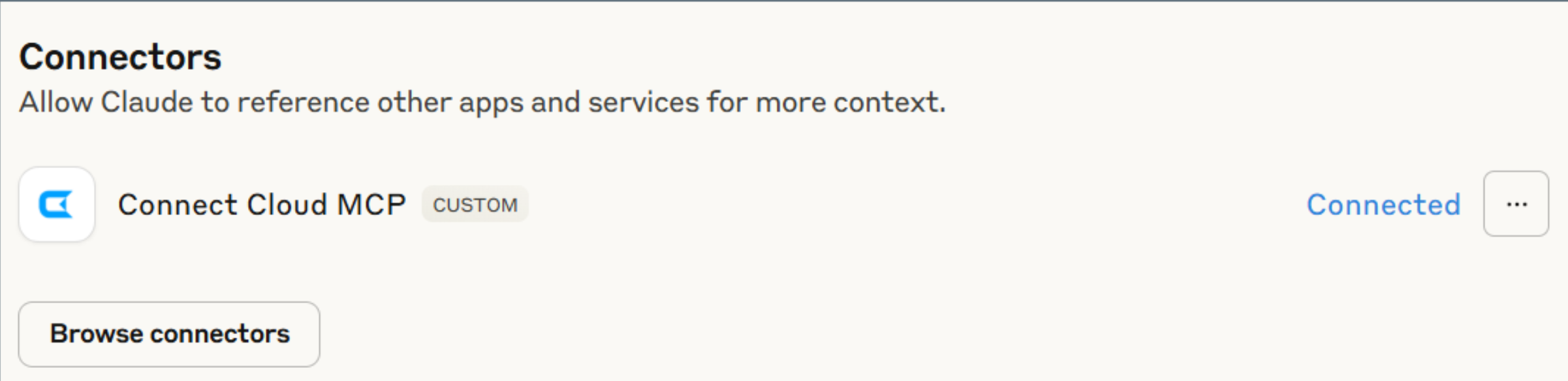
- Click "Connect" and sign into your Connect AI account.
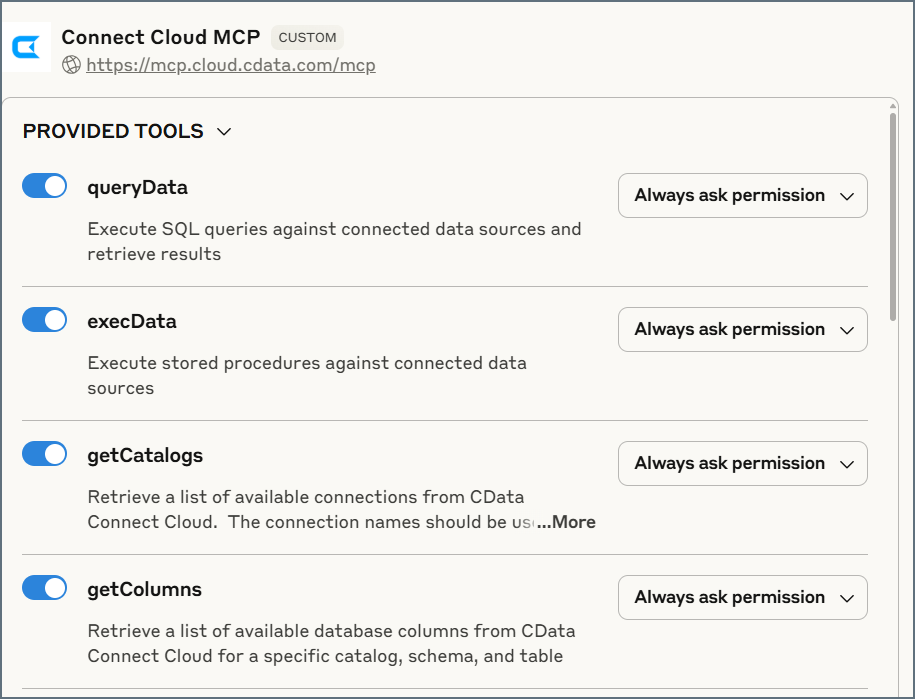
- After connecting, Claude opens a new chat.
NOTE: Claude's setup process is subject to change. Refer to Claude's documentation for the latest setup information.
Step 4: Explore Your Data with Natural Language
Now it's time to start asking questions about your data.
- You can now start exploring your data with natural language prompts. Claude outlines the steps it uses to retrieve data from the source in CData Connect AI.
- Try asking questions like:
- "Show me a picture of the health for Aurora Healthcare Systems"
- "Which customers have high support ticket volume but low product usage?"
- "Analyze the top 5 accounts by revenue and identify any health risks"
- "What accounts have open opportunities but also critical support tickets?"
- Claude will use the MCP tools to query your Google Sheets data and provide insights and recommendations.
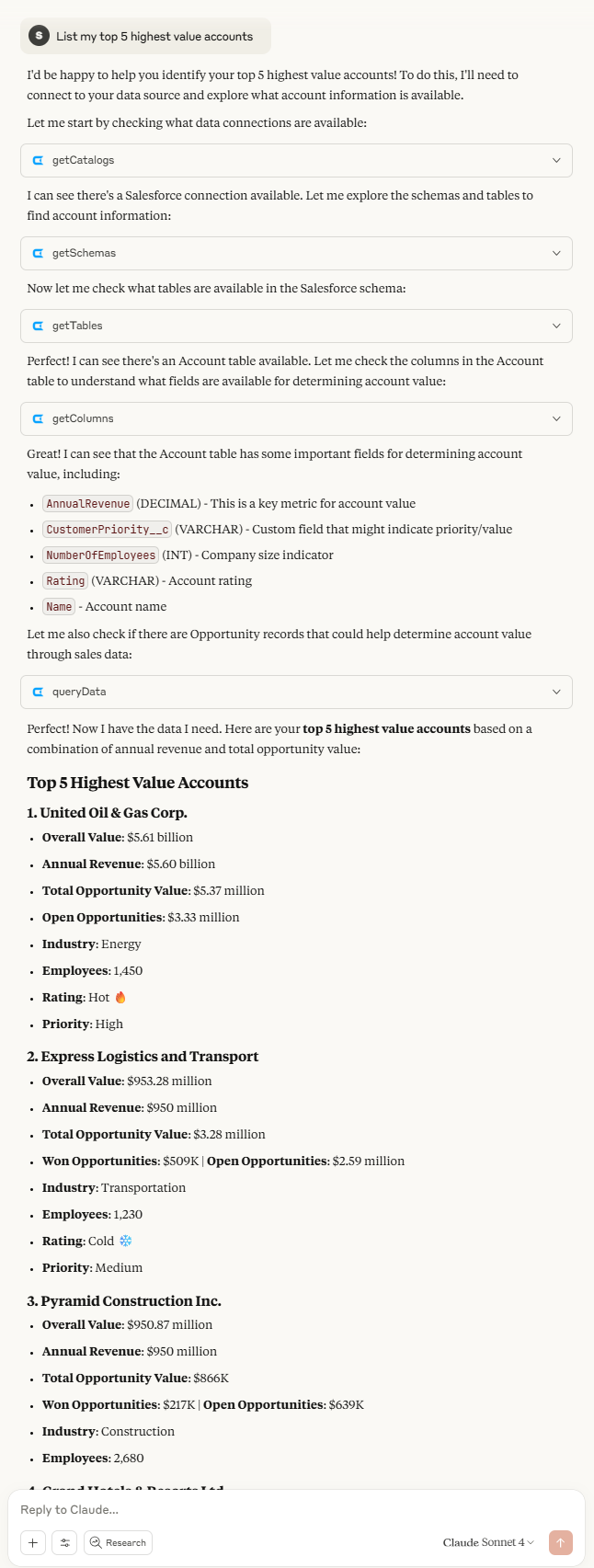
Example: Analyzing Customer Data
When you ask Claude to "summarize the health of Aurora Healthcare Systems", it will:
- Query the account table for company information
- Analyze opportunities to understand the sales pipeline
- Review support tickets for any issues or trends
- Examine product usage metrics to gauge adoption
- Synthesize all data into a comprehensive summary with actionable insights
Refer to CData's prompt library for more prompt ideas.
Next Steps
Now that you have Claude connected to your data, you can:
- Connect additional data sources beyond Google Sheets (Salesforce, Zendesk, Snowflake, etc.)
- Ask more sophisticated questions that combine data across multiple tables
- Use Connect AI's integration capabilities to connect Claude to your production data
Get Started with CData Connect AI
To get live data access to 300+ SaaS, Big Data, and NoSQL sources directly from your AI applications, try CData Connect AI today!