





New CData API Profiles for UKG Pro HCM and UKG Pro Workforce Management
If your organization runs both UKG Pro Human Capital Management (HCM) and UKG Pro Workforce Management (WFM), your workforce record lives in two places. UKG Pro HCM holds the people record: jobs, organization levels, compensation, and PTO plans. UKG Pro WFM holds the time record: timecards, punches, schedules, and pay codes. Because each product has its own API, authentication method, and identifiers, teams often end up stitching results together by hand. This article shows you how to fetch data from both products with the CData JDBC Driver for API and compare HR hours with paid hours through the employee number the two products share.
About the CData API Driver and API Profiles
The CData API Driver is a single driver that gives you SQL access to a growing catalog of APIs and web services. Instead of a separate driver for each service, it uses API Profiles: small files that define the objects, fields, and operations for one API, plus how to authenticate and page through it. CData offers profiles across CRM, marketing, e-commerce, accounting, collaboration, and other categories.
To use a profile, you point the driver's Profile property at the profile file and set the connection properties that profile requires. The driver then handles:
- SQL-92 support, including string, date, and numeric functions, joins, and aggregates
- Filter pushdown, so filters the API supports are sent to it instead of applied afterward
- Authentication and token refresh, including the OAuth flows each API uses
- Paging, where the API supports it
The driver is available in the same editions as other CData drivers: JDBC, ODBC, ADO.NET, and Python, plus Excel, Power BI, and SSIS integrations. A profile works the same way in each edition, so the steps in this article carry over to the edition you use. This article uses the CData JDBC Driver for API.
Set up the driver and profiles
- Download and install the CData JDBC Driver for API
- Download UKGProHCM.apip and UKGProWFM.apip from CData API Profiles
Connect to UKG Pro HCM
UKG Pro HCM authenticates with a User, Password and a customer API key. The profile sends the key as the US-CUSTOMER-API-KEY header on every request, so the driver can't reach UKG without it.
Double-click the driver's JAR file to open the connection dialog, and set Profile to the path of UKGProHCM.apip
Set AuthScheme to Basic
Enter your UKG Pro HCM User and Password
-
In ProfileSettings, enter your tenant host and customer API key, separated by a semicolon:
Host=yourcompany.ultipro.com;CustomerAPIKey=your_customer_api_key
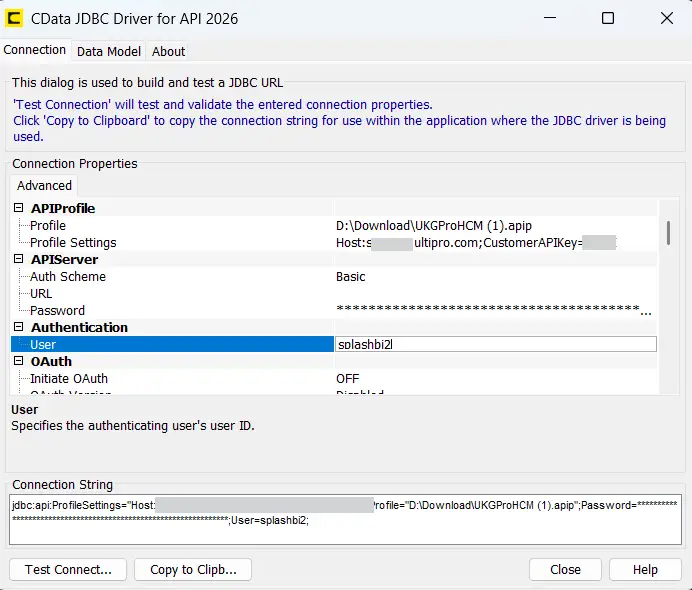
-
Click Test Connect. A success message confirms that the driver reached UKG and authenticated.
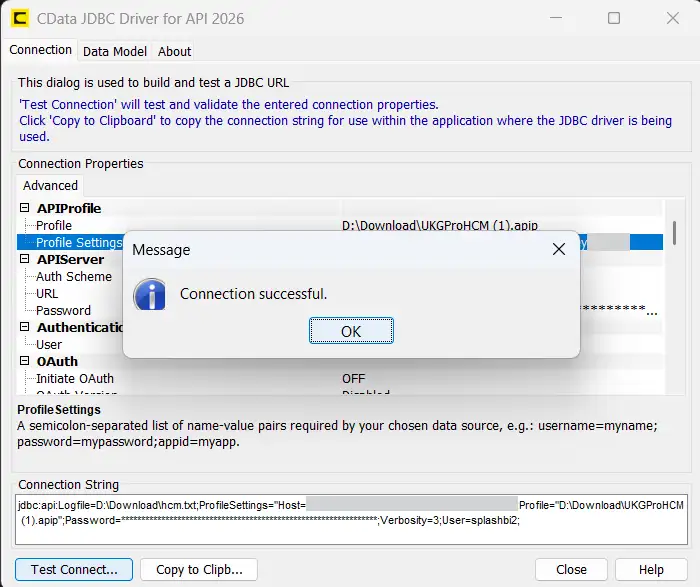
The full connection string looks like this:
Profile=C:\profiles\UKGProHCM.apip;AuthScheme=Basic;User=<user>;Password=<password>;ProfileSettings='Host=<yourcompany>.ultipro.com;CustomerAPIKey=<customer api key>';
The object list comes from the profile file, so it appears before the driver contacts UKG. Only Test Connection or your first fetch confirms that your credentials work.
Connect to UKG Pro WFM
UKG Pro WFM uses the OAuth 2.0 resource owner password grant. There's no browser sign-in step: the driver exchanges your WFM user name, password, client ID, and client secret directly for an access token.
Open the connection dialog again and set Profile to the path of UKGProWFM.apip.
Set AuthScheme to OAuthPassword.
Enter the OAuthClientId and OAuthClientSecret issued for your UKG Pro WFM API application.
-
Enter your tenant Host, User, and Password:
Host=<yourcompany>.mykronos.com;User=<user>;Password=<password>
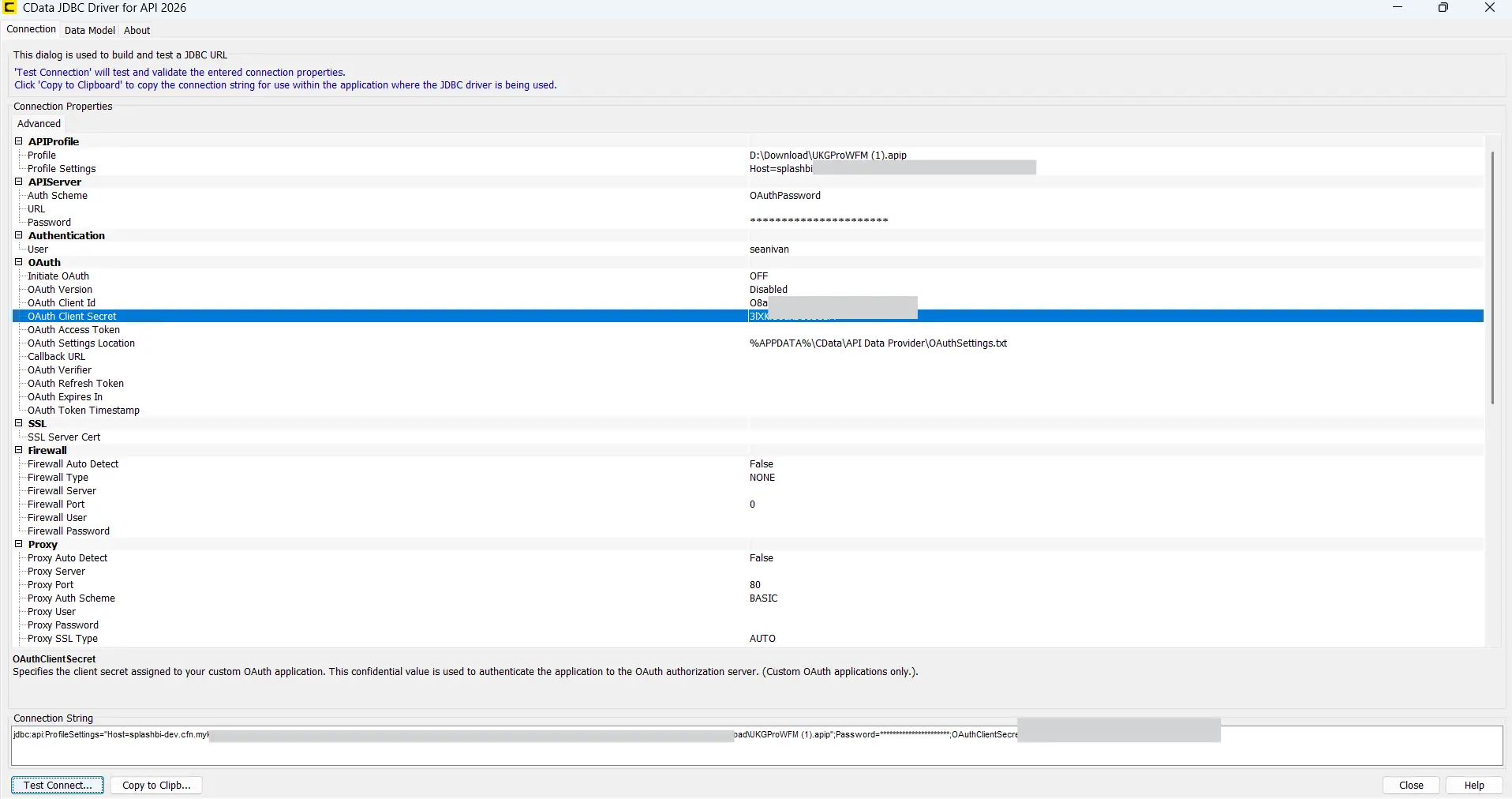
-
Click Test Connect.
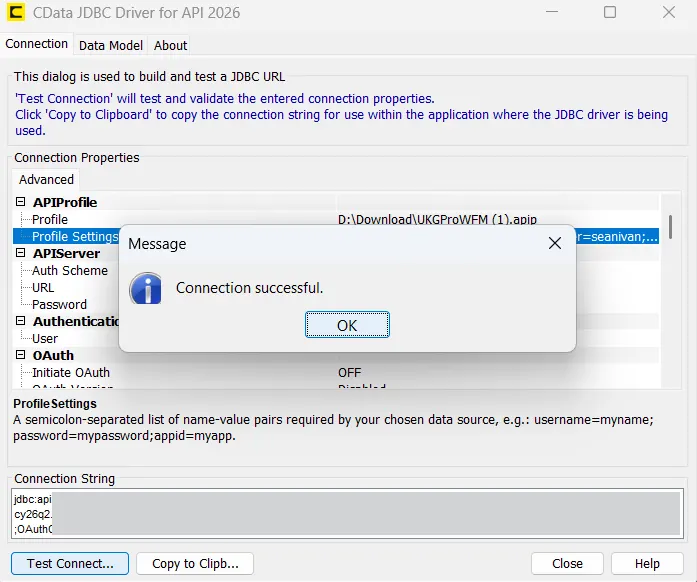
The full connection string looks like this:
Profile=C:\profiles\UKGProWFM.apip;AuthScheme=OAuthPassword;OAuthClientId=<client id>;OAuthClientSecret=<client secret>;ProfileSettings='Host=<yourcompany>.mykronos.com;User=<user>;Password=<password>';
Fetch data from UKG Pro HCM and UKG Pro WFM
Once the connection succeeds, you're ready to fetch data. The driver's connection dialog tests a connection, and a SQL client such as DBeaver runs the statements. In your SQL client, add the CData JDBC Driver for API and create one connection for each product, using the connection strings above. Then run each statement on the connection for its product.
Fetch employee records from UKG Pro HCM
Start with EmploymentDetails, the natural object for headcount, turnover, and organization reporting. To fetch from it in DBeaver:
- In the Database Navigator, expand the HCM connection to see its objects.
- Open a SQL Editor on that connection and paste the statement below.
- Run the statement. The row limit box below the results caps the number of records returned.
SELECT [EmployeeNumber], [PrimaryJobCode], [SalaryOrHourly],
       [FullTimeOrPartTimeCode], [ScheduledWorkHrs], [PayPeriod]
FROM [EmploymentDetails]
WHERE [EmployeeStatusCode] = 'A'
This statement returns each active employee's job, pay type, full-time or part-time status, and scheduled work hours from the HR record.
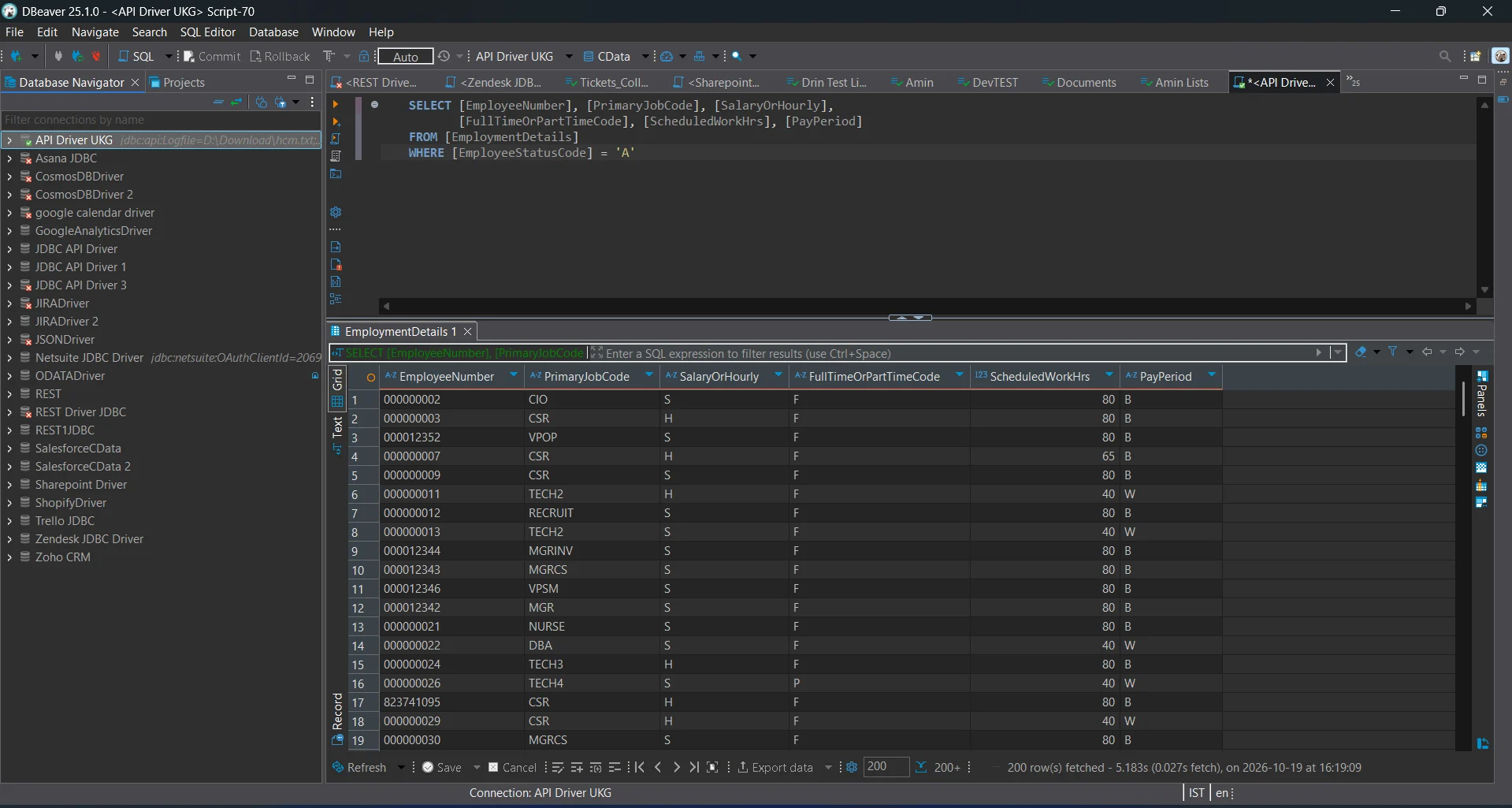
Keep the EmployeeNumber values from these results. UKG Pro WFM uses the same number as PersonNumber, which lets you match the two products' records later in this section.
Fetch timecards from UKG Pro WFM
UKG Pro WFM organizes its data around a person and a date range. To read a timecard, you find the pay period, look up the person's WFM ID from their employee number, and then fetch the timecard for that person and period. Run these three statements on the WFM connection in DBeaver, one at a time, and replace every placeholder with a real value first.
-
Find the pay period that contains a date. Use a date from a completed pay period in your tenant.
SELECT [SpanStartDate], [SpanEndDate], [PeriodDays]
FROM [PayPeriods] WHERE [Date] = '2026-09-26'
-
Convert an employee number from your HCM results to a WFM person ID.
SELECT [PersonId] FROM [PersonInformation] WHERE [PersonNumber] = '<employee number>'
-
Fetch the timecard, using the PersonId from step 2 and the SpanStartDate and SpanEndDate from step 1.
SELECT [Totals], [ScheduleShifts] FROM [Timecards]
WHERE [PersonId] = '<person id>'
  AND [StartDate] = '<SpanStartDate>' AND [EndDate] = '<SpanEndDate>'
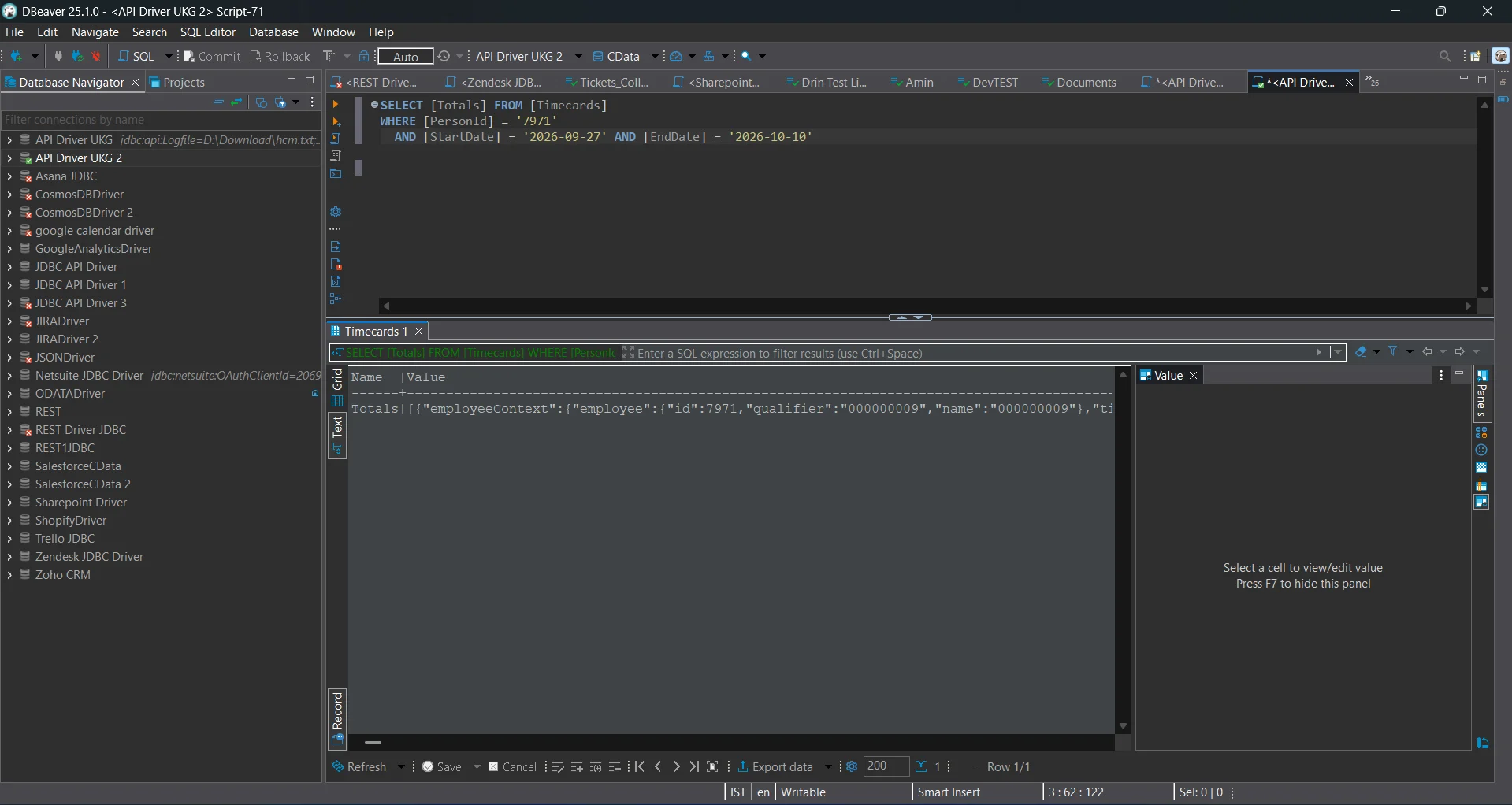
In the results, the Totals field holds the period's totals by pay code, such as Regular, All Worked Hours, and All Paid Hours, each with an amount and a type. The ScheduleShifts field holds the scheduled shifts with their start and end times.
Match records across both products
UKG Pro HCM and UKG Pro WFM share the employee number: EmployeeNumber in HCM is PersonNumber in WFM. Each profile runs on its own connection, so fetch from each one separately, then match the records by employee number. For example, compare ScheduledWorkHrs in HCM with All Paid Hours in WFM to confirm that the HR record reflects the hours people are paid for.
Start fetching your UKG records Using CData
With the CData JDBC Driver for API, you can fetch data from 23 UKG Pro HCM objects and 22 UKG Pro WFM objects with standard SQL from one driver. Download a free, 30-day trial today, add the two profiles, and fetch your first records. Both products share the employee number, so one request on each connection is enough to start comparing HR and time data. If you run into questions along the way, our Support Team is ready to help.