





Connecting Supabase to CData Connect AI
Supabase is an open-source backend platform built on PostgreSQL, giving teams a managed relational database with built-in authentication, storage, and a REST API—without the overhead of managing infrastructure themselves.
Connecting Supabase to CData Connect AI gives your AI tools and agents live, governed access to that database. Query your data using natural language through Claude, ChatGPT, Copilot, or any agent built on the Model Context Protocol (MCP)—no SQL, no exports, no waiting.
This guide walks through connecting Supabase to Connect AI and querying your data in minutes.
Prerequisites
Before you begin, ensure you have:
- A Supabase account and project with data (supabase.com)
- A CData Connect AI account (sign up for a free trial)
Overview
- Set up a Supabase project and collect your connection parameters
- Configure the PostgreSQL connection in CData Connect AI and query your data
Step 1: Set Up Supabase and Find Your Connection Parameters
If you already have a Supabase project with data, skip to the connection parameters section below.
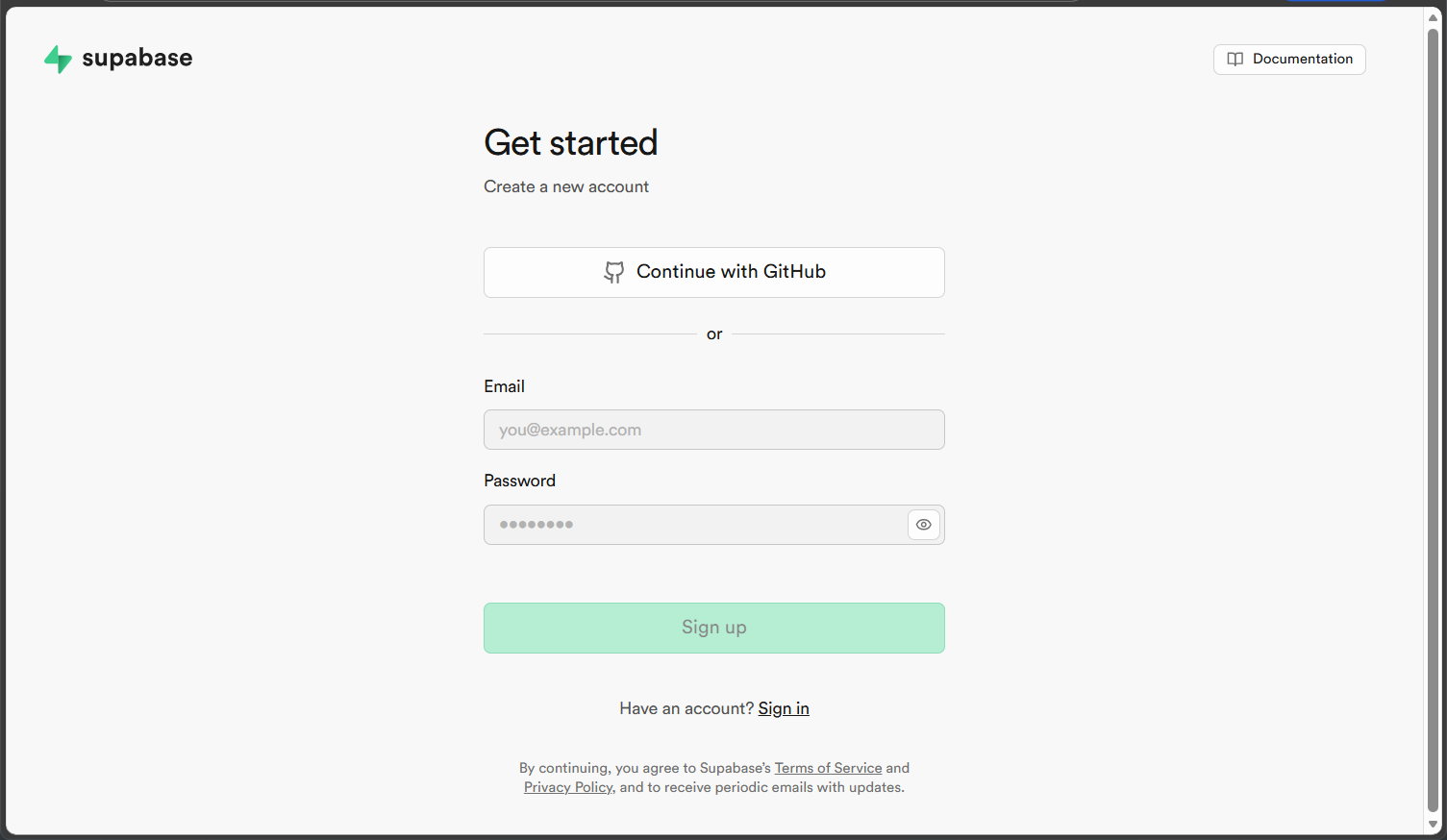
- Go to supabase.com and sign up or sign in.
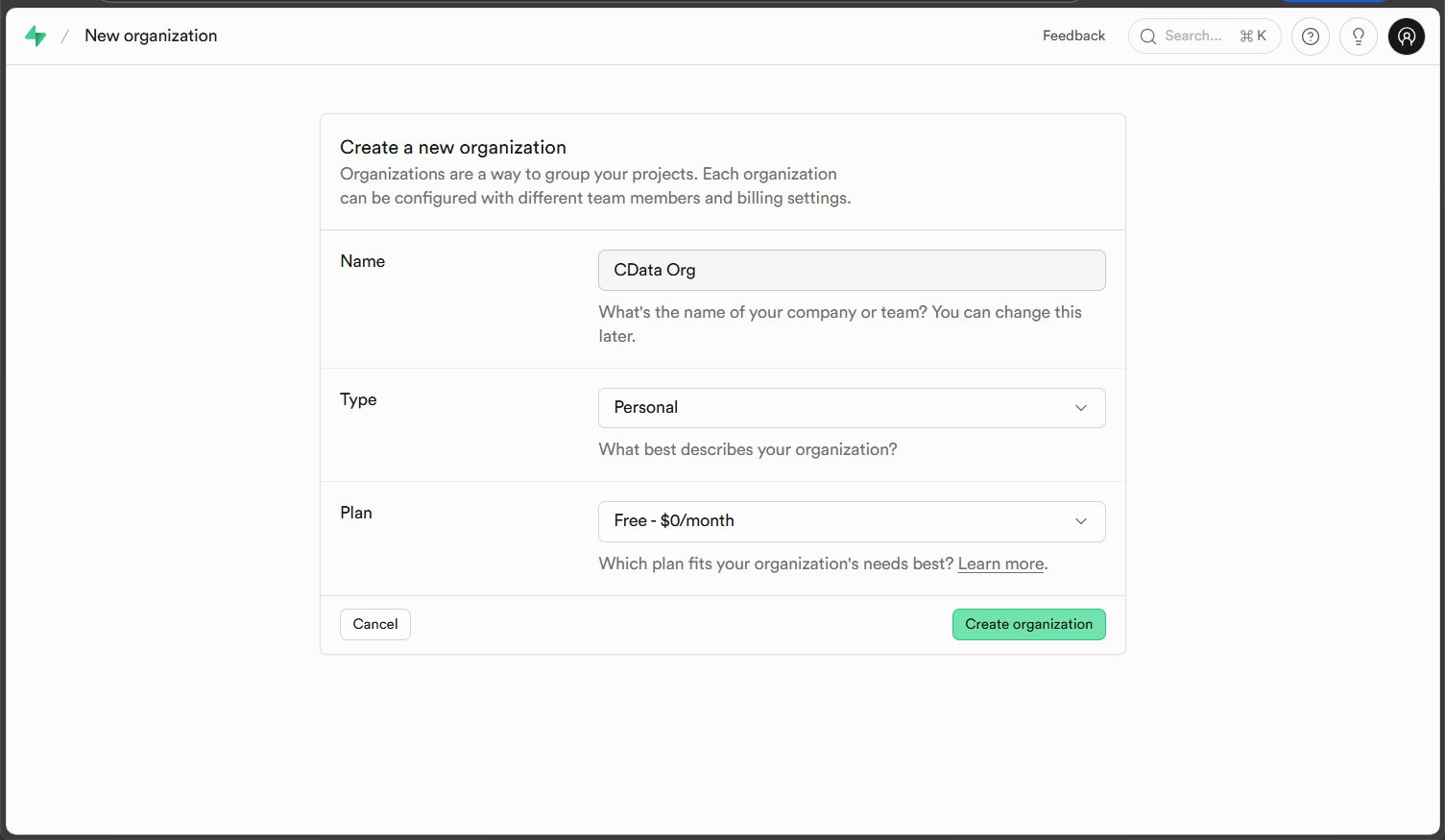
- Create a new organization when prompted. Give it a name and select a plan.
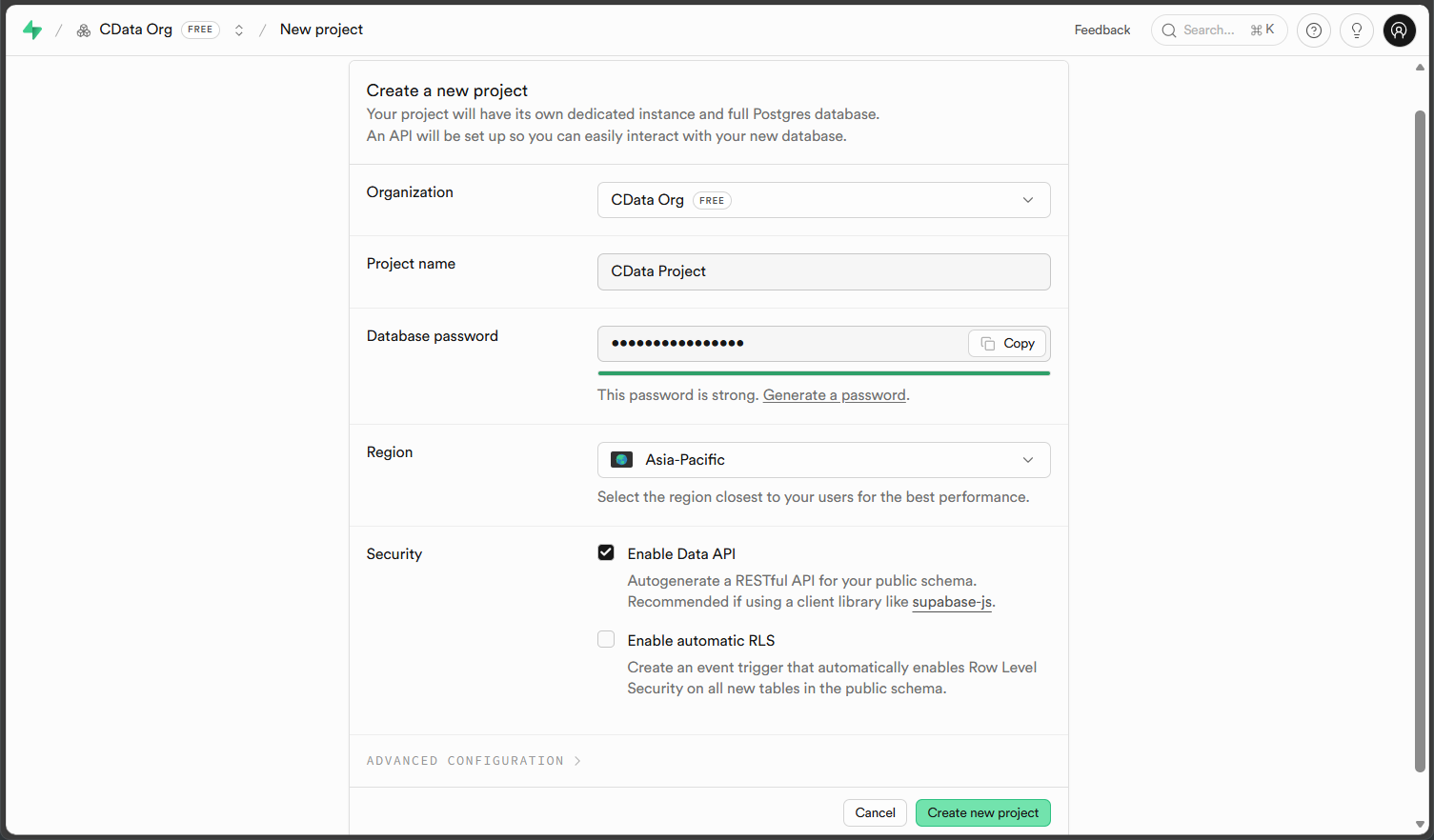
- Click New project. Enter a project name and set a strong database password.
NOTE: Save this password—you will need it when configuring the Connect AI connection. This is your database password, not your Supabase account password.
Find Your Session Pooler Parameters
Connect AI connects to Supabase through the Session Pooler endpoint, which accepts connections over standard IPv4 and is accessible from external services.
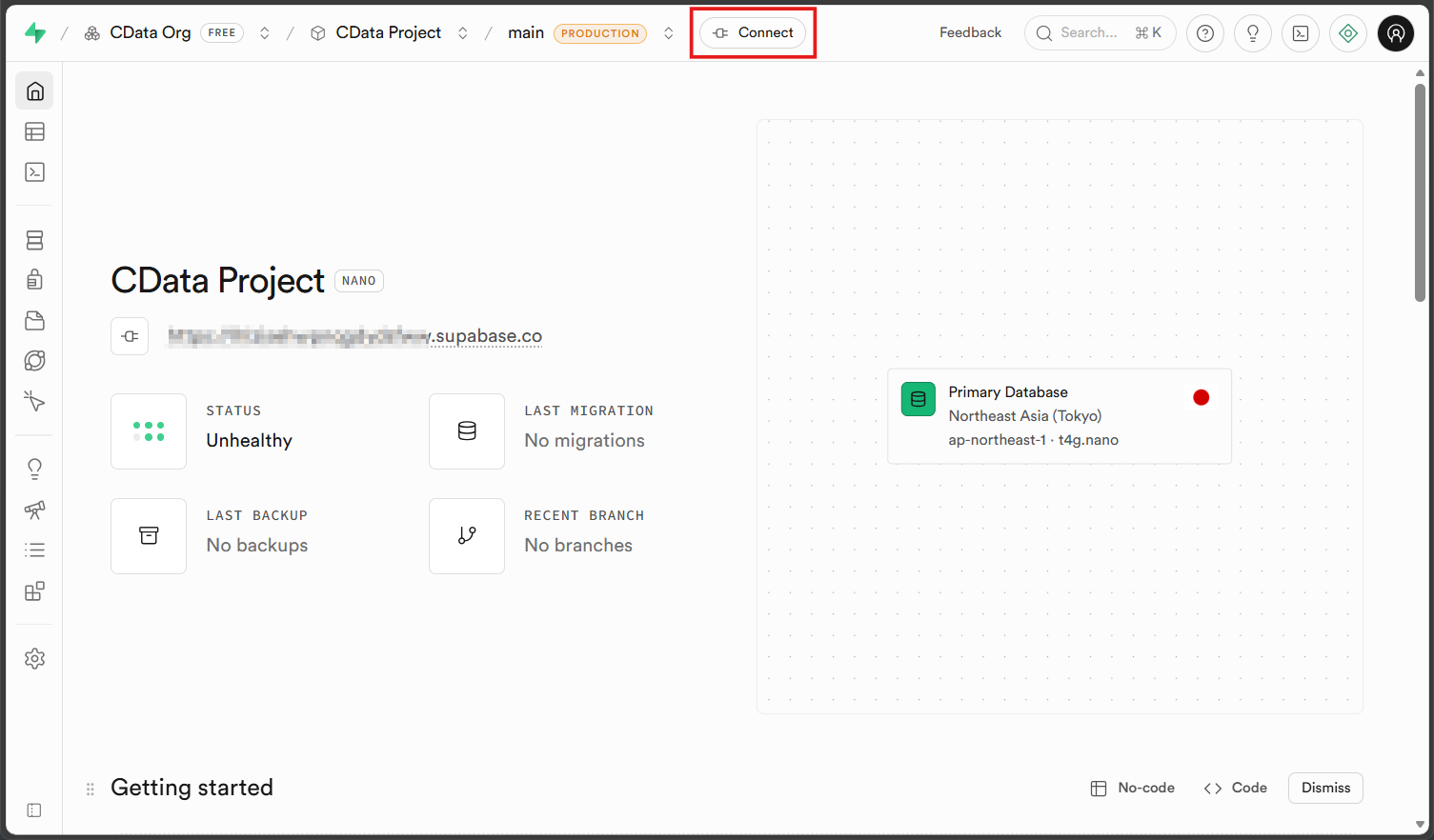
- From your project dashboard, click Connect in the top navigation bar.
- In the Connect to your project panel, select the Connection String tab, then set Method to Session pooler.
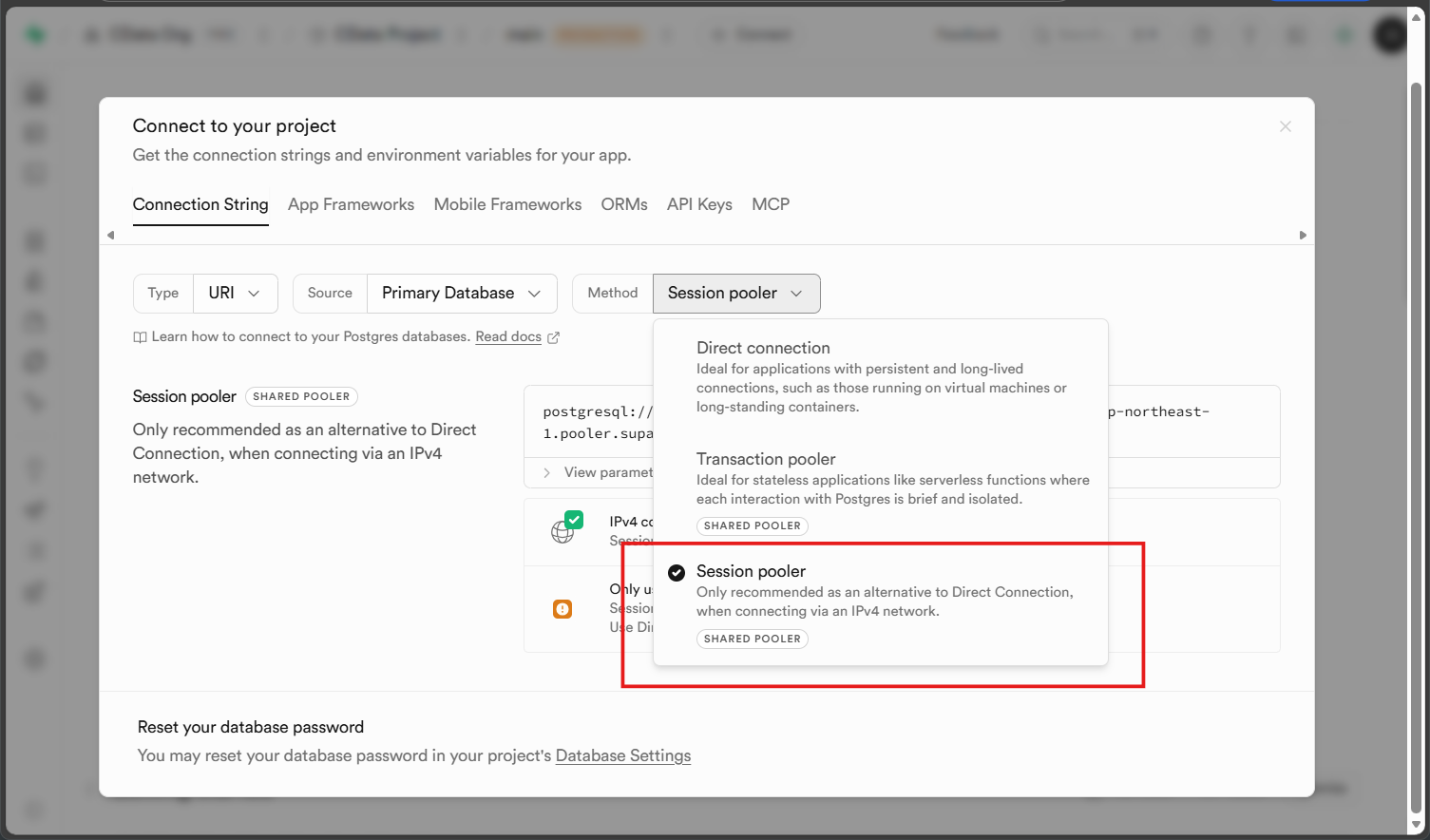
- Note the parameters displayed. You will enter these in Connect AI in the next step.
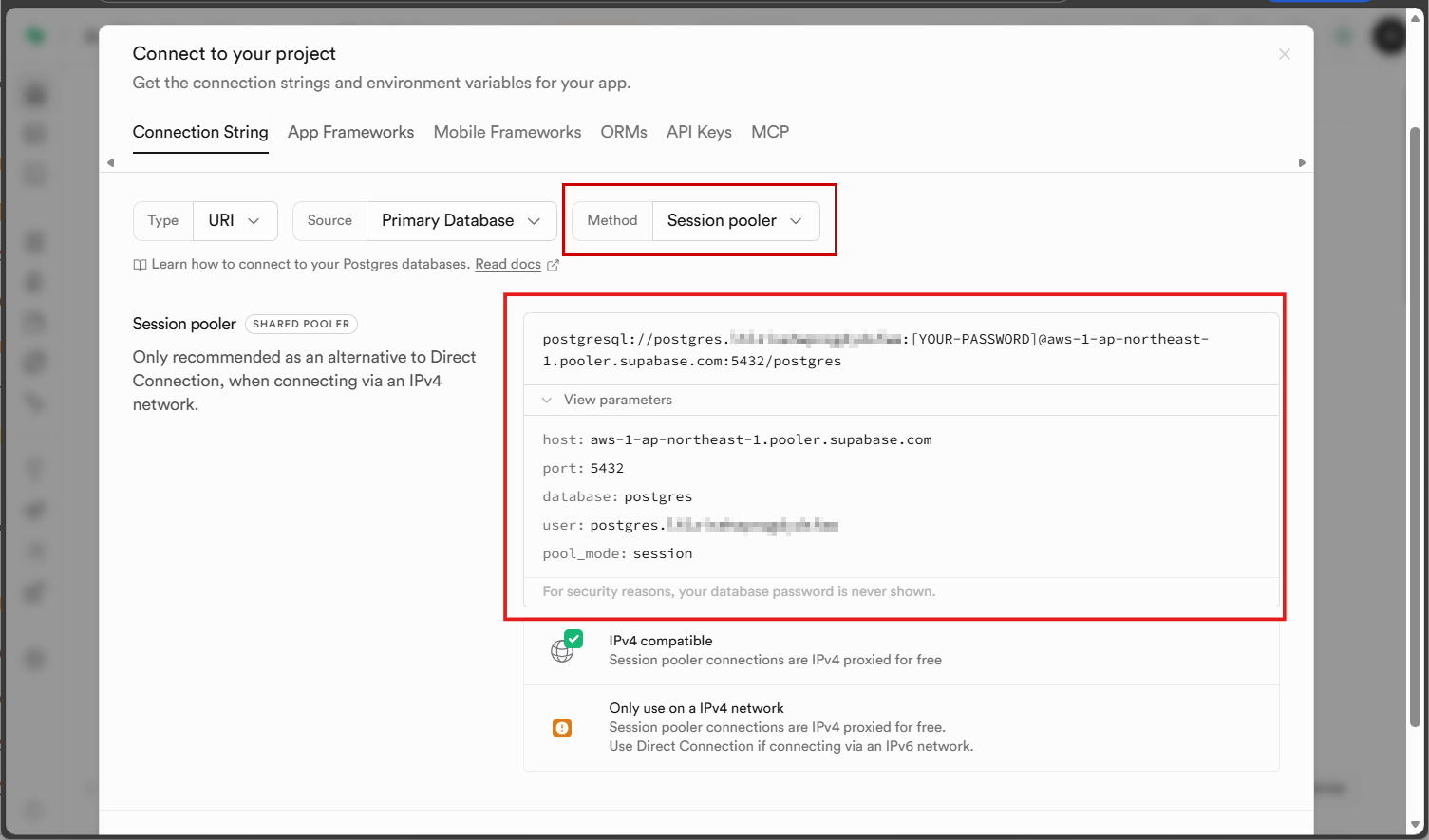
Your parameters will look like this:
| Parameter | Example Value | Notes |
|---|---|---|
| Host | aws-1-ap-northeast-1.pooler.supabase.com | Use the Session Pooler host (aws-1-...), which accepts IPv4 and is reachable from Connect AI. The direct host (aws-0-...) is IPv6-only unless you enable Supabase’s IPv4 add-on. |
| Port | 5432 | Standard PostgreSQL port. No change required. |
| Database | postgres | Supabase’s default database name. Use this unless you created a named database. |
| User | postgres.abcdefghijklmno | Format is postgres.[project-ref]. The project ref appears in your Supabase dashboard URL. |
| Password | (your database password) | Set during project creation. Reset under Project Settings > Database if needed. |
Step 2: Configure the Connection in CData Connect AI
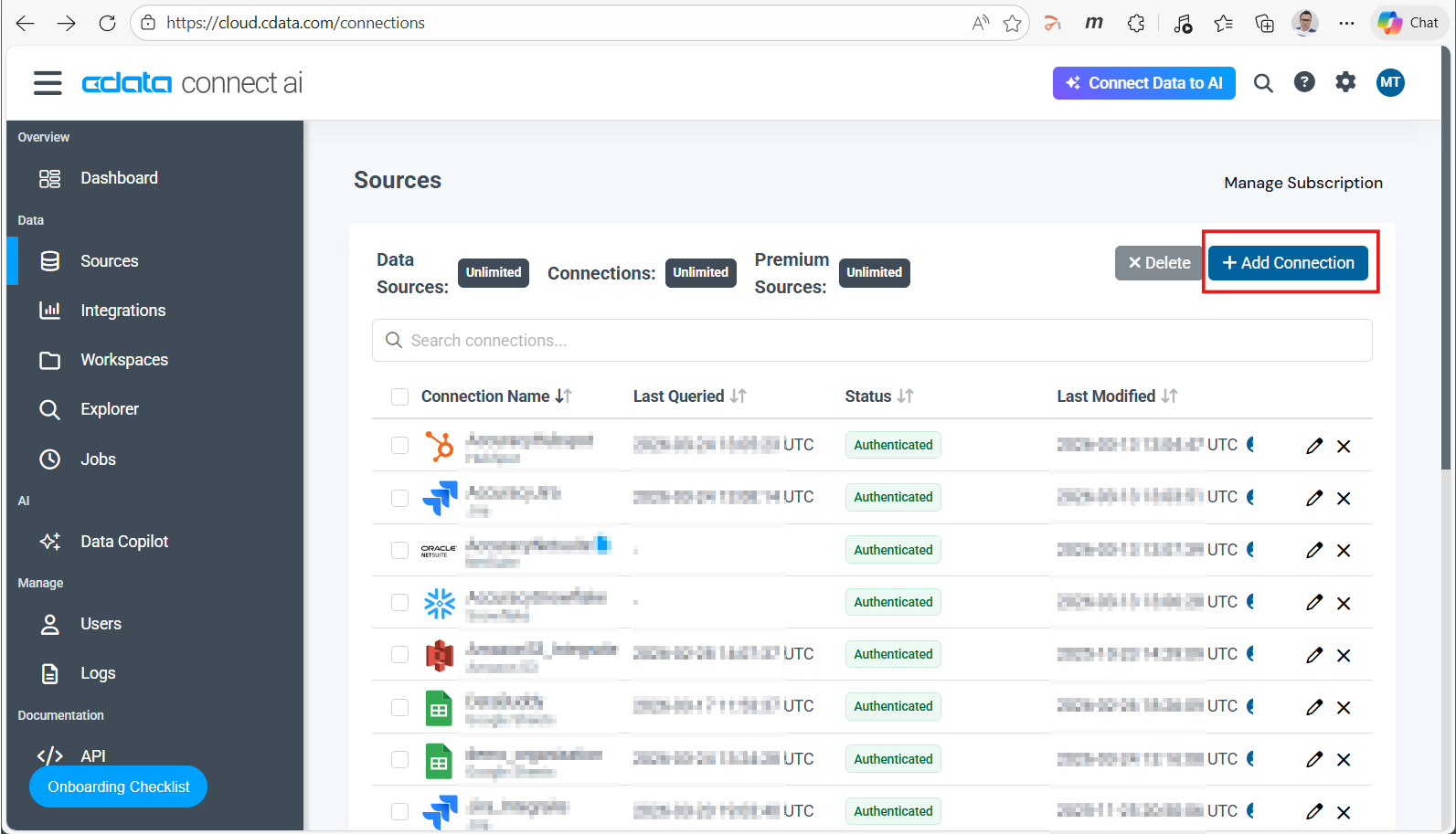
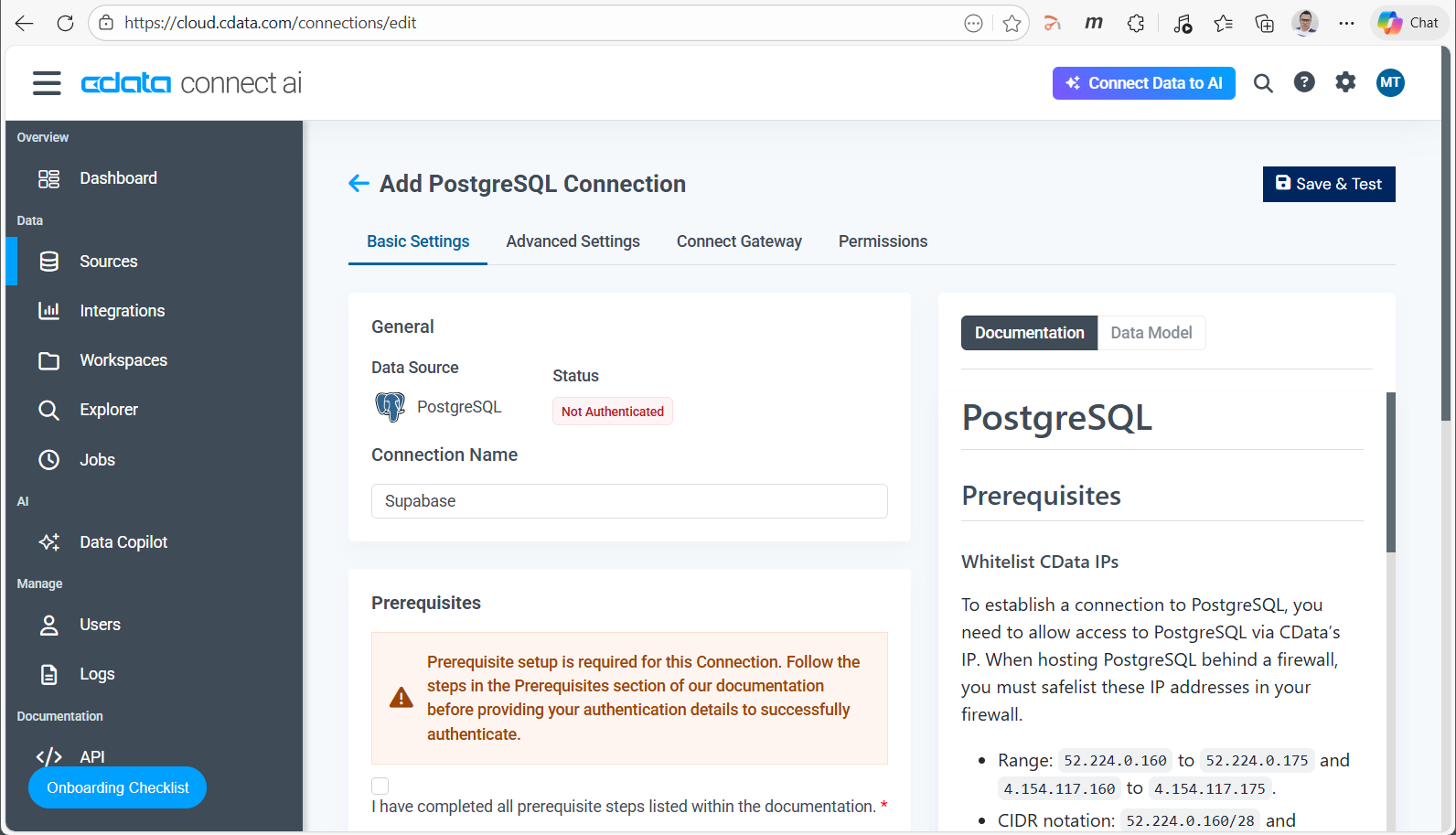
- Log in to CData Connect AI. In the left navigation, click Sources, then click + Add Connection.
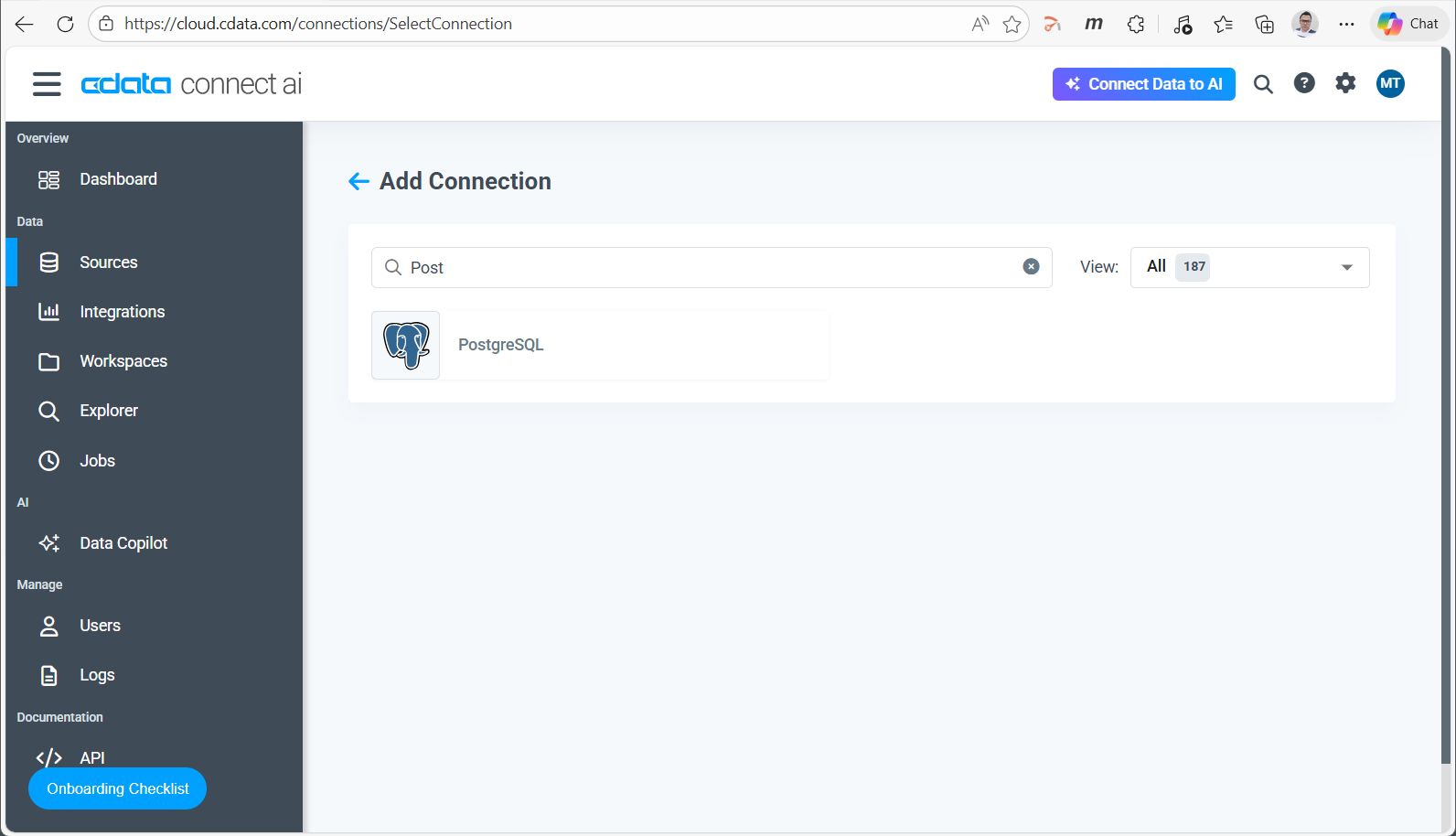
- In the search box, type Post and select PostgreSQL from the results.
- The Add PostgreSQL Connection page opens on the Basic Settings tab. Enter a name for this connection (e.g., Supabase).
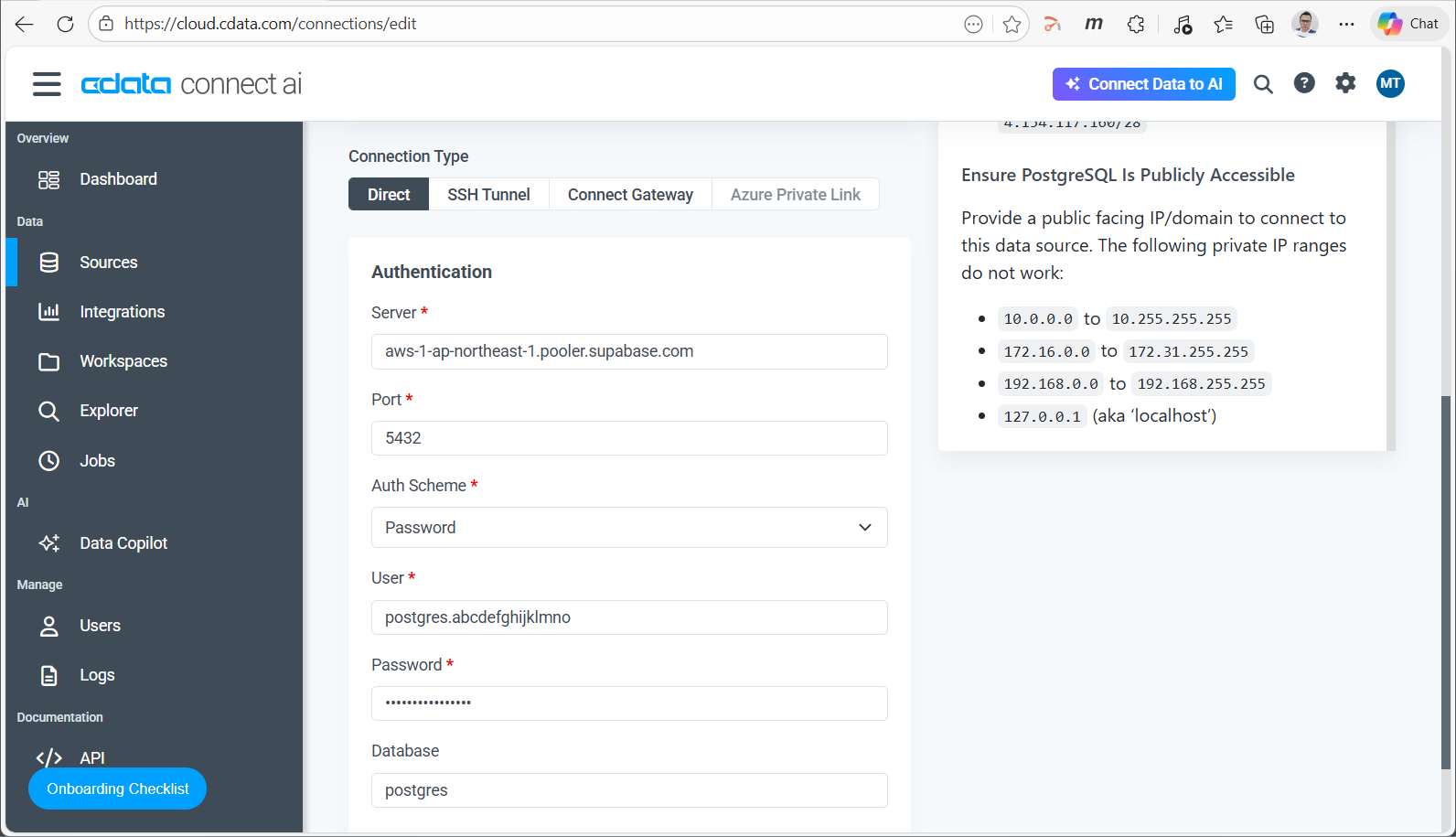
- Set Connection Type to Direct and fill in the fields from Step 1:
- Server: your Session Pooler host (e.g., aws-1-ap-northeast-1.pooler.supabase.com)
- Port: 5432
- Auth Scheme: Password
- User: postgres.[your-project-ref] (e.g., postgres.abcdefghijklmno)
- Password: your database password
- Database: postgres
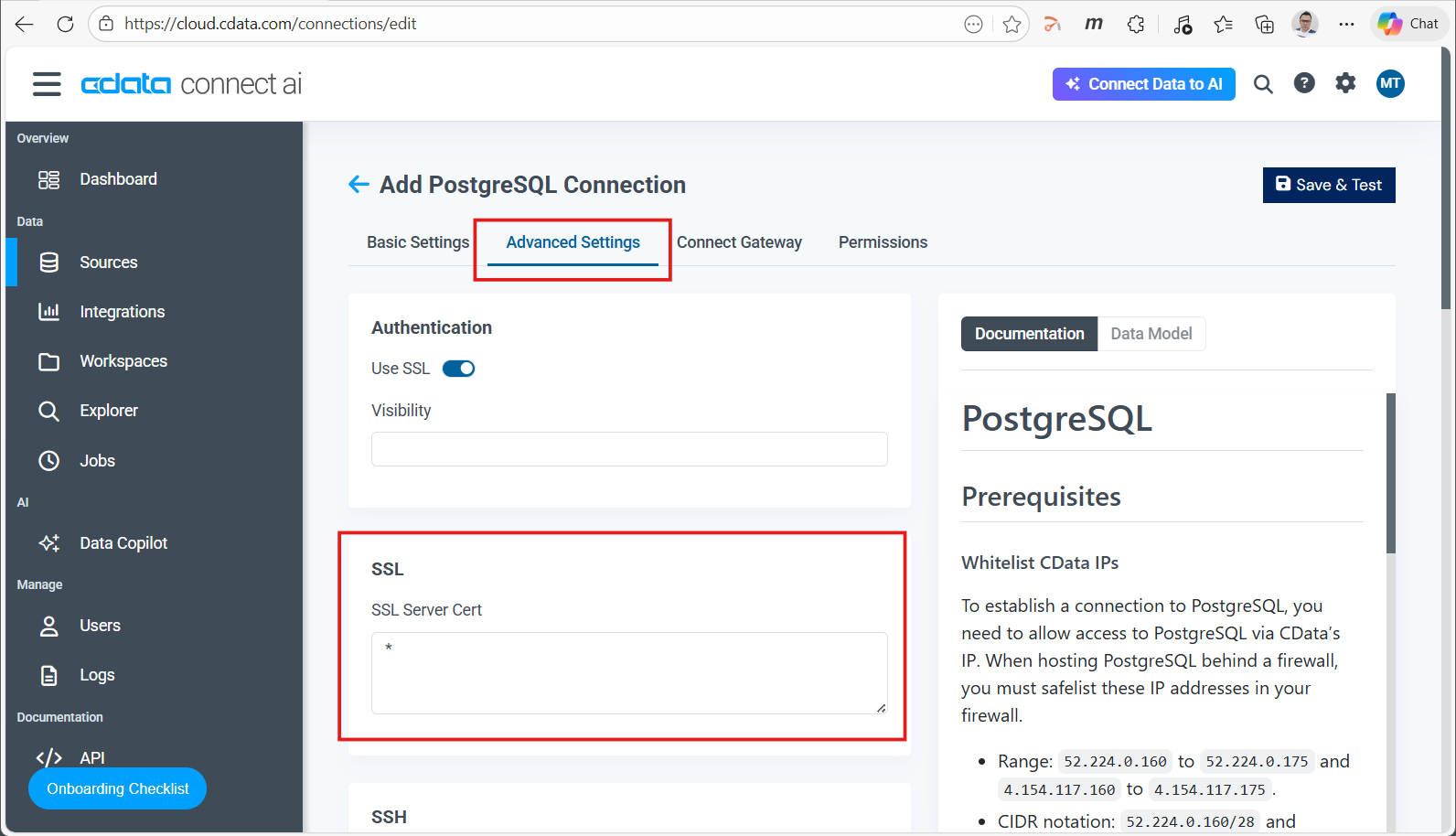
- Click the Advanced Settings tab. Under SSL, set SSL Server Cert to *.
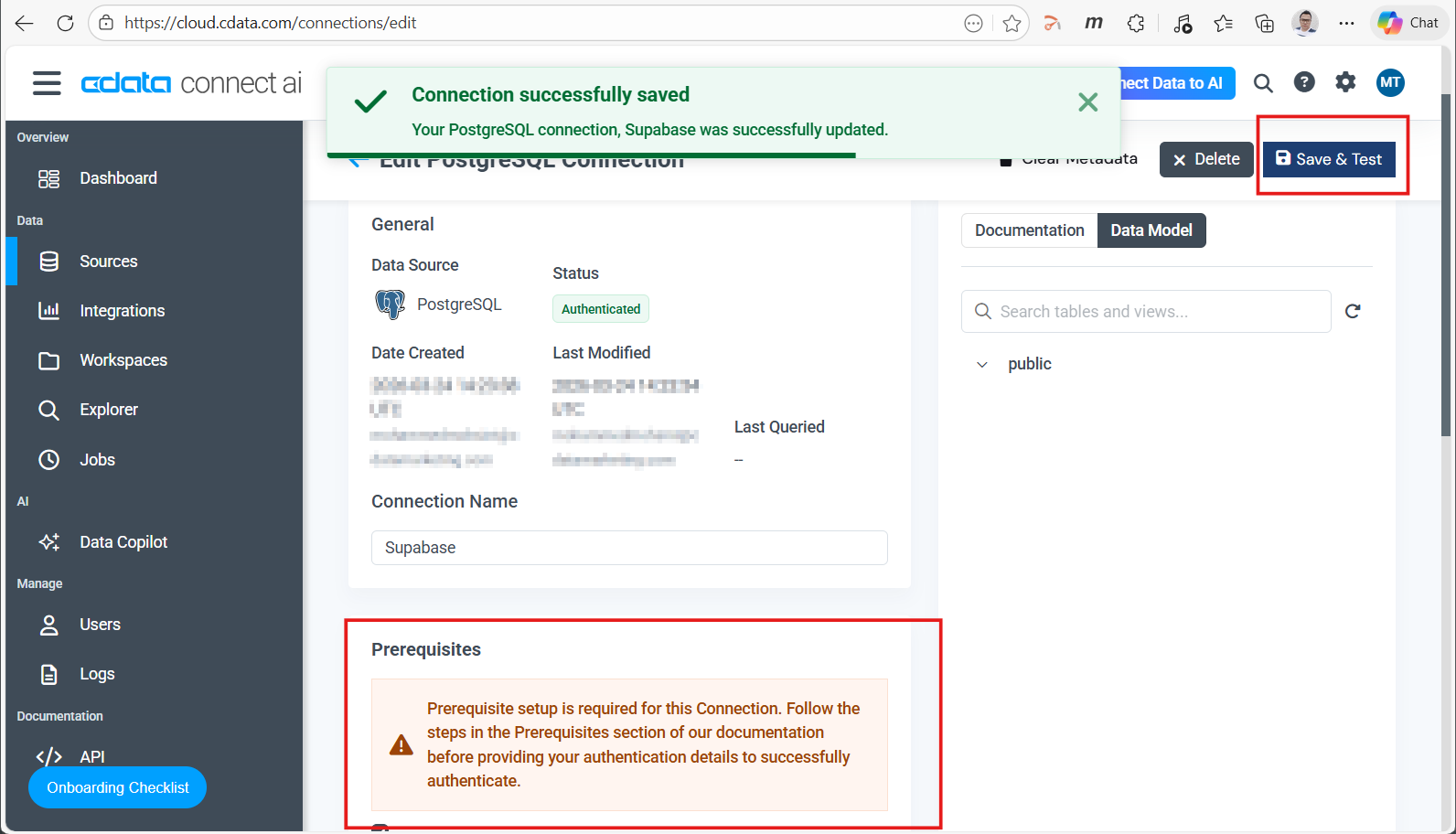
NOTE: Supabase’s pooler endpoint uses a certificate that does not match the standard hostname pattern. Setting SSL Server Cert to * tells Connect AI to accept any valid SSL certificate from the server, allowing the connection to establish successfully.
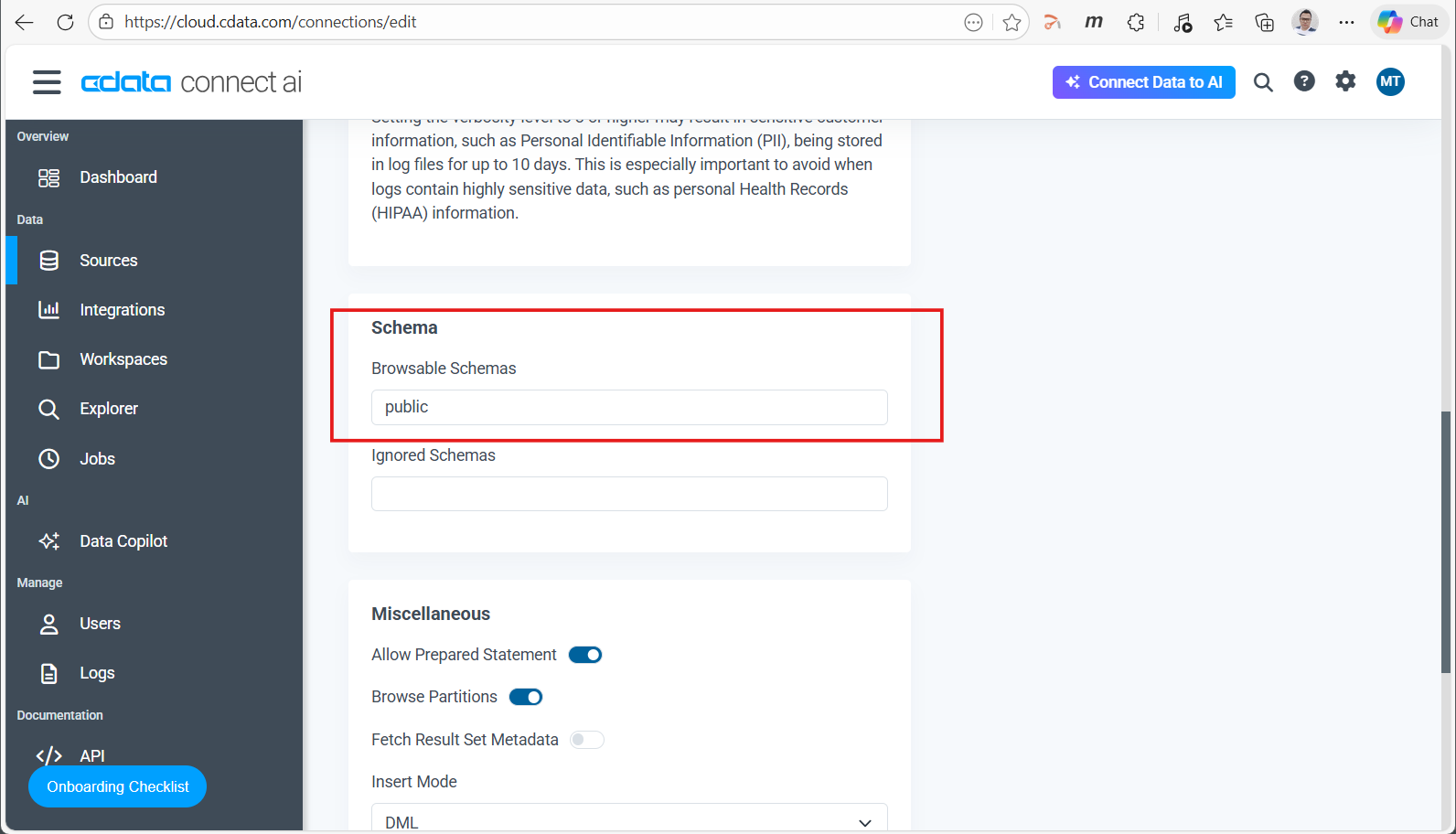
- Scroll down to the Schema section. Set Browsable Schemas to public.
NOTE: Supabase projects include several internal schemas (auth, storage, realtime, and others). Scoping to public exposes only your application data, keeping the table list clean and focused for natural language queries.
- Click Save & Test. Connect AI confirms with a “Connection successfully saved” message, the status updates to Authenticated, and the Data Model tab populates with your public schema tables.
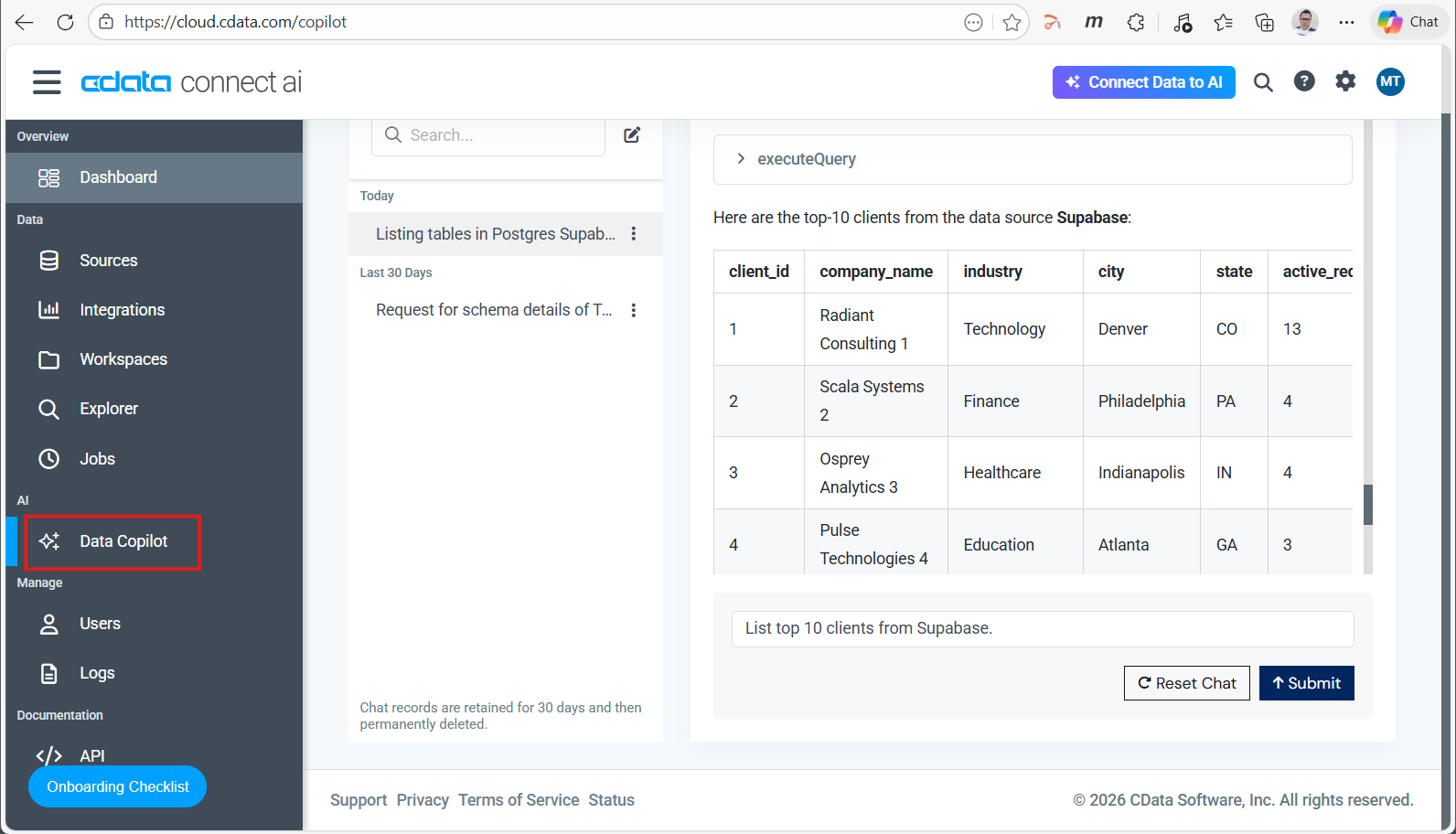
- Open Data Copilot from the left navigation and start querying—for example, “List the top 10 clients from Supabase.”
Query, Analyze, and Write Back to Supabase
With the connection in place, your Supabase data is available to every AI tool and agent in your Connect AI workspace. Here is what that enables:
- Natural language queries against live data. Ask questions like “Show me all accounts with open tickets and no activity in 30 days” and get live results from your Supabase tables—no SQL, no exports. Agents on Claude, ChatGPT, or any MCP runtime use the same connection for automated workflows.
- Write back through natural language. Connect AI supports read and write over the same connection. Instruct an agent to update a record, insert a row, or change a field value—Connect AI generates the SQL, executes it, and returns confirmation. No direct database access needed.
- Federate across other connected sources. Query Supabase alongside Salesforce, Snowflake, Google Sheets, or any other connected source in a single request—no ETL, no data movement. Results combine live data from all sources in one response.
Connect Beyond Supabase: 350+ Live Sources with Connect AI
Supabase is one connection. CData Connect AI supports 350+ data sources—SaaS platforms, relational databases, data warehouses, file systems, and more. Once connected to Supabase, adding Salesforce, Snowflake, Google Sheets, or any other source takes the same few minutes. No connectors to build, no pipelines to maintain—every source your team adds is immediately queryable through the same natural language interface.
Start your free CData Connect AI trial and connect your first source in minutes—or take a product tour to see it in action first.