





Getting Started: Custom MCP Tools in CData Connect AI
CData Connect AI exposes your data through a Remote MCP Server, allowing AI agents to discover and query any connected source. By default, agents have access to every table and a full set of built-in tools. Custom MCP Tools let you go further — defining curated, deterministic operations that agents can call by name, with exactly the parameters and behavior you specify.
Custom Tools are scoped to a Workspace, a data catalog in Connect AI that organizes a subset of your tables and views into a focused collection. By pointing an AI agent at a Workspace MCP endpoint rather than the global one, you control exactly which data and operations are available to that agent.
In this article, we'll create a Workspace over a sample Google Sheet with customer data, define two Custom Tools — one to read accounts by industry and one to insert a new support ticket — then connect Claude Desktop to the Workspace and test both tools.
Prerequisites
You need the following to follow along with this guide:
- A CData Connect AI account on the Growth plan or higher — Custom MCP Tools require a Growth or higher plan (sign up for a free trial)
- Admin user role in Connect AI — only Admins can create Custom Tools
- A Google account (if you do not have one, create one here)
- Claude Desktop installed
Overview
Here's a quick overview of the steps:
- Copy the sample Google Sheet with customer data
- Configure Google Sheets connectivity in Connect AI
- Create a Workspace and add your tables
- Create a Workspace Asset tool (read accounts by industry)
- Create a Custom SQL tool (insert a new support ticket)
- Connect Claude Desktop to the Workspace MCP endpoint and test both tools
Step 1: Copy the Sample Google Sheet
We'll start by copying a sample Google Sheet that contains customer data including accounts, opportunities, support tickets, and product usage information.
- Navigate to the sample customer health spreadsheet in your browser.
- Click File > Make a copy to save a copy to your Google Drive.
NOTE: Remember the name you give to the copy (e.g., "demo_organization"). You'll need this name when configuring the connection in Connect AI.
The spreadsheet contains four sheets with related customer data:
- account: Company information including name, industry, revenue, and employee count
- opportunity: Sales opportunities with stage, amount, probability, and close dates
- tickets: Customer support tickets with priority, status, and descriptions
- usage: Product usage metrics including job runs, records processed, and revenue data
Step 2: Configure Google Sheets Connectivity in Connect AI
Now we'll set up the connection to your Google Sheet in CData Connect AI.
Sign up or Log in to Connect AI
- Navigate to https://www.cdata.com/ai/signup/ to create a new account, or https://cloud.cdata.com/ to log in to your existing account.
- Complete the sign-up process or log in with your credentials.
Add a Google Sheets Connection
- Once logged in to Connect AI, click Sources in the left navigation menu and click Add Connection.

- Select Google Sheets from the Add Connection panel.

- In the connection configuration:
- Set the Spreadsheet property to the name of your copied Google Sheet (e.g., "demo_organization")
- Click Sign in to authenticate with Google using OAuth

- After successful authentication, navigate to the Permissions tab and configure user-based permissions as needed.

Create a Personal Access Token
A Personal Access Token (PAT) is used to authenticate Claude Desktop with your Connect AI account.
- Click the gear icon () at the top right of the Connect AI app to open Settings.
- Go to the Access Tokens section and click Create PAT.
- Give the PAT a descriptive name (e.g., "Claude Desktop") and click Create.
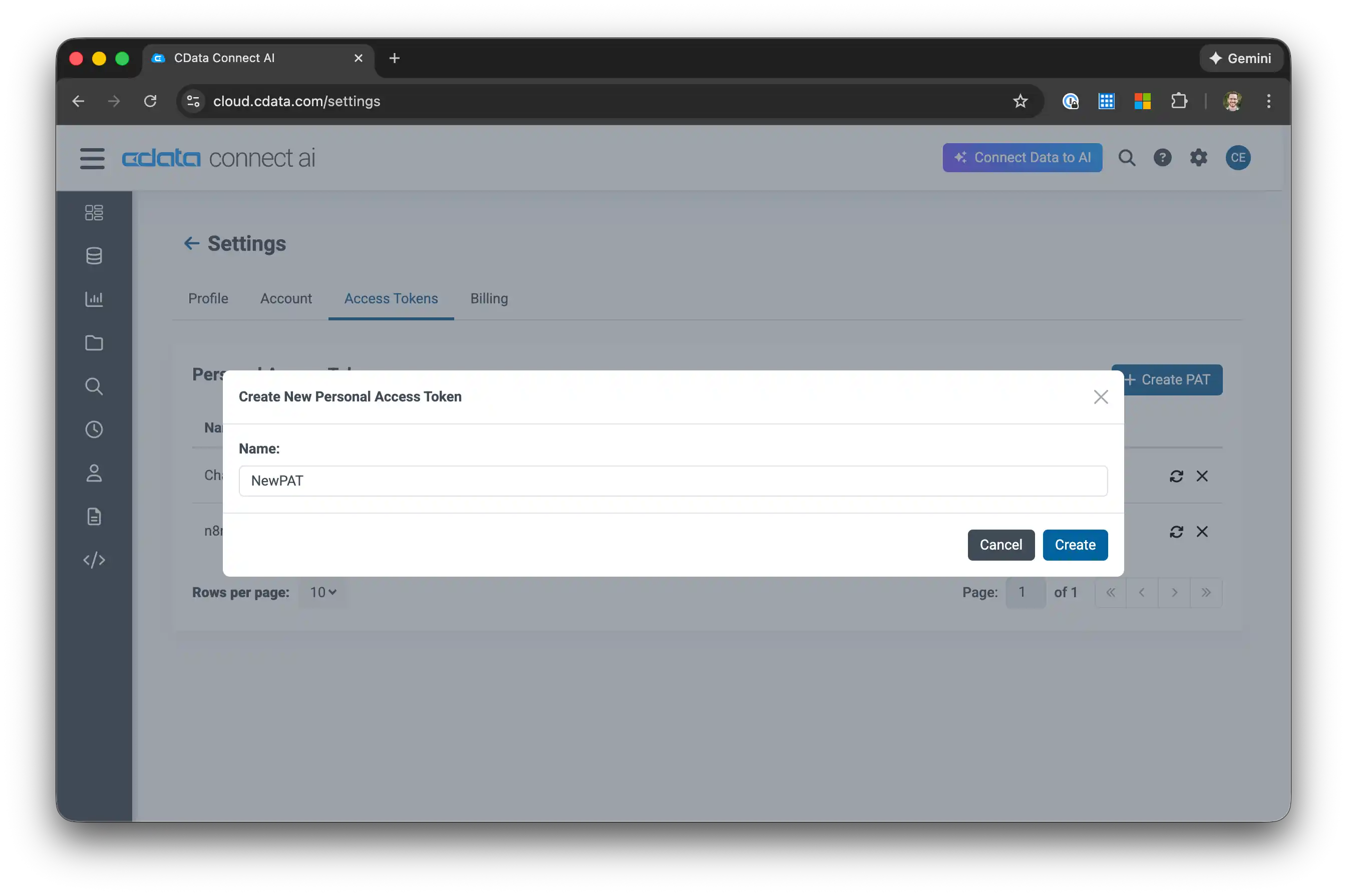
- Copy the token and store it securely — it is only shown once.
Step 3: Create a Workspace
Custom Tools are scoped to a Workspace. We'll create one and add the Google Sheets tables to it.
- In the left navigation, click Workspaces.
- Click Add in the top right.
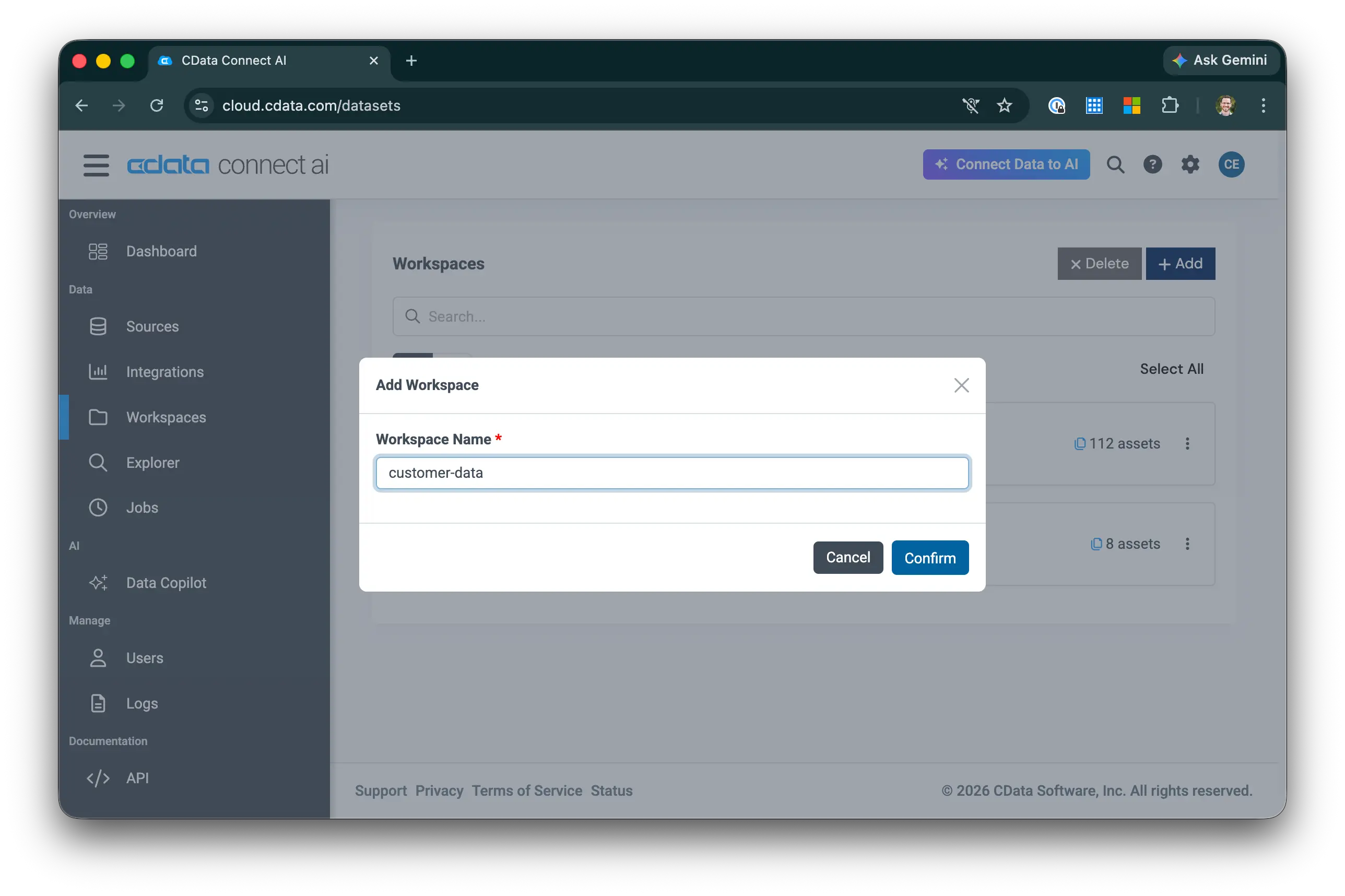
- Enter customer-data as the Workspace Name and click Confirm. NOTE: The Custom SQL tool in Step 5 uses this name — if you choose a different name, update the SQL accordingly.
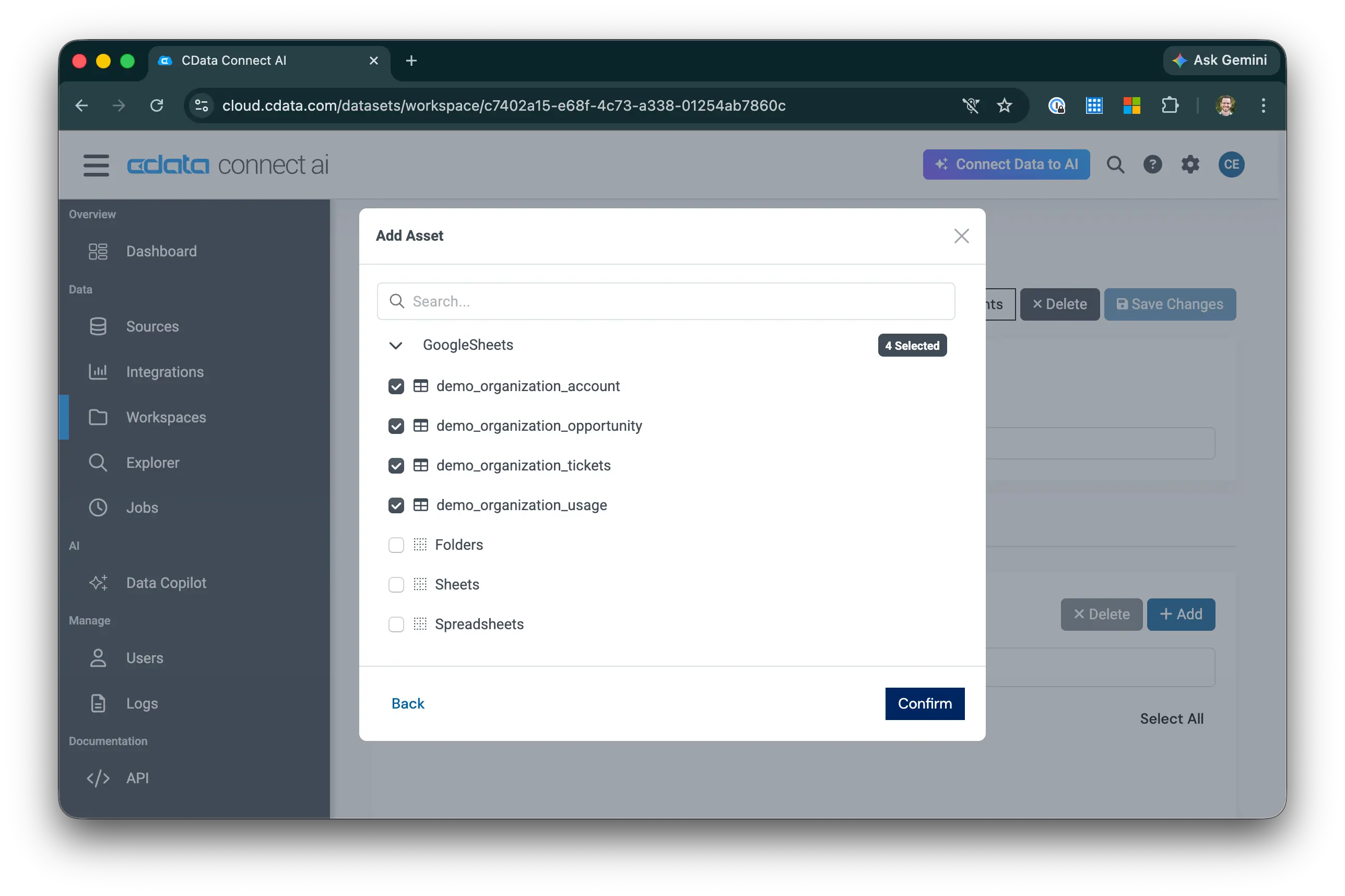
- In the Workspace, click Add Asset and select the tables you want to include — at minimum, add the account and tickets tables from your Google Sheets connection.
Step 4: Create a Workspace Asset Tool
A Workspace Asset tool exposes a built-in action (get, search, or create) on a table in your Workspace. We'll create a tool that retrieves accounts filtered by industry.
- Inside your Workspace, click the Custom Tools tab.
- Click Add and select Workspace Asset.
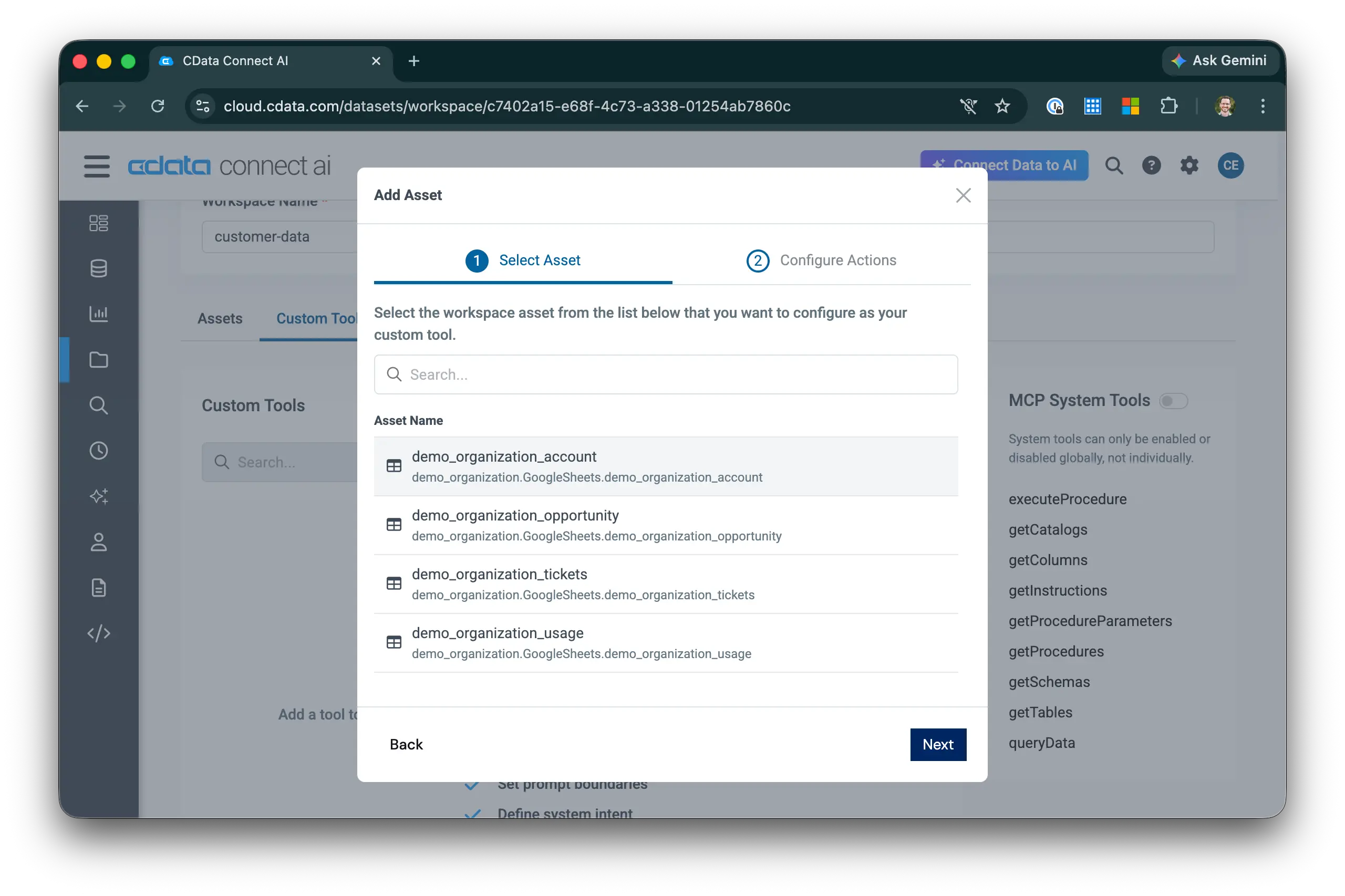
- Select the account table and choose the Get action.
- Edit the tool details:
- Tool Name: get_accounts_by_industry
- AI Instructions: "Retrieves accounts filtered by industry. Use this tool when the user asks about accounts in a specific industry."
- Set the industry parameter to Required and add a description such as "The industry to filter accounts by (e.g., Healthcare, Technology, Finance)."
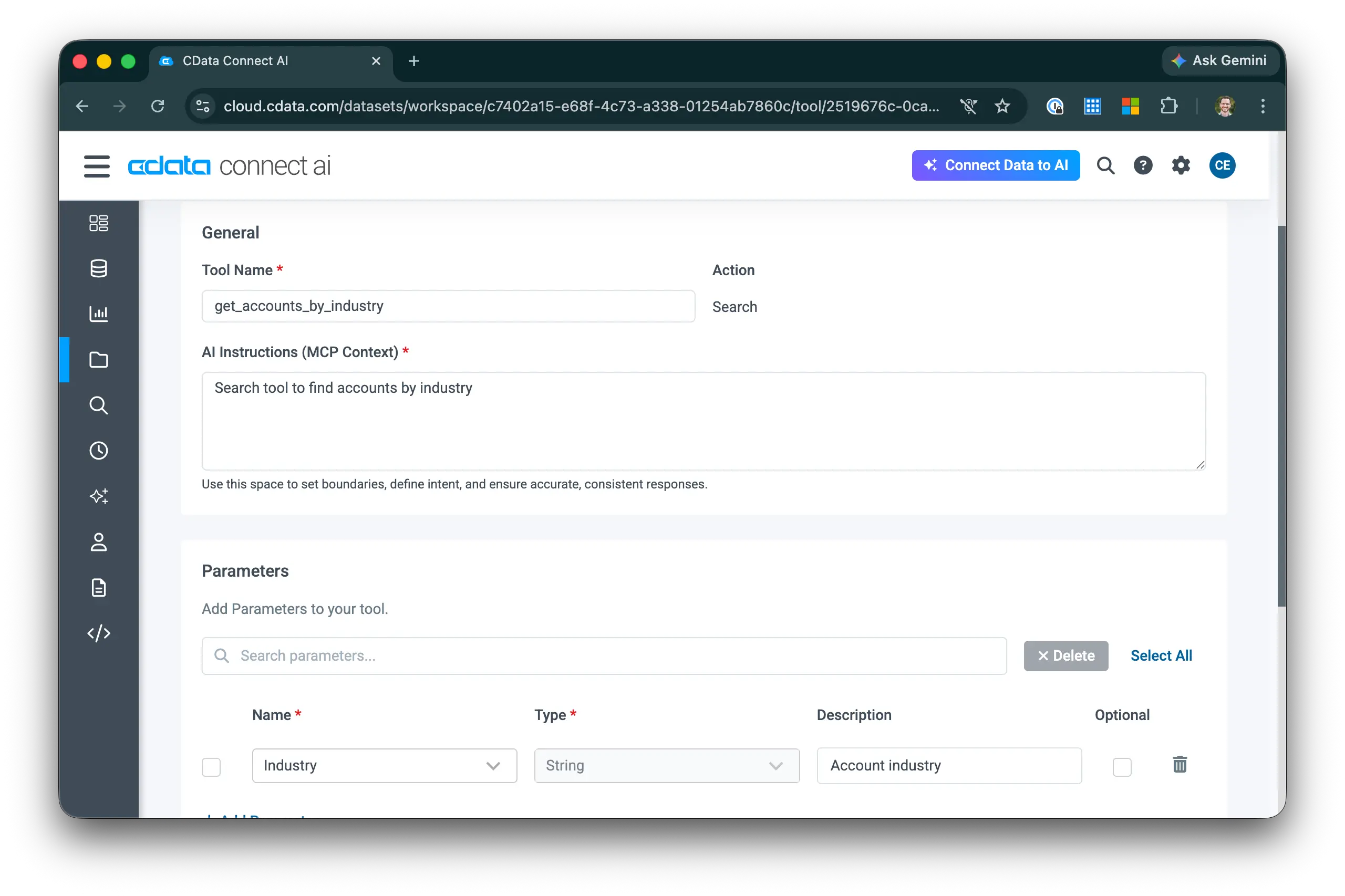
- Click Save and then toggle the tool to Enabled.
Step 5: Create a Custom SQL Tool
A Custom SQL tool executes a specific SQL statement, optionally with parameters. We'll create a tool that inserts a new support ticket into the demo_organization_tickets table.
- On the Custom Tools tab, click Add and select Custom SQL.
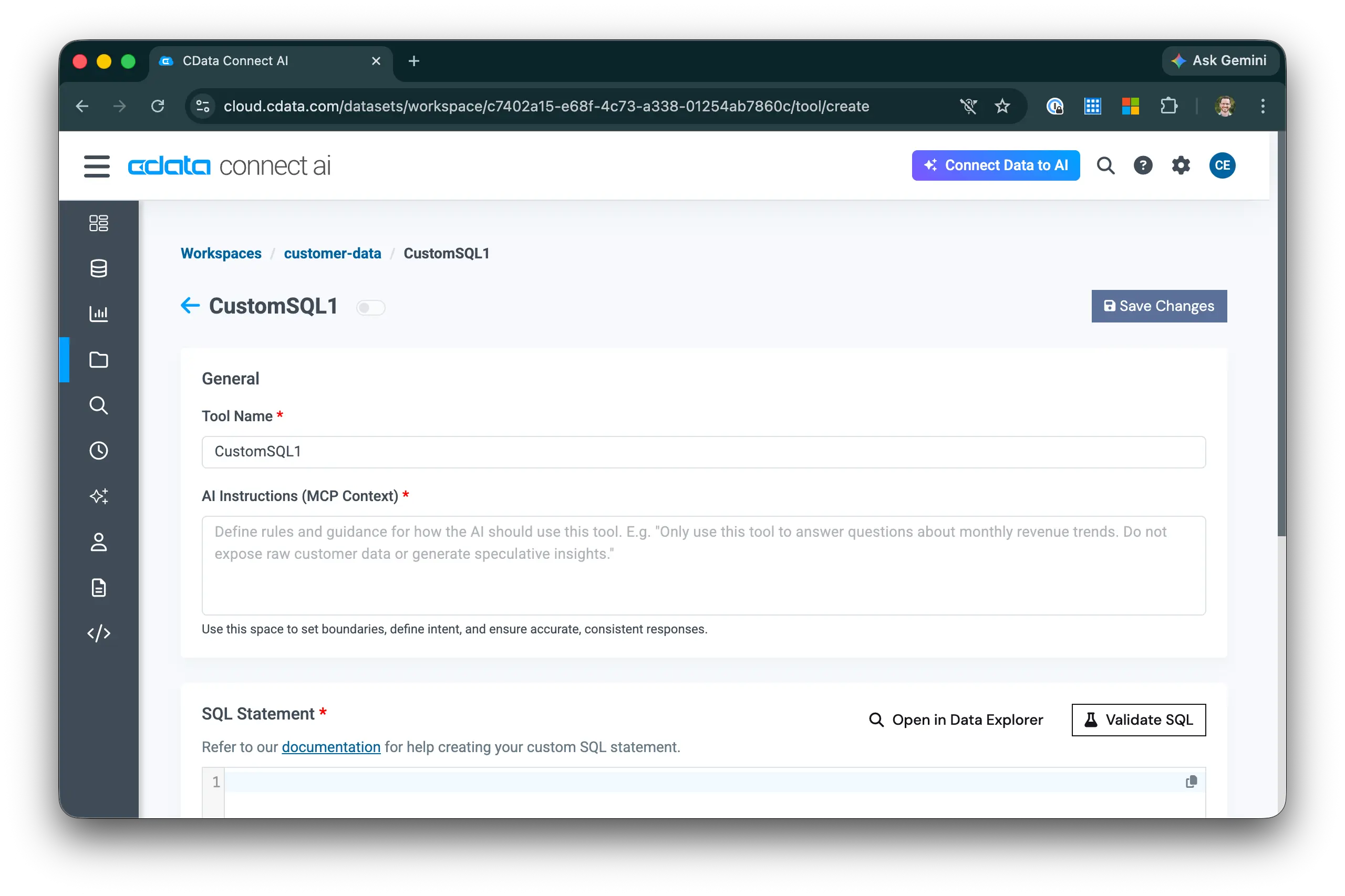
- Edit the tool details:
- Tool Name: create_support_ticket
- AI Instructions: "Creates a new support ticket. Use this tool when the user asks to open, log, or create a ticket for an account."
- Enter the following SQL statement, using @param syntax for parameters:
INSERT INTO [customer-data].[ROOT].[demo_organization_tickets]
  (AccountId, Subject, Priority, Status, Type, Description)
VALUES
  (@account_id, @subject, @priority, 'pending', 'problem', @description)
- In the parameters section, configure each parameter:
- @account_id — Required. "The Id of the account to open the ticket for. Use get_accounts_by_industry or ask for the account name first to retrieve the Id."
- @subject — Required. "A short summary of the issue."
- @priority — Required. "Ticket priority: low, normal, high, or urgent."
- @description — Optional. "A detailed description of the issue."
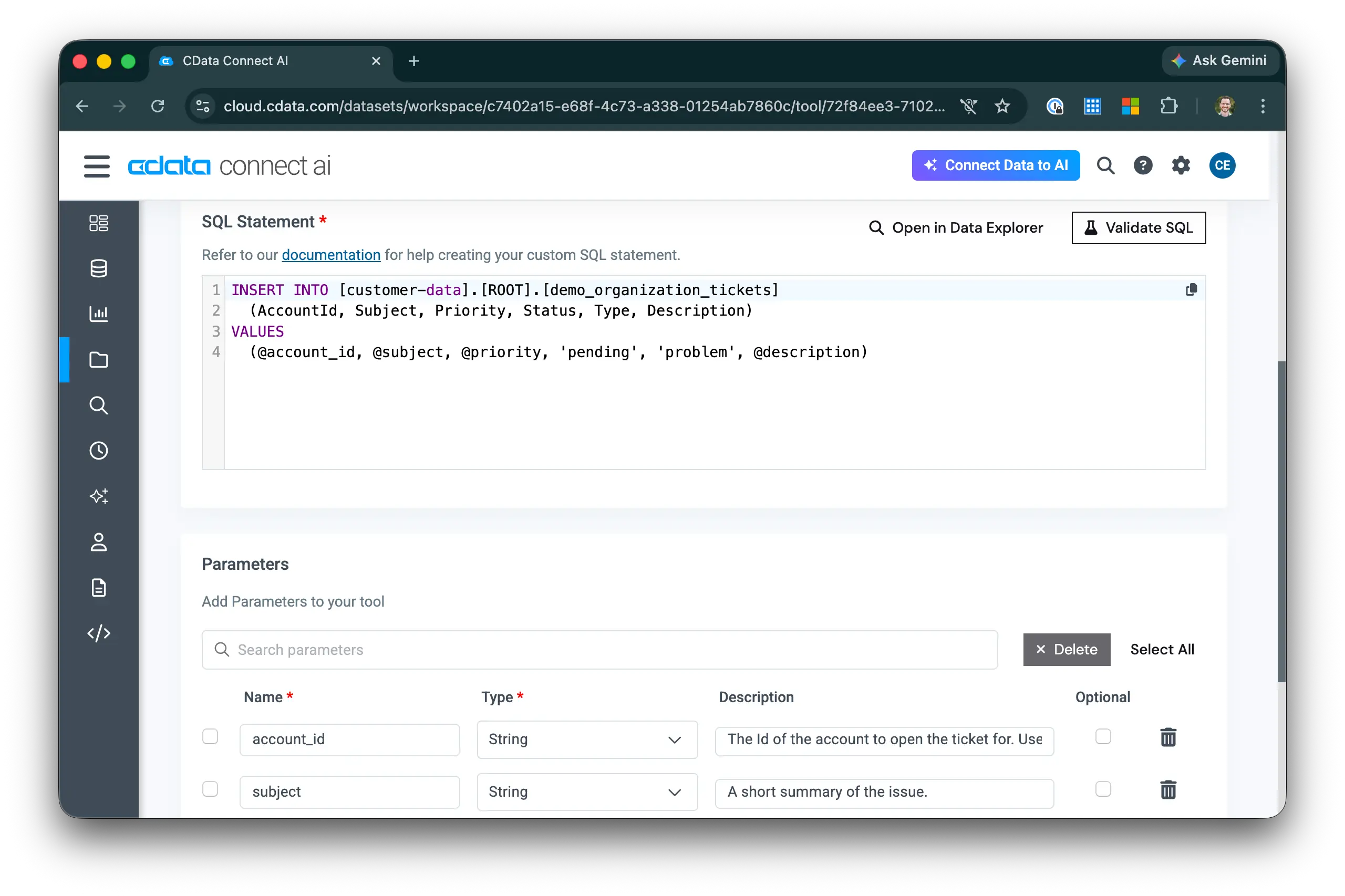
- Click Validate SQL to confirm the statement is valid, then click Save and toggle the tool to Enabled.
NOTE: The table reference [customer-data].[ROOT].[demo_organization_tickets] uses your workspace name and the name of your copied Google Sheet. Update it if you used different names.
Step 6: Connect Claude Desktop and Test Your Tools
Now we'll point Claude Desktop at the Workspace-specific MCP endpoint so it has access to your custom tools.
Get the Workspace MCP URL
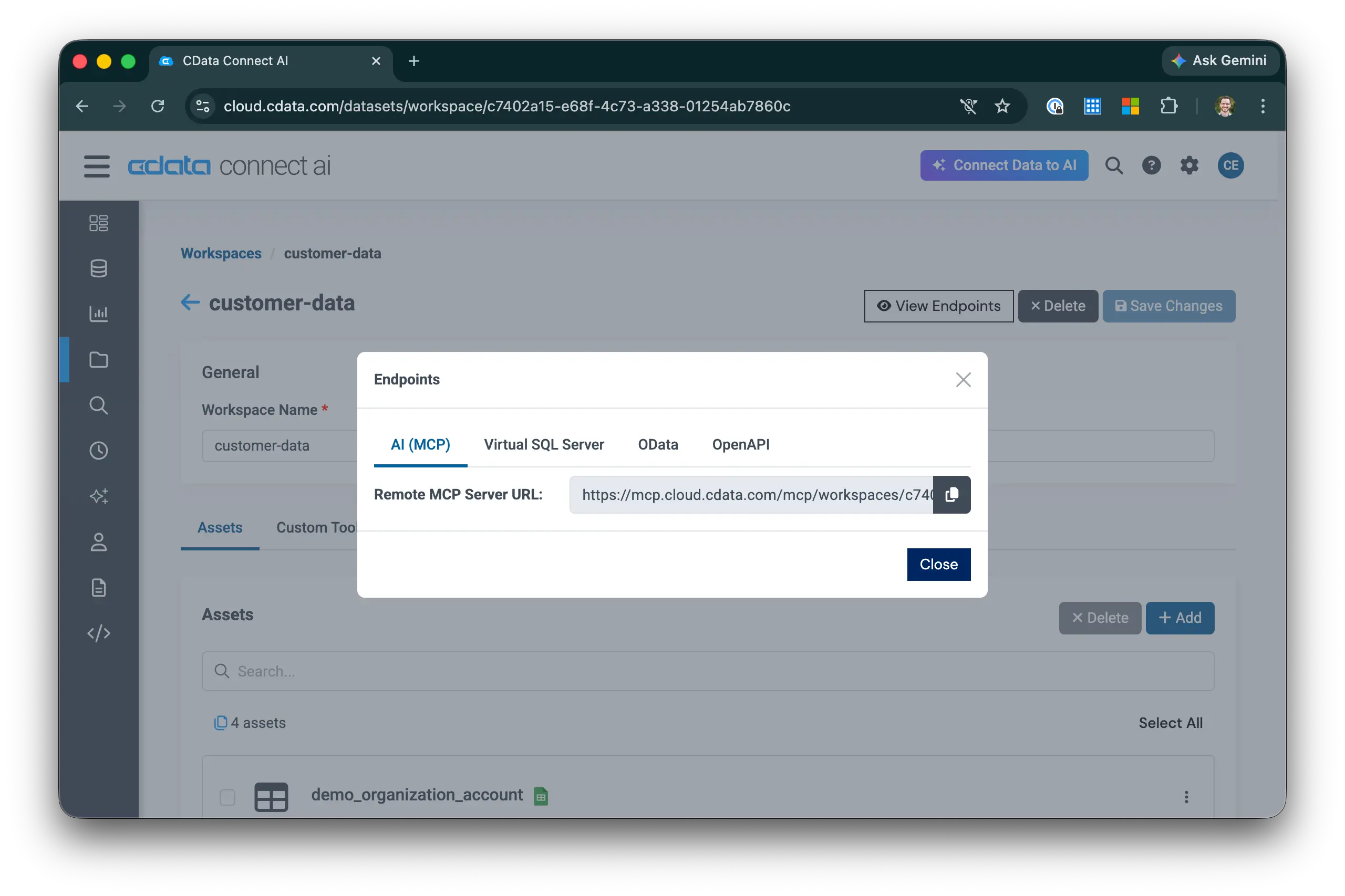
- In your Workspace, click View Endpoints.
- Copy the Remote MCP Server URL. It will look like:
https://mcp.cloud.cdata.com/mcp/workspaces/your-workspace-guid
Configure Claude Desktop
- Open your Claude Desktop configuration file:
- macOS: ~/Library/Application Support/Claude/claude_desktop_config.json
- Windows: %APPDATA%\Claude\claude_desktop_config.json
- Add the following entry under mcpServers, replacing the URL with the one you copied and providing your base64-encoded email:PAT:
{
  "mcpServers": {
    "cdata-custom-tools": {
      "type": "streamableHttp",
      "url": "https://mcp.cloud.cdata.com/mcp/workspaces/your-workspace-guid",
      "headers": {
        "Authorization": "Basic your_base64_encoded_email_PAT"
      }
    }
  }
}
NOTE: To base64-encode your credentials, run echo -n "[email protected]:your-PAT" | base64 in a terminal.
- Save the file and restart Claude Desktop.
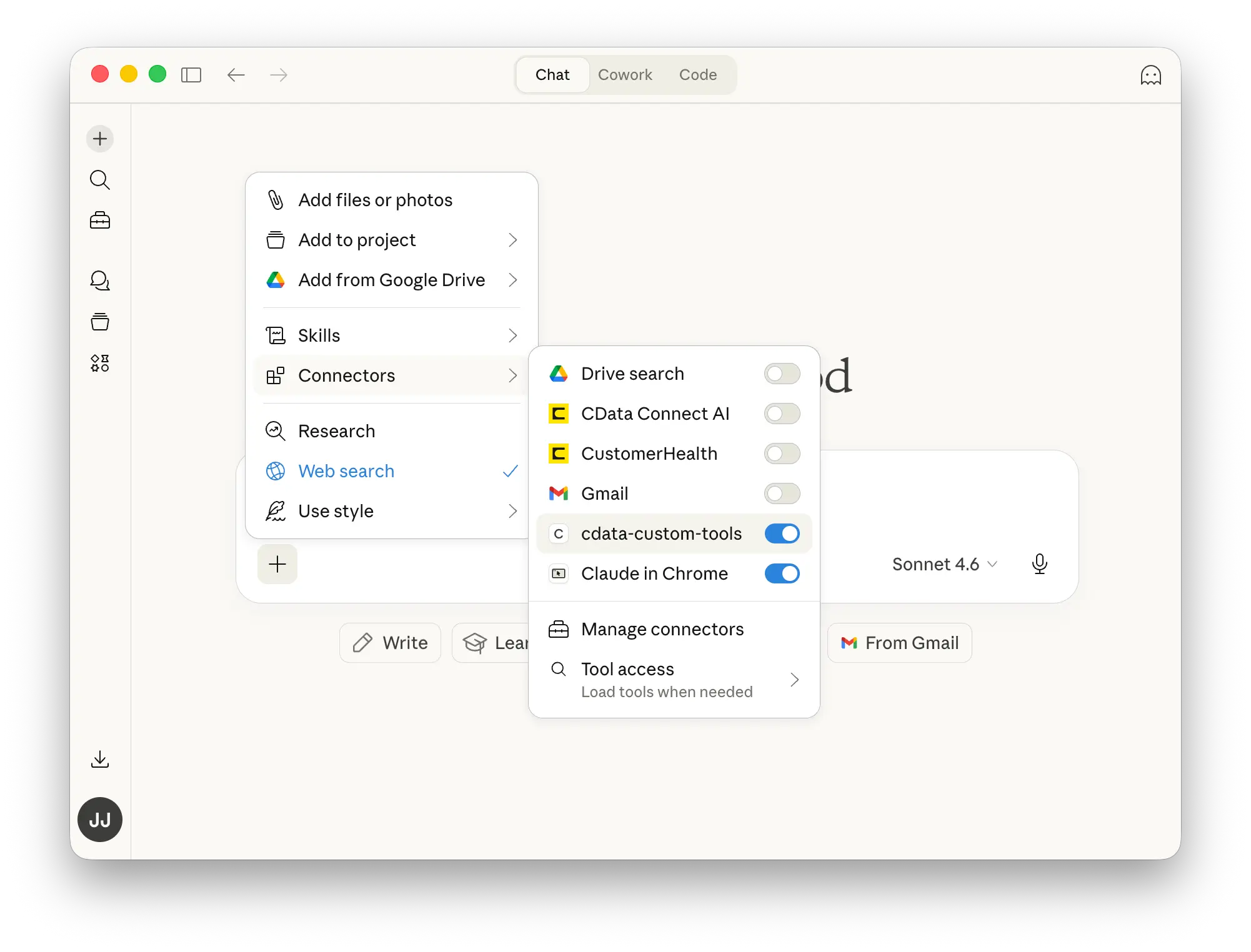
- In Claude Desktop, open a new conversation. You should see cdata-custom-tools listed as an available MCP server.
Test the Workspace Asset Tool
Ask Claude to use your read tool:
- "Get all accounts in the Healthcare industry"
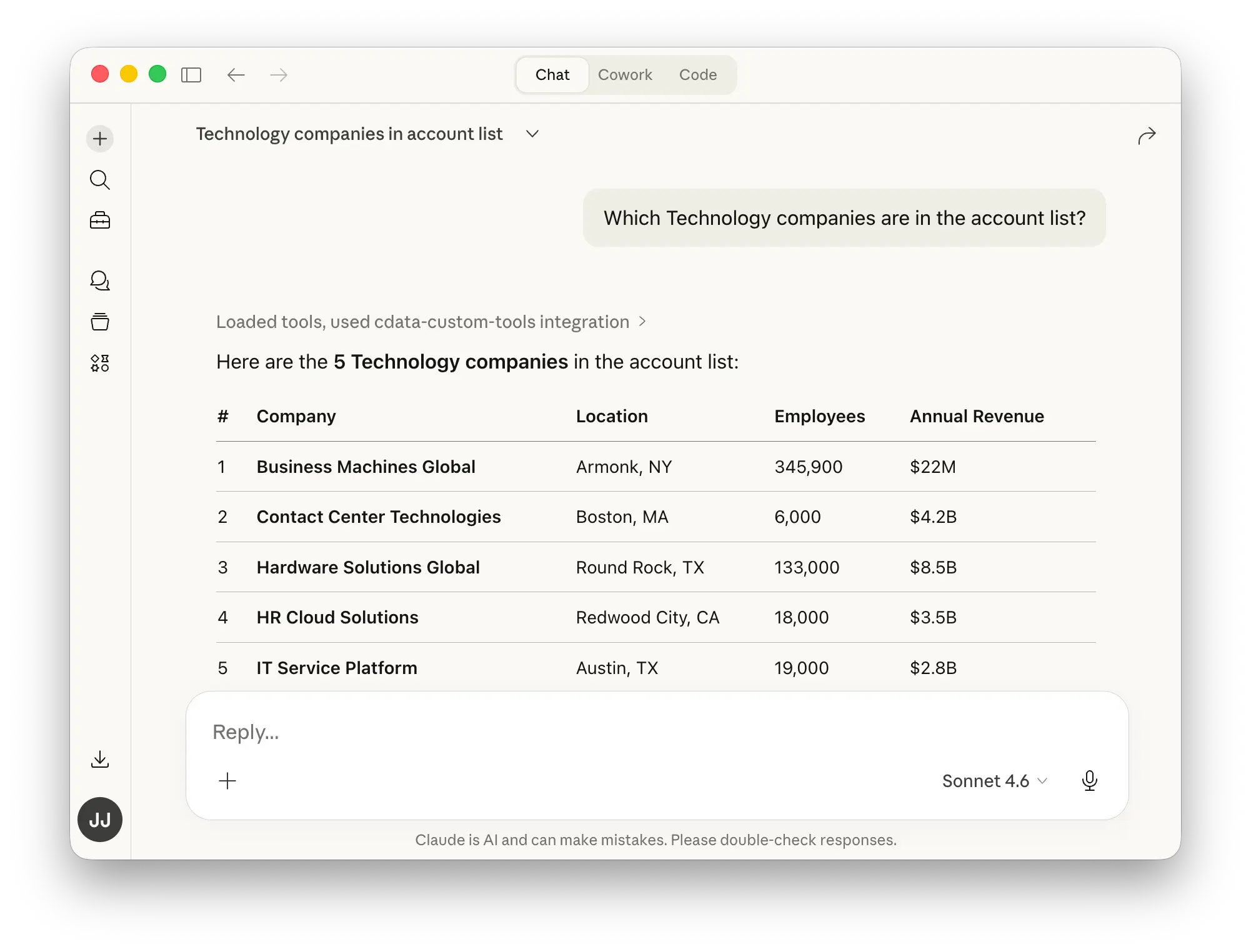
- "Which Technology companies are in the account list?"
Claude will invoke get_accounts_by_industry with the appropriate parameter and return results directly from your Google Sheet.
Test the Custom SQL Tool
Ask Claude to create a ticket:
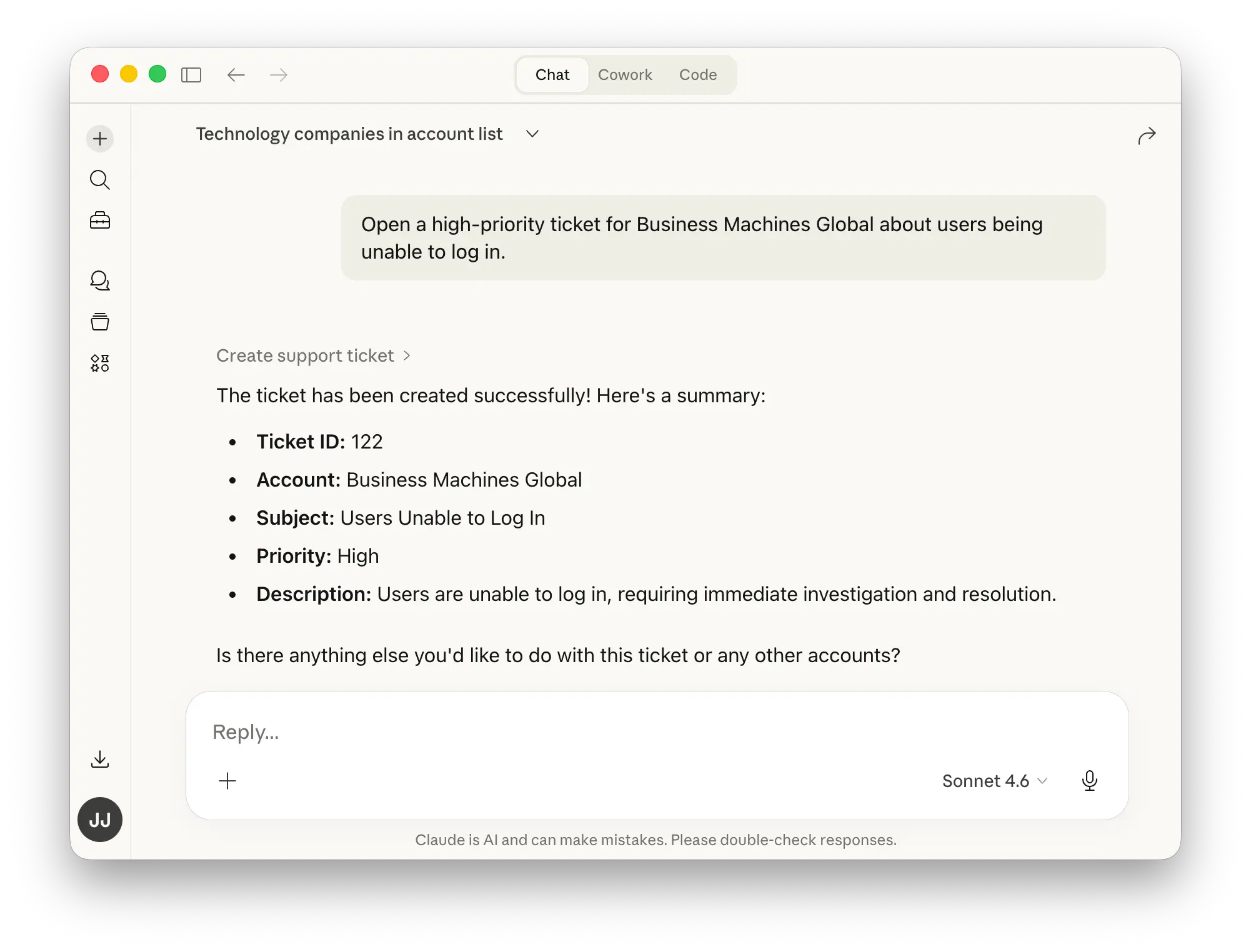
- "Open a high-priority ticket for Aurora Healthcare Systems about users being unable to log in."
Claude will first look up the Aurora Healthcare Systems account to retrieve its Id, then invoke create_support_ticket with the Id, subject, priority, and description as parameters. You can verify the new row by opening your Google Sheet.
Next Steps
Now that you have Custom MCP Tools configured, you can:
- Add more Custom SQL tools for other write operations (updates, deletes) with appropriate guardrails
- Replace the sample Google Sheet with a production data source such as Salesforce, Zendesk, or Snowflake
- Create multiple Workspaces with different tool sets for different teams or use cases
- Connect other MCP-compatible AI clients — such as Cursor or ChatGPT — to the same Workspace endpoint
Get Started with CData Connect AI
To get live data access to 300+ SaaS, Big Data, and NoSQL sources directly from your AI applications, try CData Connect AI today!