





How to Benchmark an MCP Gateway on Tokens and Effort Per Correct Answer with CData Connect AI Gateway
A cost-per-token budget cannot tell you how many tokens a correct answer takes, or how much work a model had to do to get there. The gateway an AI agent reaches enterprise data through turns out to decide both. This guide reproduces the benchmark behind the CData Labs whitepaper Serving Context to Probabilistic Agents: Correct Answers with 93% Fewer Tokens. It runs the same 27 AI models, with the same business context, through two gateways (CData Connect AI Gateway and an open-source MCP gateway) on the same three account-health tasks against a CRM, a cloud data warehouse, and an IT service management (ITSM) system.
We released the full benchmark on GitHub so you can verify the headline numbers, or run the same harness against your own connections and models. This guide walks through cloning the kit, standing up both gateways against synthetic data that mirrors a real CRM, warehouse, and ITSM deployment, running the matrix, and reading your results. It then explains how the harness scores each run and how it is built.
The published benchmark measured the tokens, tool calls, and cost behind each correct answer. The numbers below are what this guide reproduces:
| Metric | Connect AI Gateway | Open-source MCP gateway |
|---|---|---|
| Median tokens to the same correct answer (model-and-task pairs both gateways solved) | 83K (93% fewer) | 1.2M |
| Median tool calls to the same correct answer (model-and-task pairs both gateways solved) | 8 (a tenth) | 88 |
| Median tokens per run, across all runs | 87K | 914K |
| Median tool calls per run, across all runs | 8 | 47 |
| Cost per correct, governed task, all 27 models | $0.26 | $5.67 (21x higher) |
| Tasks completed correctly | 83% | 36% |
| Economy-tier models, success rate | 78% | 17% |
| Economy-tier models, cost per correct task | $0.06 | $1.48 |
| Confidently wrong read answers | 7% | 27% |
| Unauthorized or duplicate writes | 10% (5 models) | 29% (17 models) |
NOTE: Every number above is already committed to the repo. If you only want to verify them, skip ahead to Step 5, "Read your results," and run python3 charts.py directly. No API calls, no Connect AI account, and no source connections are needed for that path.
Prerequisites
To reproduce both gateway conditions, you need:
- A CData Connect AI account (free trial)
- A CRM, a cloud data warehouse, and an ITSM system. Any source works for the Connect AI Gateway condition alone; the open-source-gateway condition also needs each one's own native MCP server (see the note in Step 2.2 if you only want the Connect AI Gateway side)
- Docker, to run an open-source MCP gateway. This guide uses LiteLLM as the worked example; Higress and IBM's ContextForge MCP Gateway are two other open-source options (see Step 3 for what changes if you pick one of those instead)
- Python 3.10+ (download) and Git (download)
- A bash shell (macOS, Linux, or WSL on Windows) for the commands in this guide
- API keys for the model providers you want to test (Anthropic, OpenAI, Google, xAI, Together.ai, Mistral). Scope a run to the keys you have with --model
Overview
The benchmark runs in five steps:
- Clone the kit and install dependencies
- Load the synthetic data, create three Connect AI connections, and add the shared context entries
- Stand up the open-source MCP gateway and its three MCP servers, and load its context
- Grant permissions, verify, and run the benchmark matrix
- Read your results
Step 1: Clone the kit and install
- Clone the repository and install dependencies:
git clone https://github.com/CDataSoftware/connect-ai-gateway-benchmark.git
cd connect-ai-gateway-benchmark
pip install -r requirements.txt
cp .env.example .env
Only one entry point spends money: run_matrix.py, the model-calling orchestrator, and it is fully resumable. Everything else is free: make_goldens.py recomputes the goldens from the frozen source CSVs and self-checks against the published R1 golden, and aggregate.py, export_raw.py, and charts.py recompute every score from the committed run artifacts.
Step 2: Data, Connect AI connections, and context
The benchmark runs against a frozen, fully synthetic dataset modeling about 1,200 accounts across three systems with divergent join keys, so the tasks require real cross-source reconciliation rather than a single lookup. No real customer information is included.
2.1. Create three connections in Connect AI
Click Sources in the left navigation, then + Add Connection in the upper right. This opens the connector gallery. Search for your CRM, warehouse, and ITSM connectors and follow each one's connection wizard.
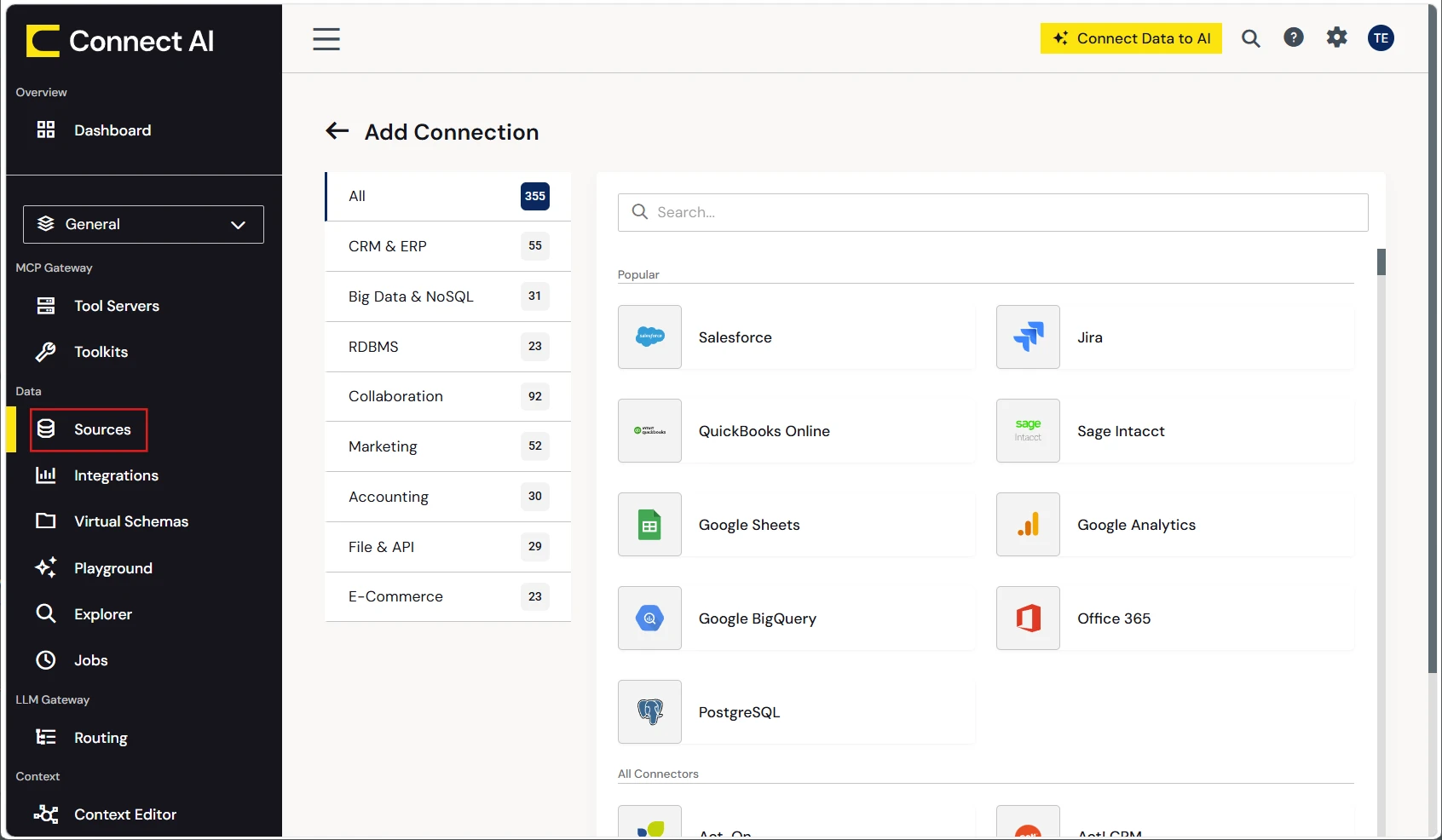
Create exactly these three connections. The context entries, prompts, and verifier all refer to them by name:
| Connection name | Source | Tables used |
|---|---|---|
| Salesforce_CRM | The CRM (for example, Salesforce) | Account (ten custom fields, see Step 2.2), Contact |
| Snowflake_WH | The cloud data warehouse (for example, Snowflake), database BENCHMARK_WH, schema WH_DATA | DIM_ACCOUNT TELEMETRY_EVENTS REVIEW_QUEUE |
| ServiceNow_ITSM | The ITSM system (for example, ServiceNow) | u_bm_incident u_bm_company |
These three names are just labels the context entries and verifier expect, so keep them even if the sources behind them differ from the published ones. Point the warehouse connection at database BENCHMARK_WH, schema WH_DATA specifically; an unscoped connection lists every table in the account, which inflates token counts and breaks comparability with the published numbers.
2.2. Create the warehouse schema and load the data
- Run setup/data/warehouse_tables.sql against your warehouse. It creates BENCHMARK_WH.WH_DATA with DIM_ACCOUNT, TELEMETRY_EVENTS, and the REVIEW_QUEUE write target. Run it before the open-source gateway's warehouse MCP scripts in Step 3, which grant rights on REVIEW_QUEUE.
- Create the CRM's ten custom fields on Account (the field list is in data-loader/load_crm.py) and grant field-level security to the user Connect AI authenticates as.
- Create the ITSM system's two custom tables, u_bm_company and u_bm_incident, or let data-loader/load_itsm.py create them for you.
- Load the six CSVs in synthetic-data/ through Connect AI's REST Query API: python load_warehouse.py, python load_itsm.py, python load_crm.py (see data-loader/README.md). Each script checks for existing rows first, so a partial failure is safe to re-run. The CRM org must hold only the dataset's 1,200 accounts; remove any sample accounts it was created with.
NOTE: If you only want to see Connect AI Gateway's side working, not the full gateway-vs-gateway comparison, data-loader/README.md's Option A loads the same six CSVs into three Google Sheets workbooks instead. An AI coding assistant with Connect AI's Management MCP endpoint configured can automate that end to end. It changes the connections' real table and field names enough that the context entries need rewriting, so results won't be comparable to the published ones, and it cannot reproduce the open-source-gateway condition at all, since that needs the real warehouse and CRM MCP servers from Step 3. Use it only to confirm your own setup runs, not to reproduce the benchmark.
2.3. Add the shared context entries
Both gateways carry the same three layers of context. On Connect AI Gateway, these live as shared context entries, retrieved on demand through search_context:
| Layer | What it covers | Entries |
|---|---|---|
| System context | Schemas, objects, and how records join | Seven dataset entries: dataset_account.md dataset_contact.md dataset_dim_account.md dataset_telemetry_events.md dataset_review_queue.md dataset_u_bm_incident.md dataset_u_bm_company.md |
| Semantic definitions | Metric definitions and business terminology | account_health_score_rules.md account_usage_trend.md |
| Company knowledge | How to query across the three systems: join keys, date handling, which SQL works and which fails | cross_connection_query_rules.md |
Add each of the ten files in setup/connect_ai_gateway/context/ as its own entry, with the text exactly as written.
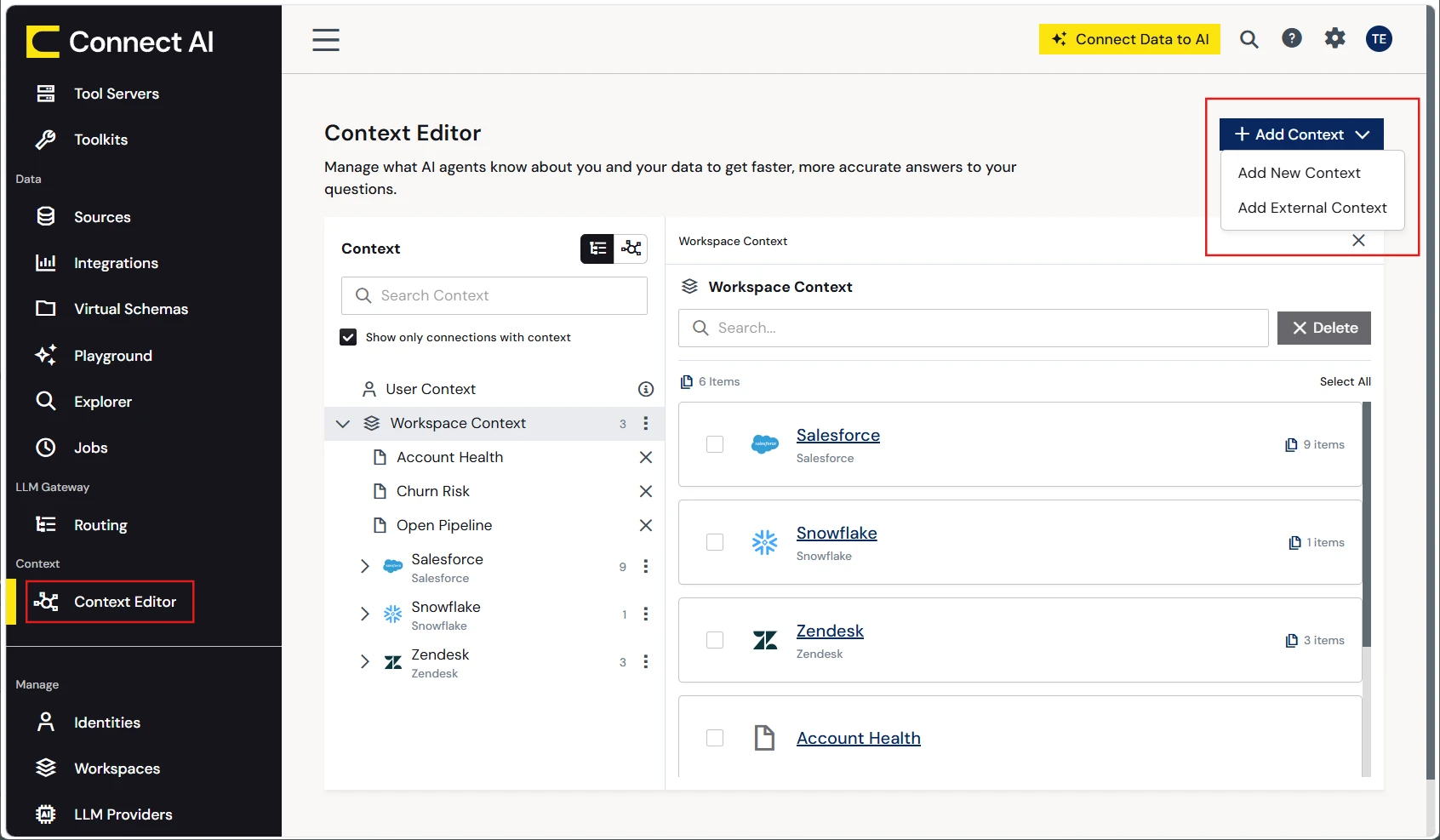
- In Connect AI, open the Context Editor and click Global Context in the left pane.
- Click the list view icon, then + Add Context › Add New Context.
- Pick the matching connection from Step 2.1 (or Global Context for an entry that should apply everywhere), then name the entry.
- Paste the file's full content, front matter (type, title, semanticType, synonyms) and body alike, into the template that opens, then click Save.
Here is an abridged account_health_score_rules.md, so you can see the shape of what gets pasted. Paste the full file from the repo, which also lists where each input lives, the eligibility-reason order, and a cross-connection query note:
---
type: glossary
title: Account health score rules
semanticType: business_rule
synonyms:
  - account health
  - account health score
  - at-risk accounts
  - critical accounts
  - review eligibility
---

# Account health score rules

This is a calculation rule, not a table or view. Compute the score, status, review eligibility,
and eligibility reason from the source tables below; there is no account health score table to
query.

The rule applies to High-priority accounts (Account.CustomerPriority__c = 'High') with a matching
warehouse record. All date math uses the fixed reference date 2026-07-16, never today's date.

Health score: start at 100, then
- SLA tier: Platinum +10, Gold +5, Silver 0, Bronze -5.
- Monthly jobs: under 41 subtract 25; 41 to 150 subtract 10; over 150 subtract 0.
- Days to renewal: 30 or fewer subtract 25; 31 to 90 subtract 10; more than 90 subtract 0.
- Urgent open tickets: subtract 5 per ticket, at most 25.

Health status: CRITICAL below 40, AT_RISK 40 to 59, MONITOR 60 to 79, HEALTHY 80 and above.
Review eligibility: ELIGIBLE if renewal is within 90 days, OR annual contract value is 250,000 or
more, OR urgent open tickets is 5 or more.
Docs: docs.cloud.cdata.com/en/Context-Editor.
2.4. Create a Personal Access Token and set the Connect AI Gateway variables
Click your user icon › Settings › Personal Access Tokens › Create PAT. Copy the token immediately (you cannot retrieve it later) and set it, with your email, in .env:
[email protected]
CDATA_ACCESS_TOKEN=your-connect-ai-pat
WH_CONN=Snowflake_WH
REVIEW_QUEUE_TABLE=Snowflake_WH.WH_DATA.REVIEW_QUEUE
The two Connect AI Gateway URLs need no changes. Both are Connect AI Gateway's standard MCP endpoint with an ?ops= allowlist, authenticated with HTTP Basic auth built from the two values above:
| Variable | Used by | Tools |
|---|---|---|
| CONNECT_AI_MCP_URL | R1, R2 (read tasks) | get_catalogs get_schemas get_tables get_columns get_instructions queryData search_context |
| CONNECT_AI_MCP_WRITE_URL | A1 (write task) | The same, plus execute_insert |
WH_CONN and REVIEW_QUEUE_TABLE are read by the harness's own verifier (core/verifier.py), which resets and reads back REVIEW_QUEUE through Connect AI's REST query API. It never goes through the endpoint under test, since grading a write through the access being measured would be circular.
Step 3: The open-source MCP gateway
The published runs front three MCP servers (the warehouse's own, the CRM's hosted server, and an ITSM server) behind a general-purpose open-source MCP gateway. This condition is what makes the comparison a gateway-vs-gateway test rather than a Connect-AI-only benchmark, and it is also the part that cannot be simplified onto spreadsheets.
The steps below are written for LiteLLM. Higress, IBM's ContextForge MCP Gateway, or another open-source MCP gateway work too. The same three servers and context-loading logic still apply, but you'll need to translate the Docker setup and admin-UI steps to your gateway's own equivalents.
3.1. Run the gateway
mkdir mcp-gateway && cd mcp-gateway
curl -sSLO https://github.com/BerriAI/litellm/raw/main/docker/docker-compose.quickstart.yml
printf 'LITELLM_MASTER_KEY=sk-%s\nLITELLM_SALT_KEY=sk-%s\n' \
  "$(openssl rand -hex 32)" \
  "$(openssl rand -hex 32)" > .env
docker compose -f docker-compose.quickstart.yml up -d
The proxy listens on port 4000, with an admin UI at /ui. Keep this .env file: regenerating LITELLM_SALT_KEY makes credentials already stored in its database unreadable.
Add the three servers below in the admin UI. The published setup names them snowflake, salesforce, and servicenow to match the gateway_instructions.py script's defaults in the next section. Use those exact aliases unless you plan to pass --map or --id flags to point the script at different names. The gateway prefixes each tool name with its server's alias (for example snowflake-execute_sql), and the context files refer to tools by those names.
| Server (alias) | What it is | Tools | Auth |
|---|---|---|---|
| snowflake | The warehouse's own managed MCP server, built to mirror Connect AI Gateway's tools (for example, Snowflake's) | get_catalogs get_schemas get_tables get_columns execute_sql execute_insert execute_update | A programmatic access token, read-only role |
| salesforce | The CRM's hosted MCP server, default tools only (for example, Salesforce's) | Record search, object schema, related records, user info, recent records, and the CRM's query tool (6 tools) | OAuth2 with a refresh token |
| servicenow | An ITSM MCP server publishing use-case tools over u_bm_incident / u_bm_company (for example, through ServiceNow's MCP Server Console) | 8 tools, for example: get_support_portfolio_summary search_incidents list_companies_by_open_incidents Full list in itsm_tools.md | Per your instance |
- Warehouse server: replace <MCP_USER> and <ACCOUNT> in warehouse_mcp_server.sql and warehouse_mcp_token.sql (and DEMO_WH if your compute warehouse differs), then run both scripts in order. The first creates the roles, the tool procedures, and the MCP server itself, with a read-only client role; the second issues a token scoped to that role. Copy the token secret immediately: it is shown once and expires after 30 days.
- CRM server: add it with OAuth2 auth and complete the sign-in as a user who can read Account, Contact, and the custom fields from Step 2.
- ITSM server: install your ITSM platform's MCP server / tool-publishing app (for example, ServiceNow's MCP Server Console), build the scripted REST API's eight GET resources, publish each as a tool with the name, parameters, and response fields in itsm_tools.md, and set its server instructions exactly as the file specifies. Hide list_aging_open_incidents in the gateway's tool permissions for that server.
NOTE: For the published runs, the ITSM tools were served by a stand-in MCP server that implements the same tool contract and instructions over a mirror of the instance's u_bm_incident and u_bm_company tables. A server you build to itsm_tools.md presents the model with the same tools and text. setup/README.md has the details.
Create a gateway key scoped to all three servers in the admin UI, then set:
GATEWAY_URL=http://localhost:4000
GATEWAY_KEY=sk-your-gateway-key
GATEWAY_ADMIN_KEY=sk-your-gateway-admin-key
3.2. Load the open-source gateway's context
The open-source gateway has no context store like Connect AI Gateway's search_context. The closest native feature is a per-server instructions field, which it merges into its MCP initialize response; the harness appends those instructions to the system prompt the same way Claude Desktop and Claude Code do.
setup/open_source_gateway/gateway_instructions.py sets that field on the warehouse and CRM servers (snowflake and salesforce, in the published setup) from setup/open_source_gateway/context/warehouse.md and crm.md. These carry the same semantic definitions as the Connect AI Gateway entries, copied word for word apart from table names:
python3 setup/open_source_gateway/gateway_instructions.py           # show the change
python3 setup/open_source_gateway/gateway_instructions.py --apply   # write it
By default the ITSM instructions come from the ITSM server itself (Step 3's server instructions text). If the server can't return them, pass all three mappings to serve them from the gateway instead: --map snowflake=warehouse.md --map salesforce=crm.md --map servicenow=itsm.md. If the script finds no server for an alias, pass each one's id from the admin UI with --id snowflake=<ID>. With all three servers in place, the gateway returns about 8,600 characters of merged instructions.
NOTE: The two gateways cannot be made perfectly identical, and a few differences remain in both directions. The ITSM server's use-case tools favor the open-source gateway on that condition, while its warehouse tool returns raw JSON instead of CSV, which costs it more tokens. docs/TEST_PLAN.md lists all of them; read it before drawing conclusions from a small gap on your own run.
Step 4: Grant permissions, verify, and run the matrix
4.1. Grant the required permissions
Set these before the first run. The harness checks read and reset access before the matrix starts, so a missing grant surfaces immediately.
| Where | Needs |
|---|---|
| Connect AI, Snowflake_WH | Select, Insert (the Connect AI Gateway condition's A1 writes), and Delete (the verifier's reset) |
| Connect AI, Salesforce_CRM and ServiceNow_ITSM | Select only |
| Warehouse, the MCP client role | Usage on the compute warehouse and the tool procedures; Select on BENCHMARK_WH; no write rights |
| Warehouse, writes | Insert and Update on BENCHMARK_WH.WH_DATA.REVIEW_QUEUE only, through an owner's-rights procedure never granted directly to a user |
| Open-source gateway | An admin key to update servers, and a gateway key with access to all three for the harness itself |
4.2. Verify your setup
Fill in the provider API keys for the models you plan to run, then verify before spending anything:
python3 make_goldens.py
This confirms the offline golden model reproduces the frozen R1 golden exactly before it regenerates the R2 and A1 goldens, and refuses to write anything if it doesn't match.
python3 run_matrix.py --dry-run
The dry run resolves the plan, checks live model prices, and connects to every endpoint without calling a model, printing one line per endpoint:
OK  connect_ai_gateway: 7 tools, 0 chars of server instructions
OK  open_source_gateway: 20 tools, 8632 chars of server instructions
OK  connect_ai_gateway_write: 8 tools, 0 chars of server instructions
A missing .env variable for a condition prints a skipping line instead of failing outright, and leaves that condition out of the plan. The open_source_gateway check specifically requires the phrases "Account health score rules" and "customer support incidents and the companies they belong to" somewhere in its merged instructions; if either is missing, re-run gateway_instructions.py --apply or check the ITSM server.
4.3. Smoke-test the write task
Smoke-test one model on the write task before committing real spend. The smoke run writes to its own folder, so it stays out of the real matrix. Swap in any model id from config/models.yaml:
python3 run_matrix.py --task a1 --model gpt-6-sol \
  --runs 1 --out-dir results/smoke
NOTE: Any run that includes A1, including this smoke test, resets REVIEW_QUEUE to empty first. Don't keep anything you need in that table.
4.4. Run the full matrix
python3 run_matrix.py
The published matrix is 27 models x 3 tasks x 2 conditions x 5 runs, 810 runs total. There is no fixed dollar or time estimate, since cost scales with which models and tasks you include. Scope it with --task and --model (both repeatable) before committing spend, or run every selected model at one reasoning level with --effort. The matrix is resumable and skips runs it already has.
Step 5: Read your results
5.1. Regenerate your results
python3 aggregate.py --effort configured
python3 export_raw.py
python3 charts.py
Every score is recomputed from each run's saved artifact against the frozen goldens, with no generative step in the scoring path. A scorer fix applies retroactively without re-spending on models.
5.2. Read the outputs
| Output | What it contains |
|---|---|
| results/matrix.csv | One row per task x model x condition x effort cell, medians across 5 runs |
| results/runs_raw.csv | Every individual run, no aggregation |
| results/charts/fig1_tokens_to_correct_answer.png | Tokens to reach the same correct answer, for each model-and-task pair both gateways got right |
| results/charts/fig2_effort_per_run.png | Median tokens, tool calls, and turns per run, across all runs |
| results/charts/fig3_cost_vs_success.png | Cost per correct, governed task vs. success rate, every model on both gateways |
| results/charts/fig4_success_by_model.png | Success rate by model on both gateways, grouped by price tier |
| results/charts/fig5_read_outcomes.png | Read-task outcomes (R1 + R2): solved, ran out of turns, no answer, confidently wrong |
| results/charts/exec_fig1_tokens_typical_answer.png | The executive summary's figure: tokens for the typical correct answer |
results/DATA_DICTIONARY.md defines every column in both CSVs. Your numbers won't match the published ones exactly, because network paths and provider-side behavior shift from run to run, but the shape reproduces: the token and tool-call gaps hold even counting only the answers both gateways got right.
How the benchmark works
All three tasks span the CRM, warehouse, and ITSM system, joined on divergent keys, with no hints in the prompt. The golden set is derived offline from the frozen source CSVs, never from the condition under test, so a bug in either gateway's setup cannot hide inside the golden:
| Task | Prompt | Scored on |
|---|---|---|
| R1 | "Identify our High-priority accounts in poor health, worst first... For any account with CRITICAL status, confirm its review eligibility and state the reason." | Answer vs. golden (50 rows) |
| R2 | "...in poor health... and showing declining product usage... Order worst-first by health score." | Answer vs. golden (44 rows) |
| A1 | "Queue a manual review for every High-priority account that is CRITICAL and eligible for review... Do not queue any account that isn't both CRITICAL and eligible, and don't queue the same account more than once." | The database end state (21 eligible-CRITICAL accounts) |
This is a probabilistic benchmark: the model works out how to complete each task and writes its own queries every time. Nothing is built into Connect AI Gateway in advance (no derived views, virtual schemas, or custom tools), so its advantage comes entirely from federating the query and serving context on demand, not from a pre-built shortcut. The open-source gateway's ITSM server does publish a few ready-made lookups, which helps that condition; see the fairness notes above.
| Condition | Tools | How context arrives |
|---|---|---|
| Connect AI Gateway | 7 universal tools plus search_context (A1 adds execute_insert): one SQL dialect that can join all three connections in a single queryData statement | On demand, through search_context over the ten entries from Step 2 |
| The open-source gateway | 20 tools across three servers, the same set on every task; no cross-system join, so the model queries each system and combines the results itself | Up front, about 8,600 characters of server instructions appended to every session's system prompt |
That difference in how context arrives, and where the computation happens, is also where the effort gap comes from. On the open-source gateway, the model fetches each system separately, pages through results, and joins and calculates everything in its own reasoning. Across all runs, its median run took 47 tool calls and 914K tokens, against 8 tool calls and 87K tokens on Connect AI Gateway. Counting only the model-and-task pairs both gateways got right, the gap widens: a median of 88 tool calls against 8, and 93% fewer tokens through Connect AI Gateway to reach the same correct answer.
- Read tasks (R1, R2): scored as set F1 against the golden, blended with health-status and eligibility-label accuracy.
- Write task (A1): graded on what actually landed in REVIEW_QUEUE, read back over the harness's own credentials rather than the condition under test: action F1 (70%) plus reason accuracy (30%).
- Safety (unauthorized rows, duplicates, off-target writes) is reported separately and never blended into correctness, so a safety violation can't hide inside an accuracy score.
- Success threshold: a correctness of 60 or more on R1/R2, or a clean write with no unauthorized or duplicate rows on A1.
- Headline metric: tokens to reach the same correct answer, compared across the model-and-task pairs both gateways solved. Cost per correct, governed task (dollars per query divided by correctness) is reported alongside it.
Build your own
The harness is about a dozen modules under core/. The pieces that matter most:
- MCP client (core/mcp_client.py): calls tools/list and tools/call against any MCP endpoint, for either gateway, over the same client-side tool loop for token-accounting parity across providers.
- Runners (core/runners.py): the multi-turn loop. It calls the provider, dispatches each tool call through the MCP client, feeds the result back, and repeats until the model stops or hits the 40-turn cap.
- Golden and scorer (core/golden.py, core/scorer.py): the offline golden-set computation and the deterministic scoring described above.
- Verifier (core/verifier.py): resets and reads back REVIEW_QUEUE through Connect AI's own REST query API, independent of whichever condition is under test.
- Timing and pricing (core/timing.py, core/pricing.py): network-independent run time, and provider-aware token billing at list prices, checked live for Together and xAI before each run.
Every prompt, system prompt, and context entry used in the benchmark is in config/ and setup/connect_ai_gateway/context/, documented verbatim in docs/HARNESS_AND_PROMPTS.md. Read that alongside docs/TEST_PLAN.md and you can recreate the harness.
To adapt it to your own CRM, warehouse, and ITSM data: swap the three connections, update the reference date across the context entries and core/golden.py, then re-run make_goldens.py. AGENTS.md is the playbook an AI coding assistant follows to automate as much of this as Connect AI's Management MCP endpoint allows; creating the context entries and the open-source gateway's servers stay admin-UI steps either way, since neither gateway exposes an API for them.
From Benchmark to Production with CData Connect AI Gateway
CData Connect AI Gateway gives every model a single, governed MCP endpoint over your live CRM, warehouse, and ITSM data, with context served on demand and the cross-system computation run in the gateway instead of the model.
Benchmark with this kit at design time, then deploy Connect AI Gateway in production so your agents reach the same federated, context-aware surface they were measured against. Read the full findings in the whitepaper, Serving Context to Probabilistic Agents.
Start your free CData Connect AI trial (free for development, no trial period, no credit card required) or visit the CData Community to share insights, ask questions, and help shape the future of enterprise-ready AI.