





How to Keep Microsoft Access Working After an ERP Cloud Migration
Finance teams spend years building Access queries, reports, and forms that just work, then the organization moves to a cloud ERP like Oracle NetSuite, Acumatica, or Microsoft Dynamics 365 Business Central, and those workflows stop. The database server Access files once connected to is gone, replaced by a cloud API that most finance teams were never trained to use. This is one of the most disruptive side effects of ERP cloud migrations, but the path forward exists, and it does not require rebuilding reports from scratch.
This article demonstrates how to restore Microsoft Access connectivity to a cloud ERP after migration using the CData ODBC Driver. By configuring a DSN with the CData ODBC driver and relinking existing Access tables, finance teams can run live queries against cloud ERP data without modifying existing workflows or learning new tools.
Why cloud ERPs cut off direct database access
On-premises ERP systems typically ran on a SQL Server or Oracle database that IT could expose directly to tools like Microsoft Access. Finance teams connected using a DSN, ran queries, and pulled exactly the data they needed.
Cloud ERPs operate on a completely different model. NetSuite, Acumatica, and Dynamics 365 Business Central all run on multi-tenant infrastructure managed by the vendor. To protect data integrity, enforce security, and support thousands of customers on shared infrastructure, these platforms expose data exclusively through REST APIs and, in some cases, OData endpoints. They do not give customers access to the underlying database engine. There is no server address to connect to, no credentials for a SQL login, and no way to run a direct query against their tables.
This is not a limitation specific to any one vendor. It is the standard architecture for modern SaaS platforms. The data belongs to the customer, but the database belongs to the vendor.
Why finance teams rely on Access and why that matters
Microsoft Access has a reputation that does not fully reflect its role inside finance departments. Many organizations treat it as outdated, but finance teams know better. Access offers a low-code environment for building forms, running parameterized queries, and generating reports that match specific internal needs. ERPs rarely provide out-of-the-box reports granular enough for every team's requirements. Access fills that gap.
Beyond functionality, Access workflows carry institutional knowledge. The queries built over five or ten years encode business logic: how revenue recognition is defined for a specific product line, how intercompany transfers are reconciled, and which fields map to which GL codes. That logic is not documented anywhere else. It lives in the Access database.
Replacing those workflows means more than buying new software. It means reverse-engineering undocumented business logic, retraining staff, and accepting a productivity gap while people learn new tools. For most finance teams, that cost is far too high.
CData ODBC drivers restore the connection
CData ODBC drivers solve this problem by translating the cloud ERP's API into a standard database connection that Access understands. Installing a CData ODBC driver for NetSuite, Acumatica, or Business Central creates a data source that behaves exactly like the SQL connections Access files used before. The driver handles all communication with the cloud API behind the scenes.
From Access's perspective, nothing has changed. It connects to a DSN, runs a query, and receives rows of data. The fact that those rows come from a cloud API rather than a local SQL database is invisible to Access and to the user running the report.
CData drivers expose cloud ERP objects as queryable tables. Standard SELECT statements work against entities like accounts, invoices, journal entries, customers, and vendors. WHERE clauses, JOIN across related tables, and ORDER BY and GROUP BY all function exactly as they would against a SQL database.
Setting up the CData ODBC driver
This walkthrough uses NetSuite as the example, but the same steps apply to Acumatica and Business Central by substituting the relevant CData ODBC driver.
Step 1: Download and install the CData ODBC driver
Download the CData ODBC driver for NetSuite and run the installer. The installer registers the driver with the Windows ODBC Data Source Administrator automatically and launches the DSN configuration dialog directly after installation.
Step 2: Configure the DSN
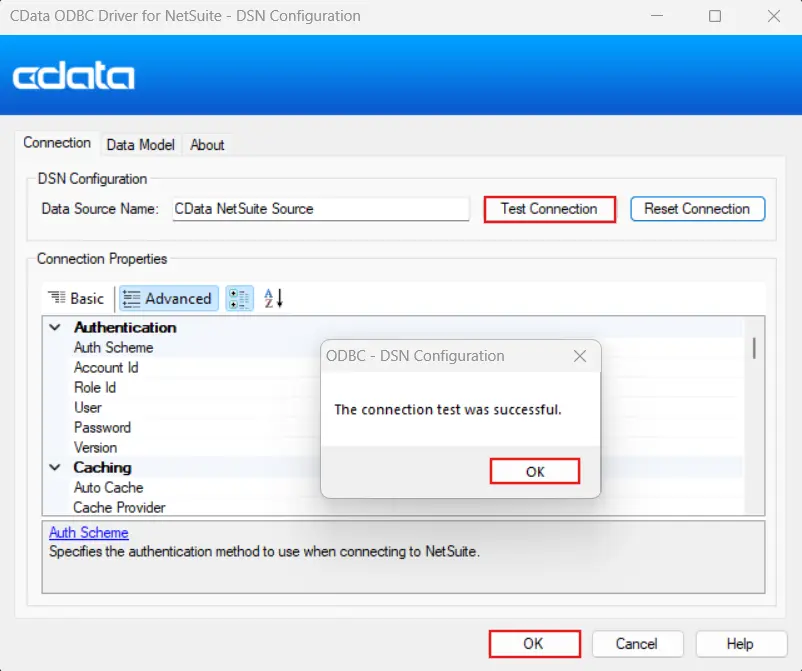
Once the installer completes, the CData ODBC driver for NetSuite - DSN Configuration dialog opens automatically. If it does not, open the ODBC Data Source Administrator (search for "ODBC" in the Windows Start menu and select the 64-bit version), click the System DSN tab, select CData NetSuite Source, and click Configure.
- In the configuration dialog, click the Advanced tab
- Fill in the following fields under Authentication:
- Auth Scheme: Select the authentication method the NetSuite account uses. For most setups this is TokenBasedAuthentication
- Account ID: The NetSuite Account ID, found under Setup, then Company, then Company Information
- Role ID: The numeric ID of the NetSuite role assigned to the connecting user
- User: The NetSuite login email address
- Password: The NetSuite account password
- Version: Leave as default unless the NetSuite instance requires a specific API version
- Click Test Connection
- A confirmation dialog appears with the message "The connection test was successful."
- Click OK on the confirmation dialog
- Click OK again to save the DSN
Step 3: Link tables in the Access database
Relinking existing tables to the new ODBC data source is all that is needed; there is no need to rebuild the Access file from scratch.
- Open the existing Access database
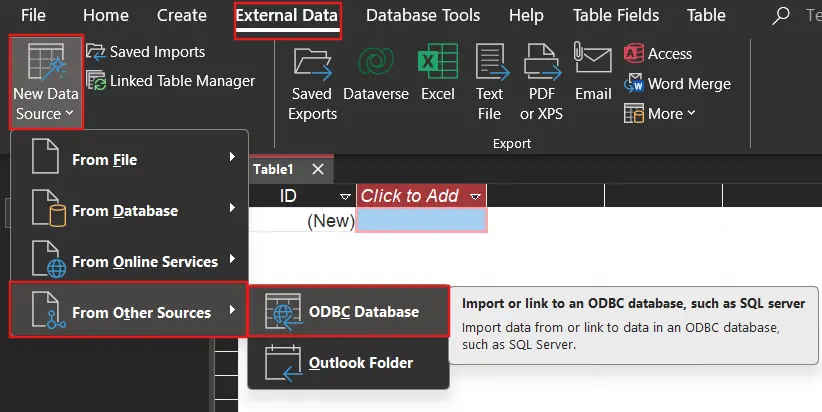
- Navigate to External Data in the ribbon and click New Data Source, then select From Other Sources and choose ODBC Database
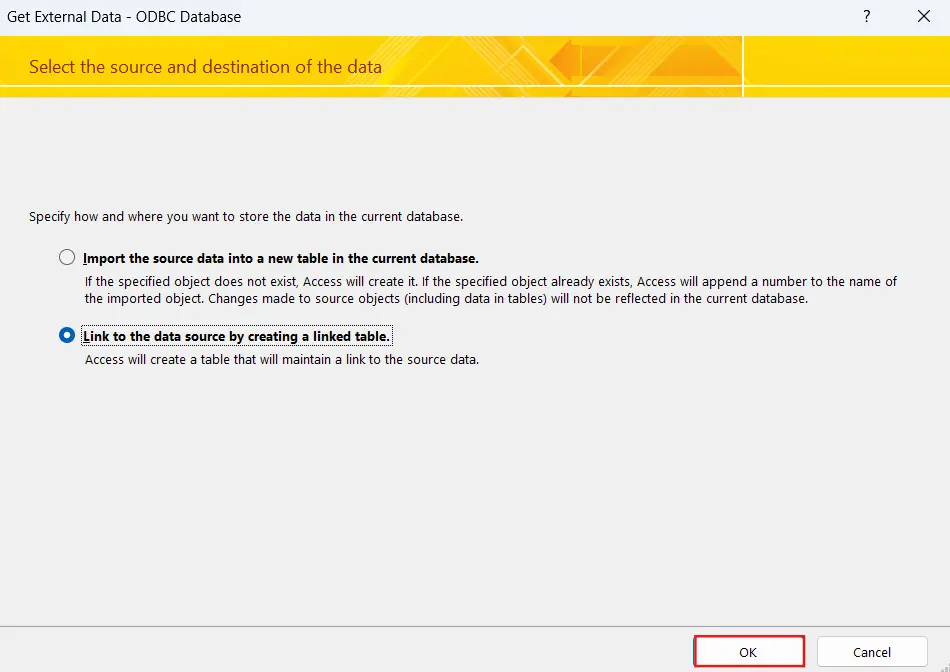
- Select Link to the data source by creating a linked table, and click OK
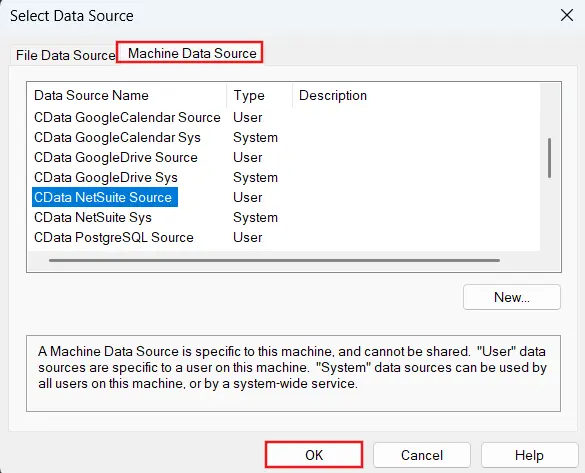
- Choose Machine Data Source and select the CData NetSuite Source DSN
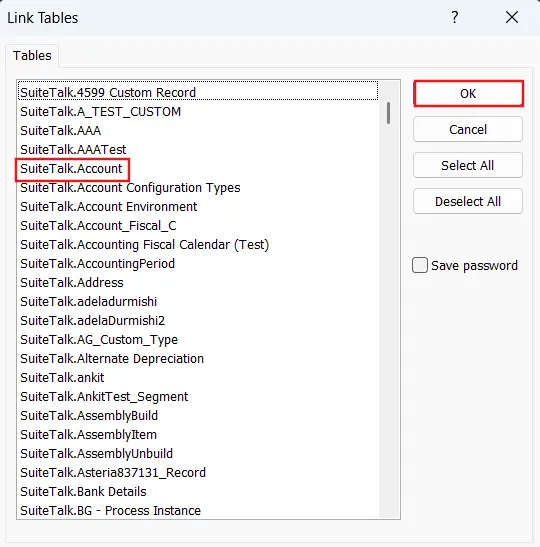
- Select the tables to link, for example, SuiteTalk_Transaction, SuiteTalk_Account, and SuiteTalk_Vendor, then click OK
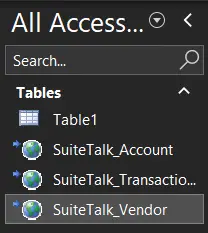
Access displays these tables in the navigation pane, linked to live NetSuite data through the ODBC driver.
Note: CData driver prefixes all NetSuite tables with SuiteTalk_. Use these prefixed names in all queries.
Step 4: Verify the connection with existing queries
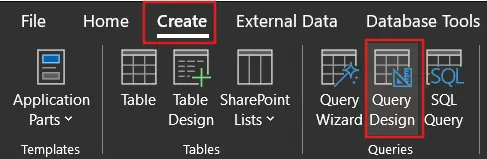
- Navigate to the Create tab in the ribbon and click Query Design
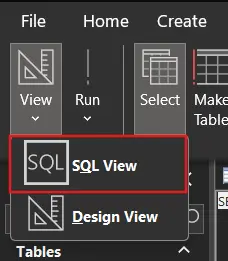
- Close the Show Table dialog and switch to SQL view by clicking View, then SQL View
- Enter the query in the SQL editor. For example:
SELECT AccName
FROM Account
WHERE AccNumber = '1111';
- Click the Run button (the red exclamation mark icon) in the ribbon under the Results group to execute the full query. Do not highlight the SQL text before clicking Run, as Access does not support executing selected text
- Access returns the results in datasheet view, pulling live data directly from NetSuite
Where field names differ between the old ERP and NetSuite, update only the field references. The query logic, filters, joins, and report bindings stay intact.

Step 5: Run existing reports
Open any Access report previously bound to the linked tables. Because the table names and field names map through the ODBC driver, reports connected to those tables refresh automatically against live NetSuite data. Verify that the report outputs match expected values by cross-checking against the NetSuite UI for the same period or entity.
What to expect with Acumatica and D365 Business Central
The same workflow applies to both platforms with their respective drivers:
- Acumatica ODBC driver: Configure with the Acumatica instance URL, username, password, and company name. Tables like GLHistory, Account, and Vendor become available as linked tables in Access.
- D365 Business Central ODBC driver: Authenticate using OAuth with an Azure AD app registration. Tables like GeneralLedgerEntry, Vendor, and Customer surface as standard queryable tables in Access.
In each case, the configuration dialog walks through the required authentication fields, and the Test Connection button confirms the setup before proceeding to link tables.
The business case: Productivity and avoiding retraining costs
Cloud ERP migrations are expensive projects. Organizations invest heavily in implementation, data migration, and user training for the core ERP platform itself. Rebuilding every downstream workflow that depended on the old database connection is rarely budgeted and rarely anticipated until it becomes an emergency.
CData ODBC drivers avoid that unplanned cost. Finance teams continue working in Access with no retraining required. The institutional knowledge encoded in existing queries stays intact and continues to serve its original purpose. The productivity gap that typically follows a migration is significantly reduced because the tools finance teams use every day keep working.
Simplify cloud ERP connectivity with CData
CData ODBC drivers restore familiar Access connectivity after an ERP cloud migration, eliminating the need to rebuild existing workflows or retrain finance teams. With direct integration through a standard DSN, existing Access queries run against live cloud ERP data with minimal modification, maintaining productivity and preserving the institutional knowledge embedded in years of built reports and forms.
Start a free 30-day trialof the CData ODBC driver for the relevant ERP platform and test it against existing Access queries today. As always, the CData Support Team is available to assist with any questions.