






How to Keep Microsoft Access Working After the Salesforce Connector Discontinuation
This article explains why the retirement happened, why Access remains critical for non-developer teams, and how to restore full Salesforce connectivity using the CData Salesforce ODBC Driver as a direct replacement.
Microsoft's history of retiring Access connectors
The Salesforce connector retirement is not an isolated event. Access Data Projects (ADP) is an earlier example of the same pattern. ADPs allowed Access to connect directly to SQL Server as a front-end client, giving teams a tightly integrated way to build forms and reports against live SQL Server data. Microsoft officially discontinued ADP support in Access 2013, leaving teams that had built workflows around them to find alternative connectivity paths on their own.
The Salesforce connector follows the same pattern. Microsoft licensed the driver from InsightSoftware and bundled it with Access 2019 and newer. In August 2025, Microsoft announced it could no longer provide security or feature updates for the driver and chose to remove it ahead of its June 30, 2026 support end date. The ODBC framework itself remains supported, but users must now source a third-party driver independently to continue connecting to Salesforce.
Note: Teams on Microsoft 365 monthly subscriptions lost the connector on October 28, 2025. Teams on Office 2021 or Office 2024 perpetual licenses lost it on November 11, 2025.
Why Access remains critical for healthcare, sales, and compliance teams
Access gives non-developers the ability to build parameterized queries, create data entry forms, and generate formatted reports against live Salesforce data without writing API code or involving a developer. A compliance analyst can build an audit report against Salesforce contact records. A sales operations manager can pull opportunity data and produce a formatted summary for leadership. A healthcare administrator can query patient account records and track follow-up activity, all inside a tool they already know.
Beyond ease of use, Access databases carry institutional knowledge that exists nowhere else. The queries built over the years encode business logic specific to each organization: how pipeline stages map to revenue recognition rules, which Salesforce fields feed which compliance reports, and how account hierarchies roll up into regional summaries. Replacing those workflows means reverse-engineering undocumented logic, retraining staff, and absorbing a significant productivity gap. For most organizations, that cost far exceeds the cost of restoring the Salesforce connection using a third-party driver.
CData Salesforce ODBC driver as a direct replacement
The CData Salesforce ODBC Driver connects Microsoft Access to Salesforce through the same standard ODBC framework that Access has always used. The driver exposes Salesforce objects, including Accounts, Contacts, Opportunities, Cases, and custom objects as queryable tables. Standard SELECT, INSERT, UPDATE, and DELETE statements work against those objects exactly as they would against a SQL database. The replacement is transparent to Access and to the users running their reports.
Prerequisites
Before starting, ensure the following are ready:
- Microsoft Access 2019 or newer, or Microsoft 365 with Access
- A Salesforce account with sufficient permissions to access the required objects
- Download the CData Salesforce ODBC Driver and have it ready to install
Step 1: Install the CData Salesforce ODBC driver
Download the CData Salesforce ODBC Driver and run the installer. The installer registers the driver with the Windows ODBC Data Source Administrator automatically and launches the DSN configuration dialog directly after installation.
Step 2: Configure the DSN
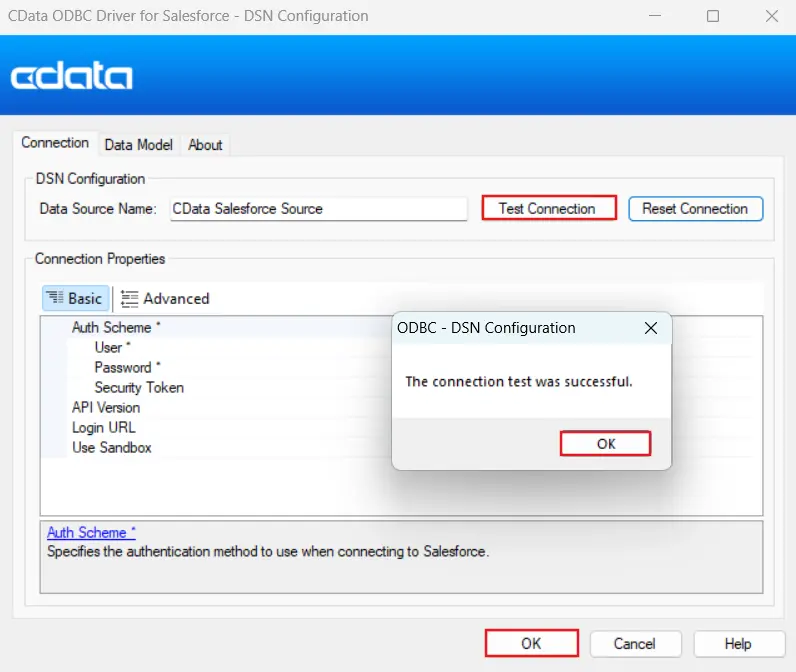
Once the installer completes, the CData ODBC Driver for Salesforce DSN Configuration dialog opens automatically. If it does not, open the ODBC Data Source Administrator, click the System DSN tab, select the CData Salesforce Source entry, and click Configure.
In the configuration window, enter the Salesforce credentials. You can authenticate using:
- OAuth (default and recommended):
- Leave OAuthClientId, OAuthClientSecret, and CallbackURL blank to use the embedded OAuth application.
- Set InitiateOAuth = GETANDREFRESH.
- Basic Authentication with Security Token:
- Set AuthScheme = Basic, and provide your User, Password, and SecurityToken.
- SSO (single sign-on) Authentication:
- Configure SSO by setting the SSOProperties, SSOLoginUrl, and SSOExchangeURL connection properties, which allow you to authenticate to an identity provider.
Click Test Connection to validate the settings. Click OK to save the DSN.
Step 3: Link Salesforce tables in Access
Relinking existing Access tables to the new DSN is all that is needed. There is no need to rebuild the Access file from scratch.
- Open the existing Access database
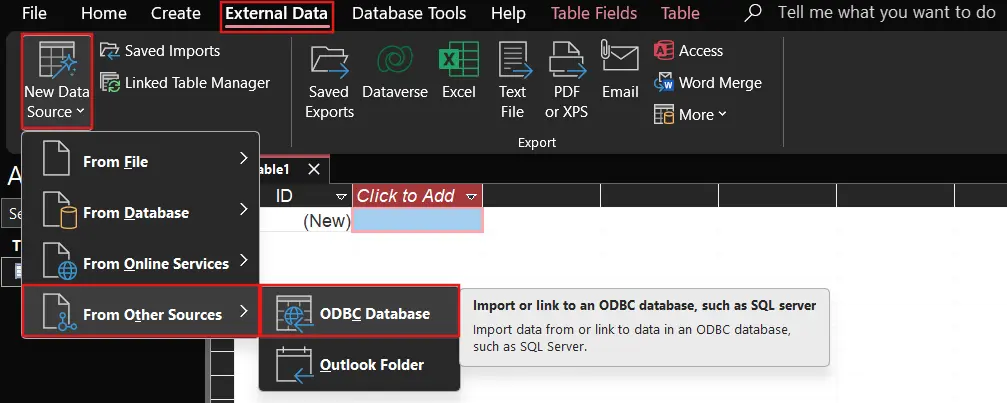
- Navigate to External Data in the ribbon, click New Data Source, select From Other Sources, and choose ODBC Database
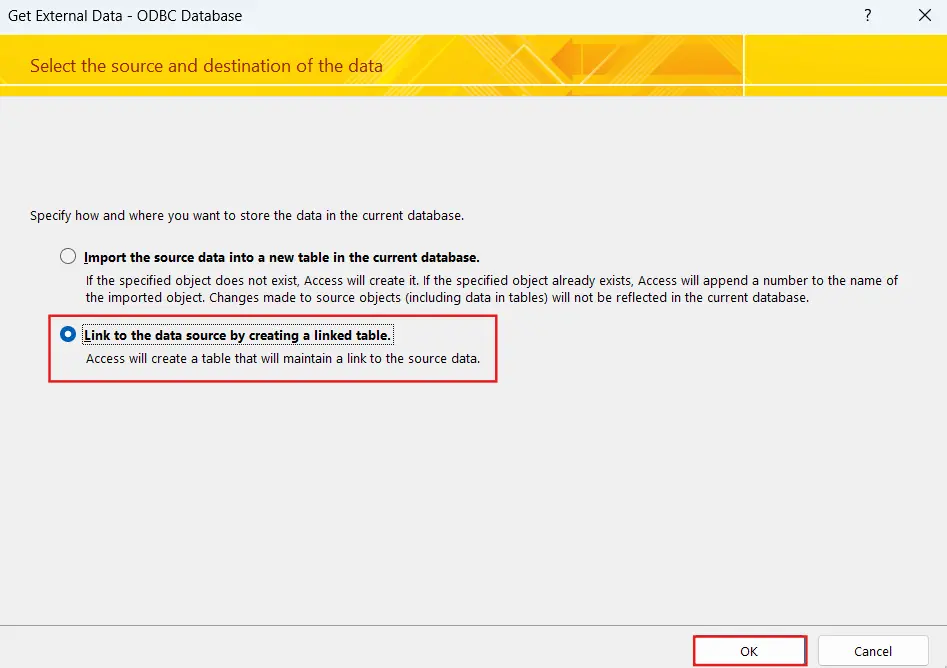
- Select Link to the data source by creating a linked table and click OK
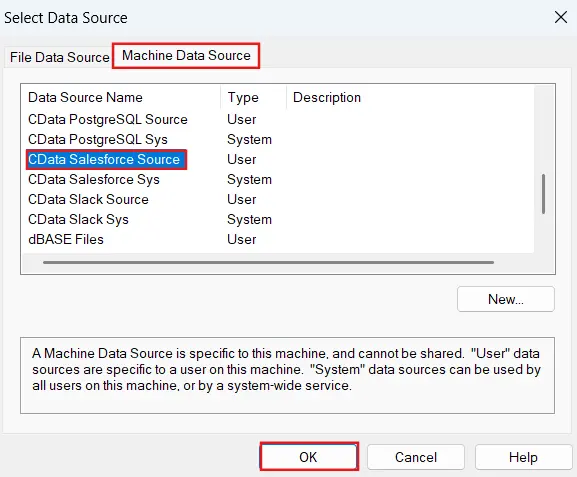
- Choose Machine Data Source, select the CData Salesforce Source DSN, and click OK
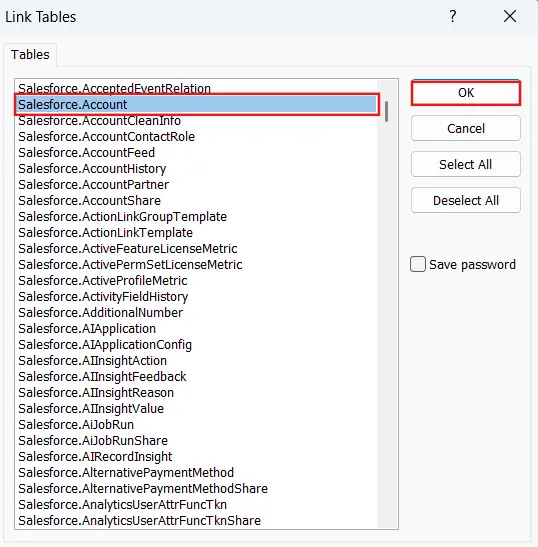
- Select the Salesforce objects to link, for example Account, Contact, and Opportunity, then click OK
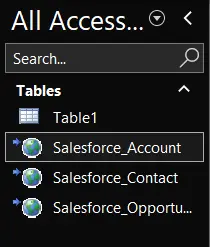
Access displays these tables in the navigation pane, linked to live Salesforce data through the CData driver.
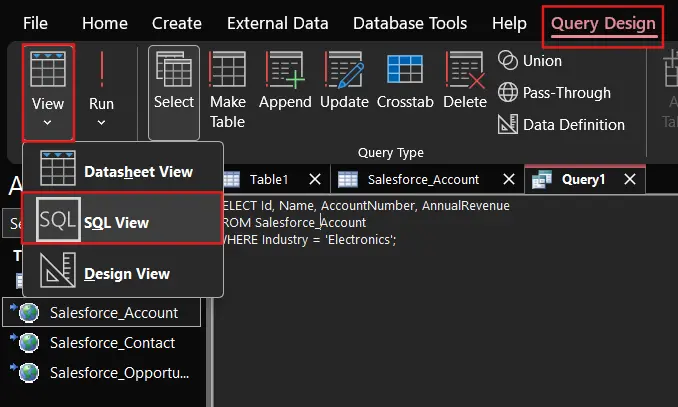
Step 4: Verify the connection with existing queries
Execute a test query in SQL view to confirm the linked tables return live data:
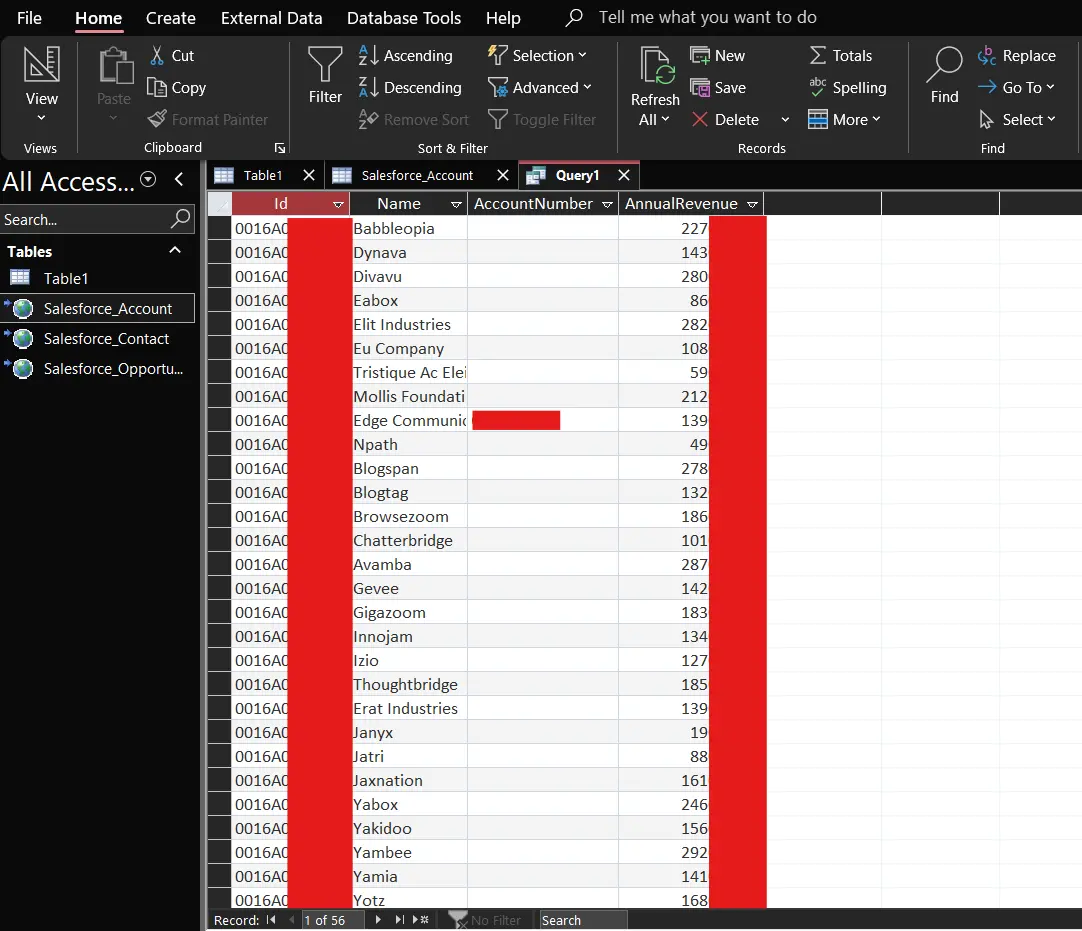
Access returns results in datasheet view, pulling live data directly from Salesforce. Where field names differ from what the retired connector exposed, update only the field references. The query logic, filters, joins, and report bindings stay intact.
Step 5: Run existing reports
Open any Access report previously bound to the linked Salesforce tables. Reports connected to those tables refresh automatically against live Salesforce data. Verify the output by cross-checking against the Salesforce UI for the same records or time period.
Rapid deployment with minimal disruption
Because the CData driver operates through the same ODBC framework Access has always used, the transition is a relinking operation, not a rebuild. Users who open Access after the migration see the same tables, queries, and reports. They do not need to learn a new tool or change how they work. For healthcare teams running patient account queries, compliance departments generating monthly audit reports, and sales teams pulling weekly pipeline summaries, continuity matters more than any feature list.
Reliable alternative to retiring connectors
The CData Salesforce ODBC Driver receives regular updates as Salesforce evolves its API, adds new objects, and changes authentication requirements. When Salesforce enforced stricter OAuth configurations in September 2025, CData published updated guidance and released a compatible driver version. CData also maintains drivers for over 350 data sources through the same unified ODBC interface, giving organizations one vendor, one support team, and one consistent integration model across all their connected systems.
Simplified Salesforce integration with CData
The CData Salesforce ODBC Driver restores familiar Microsoft Access connectivity after the native connector retirement, eliminating the need to rebuild existing workflows or retrain teams. With direct integration through a standard DSN, existing Access queries run against live Salesforce data with minimal modification, maintaining productivity and preserving the institutional knowledge your team has built into years of reports and forms.
Start a free 30-day trial of the CData Salesforce ODBC Driver and restore your Salesforce connectivity today. As always, our world-class Support Team is available to assist you with any questions you may have.