





Integrate Live Abyssale Data into Amazon SageMaker Canvas with RDS

Amazon SageMaker Canvas is a no-code machine learning platform that lets you generate predictions, prepare data, and build models without writing code. When paired with CData Connect AI, you get instant, cloud-to-cloud access to Abyssale data for building custom machine-learning models, predicting customer churn, generating texts, building chatbots, and more. This article shows how to connect to Connect AI from Amazon SageMaker Canvas using the RDS connector and integrate live Abyssale data into your ML model deployments.
CData Connect AI provides a pure SQL, cloud-to-cloud interface for Abyssale, allowing you to easily integrate with live Abyssale data in Amazon SageMaker Canvas — without replicating the data. CData Connect AI looks exactly like a SQL Server database to Amazon SageMaker Canvas and uses optimized data processing out of the box to push all supported SQL operations (filters, JOINs, etc) directly to Abyssale, leveraging server-side processing to quickly return Abyssale data.
Configure Abyssale Connectivity for Amazon SageMaker Canvas
Connectivity to Abyssale from Amazon SageMaker Canvas is made possible through CData Connect AI. To work with Abyssale data from Amazon SageMaker Canvas, we start by creating and configuring a Abyssale connection.
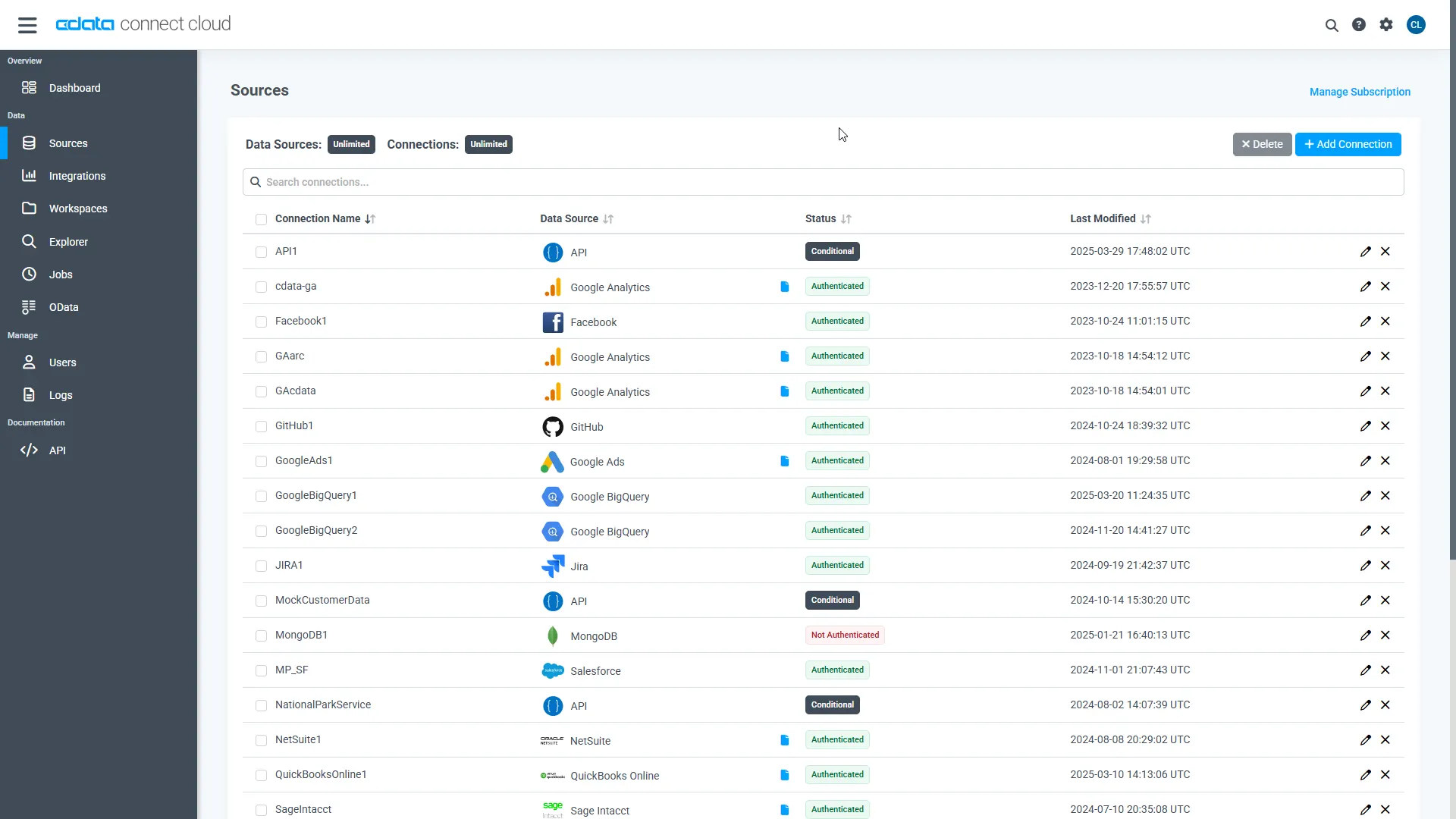
- Log into Connect AI, click Sources, and then click Add Connection
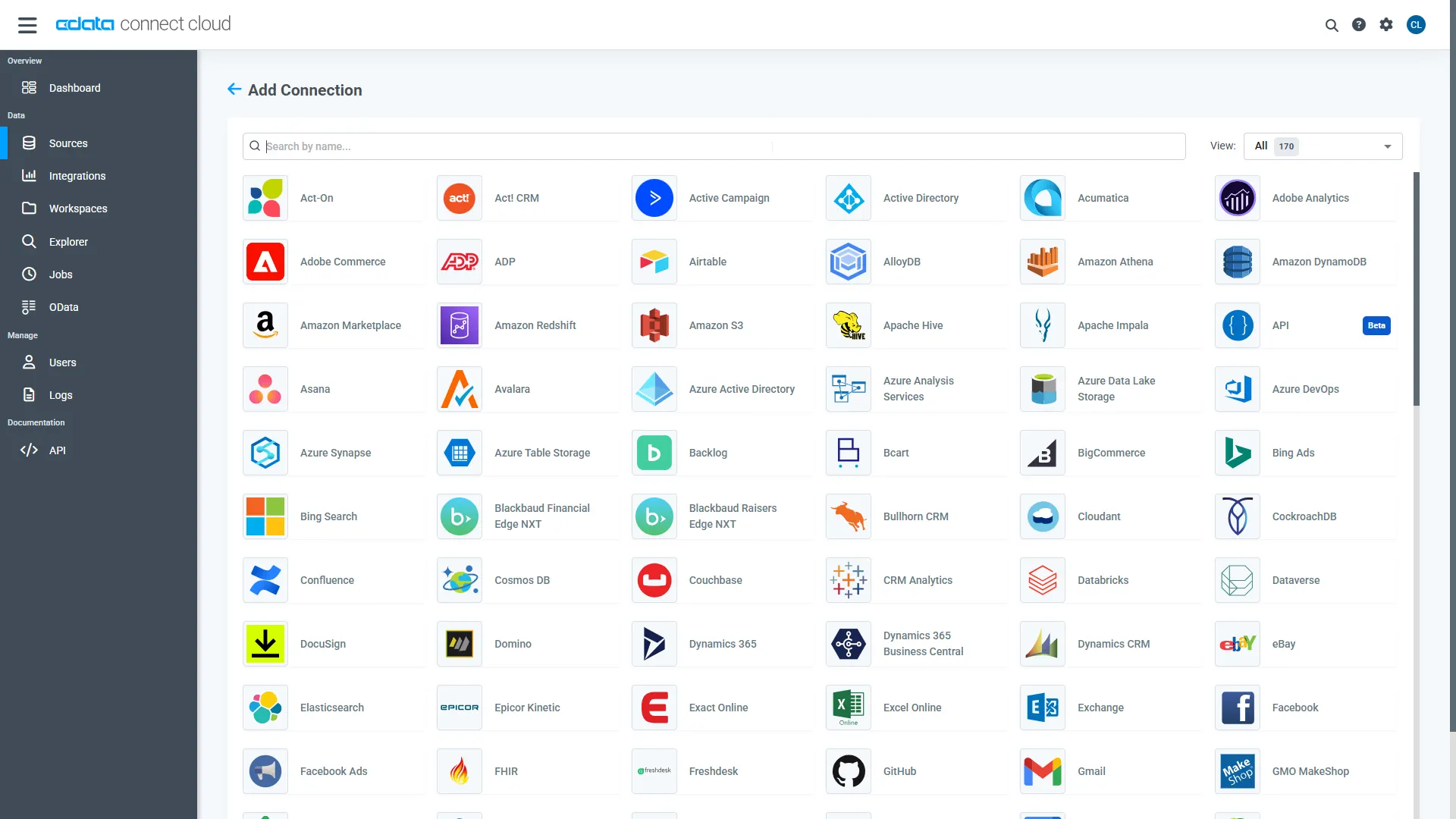
- Select Abyssale from the Add Connection panel
-
Enter the necessary authentication properties to connect to Abyssale.
Start by setting the Profile connection property to the location of the Abyssale Profile on disk (e.g. C:\profiles\Abyssale.apip). Next, set the ProfileSettings connection property to the connection string for Abyssale (see below).
Abyssale API Profile Settings
Abyssale uses API Key authentication. Your Abyssale API Key is sent as the x-api-key request header. You can generate or view your API Key in the Abyssale dashboard under Settings > API.
After setting the following connection properties, you are ready to connect:
- AuthScheme: Set this to APIKey.
- APIKey: Set this to your Abyssale API Key.
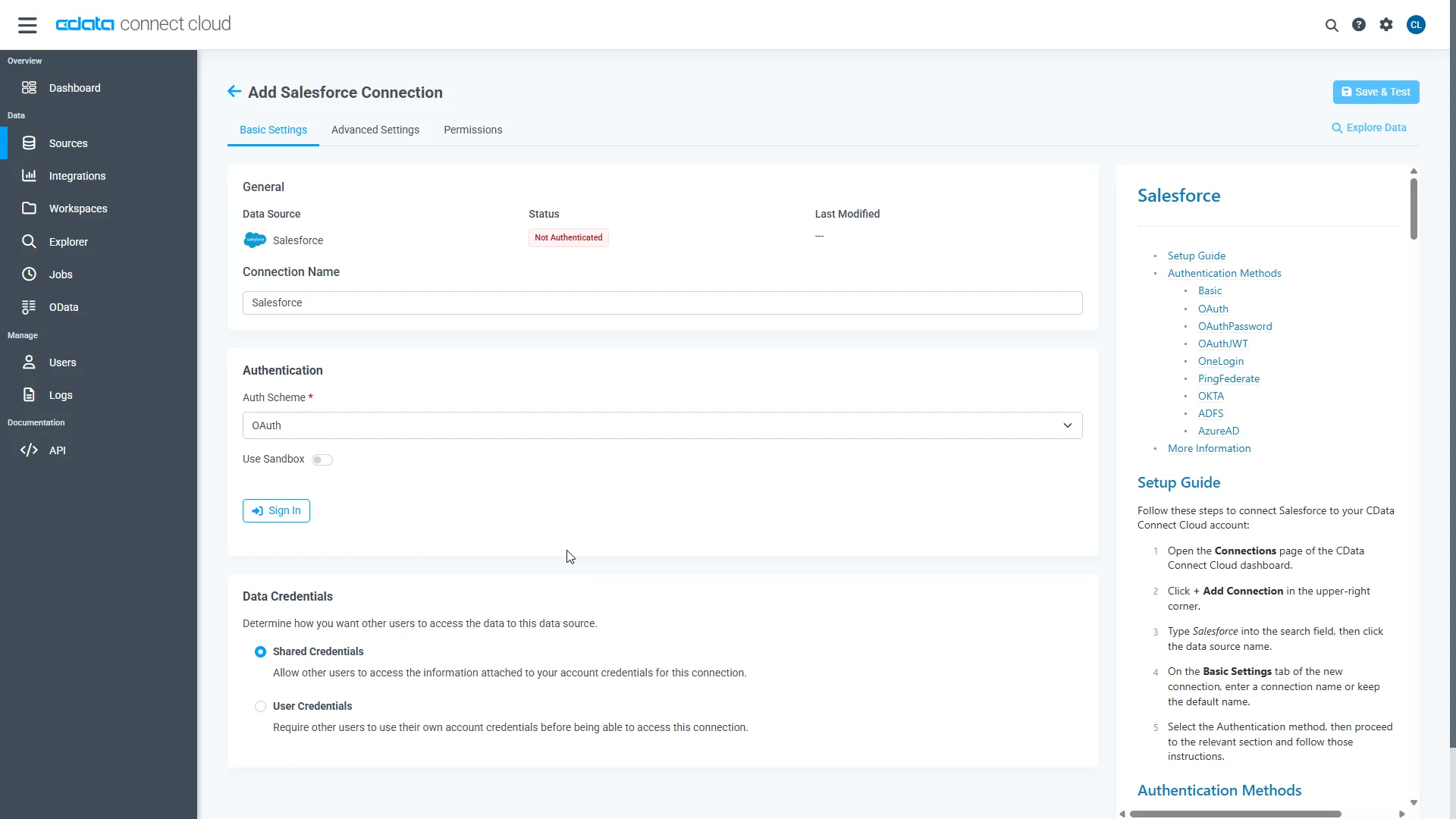
- Click Save & Test
-
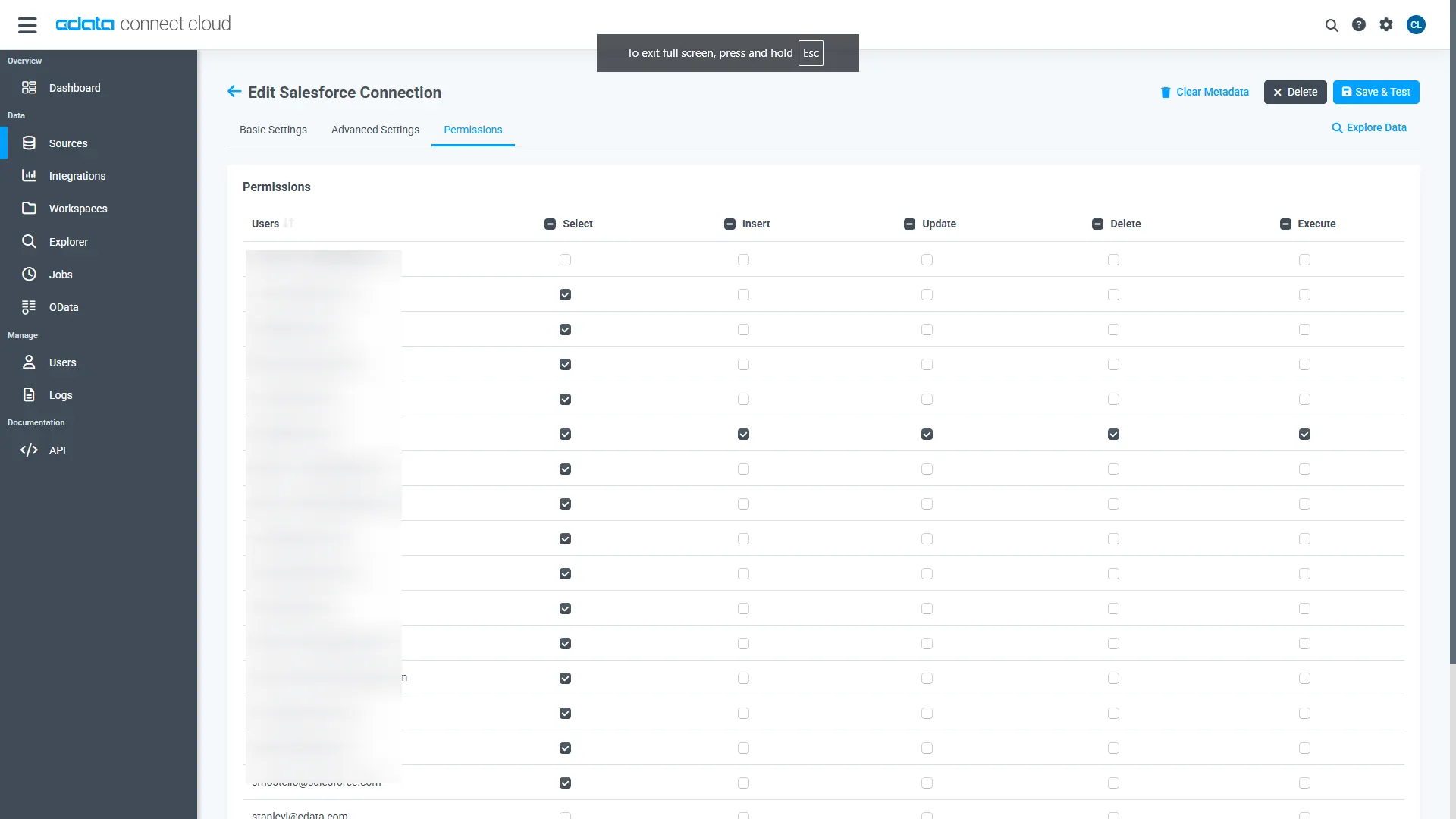
Navigate to the Permissions tab in the Add Abyssale Connection page and update the User-based permissions.
Add a Personal Access Token
When connecting to Connect AI through the REST API, the OData API, or the Virtual SQL Server, a Personal Access Token (PAT) is used to authenticate the connection to Connect AI. It is best practice to create a separate PAT for each service to maintain granularity of access.
- Click on the Gear icon () at the top right of the Connect AI app to open the settings page.
- On the Settings page, go to the Access Tokens section and click Create PAT.
-
Give the PAT a name and click Create.
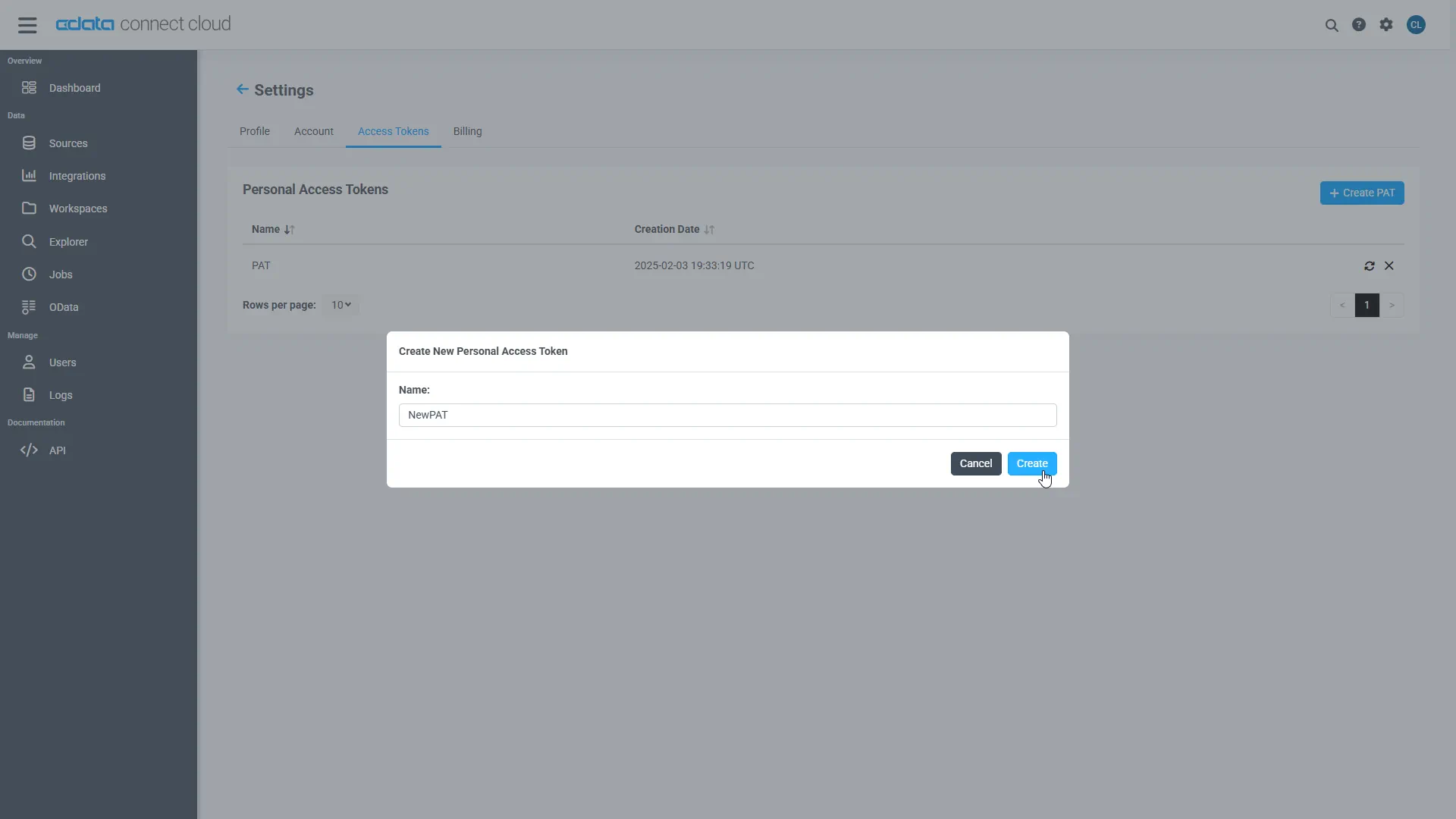
- The personal access token is only visible at creation, so be sure to copy it and store it securely for future use.
With the connection configured and a PAT generated, you are ready to connect to Abyssale data from Amazon SageMaker Canvas.
Connecting to CData Connect AI from Amazon SageMaker Canvas
With the connection in CData Connect AI configured, you are ready to integrate live Abyssale data into Amazon SageMaker Canvas using its RDS connector.
- Select a domain and user profile in Amazon SageMaker Canvas and click on Open Canvas.
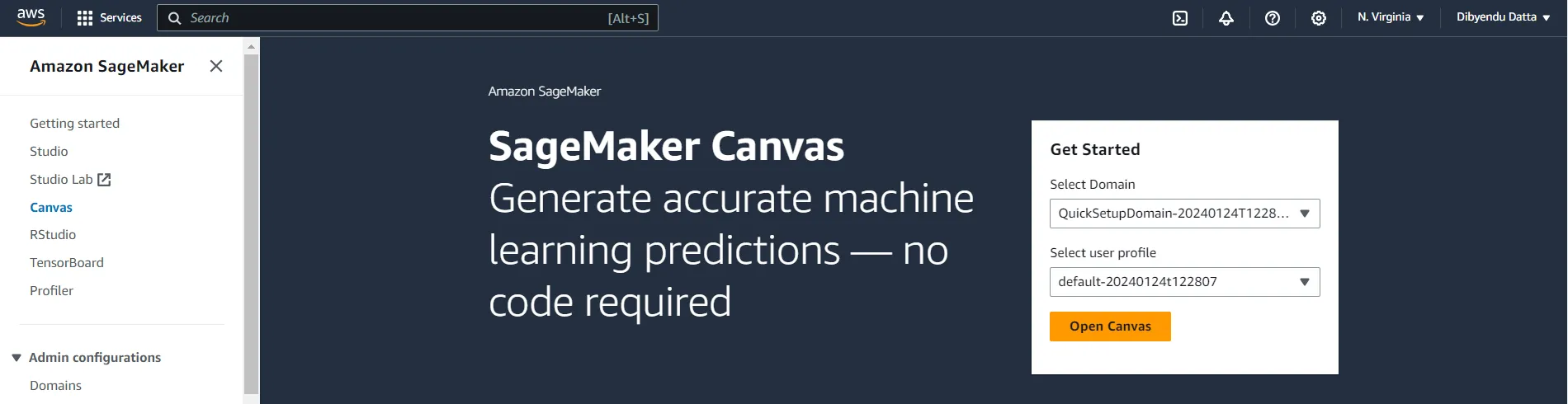
- Once the Canvas application opens, navigate to the left panel, and select My models.
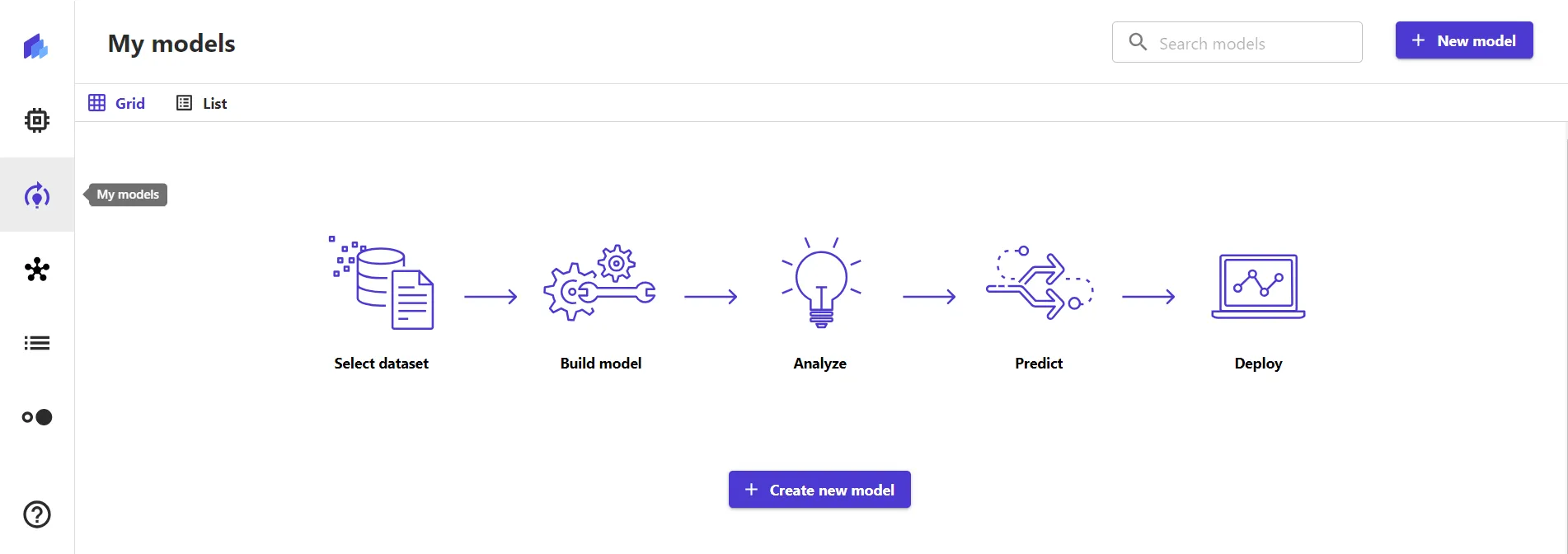
- Click on Create new model in the My models screen.
- Specify a Model name in Create new model window and select a Problem type. Click on Create.
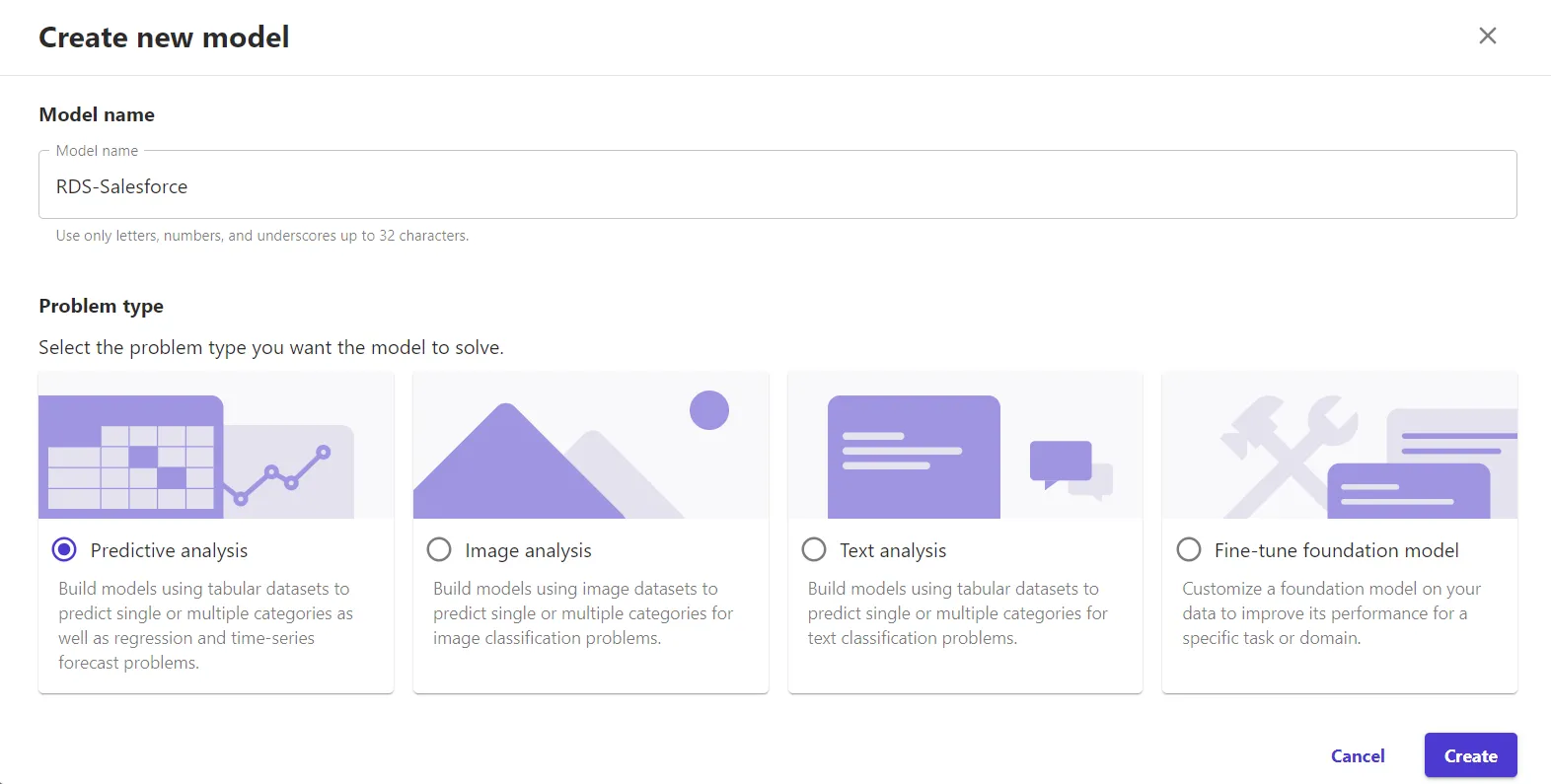
- Once the model version gets created, click on Create dataset in the Select dataset tab.

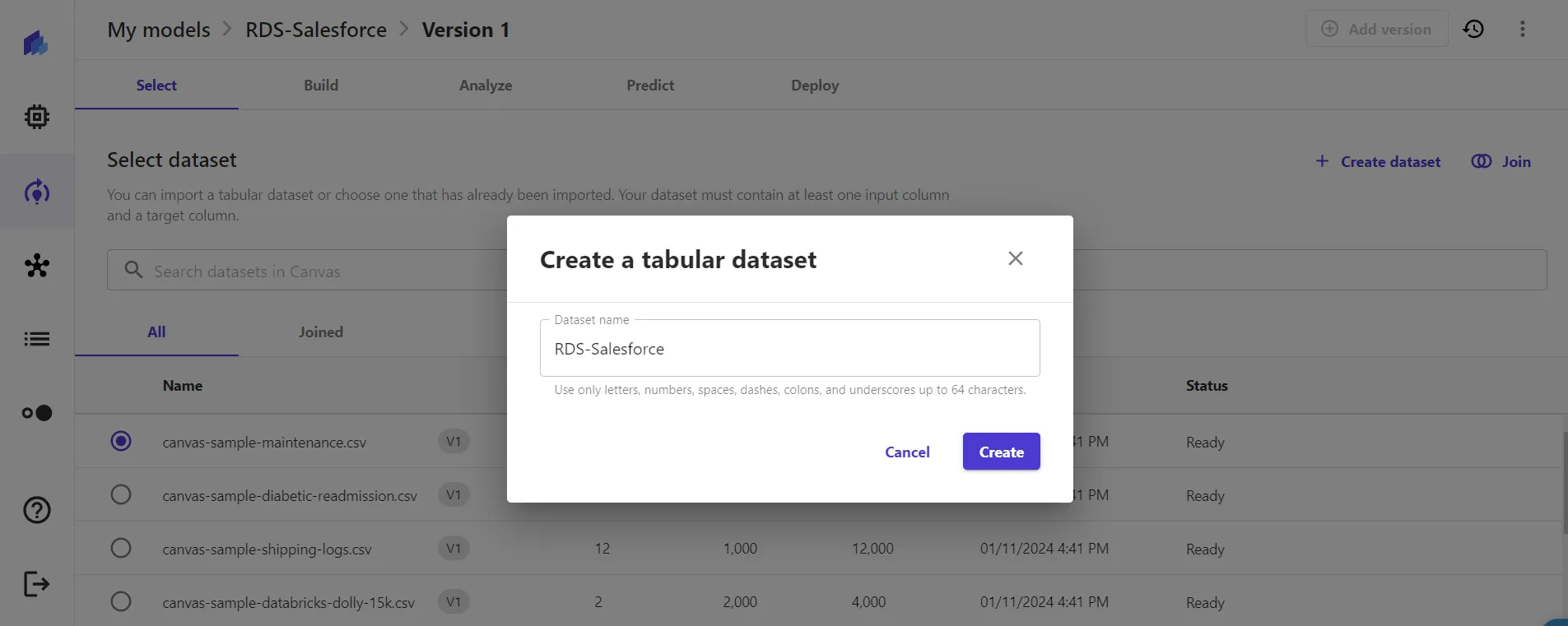
- In the Create a tabular dataset window, add a Dataset name and click on Create.
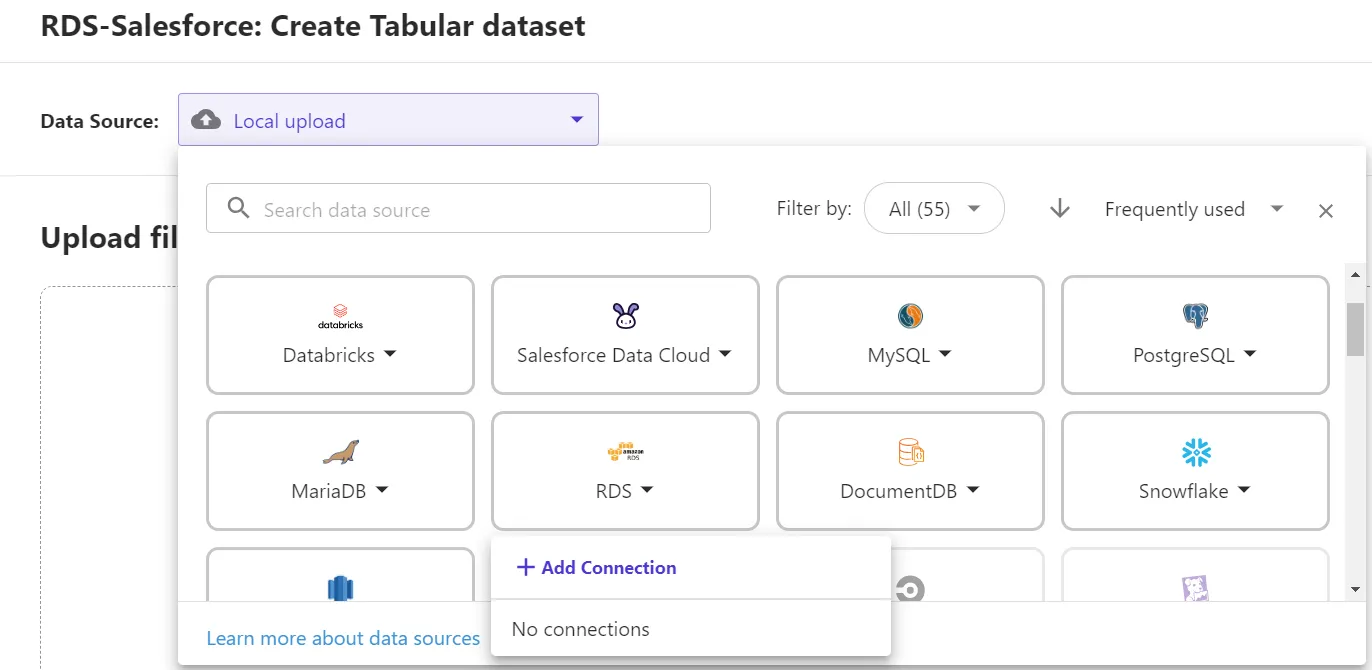
- Click on the Data Source drop-down and search for or navigate to the RDS connector and click on Add Connection.
- In the Add a new RDS connection window, set the following properties:
- Connection Name: a relevant connection name
- Set Engine type to sqlserver-web
- Set Port to 14333
- Set Address as tds.cdata.com
- Set Username to a Connect AI user (e.g. [email protected])
- Set Password to the PAT for the above user
- Set Database name the Abyssale connection (e.g., API1)
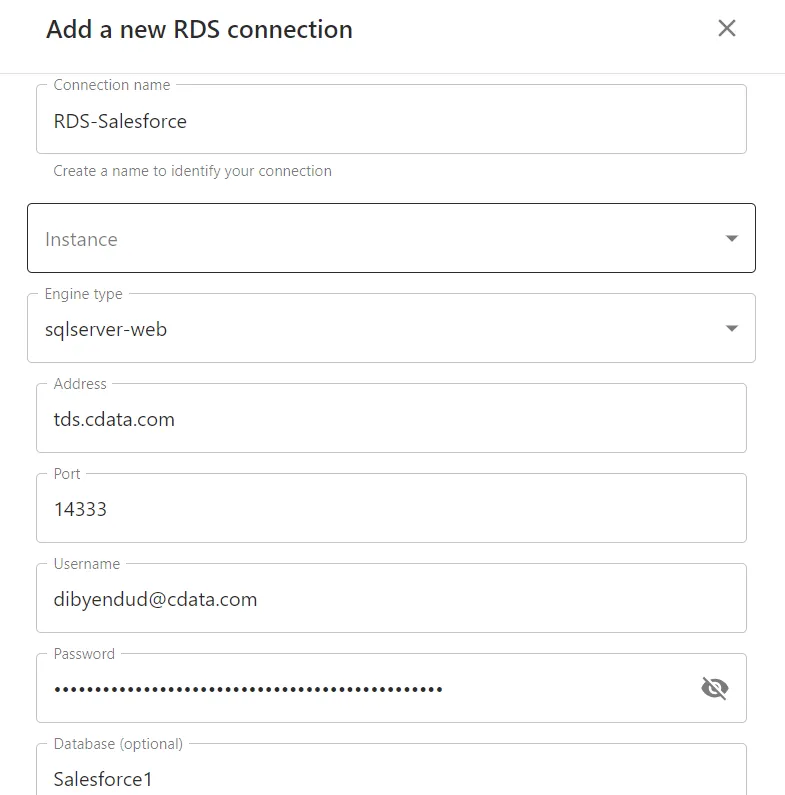
- Click on Create connection.
Integrating Abyssale Data into Amazon SageMaker Canvas
With the connection to Connect AI configured in the RDS, you are ready to integrate live Abyssale data into your Amazon SageMaker Canvas dataset.
- In the tabular dataset created in RDS with Abyssale data, search for the Abyssale connection configured on Connect AI in the search bar or from the list of connections.
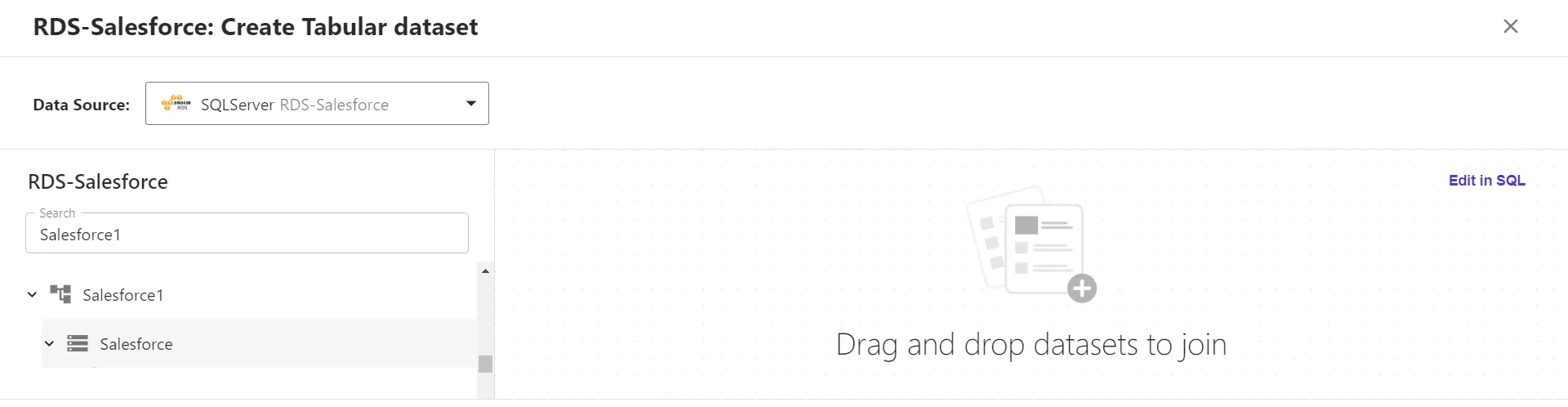
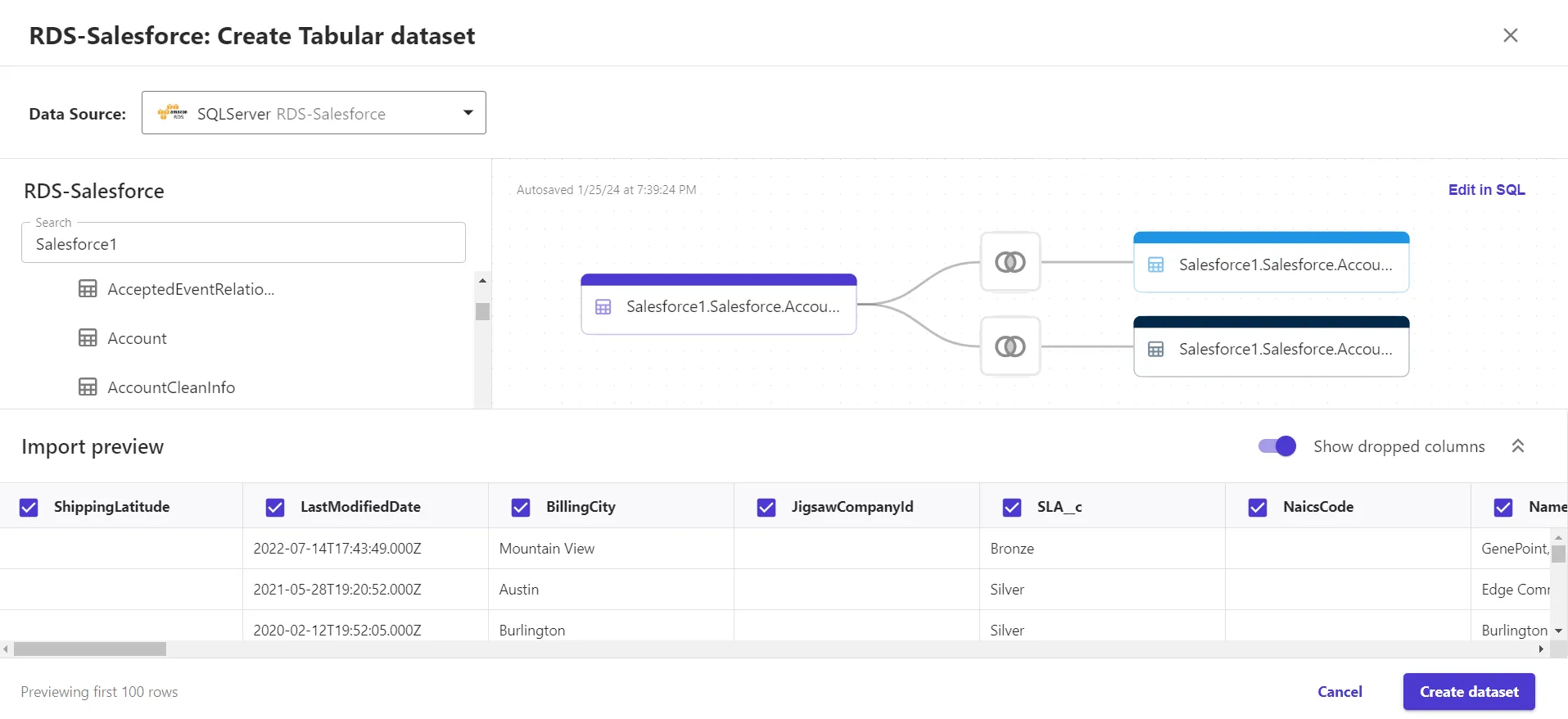
- Select the table of your choice from Abyssale, drag and drop it into the canvas on the right.
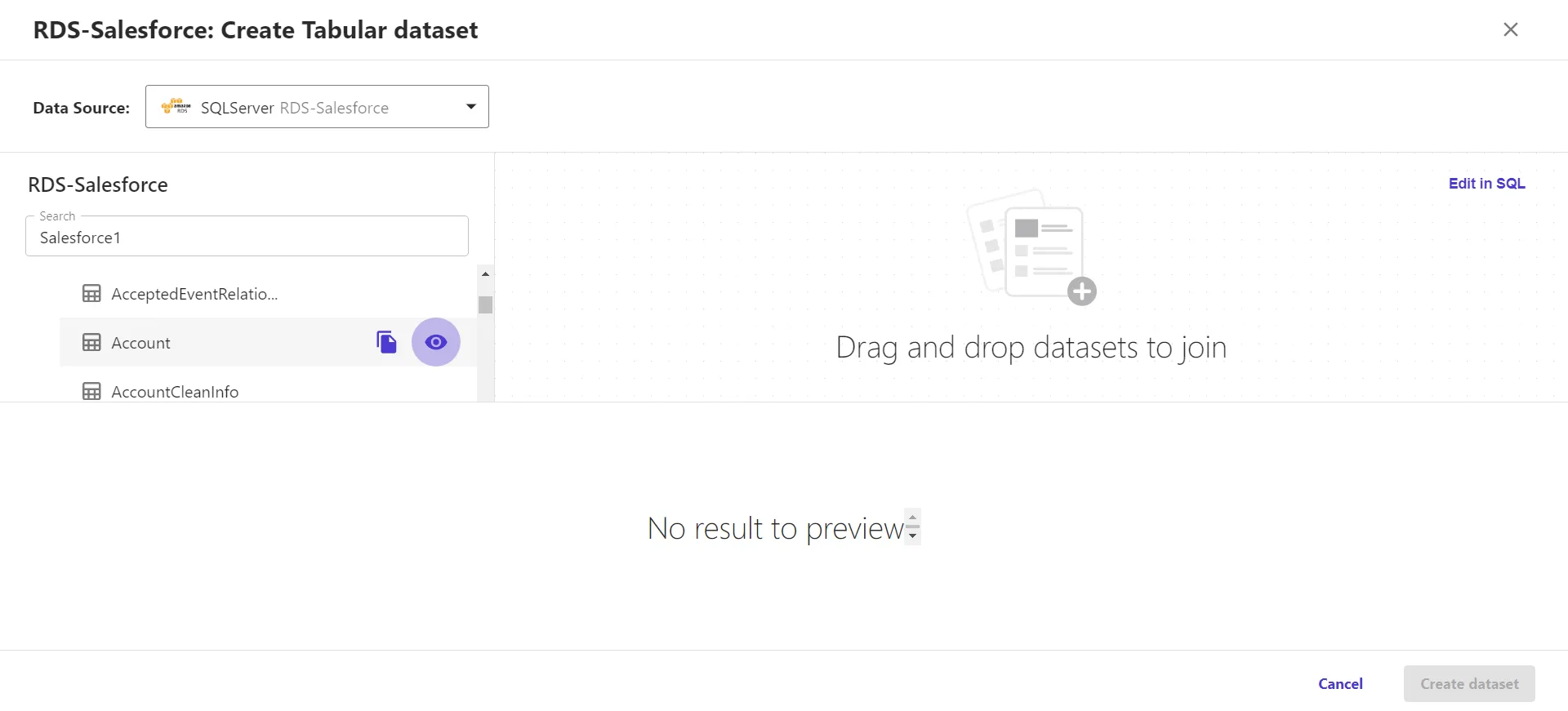
- You can create workflows by joining any number of tables from the Abyssale connection (as shown below). Click on Create dataset.
- Once the dataset is created, click on Select dataset to build your model.
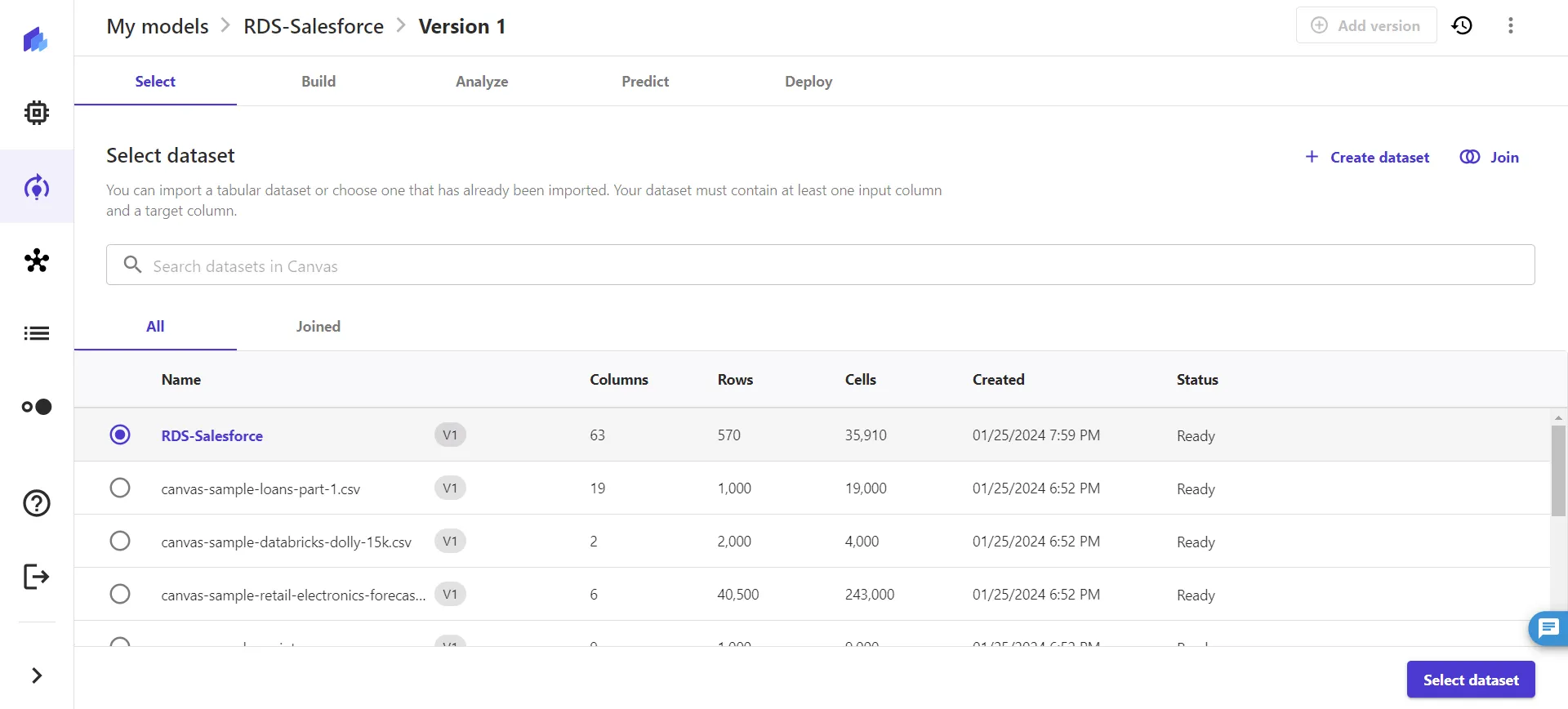
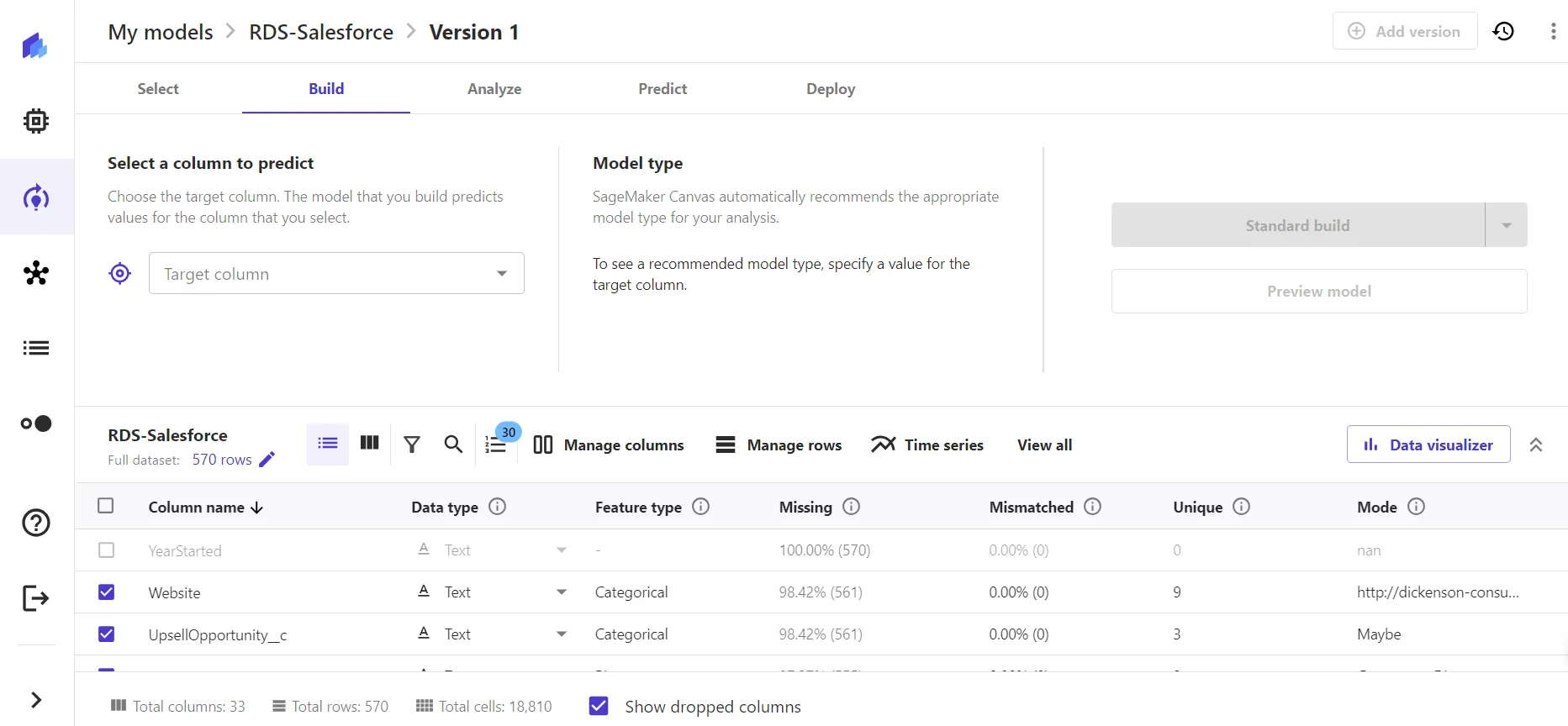
- Perform analysis, generate prediction, and deploy the model.
At this point, you have access to live Abyssale data in Amazon SageMaker that you can utilize to build custom ML models to generate predictive business insights and grow your organization.
SQL Access to Abyssale Data from Cloud Applications
Now you have a direct connection to live Abyssale data from Amazon SageMaker Canvas. You can create more connections, datasets, and predictive models to drive business — all without replicating Abyssale data.
To get real-time data access to hundreds of SaaS, Big Data, and NoSQL sources directly from your cloud applications, see the CData Connect AI.