






How to Work with Adobe Experience Manager Data in ETL Validator JDBC

ETL Validator provides data movement and transformation capabilities for integrating data platforms across your organization. CData's JDBC driver seamlessly integrates with ETL Validator and extends its native connectivity to include Adobe Experience Manager data.
This tutorial walks through the process of building a simple ETL validator data flow to extract data from Adobe Experience Manager data and load it into an example data storage solution: SQL Server.
Add a new ETL Validator data source via CData
CData extends ETL Validator's data connectivity capabilities by providing the ability to add data sources that connect via CData's JDBC drivers. Connecting to Adobe Experience Manager data simply requires creating a new data source in ETL Validator through CData's connectiviy suite as described below.
Login to ETL Validator
Begin by logging into ETL Validator to view the application dashboard.
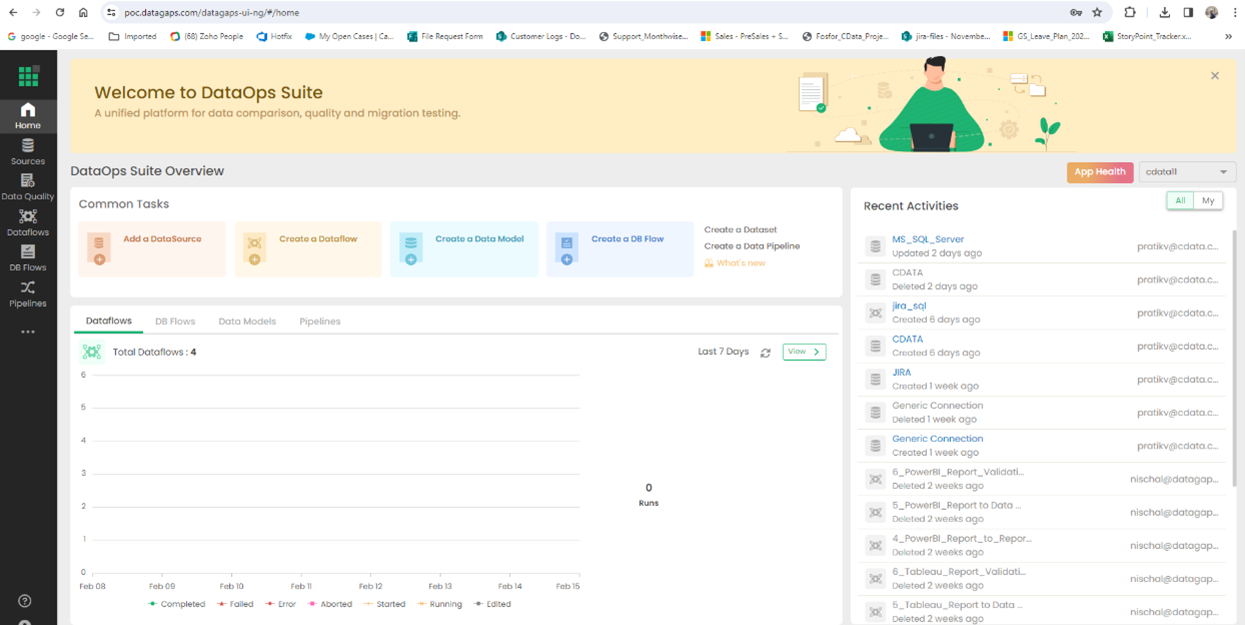
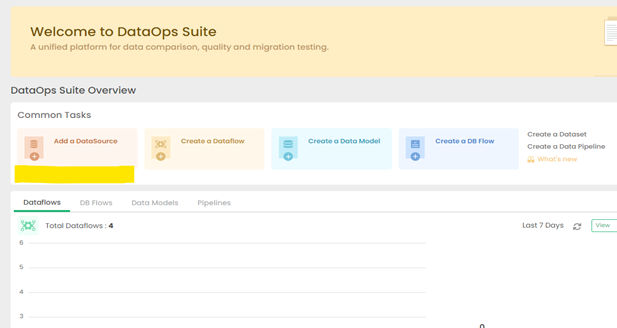
Click on Add a DataSource
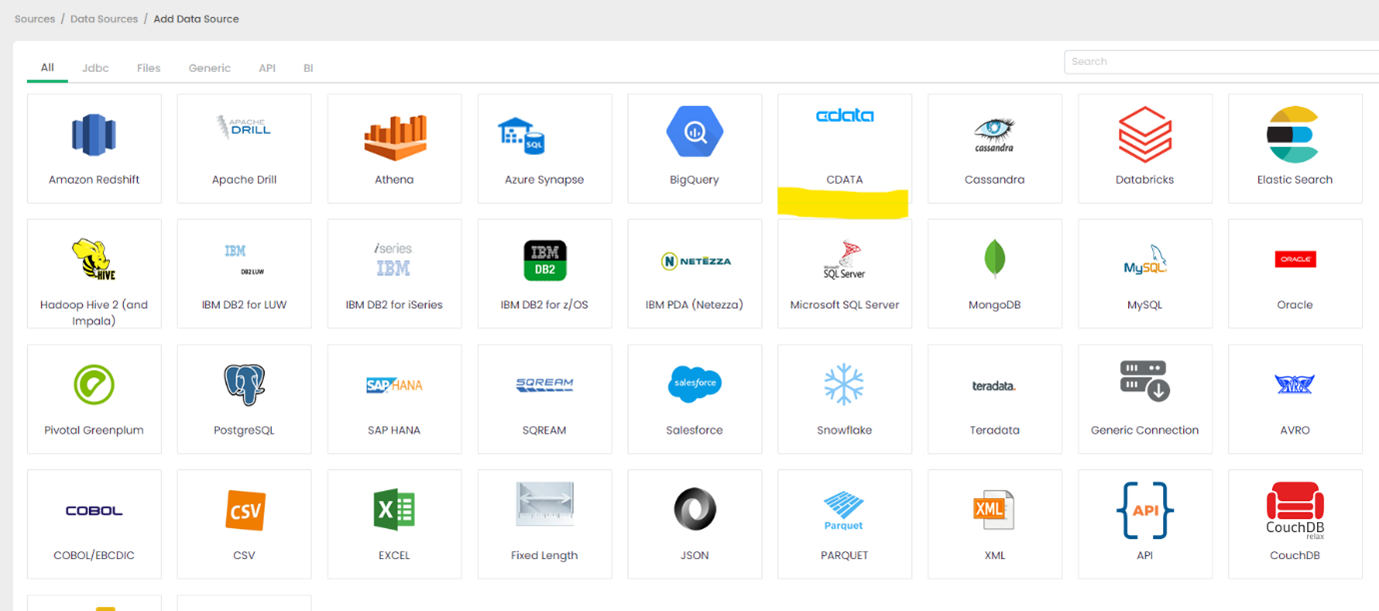
CData extends the data source options within ETL Validator.
Click on CData
CData's connectivity is embedded within ETL Validator's data source options.
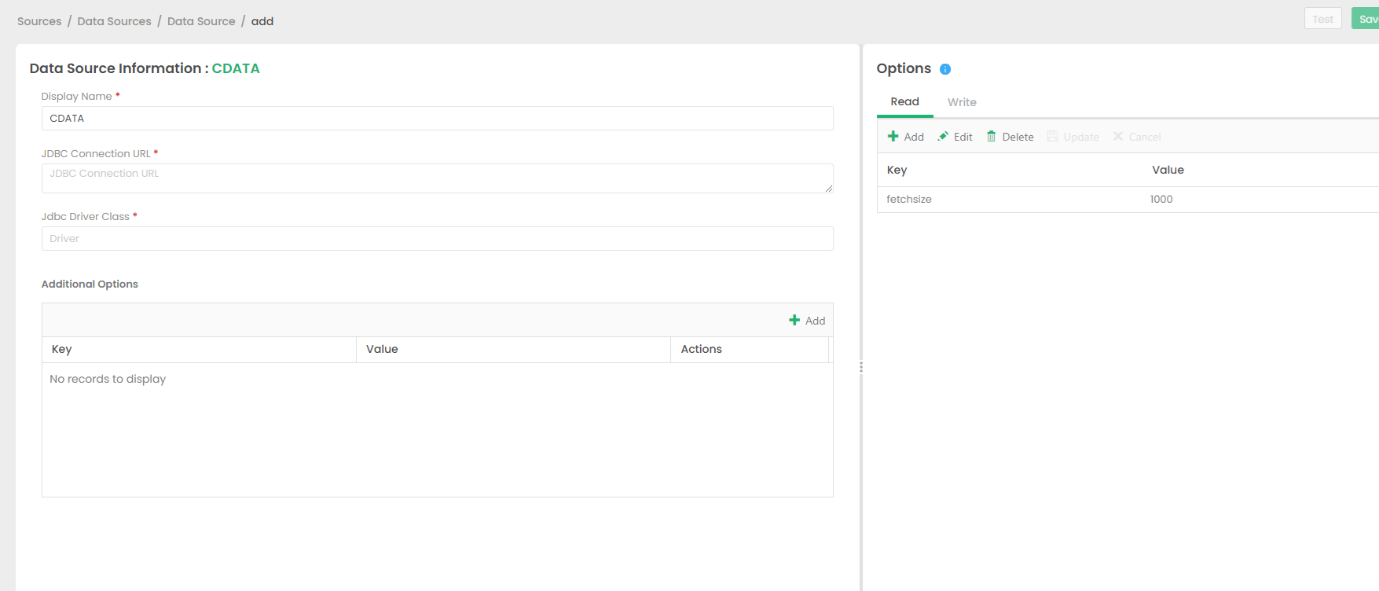
Configure the CData Driver Connection String
You will need a JDBC connection string to establish a connection to Adobe Experience Manager in ETL Validator.
The driver connects to Adobe Experience Manager (AEM) instances that expose the JCR repository over WebDAV. It supports both on-premises AEM and AEM as a Cloud Service deployments.
To establish a connection, set the following properties:
- URL: The WebDAV-enabled JCR server URL.
- AEM as a Cloud Service: https://author-pXXXXX-eXXXXX.adobeaemcloud.com/crx/server
- Local development: http://localhost:4502/crx/server
- User: Your AEM username.
- Password: Your AEM password.
Note: Tables are dynamically generated based on the JCR repository structure. Ensure that the configured user has sufficient permissions to access the required content paths in the AEM repository.
Built-in Connection String Designer
For assistance in constructing the JDBC URL, use the connection string designer built into the Adobe Experience Manager JDBC Driver. Either double-click the JAR file or execute the jar file from the command-line.
java -jar cdata.jdbc.adobeexperiencemanager.jar

A typical connection string looks like this:
jdbc:adobeexperiencemanager:URL=https://author-p12345-e67890.adobeaemcloud.com/crx/server;User=admin;Password=admin;
Licensing the Driver
To ensure the JDBC driver is licensed appropriately, copy the license file to the appropriate location:
Copy the JDBC Driver for Adobe Experience Manager and lic file from "C:\Program Files\CData[product_name]\lib" to "C:\Datagaps\ETLValidator\Server\apache-tomcat\bin".
            cdata.jdbc.adobeexperiencemanager.jar
            cdata.jdbc.adobeexperiencemanager.lic
Note: If you do not copy the .lic file with the jar, you will see a licensing error that indicates you do not have a valid license installed. This is true for both the trial and full versions.
Save the connection
Should you encounter any difficulties loading the CData JDBC driver class, please contact DataGap's team, and they will provide you instructions on how to load the jar file for the relevant driver.
Add SQL Server as a Target
This example will use SQL Server as a destination for Adobe Experience Manager data data, but any preferred destination can be used instead.
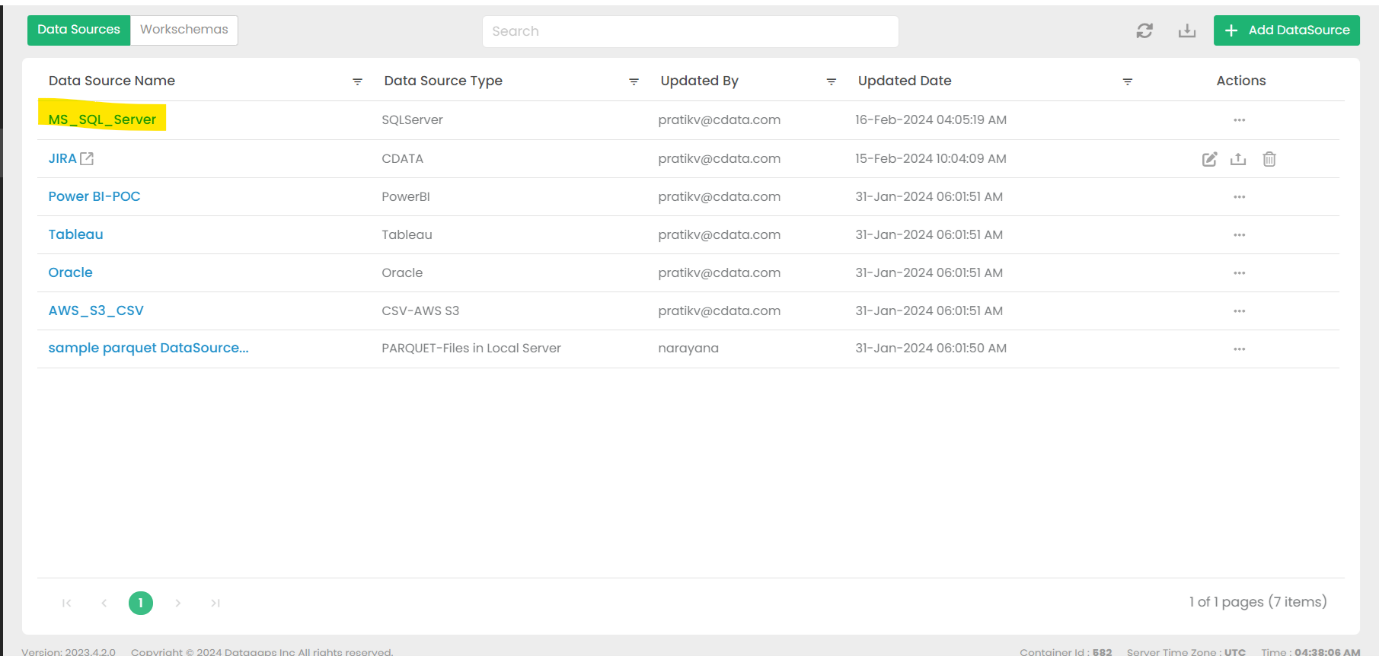
Go to DataSources and select MS_SQL_SERVER
This option is the default.
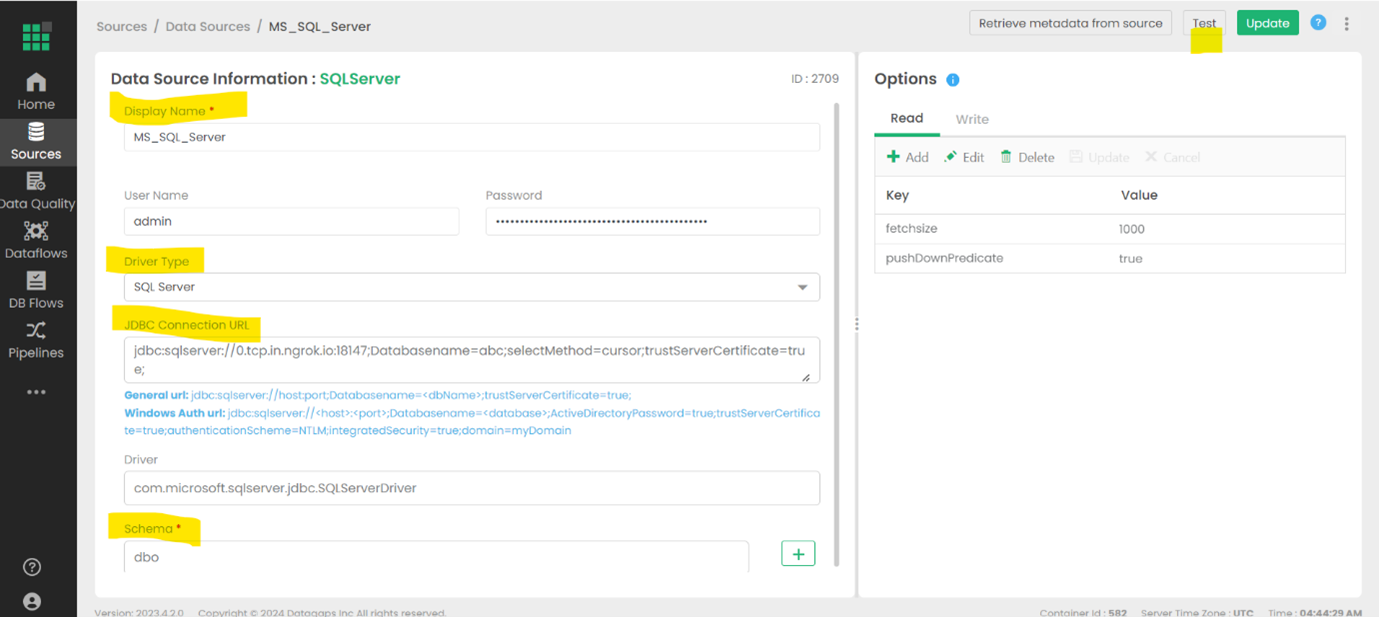
Fill in the necessary connection details and test the connection
The details will depend on the specific target, but these details may include a URL, authentiation credentials, etc.
Create a Dataflow in ETL Validator
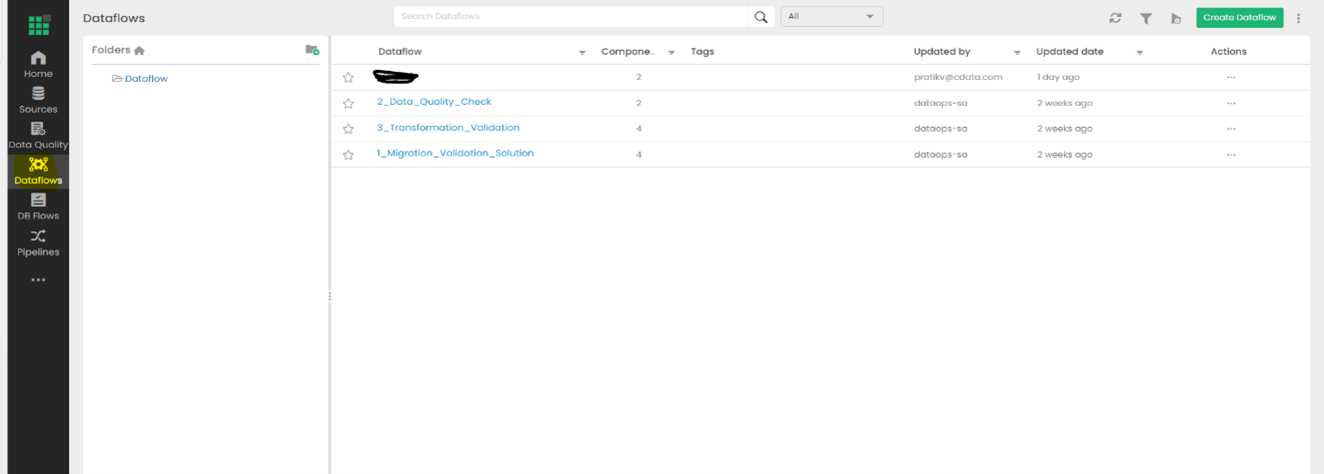
Open the Dataflows tab
Configured data flows will appear in this window.
Select Create Dataflow
Name your new dataflow and save it.
Open the Dataflow to view the Dataflow Diagram
The details of the data movement will be configured in this panel.
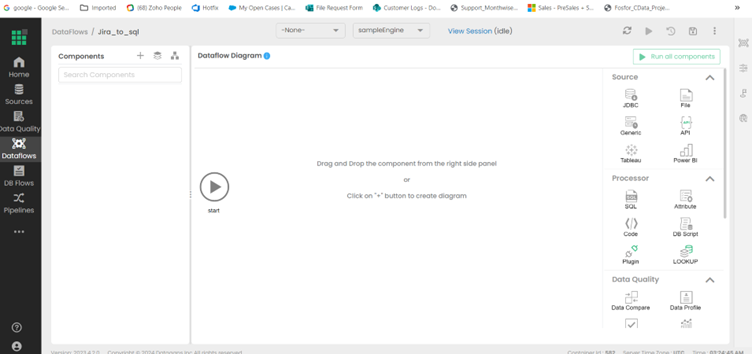
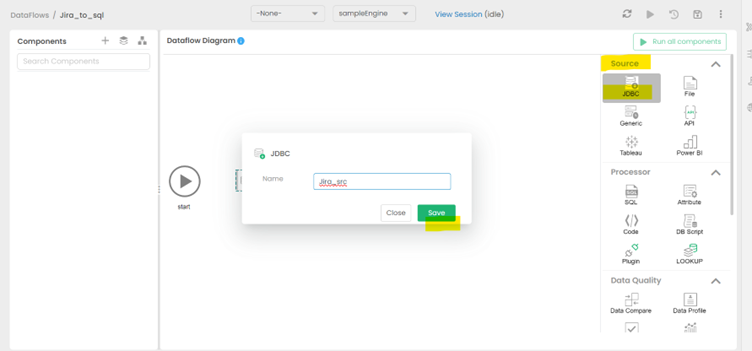
Drag & drop the JDBC as a source from the right side
Give the new source an appropriate name and save it.
Fill in the Query section of the new source
Select the Table from the Schema option that reflects which data should be pulled from Adobe Experience Manager data.
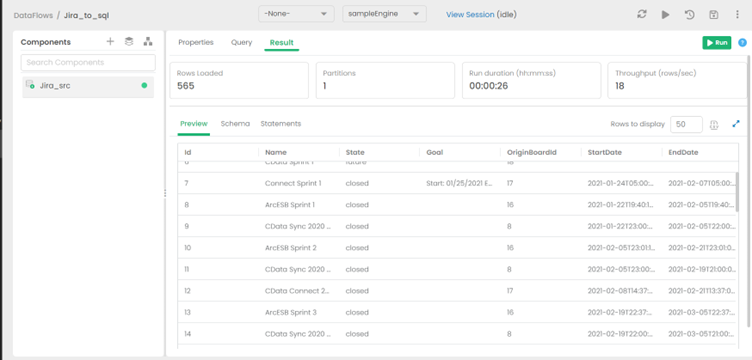
View the expected results of your query
The anticipated outcome of the configured query is displayed in the Result tab.
Add the destination to the Dataflow
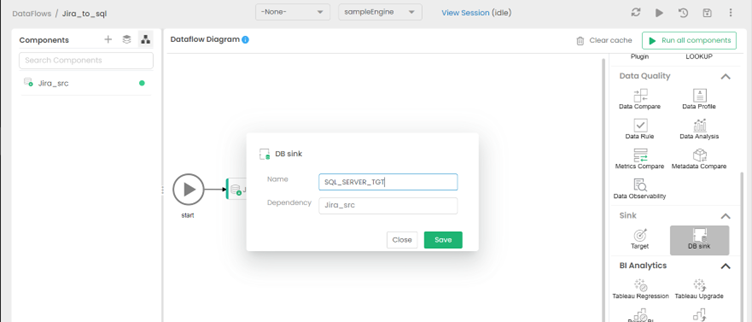
Select Switch to Diagram, then drag & drop the DB Sink as a target from the right side (under Sink options). Give the sink an appropriate name and save it.
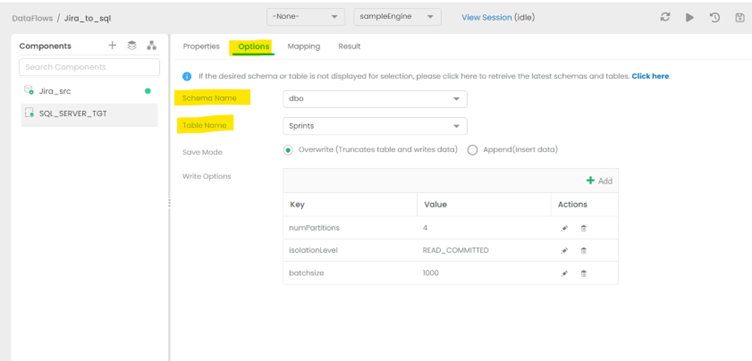
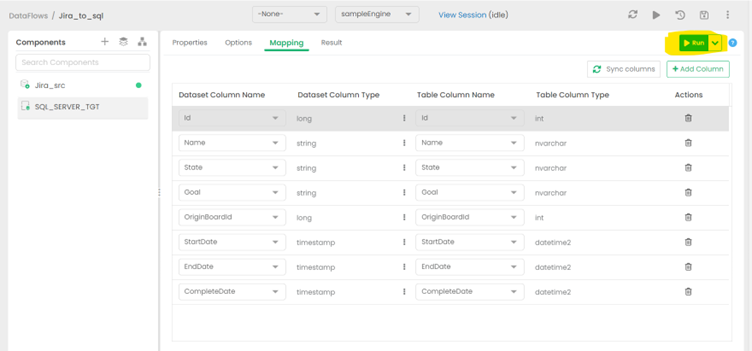
Set the appropriate Schema for the destination
Choose the Schema and table that matches the structure of the source table. For this example, the table on the target side was created to match the Source so that data flow seamlessly. More advanced schema transformation operations are beyond the scope of this article.
Hit the RUN option to begin replication
Running the job will take some time.
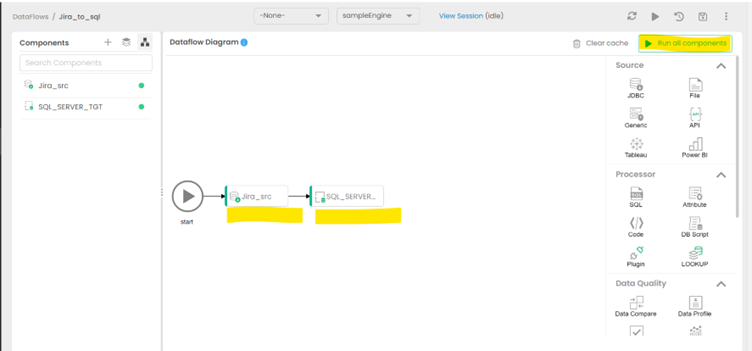
View the finished Dataflow
Return to the diagram to see the finished data replication job from Adobe Experience Manager data to SQL Server.
Get Started Today
Download a free, 30-day trial of the CData JDBC Driver for Adobe Experience Manager and start building Adobe Experience Manager-connected applications with ETL Validator. Reach out to our Support Team if you have any questions.
Ready to get started?
Download a free trial of the Adobe Experience Manager Driver to get started:
Download NowLearn more:
 Adobe Experience Manager JDBC Driver
Rapidly create and deploy powerful Java applications that integrate with Adobe Experience Manager.
