





Access Live ApprovalMax Data in AWS Lambda

AWS Lambda is a compute service that lets you build applications that respond quickly to new information and events. AWS Lambda functions can work with live ApprovalMax data when paired with the CData API Driver for JDBC. This article describes how to connect to and query ApprovalMax data from an AWS Lambda function built in Eclipse.
At the time this article was written (June 2022), Eclipse version 2019-12 and Java 8 were the highest versions supported by the AWS Toolkit for Eclipse.
With built-in optimized data processing, the CData JDBC Driver offers unmatched performance for interacting with live ApprovalMax data. When you issue complex SQL queries to ApprovalMax, the driver pushes supported SQL operations, like filters and aggregations, directly to ApprovalMax and utilizes the embedded SQL engine to process unsupported operations client-side (often SQL functions and JOIN operations). In addition, its built-in dynamic metadata querying allows you to work with and analyze ApprovalMax data using native data types.
Gather Connection Properties and Build a Connection String
Start by setting the Profile connection property to the location of the ApprovalMax Profile on disk (e.g. C:\profiles\ApprovalMax.apip). Next, set the ProfileSettings connection property to the connection string for ApprovalMax (see below).
ApprovalMax API Profile Settings
To authenticate to ApprovalMax and connect to your own data or to allow other users to connect to their data, the ApprovalMax Public API requires the OAuth 2.0 authorization code flow.
First, you will need to register an OAuth application with ApprovalMax. Sign in to the ApprovalMax Developer Portal (https://developer.approvalmax.com/applications) and create a new application. Your OAuth application will be assigned a Client ID and a Client Secret, and you must register at least one Redirect URI (Callback URL).
A Premium ApprovalMax subscription (or active trial) is required to use the Public API.
After setting the following connection properties, you are ready to connect:
- AuthScheme: Set this to OAuth.
- InitiateOAuth: Set this to GETANDREFRESH. You can use InitiateOAuth to manage the process to obtain the OAuthAccessToken.
- OAuthClientId: Set this to the Client ID that is shown in your application settings on the ApprovalMax Developer Portal.
- OAuthClientSecret: Set this to the Client Secret that is shown in your application settings on the ApprovalMax Developer Portal.
- CallbackURL: Set this to the Redirect URI that is registered in your application settings.
- Scope: (Optional) Override the default OAuth scopes. The default value openid offline_access https://www.approvalmax.com/scopes/public_api/read grants read-only access to all tables in this profile and enables refresh tokens. Use the principle of least privilege when narrowing this scope.
The OAuth Authorization URL is https://identity.approvalmax.com/connect/authorize and the Token URL is https://identity.approvalmax.com/connect/token. Both authorization_code and refresh_token grant types are supported.
NOTE: To use the JDBC driver in an AWS Lambda function, you will need a license (full or trial) and a Runtime Key (RTK). For more information on obtaining this license (or a trial), contact our sales team.
Built-in Connection String Designer
For assistance constructing the JDBC URL, use the connection string designer built into the ApprovalMax JDBC Driver. Double-click the JAR file or execute the jar file from the command line.
java -jar cdata.jdbc.api.jar

Fill in the connection properties (including the RTK) and copy the connection string to the clipboard.
Create an AWS Lambda Function
- Download the CData API Driver for JDBC installer, unzip the package, and run the JAR file to install the driver.
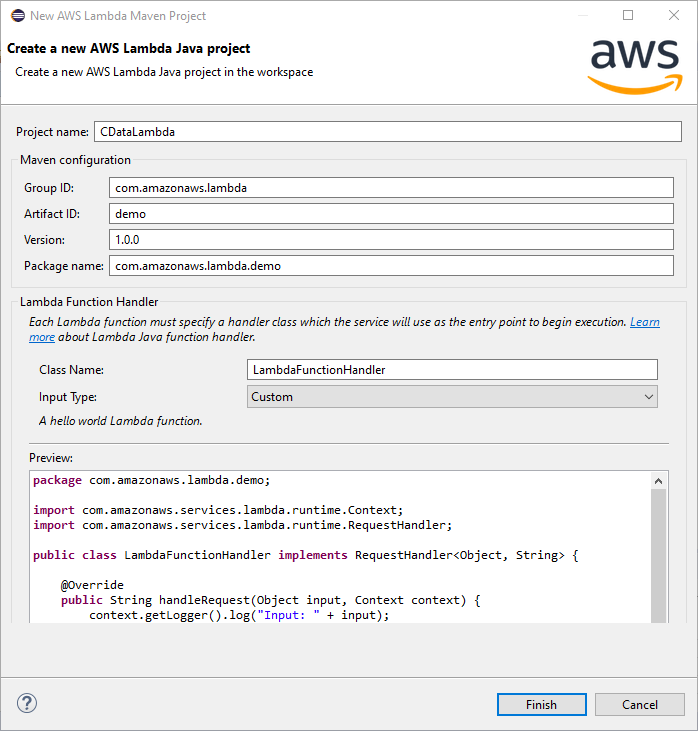
Create a new AWS Lambda Java Project in Eclipse using the AWS Toolkit for Eclipse. You can follow the tutorial from AWS (amazon.com).
For this article, set the Input Type for the project to "Custom" so we can enter a table name as the input.
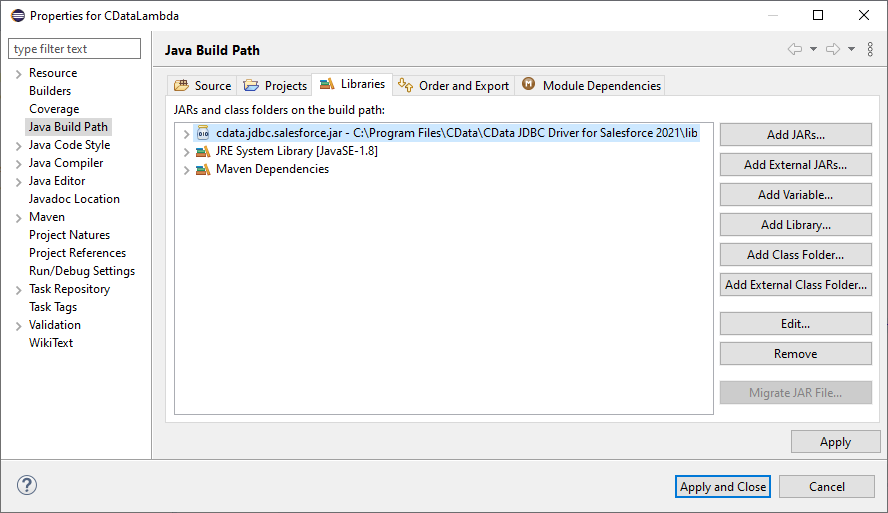
- Add the CData API Driver for JDBC JAR file (cdata.jdbc.api.jar) to the build path. The file is found in INSTALL_PATH\lib\.
- Add the following import statements to the Java class:
import java.sql.Connection;
import java.sql.DriverManager;
import java.sql.ResultSet;
import java.sql.ResultSetMetaData;
import java.sql.SQLException;
import java.sql.Statement;
Replace the body of the handleRequest method with the code below. Be sure to fill in the connection string in the DriverManager.getConnection method call.
String query = "SELECT * FROM " + input;

try {
	Class.forName("cdata.jdbc.api.APIDriver");
} catch (ClassNotFoundException ex) {
	context.getLogger().log("Error: class not found");
}

Connection connection = null;

try {
	connection = DriverManager.getConnection("jdbc:cdata:api:RTK=52465...;Profile=C:\profiles\ApprovalMax.apip;AuthScheme=OAuth;InitiateOAuth=GETANDREFRESH;OAuthClientId=your_client_id;OAuthClientSecret=your_client_secret;CallbackURL=your_callback_url;");
} catch (SQLException ex) {
	context.getLogger().log("Error getting connection: " + ex.getMessage());
} catch (Exception ex) {
	context.getLogger().log("Error: " + ex.getMessage());
}

if(connection != null)
{
	context.getLogger().log("Connected Successfully!\n");
}

ResultSet resultSet = null;
try
{
	//executing query
	Statement stmt = connection.createStatement();
	resultSet = stmt.executeQuery(query);

	ResultSetMetaData metaData = resultSet.getMetaData();
	int numCols = metaData.getColumnCount();

	//printing the results
	while(resultSet.next())
	{
		for(int i = 1; i <= numCols; i++)
		{
			System.out.printf("%-25s", (resultSet.getObject(i) != null) ? resultSet.getObject(i).toString().replaceAll("\n", "") : null );
		}
		System.out.print("\n");
	}
}
catch (SQLException ex)
{
	System.out.println("SQL Exception: " + ex.getMessage());
}
catch (Exception ex)
{
	System.out.println("General exception: " + ex.getMessage());
}

String output = "query: " + query + " complete";
return output;
Deploy and Run the Lambda Function
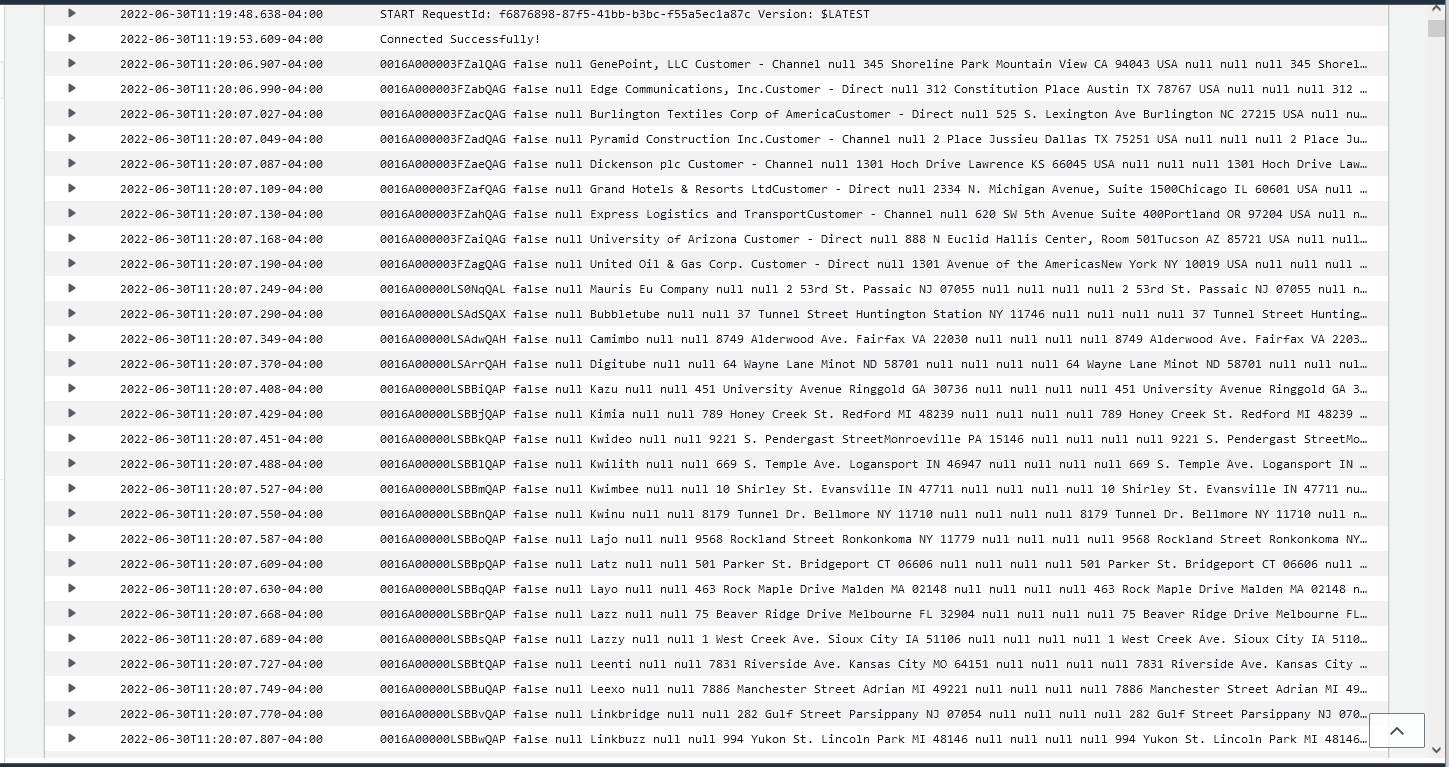
Once you build the function in Eclipse, you are ready to upload and run the function. In this article, the output is written to the AWS logs, but you can use this is a template to implement you own custom business logic to work with ApprovalMax data in AWS Lambda functions.
- Right-click the Package and select Amazon Web Services -> Upload function to AWS Lamba.
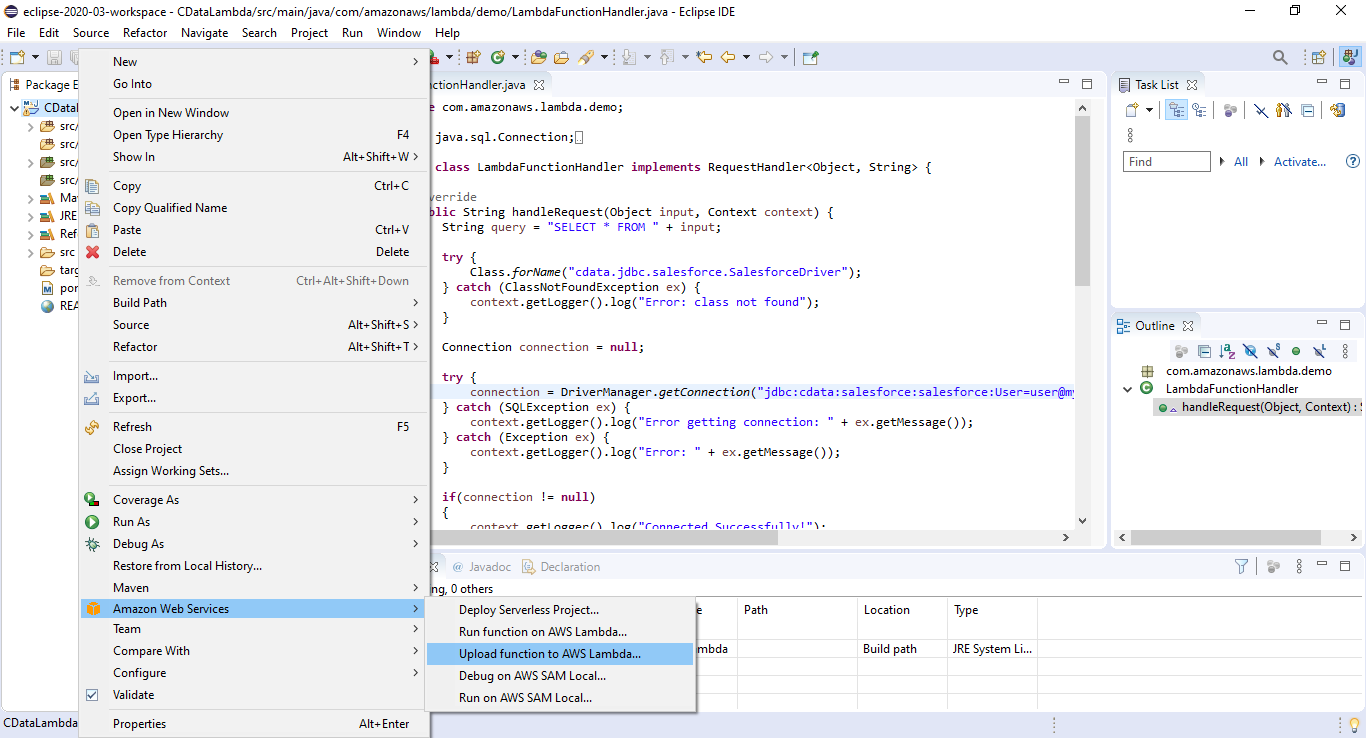
- Name the function, select an IAM role, and set the timeout value to a high enough value to ensure the function completes (depending on the result size of your query).
- Right-click the Package and select Amazon Web Services -> Run function on AWS Lambda and set the input to the name of the ApprovalMax object you wish to query (i.e. "UserProfiles").
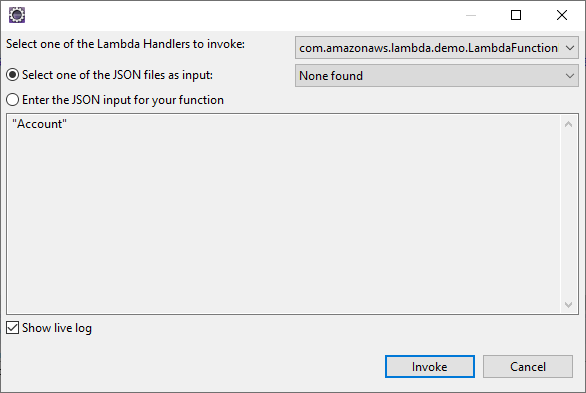
- After the job runs, you can view the output in the CloudWatch logs.
Free Trial & More Information
Download a free, 30-day trial of the CData API Driver for JDBC and start working with your live ApprovalMax data in AWS Lambda. Reach out to our Support Team if you have any questions.