





Execute Stored Procedures to Azure Synapse in BizTalk

Stored procedures implement Azure Synapse actions that cannot be represented as SELECT, INSERT, UPDATE, and DELETE statements. This article shows how to generate a schema for a stored procedure. You can use the schema to execute the stored procedure from a send port.
Add the Adapter to Your Project
Use the Add Adapter wizard to add the adapter to a BizTalk Server project in Visual Studio. The adapter will return metadata about the inputs of the stored procedure and its results. This metadata is needed to create the schema.
- Right-click on the project in the Solution Explorer and click Add -> Add Generated Items.
- Select Add Adapter Metadata in the resulting dialog box.
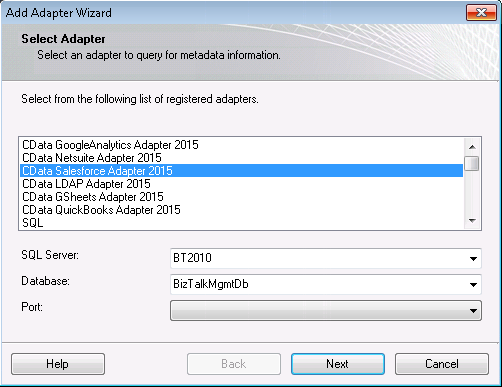
- In the resulting Add Adapter wizard, select the adapter from the list.
- In the Port menu, leave the selection blank. Or, select a receive location or send port that has been configured to use the Azure Synapse Adapter.
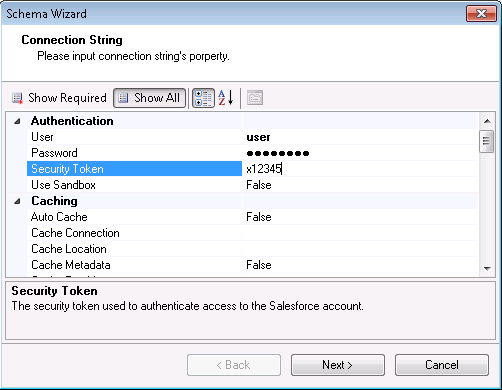
On the Connection String page, enter authentication credentials and other connection properties if they were not already configured in the send port or the receive location.
Below is a typical connection string:
User=myuser;Password=mypassword;Server=localhost;Database=Northwind;
Connecting to Azure Synapse
In addition to providing authentication (see below), set the following properties to connect to a Azure Synapse database:
- Server: The server running Azure. You can find this by logging into the Azure portal and navigating to Azure Synapse Analytics -> Select your database -> Overview -> Server name.
- Database: The name of the database, as seen in the Azure portal on the Azure Synapse Analytics page.
Authenticating to Azure Synapse
Connect to Azure Synapse using the following properties:
- User: The username provided for authentication with Azure.
- Password: The password associated with the authenticating user.
Generate the Schema
After you enter connection properties in the Add Adapter wizard, the Schema wizard is displayed.
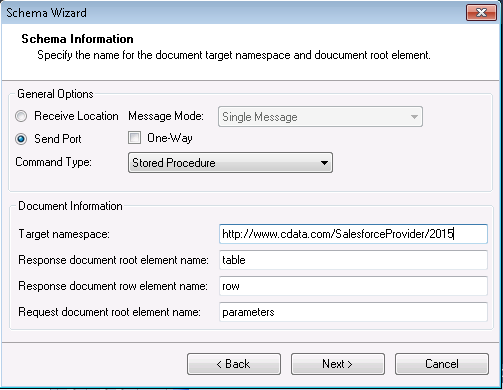
- On the next page, Schema Information, select the Send Port that you have configured to use the Azure Synapse Adapter.
- If you have configured the CData Azure Synapse Adapter in a solicit-response send port, disable the One-Way option.
- In the Command Type menu, select Stored Procedure.
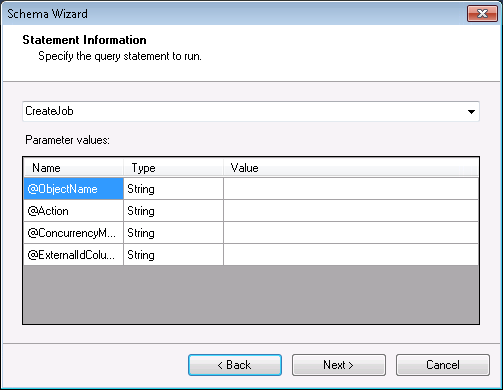
- Select the stored procedure from the menu and enter the values for the input parameters.
- Confirm the settings in the summary displayed by the wizard and click Finish to generate the schema.xsd file.
Processing Schemas
To use schemas in a simple BizTalk application, see the tutorial.