


Excel Spreadsheet Automation on BugHerd Data with the QUERY Formula

The CData Excel Add-In for BugHerd provides formulas that can query BugHerd data. The following three steps show how you can automate the following task: Search BugHerd data for a user-specified value and then organize the results into an Excel spreadsheet.
The syntax of the CDATAQUERY formula is the following:
=CDATAQUERY(Query, [Connection], [Parameters], [ResultLocation]);This formula requires three inputs:
- Query: The declaration of the BugHerd data records you want to retrieve, written in standard SQL.
Connection: Either the connection name, such as APIConnection1, or a connection string. The connection string consists of the required properties for connecting to BugHerd data, separated by semicolons.
Start by setting the Profile connection property to the location of the BugHerd Profile on disk (e.g. C:\profiles\BugHerd.apip). Next, set the ProfileSettings connection property to the connection string for BugHerd (see below).
BugHerd API Profile Settings
BugHerd uses HTTP Basic authentication with an API key as the username. To obtain an API key:
- Sign in to your BugHerd account at https://www.bugherd.com
- Navigate to Settings > General Settings
- Locate the API Key section and copy the generated key
After obtaining your API key, set the following connection properties:
- AuthScheme: Set this to APIKey.
Set the following in the ProfileSettings connection property:
- APIKey: Set this to your BugHerd API key. The driver uses the key as the Basic auth username and sets the password internally to the literal value 'x' as required by BugHerd.
- ResultLocation: The cell that the output of results should start from.
Pass Spreadsheet Cells as Inputs to the Query
The procedure below results in a spreadsheet that organizes all the formula inputs in the first column.
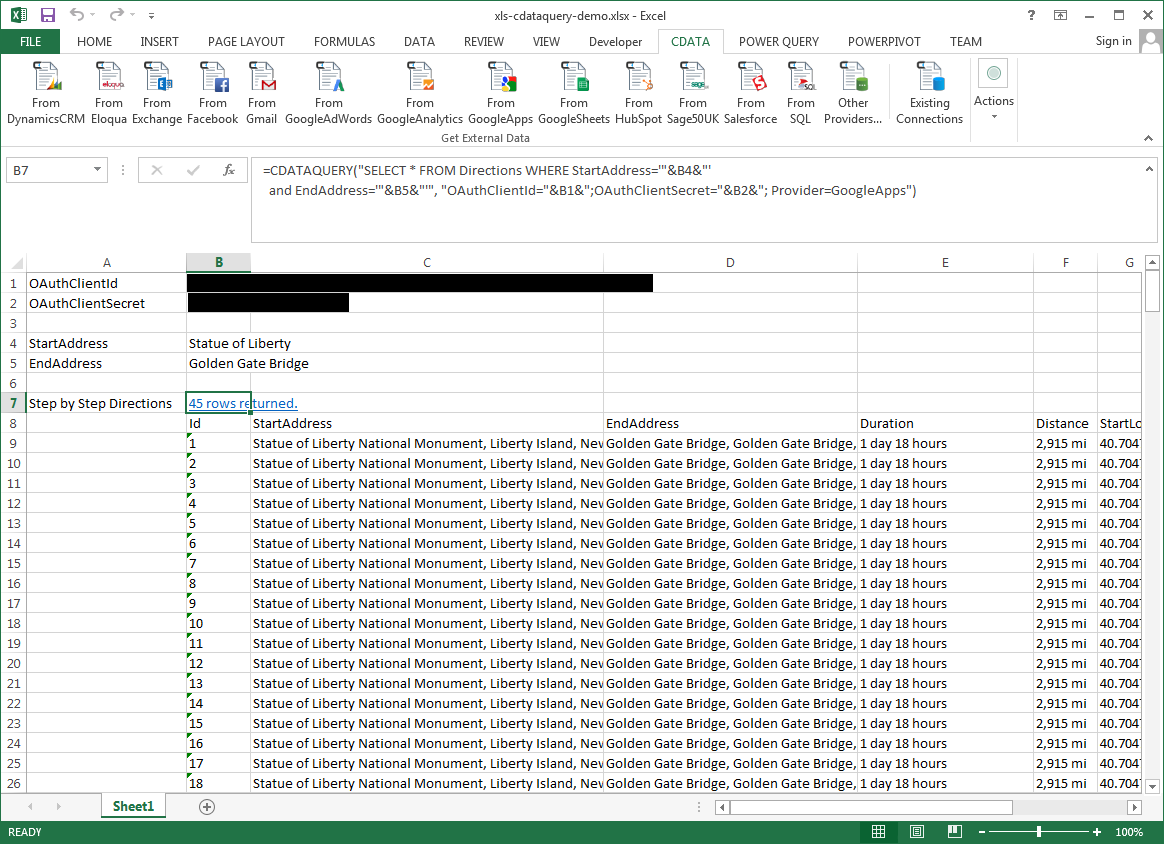
- Define cells for the formula inputs. In addition to the connection inputs, add another input to define a criterion for a filter to be used to search BugHerd data, such as ProjectId.
- In another cell, write the formula, referencing the cell values from the user input cells defined above. Single quotes are used to enclose values such as addresses that may contain spaces.
- Change the filter to change the data.
=CDATAQUERY("SELECT * FROM Tasks WHERE ProjectId = '"&B5&"'","Profile="&B1&";AuthScheme="&B2&";ProfileSettings="&B3&";Provider=API",B6)