





Connect to Real-Time Canny Data in Power Apps Using Dataflows to Build Custom Applications

Power Apps is a suite of apps, services, and connectors that allows users to build custom applications with minimal or no coding. It empowers businesses to create tailored apps that solve specific business challenges, automate workflows, and integrate with various data sources, including Microsoft Dataverse, SQL Server, and third-party services.
Dataflows in Power Apps simplify the process of importing, transforming, and loading external data into Microsoft Dataverse or other storage systems. They allow users to connect to multiple data sources (like Salesforce, Excel, or SQL databases), clean or shape the data, and store it in Power Apps. When paired with the CData API Driver for Power BI, it provides access to Canny data to build custom applications and more
This article demonstrates how you can easily connect to Canny using the CData API Driver for Power BI and integrate your Canny data through the Power Apps on-premises data gateway.
Configure a DSN to connect to Canny data
Installing the Power BI Connector creates a DSN (data source name) called CData PBI Canny Sys. This the name of the DSN that Power BI uses to request a connection to the data source. Configure the DSN by filling in the required connection properties.
You can use the Microsoft ODBC Data Source Administrator to create a new DSN or configure (and rename) an existing DSN: From the Start menu, enter "ODBC Data Sources." Ensure that you run the version of the ODBC Administrator that corresponds to the bitness of your Power BI Desktop installation (32-bit or 64-bit).
Start by setting the Profile connection property to the location of the Canny Profile on disk (e.g. C:\profiles\Canny.apip). Next, set the ProfileSettings connection property to the connection string for Canny (see below).
Canny API Profile Settings
Canny uses a secret API key to control access to the API. The API key is sent as a JSON body parameter named 'apiKey' in every HTTP POST request to the Canny API endpoints.
To authenticate with the Canny API, you need your company-level secret API key. You can find this key in your Canny account under Settings > API.
After setting the following connection properties, you are ready to connect:
- AuthScheme: Set this to APIKey.
- APIKey: Set this to your Canny company-level secret API key from the Settings > API page in your Canny dashboard.
Configure the on-premises data gateway to recognize the CData API Driver for Power BI
In this section, we will configure the on-premises data gateway to detect the CData API Driver for Power BI installed on your system. If you haven't installed the data gateway yet, you can download it from Microsoft's official website.
Set Up the Power BI Gateway
Follow the given process to configure the on-premise data gateway on your machine:
- Download and install the on-premises data gateway (recommended) option.
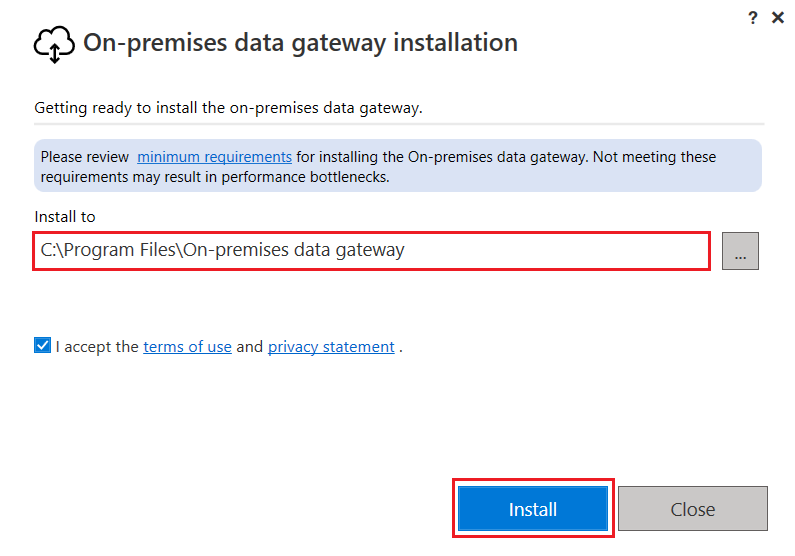
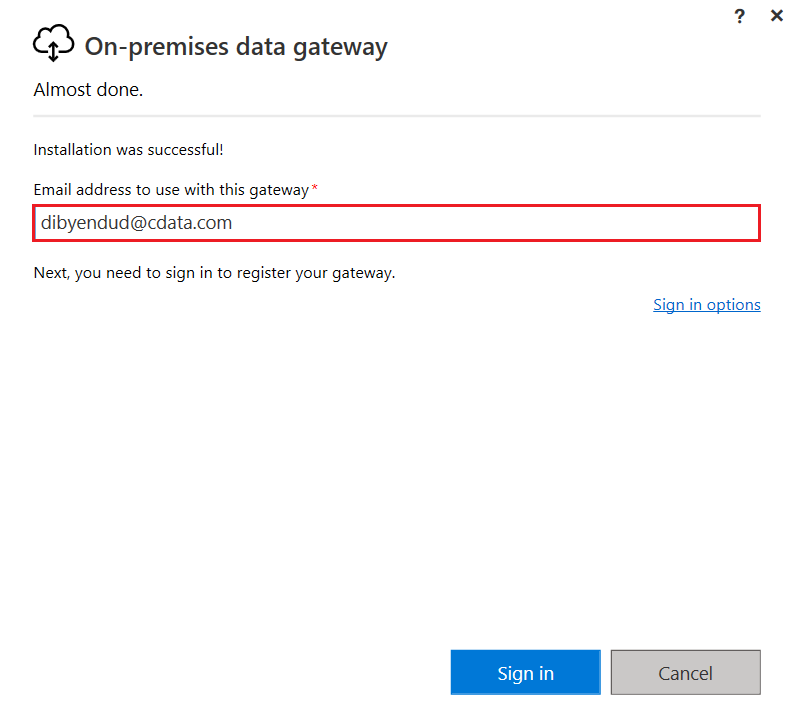
- Sign into the gateway.
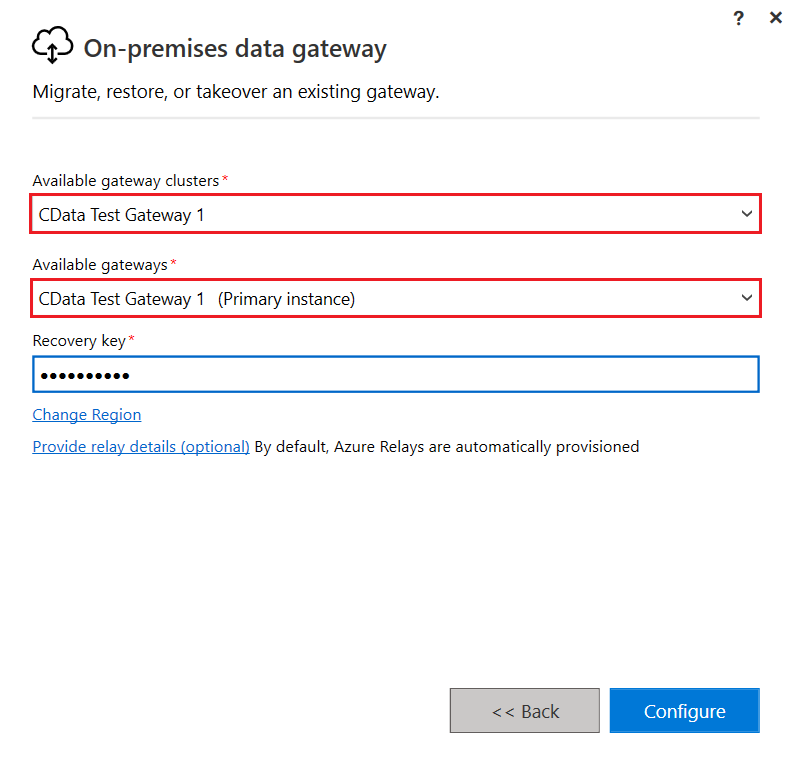
- Create a name for the new gateway and specify a recovery key.
- Open the new gateway, navigate to the Connector tab, and select the path C:\Program Files\CData\CData API Driver for Power BI from the folder. Click on Apply.
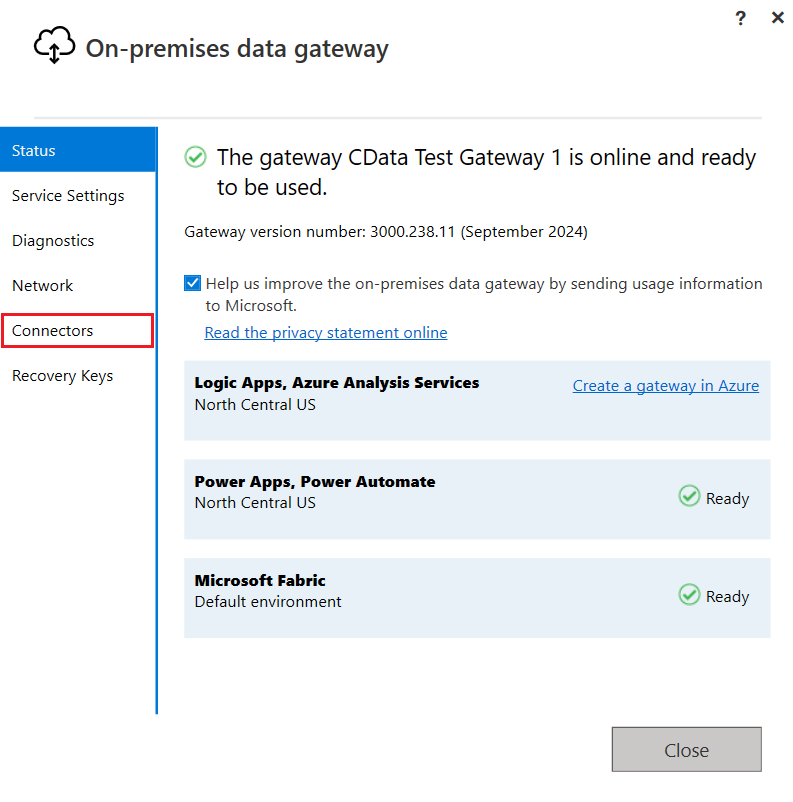
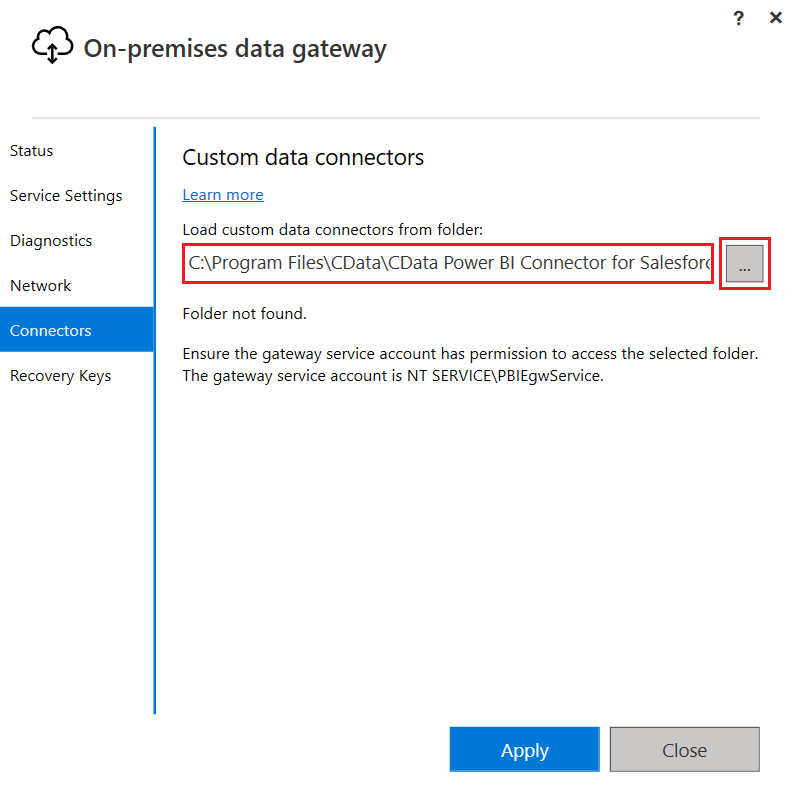
NOTE: Select the folder where the gateway will search for the CData Power BI Connector.
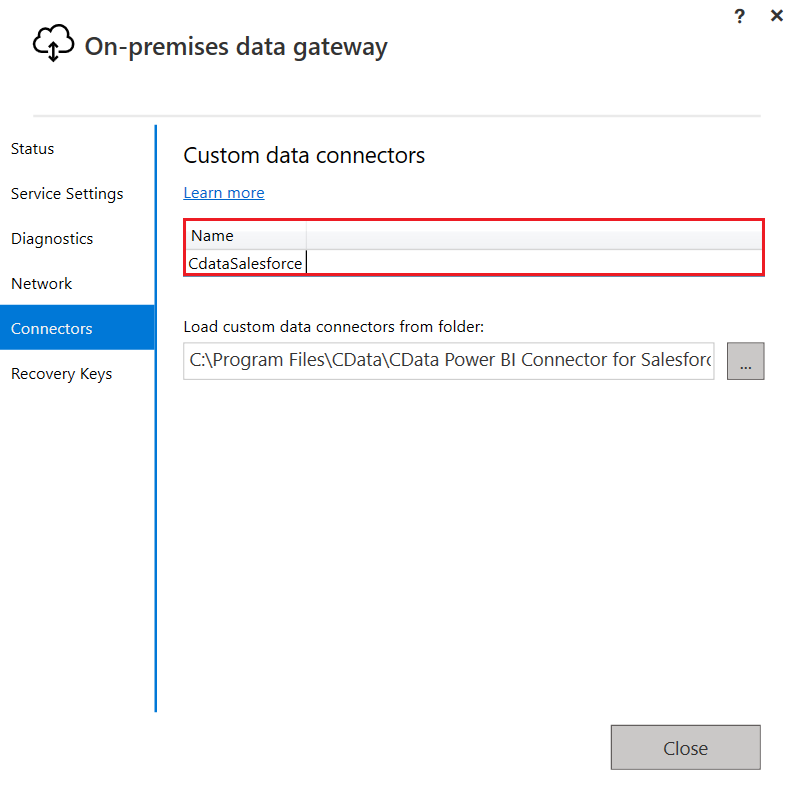
- Once the CData API Driver for Power BI is identified by the gateway, you're good to go.
Configure a dataflow connection in Power Apps
Once the on-premise data gateway is configured and a new gateway is created, follow these steps to create a dataflow that pulls in the Canny data into Power Apps:
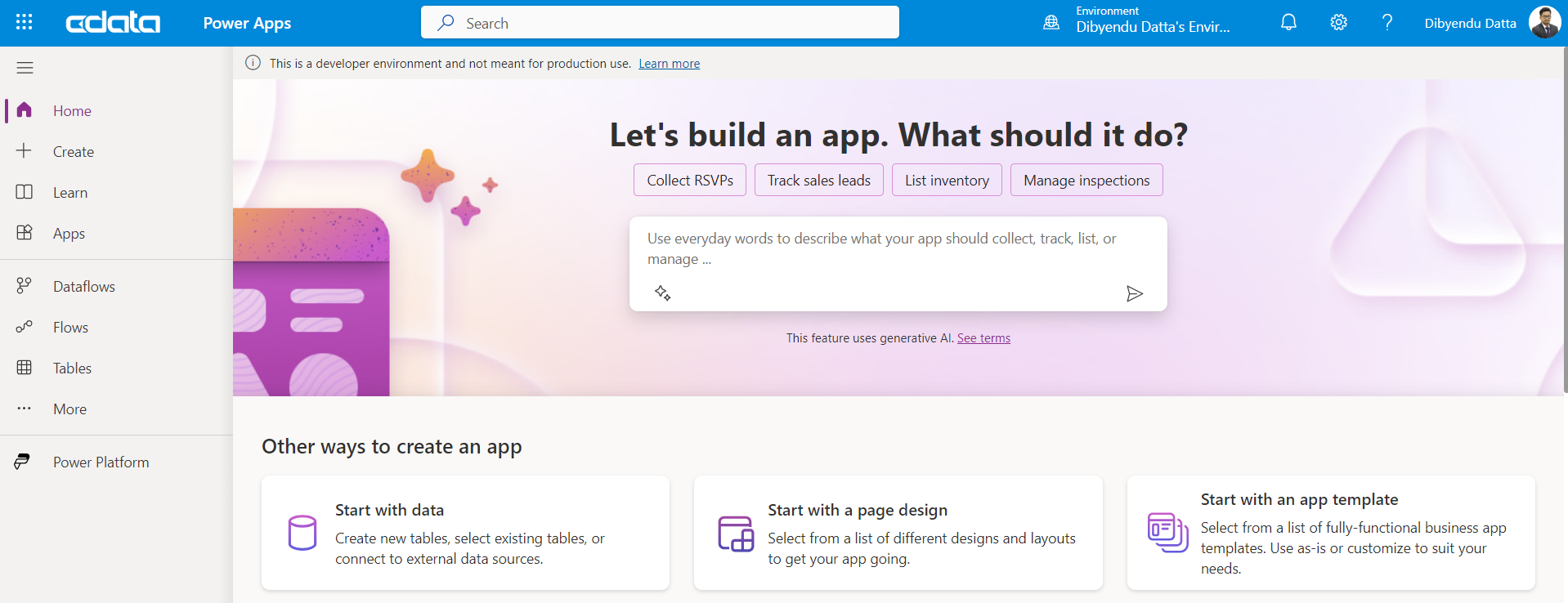
- Open Power Apps.
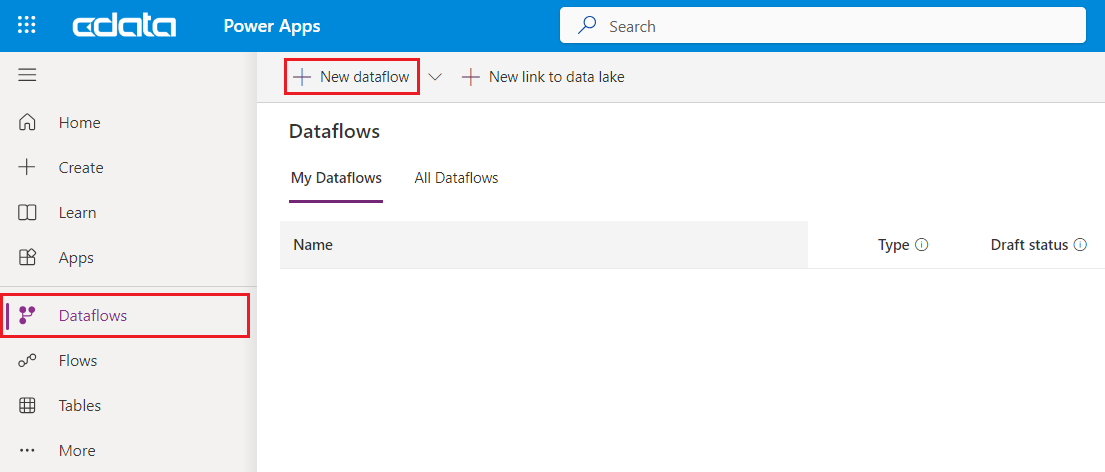
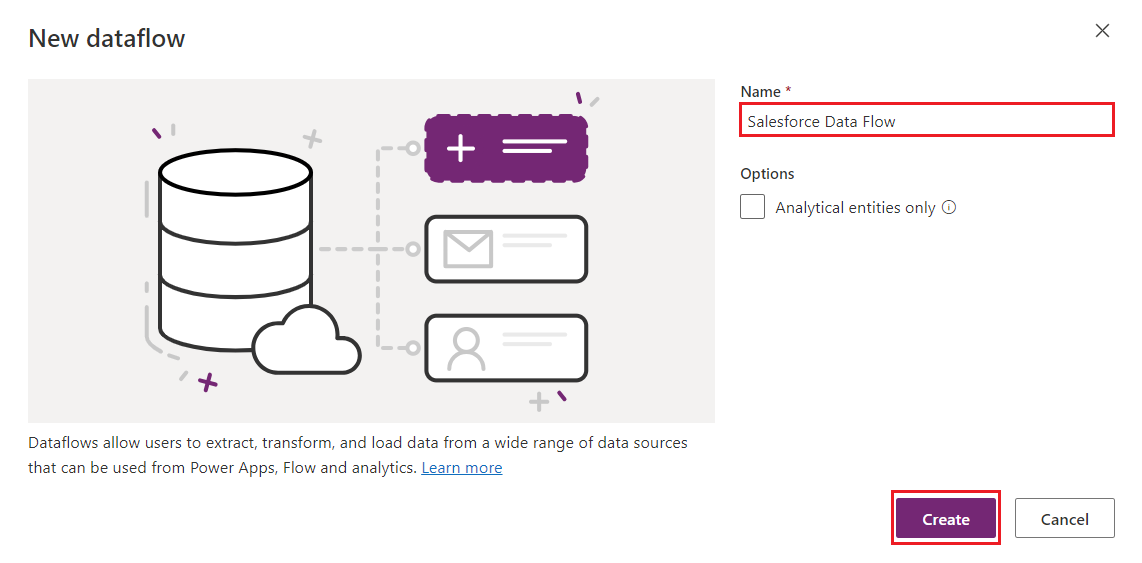
- Select Dataflows from the left panel on the Power Apps screen and click + New Dataflow.
- Provide a name to the dataflow and click Create.
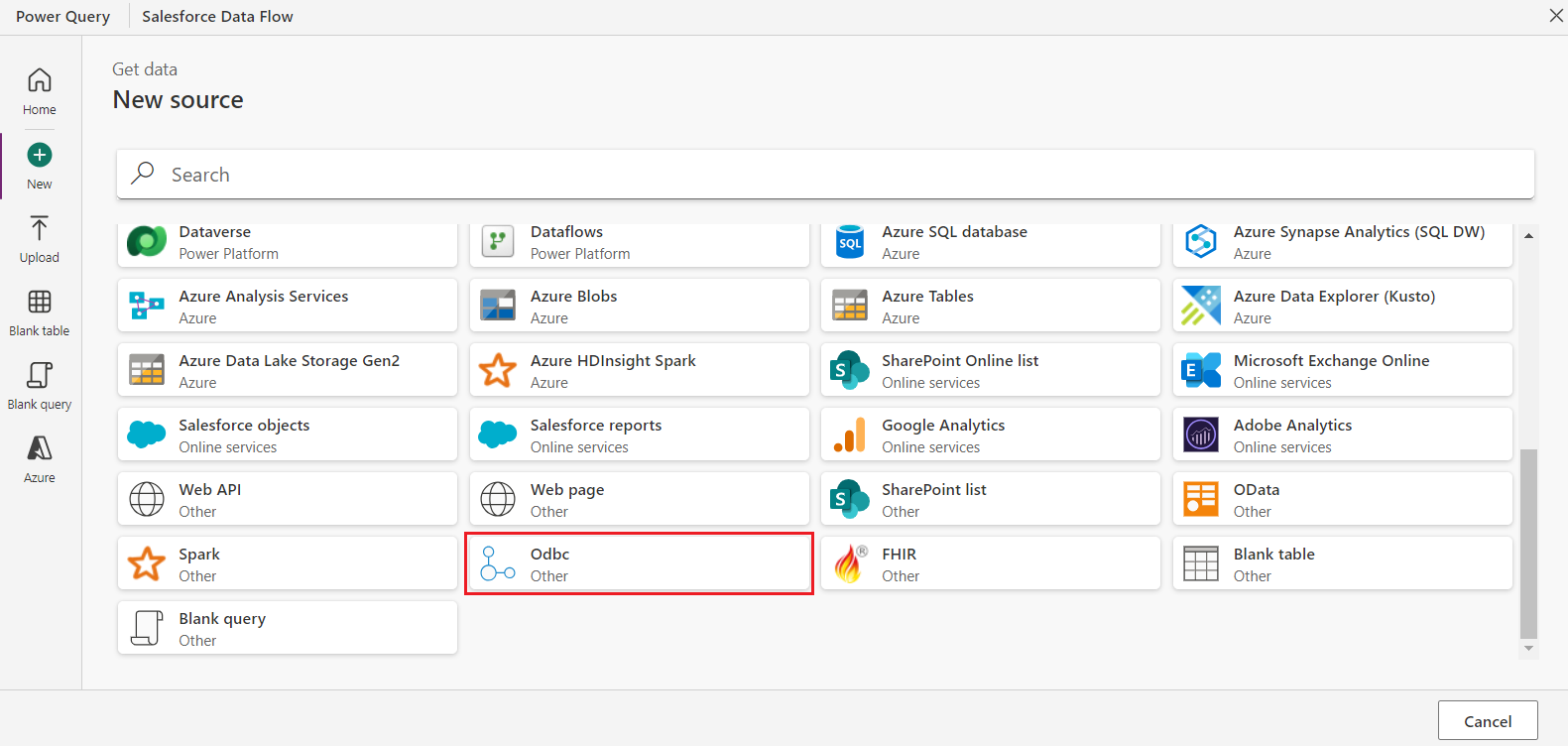
- Select ODBC from the list of data sources.
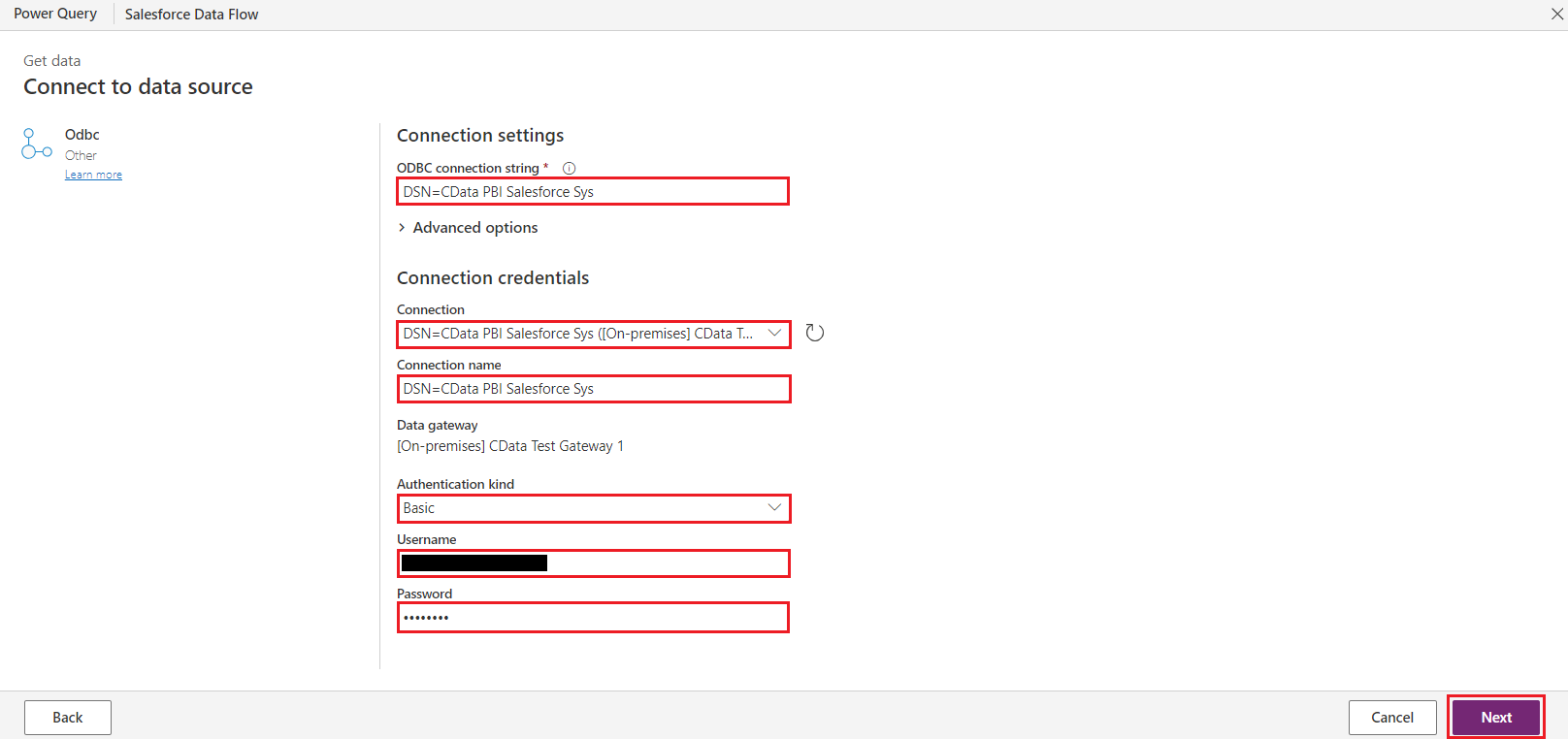
- On the ODBC Connection settings screen, use the connection details you set up earlier by entering DSN=Connection name (in this case, DSN=CData PBI Canny Sys) in the connection string. The on-premise data gateway will display available gateways for connection - select the one you created. Due to the current specifications of Power Apps dataflows, authentication is required for ODBC connections. Choose Basic as the authentication type and enter the Canny Username and Password. Click Next.
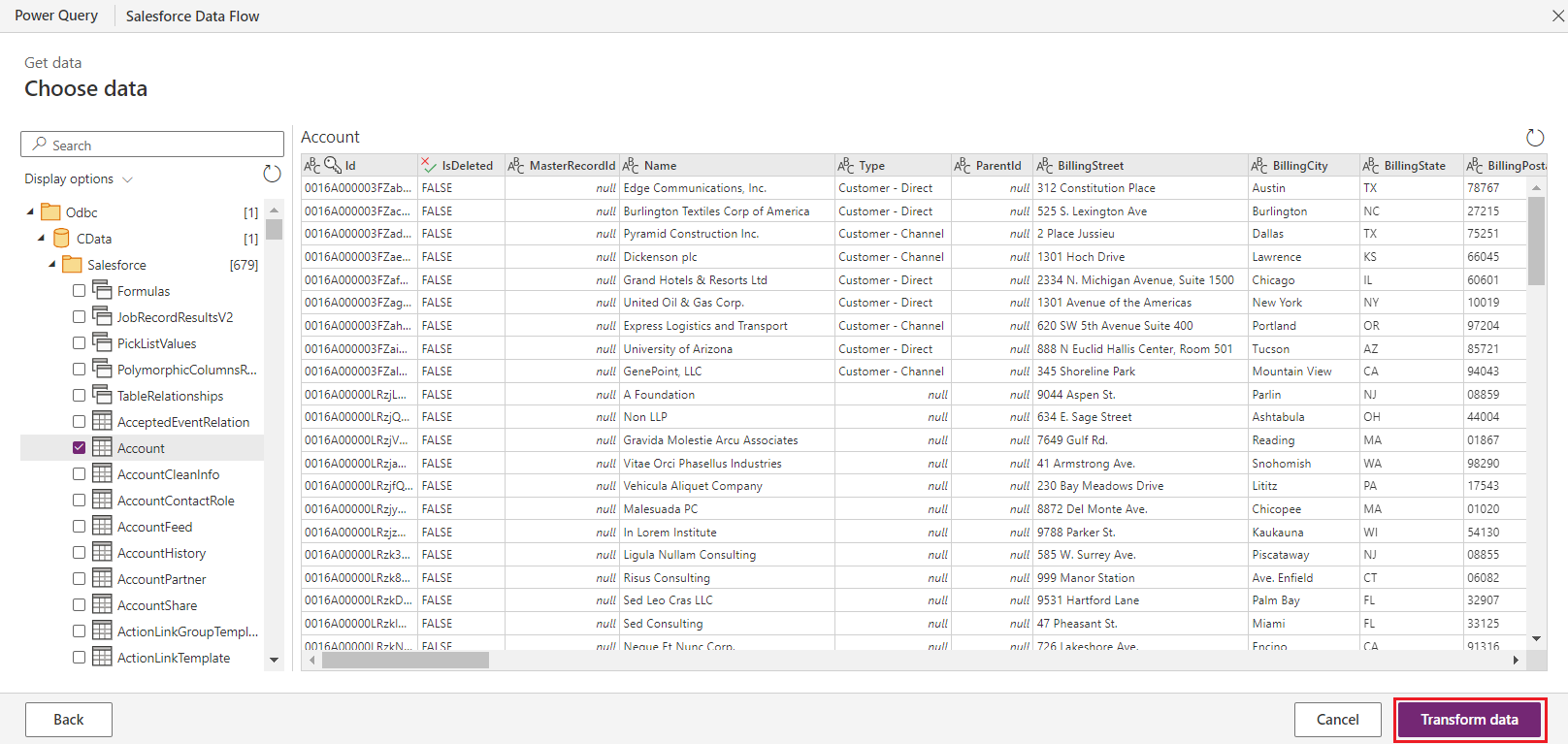
- Canny is now connected to Power Apps. Under Display options, expand CData under ODBC and Canny under CData, and a list of all the Canny tables will appear in the panel. When you select any one of these tables, a preview will appear, showing that the Canny data is correctly referenced through the Power BI connector and on-premise data gateway. Next, click on Transform Data.
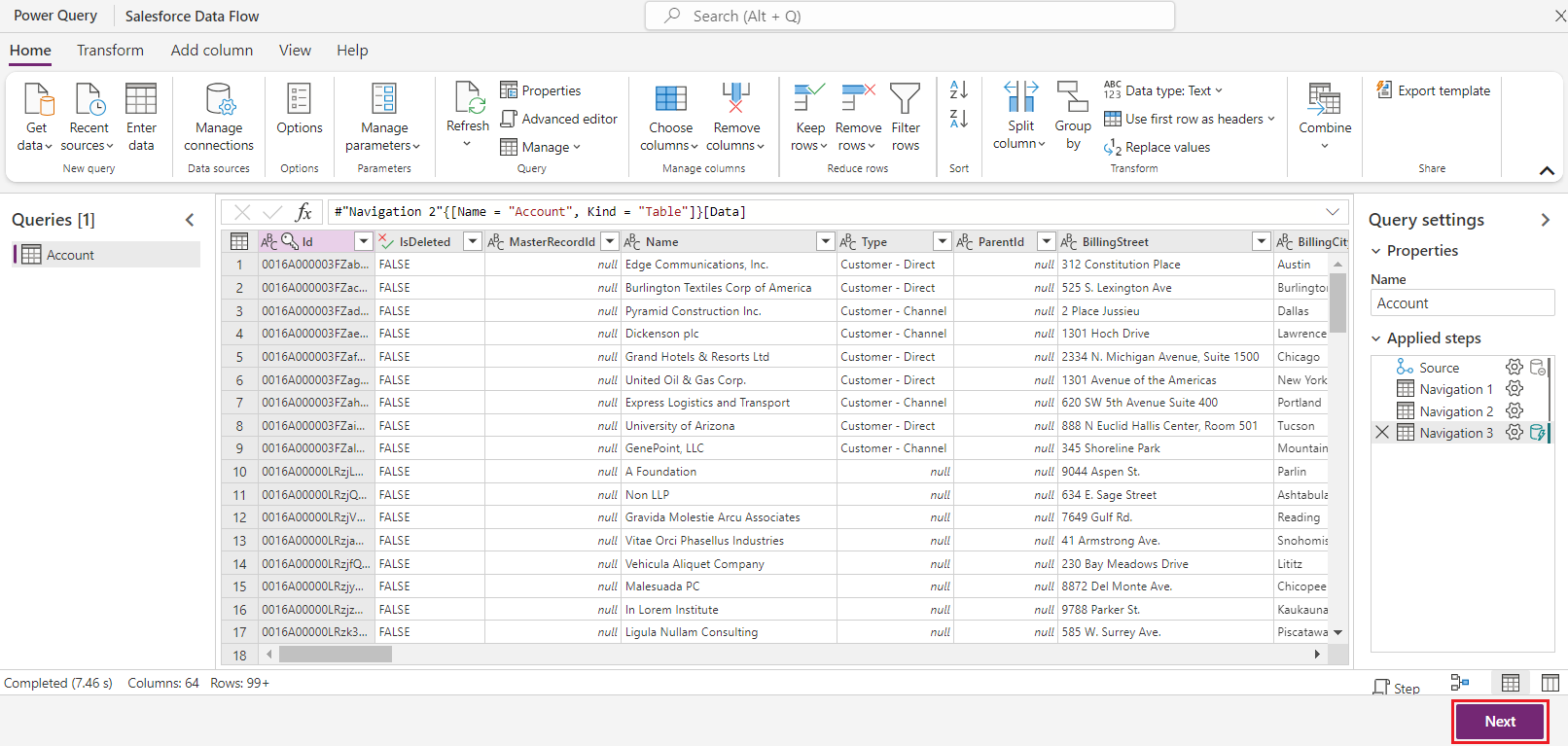
- On the query editing screen, if no column conversion is needed, you can skip this step and proceed by clicking on Next.
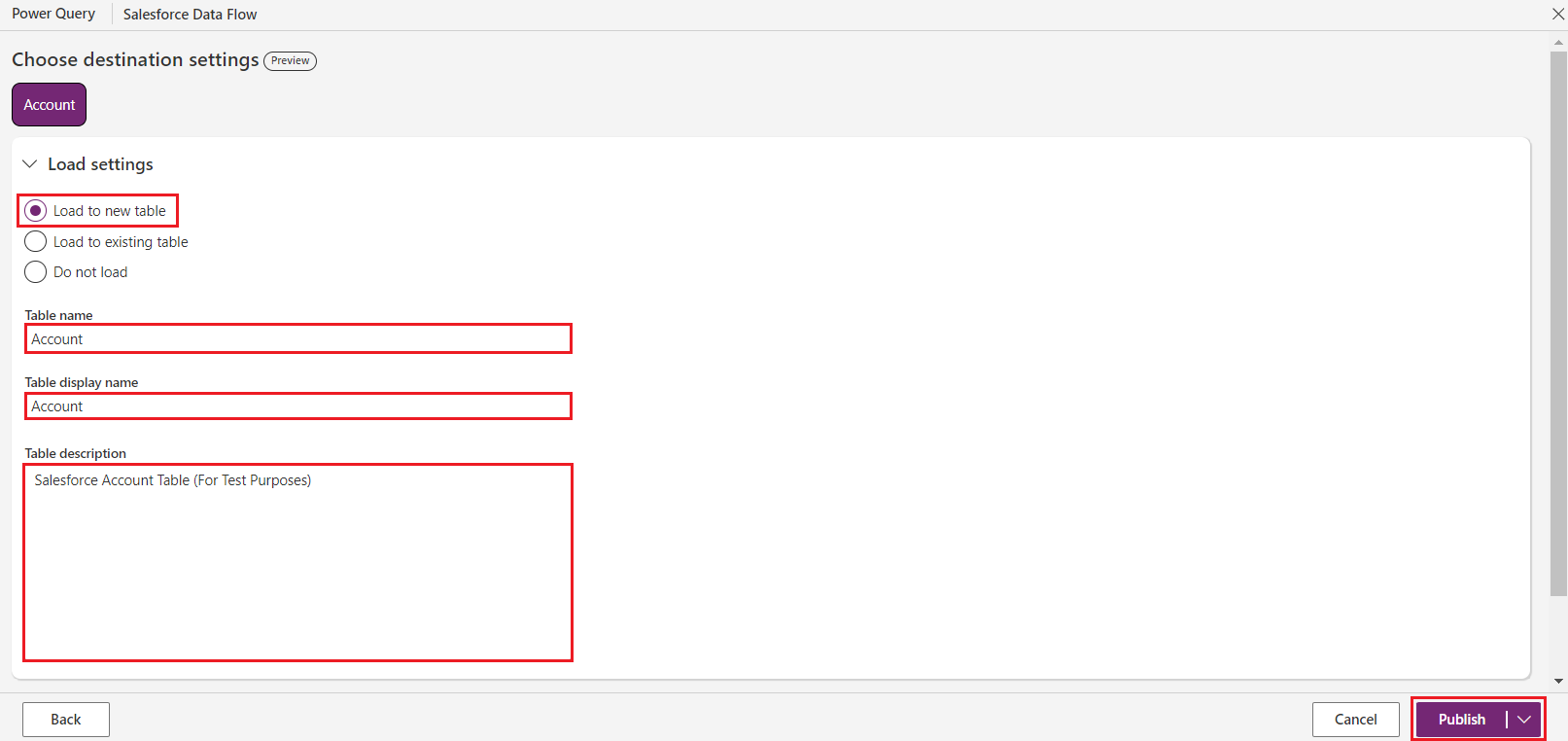
- In the Choose destination settings screen, you can select how the selected table needs to be loaded by choosing options like Load to new table, Load to existing table, and Do not load. You can also change the Table display name and description as required.
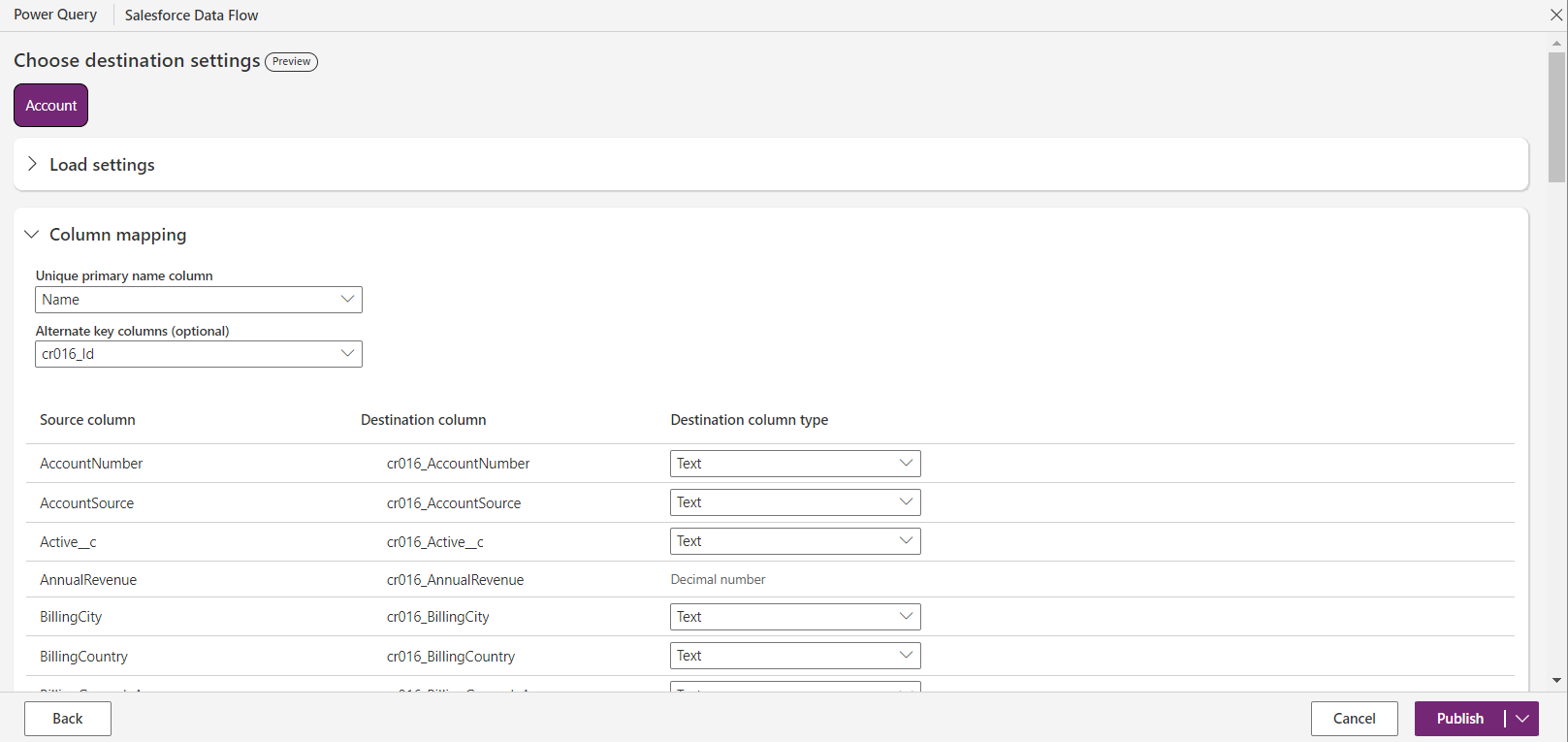
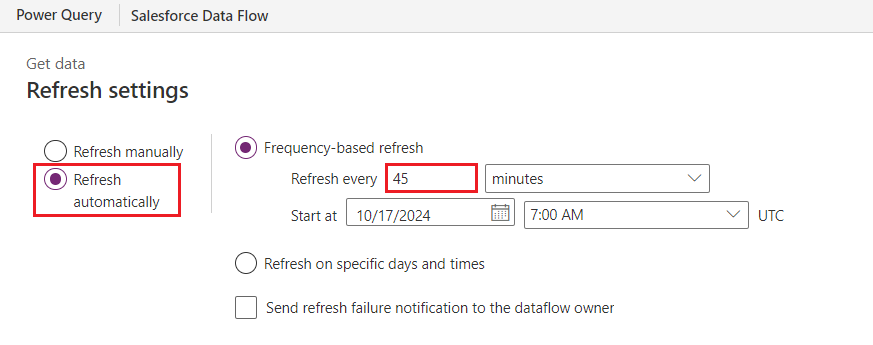
- Finally, choose how you'd like to update your data: Refresh manually or Refresh automatically. In this case, we have set it to Refresh automatically. By scheduling it to update every 45 minutes, as shown below, data will be collected and registered every 45 minutes timeframe, ensuring the most up-to-date information is always available. (You can select any timeframe based on your convenience)
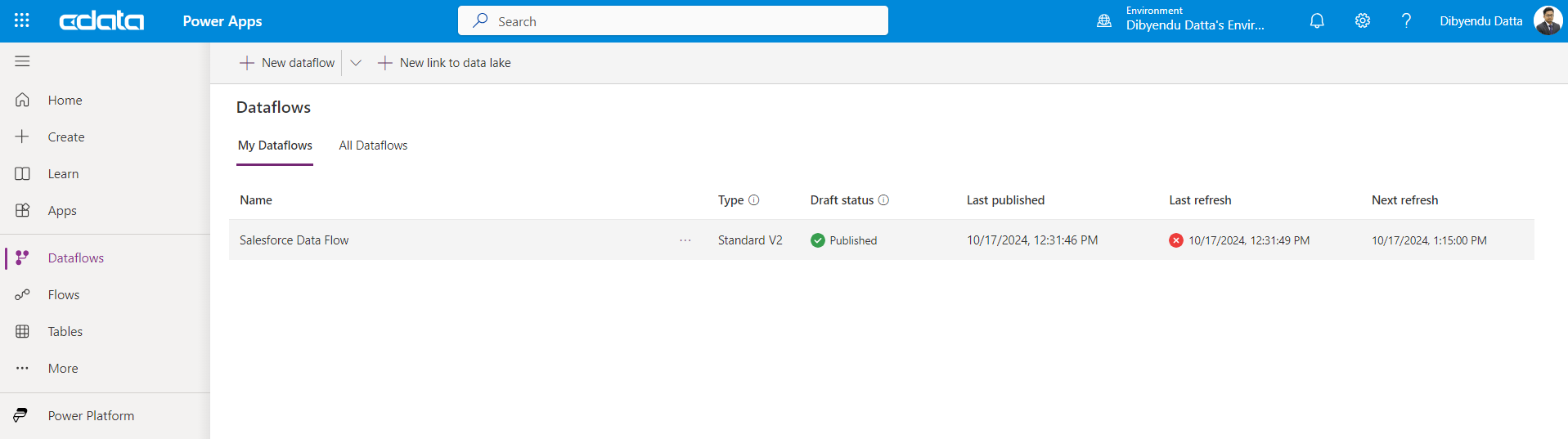
- Click on Publish. The dataflow will now be created, published, and displayed as a part of the dataflow list on the Dataflows screen.
Get Started Today
At this point, you will have created a dataflow using live Canny data and connected it to Power Apps. To learn more, explore the CData Power BI Connectors for Salesforce and download a free 30-day trial from the CData API Driver for Power BI page.
Feel free to reach out to our Support Team with any questions.