





Integrate with Live Claude Compliance Data in MuleSoft (via CData Connect AI)

The MuleSoft Anypoint Platform enables the building, deployment, and management of APIs and integrations, facilitating seamless connectivity across applications and systems. When combined with CData Connect AI, it provides access to Claude Compliance data for visualizations, dashboards, and more. This article explains how to use CData Connect AI to create a live connection to Claude Compliance and how to connect and access live Claude Compliance data from the MuleSoft Anypoint Platform.
Prerequisites
Before configuring and using MuleSoft with CData Connect AI, you must first connect a data source to your CData Connect AI account. For more information, see the Connections section.
Additionally, you need to generate a Personal Access Token (PAT) on the Settings page. Be sure to copy it down, as it serves as your password during authentication.
Configure Claude Compliance Connectivity for MuleSoft
Connectivity to Claude Compliance from MuleSoft is made possible through CData Connect AI. To work with Claude Compliance data from MuleSoft, we start by creating and configuring a Claude Compliance connection.
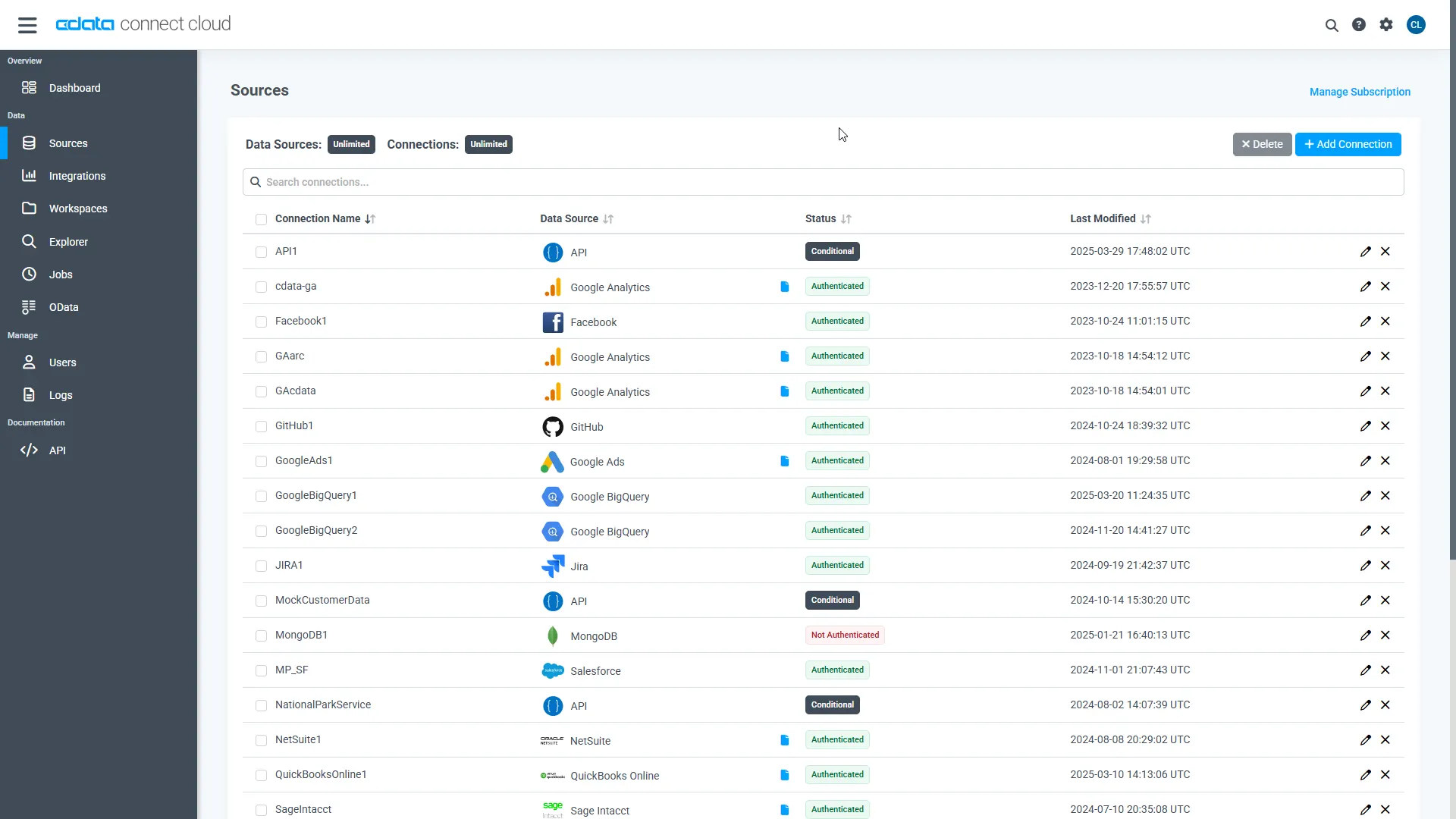
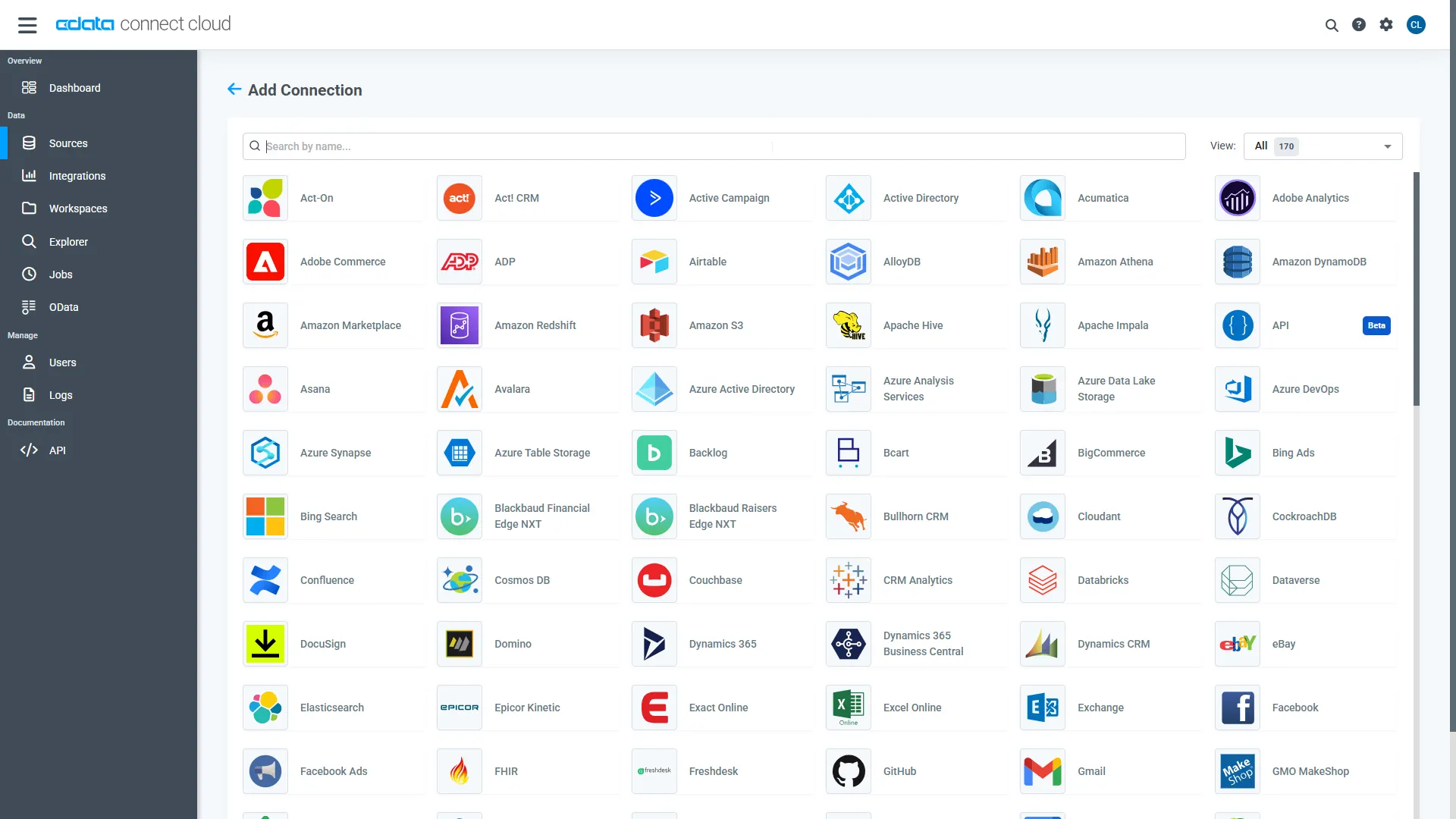
- Log into Connect AI, click Sources, and then click Add Connection
- Select "Claude Compliance" from the Add Connection panel
-
Enter the necessary authentication properties to connect to Claude Compliance.
The driver connects to Claude Compliance using a Compliance Access Key, the only supported authentication method. Set the following connection property:
- APIKey: The Compliance Access Key you created.
Creating a Compliance Access Key
- Enable the Compliance API for your organization.
- Sign in to claude.ai as a primary owner or organization owner and open Organization settings > API > Keys.
- Select Create Key and assign only the scopes your integration needs:
- read:compliance_activities for Activities and the typed activity views.
- read:compliance_org_data for organizations, roles, groups, and settings.
- read:compliance_user_data for users, chats, files, projects, and downloads.
- delete:compliance_user_data for the explicit Delete stored procedures.
- Create the key and copy it when it appears. The key starts with sk-ant-api01- and is shown only once.
Optionally, set OrganizationUUID to limit organization-scoped views (such as OrganizationUsers and ComplianceRoles) to a single linked organization. If it is left empty, those views default to the first available organization and do not include data from all linked organizations.
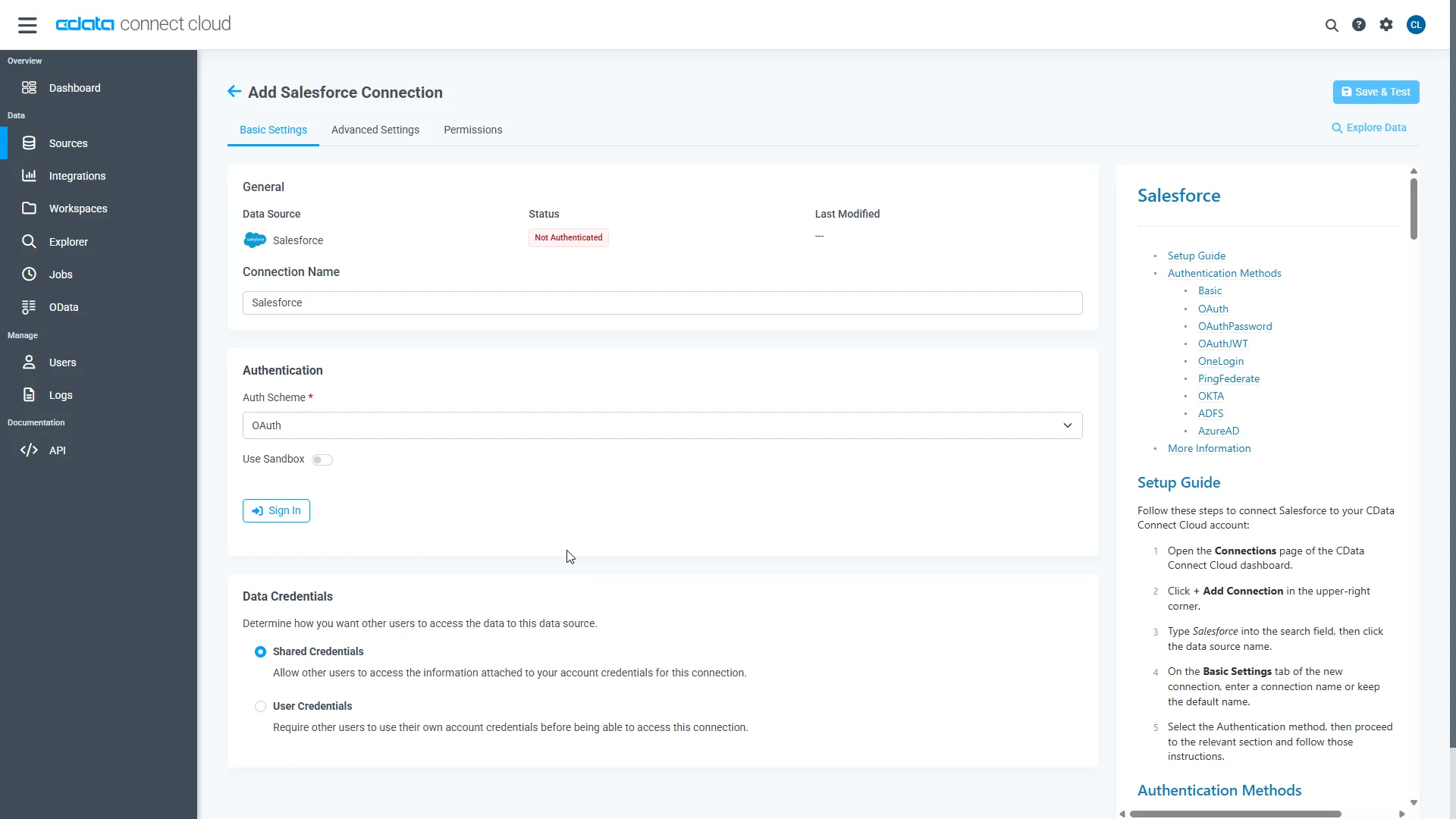
- Click Save & Test
-
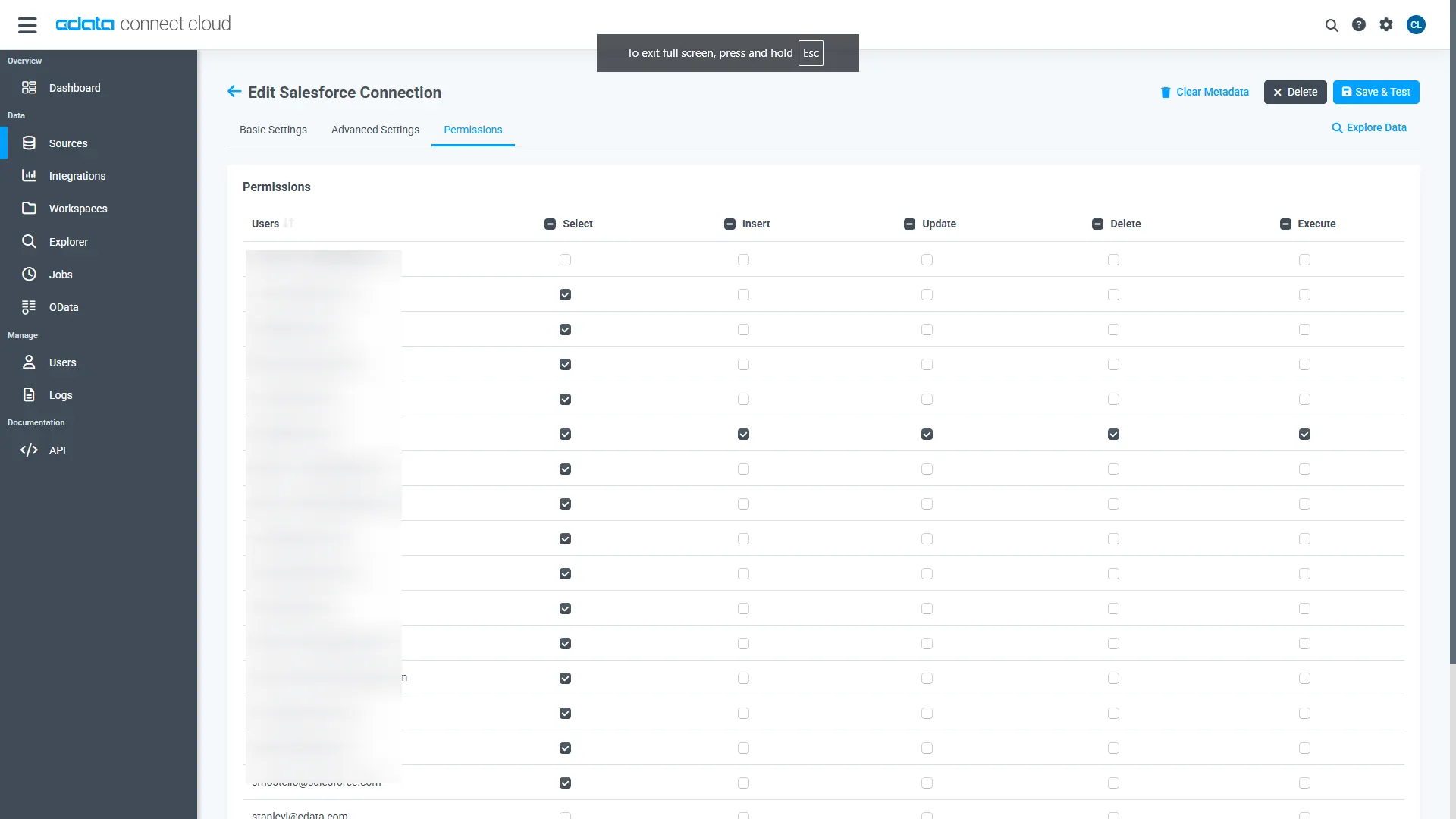
Navigate to the Permissions tab in the Add Claude Compliance Connection page and update the User-based permissions.
Add a Personal Access Token
When connecting to Connect AI through the REST API, the OData API, or the Virtual SQL Server, a Personal Access Token (PAT) is used to authenticate the connection to Connect AI. It is best practice to create a separate PAT for each service to maintain granularity of access.
- Click on the Gear icon () at the top right of the Connect AI app to open the settings page.
- On the Settings page, go to the Personal Access Tokens section and click Create PAT.
-
Give the PAT a name and click Create.
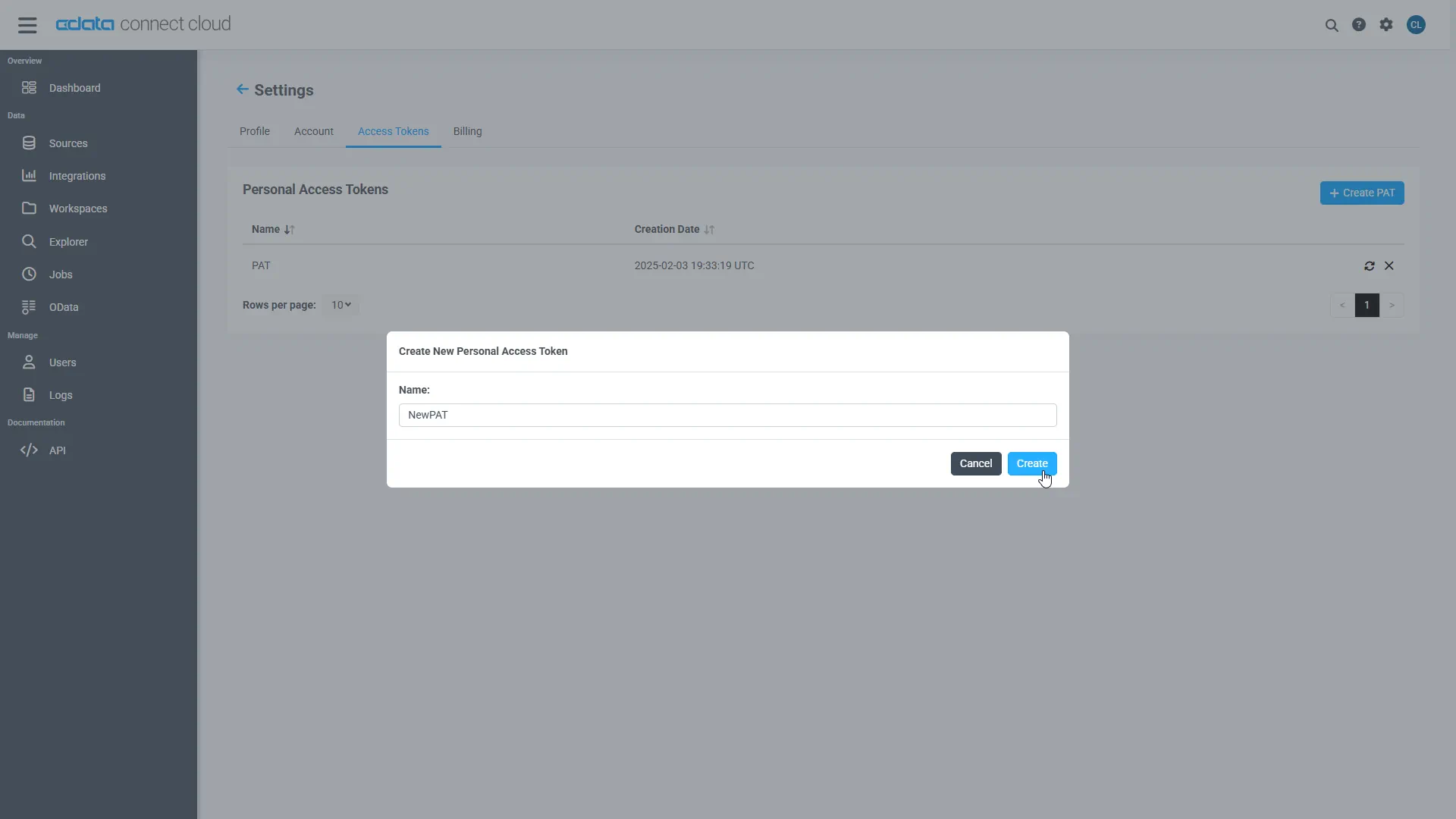
- The personal access token is only visible at creation, so be sure to copy it and store it securely for future use.
With the connection configured and a PAT generated, you are ready to connect to Claude Compliance data from Mulesoft.
Connecting to CData Connect AI
Follow these steps to establish a connection from Mulesoft to CData Connect AI through the JDBC driver:
-
Download and install the CData Connect AI JDBC driver.
- Open the Integrations page of CData Connect AI.
- Search for and select JDBC.
- Download and run the setup file.
- When the installation is complete, the JAR file can be found in the installation directory (inside the lib folder).
- Log into Mulesoft Anypoint Studio or launch the desktop application.
- Create a new Mulesoft project.
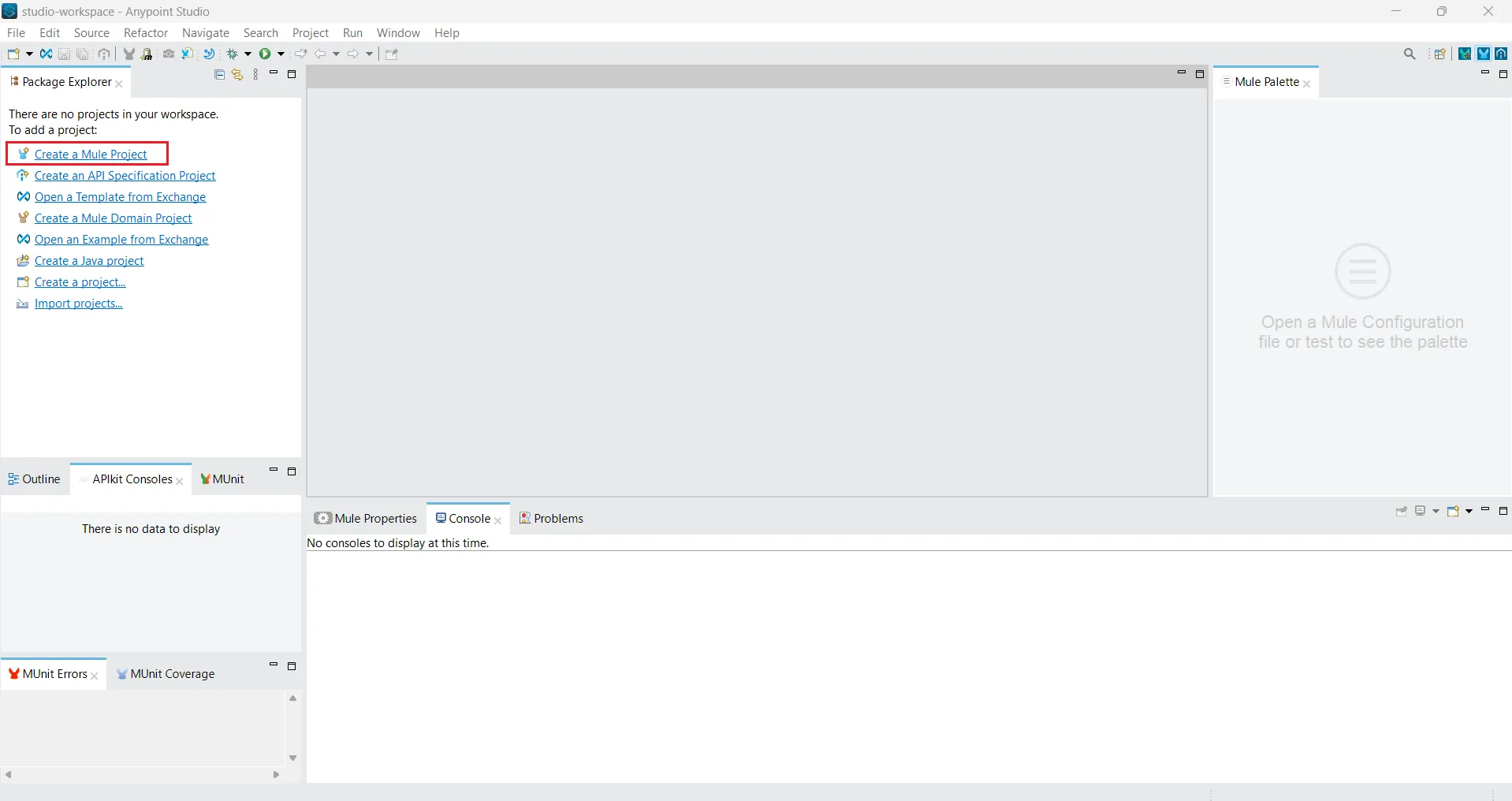
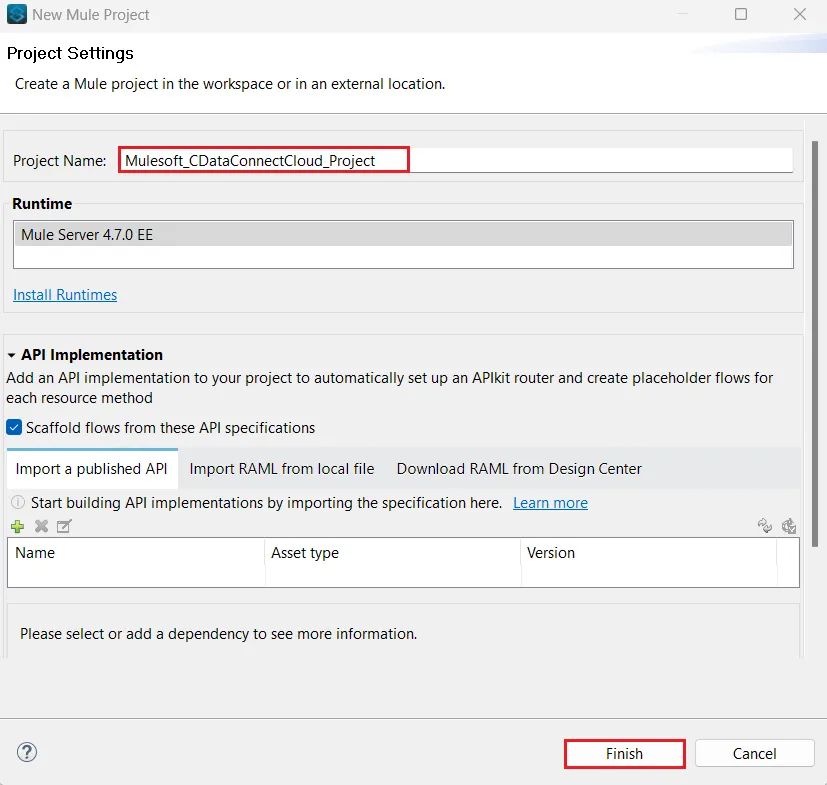 The new project appears in a project folder.
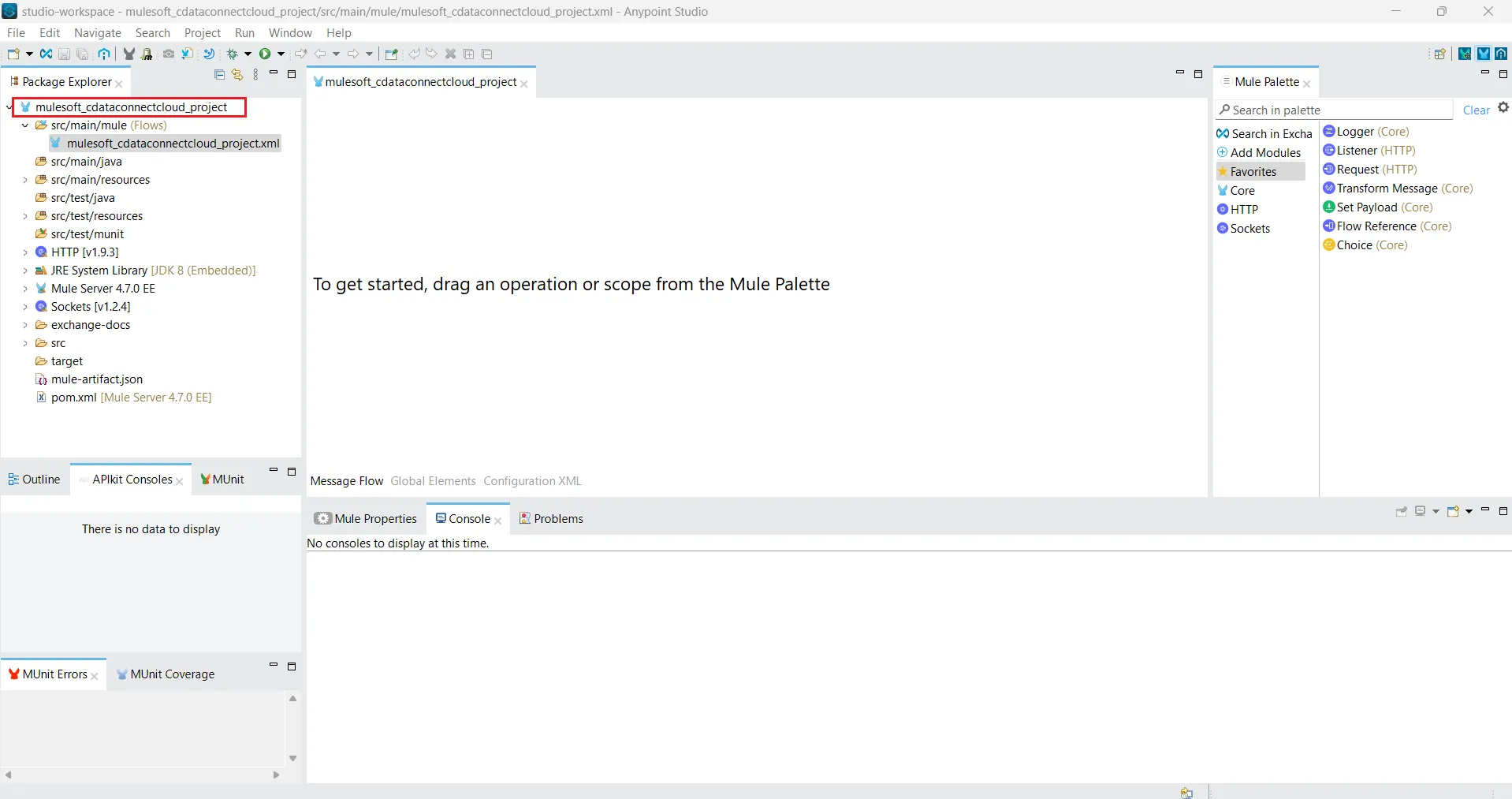
- In the Mule Palette located on the right, drag an HTTP Listener to the Message Flow area.
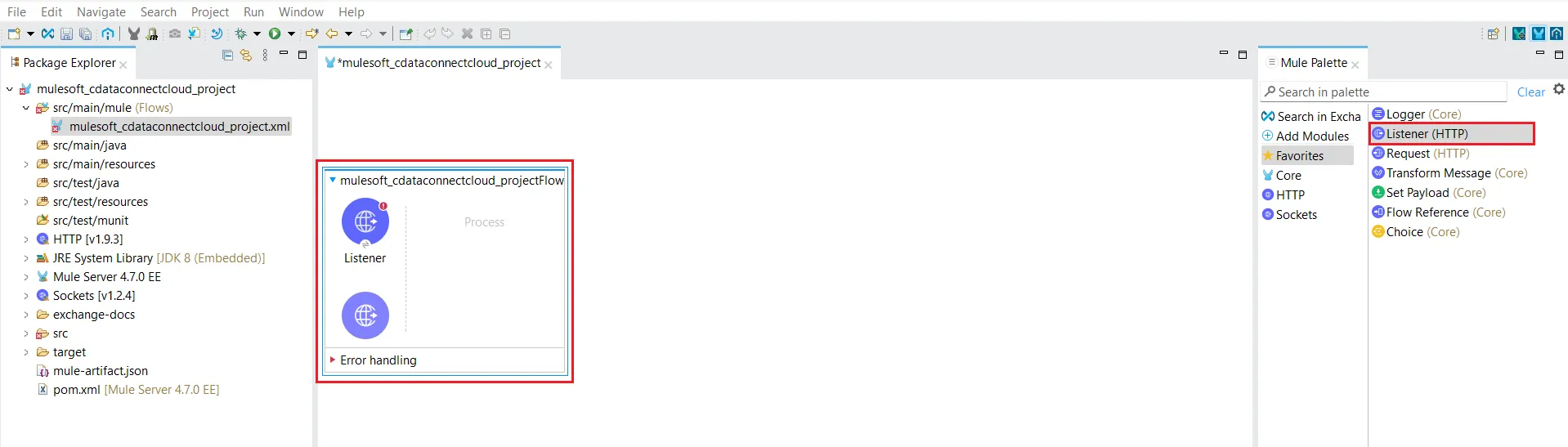
- Click on the HTTP Listener to configure it.
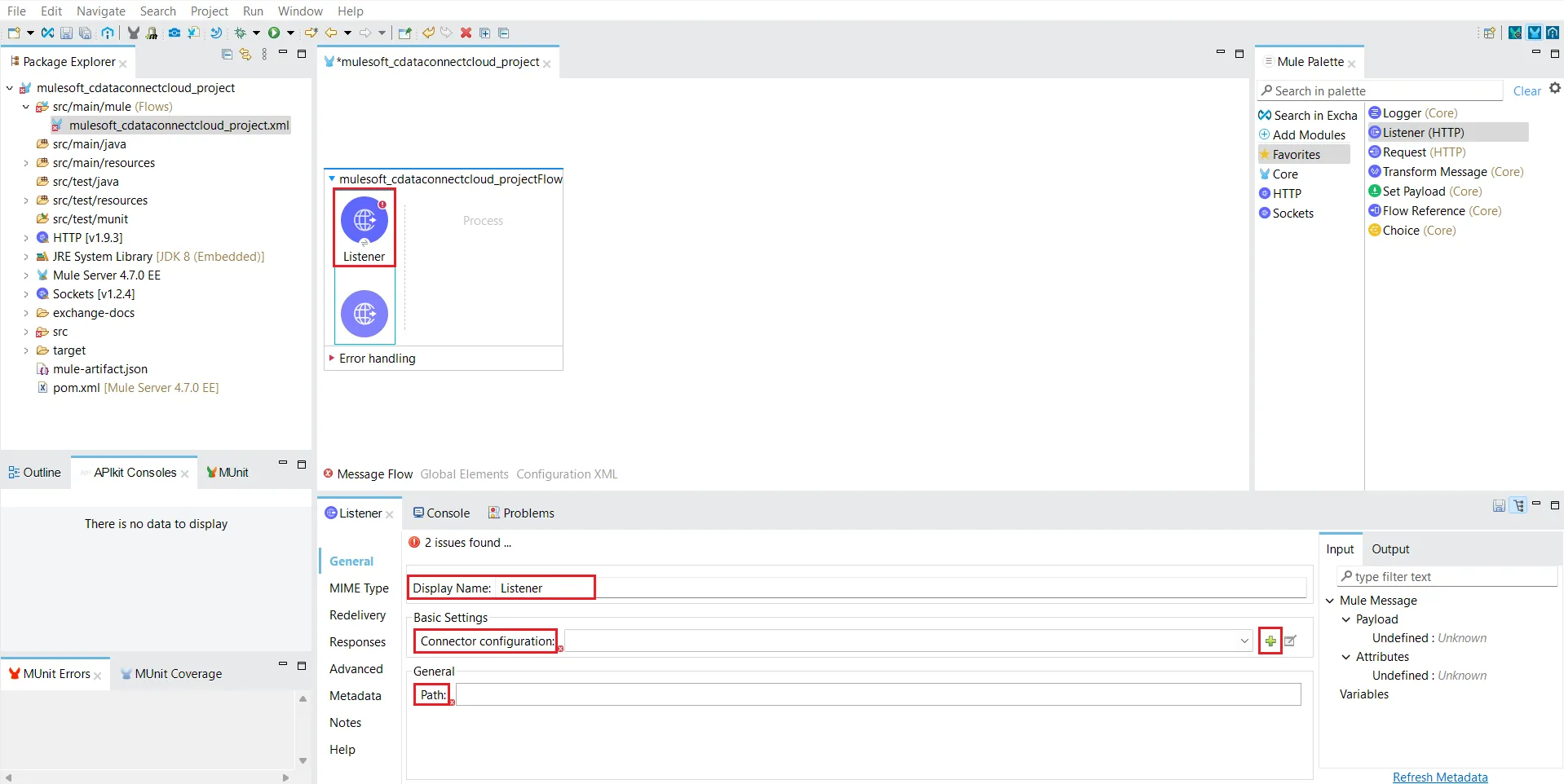
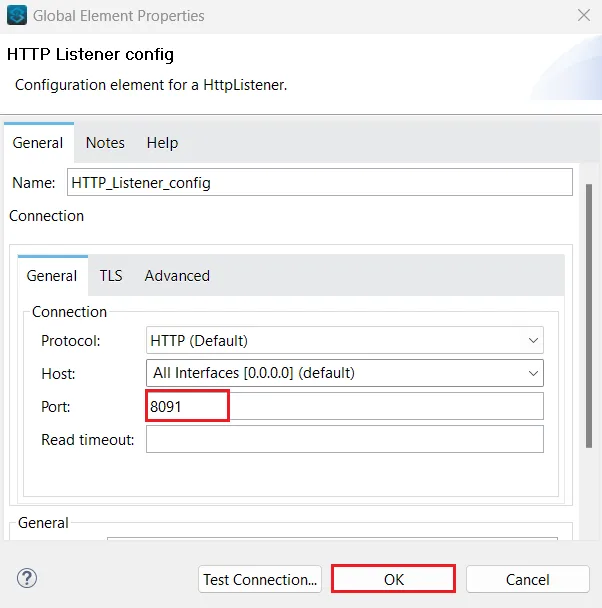
- Click the + sign on the right of Connector configuration. The HTTP Listener config dialog appears.
- Configure the HTTP Listener, providing a Port on which to query your data, and click OK.
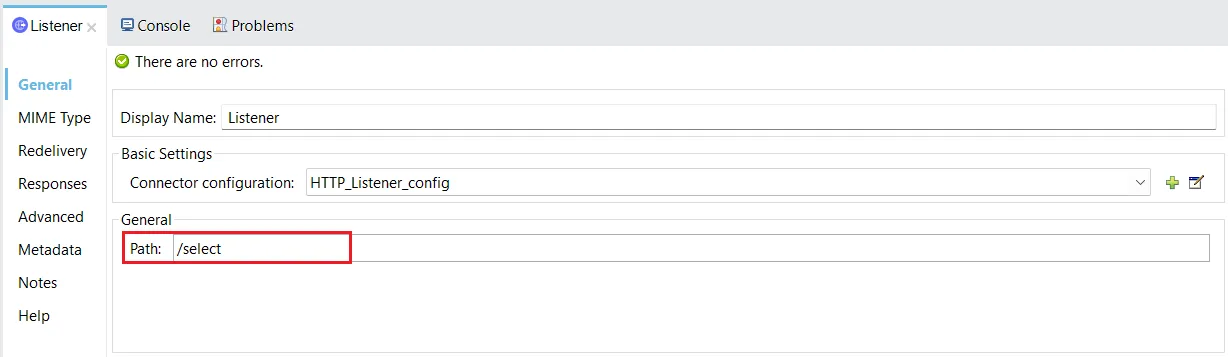
- Provide a path on which to perform the actions. The HTTP Listener is now configured.
- In the Mule Palette on the right, type database in the search bar.
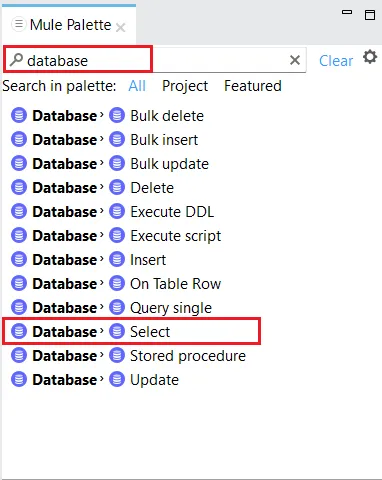
- Drag the database operation you want to perform to the Message Flow area. For this example, we choose Select.
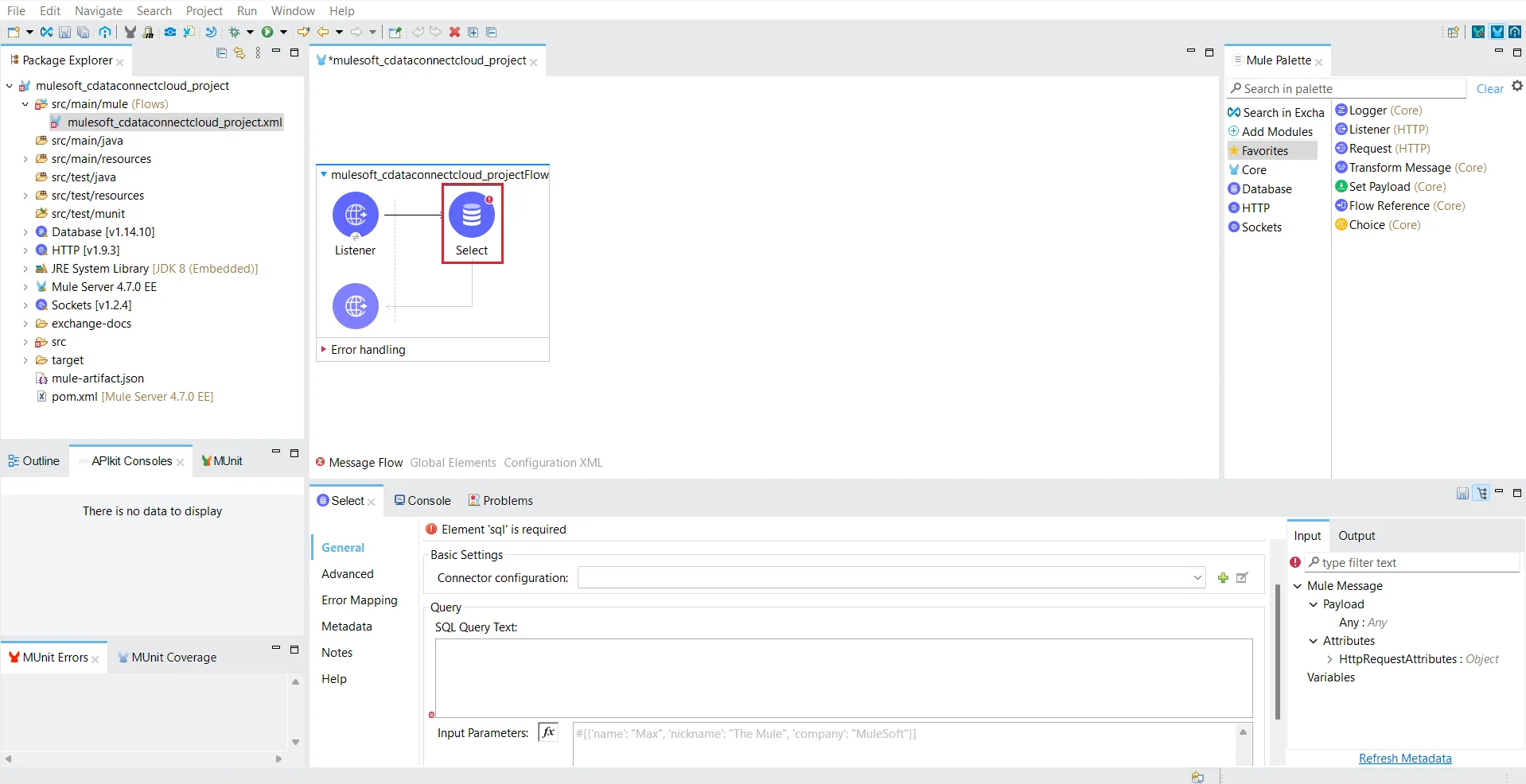
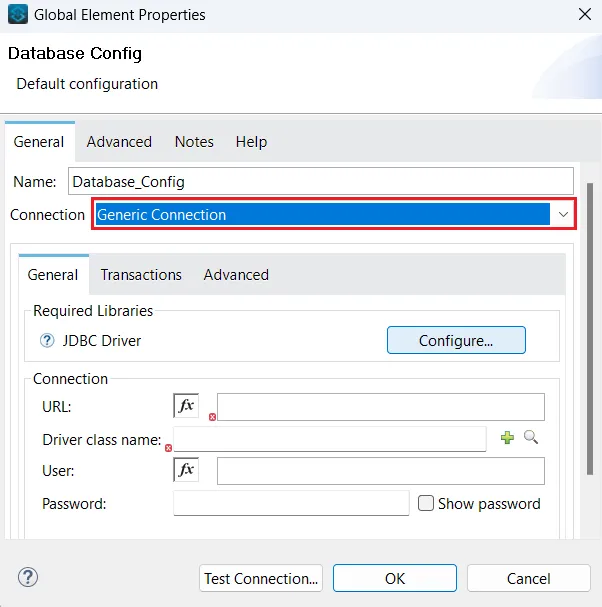
- Select Generic Connection from the Connection dropdown in the Database Config dialog.
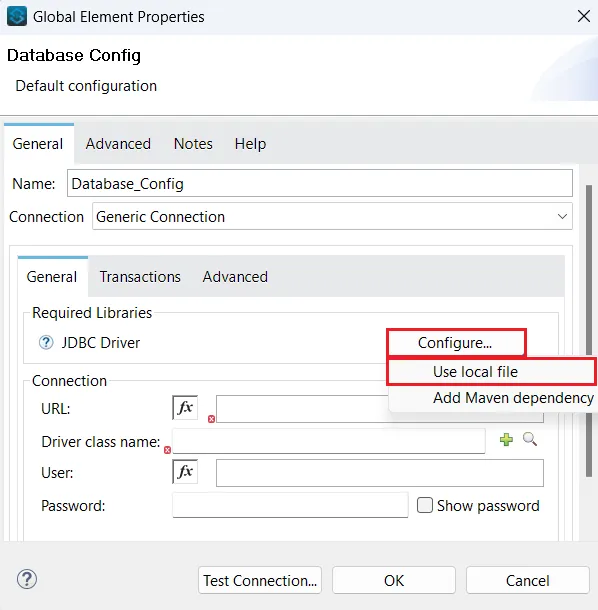
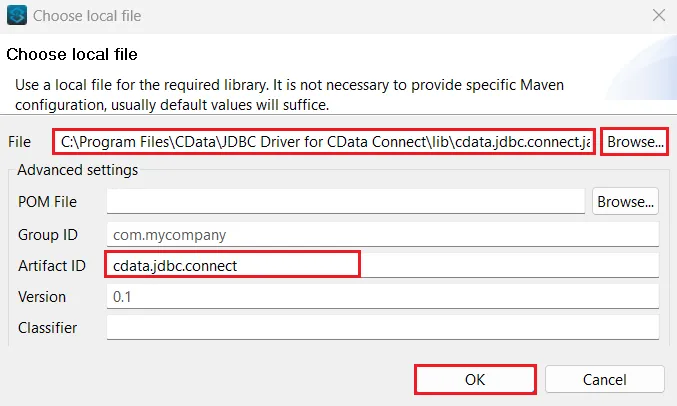
- Click the Configure button to configure the JDBC driver. Select Use local file from the drop-down list.
- Locate the CData Connect AI JAR file from the JDBC driver installation and click OK.
- Provide the following information:
- URL: the URL for the connection, for example:
Note: the password is the PAT created in the Prerequisites section.jdbc:connect:Authscheme=Basic;user=username;password=PAT - Driver class name: Enter the Driver class name as:
cdata.jdbc.connect.ConnectDriver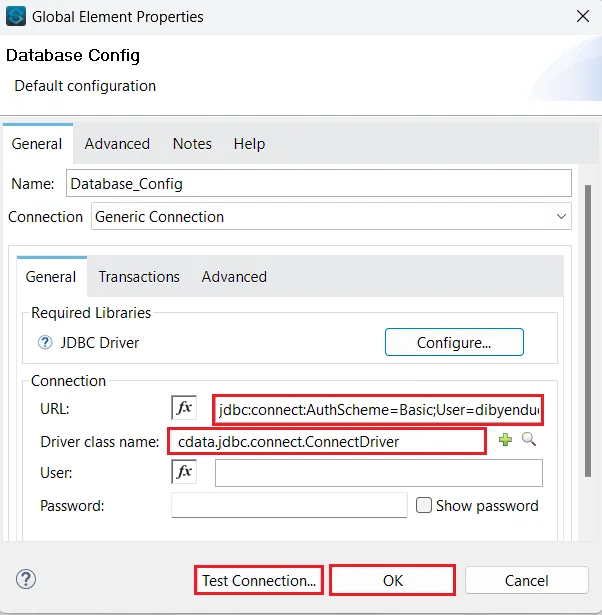
- URL: the URL for the connection, for example:
- Click Test Connection.
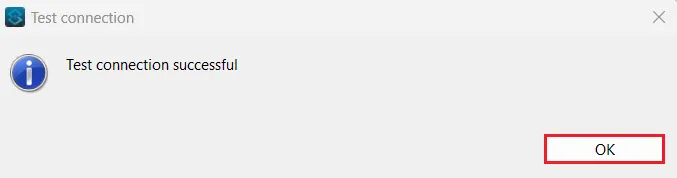
- If the connection is successful, provide the SQL Query Text in the editor. You can see the table metadata on the right side in the Output tab.
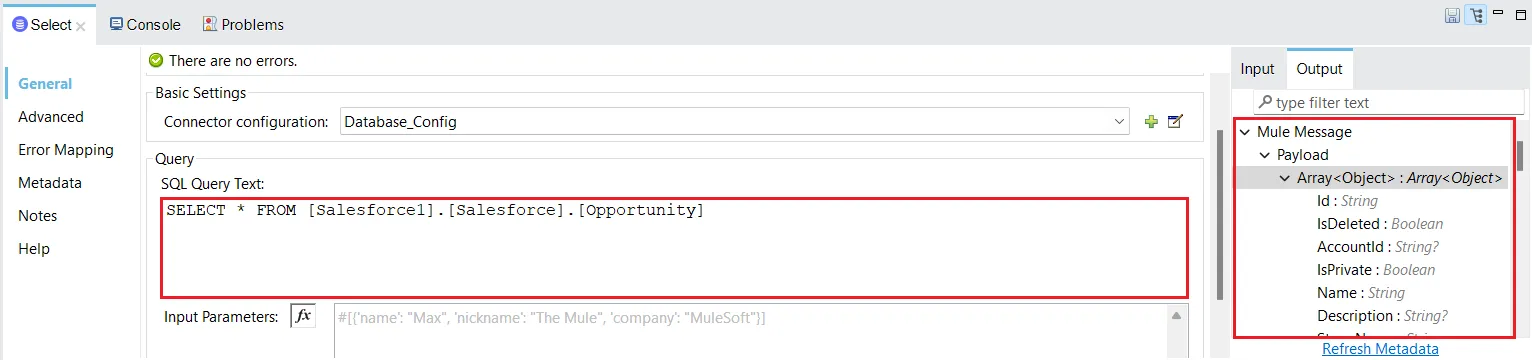
- In the Mule Palette, drag Transform Message to the Message Flow area.
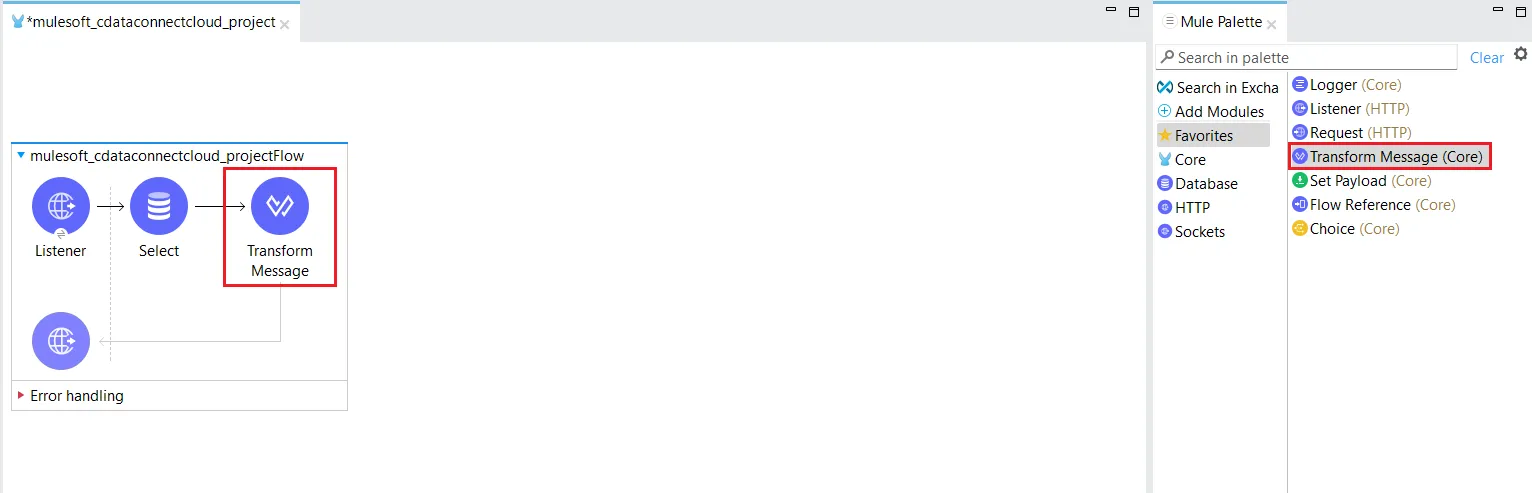
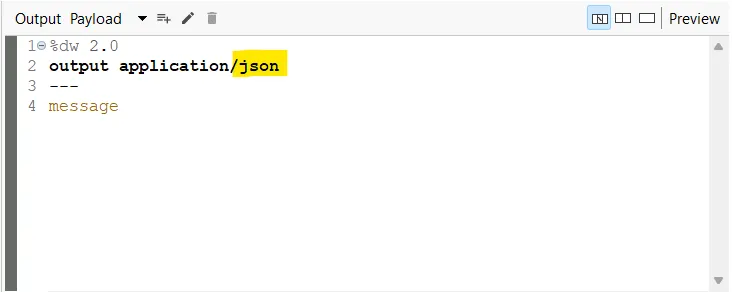
- Click Transform Message to configure it. Change the Output as follows:
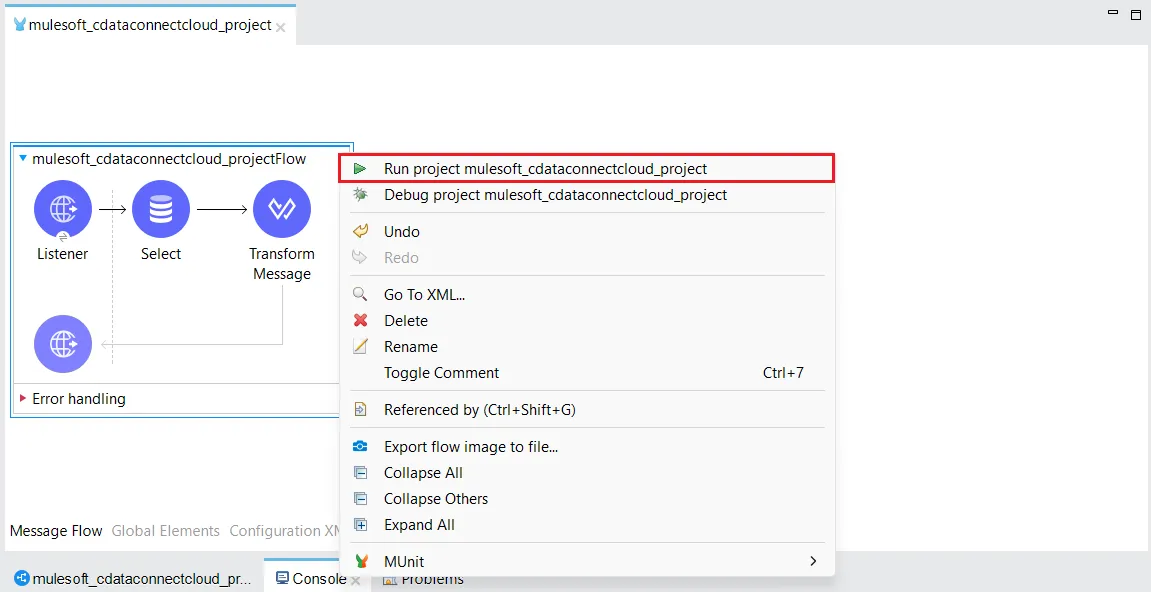
- Save your project and run it. In the console, Mulesoft starts initializing the dependencies.
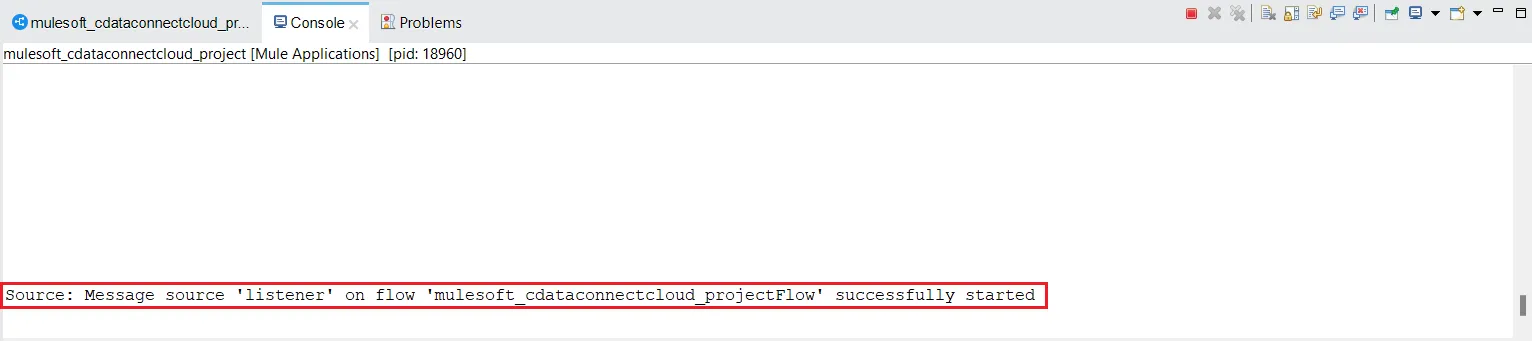
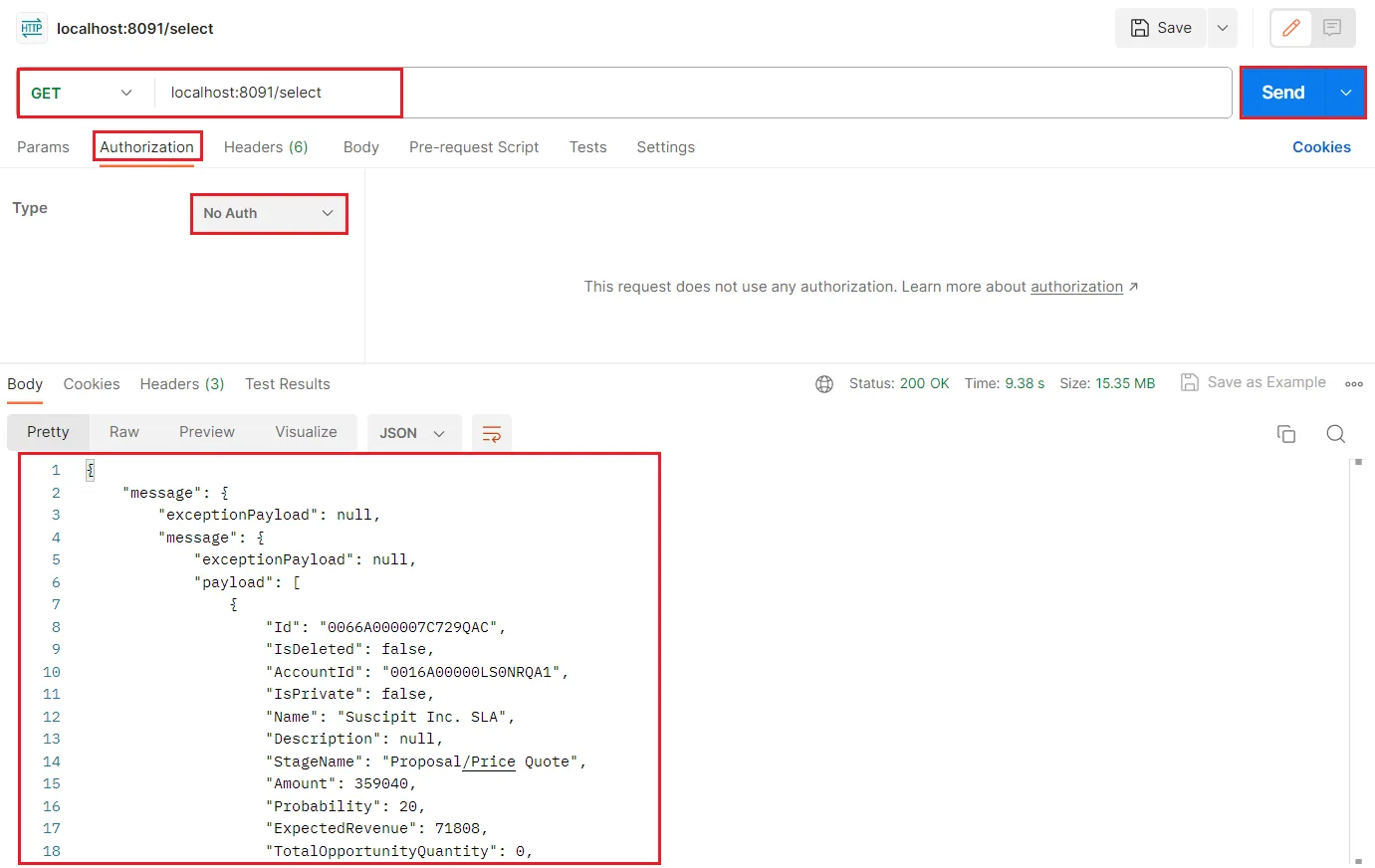
- Once you see the message, "Message source 'listener' on flow your_project_name successfully started", you can start querying your data at the endpoint you provided.
- Query to check out the data using the Postman application (as shown below).
SQL Access to Claude Compliance Data from Cloud Applications
Now you have a direct connection to live Claude Compliance data from MuleSoft Anypoint Platform. You can create more connections to ensure seamless data flow, automate business processes, and manage APIs - all without replicating Claude Compliance data.
To get real-time data access to hundreds of SaaS, Big Data, and NoSQL sources (including Claude Compliance) directly from your cloud applications, explore the CData Connect AI.