





Automated Continuous Cvent Replication to Amazon Redshift

Always-on applications rely on automatic failover capabilities and real-time data access. CData Sync integrates live Cvent data into your Amazon Redshift instance, allowing you to consolidate all of your data into a single location for archiving, reporting, analytics, machine learning, artificial intelligence and more.
Configure Amazon Redshift as a Replication Destination
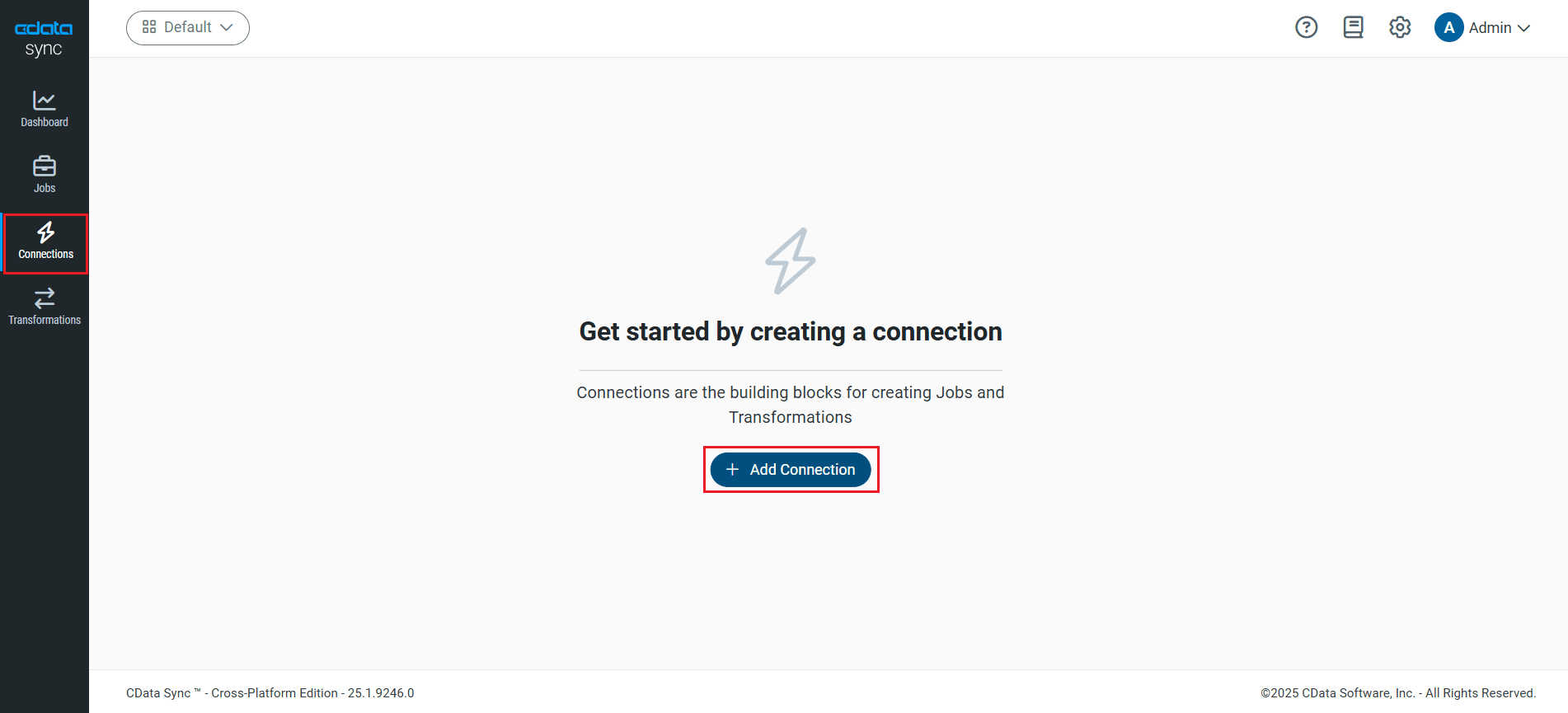
Using CData Sync, you can replicate Cvent data to Amazon Redshift. To add a replication destination, navigate to the Connections tab.
- Click Add Connection.
- Select the Destinations tab and locate the Amazon Redshift connector.
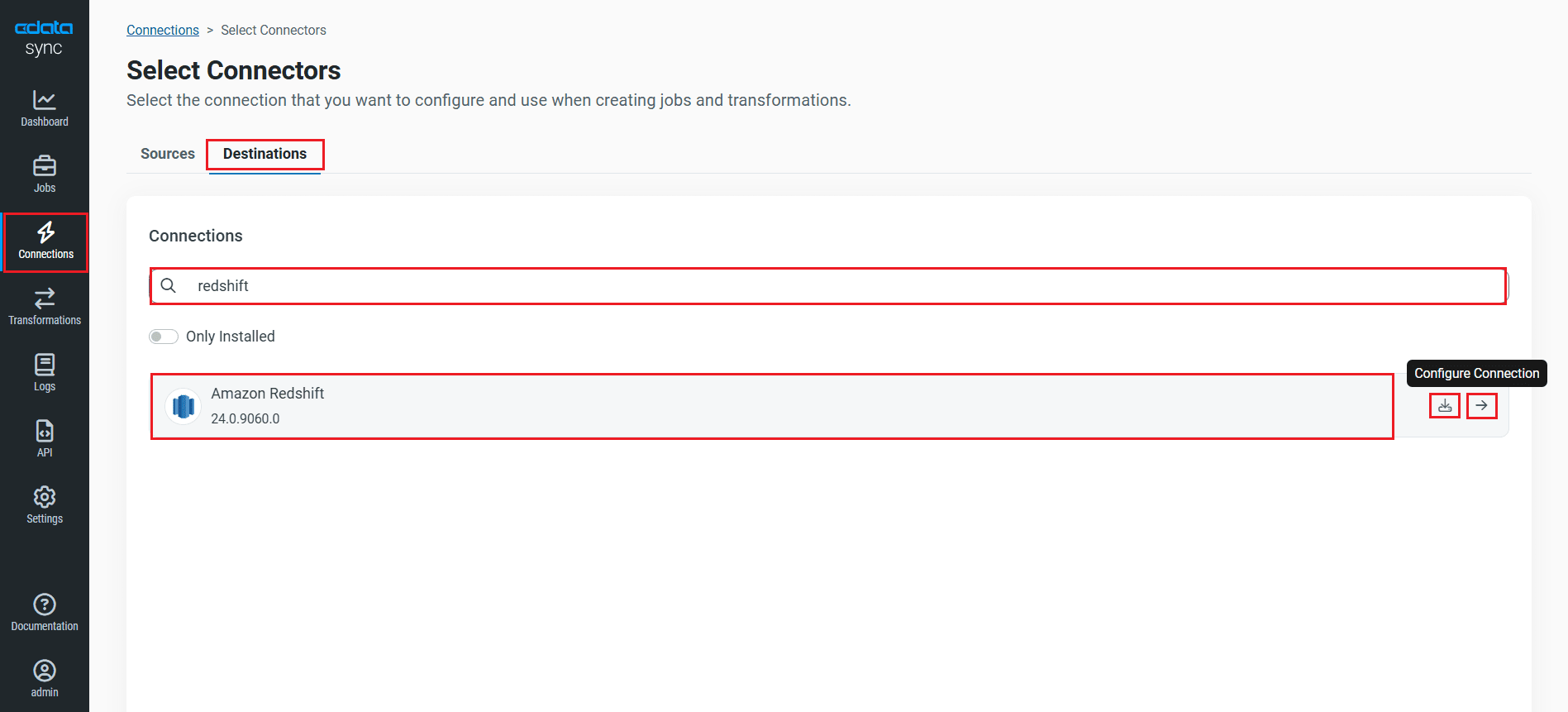
- Click the Configure Connection icon at the end of that row to open the New Connection page. If the Configure Connection icon is not available, click the Download Connector icon to install the Amazon Redshift connector. For more information about installing new connectors, see Connections in the Help documentation.
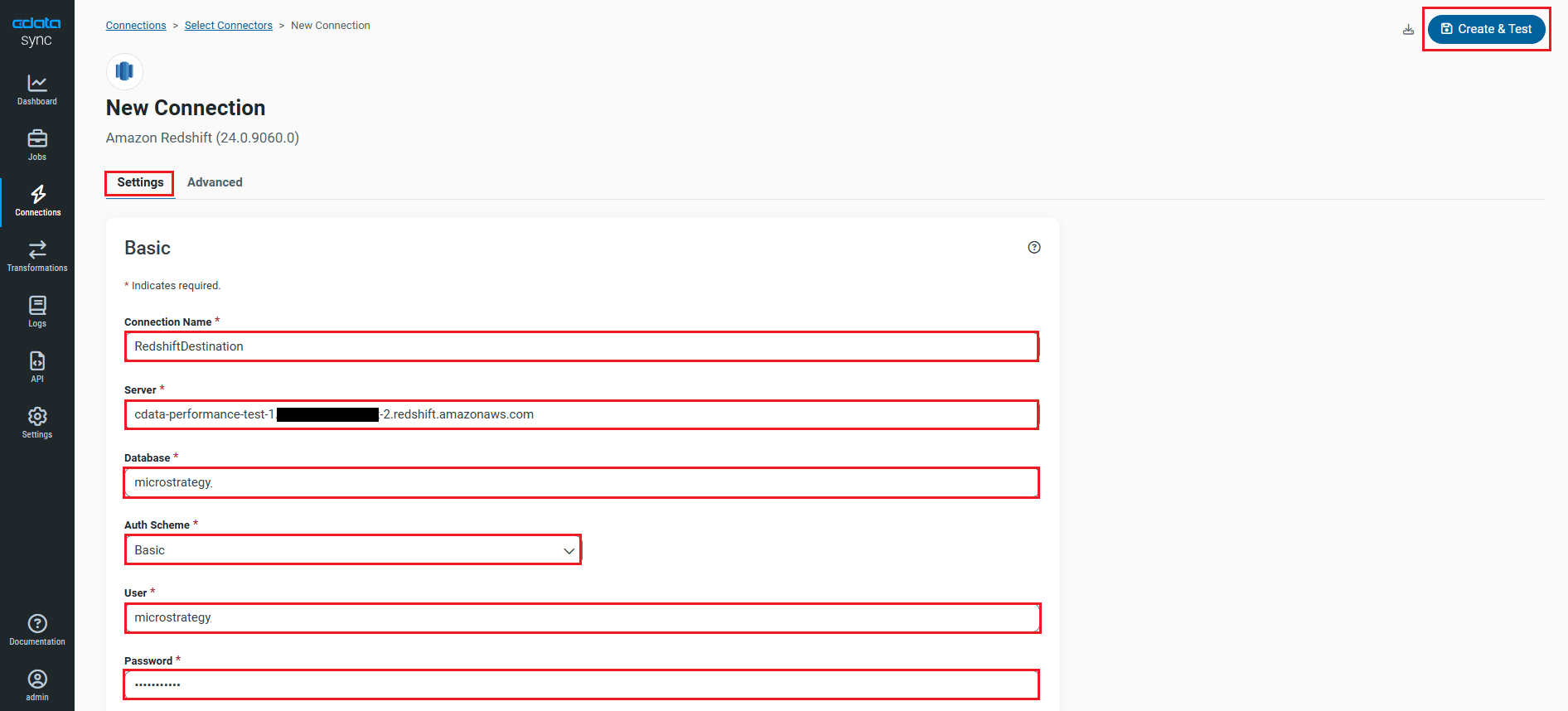
- To connect to Amazon Redshift, set the following connection properties:
- Connection Name: Enter a connection name of your choice for the Amazon Redshift connection.
- Server: Enter the host name or IP of the server that hosts the Amazon Redshift database (for example, example.us-west-2.redshift.amazonaws.com).
- Database: Enter the name of the database that you create for your Amazon Redshift cluster.
- AuthScheme: Select the authentication scheme.
- User: Set this to the username you want to use to authenticate to the Server.
- Password: Set this to the password you want to use to authenticate to the Server.
- Port: Set this to the port of the cluster.
You can obtain these values in the AWS Management Console:
- Open the Amazon Redshift console.
- On the Clusters page, click the name of the cluster.
- On the Configuration tab, obtain the properties from the Cluster Database Properties section. The connection property values will be the same as the values set in the ODBC URL.
- Once connected, click Create & Test to create, test and save the connection.
You are now connected to Amazon Redshift and can use it as both a source and a destination.
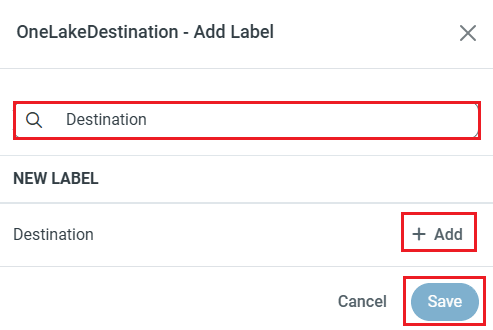
NOTE: You can use the Label feature to add a label for a source or a destination.
In this article, we will demonstrate how to load Cvent data into Amazon Redshift and utilize it as a destination.
Configure the Cvent Connection
You can configure a connection to Cvent from the Connections tab. To add a connection to your Cvent account, navigate to the Connections tab.
- Click Add Connection.
- Select a source (Cvent).
- Configure the connection properties.
Before you can authenticate to Cvent, you must create a workspace and an OAuth application.
Creating a Workspace
To create a workspace:
- Sign into Cvent and navigate to App Switcher (the blue button in the upper right corner of the page) >> Admin.
- In the Admin menu, navigate to Integrations >> REST API.
- A new tab launches for Developer Management. Click on Manage API Access in the new tab.
- Create a Workspace and name it. Select the scopes you would like your developers to have access to. Scopes control what data domains the developer can access.
- Choose All to allow developers to choose any scope, and any future scopes added to the REST API.
- Choose Custom to limit the scopes developers can choose for their OAuth apps to selected scopes. To access all tables exposed by the driver, you need to set the following scopes:
event/attendees:read event/attendees:write event/contacts:read event/contacts:write event/custom-fields:read event/custom-fields:write event/events:read event/events:write event/sessions:delete event/sessions:read event/sessions:write event/speakers:delete event/speakers:read event/speakers:write budget/budget-items:read budget/budget-items:write exhibitor/exhibitors:read exhibitor/exhibitors:write survey/surveys:read survey/surveys:write
Creating an OAuth Application
After you have set up a Workspace and invited them, developers can sign up and create a custom OAuth app. See the Creating a Custom OAuth Application section in the Help documentation for more information.
Connecting to Cvent
After creating an OAuth application, set the following connection properties to connect to Cvent:
- InitiateOAuth: GETANDREFRESH. Used to automatically get and refresh the OAuthAccessToken.
- OAuthClientId: The Client ID associated with the OAuth application. You can find this on the Applications page in the Cvent Developer Portal.
- OAuthClientSecret: The Client secret associated with the OAuth application. You can find this on the Applications page in the Cvent Developer Portal.
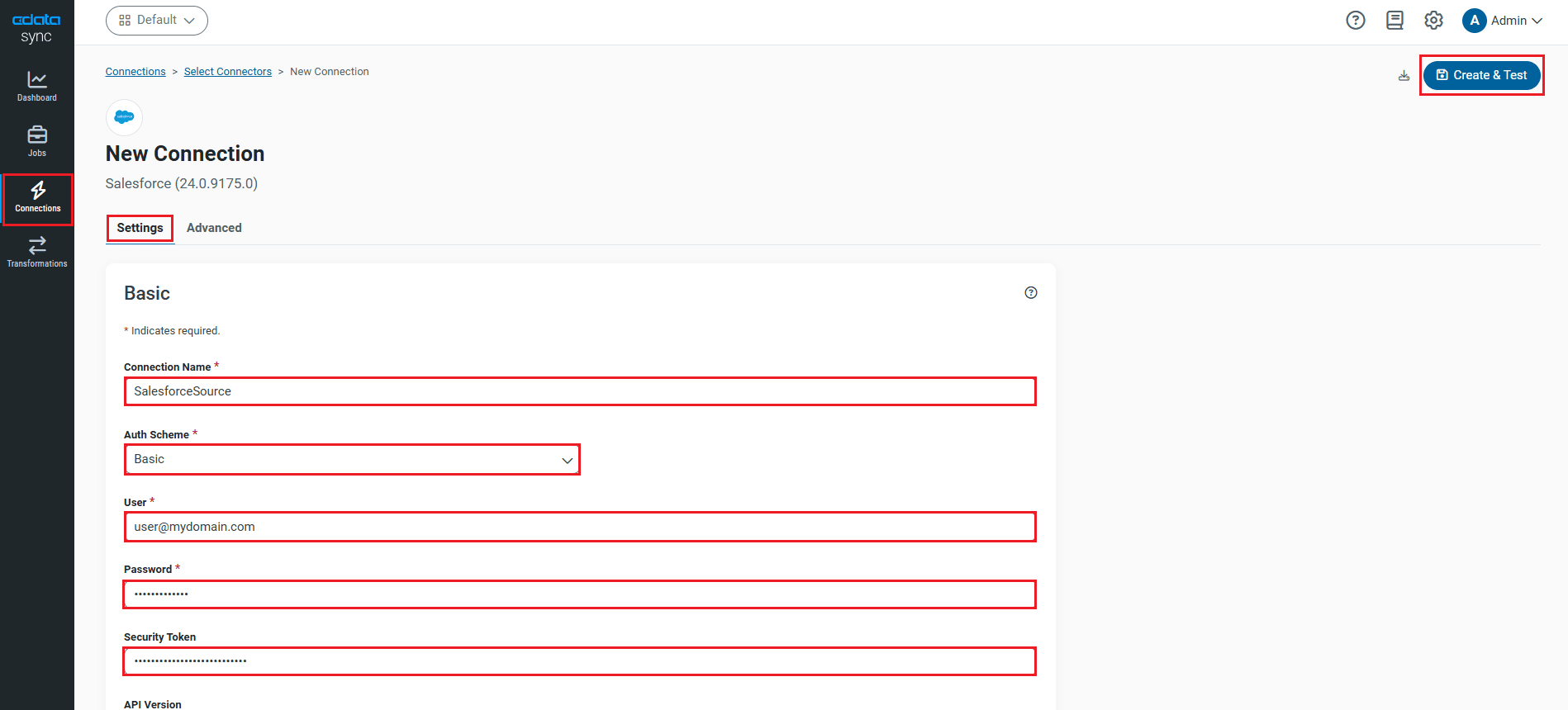
- Click Connect to Cvent to ensure that the connection is configured properly.
- Click Save & Test to save the changes.
Configure Replication Queries
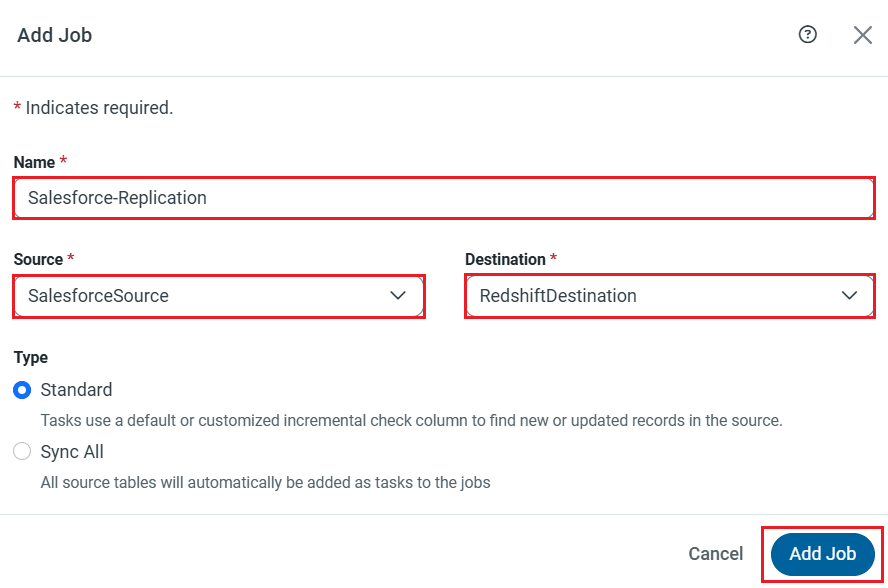
CData Sync enables you to control replication with a point-and-click interface and with SQL queries. For each replication you wish to configure, navigate to the Jobs tab and click Add Job. Select the Source and Destination for your replication.
Replicate Entire Tables
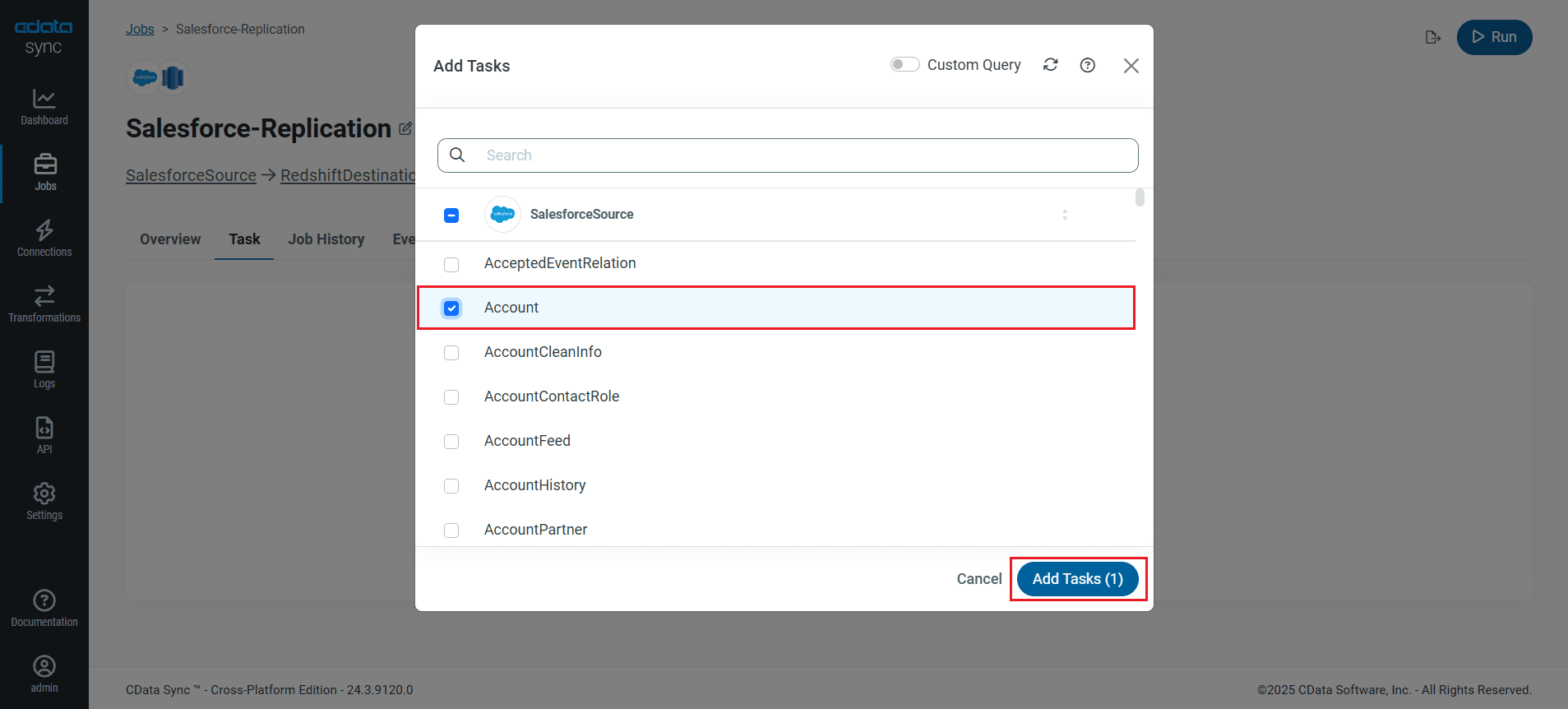
To replicate an entire table, navigate to the Task tab in the Job, click Add Tasks, choose the table(s) from the list of Cvent tables you wish to replicate into Amazon Redshift, and click Add Tasks again.
Customize Your Replication
You can use the Columns and Query tabs of a task to customize your replication. The Columns tab allows you to specify which columns to replicate, rename the columns at the destination, and even perform operations on the source data before replicating. The Query tab allows you to add filters, grouping, and sorting to the replication with the help of SQL queries.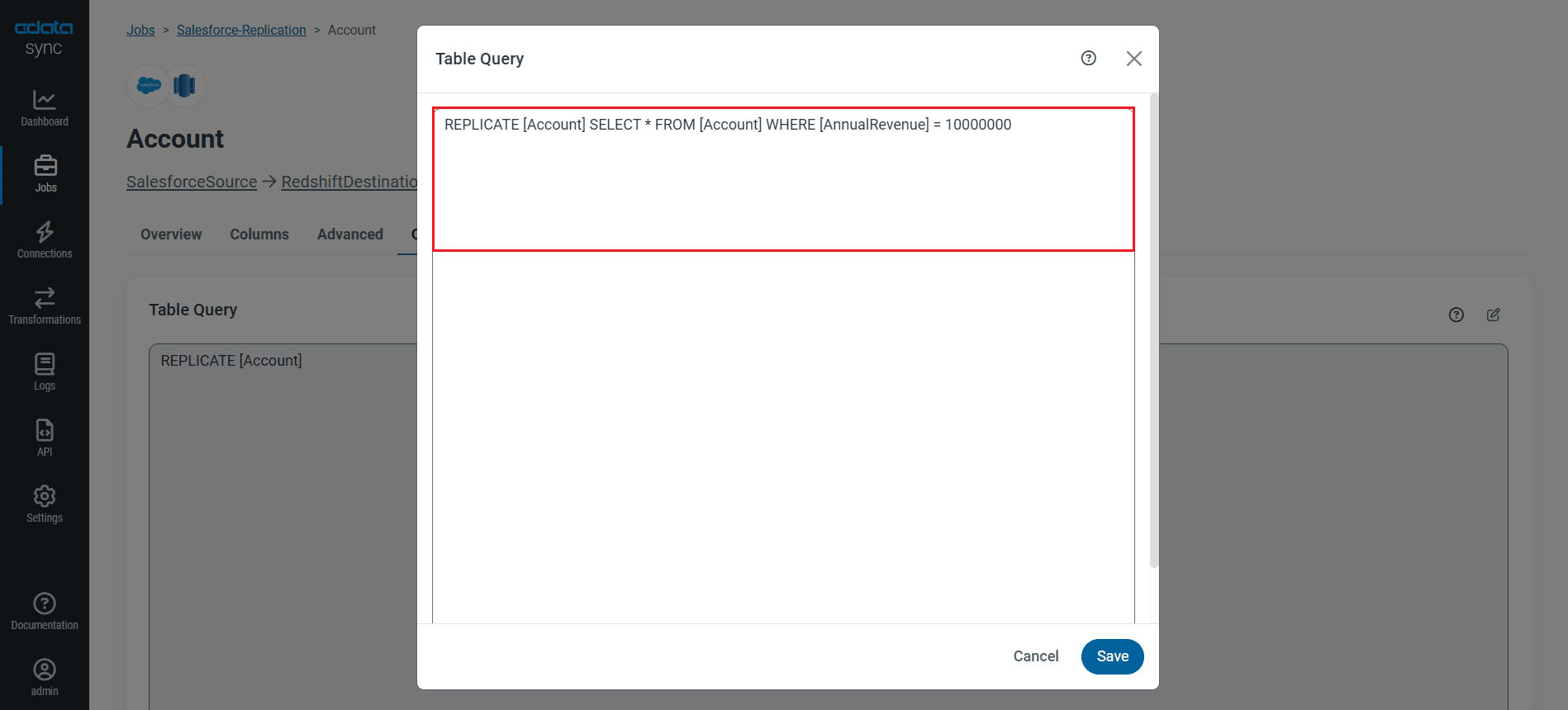
Schedule Your Replication
Select the Overview tab in the Job, and click Configure under Schedule. You can schedule a job to run automatically by configuring it to run at specified intervals, ranging from once every 10 minutes to once every month.
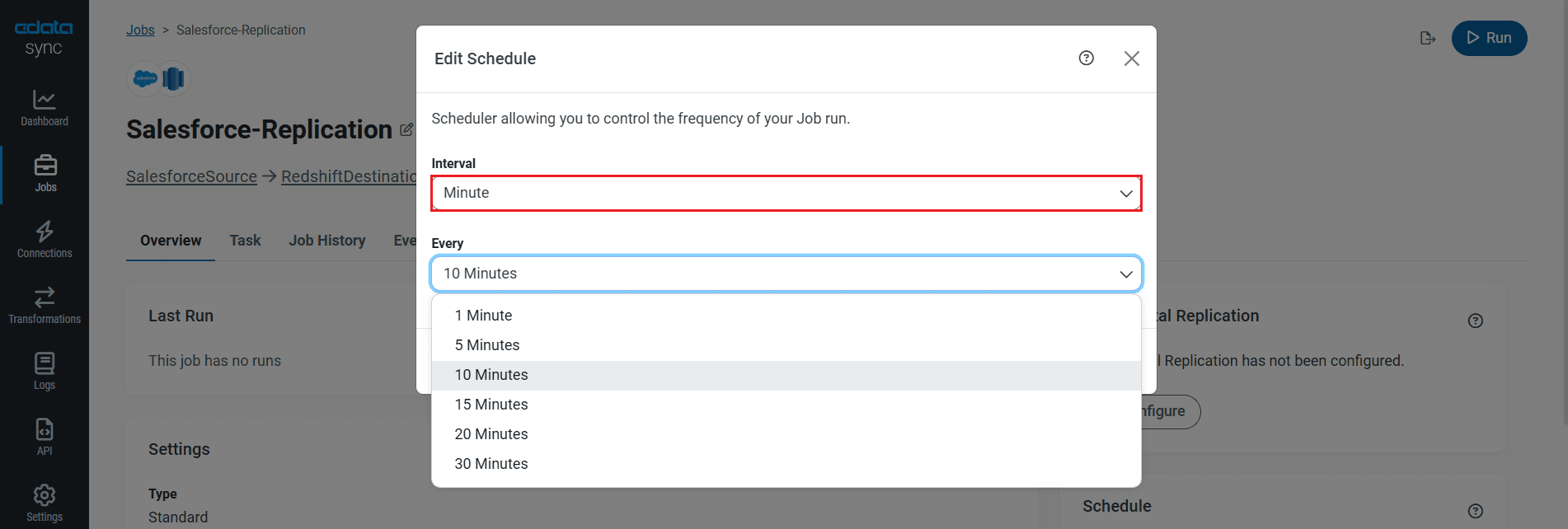
Once you have configured the replication job, click Save Changes. You can configure any number of jobs to manage the replication of your Cvent data to Amazon Redshift.
Run the Replication Job
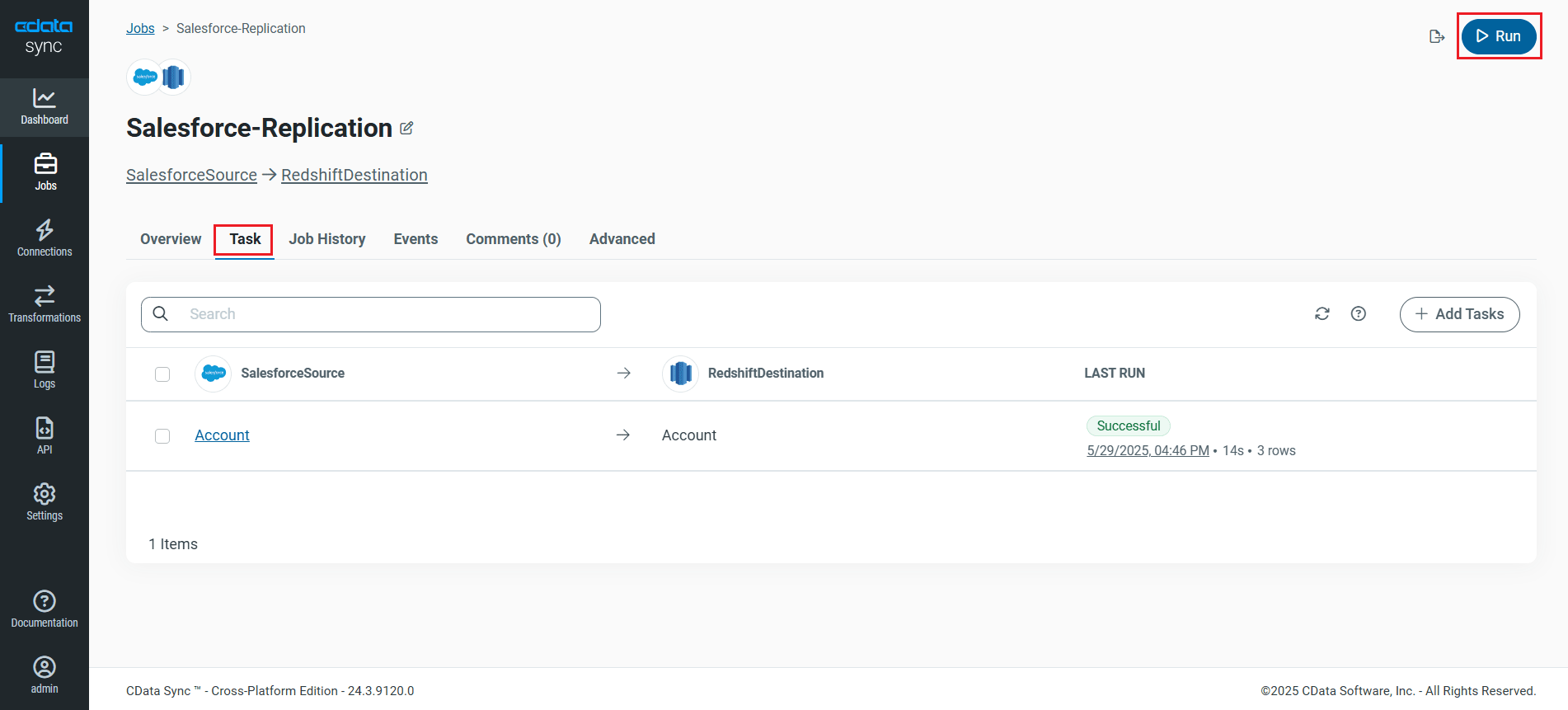
Once all the required configurations are made for the job, select the Cvent table you wish to replicate and click Run. After the replication completes successfully, a notification appears, showing the time taken to run the job and the number of rows replicated.
Free Trial & More Information
Now that you have seen how to replicate Cvent data into Amazon Redshift, visit our CData Sync page to explore more about CData Sync and download a free 30-day trial. Start consolidating your enterprise data today!
As always, our world-class Support Team is ready to answer any questions you may have.