





Interact with Live Dynamics CRM Data in Warp via CData Connect AI

Warp is an agentic development environment that combines a modern terminal with an AI agent. It supports large language model (LLM) interactions and Model Context Protocol (MCP) server integrations, so the agent can reach live external data sources without leaving the terminal.
By integrating Warp with CData Connect AI through its built-in MCP Server, the Warp Agent gets governed, real-time access to live Dynamics CRM data. You can explore Dynamics CRM data, ask questions in plain language, and work with your records without writing custom integration code.
This article walks through configuring Dynamics CRM connectivity in Connect AI, configuring the CData MCP Server in Warp, and interacting with live Dynamics CRM data from the Warp Agent.
About Dynamics CRM Data Integration
CData simplifies access and integration of live Microsoft Dynamics CRM data. Our customers leverage CData connectivity to:
- Read and write data in the Dynamics CRM 2011+ Services and Dynamics CRM Online.
- Extend the native features of Dynamics CRM with customizable caching and intelligent query aggregation and separation.
- Authenticate securely with Dynamics CRM in a variety of ways, including Microsoft Entra ID, Azure Managed Service Identity credentials, and Azure Service Principal using either a client secret or a certificate.
CData customers use our Dynamics CRM connectivity solutions for a variety of reasons, whether they're looking to replicate their data into a data warehouse (alongside other data sources) or analyze live Dynamics CRMa data from their preferred data tools inside the Microsoft ecosystem (Power BI, Excel, etc.) or with external tools (Tableau, Looker, etc.).
Getting Started
Step 1: Configure Dynamics CRM connectivity for Warp
Connectivity to Dynamics CRM from Warp is made possible through Connect AI's Remote MCP Server. To interact with Dynamics CRM data from Warp, start by creating and configuring a Dynamics CRM connection in Connect AI.
- Log into Connect AI, click Sources, and then click Add Connection
- Select Dynamics CRM from the Add Connection panel
-
Enter the necessary authentication properties to connect to Dynamics CRM.
The connection string options meet the authentication and connection requirements of different Dynamics CRM instances. To connect to your instance, set the User and Password properties, under the Authentication section, to valid Dynamics CRM user credentials and set the Url to a valid Dynamics CRM server organization root. Additionally, set the CRMVersion property to 'CRM2011+' or 'CRMOnline'. IFD configurations are supported as well; set InternetFacingDeployment to true.
Additionally, you can provide the security token service (STS) or AD FS endpoint in the STSURL property. This value can be retrieved with the GetSTSUrl stored procedure. Office 365 users can connect to the default STS URL by simply setting CRMVersion.

- Click Save & Test
- Navigate to the Permissions tab and update user-based permissions



Add a Personal Access Token
A Personal Access Token (PAT) is used to authenticate the connection to Connect AI from Warp. It is best practice to create a separate PAT for each integration to maintain granular access control.
- Click the gear icon () at the top right of the Connect AI app to open Settings
- On the Settings page, go to the Access Tokens section and click Create PAT
- Give the PAT a descriptive name and click Create
- Copy the token when displayed and store it securely. It will not be shown again

With the Dynamics CRM connection configured and a PAT generated, Warp can now connect to Dynamics CRM data through Connect AI.
Step 2: Configure Connect AI in Warp
Enable the Warp Agent, configure an LLM provider, and the Connect AI MCP endpoint in Warp so the agent can discover and call live data tools.
- Download and install Warp, and then sign up or log in to your Warp account
-
Click the Tabs panel icon at the top left of the window, or press Ctrl + Shift + B
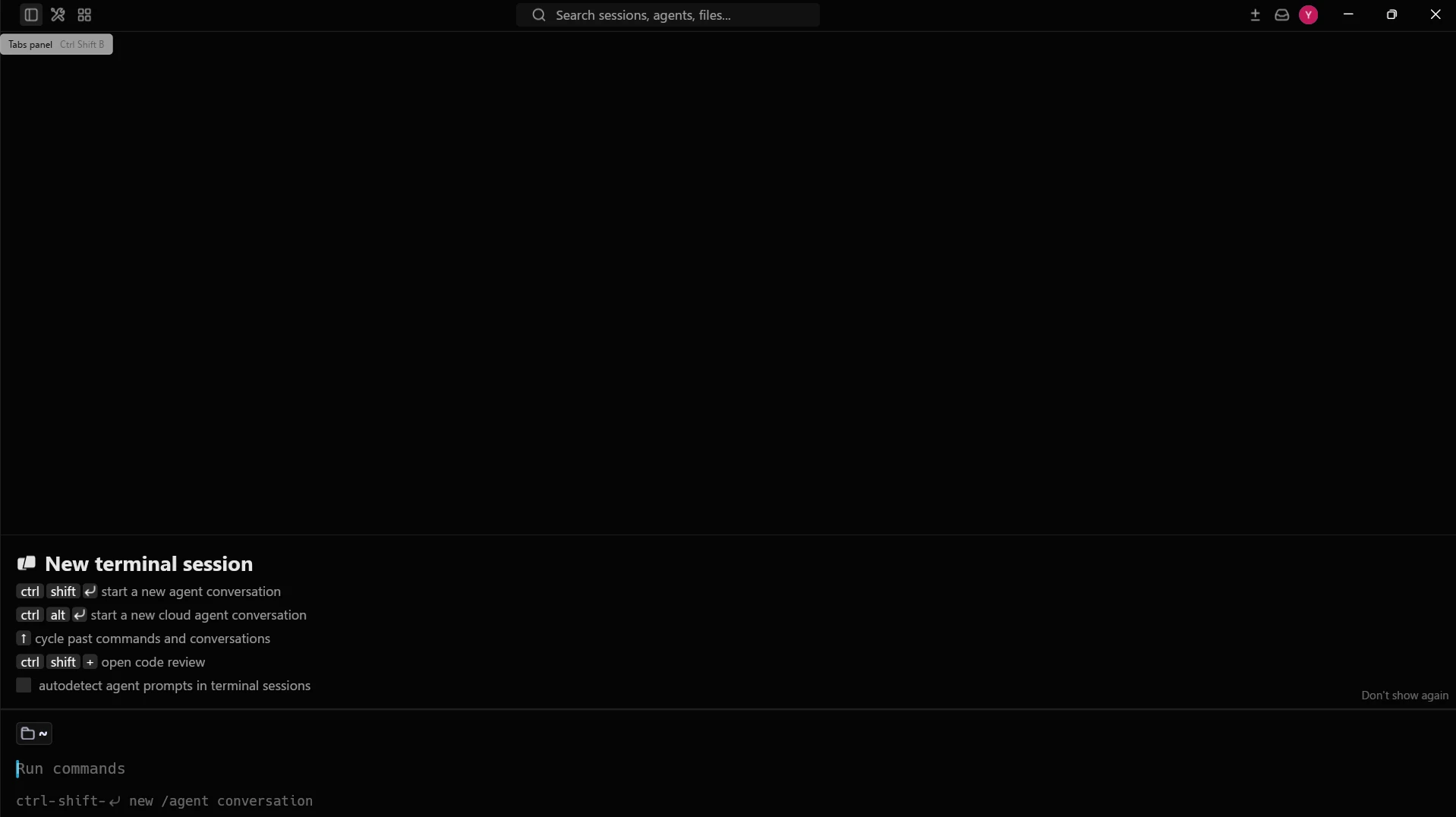
-
Click Settings, expand Agents, select Warp Agent, and toggle Warp Agent on
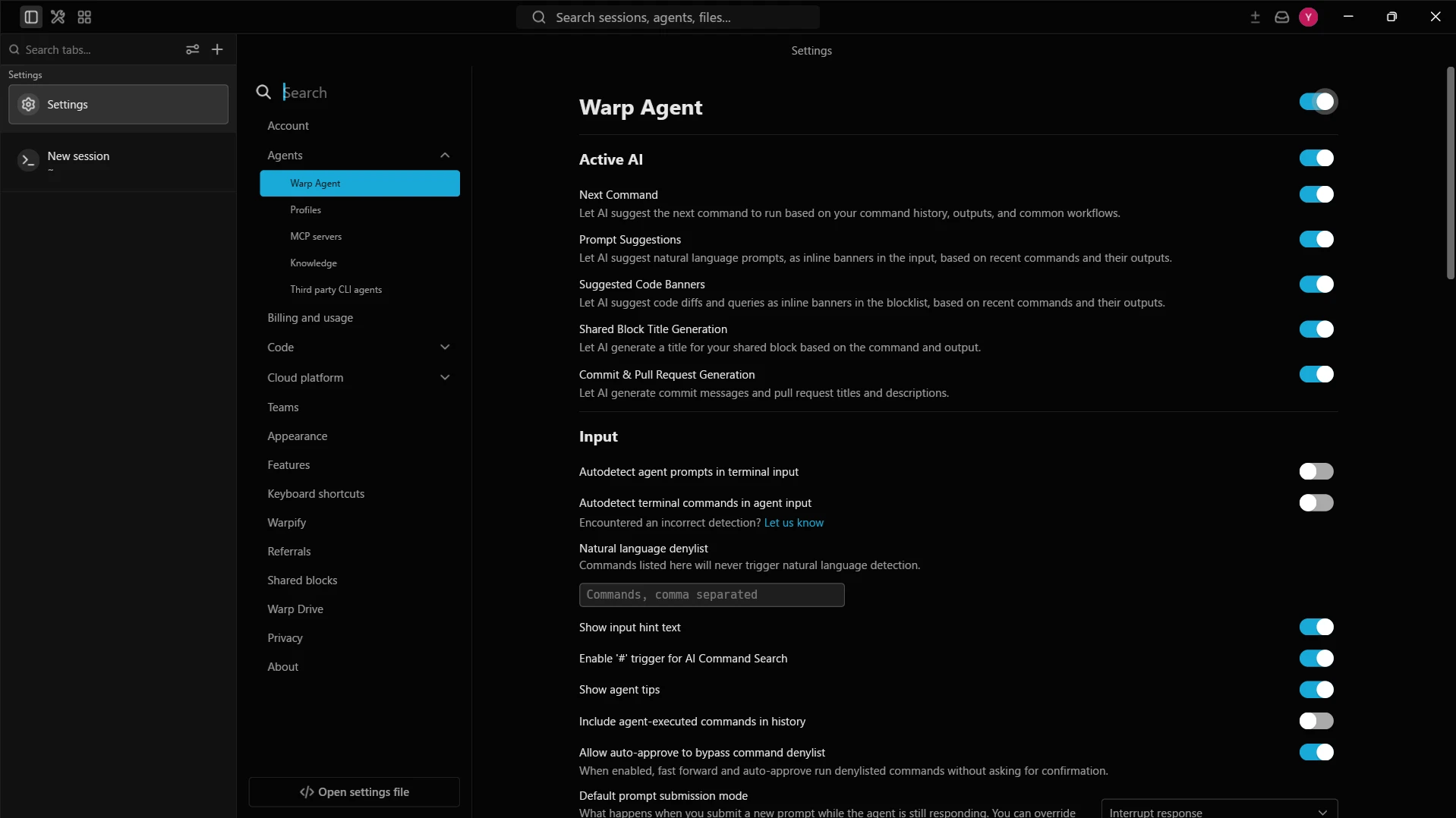
Configure an LLM provider
The Warp Agent needs an LLM provider to interpret your prompts and decide which MCP tools to call. Add an API key for your preferred provider.
- On the same Warp Agent page, scroll down to the Custom Inference section
-
Enter the API key for the LLM provider of your choice (e.g., OpenAI, Anthropic, or Google)
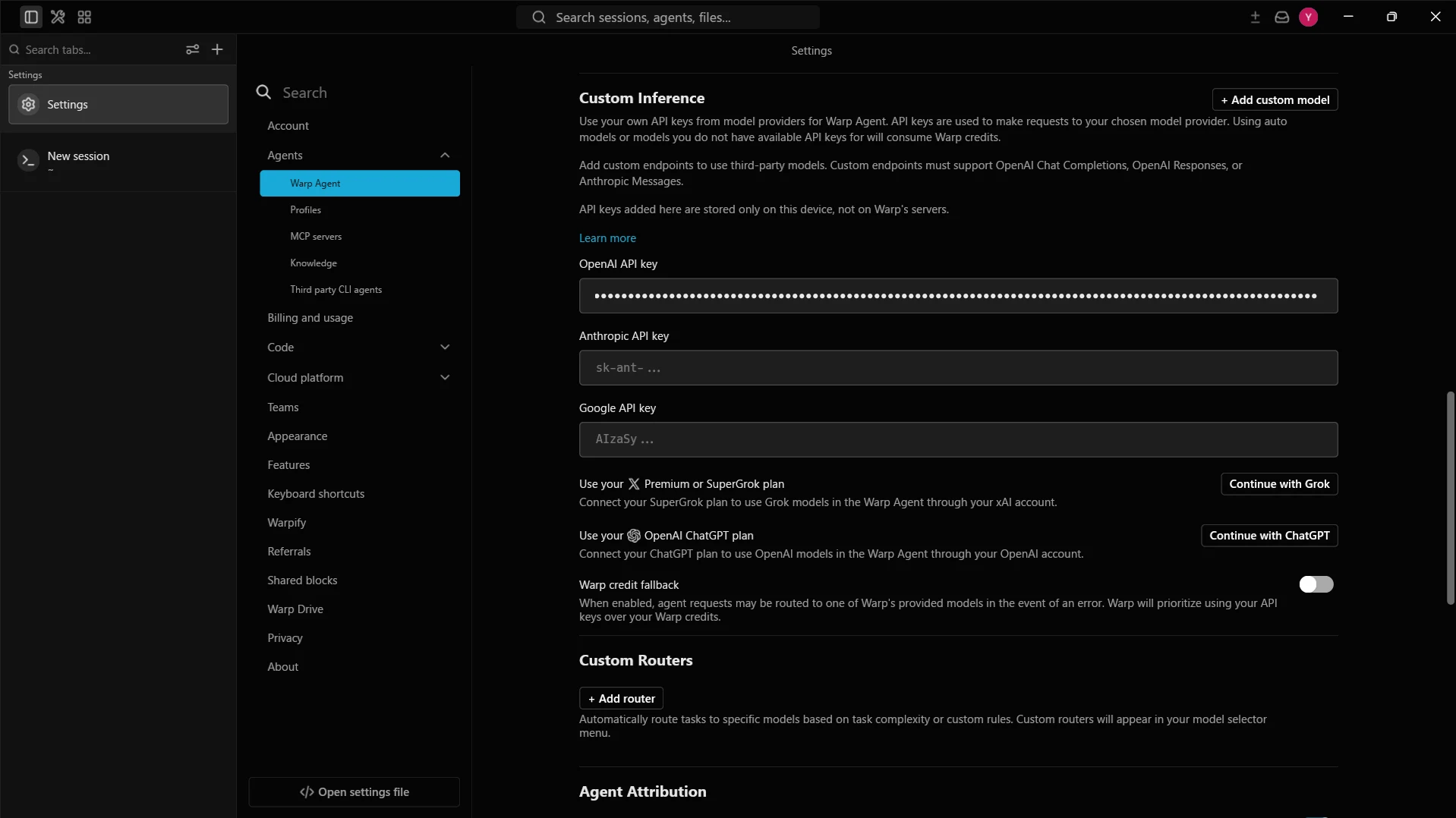
Add the Connect AI MCP Server
-
Under Agents, click MCP servers, and then click Add
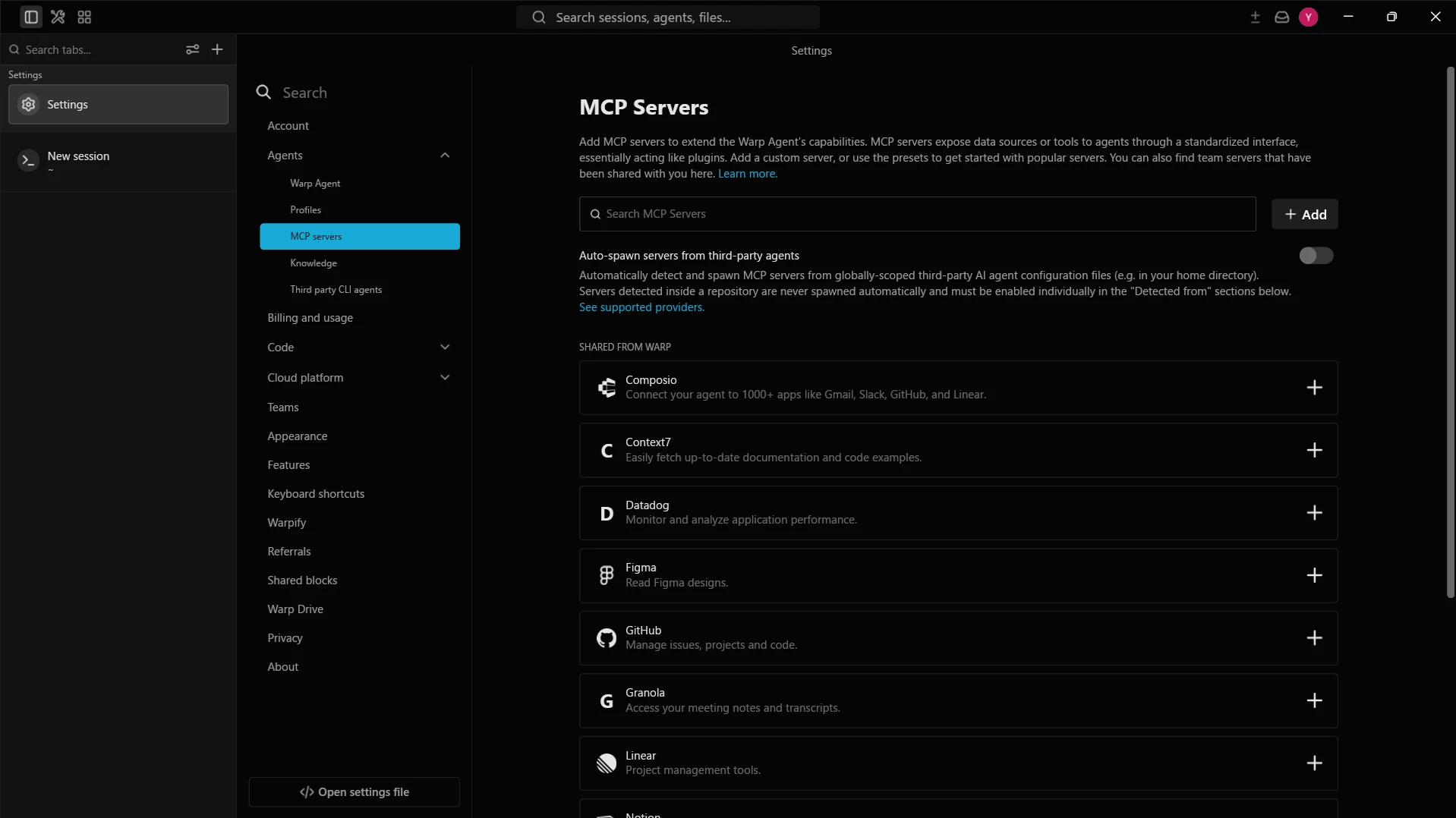
-
In the Add New MCP Server editor, paste the following JSON configuration:
{
  "mcpServers": {
    "CData_Connect_AI": {
      "url": "https://mcp.cloud.cdata.com/mcp",
      "headers": {
        "Authorization": "Basic your_base64_encoded_email_PAT"
      }
    }
  }
}
Note: Combine your Connect AI email and PAT in the format email:PAT, Base64 encode the combined string, and prefix it with Basic. For example, given [email protected]:ABC123...XYZ, the header value becomes something like: Basic dXNlckBteWRvbWFpbjphSzkvbVB4Mi9Rcjd2TjQ...
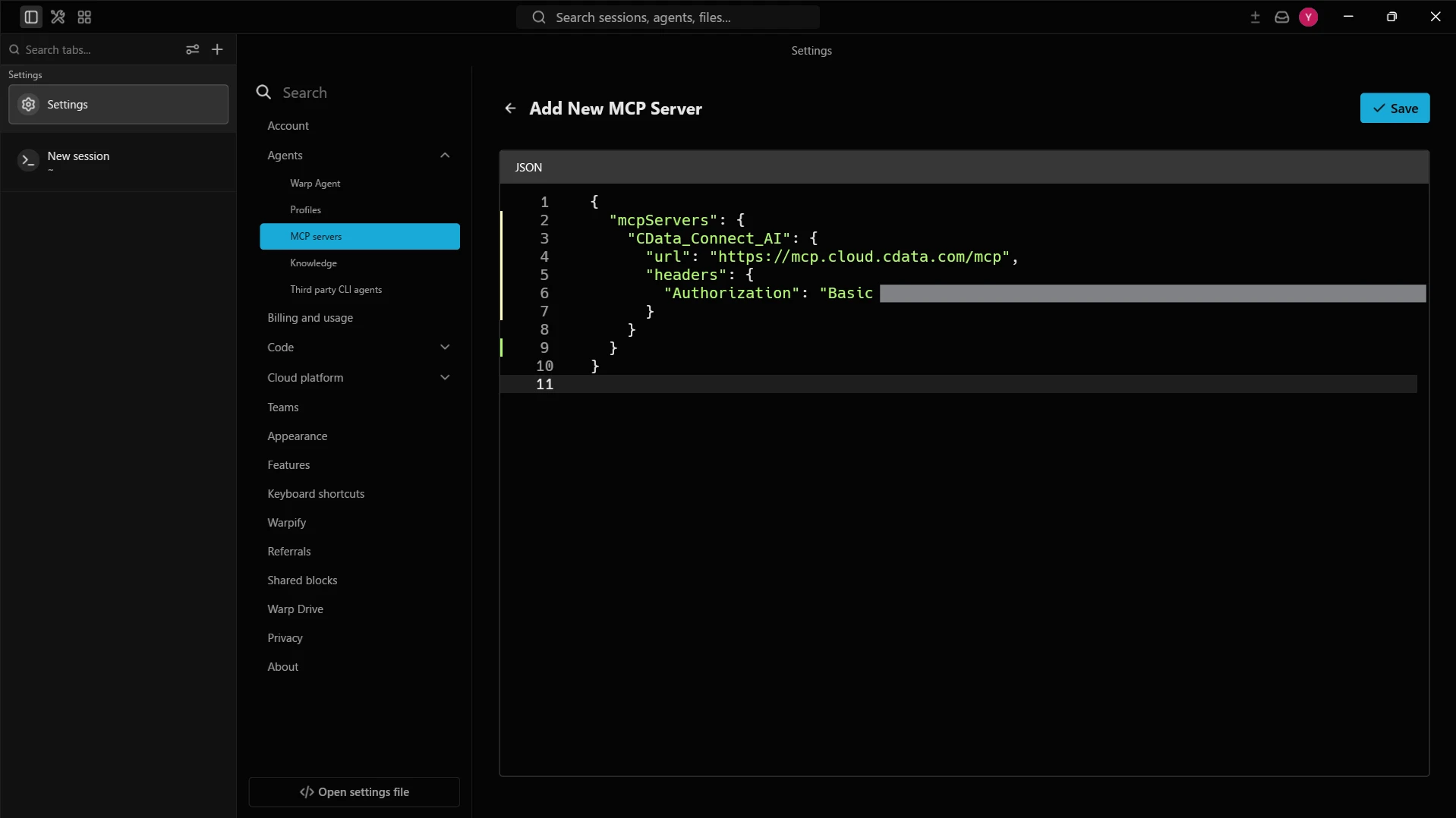
- Click Save to add the MCP server
-
Under My MCPs, confirm that CData_Connect_AI appears with the toggle enabled and the tools available
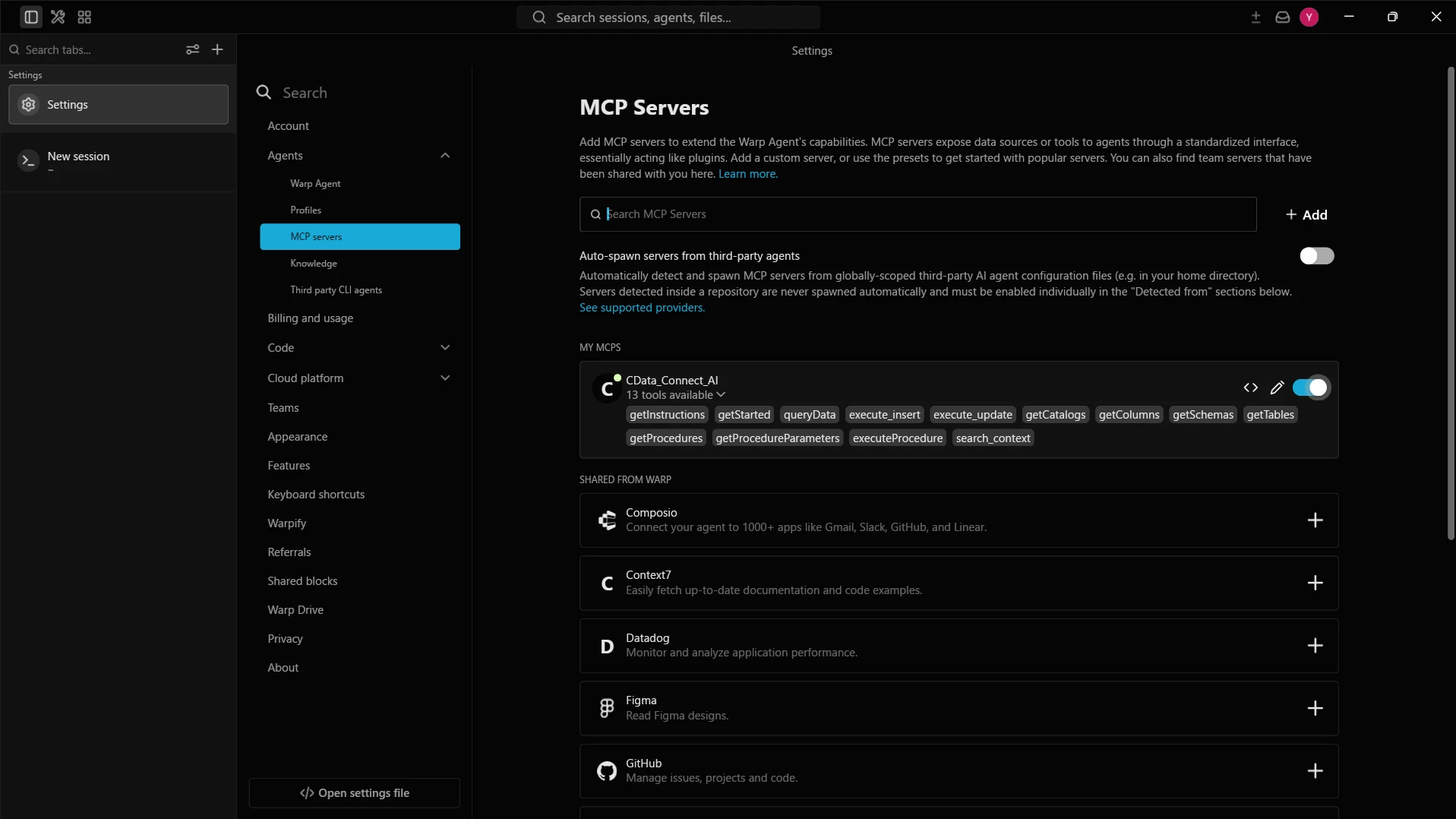
With the MCP server and an LLM provider configured, the Warp Agent is ready to interact with live Dynamics CRM data through Connect AI.
Step 3: Interact with live Dynamics CRM data from the Warp Agent
Use natural language prompts in the Warp Agent to explore live Dynamics CRM data.
-
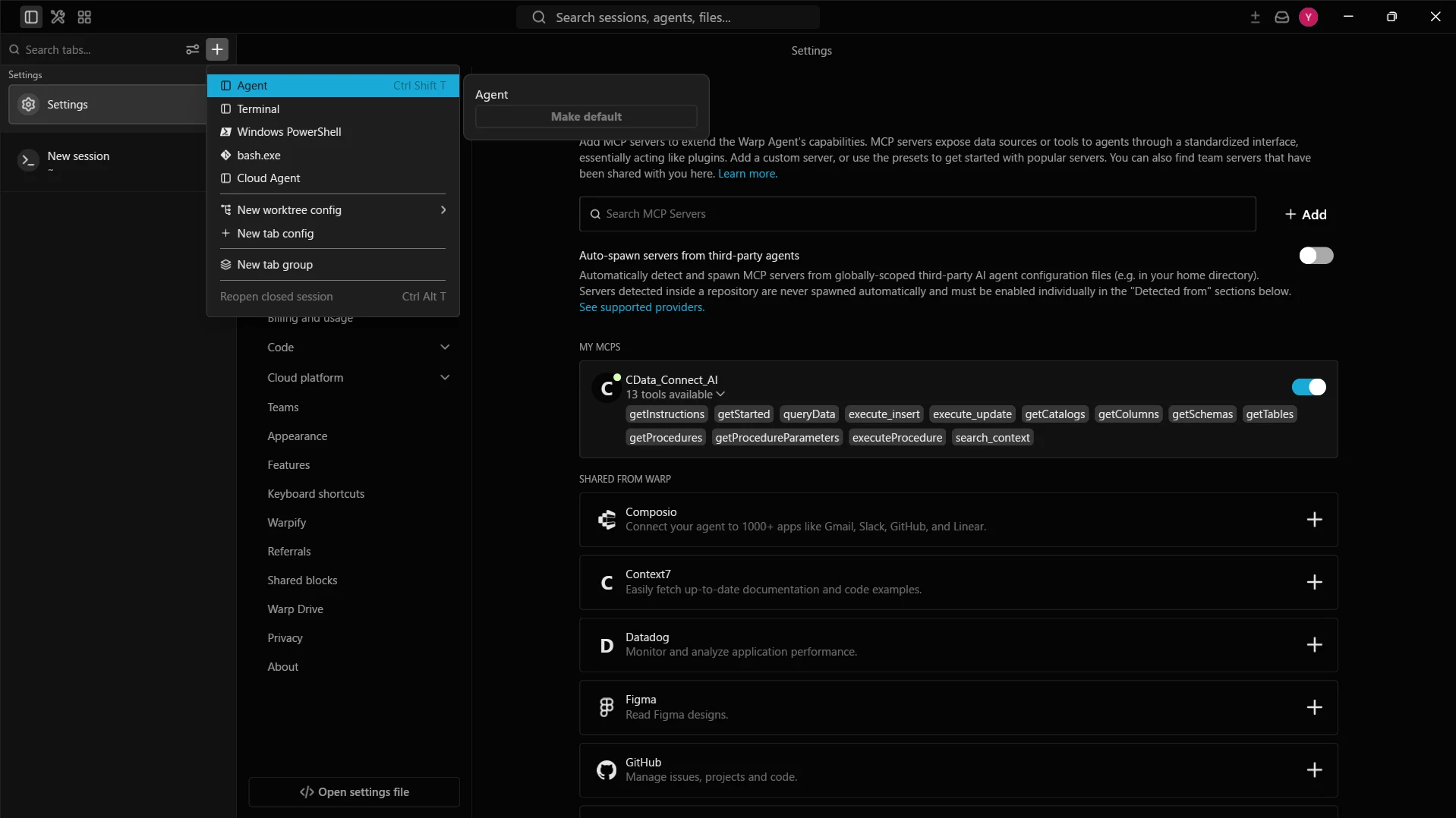
Click the icon in the left navigation bar and select Agent
-
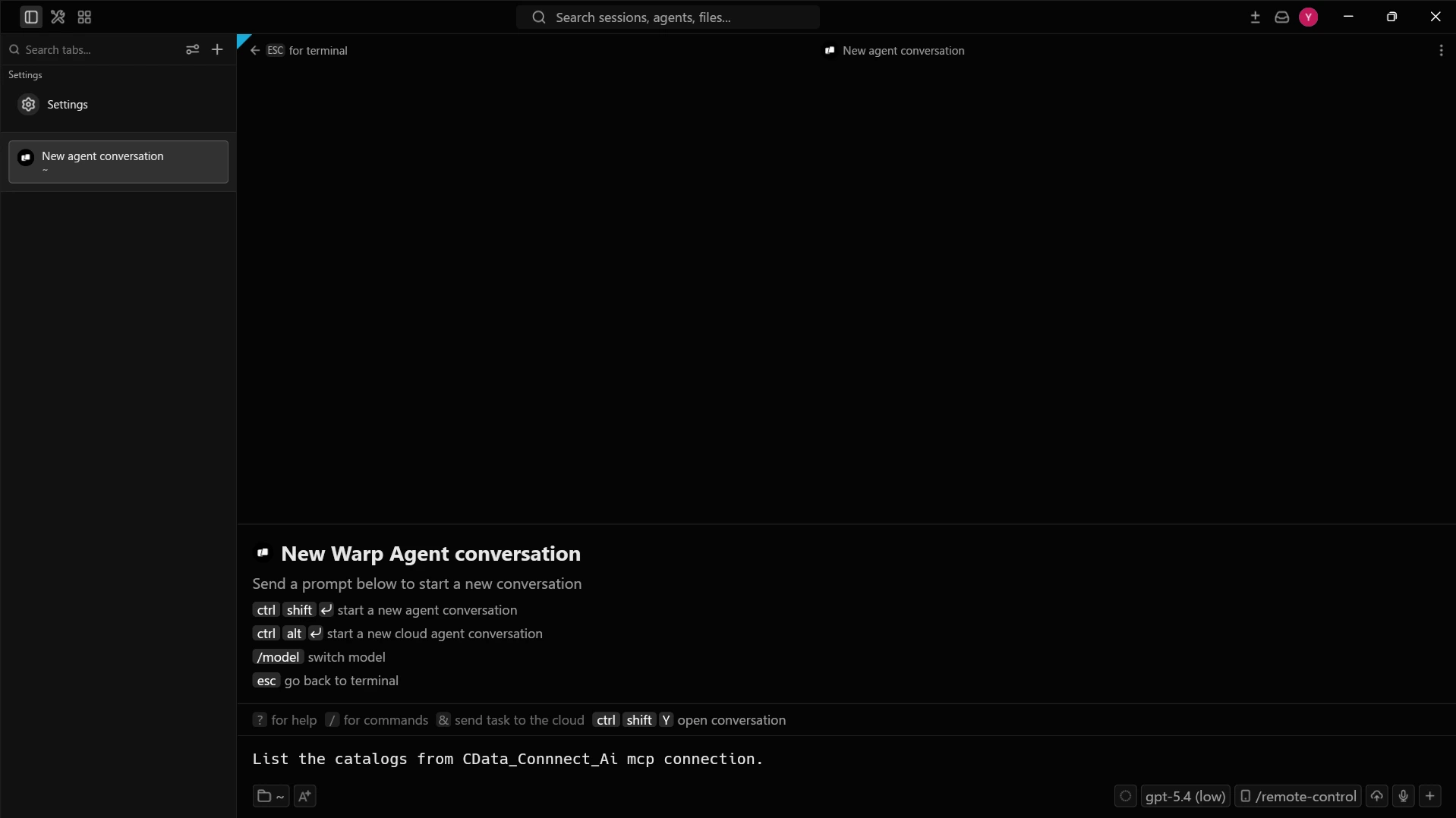
Enter a prompt to interact with your data, for example:
- List the sources available in my CData_Connect_AI mcp connection
- Show me what I can explore in Dynamics CRM
- Fetch the five most recent records from Dynamics CRM data
-
The agent calls the Connect AI MCP Server and returns live results from Dynamics CRM data
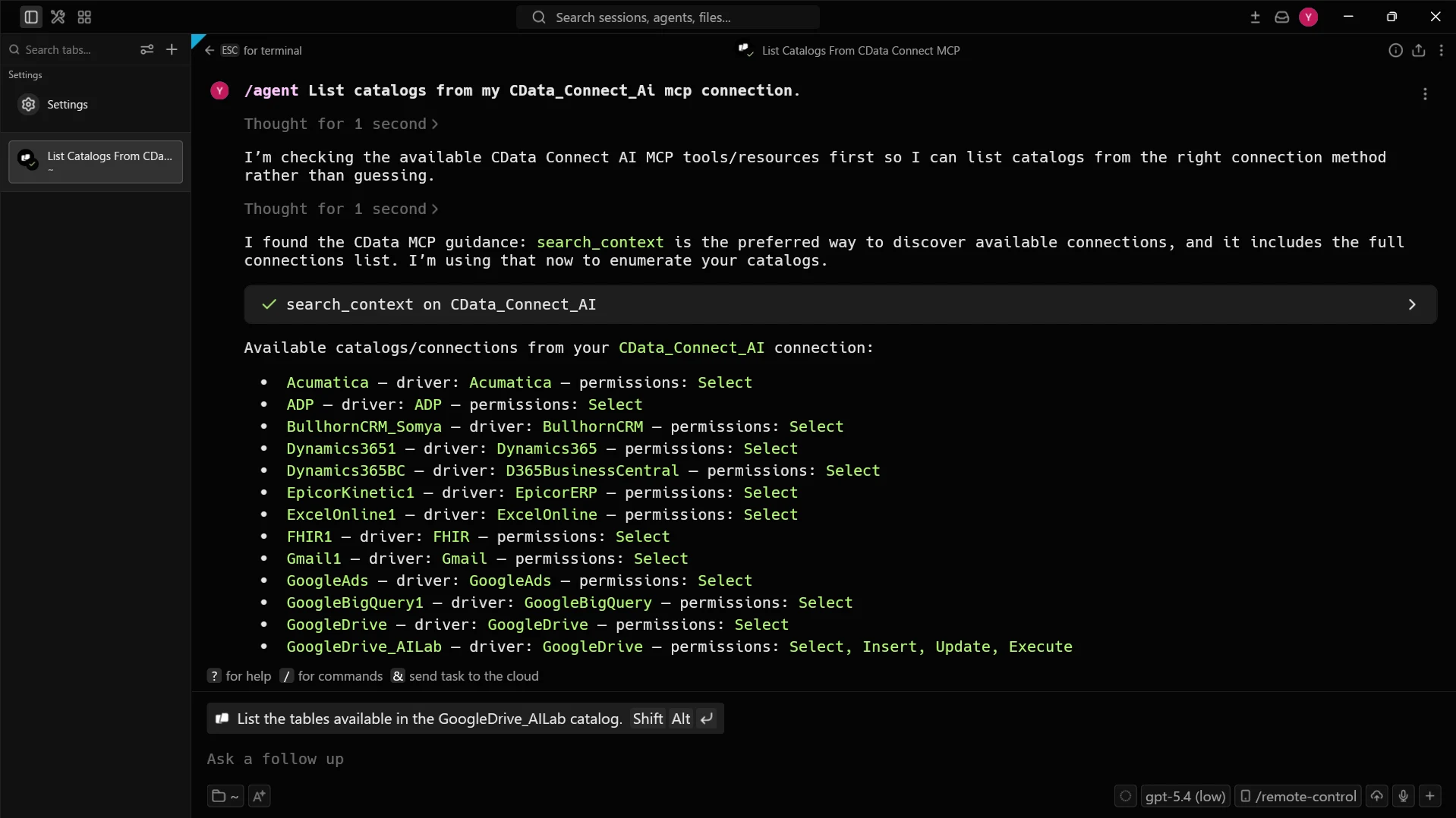
Your Warp Agent now calls the Connect AI MCP Server to interact with live Dynamics CRM data through remote MCP tools, all from the terminal.
Get CData Connect AI
To interact with hundreds of SaaS and enterprise data sources directly from your AI agents and cloud applications, try CData Connect AI. Download a free 14-day trial of CData Connect AI, and our Support Team is available to answer any questions.