





Integrating Claude Code CLI with Halo Service Desk Data via CData CLI

Claude Code is Anthropic's agentic command-line tool that brings AI assistance directly into your development workflow. Running natively in the terminal, it can plan and execute multi-step tasks: reading files, running commands, and making decisions across your project without constant manual input. Its ability to load and follow agent skill files makes it especially well-suited for structured workflows, making it a natural fit for connecting to external data sources through tools like CData CLI. With Claude Code, you can describe your data goals in plain language and let the agent handle driver setup, connection configuration, and query execution automatically.
This article details step-by-step directions for how to connect Halo Service Desk data to Claude Code CLI through CData CLI.
Prerequisites
- Claude Code installed (either Terminal CLI or Desktop):
- Terminal CLI installed
- Desktop installed
- CData CLI installed
Step 1: Download skill (one-time setup)
The CData CLI should always be used with the official Skill.
- The official CData CLI Skill on GitHub can be downloaded using npx skills through the terminal:
npx skills add CDataSoftware/cli-skills - Follow prompts in terminal to install skill for Claude Code

Step 2: Set up project directory
A project directory should be created to contain all project files. Below are examples for using Claude Code in either the Terminal or Desktop app:
Claude Code in Terminal CLI
Navigate to directory within the terminal and start a session using the claude command

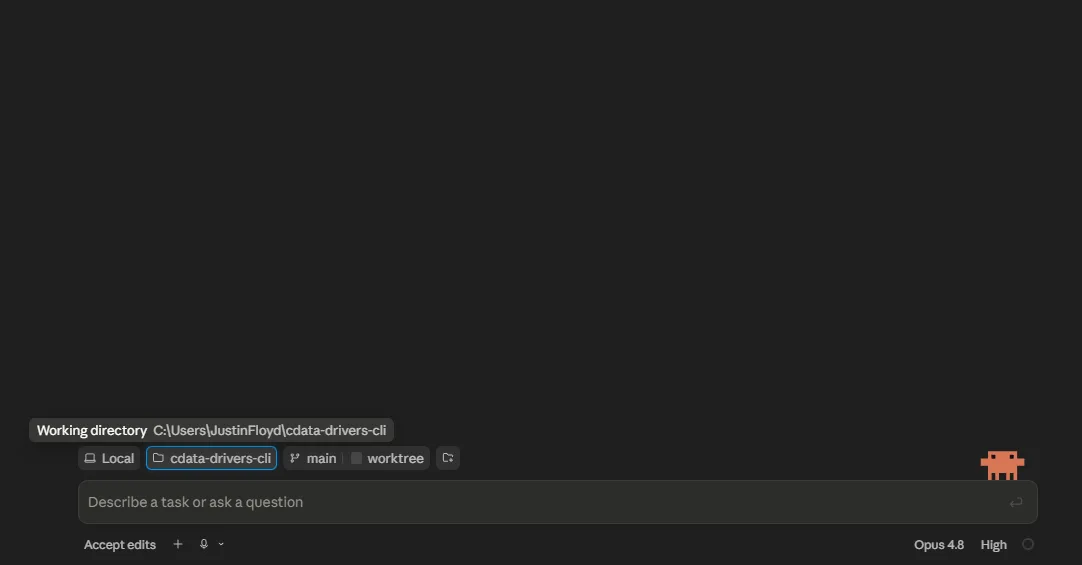
Claude Code Desktop application
Select the working directory within the desktop app as shown below.
Step 3: Establish driver and connection
Describe what you hope to accomplish in this session with the CLI and Halo Service Desk data. For example, consider the following prompt:
"I would like to build a command line app that connects to Halo Service Desk data and checks for updates from Assets. Make sure to include data from important columns like Id and InventoryNumber."
This should automatically load the Skill and kick off the following process. You can always manually prompt the agent for each of the following steps.
- Driver setup: Check for existing CData Halo Service Desk driver, or search and download a new one:
cdatacli drivers listcdatacli drivers search --driver "Halo Service Desk"cdatacli drivers download --artifact-id <artifact-id>
- Activation: Activate Halo Service Desk driver with a single command for trial or full license:
cdatacli drivers activate "Halo Service Desk" --name "<name>" --email "<email>" --trialcdatacli drivers activate "Halo Service Desk" --name "<name>" --email "<email>" --key "<product-key>"
- Establish Halo Service Desk connection: Check for existing Halo Service Desk connections or create a new one:
cdatacli connection listcdatacli connection create --driver "Halo Service Desk" --name my_api_connection --connectionstring "Prop1=value1;Prop2=value2;..."
- Create Halo Service Desk skill (if applicable): CData provides driver instructions for popular sources that can be used to create a source specific skill to guide the agent through best practices for the driver.
Run the following command to generate a skill file and save the output to your skills directory. You can choose to save the skill either at the project level or globally. (Note: If "No instructions available for Halo Service Desk" error is returned, no driver instructions exist and you can continue to use main driver skill)
cdatacli drivers skill "Halo Service Desk" > ~/skills/cdata-api/SKILL.md
Step 4: Query Halo Service Desk data
With the CData Halo Service Desk Driver fully setup, your agent can now begin executing queries and writing code if desired.
cdatacli query sql --connection my_api_connection --sql "SELECT * FROM Assets"Query Halo Service Desk data directly from your terminal with CData CLI
Claude Code and CData CLI together give your AI coding agent a direct path to live Halo Service Desk data without custom middleware, scheduled syncs, or manual setup at each step. Describe your goal, and the agent handles driver configuration, connection setup, and query execution from start to finish in the terminal.
Download the free CData CLI and start a free, 30-day trial of the CData API Driver for JDBC today.