





How to Connect Flowise AI Agents to Live Harvest Data via CData Connect AI
Flowise AI is an open-source, no-code tool for building AI workflows and custom agents visually. Its drag-and-drop interface allows you to integrate large language models (LLMs) with APIs, databases, and external systems effortlessly.
CData Connect AI enables real-time connectivity to hundreds of enterprise data sources. Through its Model Context Protocol (MCP) server, CData Connect AI bridges Flowise agents with live Harvest securely and efficiently, no data replication required. By combining Flowise AI's intuitive agent builder with CData's MCP integration, users can create agents capable of fetching, analyzing, and acting upon live Harvest data directly within Flowise AI workflows.
This guide shows you how to connect Flowise AI to CData Connect AI MCP, set up credentials, and enable your agents to query live Harvest data in real time.
Step 1: Configure Harvest Connectivity for Flowise
Connectivity to Harvest from Flowise AI is made possible through CData Connect AI's Remote MCP Server. To interact with Harvest data from Flowise AI, we start by creating and configuring a Harvest connection in CData Connect AI.
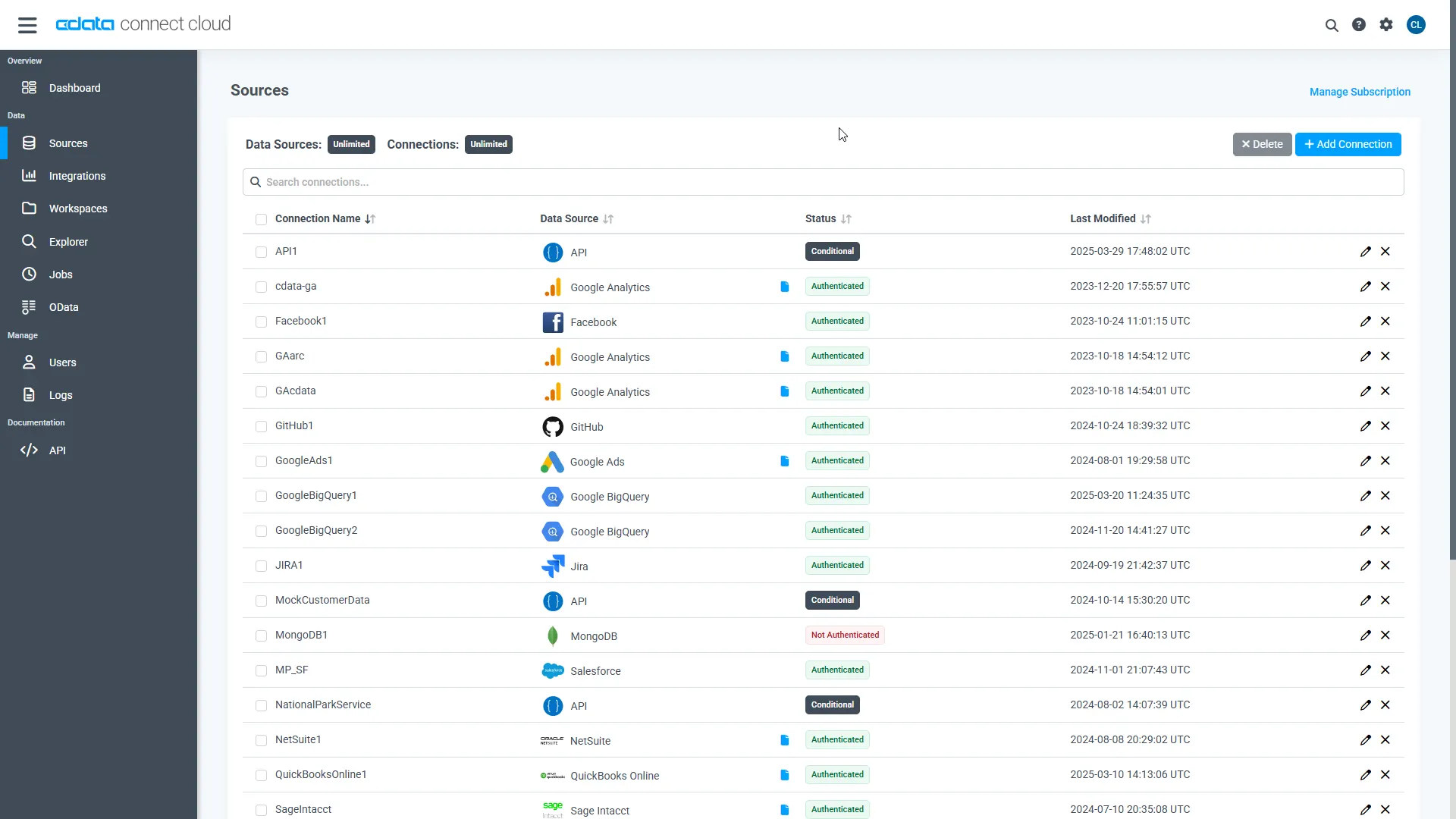
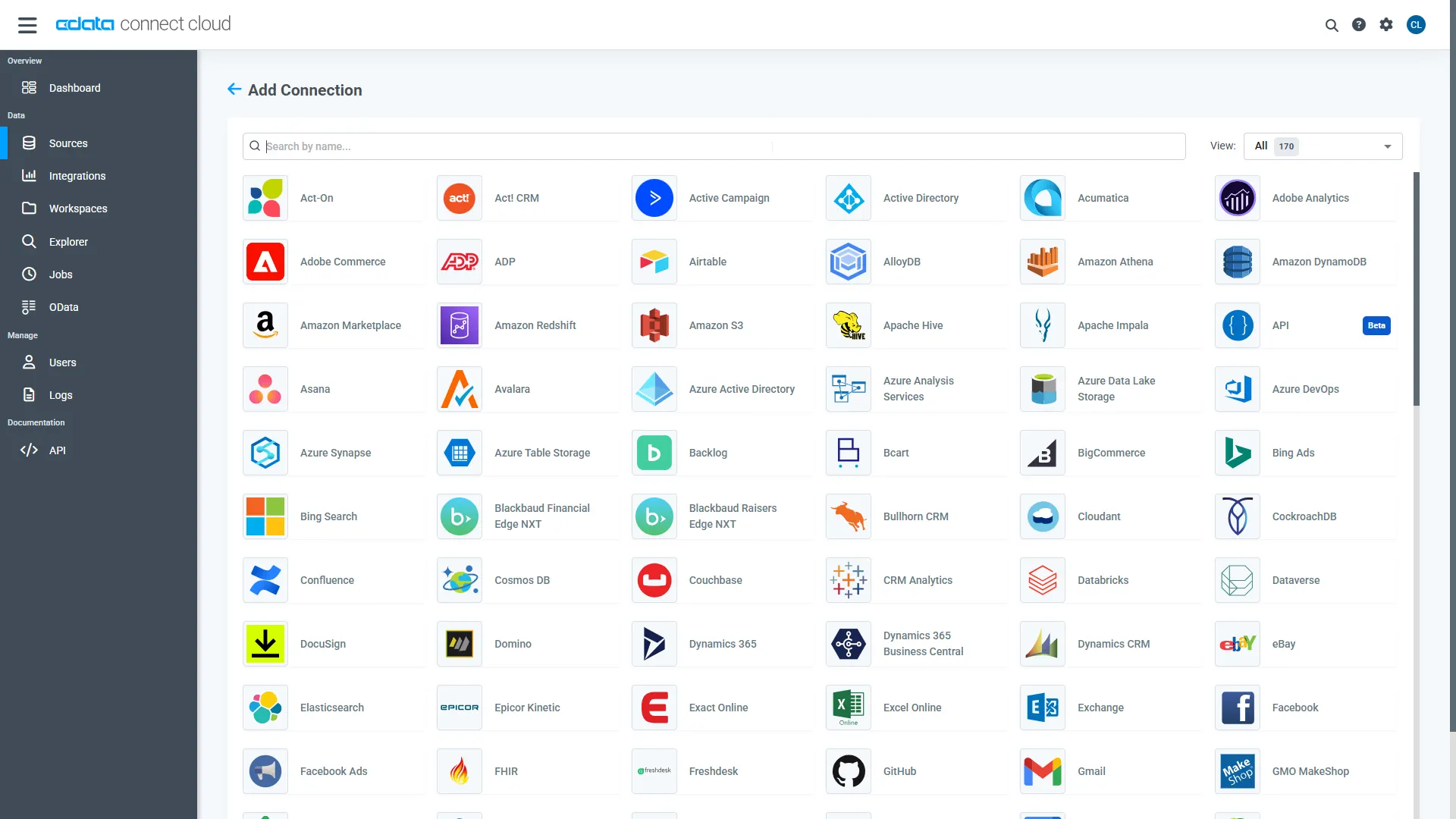
- Log into Connect AI, click Sources, and then click Add Connection
- Select Harvest from the Add Connection panel
-
Enter the necessary authentication properties to connect to Harvest.
Start by setting the Profile connection property to the location of the Harvest Profile on disk (e.g. C:\profiles\Harvest.apip). Next, set the ProfileSettings connection property to the connection string for Harvest (see below).
Harvest API Profile Settings
To authenticate to Harvest, you can use either Token authentication or the OAuth standard. Use Basic authentication to connect to your own data. Use OAuth to allow other users to connect to their data.
Using Token Authentication
To use Token Authentication, set the APIKey to your Harvest Personal Access Token in the ProfileSettings connection property. In addition to APIKey, set your AccountId in ProfileSettings to connect.
Using OAuth Authentication
First, register an OAuth2 application with Harvest. The application can be created from the "Developers" section of Harvest ID.
After setting the following connection properties, you are ready to connect:
- ProfileSettings: Set your AccountId in ProfileSettings.
- AuthScheme: Set this to OAuth.
- OAuthClientId: Set this to the client ID that you specified in your app settings.
- OAuthClientSecret: Set this to the client secret that you specified in your app settings.
- CallbackURL: Set this to the Redirect URI that you specified in your app settings.
- InitiateOAuth: Set this to GETANDREFRESH. You can use InitiateOAuth to manage how the driver obtains and refreshes the OAuthAccessToken.
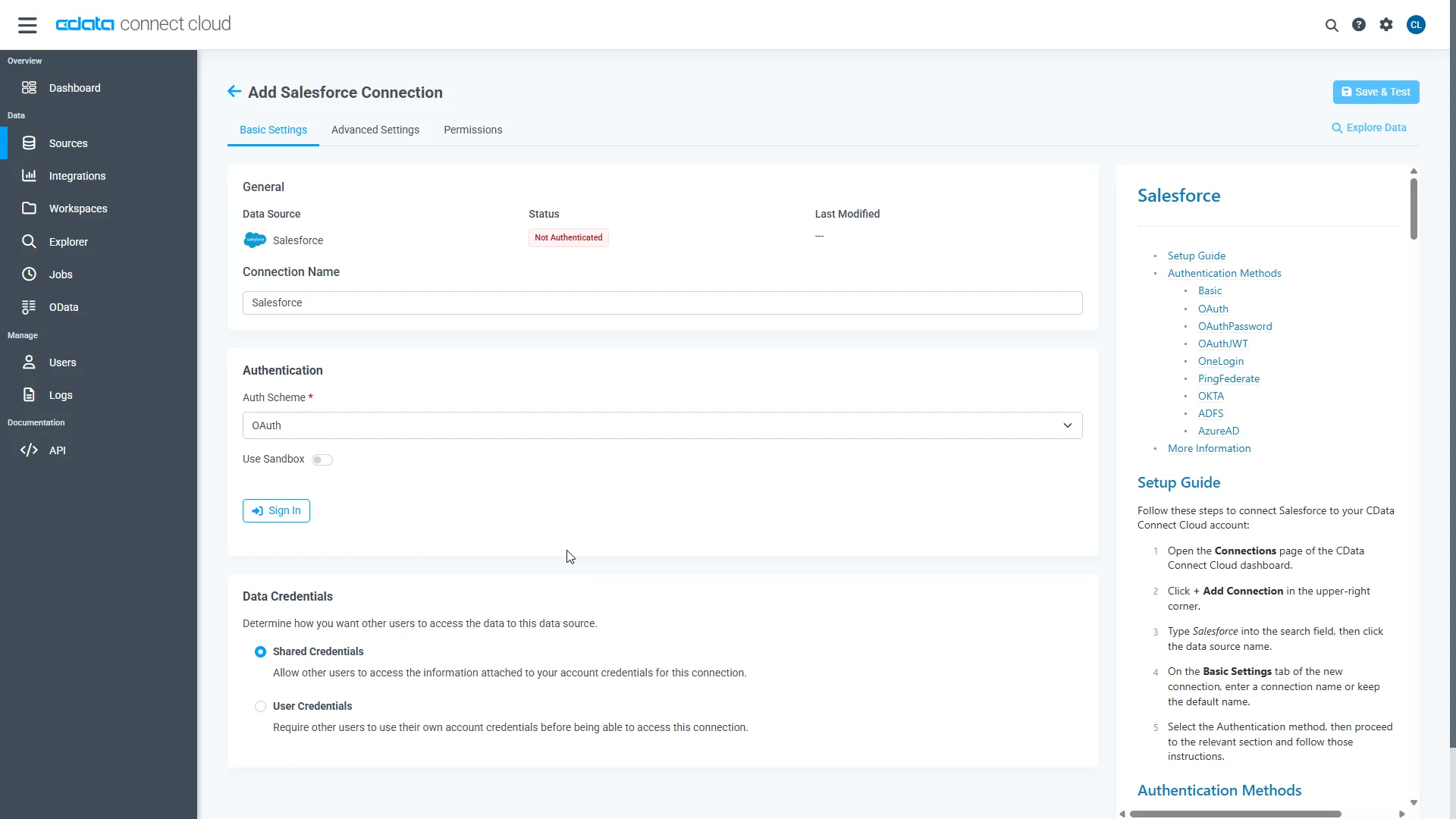
- Click Save & Test
- Navigate to the Permissions tab and update user-based permissions
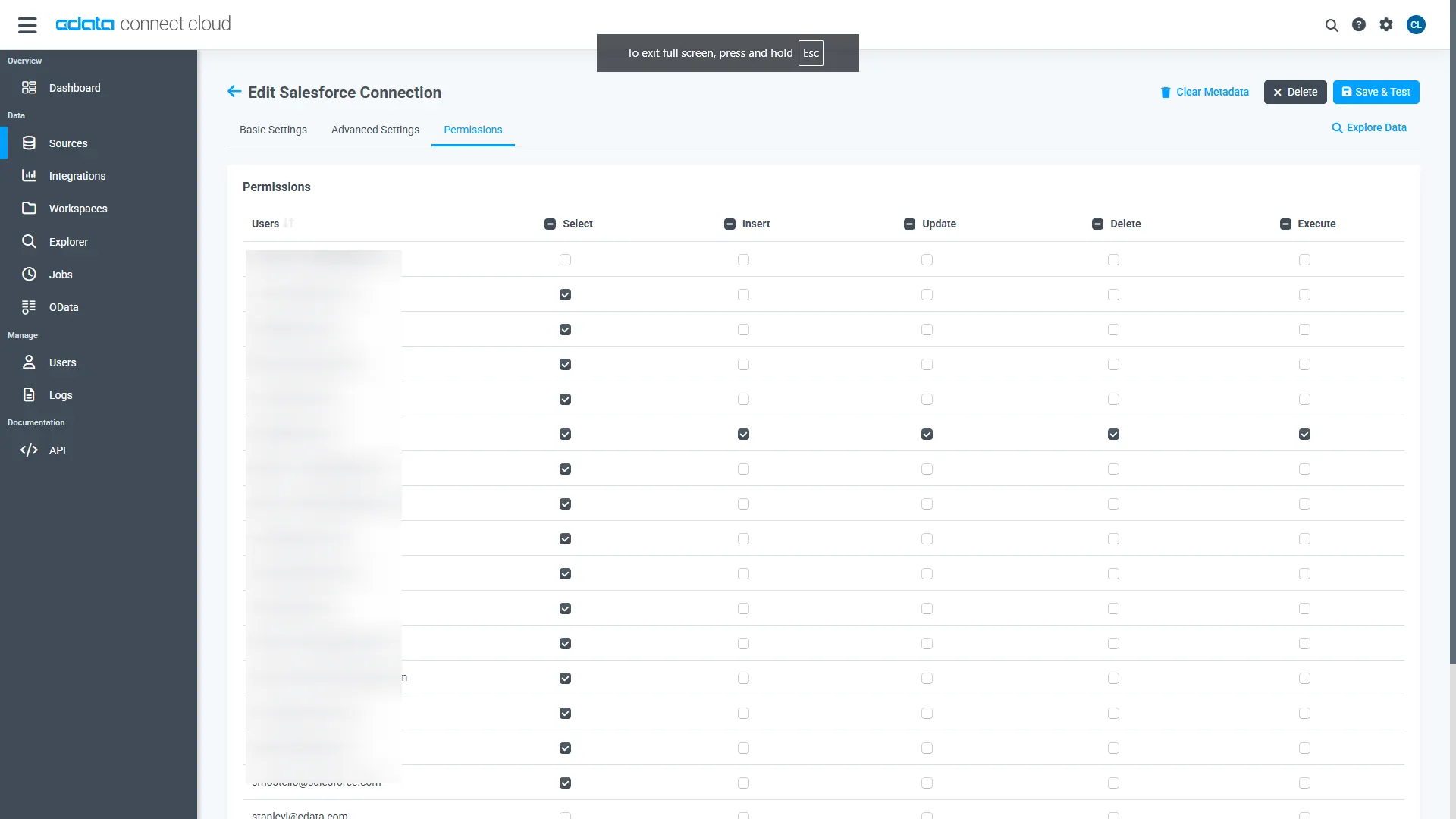
Once the connection is established, Harvest data is now accessible in CData Connect AI and ready to be used with MCP enabled tools.
Add a Personal Access Token
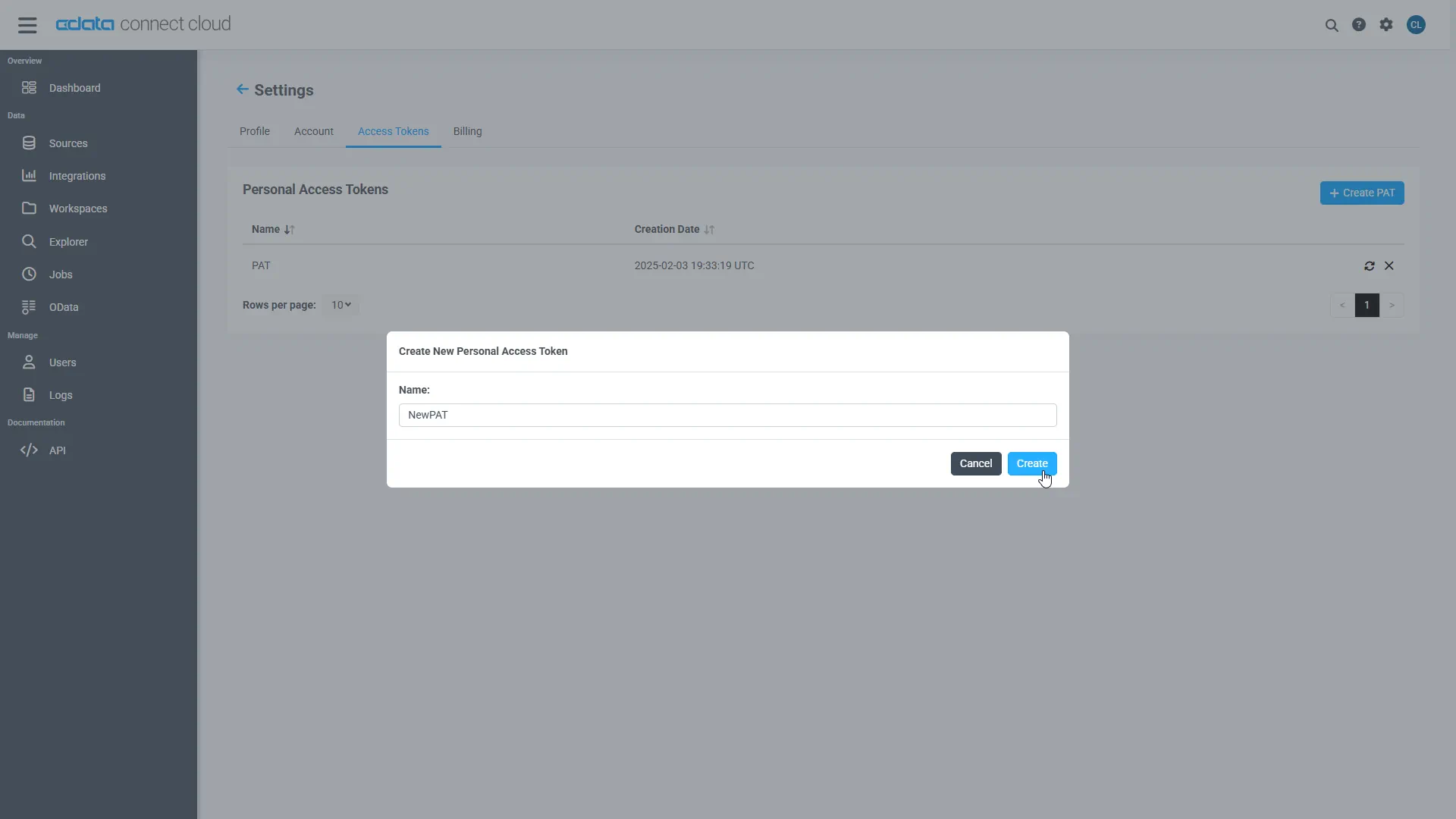
A Personal Access Token (PAT) is used to authenticate the connection to Connect AI from Flowise AI. It is best practice to create a separate PAT for each integration to maintain granular access control.
- Click the gear icon () at the top right of the Connect AI app to open Settings
- On the Settings page, go to the Personal Access Tokens section and click Create PAT
- Give the PAT a descriptive name and click Create
- Copy the token when displayed and store it securely. It will not be shown again
With the Harvest connection configured and a PAT generated, Flowise AI can now connect to Harvest data through Connect AI.
Step 2: Configure Connect AI credentials in Flowise AI
Log in to Flowise AI workspace to set up the integration.
Add OpenAI credentials
- Navigate to Credentials and choose Add Credential
- Select OpenAI API from the dropdown
- Provide a name (e.g., OpenAI_Key) and paste the API key


Add the PAT variable
- Navigate to Variables and Add Variable
- Set Variable Name (e.g., PAT), choose Static as type, and set the Value to Base64-encoded username:PAT
- Click Add to save the variable


Step 3: Build the agent in Flowise AI
- Go to Agent Flows, select Add New
- Click the "+" icon to add a new node and choose Agent and drag the agent to the workflow
- Connect the Start node to the Agent node


Configure agent settings
Double-click on the Agent node and fill in the details:
- Model: select ChatOpenAI or preferred model (e.g., gpt-4o-mini)
- Connect Credential: Select OpenAI API key credential which was created earlier
- Streaming: Enabled

Add the custom MCP tool
- Under Tools, click Add Tool and choose Custom MCP
- Fill in the JSON parameters as shown below:
{
  "url": "https://mcp.cloud.cdata.com/mcp",
  "headers": {
    "Authorization": "Basic {{$vars.PAT}}"
  }
}
Click the refresh icon to load available MCP actions. Once actions are listed, now Flowise agent is successfully connected to CData Connect AI MCP.
Step 4: Test and query live Harvest data in Flowise
- Open the Chat tab in Flowise
- Type a query such as "Show top 10 records from Harvest data table"
- Observe that responses are fetched in real time via the CData Connect AI MCP connection

With the workflow run completed, Flowise demonstrates successful retrieval of Salesforce data through the CData Connect AI MCP server, with the MCP Client node providing the ability to ask questions, retrieve records, and perform actions on the data.
Get CData Connect AI
To access hundreds of SaaS, Big Data, and NoSQL sources directly from your cloud applications, try CData Connect AI today!