





How to Visualize Harvest Data in Python with pandas via CData Connect AI

The rich ecosystem of Python modules lets you get to work quickly and integrate your systems more effectively. With the CData Connect AI Python SDK, the pandas and Matplotlib modules, you can build Harvest-connected Python applications and scripts for visualizing Harvest data. This article shows how to connect to Connect AI and use the pandas and Matplotlib built-in functions to query Harvest data and visualize the results.
The Connect AI Python SDK (cdata-connect-ai) is a DB-API 2.0 (PEP 249) compliant client, so pandas can read query results directly from the SDK connection object. There is no driver to install per source and no SQLAlchemy engine to configure: connect with a Personal Access Token and pass the connection straight to pandas.read_sql.
Connect to Harvest in Connect AI
CData Connect AI uses a straightforward, point-and-click interface to connect to data sources.
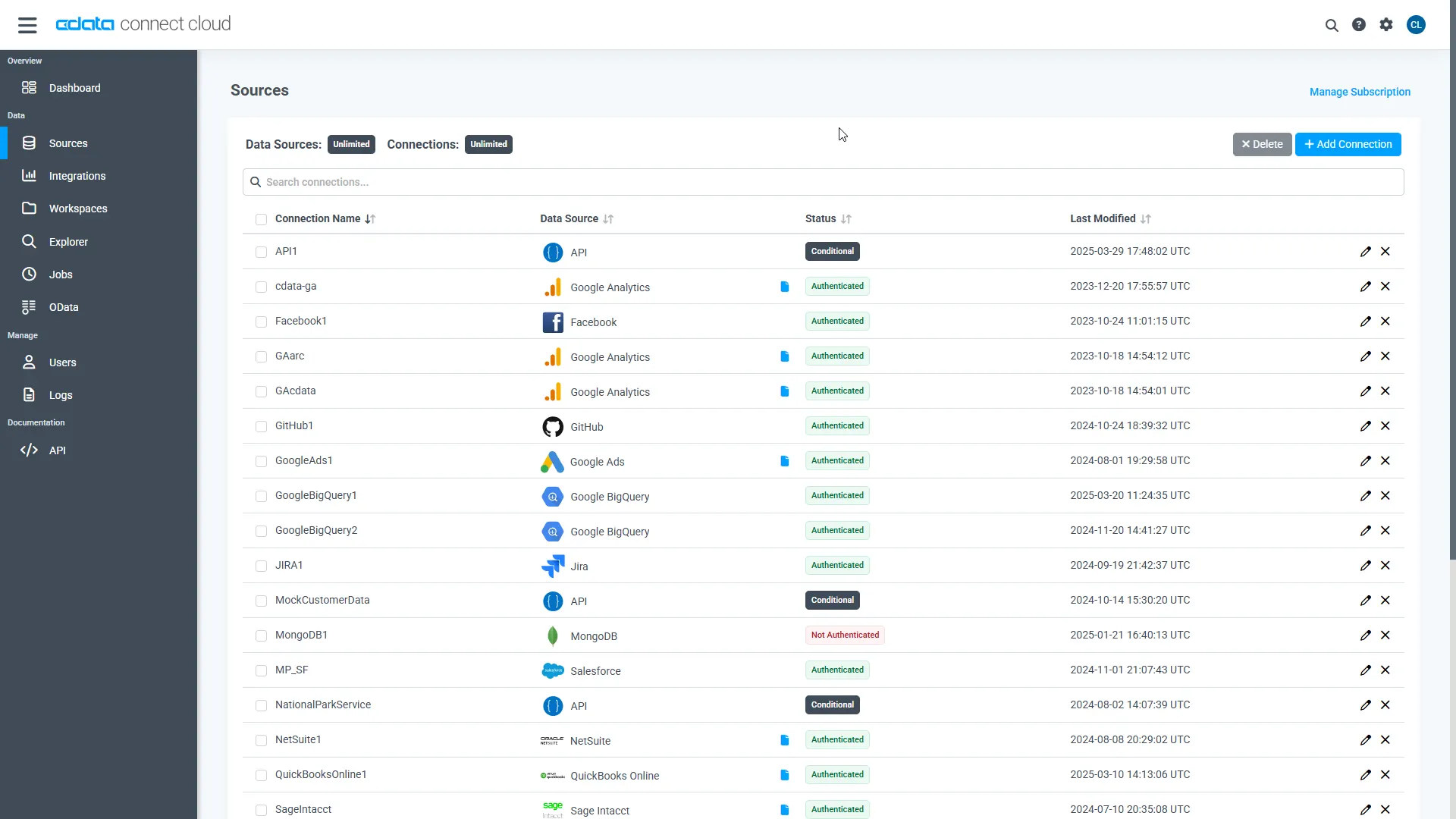
- Log into Connect AI, click Sources, and then click Add Connection
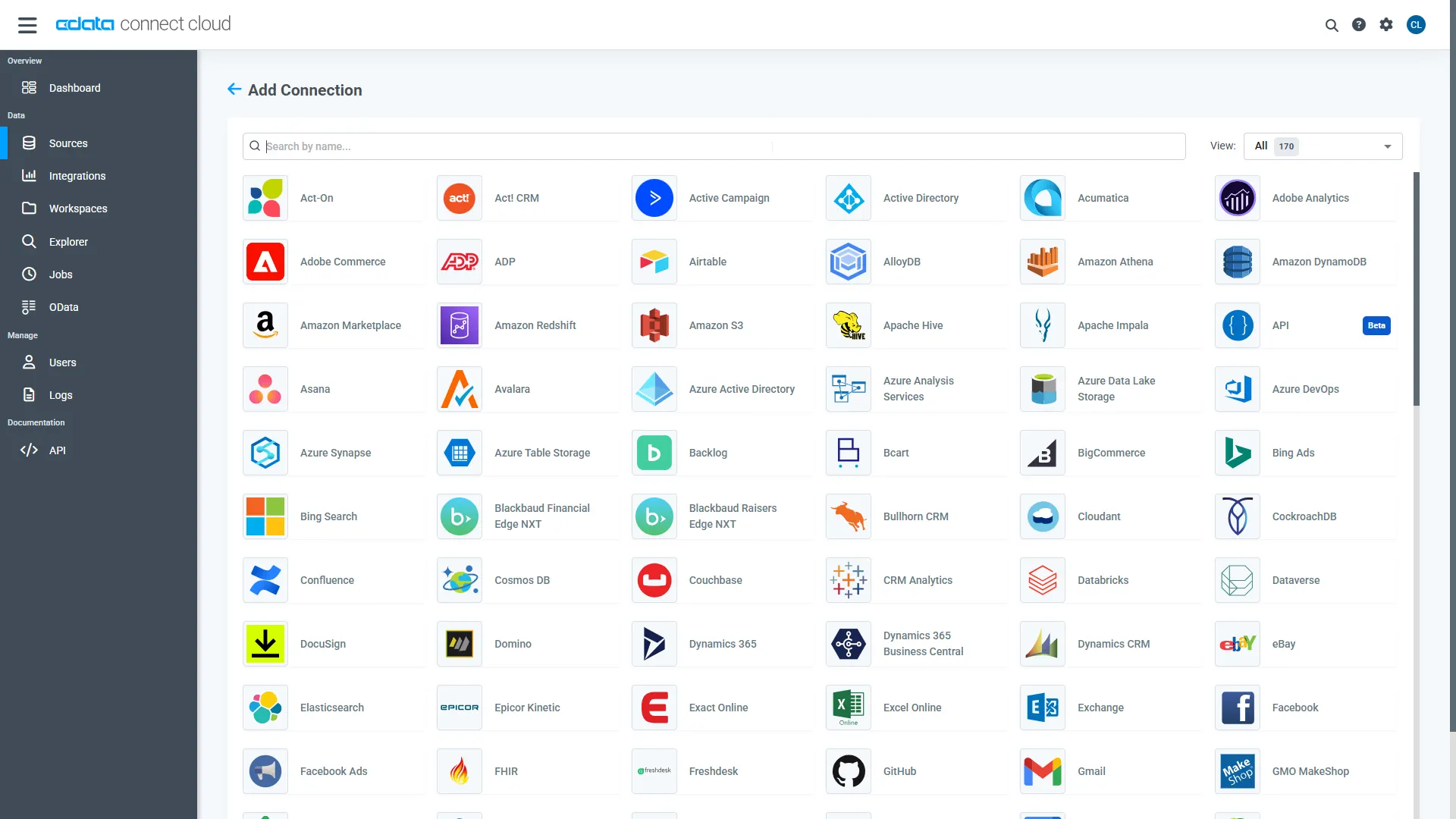
- Select "Harvest" from the Add Connection panel
-
Enter the necessary authentication properties to connect to Harvest.
Start by setting the Profile connection property to the location of the Harvest Profile on disk (e.g. C:\profiles\Harvest.apip). Next, set the ProfileSettings connection property to the connection string for Harvest (see below).
Harvest API Profile Settings
To authenticate to Harvest, you can use either Token authentication or the OAuth standard. Use Basic authentication to connect to your own data. Use OAuth to allow other users to connect to their data.
Using Token Authentication
To use Token Authentication, set the APIKey to your Harvest Personal Access Token in the ProfileSettings connection property. In addition to APIKey, set your AccountId in ProfileSettings to connect.
Using OAuth Authentication
First, register an OAuth2 application with Harvest. The application can be created from the "Developers" section of Harvest ID.
After setting the following connection properties, you are ready to connect:
- ProfileSettings: Set your AccountId in ProfileSettings.
- AuthScheme: Set this to OAuth.
- OAuthClientId: Set this to the client ID that you specified in your app settings.
- OAuthClientSecret: Set this to the client secret that you specified in your app settings.
- CallbackURL: Set this to the Redirect URI that you specified in your app settings.
- InitiateOAuth: Set this to GETANDREFRESH. You can use InitiateOAuth to manage how the driver obtains and refreshes the OAuthAccessToken.
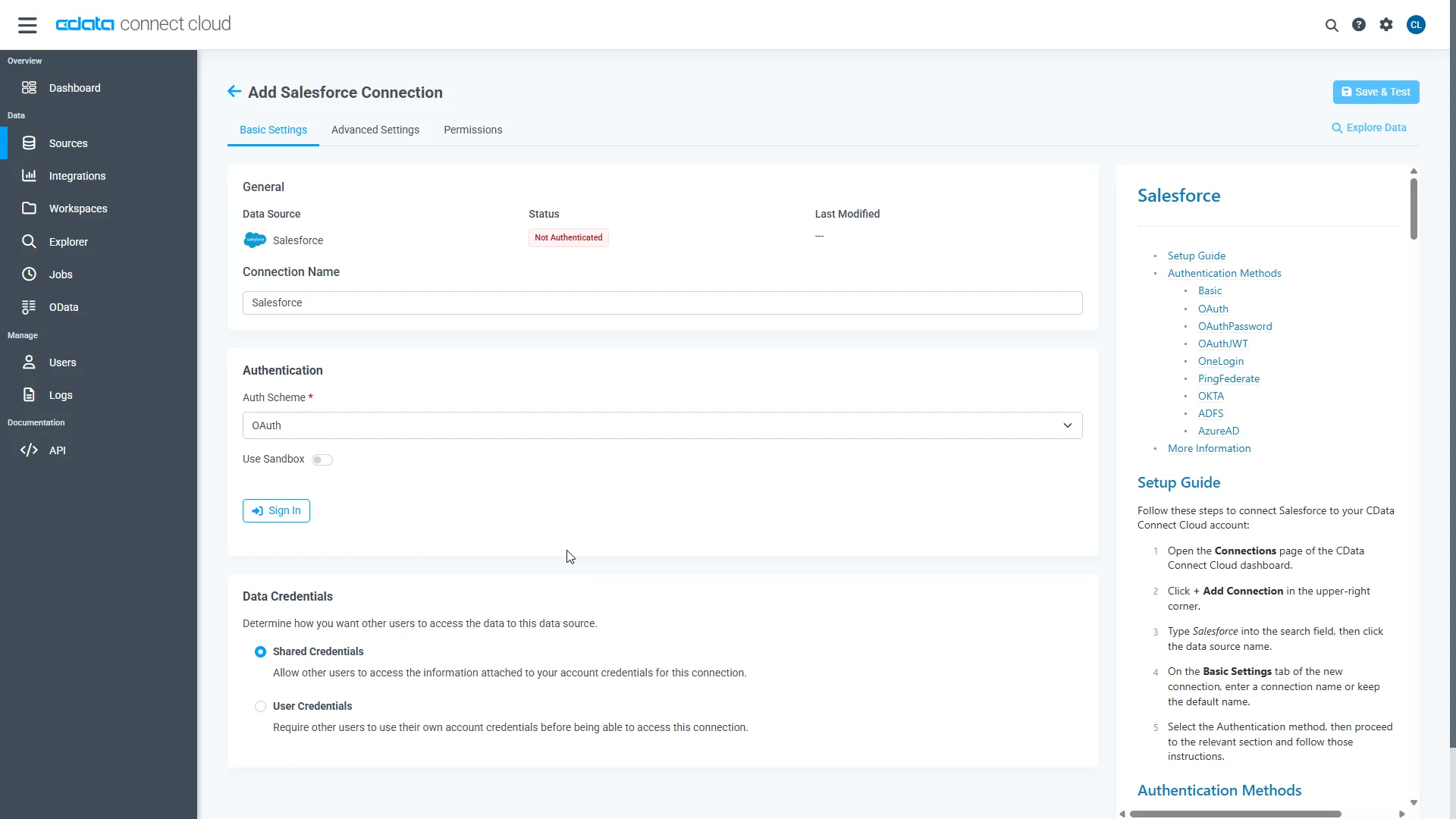
- Click Save & Test
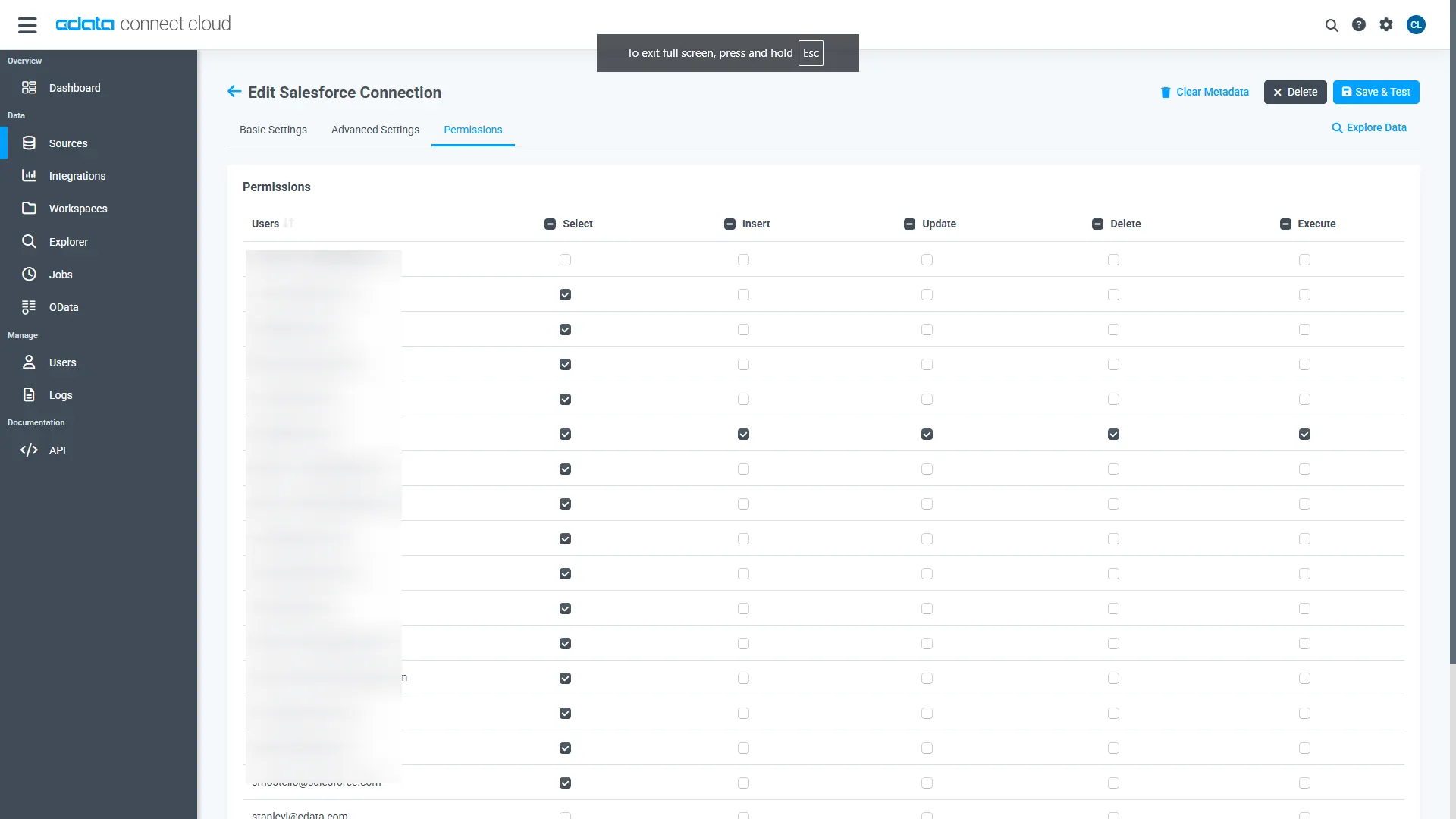
- Navigate to the Permissions tab and update the user-based permissions.
Generate a Personal Access Token (PAT)
The Python SDK authenticates to Connect AI with your account email and a Personal Access Token (PAT). It is best practice to create a separate PAT for each application to maintain granularity of access.
- Click the Gear icon () at the top right of the Connect AI app to open the Settings page.
- On the Settings page, go to the Personal Access Tokens section and click Create PAT.
- Give the PAT a name and click Create.
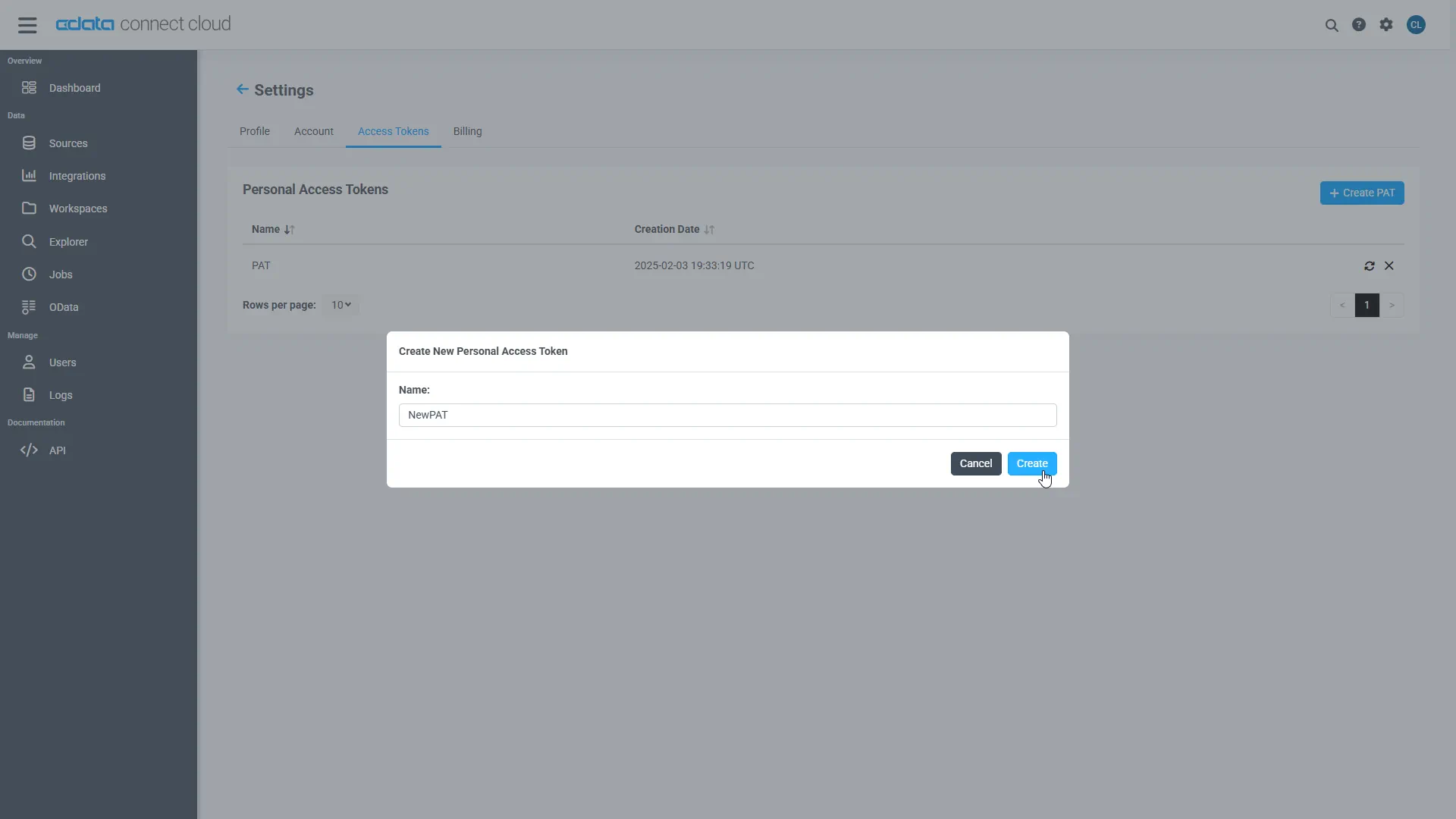
- The PAT is only visible at creation, so copy it and store it securely.
Install Required Modules
Install the SDK (with the pandas extra) and Matplotlib using the pip utility:
pip install "cdata-connect-ai[full]"
pip install matplotlib
Visualize Harvest Data in Python
Import the modules, then connect to Connect AI with your account email and PAT. Identifiers are three-part: <Connection>.<Schema>.<Table>, where the connection name defaults to the source name (for example, API1).
import pandas
import matplotlib.pyplot as plt
import cdata_connect_ai

conn = cdata_connect_ai.connect(
    username="[email protected]",
    password="<your_pat>",
)
Query Harvest with pandas
Use the read_sql function from pandas to execute a SQL statement and store the result set in a DataFrame. Pass the SDK connection directly, no engine required.
df = pandas.read_sql(
    "SELECT Id, ClientName "
    "FROM [API1].[API].[Invoices] "
    "WHERE State = 'open'",
    conn,
)
Note: pandas may print a UserWarning stating that it only officially supports SQLAlchemy connectables. This is expected when passing a DB-API connection directly—the query runs correctly and the warning is safe to ignore.
Visualize Harvest Data
With the query results stored in a DataFrame, use the plot function to build a chart. The show method displays the chart in a new window.
df.plot(kind="bar", x="Id", y="ClientName")
plt.show()

conn.close()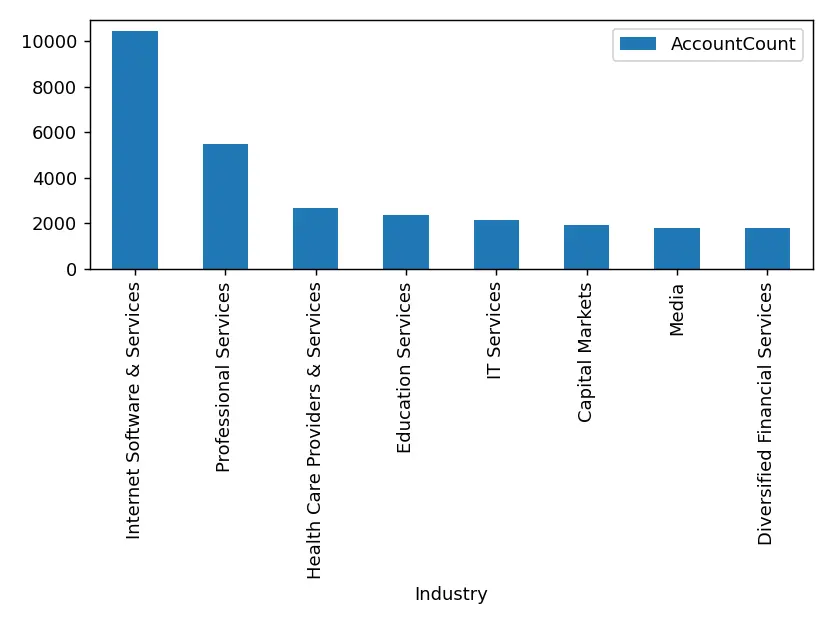
More Information and Free Trial
Now you can read live Harvest data into pandas through the CData Connect AI Python SDK. For more information on connecting to Harvest (and hundreds of other data sources), visit the Connect AI page. Sign up for a free trial and start working with live Harvest data in Python.
Full Source Code
import pandas
import matplotlib.pyplot as plt
import cdata_connect_ai

conn = cdata_connect_ai.connect(
    username="[email protected]",
    password="<your_pat>",
)

df = pandas.read_sql(
    "SELECT Id, ClientName "
    "FROM [API1].[API].[Invoices] "
    "WHERE State = 'open'",
    conn,
)

df.plot(kind="bar", x="Id", y="ClientName")
plt.show()

conn.close()