





Integrating the CData JDBC Driver for HubDB with Ignition SCADA

Ignition is an industrial supervisory control and data acquisition (SCADA) and industrial Internet of Things (IIoT) platform from Inductive Automation. Its central Gateway service manages device connections, tags, and database connections. Ignition doesn't ship with a connector for HubDB, so reaching HubDB data usually means custom middleware or manual exports.
The CData JDBC Driver for HubDB bridges this gap by exposing HubDB as a standard Java Database Connectivity (JDBC) data source. Ignition treats any JDBC driver as a standard database connection. Once the driver is registered in the Gateway, you can query live HubDB data from the Script Console, SQL Bridge, tags, or a Perspective or Vision screen, without replication, custom connectors, or extract, transform, load (ETL) pipelines.
This guide outlines the steps to install and commission Ignition, register the CData JDBC Driver for HubDB, create the connection, and verify it with a live query.
Prerequisites
- Ignition for Windows (Windows 10/11 or Windows Server), with administrator rights to install a Windows service
- CData JDBC Driver for HubDB
- A HubDB account with valid credentials and application programming interface (API) access enabled
- A supported desktop browser (Google Chrome, Mozilla Firefox, Microsoft Edge, or Safari) to open the Gateway web interface
Step 1: Install and set up Ignition
If Ignition is already installed and running, skip to Step 2.
Download Ignition
-
Go to the Inductive Automation downloads page and download Ignition for Windows.
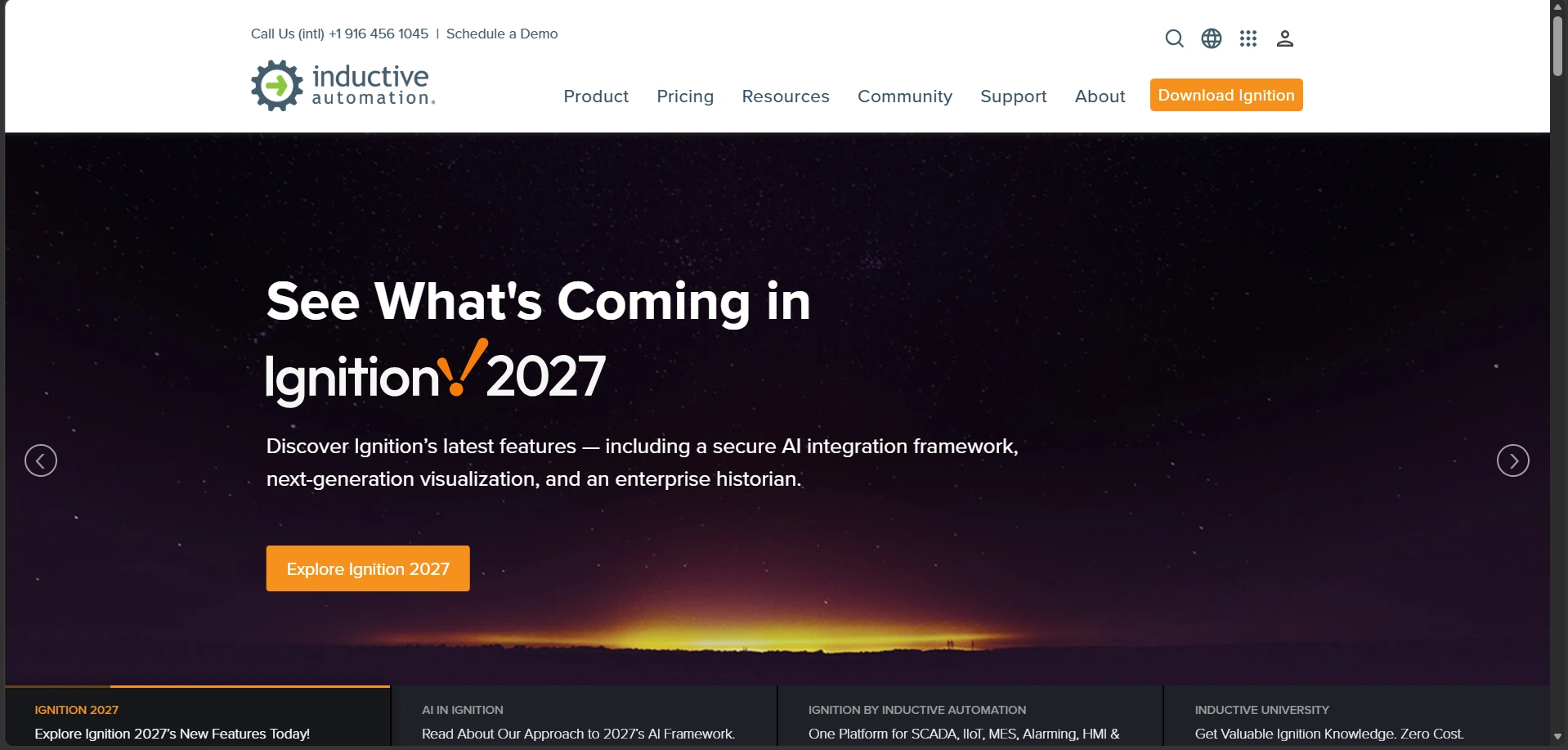
- This single download is the full Ignition Gateway installer. It includes both the Gateway service and the Designer Launcher, so you don't need a separate Designer download.
Install Ignition
- Run the installer, accept the license agreement, and choose an install location.
- Leave Install as a Windows Service checked so the Gateway starts with Windows.
- Finish the installer. The Gateway service starts, and a browser window opens to http://localhost:8088 and shows the Commissioning wizard. If the page shows a Browser Not Supported notice, open the same address in Chrome, Firefox, Edge, or Safari.
Commission the Gateway
- In the Commission Ignition Gateway wizard, set a Gateway Name and create an administrator username and password.
- Accept the End User License Agreement, then start a trial or activate a purchased Ignition license.
-
When commissioning finishes, log in with the administrator account. You land on the Gateway Home page.
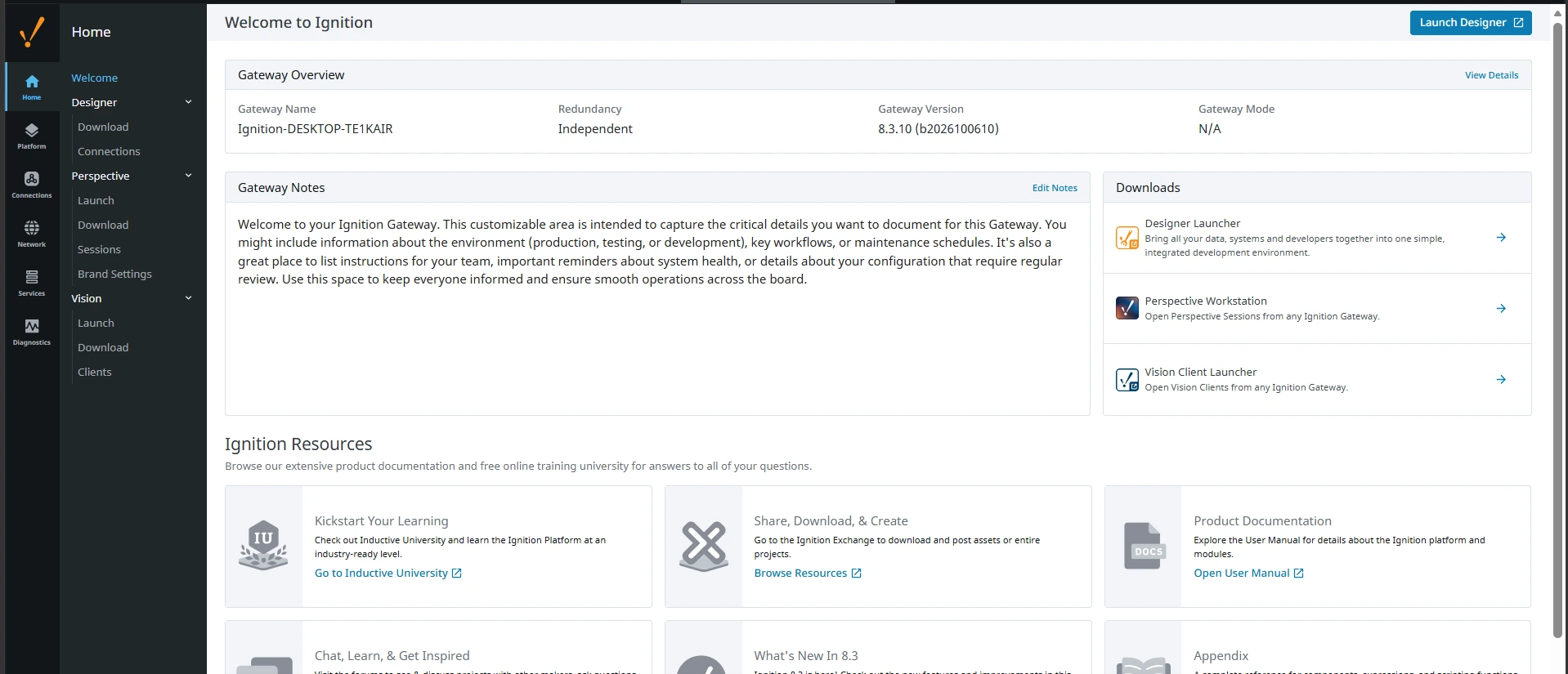
Note: A trial shows a countdown timer on every Gateway page, and the timer resets when the Gateway service restarts. This is fine for testing, but production use requires a license.
Step 2: Register the CData JDBC Driver in Ignition
Ignition lets you upload any third-party JDBC driver through the Gateway web interface, without touching the file system directly.
- Log in to the Gateway as an administrator.
- Go to Connections > Databases > Settings, open the Drivers tab, and click Create JDBC Driver.
-
In the dialog, enter the following:
- Name: HubDB
- Classname: cdata.jdbc.hubdb.HubDBDriver
- Driver Type: Generic
- Default Validation Query: SELECT PartitionKey FROM NorthwindProducts LIMIT 1
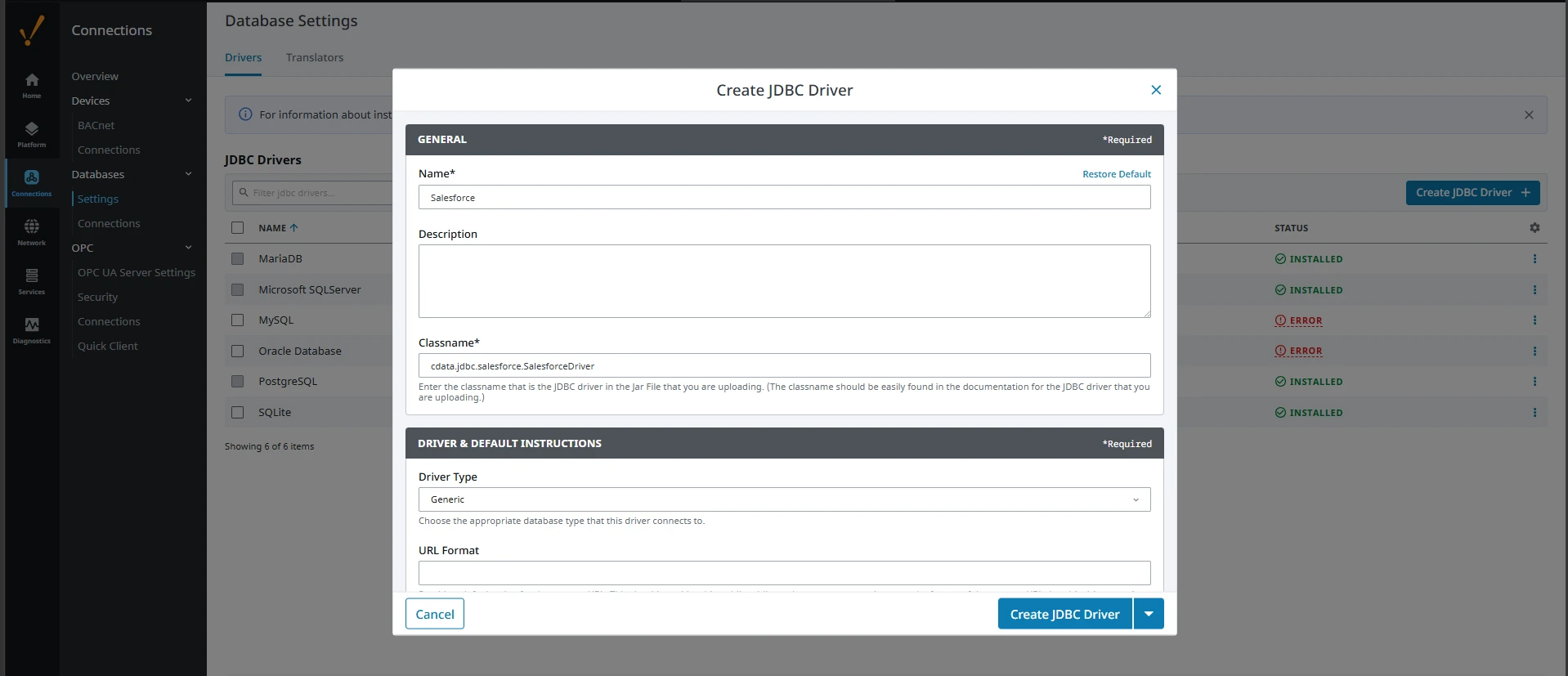
- Click Create JDBC Driver. In current Ignition 8.3 releases, the create dialog doesn't include a Java archive (JAR) file upload field, so you add the JAR file in the next step.
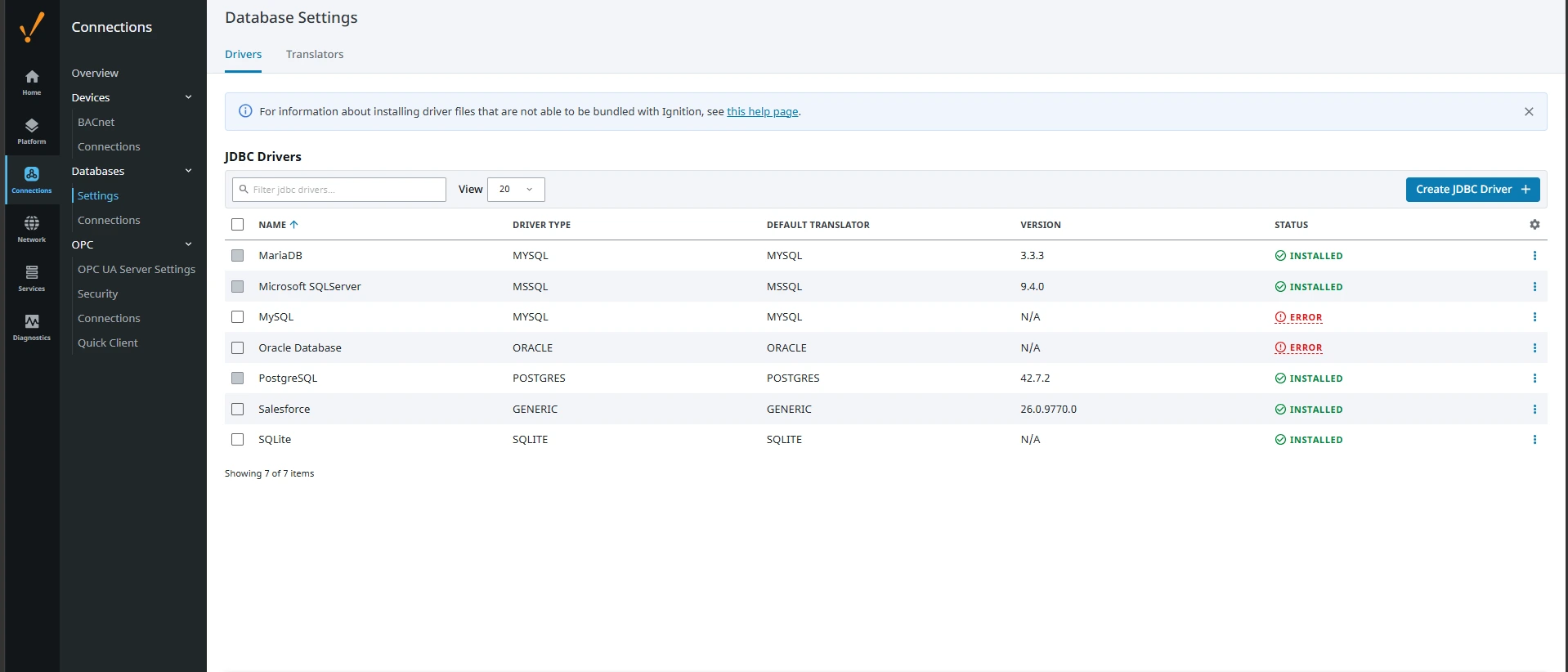
- Open the menu at the right of the new driver row, choose Manage JAR files, upload cdata.jdbc.hubdb.jar from the lib folder of the driver installation, and save.
-
Confirm the driver shows an INSTALLED status in the drivers list.
Step 3: Create the HubDB connection
- Go to Connections > Databases > Connections and click Create Database Connection.
-
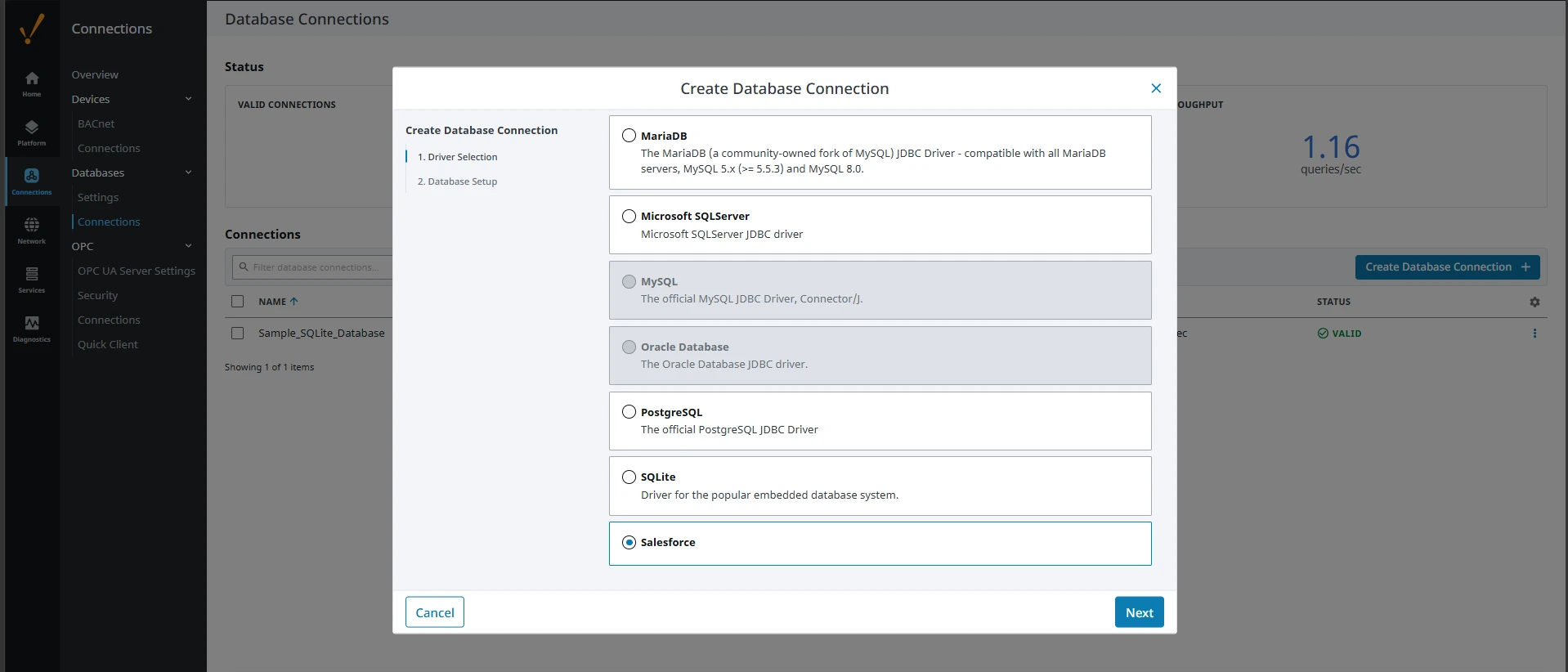
On the Driver Selection step, select HubDB and click Next.
- On the Database Setup step, set the Name to HubDB. Leave Username empty and select None for Password, because the credentials go in the connect URL.
-
In Connect URL, enter the connection string:
jdbc:hubdb:AuthScheme=OAuth;OAuthClientID=MyOAuthClientID;OAuthClientSecret=MyOAuthClientSecret;CallbackURL=http://localhost:33333;InitiateOAuth=GETANDREFRESH;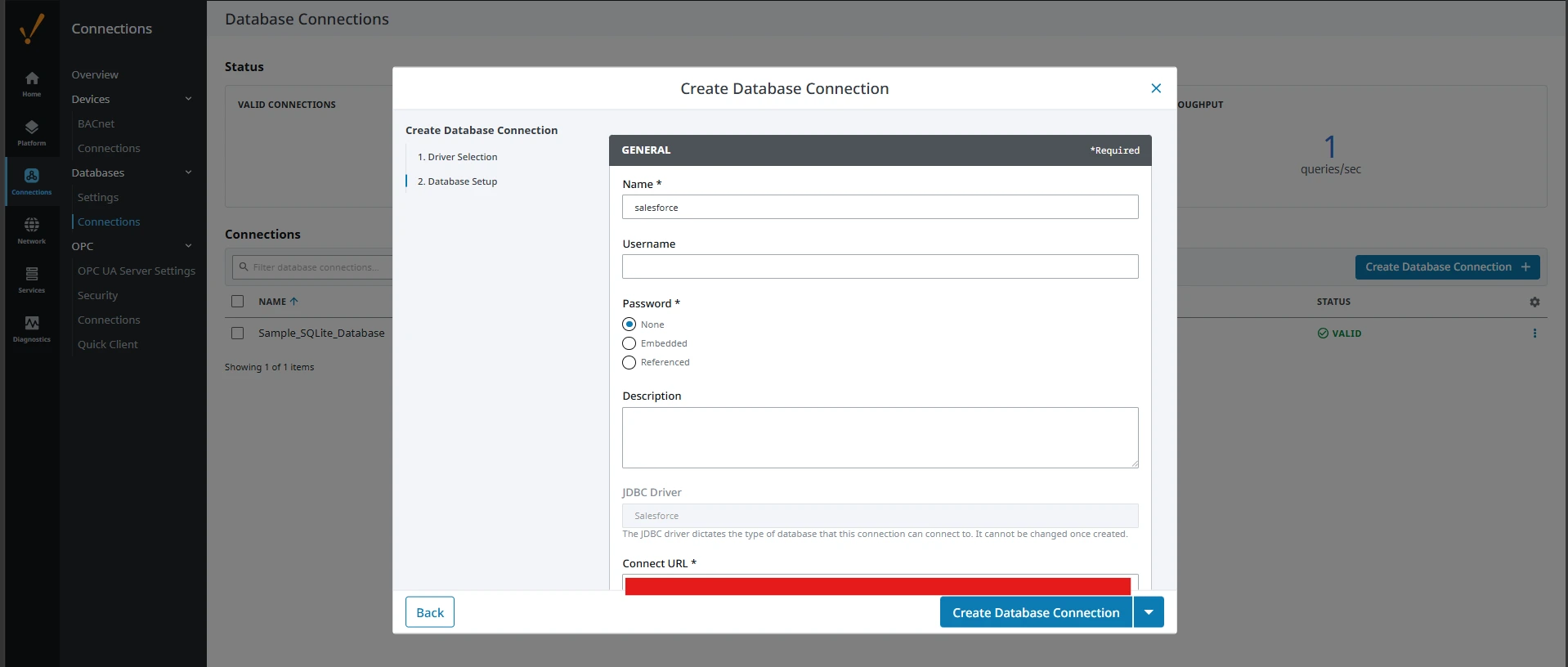
-
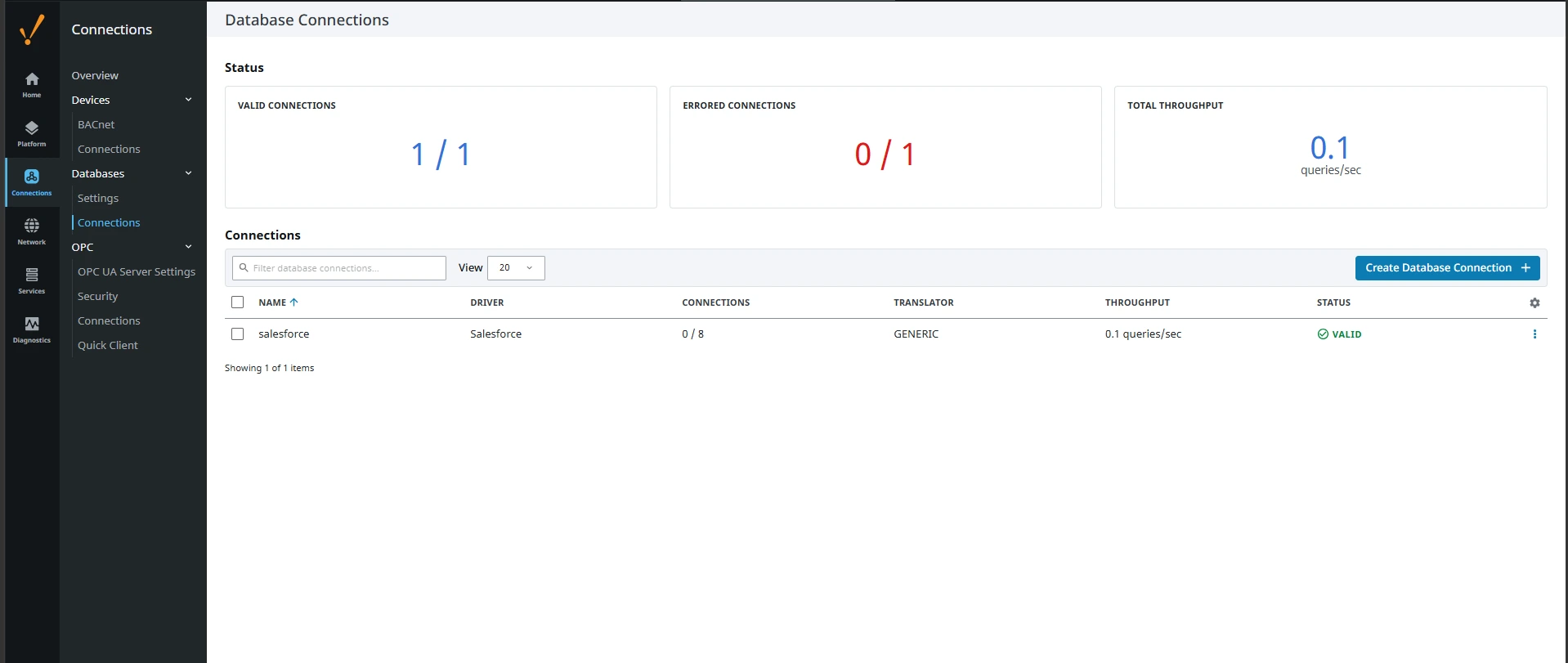
Click Create Database Connection and confirm the connection shows a VALID status on the Database Connections page.
Connection properties for HubDB
There are two authentication methods available for connecting to HubDB data source: OAuth Authentication with a public HubSpot application and authentication with a Private application token.
Using a Custom OAuth App
AuthScheme must be set to "OAuth" in all OAuth flows. Be sure to review the Help documentation for the required connection properties for you specific authentication needs (desktop applications, web applications, and headless machines).
Follow the steps below to register an application and obtain the OAuth client credentials:
- Log into your HubSpot app developer account.
- Note that it must be an app developer account. Standard HubSpot accounts cannot create public apps.
- On the developer account home page, click the Apps tab.
- Click Create app.
- On the App info tab, enter and optionally modify values that are displayed to users when they connect. These values include the public application name, application logo, and a description of the application.
- On the Auth tab, supply a callback URL in the "Redirect URLs" box.
- If you're creating a desktop application, set this to a locally accessible URL like http://localhost:33333.
- If you are creating a Web application, set this to a trusted URL where you want users to be redirected to when they authorize your application.
- Click Create App. HubSpot then generates the application, along with its associated credentials.
- On the Auth tab, note the Client ID and Client secret. You will use these later to configure the driver.
Under Scopes, select any scopes you need for your application's intended functionality.
A minimum of the following scopes is required to access tables:
- hubdb
- oauth
- crm.objects.owners.read
- Click Save changes.
- Install the application into a production portal with access to the features that are required by the integration.
- Under "Install URL (OAuth)", click Copy full URL to copy the installation URL for your application.
- Navigate to the copied link in your browser. Select a standard account in which to install the application.
- Click Connect app. You can close the resulting tab.
Using a Private App
To connect using a HubSpot private application token, set the AuthScheme property to "PrivateApp."
You can generate a private application token by following the steps below:
- In your HubDB account, click the settings icon (the gear) in the main navigation bar.
- In the left sidebar menu, navigate to Integrations > Private Apps.
- Click Create private app.
- On the Basic Info tab, configure the details of your application (name, logo, and description).
- On the Scopes tab, select Read or Write for each scope you want your private application to be able to access.
- A minimum of hubdb and crm.objects.owners.read is required to access tables.
- After you are done configuring your application, click Create app in the top right.
- Review the info about your application's access token, click Continue creating, and then Show token.
- Click Copy to copy the private application token.
To connect, set PrivateAppToken to the private application token you retrieved.
Note: If a password or token contains a semicolon, the connect URL breaks, so reset it to a value without one.
Step 4: Query live HubDB data from Ignition
With the connection valid, you can query live HubDB data from the Designer.
-
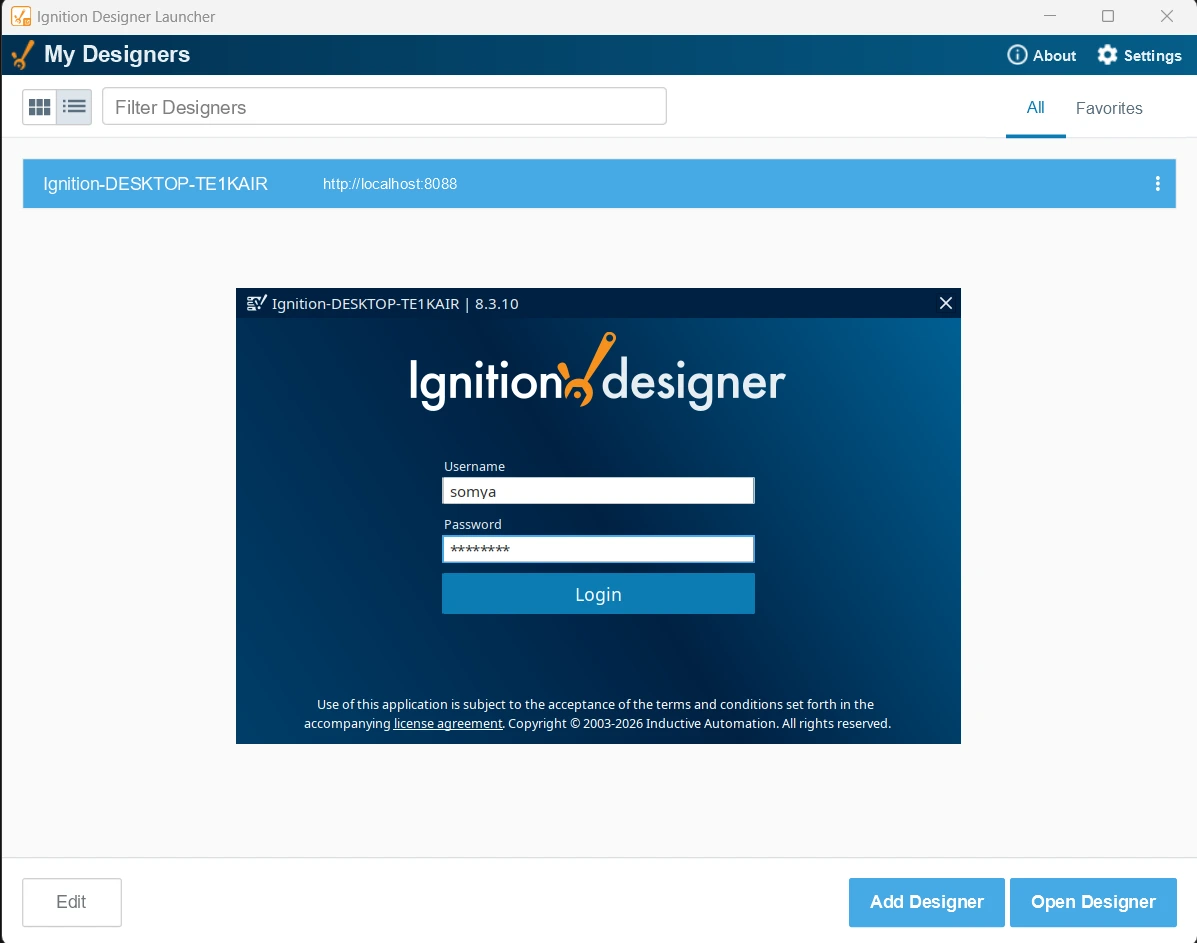
Open the Ignition Designer Launcher, select your Gateway (click Add Designer and enter http://localhost:8088 if it isn't listed), and click Open Designer. Log in with the Gateway administrator account.
-
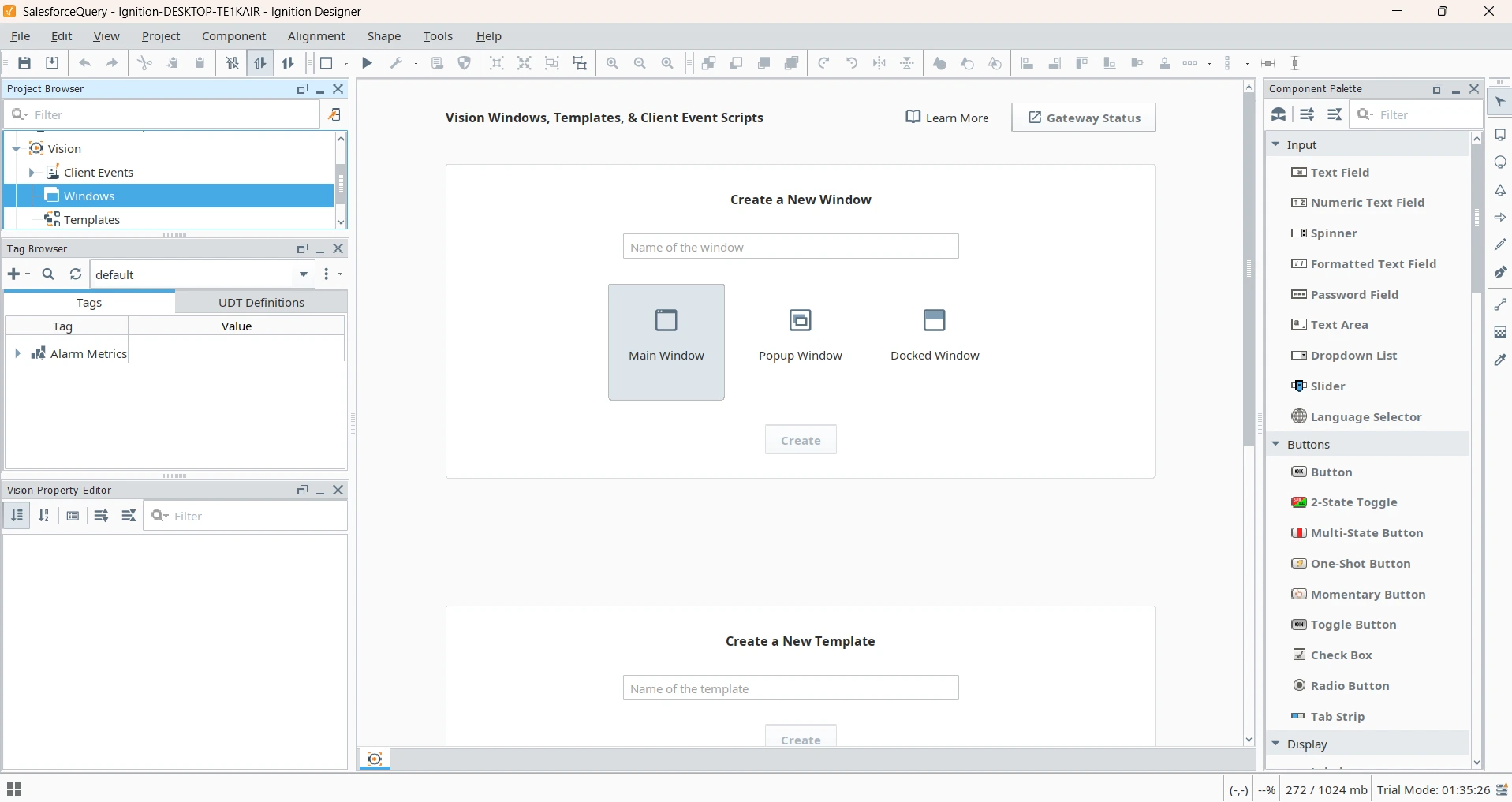
Open or create a project. The Designer opens with the Project Browser, Tag Browser, and Component Palette panels.
-
In the Designer, go to Tools > Script Console. In the Multiline Buffer, enter a test query and click Execute. Replace NorthwindProducts with any table available in your HubDB connection:
print system.db.runQuery(
    "SELECT PartitionKey, Name FROM NorthwindProducts LIMIT 10",
    "HubDB")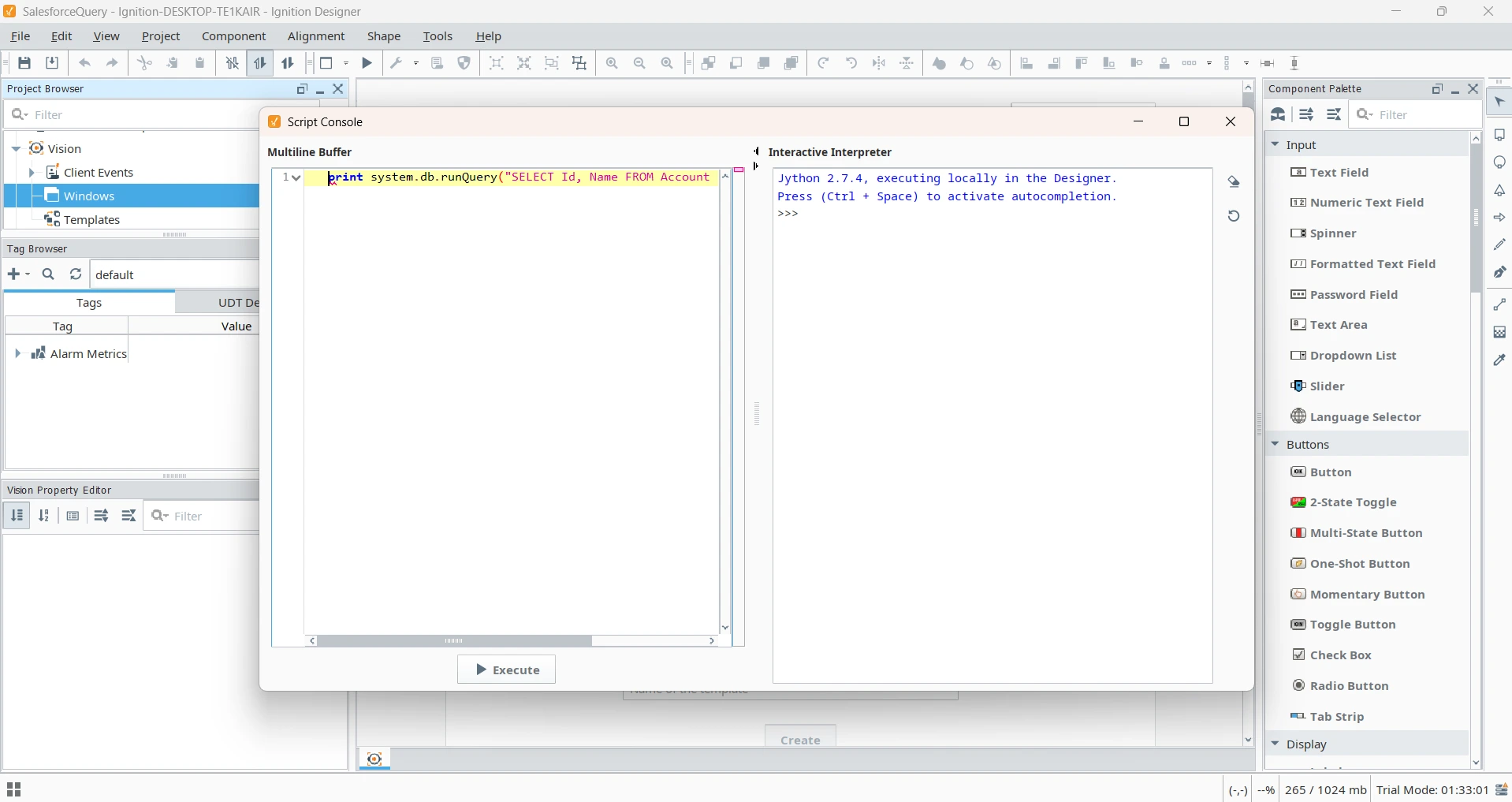
- A successful query prints PyDataset rows:10 cols:2 in the Interactive Interpreter panel, which confirms Ignition retrieved live data from HubDB through the CData JDBC Driver.
Note: The connection name in the script must match the name you gave the connection in Step 3.
Step 5: Verify the results
-
Print the rows and compare the values with the same records in HubDB:
ds = system.db.runQuery("SELECT PartitionKey, Name FROM NorthwindProducts LIMIT 10", "HubDB") for row in ds: print row["PartitionKey"], row["Name"] - Optionally, run a second query against another table and a filtered query to confirm schema discovery and filtering.
- Optionally, restart the Gateway service and confirm the connection returns to VALID.
Troubleshooting
| Symptom | Likely cause and fix |
|---|---|
| Driver status shows ERROR | The classname is wrong, or the JAR file hasn't been uploaded through Manage JAR files. |
| Connection status shows FAULTED | The credentials are wrong, outbound web traffic (HTTPS) is blocked, or the CData license isn't found. Click the status to read the error. |
| Error: Could not find a valid license | The Gateway runs as a Windows service and can't read a license stored in your user profile. In an administrator command prompt, run java -jar cdata.jdbc.hubdb.jar --license from the driver's lib folder, copy the generated .lic file to C:\Windows\system32\config\systemprofile\.CData\, and restart the Gateway service. |
| Database connection not found | The connection name in the script doesn't match the Gateway connection name exactly. |
Test the driver outside Ignition
To confirm the driver works independently of the Gateway, run this standalone Java example. The cdata.jdbc.hubdb.jar and cdata.jdbc.hubdb.lic files must be in the same directory and on the classpath.
import java.sql.Connection;
import java.sql.DriverManager;
import java.sql.ResultSet;
import java.sql.Statement;

public class CDataExample {
    public static void main(String[] args) throws Exception {
        Class.forName("cdata.jdbc.hubdb.HubDBDriver");
        String connectionString = "jdbc:hubdb:AuthScheme=OAuth;OAuthClientID=MyOAuthClientID;OAuthClientSecret=MyOAuthClientSecret;CallbackURL=http://localhost:33333;InitiateOAuth=GETANDREFRESH;";
        try (Connection conn = DriverManager.getConnection(connectionString)) {
            Statement stmt = conn.createStatement();
            ResultSet rs = stmt.executeQuery("SELECT PartitionKey, Name FROM NorthwindProducts LIMIT 10");
            while (rs.next()) {
                System.out.println(rs.getString("PartitionKey") + ", " + rs.getString("Name"));
            }
        }
    }
}
Build live, governed HubDB connectivity in Ignition with CData
With the CData JDBC Driver for HubDB registered, your team can query live HubDB data from Ignition without ETL infrastructure, manual exports, or custom integration code, and reuse the same connection in tags, SQL Bridge, and Perspective or Vision screens.
Start your free trial today to see how you can give Ignition live, secure access to hundreds of external systems with CData.
Ready to get started?
Download a free trial of the HubDB Driver to get started:
Download NowLearn more:
 HubDB JDBC Driver
Rapidly create and deploy powerful Java applications that integrate with HubDB.