




Visualize JD Edwards Data in TIBCO Spotfire through OData

OData is a major protocol enabling real-time communication among cloud-based, mobile, and other online applications. The CData API Server provides JD Edwards data to OData consumers like TIBCO Spotfire. This article shows how to use the API Server and Spotfire's built-in support for OData to access JD Edwards data in real time.
Set Up the API Server
If you have not already done so, download the CData API Server. Once you have installed the API Server, follow the steps below to begin producing secure JD Edwards OData services:
Connect to JD Edwards
To work with JD Edwards data from TIBCO Spotfire, we start by creating and configuring a JD Edwards connection. Follow the steps below to configure the API Server to connect to JD Edwards data:
- First, navigate to the Connections page.
-
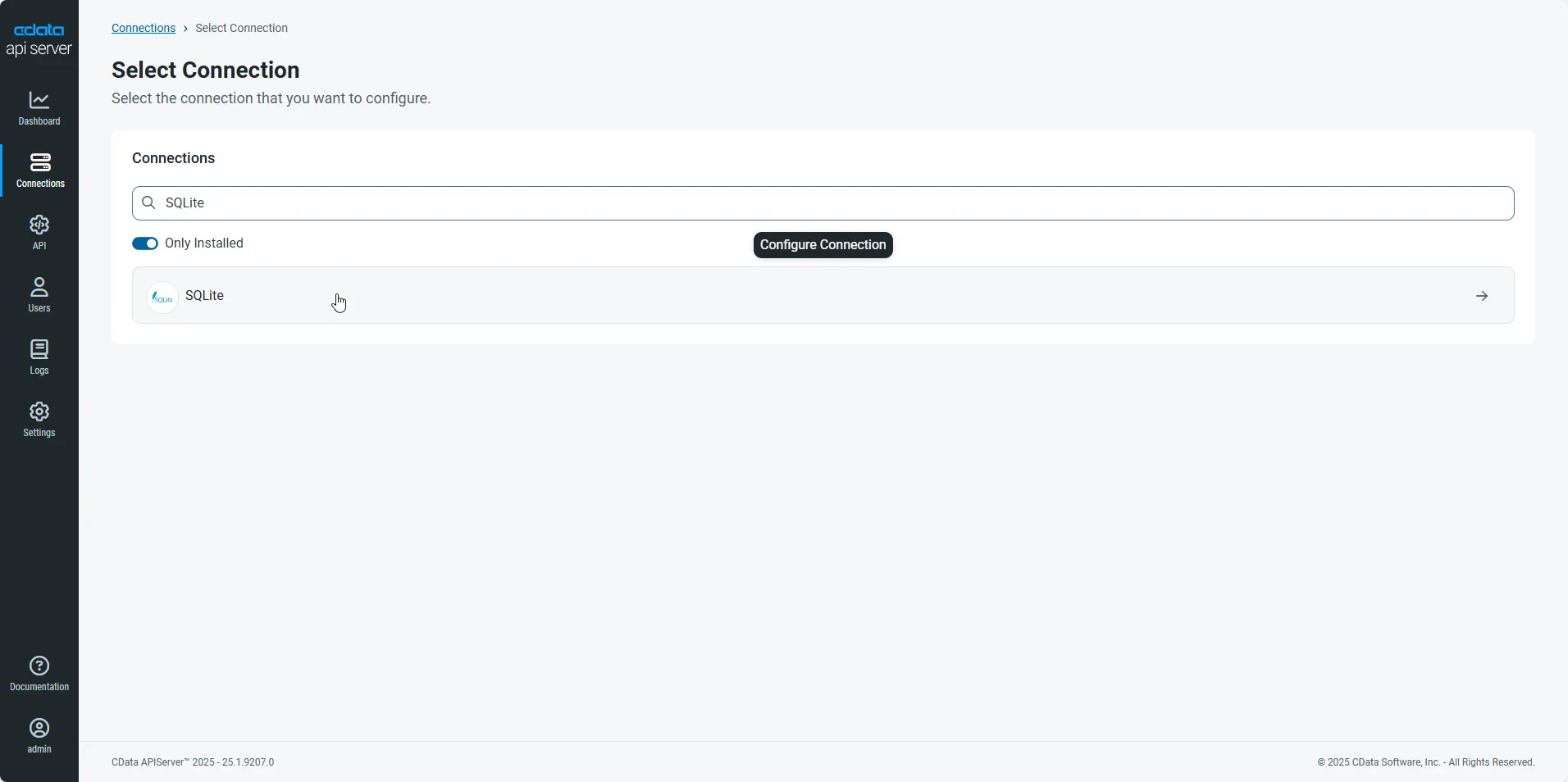
Click Add Connection and then search for and select the JD Edwards connection.
-
Enter the necessary authentication properties to connect to JD Edwards.
The driver connects to JD Edwards through your Application Interface Services (AIS) Server. Set the following connection properties:
- URL: The base HTTPS URL of your AIS Server (e.g., https://jde-ais.example.com:8300).
- User: Your JD Edwards username.
- Password: Your JD Edwards password.
- Environment (optional): The JD Edwards environment to use (e.g., PD920 for production or DV920 for development). If not specified, the AIS Server's default environment is used.
- Role (optional): The JD Edwards role for the session. If not specified, the AIS Server's default role is used.
- DeviceName (optional): An identifier for the connecting device or application, used for auditing and logging on the AIS Server.
- Jasserver (optional): The specific Java Application Server (JAS) instance to route requests through, useful in clustered environments.
Choosing Which Data Is Exposed
JD Edwards organizes tables and business views by System Code, and the driver exposes each System Code as its own schema. Use these properties to control which schemas are available:
- DataModel: One or more ERP modules (comma-separated) whose System Codes are exposed as schemas, or All to expose every System Code in the connected instance. Defaults to FinancialManagement.
- SystemCodes: A comma-separated list of additional System Codes to expose alongside those from DataModel (e.g., 42,43).
When you connect, the driver sends your credentials to the AIS Server to obtain a session token and caches it. The driver requests a new token automatically before the session expires.
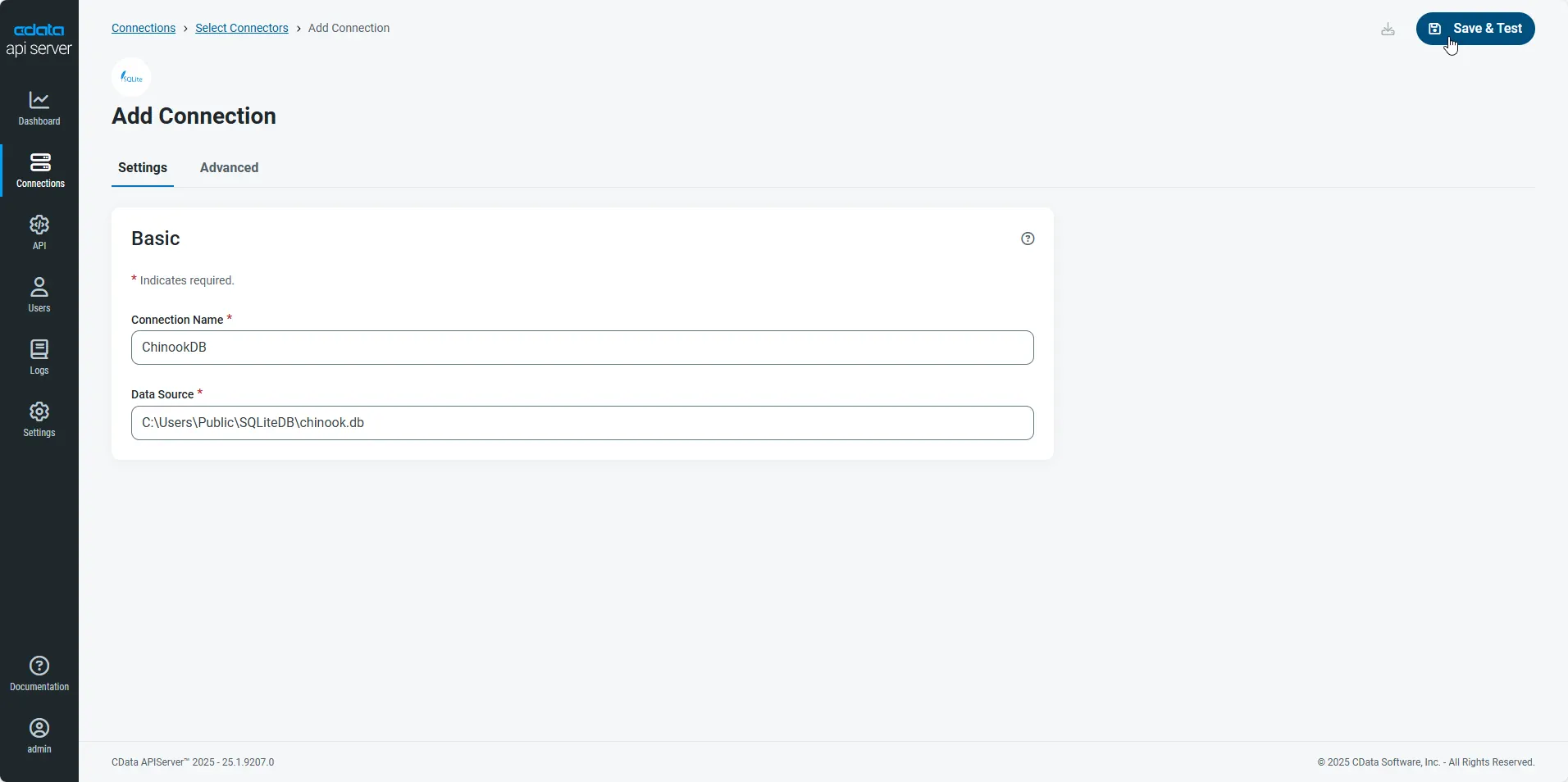
- After configuring the connection, click Save & Test to confirm a successful connection.
Configure API Server Users
Next, create a user to access your JD Edwards data through the API Server. You can add and configure users on the Users page. Follow the steps below to configure and create a user:
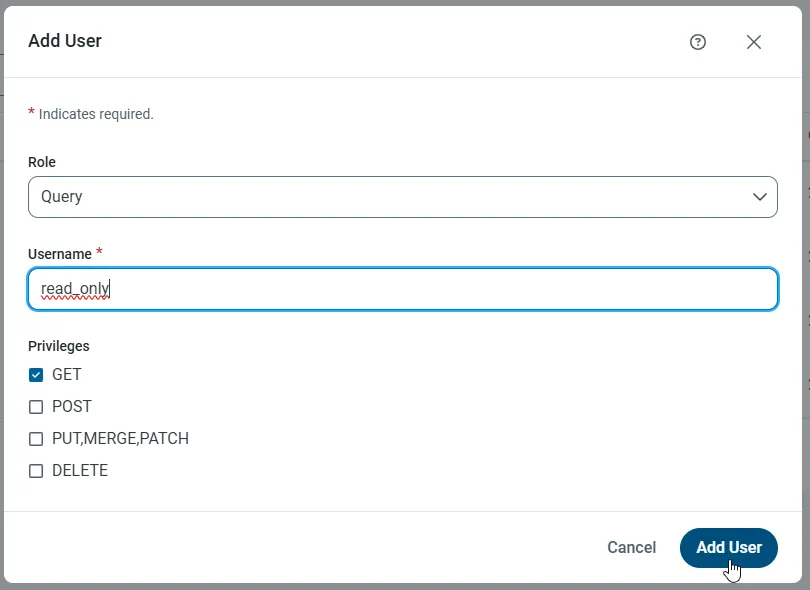
- On the Users page, click Add User to open the Add User dialog.
-
Next, set the Role, Username, and Privileges properties and then click Add User.
-
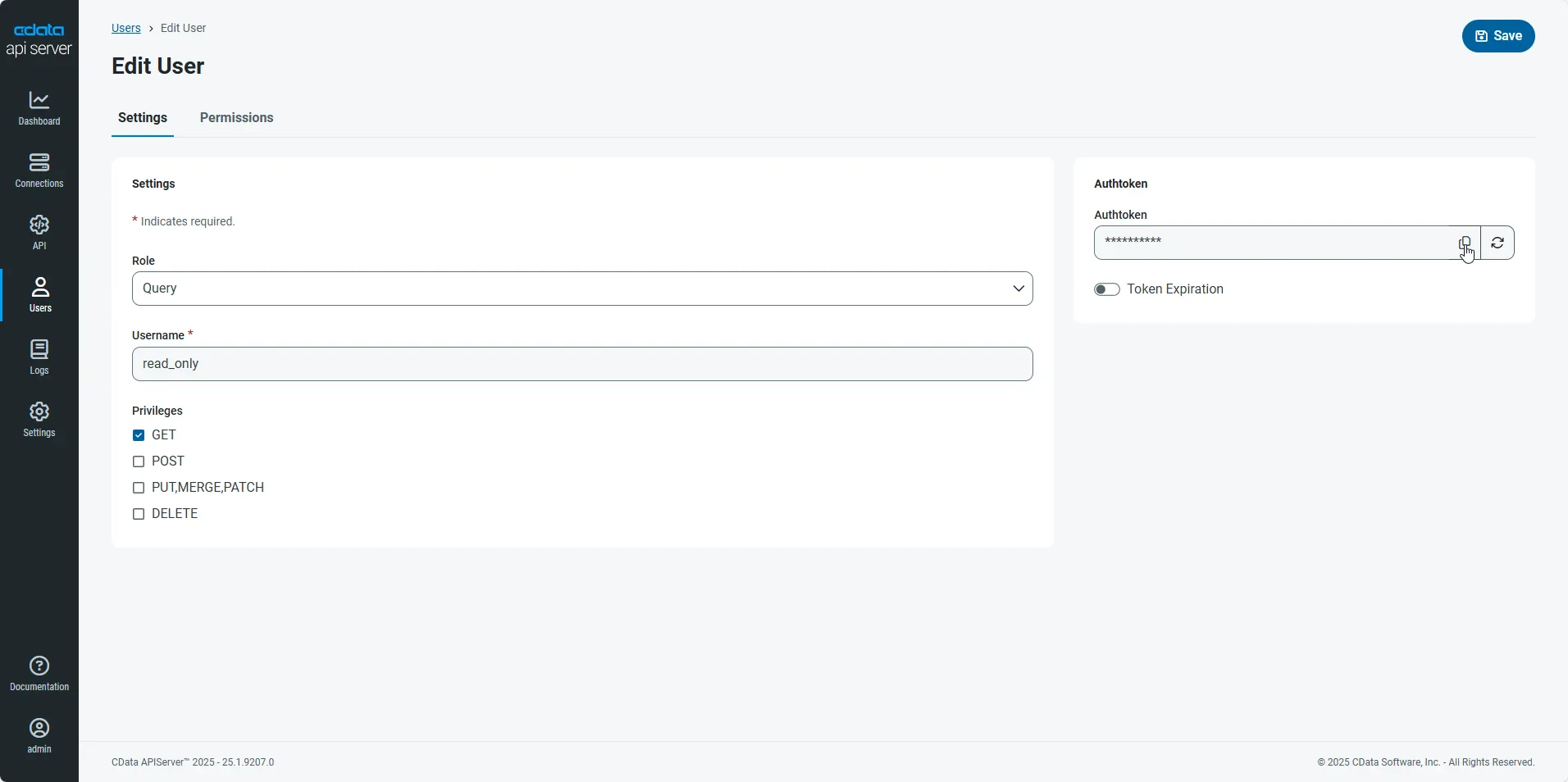
An Authtoken is then generated for the user. You can find the Authtoken and other information for each user on the Users page:
Creating API Endpoints for JD Edwards
Having created a user, you are ready to create API endpoints for the JD Edwards tables:
-
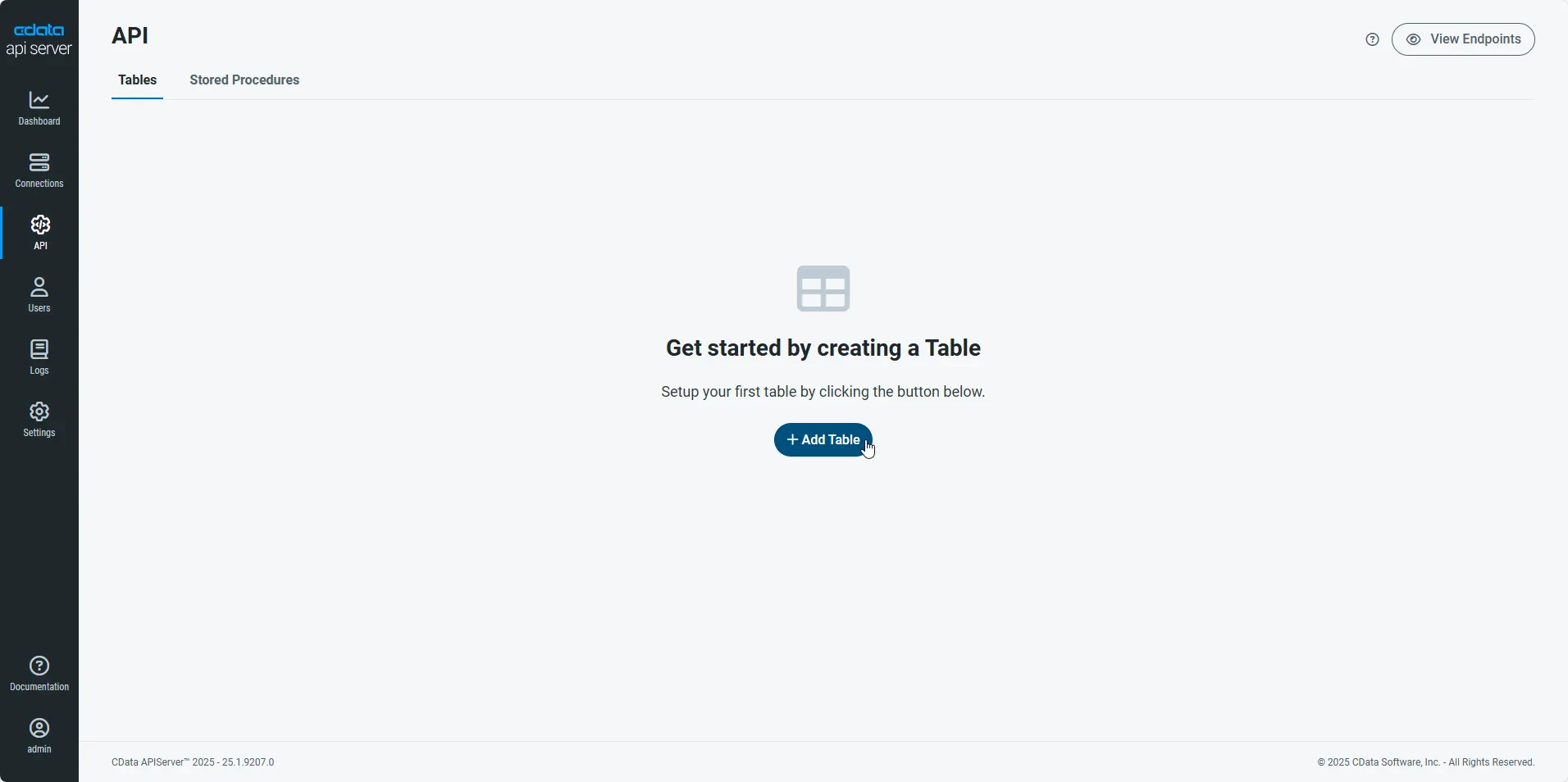
First, navigate to the API page and then click
Add Table
.
-
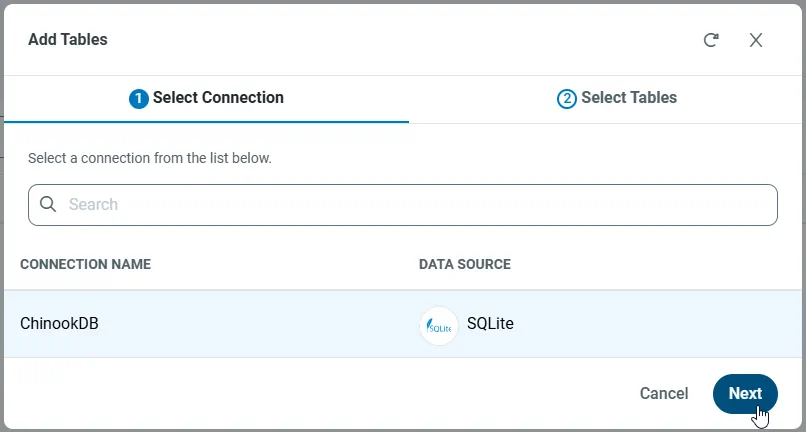
Select the connection you wish to access and click Next.
-
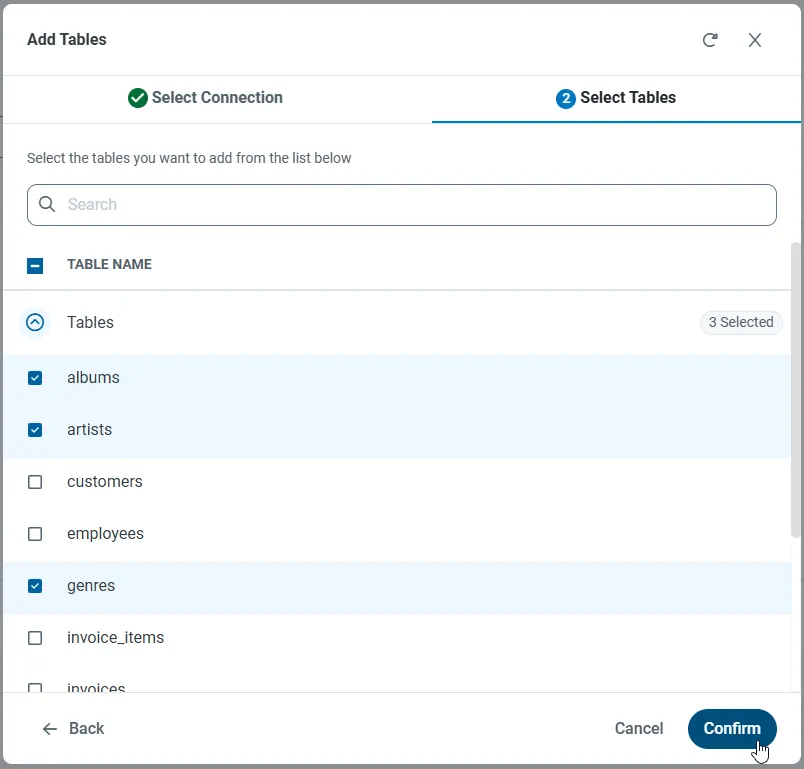
With the connection selected, create endpoints by selecting each table and then clicking Confirm.
Gather the OData Url
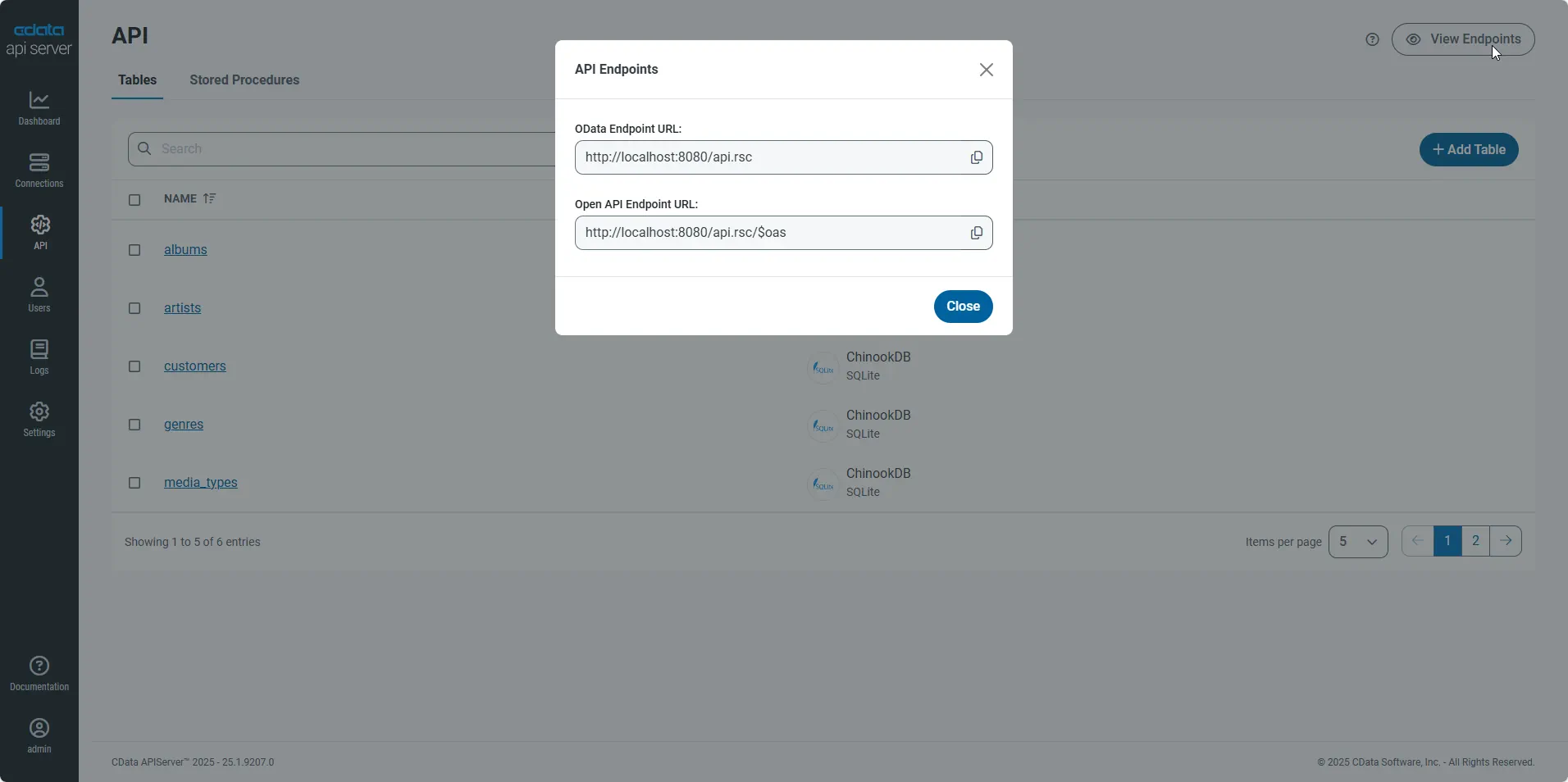
Having configured a connection to JD Edwards data, created a user, and added resources to the API Server, you now have an easily accessible REST API based on the OData protocol for those resources. From the API page in API Server, you can view and copy the API Endpoints for the API:
Create Data Visualizations on External JD Edwards Data
- Open Spotfire and click Add Data Tables -> OData.
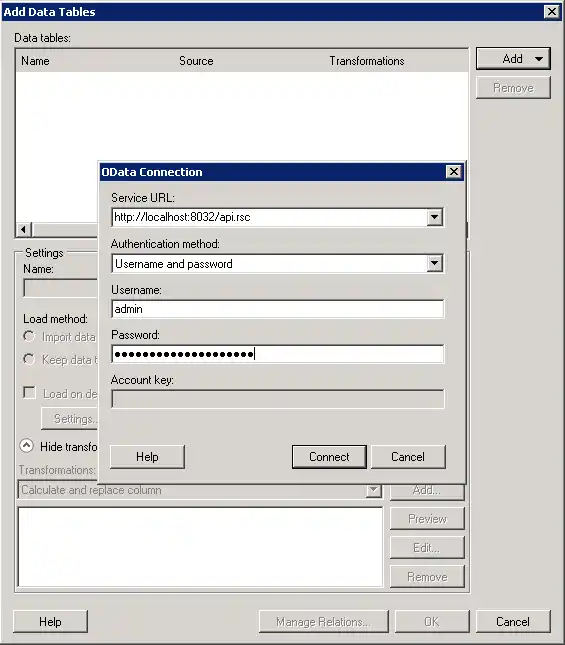
- In the OData Connection dialog, enter the following information:
- Service URL: Enter the API Server's OData endpoint. For example:
http://localhost:8080/api.rsc - Authentication Method: Select Username and Password.
- Username: Enter the username of an API Server user. You can create API users on the Security tab of the administration console.
- Password: Enter the authtoken of an API Server user.
- Service URL: Enter the API Server's OData endpoint. For example:
- Select the tables and columns you want to add to the dashboard. This example uses AccountsPayable.AccountLedger.
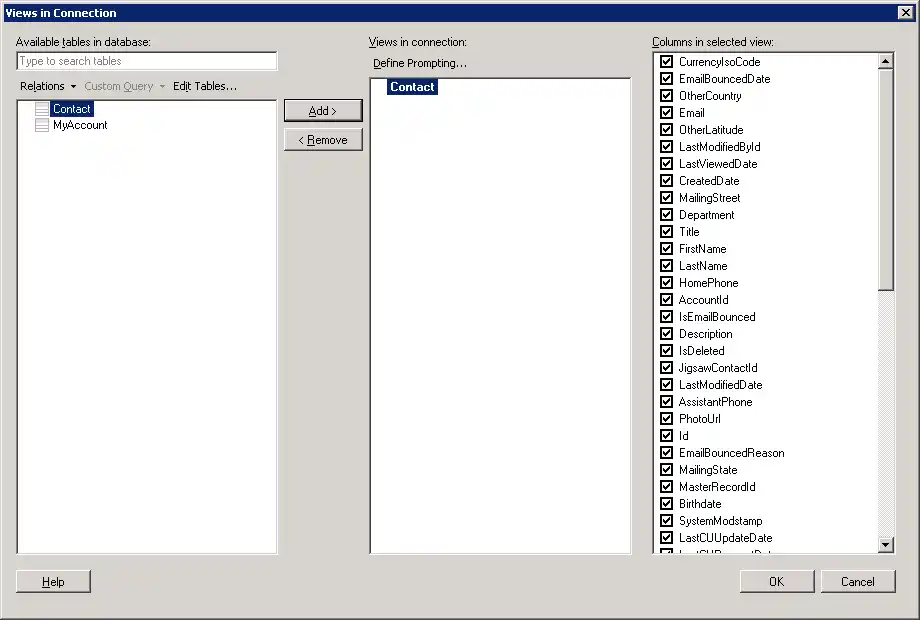
- If you want to work with the live data, click the Keep Data Table External option. This option enables your dashboards to reflect changes to the data in real time.
If you want to load the data into memory and process the data locally, click the Import Data Table option. This option is better for offline use or if a slow network connection is making your dashboard less interactive.
- After adding tables, the Recommended Visualizations wizard is displayed. When you select a table, Spotfire uses the column data types to detect number, time, and category columns. This example uses Amount in the Numbers section and DocumentNumber in the Categories section.
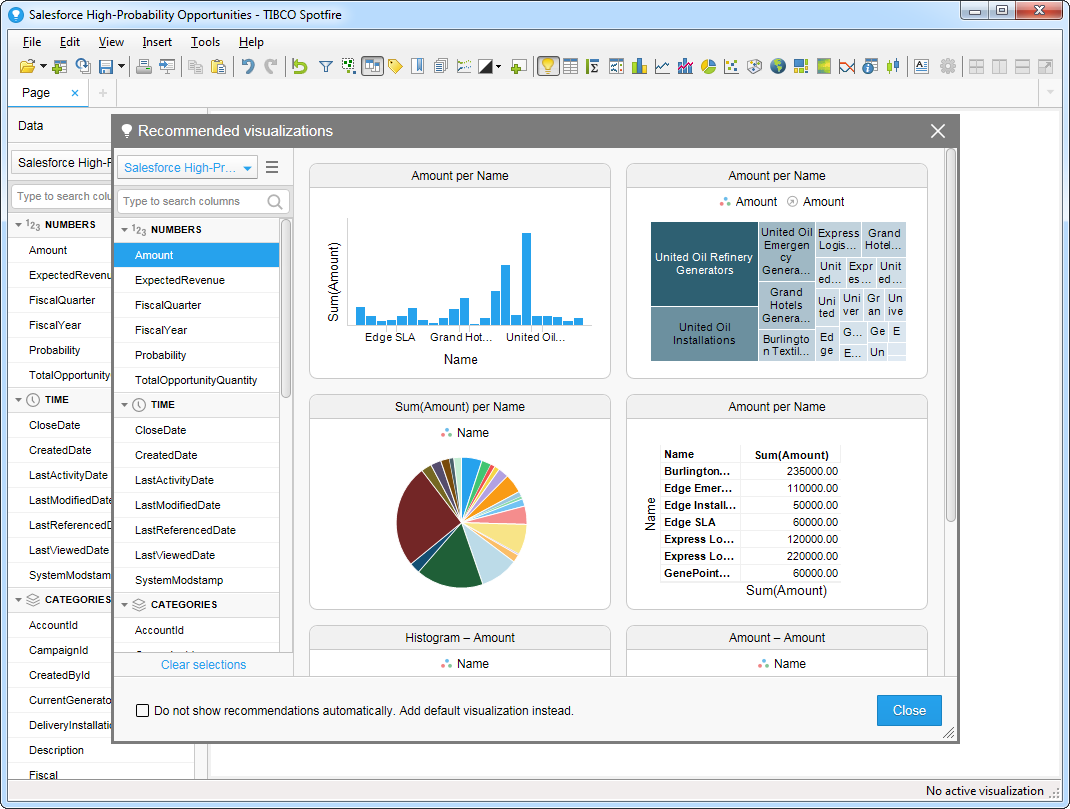
After adding several visualizations in the Recommended Visualizations wizard, you can make other modifications to the dashboard. For example, you can apply a filter: After clicking the Filter button, the available filters for each query are displayed in the Filters pane.