




Integrate Google's Antigravity Agent with Live JotForm Data via CData Connect AI

Antigravity is an AI-native development environment designed around autonomous and semi-autonomous agents. It allows developers to run agent-driven workflows directly inside the editor, combining planning, execution, and tool usage in a single interface.
By integrating Antigravity with CData Connect AI through the built-in MCP (Model Context Protocol) Server, agents gain governed, real-time access to live JotForm data. This enables Antigravity agents to explore schemas, query data, and perform actions without manual data movement or custom API wiring.
This article explains how to configure JotForm connectivity in Connect AI, generate the required access token, register CData Connect AI in Antigravity, and validate the integration by querying live JotForm data from an agent-driven workflow.
Step 1: Configure JotForm connectivity for Antigravity
Connectivity to JotForm from Antigravity is made possible through CData Connect AI's Remote MCP Server. To interact with JotForm data from Antigravity, start by creating and configuring a JotForm connection in CData Connect AI.
- Log into Connect AI, click Sources, and then click Add Connection
- Select JotForm from the Add Connection panel
-
Enter the necessary authentication properties to connect to JotForm.
Start by setting the Profile connection property to the location of the JotForm Profile on disk (e.g. C:\profiles\JotForm.apip). Next, set the ProfileSettings connection property to the connection string for JotForm (see below).
JotForm API Profile Settings
Find your JotForm API Key in order to authenticate. To obtain an API Key, go to 'My Account' > 'API Section' > 'Create a New API Key'. Once you've created your new API Key, you can set it in the ProfileSettings connection property.
Custom Enterprise API Domains
Enterprise customers of JotForm are given custom API domains to connect to, rather than the default 'api.jotform.com' domain. If you are an enterprise JotForm customer, then set Domain to you custom API hostname, such as 'your-domain.com' or 'subdomain.jotform.com', inside the ProfileSettings connection property. Conversely, if you do not have a custom domain and still need to connect to 'api.jotform.com', then leave Domain undefined and set only APIKey.

- Click Save & Test
- Navigate to the Permissions tab and update user-based permissions



Add a Personal Access Token
A Personal Access Token (PAT) is used to authenticate the connection to Connect AI from Antigravity. It is best practice to create a separate PAT for each integration to maintain granular access control.
- Click the gear icon () at the top right of the Connect AI app to open Settings
- On the Settings page, go to the Access Tokens section and click Create PAT
- Give the PAT a descriptive name and click Create
- Copy the token when displayed and store it securely. It will not be shown again

With the JotForm connection configured and a PAT generated, Antigravity can now connect to JotForm data through CData Connect AI.
Step 2: Configure Connect AI in Antigravity
Next, register Connect AI in Antigravity. Antigravity reads MCP server definitions from a raw configuration file, allowing agents to dynamically discover and invoke the sources exposed by Connect AI.
- Download the Antigravity desktop application and sign in using your Google account
-
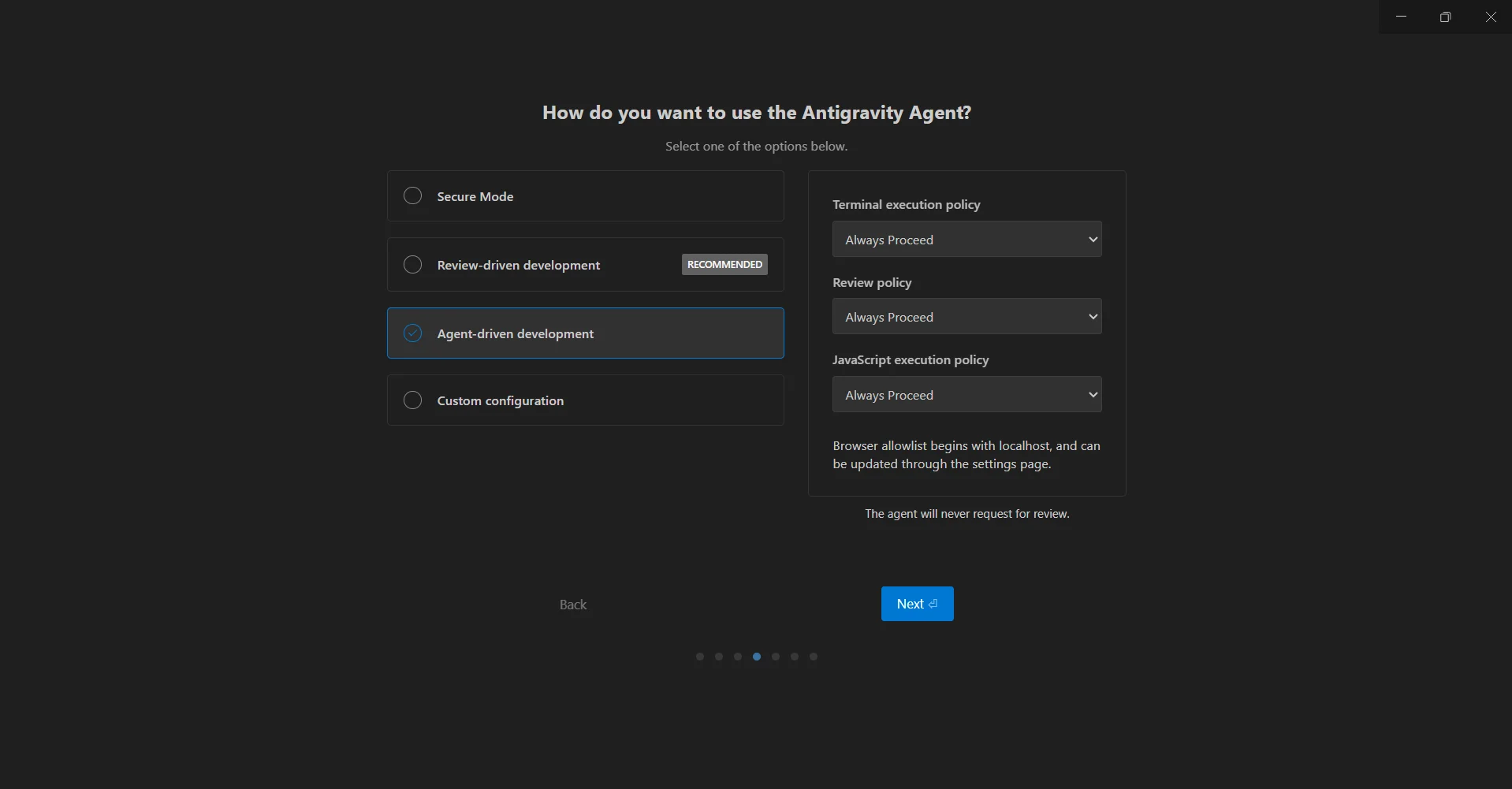
During the initial setup flow, select Agent-driven development when prompted. This mode enables autonomous agents with tool execution capabilities
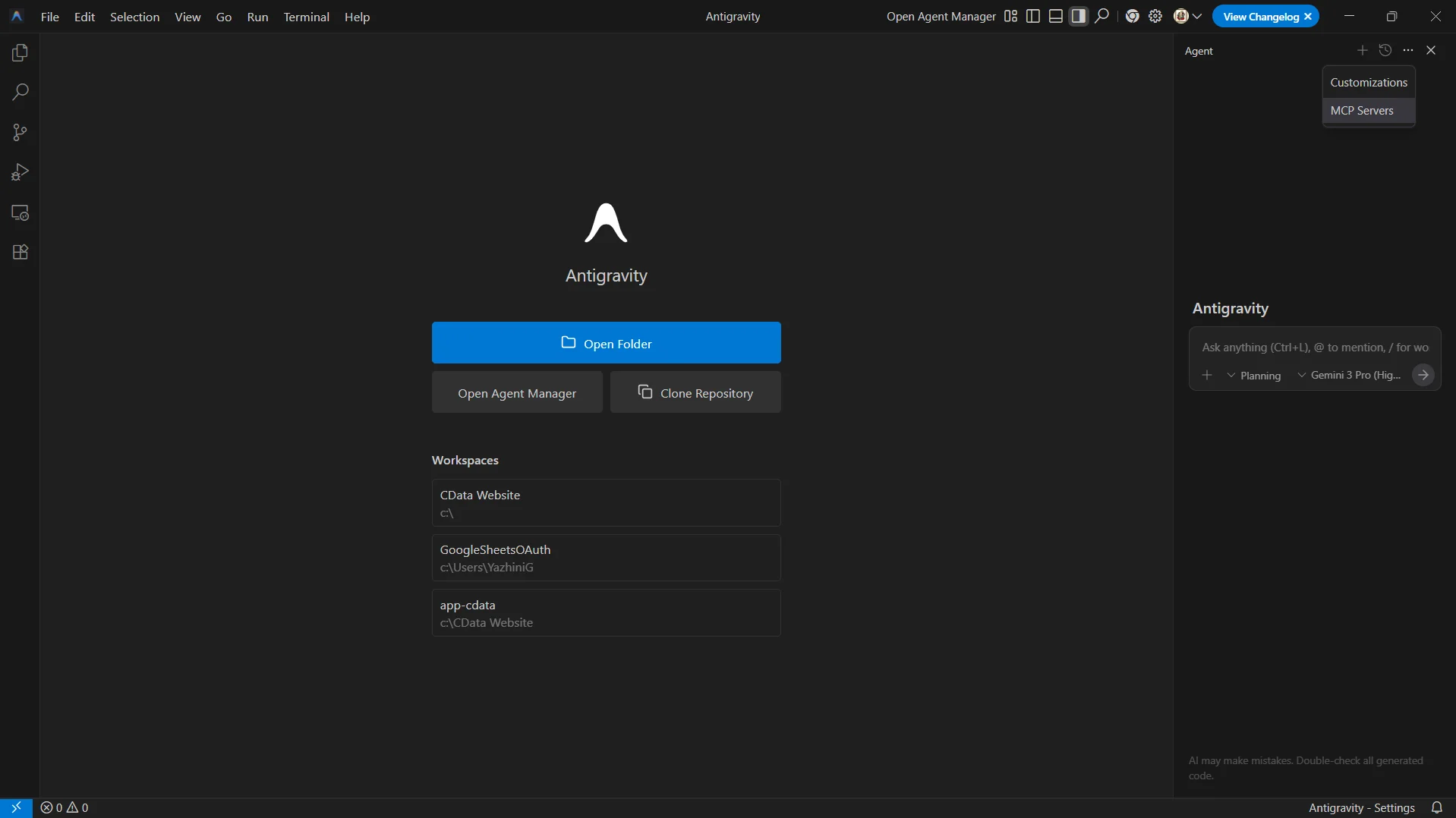
- Once you have completed the Antigravity setup and the IDE is open, you can access the built-in agent interface to manage MCP servers. From the top menu, click Toggle Agent or press Ctrl + Alt + B to open the agent panel
-
Once the agent panel opens, click the "..." and select MCP Servers from the dropdown
-
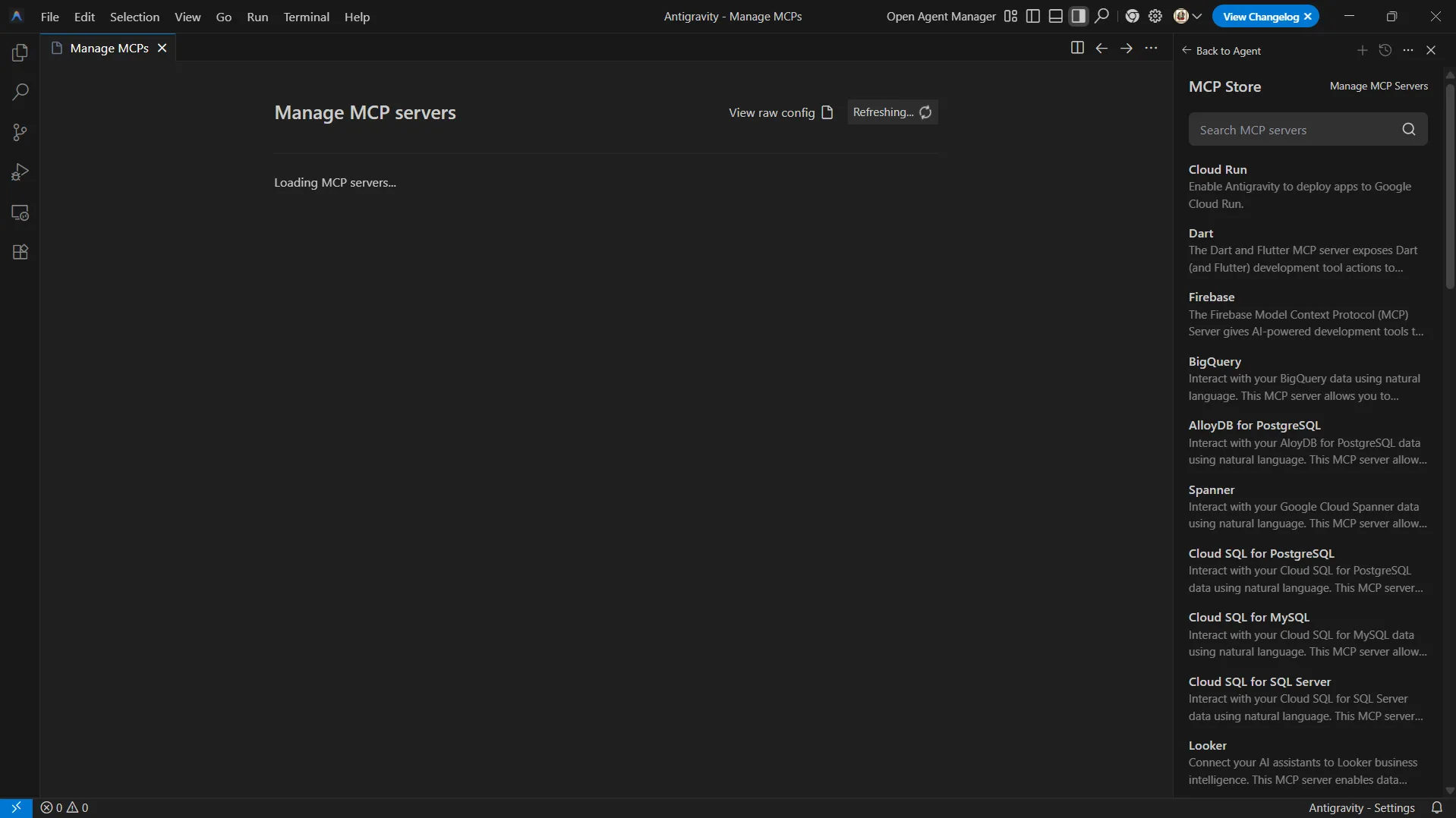
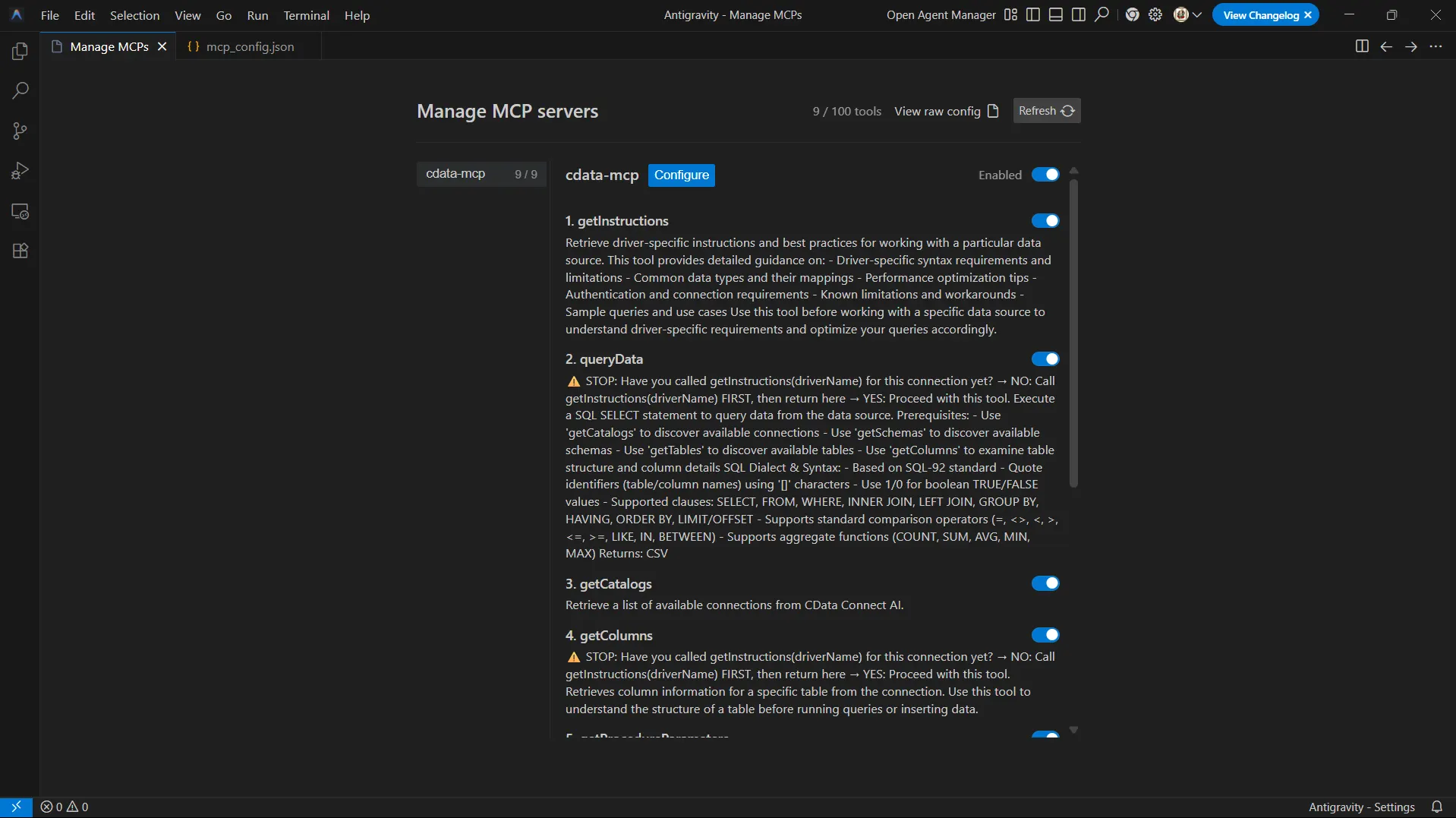
Select Manage MCP Servers from the MCP Store, and click View raw config to open the MCP configuration file
-
Paste the following json into the file:
{
    "mcpServers": {
        "cdata-mcp": {
            "serverUrl": "https://mcp.cloud.cdata.com/mcp",
            "headers": {
                "Authorization": "Basic your_base64_encoded_email_PAT",
                "Content-Type": "application/json"
            }
        }
    }
}
Note: Antigravity will use Basic authentication with Connect AI. Combine your Connect AI user email and the PAT you created earlier and base64 encode the value. For example, given username and PAT like [email protected]:ABC123...XYZ789, the value for the Authorization header is something like: Basic dXNlckBteWRvbWFpbjphSzkvbVB4Mi9Rcjd2TjQvTHc4Qi96WTZqQzMvRnQ1SGcxL0RzMFVlL01iWHdKdg==
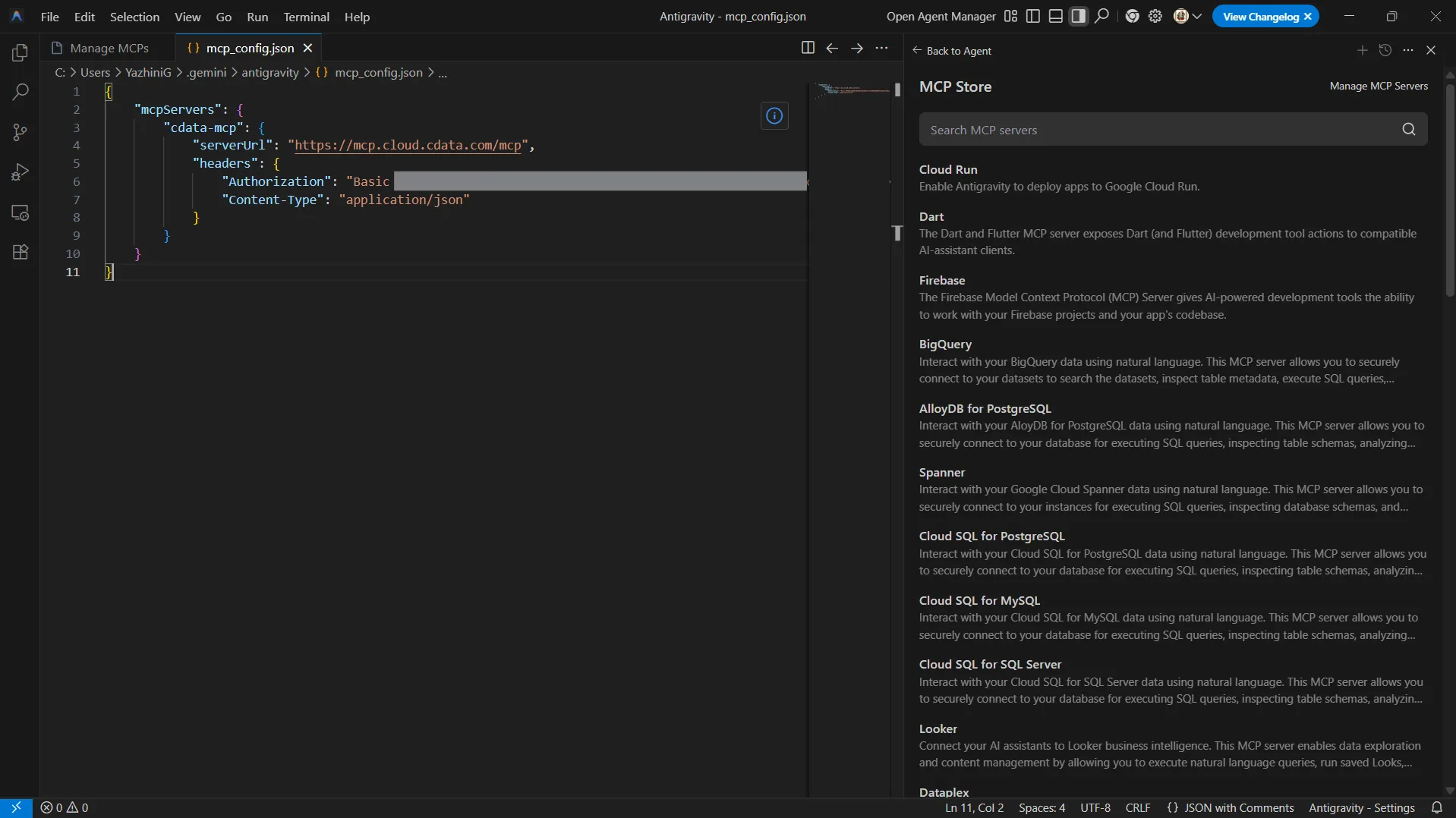
- Save the configuration file
-
Return to the Manage MCP Servers view and click Refresh to load the new MCP server
Step 3: Query live JotForm data from Antigravity agent
With the MCP server registered, Antigravity agents can now interact with your live data sources exposed by Connect AI to explore schemas and run queries.
- Open the agent panel again using Toggle Agent
- Start a new conversation in the agent chat
-
Start interacting with the agent by entering prompts such as:
- List all catalogs in my cdata-mcp connection.
- Show schemas and tables available for JotForm.
- Query the top 3 records from a table in JotForm data.
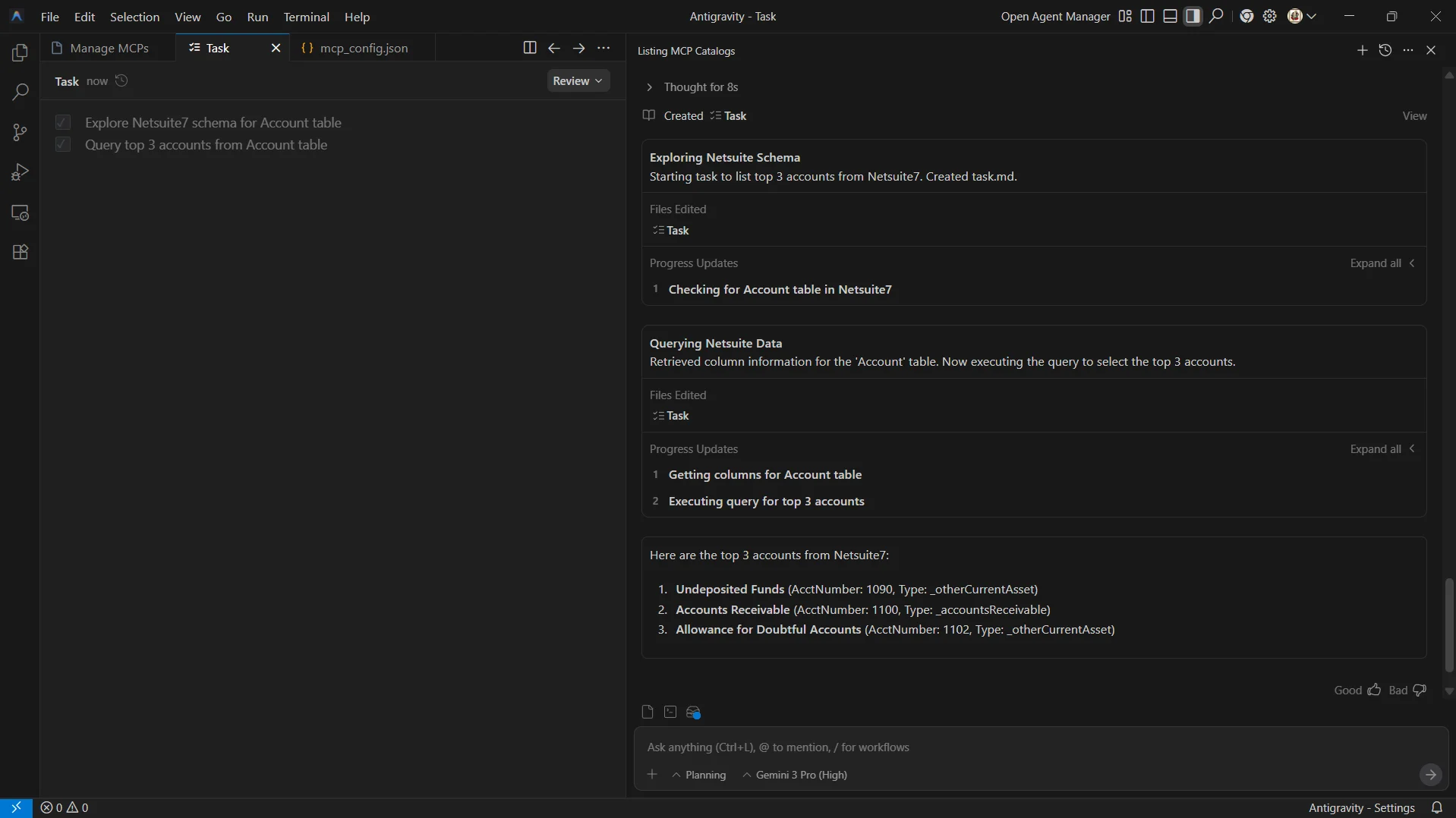
At this point, your Antigravity agent communicates with the CData Connect AI MCP Server and retrieves live JotForm data through remote MCP tools.
Get CData Connect AI
To access hundreds of SaaS, Big Data, and NoSQL sources directly from your cloud applications, try CData Connect AI today!