





Use Agno to Talk to Your Lakebase Data via CData Connect AI

Agno is a developer-first Python framework for building AI agents that reason, plan, and take actions using tools. Agno emphasizes a clean, code-driven architecture where the agent runtime remains fully under developer control.
CData Connect AI provides a secure cloud-to-cloud interface for integrating 300+ enterprise data sources with AI systems. Using Connect AI, live Lakebase data data can be exposed through a remote MCP endpoint without replication.
In this guide, we build a production-ready Agno agent using the Agno Python SDK. The agent connects to CData Connect AI via MCP using streamable HTTP, dynamically discovers available tools, and invokes them to query live Lakebase data.
Prerequisites
- Python 3.9+.
- A CData Connect AI account – Sign up or log in here.
- An active Lakebase account with valid credentials.
- An LLM API key (for example, OpenAI).
Overview
Here is a high-level overview of the process:
- Connect: Configure a Lakebase connection in CData Connect AI.
- Discover: Use MCP to dynamically retrieve tools exposed by CData Connect AI.
- Query: Wrap MCP tools as Agno functions and query live Lakebase data.
Step 1: Configure Lakebase in CData Connect AI
To enable Agno to query live Lakebase data, first create a Lakebase connection in CData Connect AI. This connection is exposed through the CData Remote MCP Server.
-
Log into Connect AI, click Sources, and then click
Add Connection.

-
Select "Lakebase" from the Add Connection panel.

-
Enter the required authentication properties.
To connect to Databricks Lakebase, start by setting the following properties:
- DatabricksInstance: The Databricks instance or server hostname, provided in the format instance-abcdef12-3456-7890-abcd-abcdef123456.database.cloud.databricks.com.
- Server: The host name or IP address of the server hosting the Lakebase database.
- Port (optional): The port of the server hosting the Lakebase database, set to 5432 by default.
- Database (optional): The database to connect to after authenticating to the Lakebase Server, set to the authenticating user's default database by default.
OAuth Client Authentication
To authenicate using OAuth client credentials, you need to configure an OAuth client in your service principal. In short, you need to do the following:
- Create and configure a new service principal
- Assign permissions to the service principal
- Create an OAuth secret for the service principal
For more information, refer to the Setting Up OAuthClient Authentication section in the Help documentation.
OAuth PKCE Authentication
To authenticate using the OAuth code type with PKCE (Proof Key for Code Exchange), set the following properties:
- AuthScheme: OAuthPKCE.
- User: The authenticating user's user ID.
For more information, refer to the Help documentation.
 Click Create & Test.
-
Open the Permissions tab and configure user access.

Add a Personal Access Token
A Personal Access Token (PAT) authenticates MCP requests from Agno to CData Connect AI.
- Open Settings and navigate to Access Tokens.
- Click Create PAT.
-
Save the generated token securely.

Step 2: Install dependencies and configure environment variables
Install Agno and the MCP adapter dependencies. LangChain is included strictly for MCP tool compatibility.
pip install agno agno-mcp langchain-mcp-adapters
Configure environment variables:
export CDATA_MCP_URL="https://mcp.cloud.cdata.com/mcp"
export CDATA_MCP_AUTH="Base64EncodedCredentials"
export OPENAI_API_KEY="your-openai-key"
Where "Base64EncodedCredentials" is your Connect AI user email and your Personal Access Token joined by a colon (":") and Base64 Encoded: Base64([email protected]:MY_CONNECT_AI_PAT)
Step 3: Connect to CData Connect AI via MCP
Create an MCP client using streamable HTTP. This establishes a secure connection to CData Connect AI.
import os
from langchain_mcp_adapters.client import MultiServerMCPClient

mcp_client = MultiServerMCPClient(
  connections={
    "default": {
      "transport": "streamable_http",
      "url": os.environ["CDATA_MCP_URL"],
      "headers": {
        "Authorization": f"Basic {os.environ['CDATA_MCP_AUTH']}"
      }
    }
  }
)
Step 4: Discover MCP tools
CData Connect AI exposes operations as MCP tools. These are retrieved dynamically at runtime.
langchain_tools = await mcp_client.get_tools()
for tool in langchain_tools:
  print(tool.name)
Step 5: Convert MCP tools to Agno functions
Each MCP tool is wrapped as an Agno function so it can be used by the agent.
NOTE: Agno performs all reasoning, planning, and tool selection.LangChain is used only as a lightweight MCP compatibility layer to consume tools exposed by CData Connect AI.
from agno.tools import Function

def make_tool_caller(lc_tool):
  async def call_tool(**kwargs):
    return await lc_tool.ainvoke(kwargs)
  return call_tool
Step 6: Create an Agno agent and query live Lakebase data
Agno performs all reasoning, planning, and tool invocation. LangChain plays no role beyond MCP compatibility.
from agno.agent import Agent
from agno.models.openai import OpenAIChat

agent = Agent(
  model=OpenAIChat(
    id="gpt-4o",
    temperature=0.2,
    api_key=os.environ["OPENAI_API_KEY"]
  ),
  tools=agno_tools,
  markdown=True
)

await agent.aprint_response(
  "Show me the top 5 records from the available data source"
)

if __name__ == "__main__":
    asyncio.run(main())
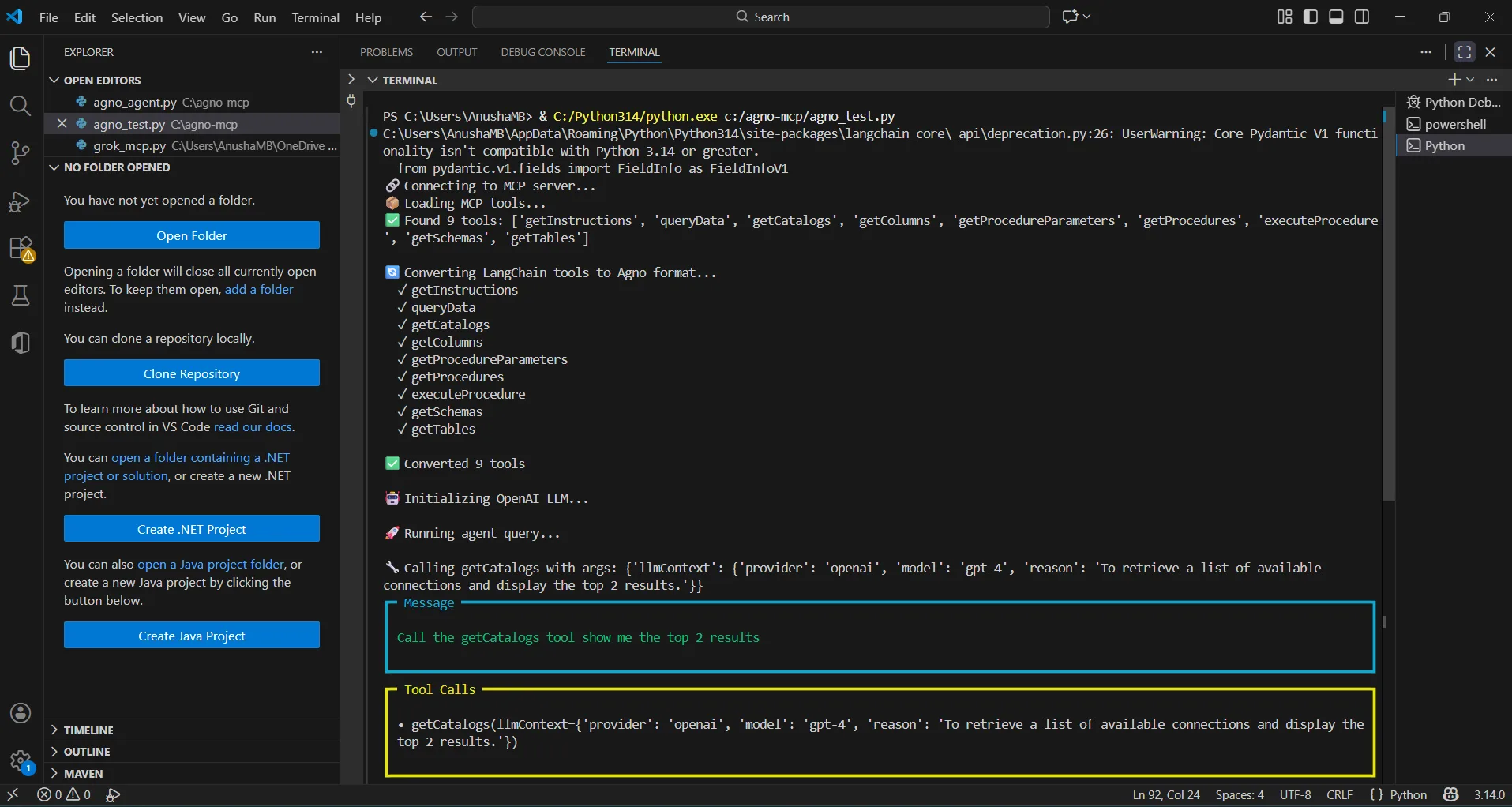
The results below show an Agno agent invoking MCP tools through CData Connect AI and returning live Lakebase data data.
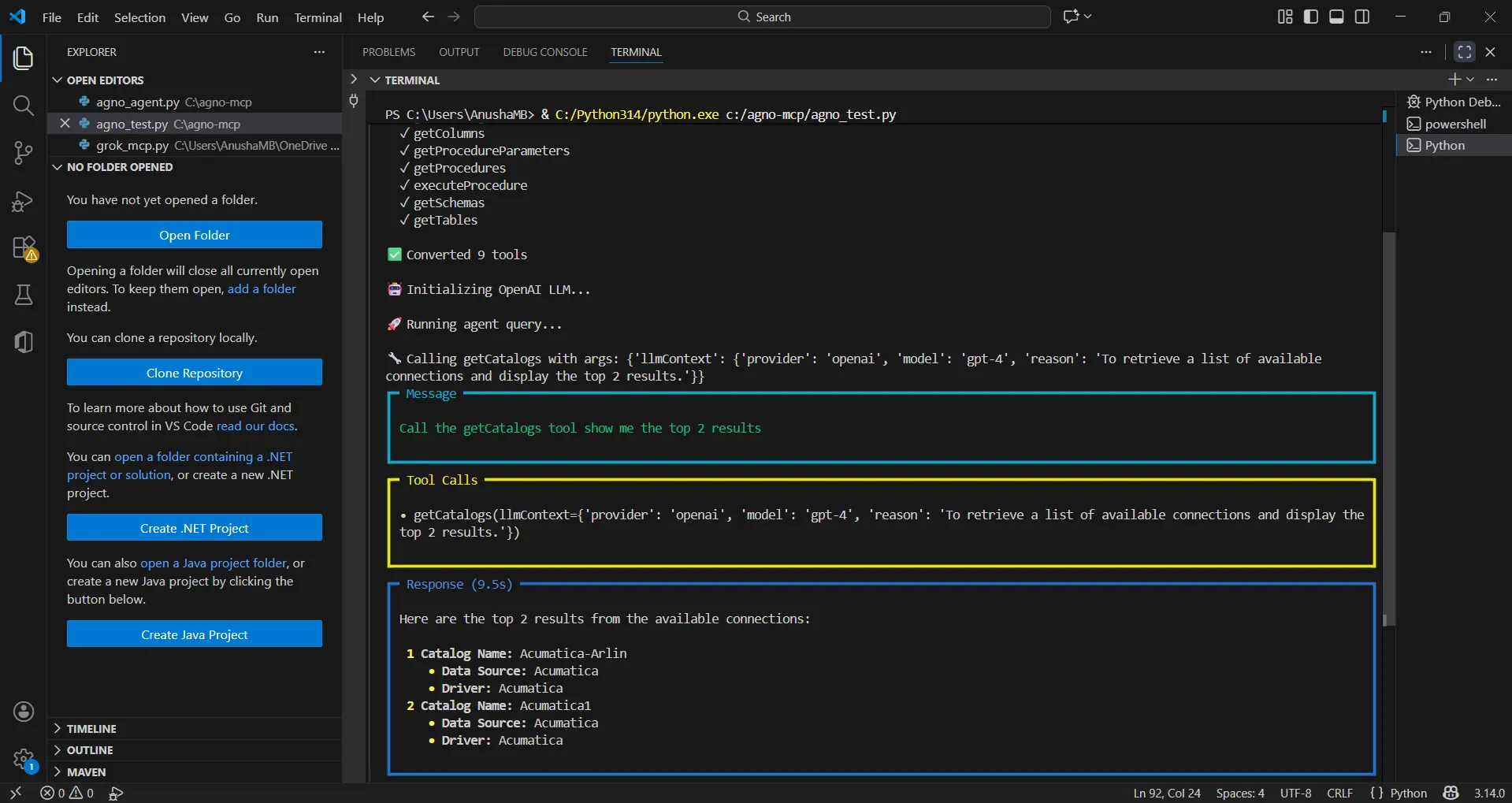
You can now query live Lakebase data using natural language through your Agno agent.
Get CData Connect AI
To get live data access to 300+ SaaS, Big Data, and NoSQL sources directly from your cloud applications, try CData Connect AI today!