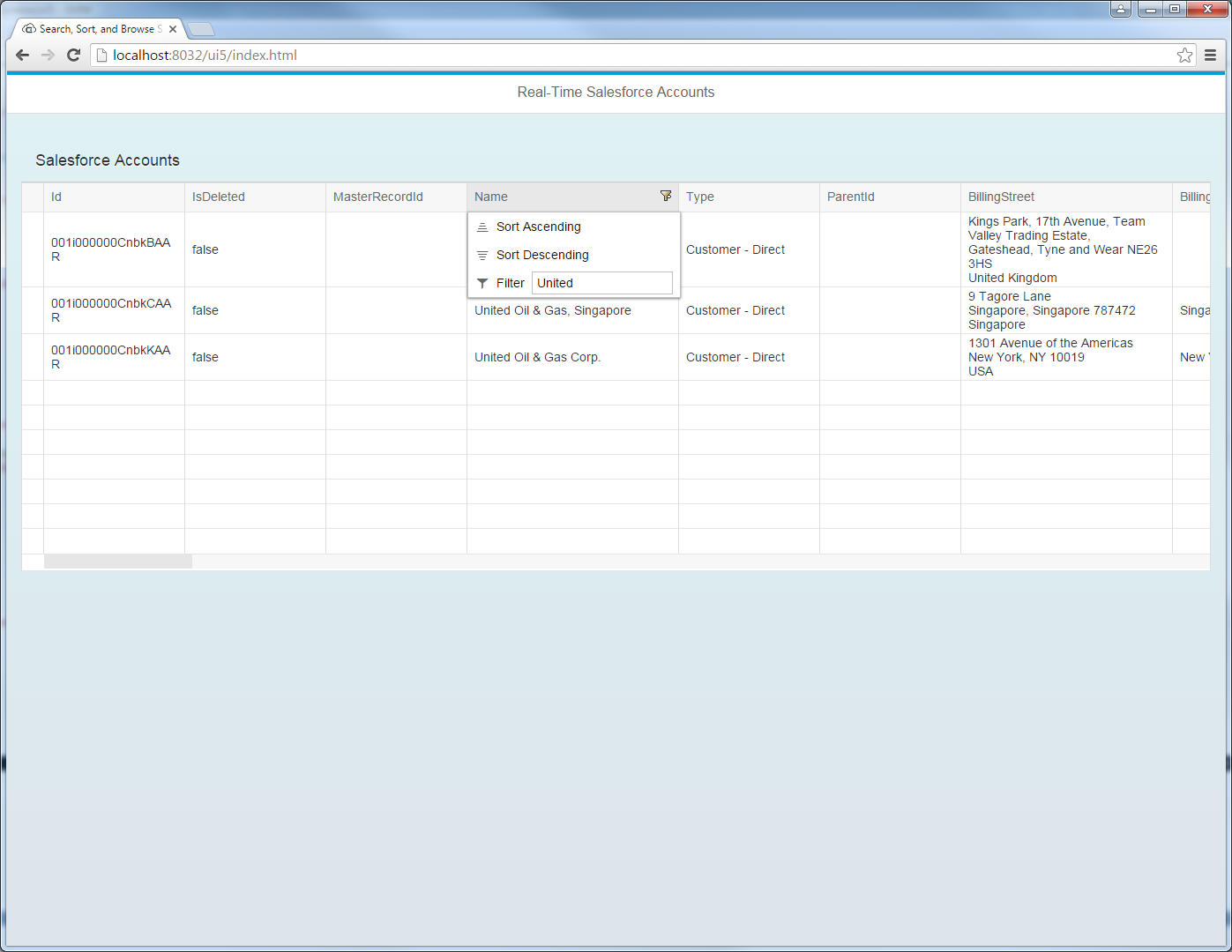
Integrate Real-Time Access to Linear in SAPUI5 MVC Apps

In this article we show how to use the CData API Server to write SAPUI5 apps that leverage the capabilities of the Linear API, without writing to a back-end database. The API Server is a lightweight Web application that runs on your server and produces OData feeds of Linear data. OData is the standard for real-time data access over the Web and has built-in support in SAPUI5 and OpenUI5.
Set Up the API Server
If you have not already done so, download the CData API Server. Once you have installed the API Server, follow the steps below to begin producing secure Linear OData services:
Connect to Linear
To work with Linear data from SAPUI5, we start by creating and configuring a Linear connection. Follow the steps below to configure the API Server to connect to Linear data:
- First, navigate to the Connections page.
-
Click Add Connection and then search for and select the Linear connection.
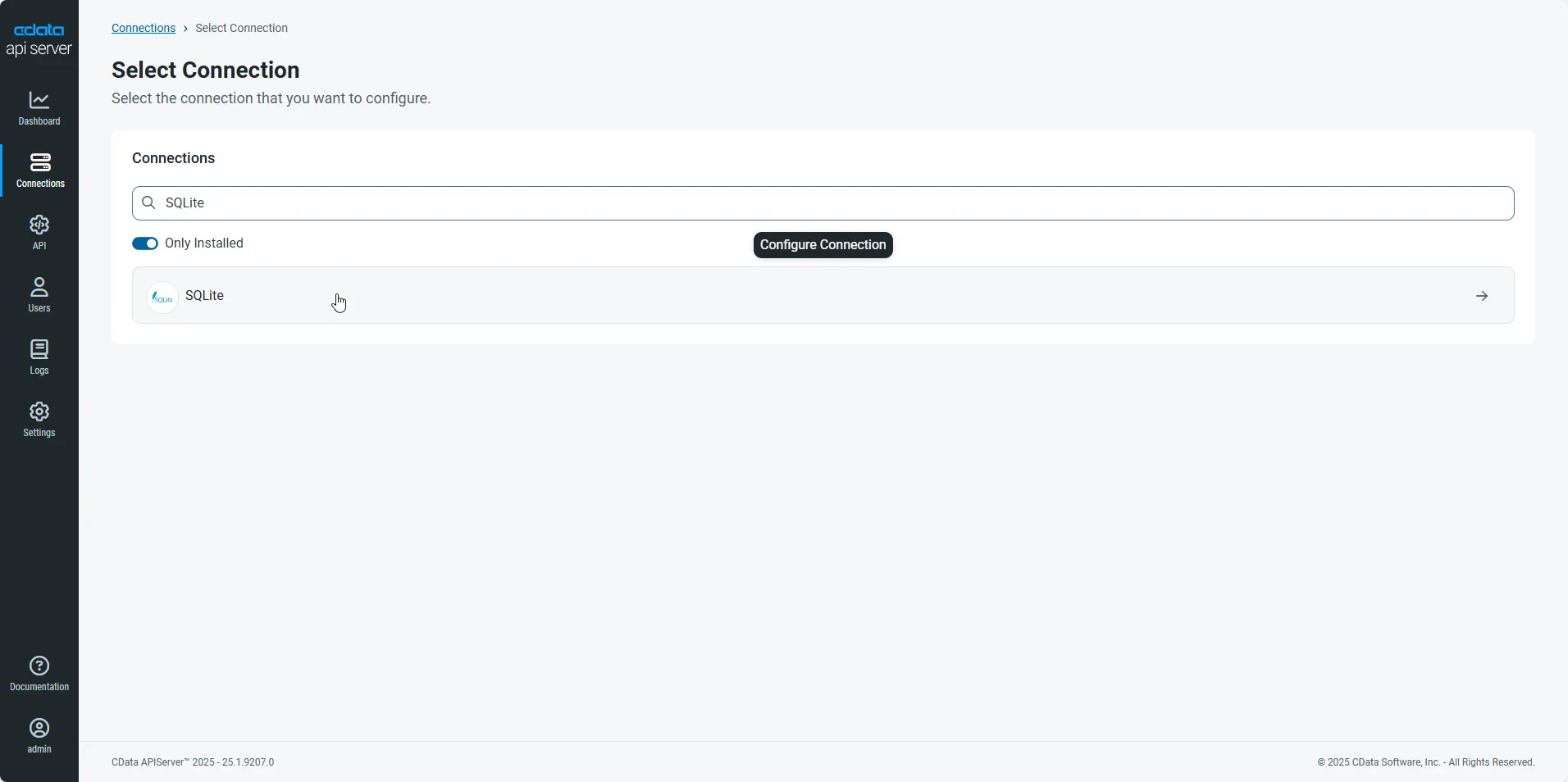
-
Enter the necessary authentication properties to connect to Linear.
You can authenticate to Linear with a personal API key or with OAuth 2.0. The API key is the simplest option for connecting with your own Linear account.
Authenticating with an API Key
Set the following connection properties:
- AuthScheme: Set this to APIKey.
- APIKey: A Linear personal API key.
To create a personal API key, log in to Linear, open Settings > Security & access > Personal API keys, select New API key, and create it. Copy the key immediately, because Linear shows it only once.
Authenticating with OAuth
OAuth requires a custom OAuth application registered in Linear (Settings > API > OAuth applications), which provides the OAuthClientId and OAuthClientSecret. Two flows are supported:
- Authorization code: Set AuthScheme to OAuth, InitiateOAuth to GETANDREFRESH, and provide OAuthClientId, OAuthClientSecret, and the CallbackURL defined in your application (e.g., http://localhost:33333). The driver opens Linear in your browser so you can grant access.
- Client credentials: Set AuthScheme to OAuthClient and provide OAuthClientId and OAuthClientSecret. This authenticates the application itself, with no browser interaction, and suits machine-to-machine integrations.
By default, the driver requests the read,write scopes. The driver refreshes the access token automatically when it expires.
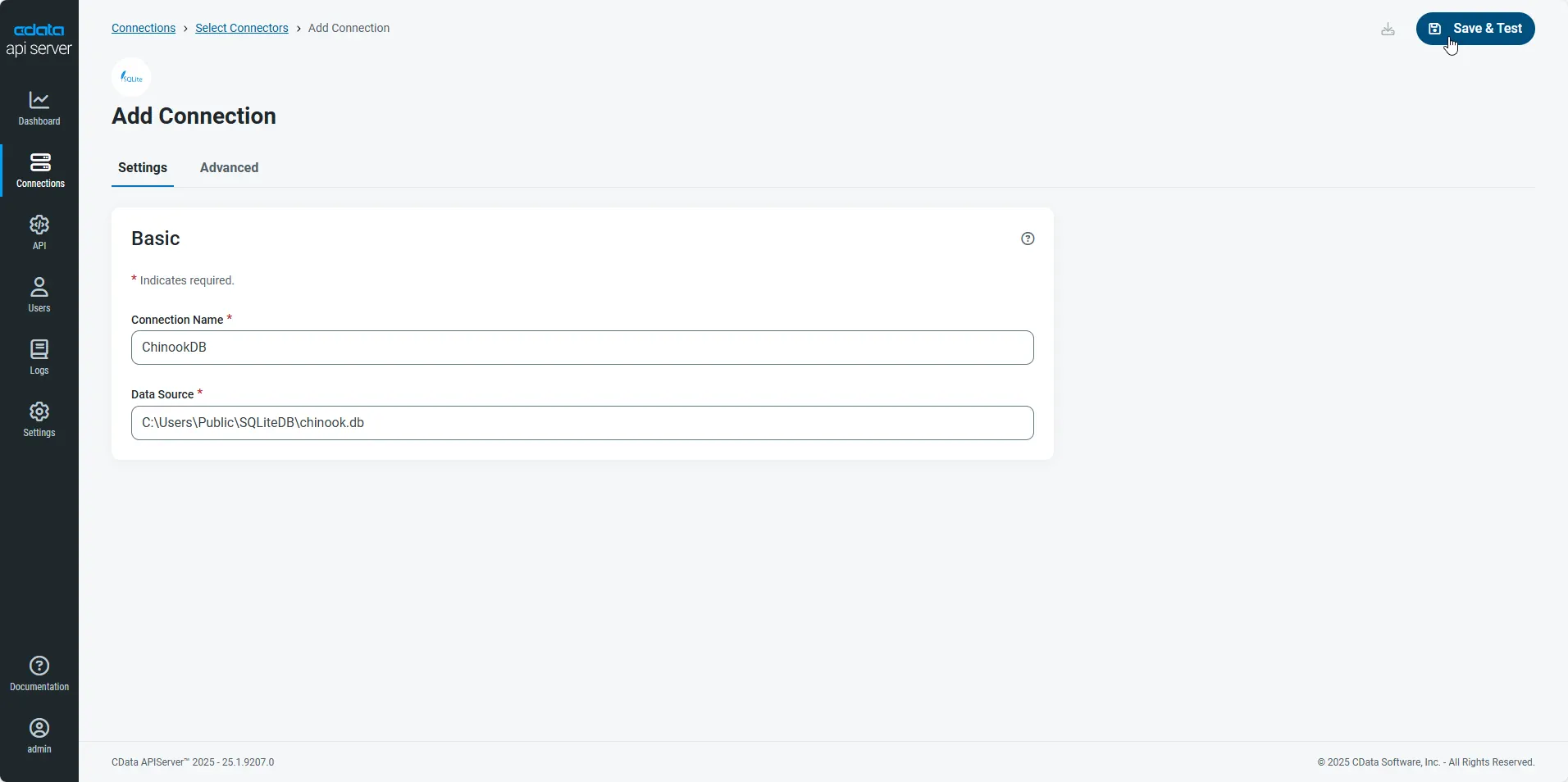
- After configuring the connection, click Save & Test to confirm a successful connection.
Configure API Server Users
Next, create a user to access your Linear data through the API Server. You can add and configure users on the Users page. Follow the steps below to configure and create a user:
- On the Users page, click Add User to open the Add User dialog.
-
Next, set the Role, Username, and Privileges properties and then click Add User.
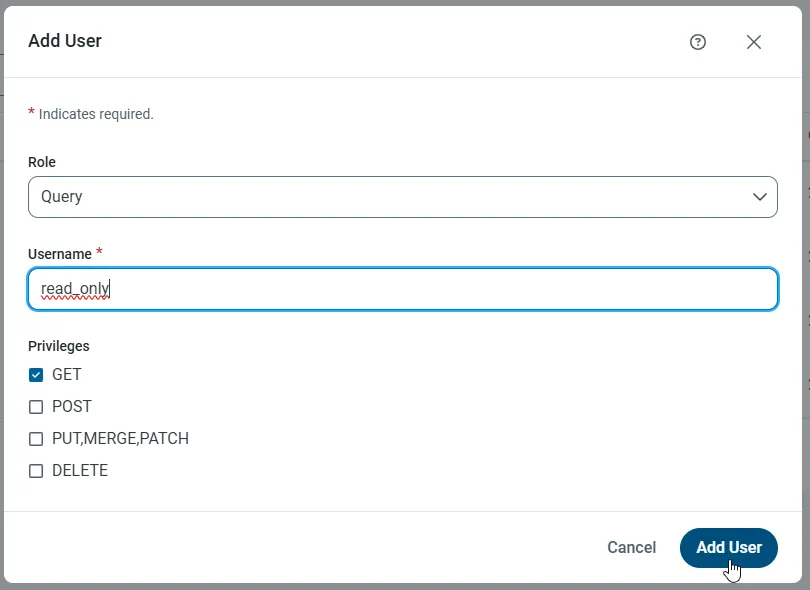
-
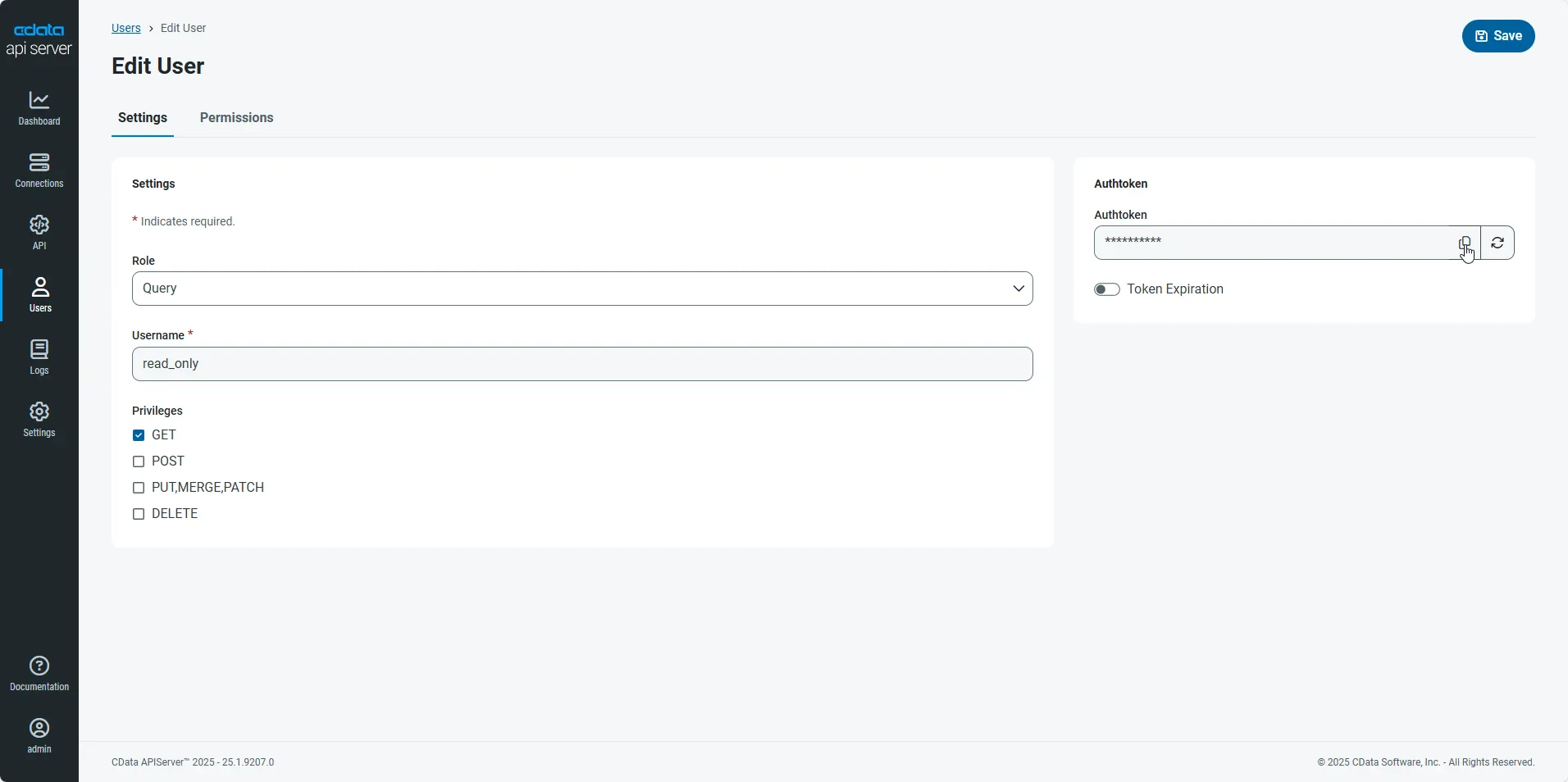
An Authtoken is then generated for the user. You can find the Authtoken and other information for each user on the Users page:
Creating API Endpoints for Linear
Having created a user, you are ready to create API endpoints for the Linear tables:
-
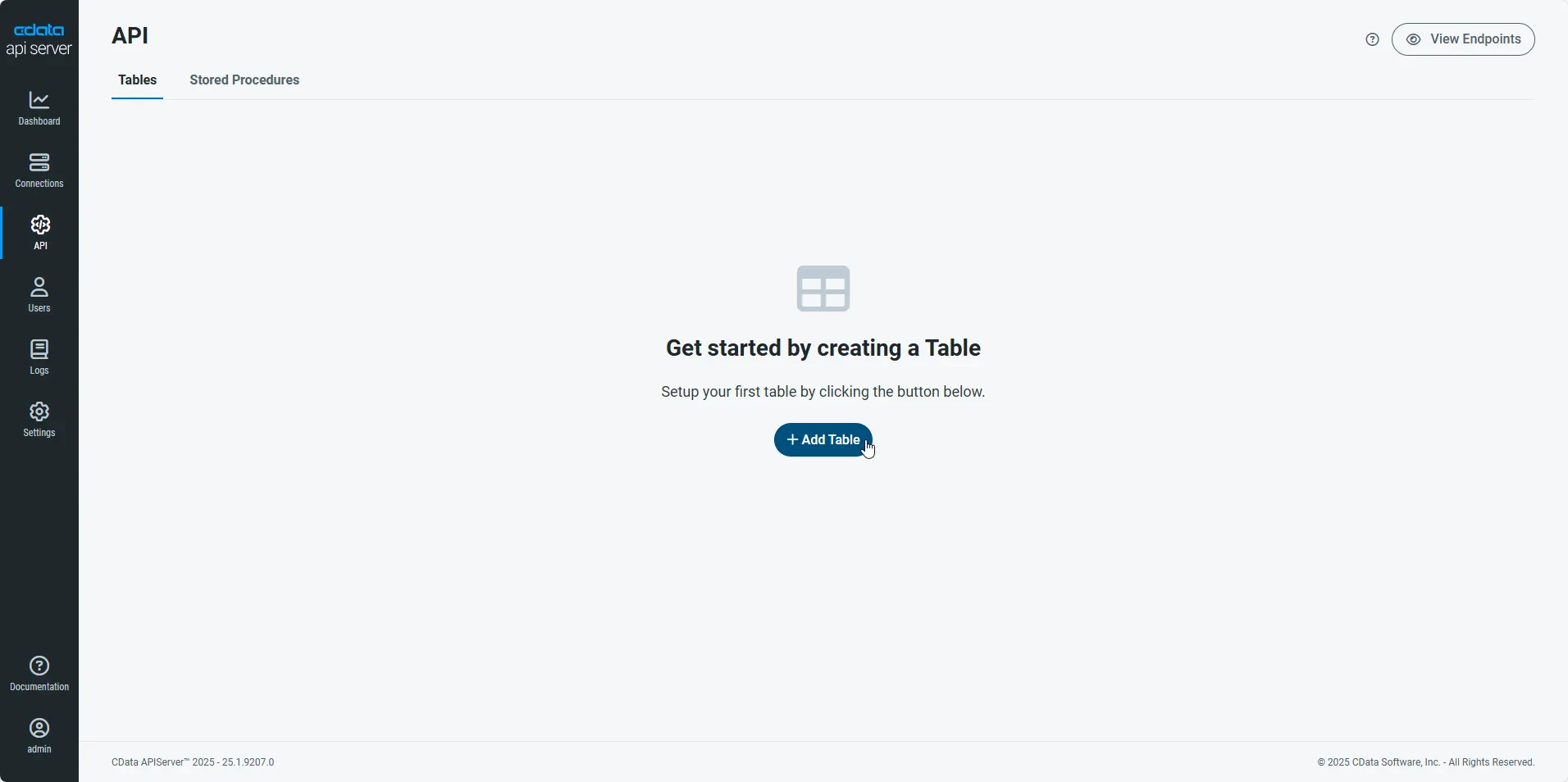
First, navigate to the API page and then click
Add Table
.
-
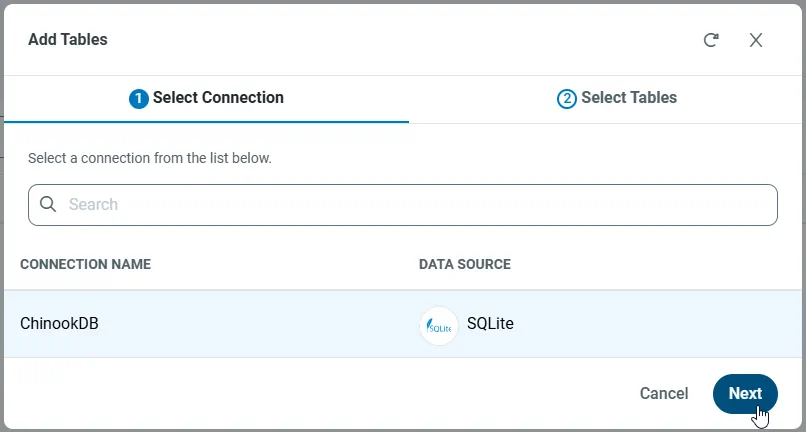
Select the connection you wish to access and click Next.
-
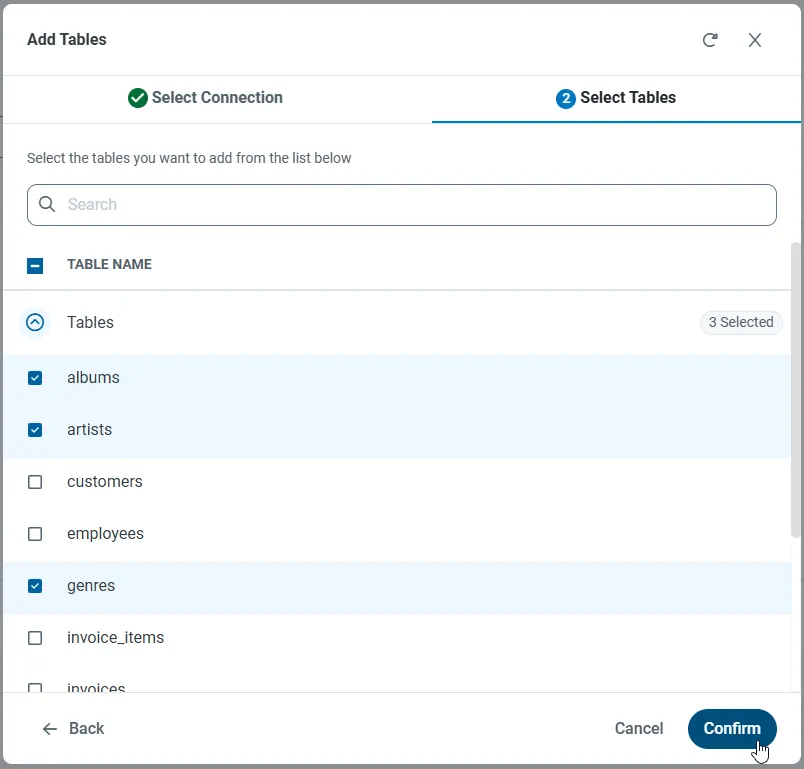
With the connection selected, create endpoints by selecting each table and then clicking Confirm.
Gather the OData Url
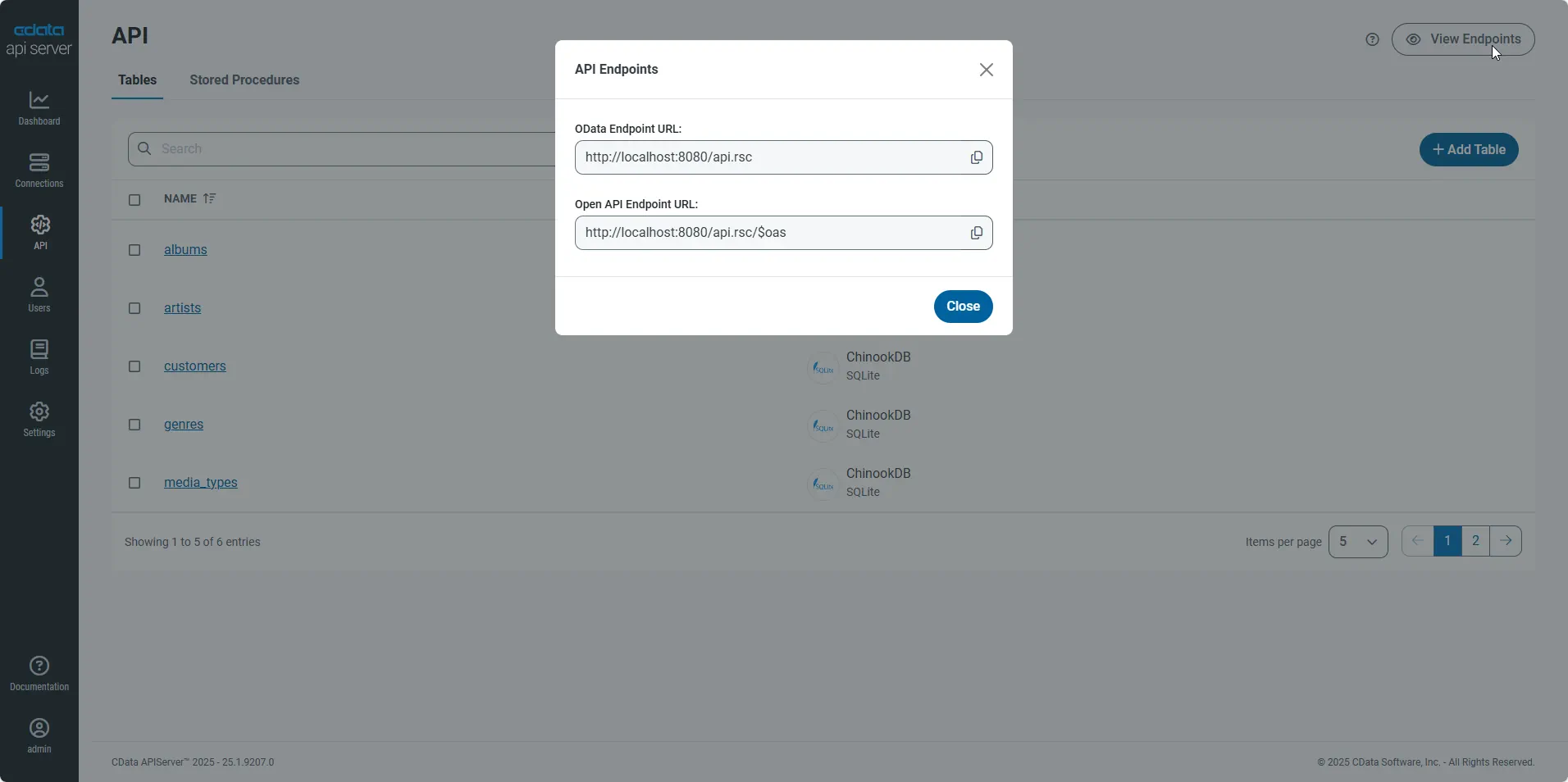
Having configured a connection to Linear data, created a user, and added resources to the API Server, you now have an easily accessible REST API based on the OData protocol for those resources. From the API page in API Server, you can view and copy the API Endpoints for the API:
Create the View
In this article the user views and interacts with Linear data through an SAPUI5 table control. Table columns will be automatically detected from the metadata retrieved from the API Server's API endpoint. We define the following table in a separate View.view.xml file:
<mvc:View
  controllerName="sap.ui.table.sample.OData2.Controller"
  xmlns="sap.ui.table"
  xmlns:mvc="sap.ui.core.mvc"
  xmlns:u="sap.ui.unified"
  xmlns:c="sap.ui.core"
  xmlns:m="sap.m">
  <m:Page
    showHeader="false"
    enableScrolling="false"
    class="sapUiContentPadding">
    <m:content>
      <Table
        id="table"
        selectionMode="MultiToggle"
        visibleRowCount="10"
        enableSelectAll="false"
        rows="{/Team}"
        threshold="15"
        enableBusyIndicator="true"
        columns="{
          path: 'meta>/dataServices/schema/[${namespace}===\'CData\']/entityType/[${name}===\'Team\']/property',
          factory: '.columnFactory'
        }">
        <toolbar>
          <m:Toolbar>
            <m:Title text="Linear Team"></m:Title>
          </m:Toolbar>
        </toolbar>
        <noData>
          <m:BusyIndicator class="sapUiMediumMargin"/>
        </noData>
      </Table>
    </m:content>
  </m:Page>
</mvc:View>
Create the Model and Controller
In SAPUI5, you do not need to write any OData queries; an ODataModel instance handles the application's data access commands. The API Server then translates the queries into Linear API calls.
The controller processes user input and represents information to the user through a view. Define the controller in a new file, Controller.controller.js. Instantiate the model in the onInit function -- you will need to replace the placeholder values for the URL to the API Server, a user allowed to access the OData endpoint of the API Server, and the authtoken for the user.
sap.ui.define([
  "sap/ui/core/mvc/Controller",
  "sap/ui/model/odata/v2/ODataModel",
  "sap/ui/model/json/JSONModel",
  "sap/ui/table/Column",
  "sap/m/Text",
], function(Controller, ODataModel, JSONModel, Column, Text ) {
  "use strict";


  return Controller.extend("sap.ui.table.sample.OData2.Controller", {

    onInit : function () {

      var oView = this.getView();
      var oDataModel = new ODataModel("http://myserver/api.rsc/",{user: "MyUser", password: "MyAuthToken"});

      oDataModel.getMetaModel().loaded().then(function(){
        oView.setModel(oDataModel.getMetaModel(), "meta");
      });
      oView.setModel(oDataModel);

      var oTable = oView.byId("table");
      var oBinding = oTable.getBinding("rows");
      var oBusyIndicator = oTable.getNoData();
      oBinding.attachDataRequested(function(){
      oTable.setNoData(oBusyIndicator);
      });
      oBinding.attachDataReceived(function(){
        oTable.setNoData(null); //use default again ("no data" in case no data is available)
      });
    },

    onExit : function () {
    },

    columnFactory : function(sId, oContext) {
      var oModel = this.getView().getModel();
      var sName = oContext.getProperty("name");
      var sType = oContext.getProperty("type");
      var iLen = oContext.getProperty("maxLength");
      iLen = iLen ? parseInt(iLen, 10) : 10;

      return new Column(sId, {
        sortProperty: sName,
        filterProperty: sName,
        width: (iLen > 9 ? (iLen > 50 ? 15 : 10) : 5) + "rem",
        label: new sap.m.Label({text: "{/#Team/" + sName + "/@name}"}),
        hAlign: sType && sType.indexOf("Decimal") >= 0 ? "End" : "Begin",
        template: new Text({text: {path: sName}})
      });
    }

  });

});
Describe Application Logic
Create a component that contains the resources of your application. Define the following in Component.js:
sap.ui.define([
  'sap/ui/core/UIComponent'
], function(UIComponent) {
  "use strict";

  return UIComponent.extend("sap.ui.table.sample.OData2.Component", {
    metadata : {
      rootView : "sap.ui.table.sample.OData2.View",
      dependencies : {
        libs : [
          "sap.ui.table",
          "sap.ui.unified",
          "sap.m"
        ]
      },

      config : {
        sample : {
          stretch : true,
          files : [
            "View.view.xml",
            "Controller.controller.js"
          ]
        }
      }
    }
  });

});
Bootstrap OpenUI5 and Launch
To complete the MVC application, simply add the bootstrap and initialization code. Add these directly to index.html:
<!DOCTYPE HTML>

<html>
<head>
  <meta http-equiv="x-ua-compatible" content="ie=edge">
  <meta charset="utf-8">
  <title>Linear Team</title>

  <script id="sap-ui-bootstrap"
    src="https://openui5.hana.ondemand.com/resources/sap-ui-core.js"
    data-sap-ui-libs="sap.m"
    data-sap-ui-theme="sap_bluecrystal"
    data-sap-ui-xx-bindingSyntax="complex"
    data-sap-ui-preload="async"
    data-sap-ui-compatVersion="edge"
    data-sap-ui-resourceroots='{"sap.ui.table.sample.OData2": "./", "sap.ui.demo.mock": "mockdata"}'>
  </script>

  <!-- application launch configuration -->
  <script>

      sap.ui.getCore().attachInit(function() {
        new sap.m.App ({
          pages: [
                new sap.m.Page({
                    title: "Linear Team",
                    enableScrolling : false,
                  content: [ new sap.ui.core.ComponentContainer({
                  height : "100%", name : "sap.ui.table.sample.OData2"
                })]
            })
          ]
      }).placeAt("content");
    });

  </script>
</head>
  <!-- UI Content -->
<body class="sapUiBody" id="content" role="application">
</body>
</html>
The resulting SAPUI5 table control reflects any changes to a table in the remote Linear data. You can now browse and search current Linear data.