




Visualize Linear Data in TIBCO Spotfire through OData

OData is a major protocol enabling real-time communication among cloud-based, mobile, and other online applications. The CData API Server provides Linear data to OData consumers like TIBCO Spotfire. This article shows how to use the API Server and Spotfire's built-in support for OData to access Linear data in real time.
Set Up the API Server
If you have not already done so, download the CData API Server. Once you have installed the API Server, follow the steps below to begin producing secure Linear OData services:
Connect to Linear
To work with Linear data from TIBCO Spotfire, we start by creating and configuring a Linear connection. Follow the steps below to configure the API Server to connect to Linear data:
- First, navigate to the Connections page.
-
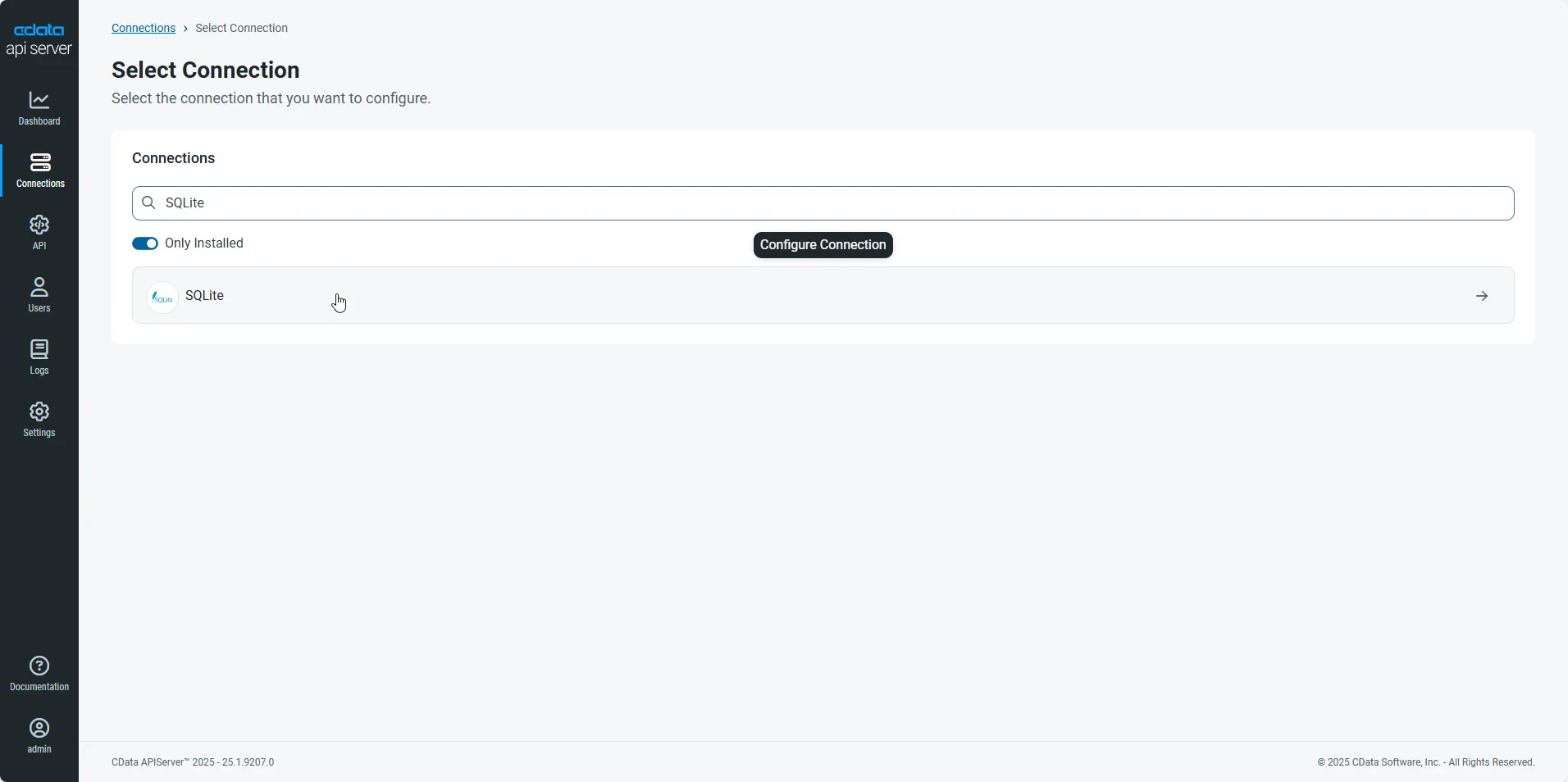
Click Add Connection and then search for and select the Linear connection.
-
Enter the necessary authentication properties to connect to Linear.
You can authenticate to Linear with a personal API key or with OAuth 2.0. The API key is the simplest option for connecting with your own Linear account.
Authenticating with an API Key
Set the following connection properties:
- AuthScheme: Set this to APIKey.
- APIKey: A Linear personal API key.
To create a personal API key, log in to Linear, open Settings > Security & access > Personal API keys, select New API key, and create it. Copy the key immediately, because Linear shows it only once.
Authenticating with OAuth
OAuth requires a custom OAuth application registered in Linear (Settings > API > OAuth applications), which provides the OAuthClientId and OAuthClientSecret. Two flows are supported:
- Authorization code: Set AuthScheme to OAuth, InitiateOAuth to GETANDREFRESH, and provide OAuthClientId, OAuthClientSecret, and the CallbackURL defined in your application (e.g., http://localhost:33333). The driver opens Linear in your browser so you can grant access.
- Client credentials: Set AuthScheme to OAuthClient and provide OAuthClientId and OAuthClientSecret. This authenticates the application itself, with no browser interaction, and suits machine-to-machine integrations.
By default, the driver requests the read,write scopes. The driver refreshes the access token automatically when it expires.
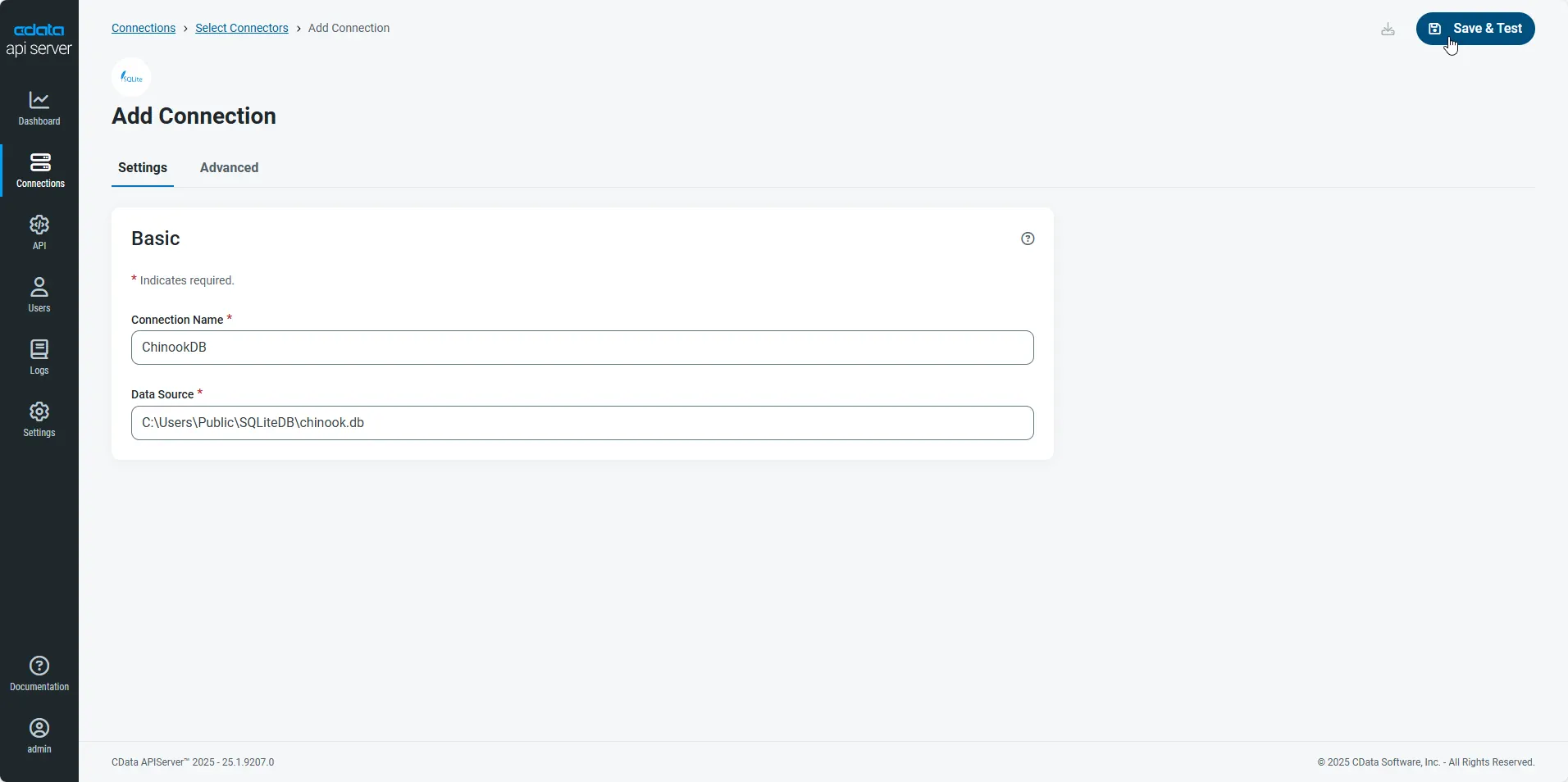
- After configuring the connection, click Save & Test to confirm a successful connection.
Configure API Server Users
Next, create a user to access your Linear data through the API Server. You can add and configure users on the Users page. Follow the steps below to configure and create a user:
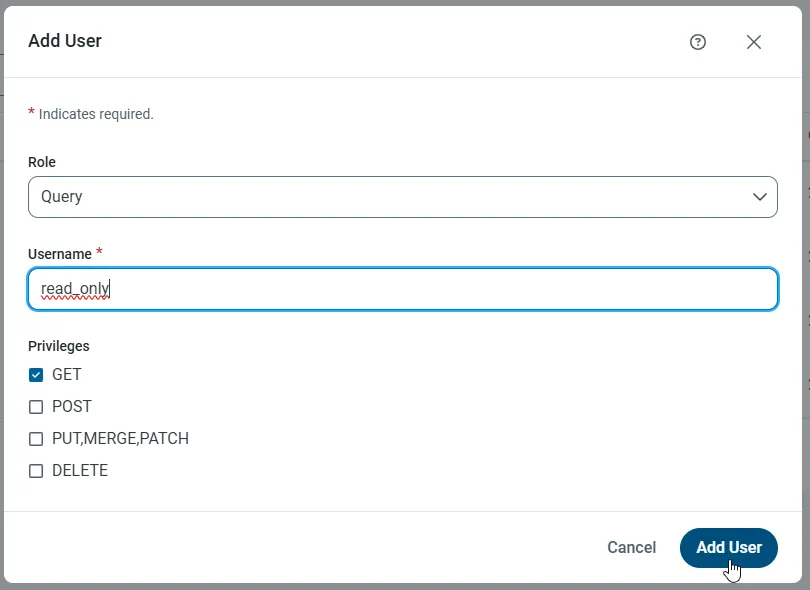
- On the Users page, click Add User to open the Add User dialog.
-
Next, set the Role, Username, and Privileges properties and then click Add User.
-
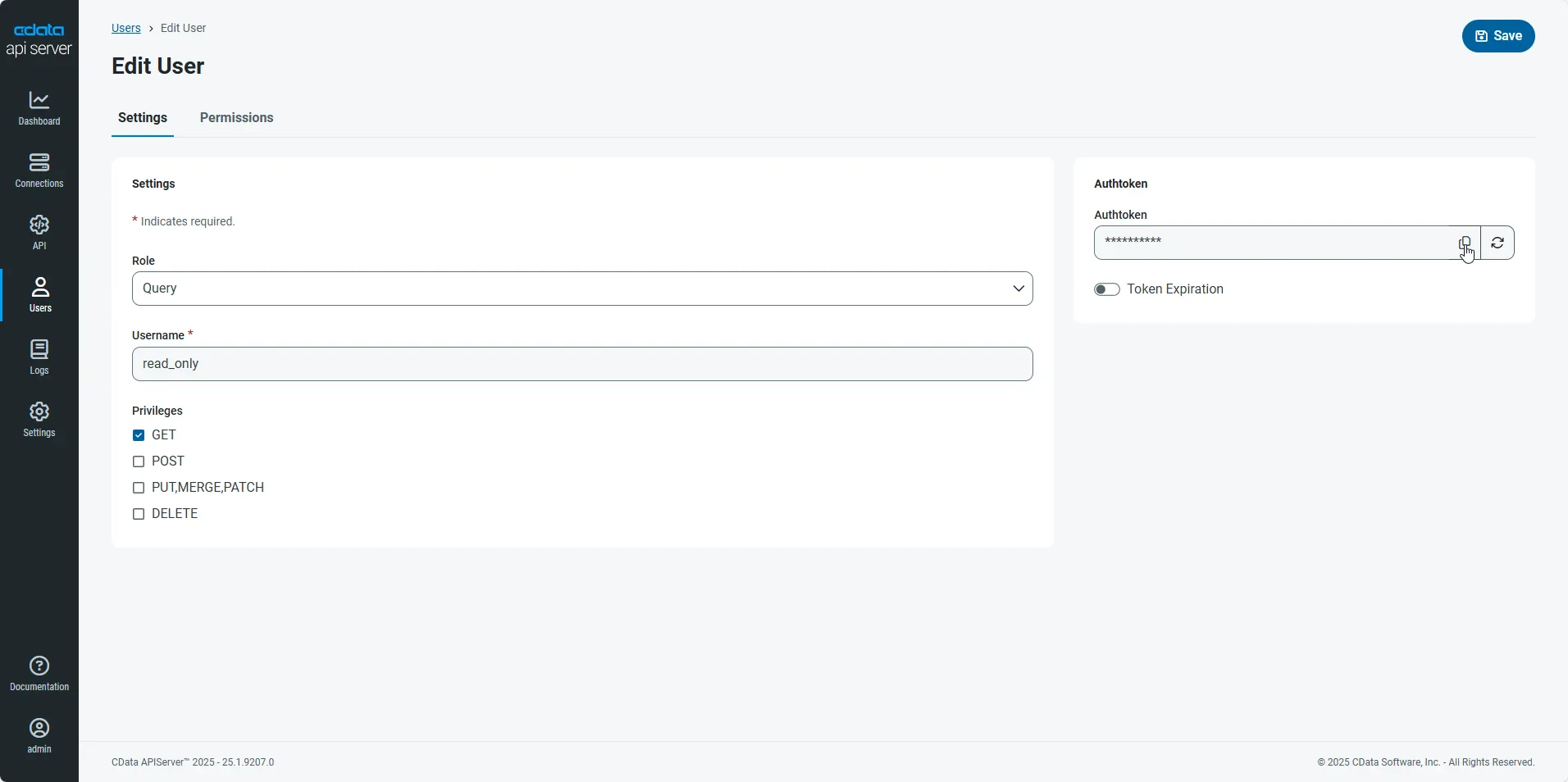
An Authtoken is then generated for the user. You can find the Authtoken and other information for each user on the Users page:
Creating API Endpoints for Linear
Having created a user, you are ready to create API endpoints for the Linear tables:
-
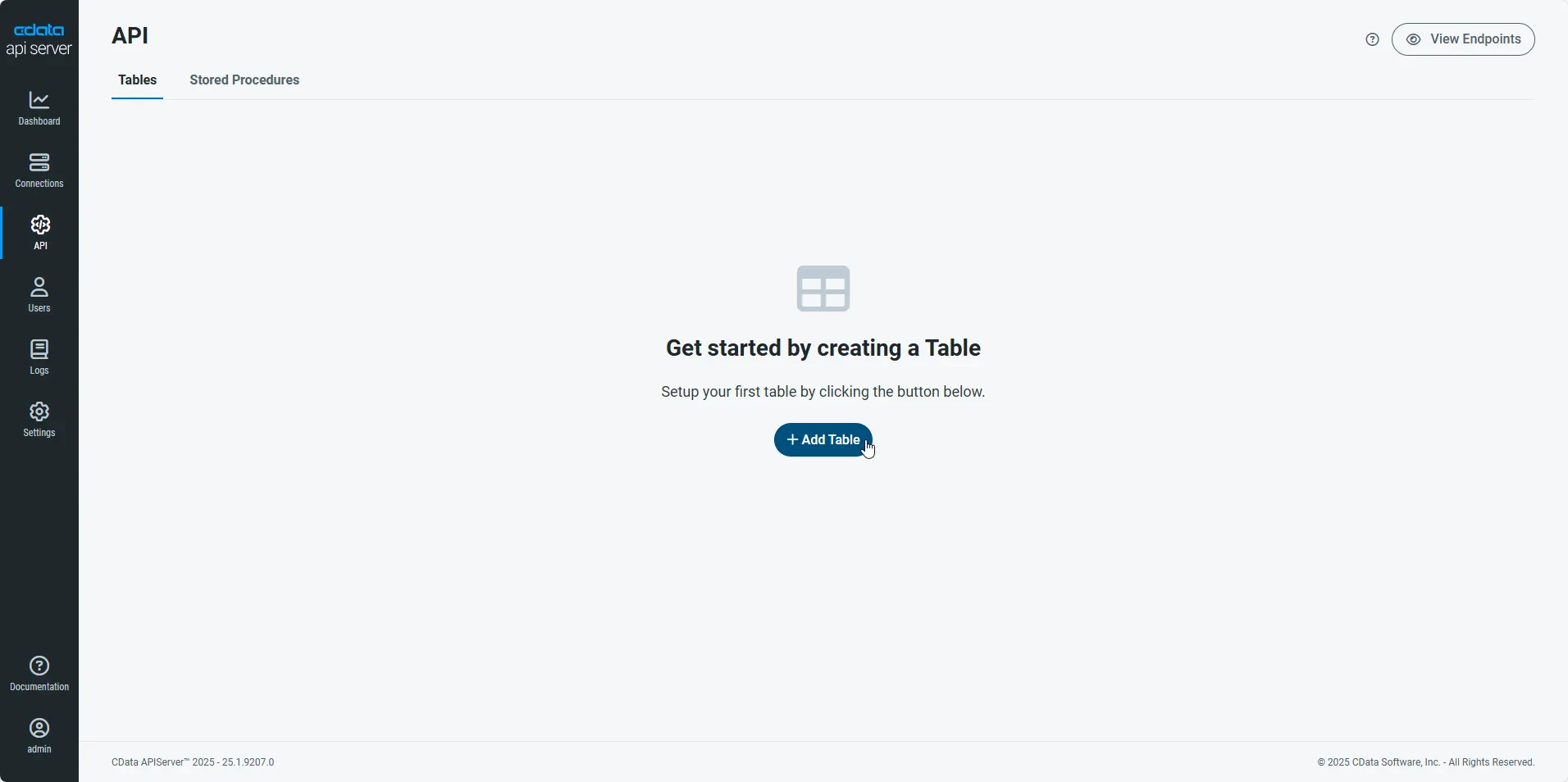
First, navigate to the API page and then click
Add Table
.
-
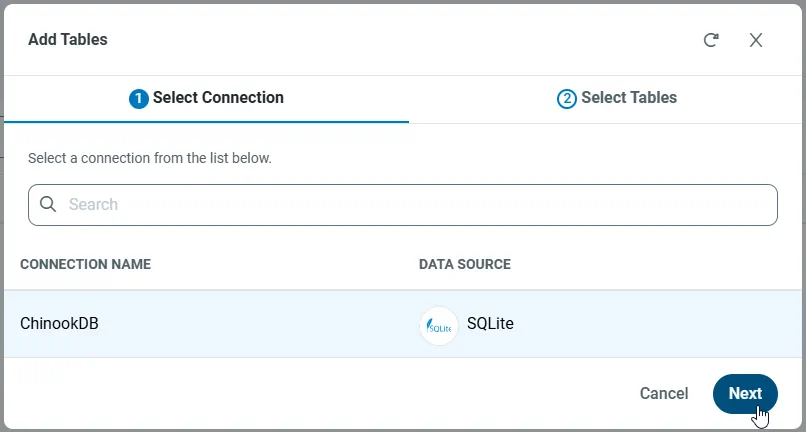
Select the connection you wish to access and click Next.
-
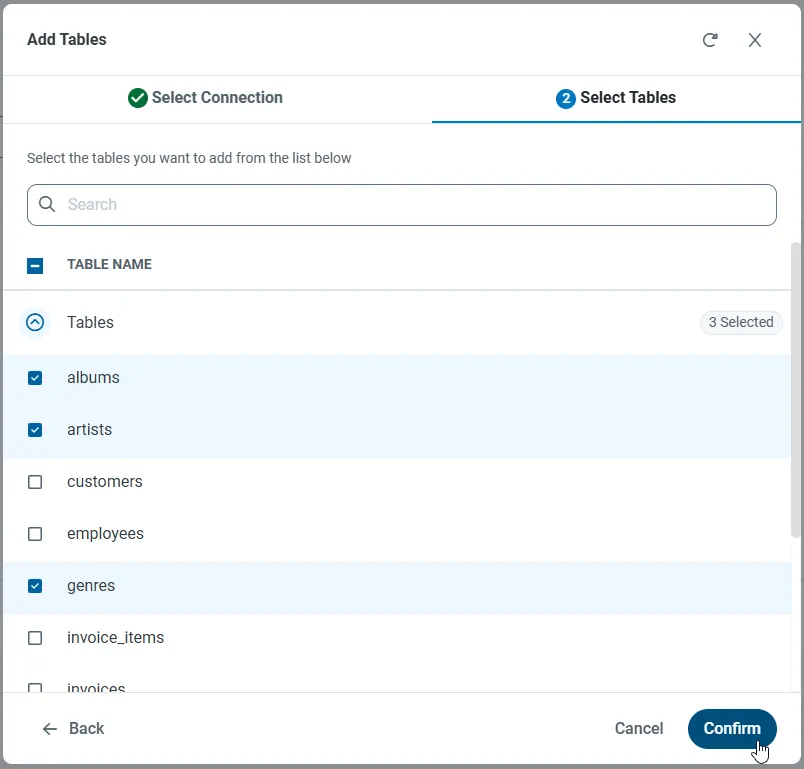
With the connection selected, create endpoints by selecting each table and then clicking Confirm.
Gather the OData Url
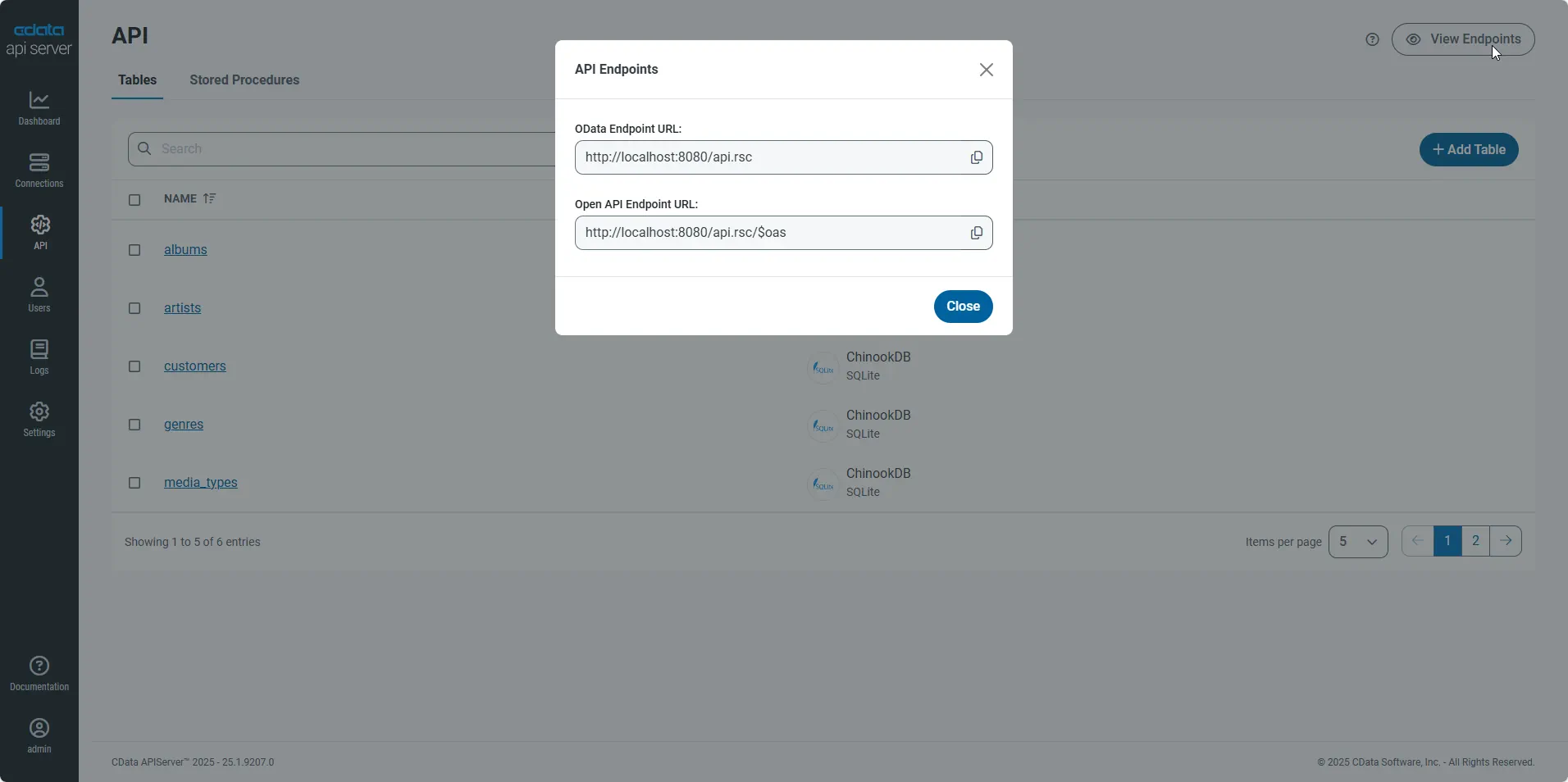
Having configured a connection to Linear data, created a user, and added resources to the API Server, you now have an easily accessible REST API based on the OData protocol for those resources. From the API page in API Server, you can view and copy the API Endpoints for the API:
Create Data Visualizations on External Linear Data
- Open Spotfire and click Add Data Tables -> OData.
- In the OData Connection dialog, enter the following information:
- Service URL: Enter the API Server's OData endpoint. For example:
http://localhost:8080/api.rsc - Authentication Method: Select Username and Password.
- Username: Enter the username of an API Server user. You can create API users on the Security tab of the administration console.
- Password: Enter the authtoken of an API Server user.
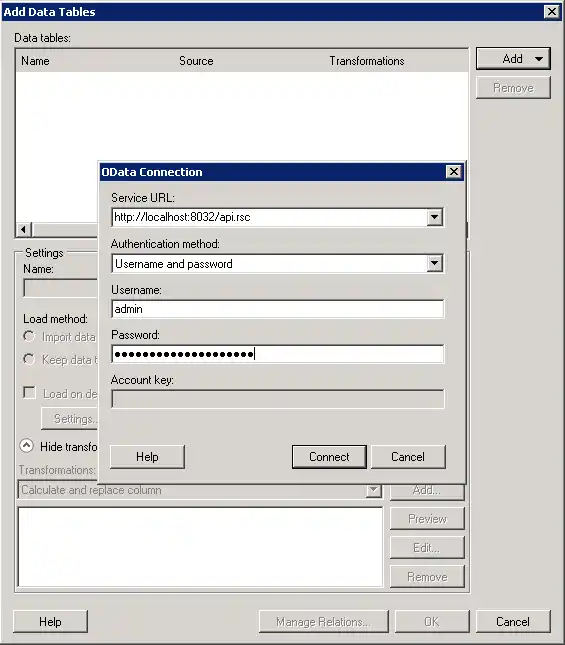
- Service URL: Enter the API Server's OData endpoint. For example:
- Select the tables and columns you want to add to the dashboard. This example uses Team.
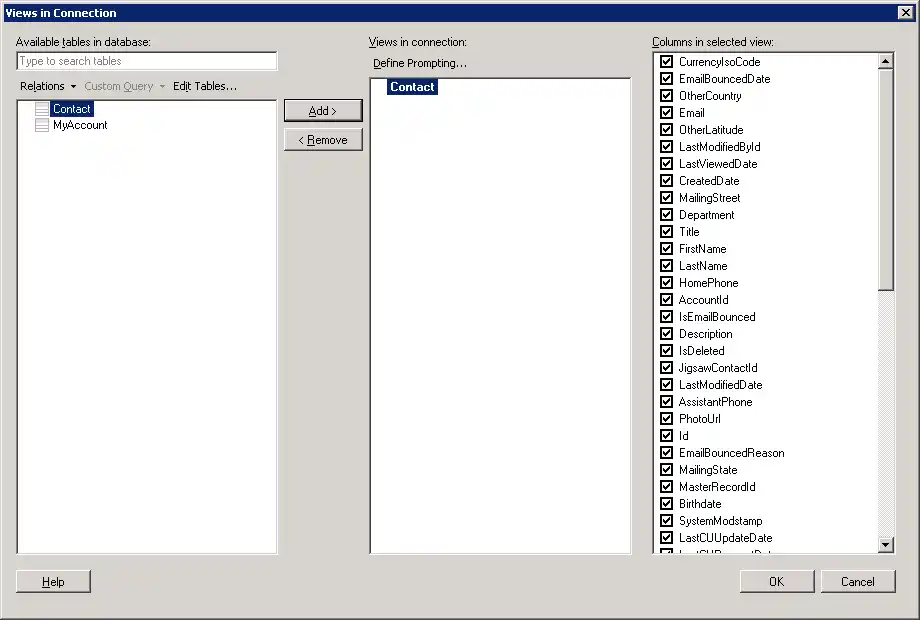
- If you want to work with the live data, click the Keep Data Table External option. This option enables your dashboards to reflect changes to the data in real time.
If you want to load the data into memory and process the data locally, click the Import Data Table option. This option is better for offline use or if a slow network connection is making your dashboard less interactive.
- After adding tables, the Recommended Visualizations wizard is displayed. When you select a table, Spotfire uses the column data types to detect number, time, and category columns. This example uses name in the Numbers section and id in the Categories section.
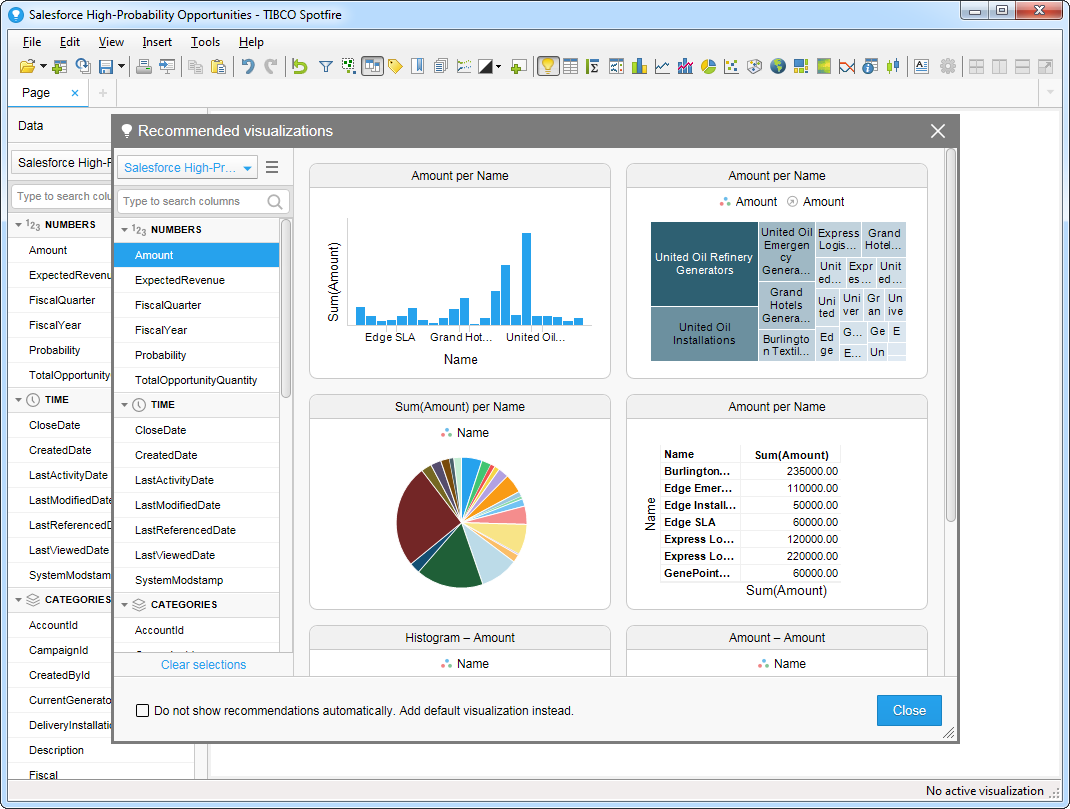
After adding several visualizations in the Recommended Visualizations wizard, you can make other modifications to the dashboard. For example, you can apply a filter: After clicking the Filter button, the available filters for each query are displayed in the Filters pane.