





Extract, Transform, and Load Linear Data in Informatica PowerCenter

Informatica provides a powerful, elegant means of transporting and transforming your data. By utilizing the CData ODBC Driver for Linear, you are gaining access to a driver based on industry-proven standards that integrates seamlessly with Informatica's powerful data transportation and manipulation features. This tutorial shows how to create a simple Workflow in Informatica PowerCenter to extract Linear data and load it into a flat file.
Add Linear as an ODBC Data Source
If you have not already, install the driver on the PowerCenter server and client machines. On both machines, specify the connection properties in an ODBC DSN (data source name). This is the last step of the driver installation. You can use the Microsoft ODBC Data Source Administrator to create and configure ODBC DSNs.
You can authenticate to Linear with a personal API key or with OAuth 2.0. The API key is the simplest option for connecting with your own Linear account.
Authenticating with an API Key
Set the following connection properties:
- AuthScheme: Set this to APIKey.
- APIKey: A Linear personal API key.
To create a personal API key, log in to Linear, open Settings > Security & access > Personal API keys, select New API key, and create it. Copy the key immediately, because Linear shows it only once.
Authenticating with OAuth
OAuth requires a custom OAuth application registered in Linear (Settings > API > OAuth applications), which provides the OAuthClientId and OAuthClientSecret. Two flows are supported:
- Authorization code: Set AuthScheme to OAuth, InitiateOAuth to GETANDREFRESH, and provide OAuthClientId, OAuthClientSecret, and the CallbackURL defined in your application (e.g., http://localhost:33333). The driver opens Linear in your browser so you can grant access.
- Client credentials: Set AuthScheme to OAuthClient and provide OAuthClientId and OAuthClientSecret. This authenticates the application itself, with no browser interaction, and suits machine-to-machine integrations.
By default, the driver requests the read,write scopes. The driver refreshes the access token automatically when it expires.
Create an ETL Workflow in PowerCenter
Follow the steps below to create a workflow in PowerCenter to pull Linear data and push it into a flat file.
Create a Source Using the ODBC Driver
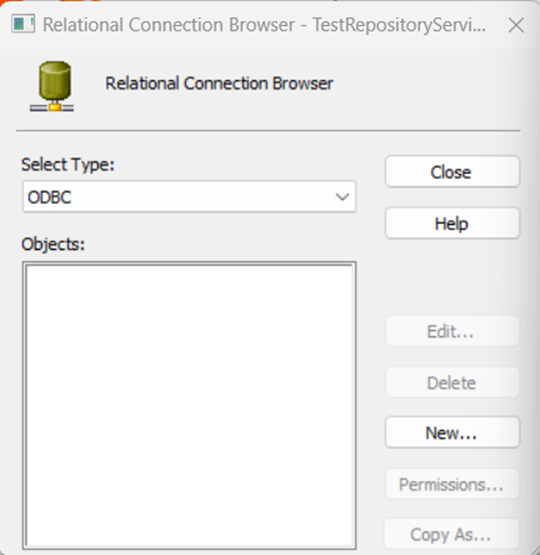
- In PowerCenter Workflow Manager, add a new ODBC relational connection by going to Connections -> Relational, and in the first window select the ODBC type and click New.
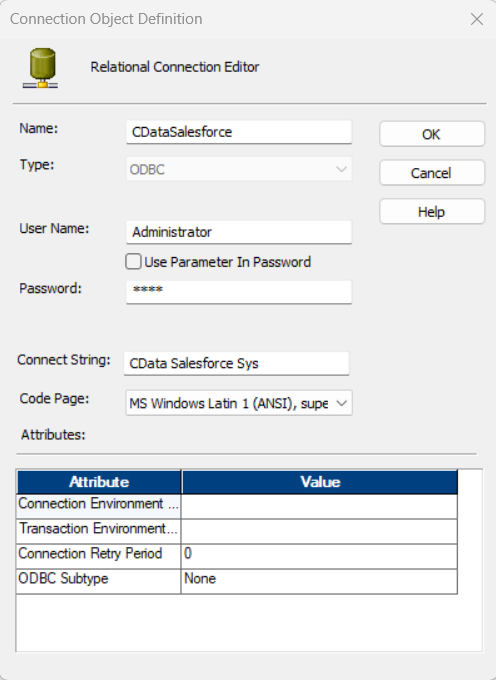
- In the Relational Connection Editor, set the name of the newly created connection and set the User Name and Password based on the credentials utilized to connect to your Repository. Under the Connection String input your System DSN, which by default is called 'CData Linear Sys'.
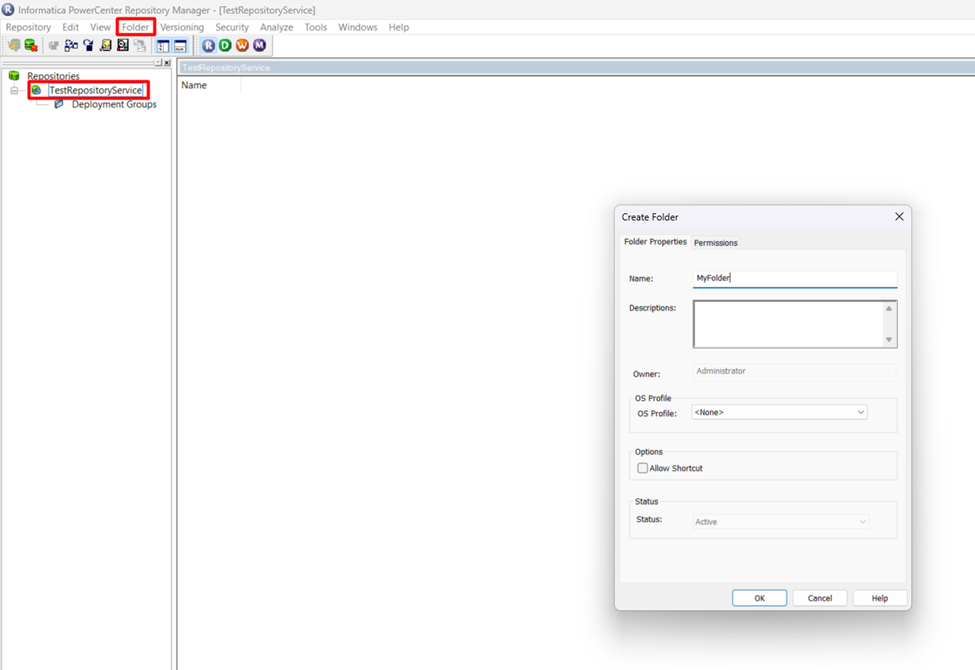
- In PowerCenter Designer, connect to your repository and open your folder. If you do not already have a folder created, you will need to manually create a folder for your repository. To create a folder, open Informatica PowerCenter Repository Manager, connect to your Repository Service and go to Folder -> Create to create a new folder.
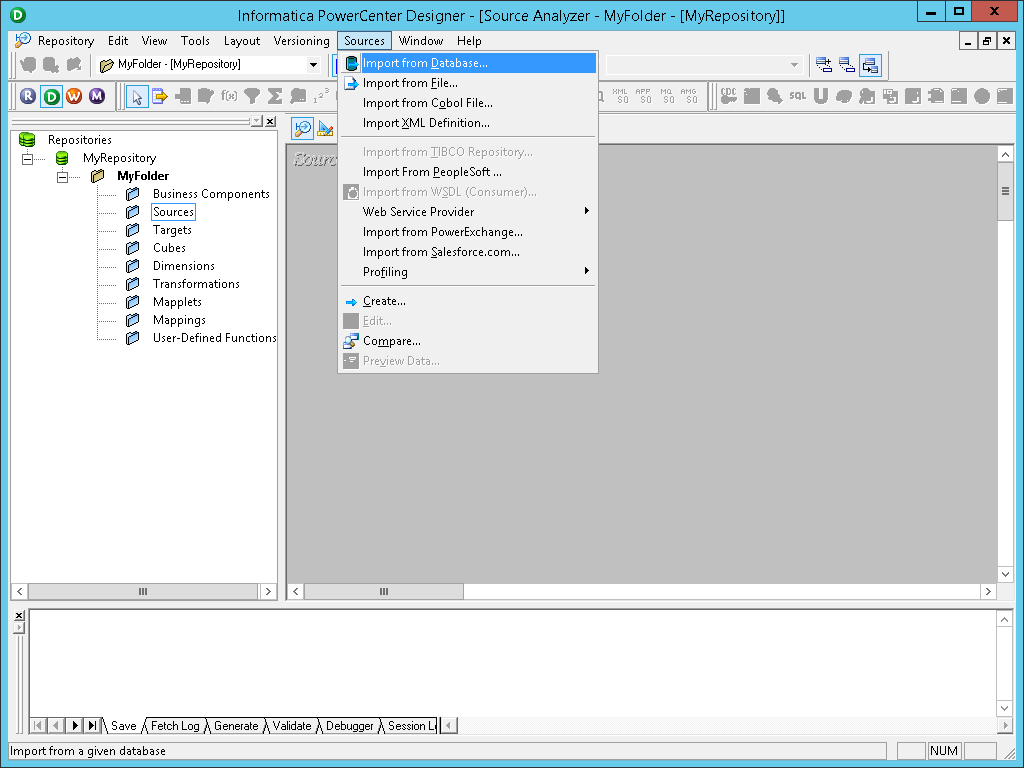
- Select the Source Analyzer, click the sources menu, and select Import from Database...
- In the drop-down menu for ODBC data source, select the DSN you previously configured (CData Linear Sys).
- Click connect and select the tables and views to include.
- Click OK.
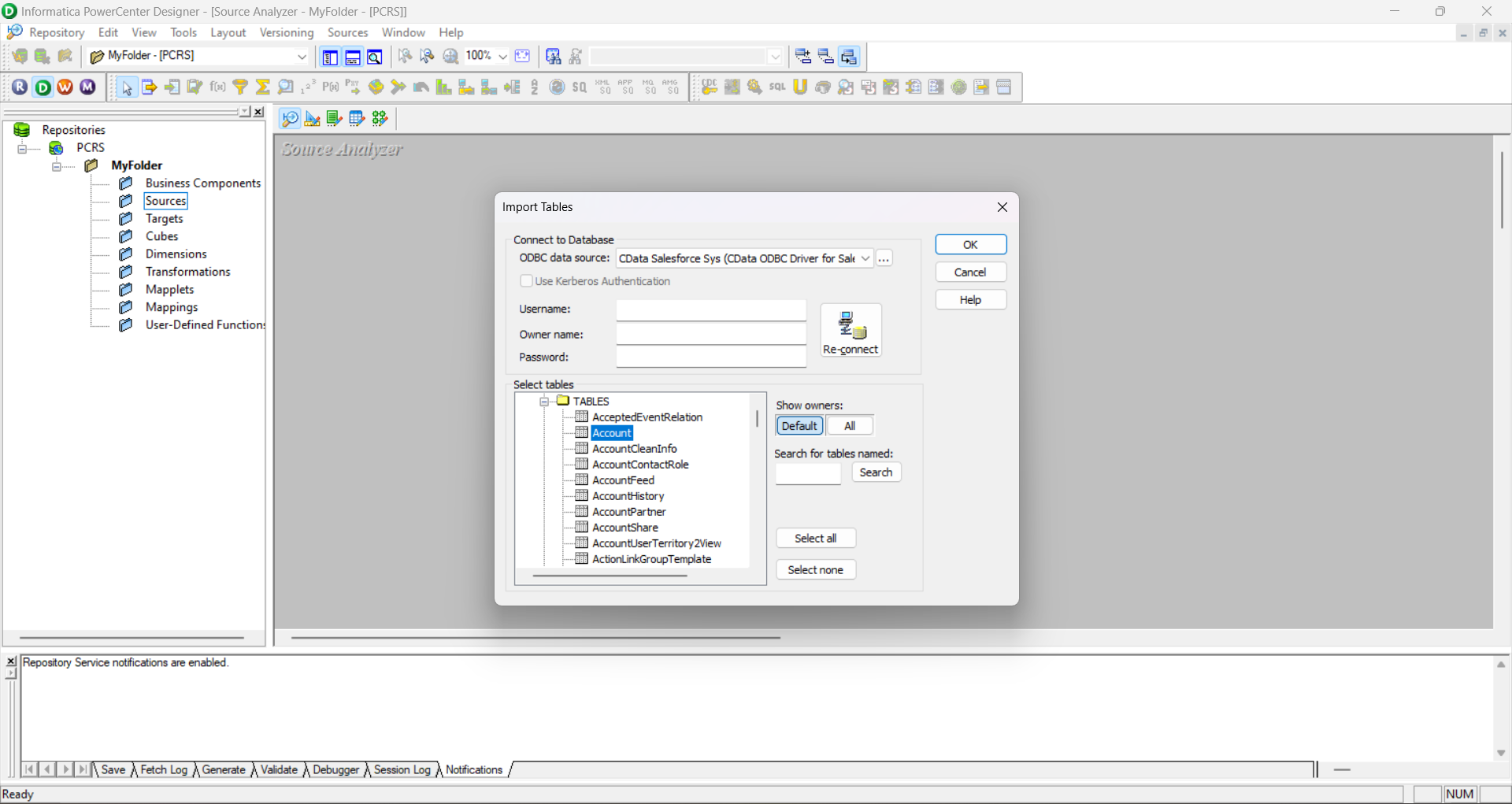
Create a Flat File Target Based on the Source
- Select the Target Designer and drag and drop the previously created source onto the workspace. Using the existing source copies the columns into the target.
- Right-click the new target, click edit, and change the database type to flat file.
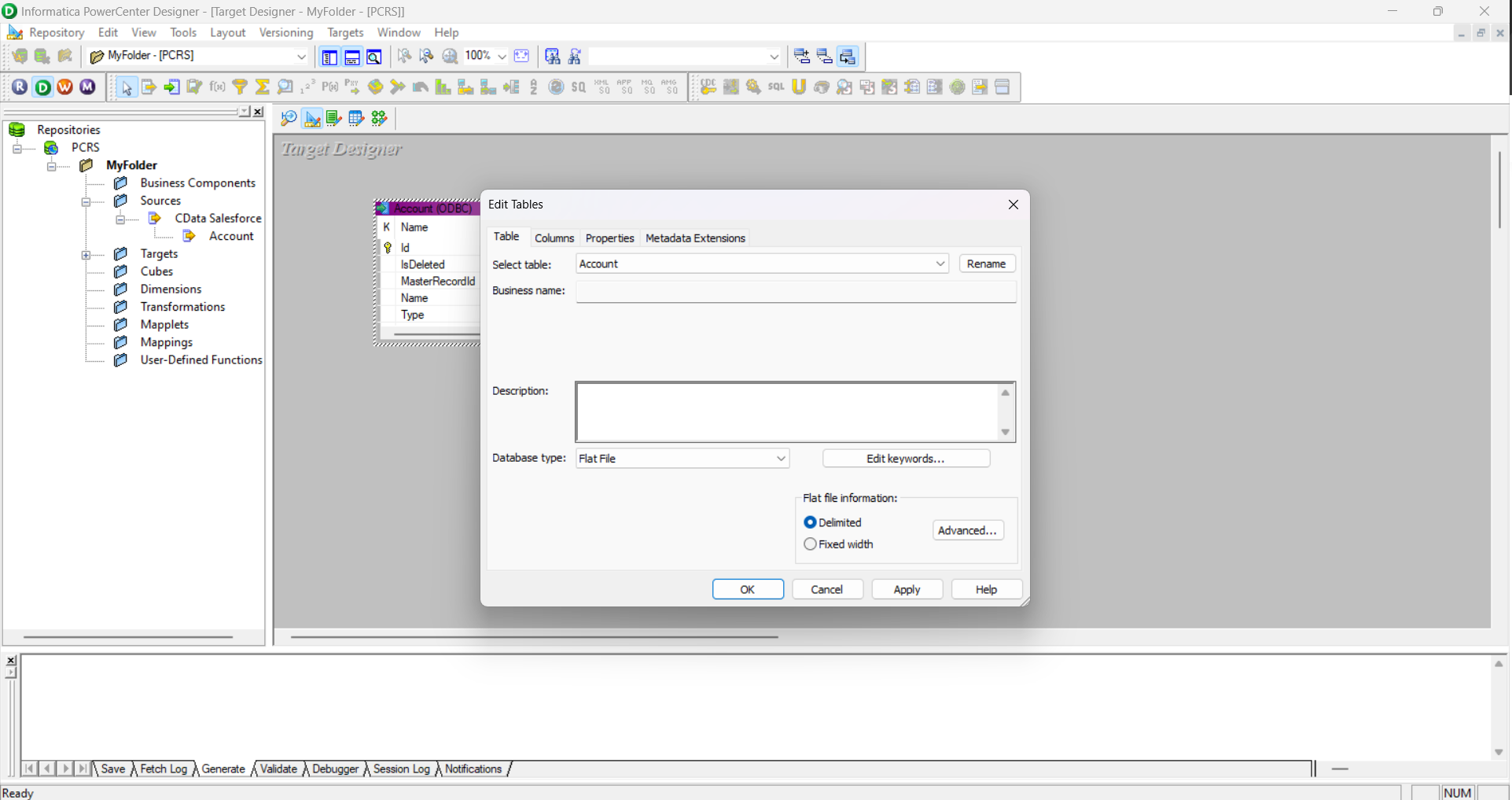
Create a Mapping to Between Linear Data and a Flat File
- Click on the Mapping Designer.
- Drag the source and target to the workspace (name the new mapping, if prompted).
- Right-click on the workspace and select Autolink by Name.
- Drag the columns from the source qualifier to the target definition.
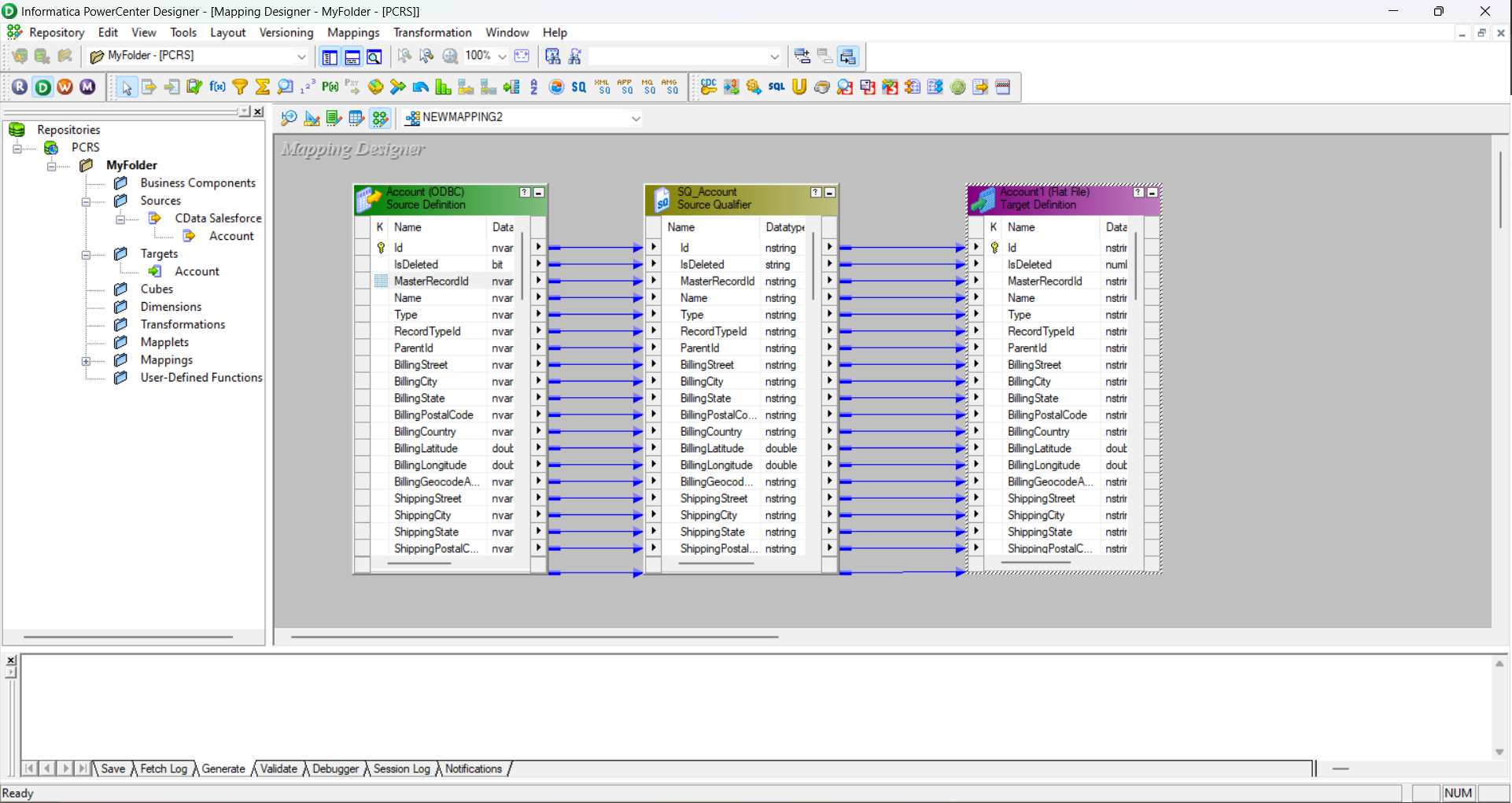
- Save the folder (Ctrl + S).
Create Workflow Based on the Mapping
With the source, target, and mapping created and saved, you are now ready to create the workflow.
- Right-click the mapping and select generate workflow to open the Workflow Generation wizard.
- Create a workflow with a non-reusable session.
- Ensure that you have properly configured the connection object and set the prefixes. If you have not already done so, you will need to create an Integration Service. To create an Integration Service, open your Administrator site, and under Domain, create a new PowerCenter Integration Service. Under the PowerCenter Repository Service, select the Repository you are referring to, and as Username and Password, use your Administrator login information.
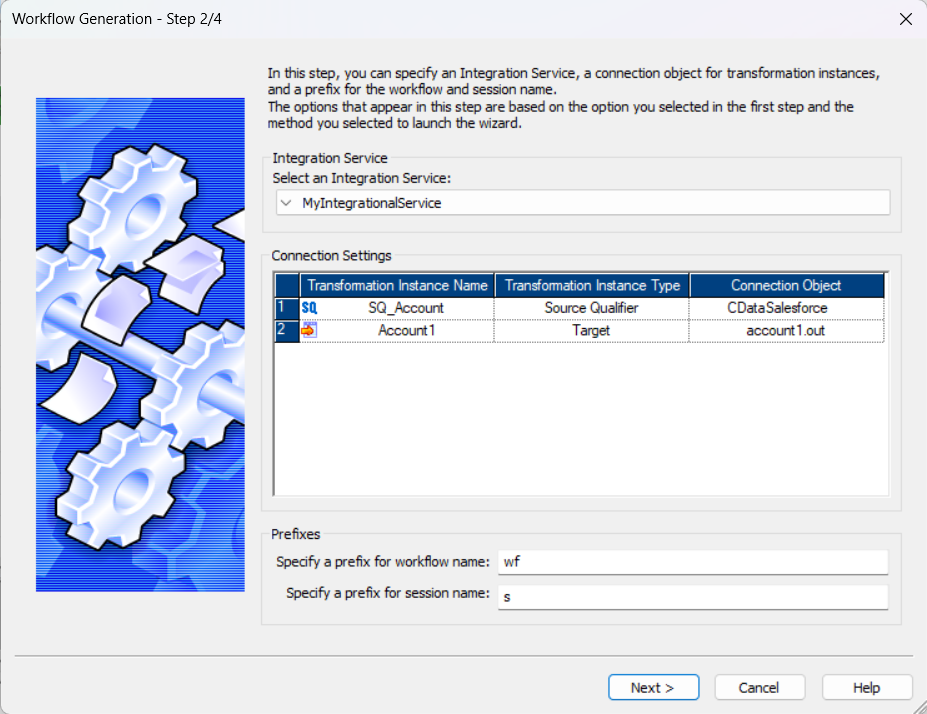
- Configure the Connection as needed.
- Review the Workflow and click Finish.
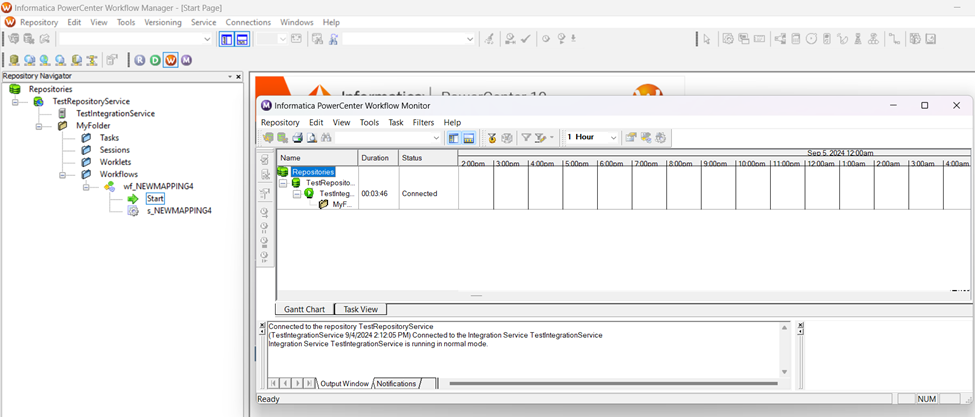
With a workflow created, you can open the PowerCenter Workflow Manager to access and start the workflow, quickly transferring Linear data into a flat file. With the CData ODBC Driver for Linear, you can configure sources and targets in PowerCenter to integrate Linear data into any of the elegant and powerful features in Informatica PowerCenter.
Ready to get started?
Download a free trial of the Linear ODBC Driver to get started:
Download NowLearn more:
 Linear ODBC Driver
The Linear ODBC Driver is a powerful tool that allows you to connect with live data from Linear, directly from any applications that support ODBC connectivity.
Access Linear data like you would a database - read Linear AgentSession, Comment, Customer, Cycle, Initiative, Integration, Issue, ProjectStatus, Release, Team, User, etc. through a standard ODBC Driver interface.