





Integrate Cursor with Live Mixpanel Data via CData Connect AI

Cursor is an AI-powered code editor that embeds conversational and agent-style assistance alongside your development workflow. By extending Cursor with MCP (Model Context Protocol) tools, you can give its AI agents secure access to external systems such as APIs and databases.
Integrating Cursor with CData Connect AI via the built-in MCP server allows the editor's AI to query, analyze, and act on live Mixpanel data without copying data into the IDE. The result is a development experience where you can chat with your governed enterprise data directly from Cursor.
This article outlines how to configure Mixpanel connectivity in Connect AI, generate the required access token, register Connect AI's MCP Server in Cursor, and then use the AI chat pane to explore live Mixpanel data.
Step 1: Configure Mixpanel connectivity for Cursor
Connectivity to Mixpanel from Cursor is made possible through CData Connect AI's Remote MCP Server. To interact with Mixpanel data from Cursor, start by creating and configuring a Mixpanel connection in CData Connect AI.
- Log into Connect AI, click Sources, and then click Add Connection
- Select Mixpanel from the Add Connection panel
-
Enter the necessary authentication properties to connect to Mixpanel.
Start by setting the Profile connection property to the location of the Mixpanel Profile on disk (e.g. C:\profiles\Mixpanel.apip). Next, set the ProfileSettings connection property to the connection string for Mixpanel (see below).
Mixpanel API Profile Settings
Obtain Mixpanel service account credentials from your organization settings under Service Accounts, then use the service account username and secret to authenticate.

- Click Save & Test
- Navigate to the Permissions tab and update user-based permissions



Add a Personal Access Token
A Personal Access Token (PAT) is used to authenticate the connection to Connect AI from Cursor. It is best practice to create a separate PAT for each integration to maintain granular access control.
- Click the gear icon () at the top right of the Connect AI app to open Settings
- On the Settings page, go to the Access Tokens section and click Create PAT
- Give the PAT a descriptive name and click Create
- The personal access token is only visible at creation, so be sure to copy it and store it securely for future use

With the Mixpanel connection configured and a PAT generated, Cursor can now connect to Mixpanel data through Connect AI.
Step 2: Configure Connect AI in Cursor
Next, configure Cursor to use Connect AI. Cursor reads MCP configuration from an mcp.json file in the user configuration directory and exposes the registered servers under the Tools & MCP settings. Once configured, Cursor's AI chat can call the tools exposed by CData Connect AI.
- Download the Cursor desktop application and complete the sign-up flow for your account
-
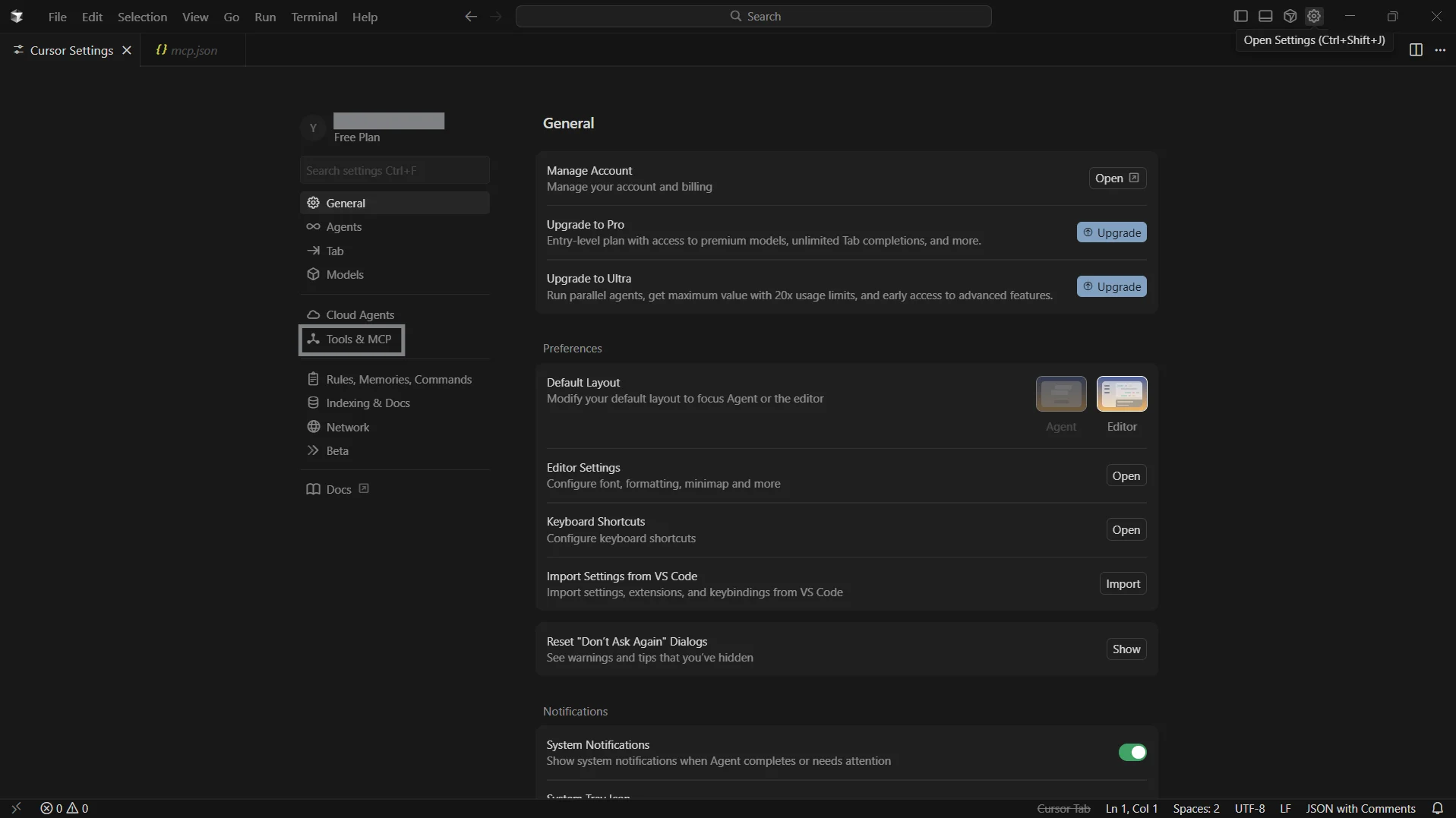
From the top menu, click Settings to open the settings panel
-
In the left navigation, open the Tools & MCP tab and click Add Custom MCP
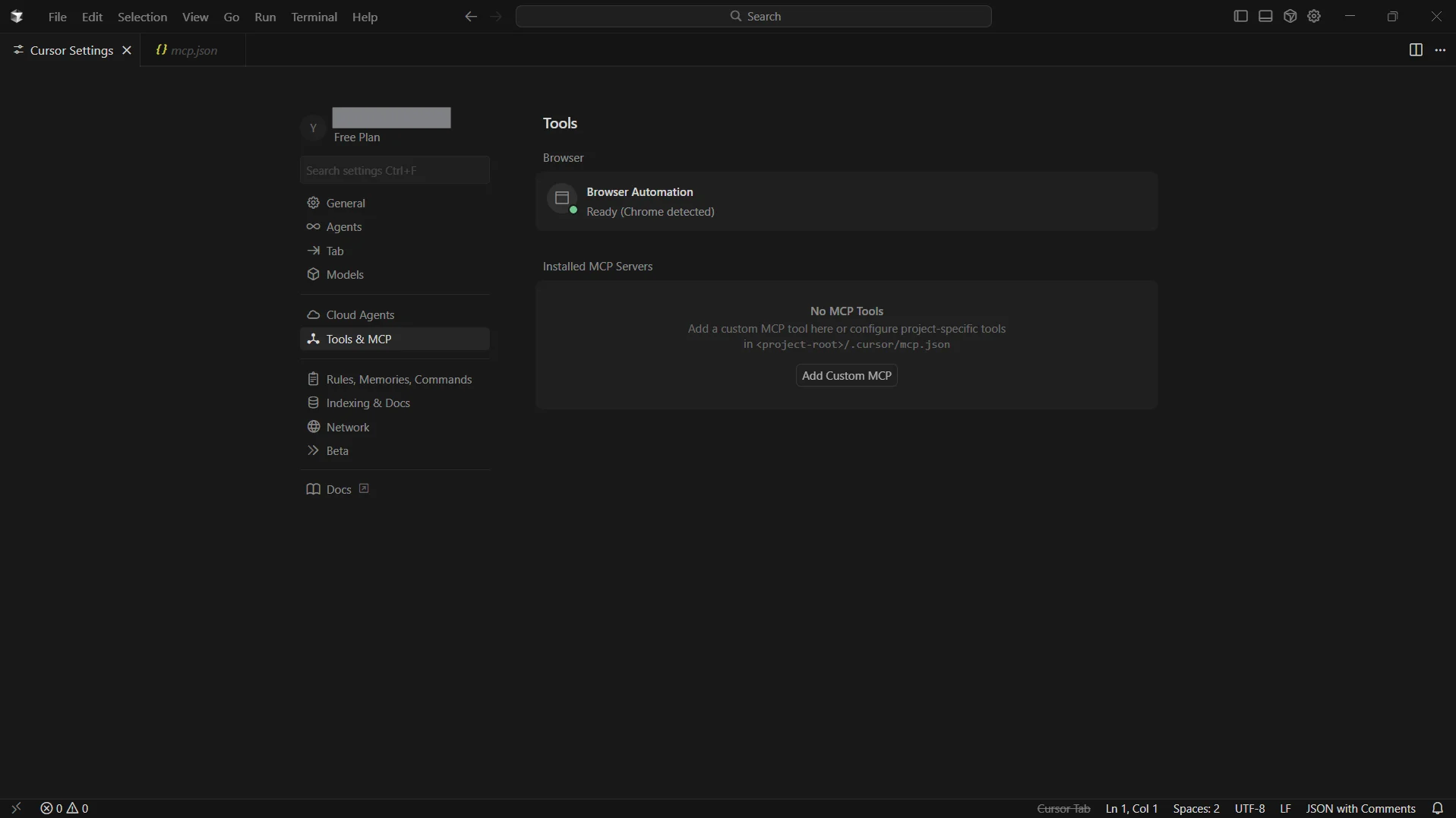
- Cursor opens an mcp.json file in the editor
-
Add the following configuration. Make sure to base64-encode your email:PAT before inserting into the header:
{
  "mcpServers": {
    "cdata-mcp": {
      "url": "https://mcp.cloud.cdata.com/mcp",
      "headers": {
        "Authorization": "Basic your_base64_encoded_email_PAT"
      }
    }
  }
}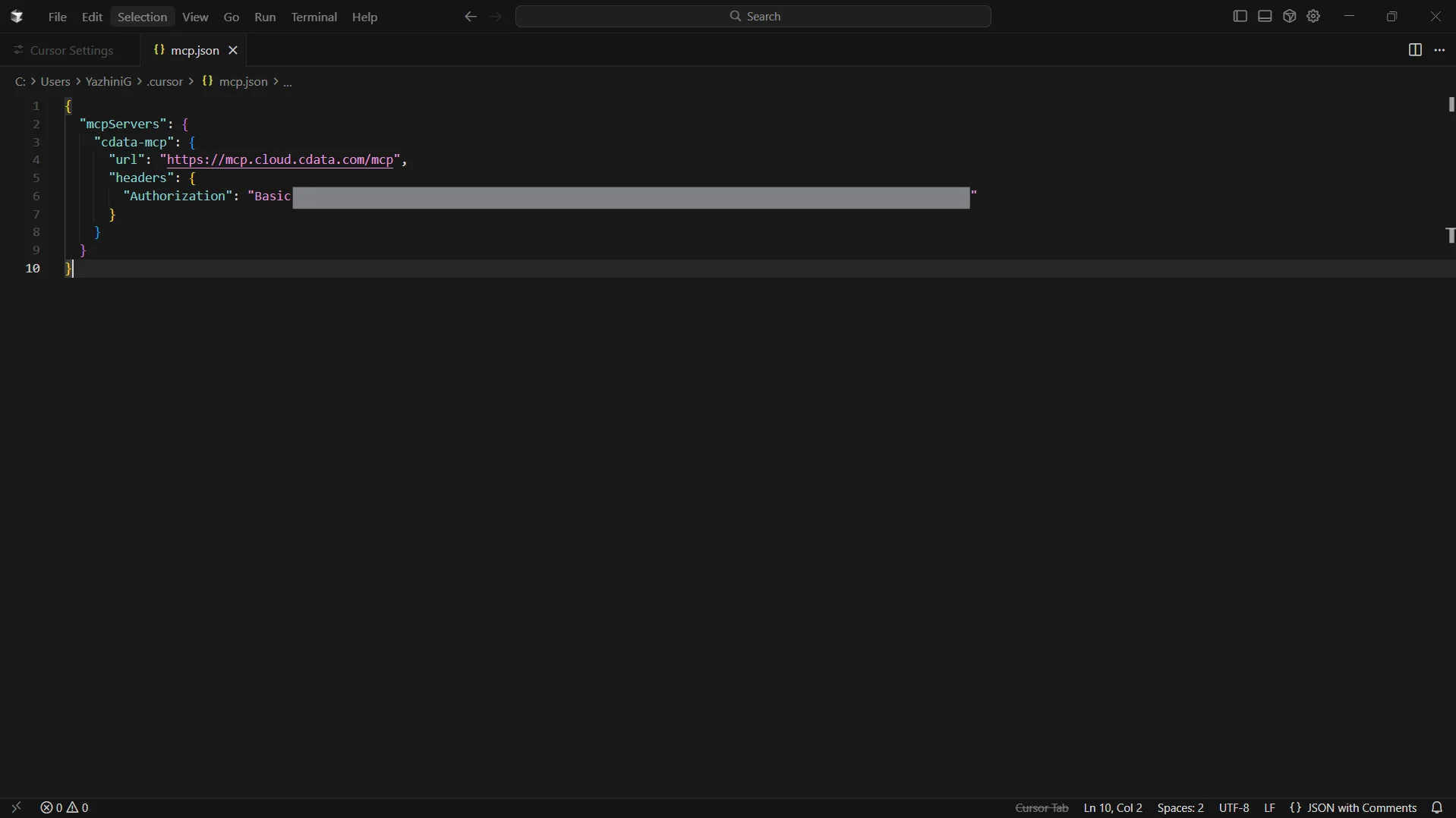
- Save the file
-
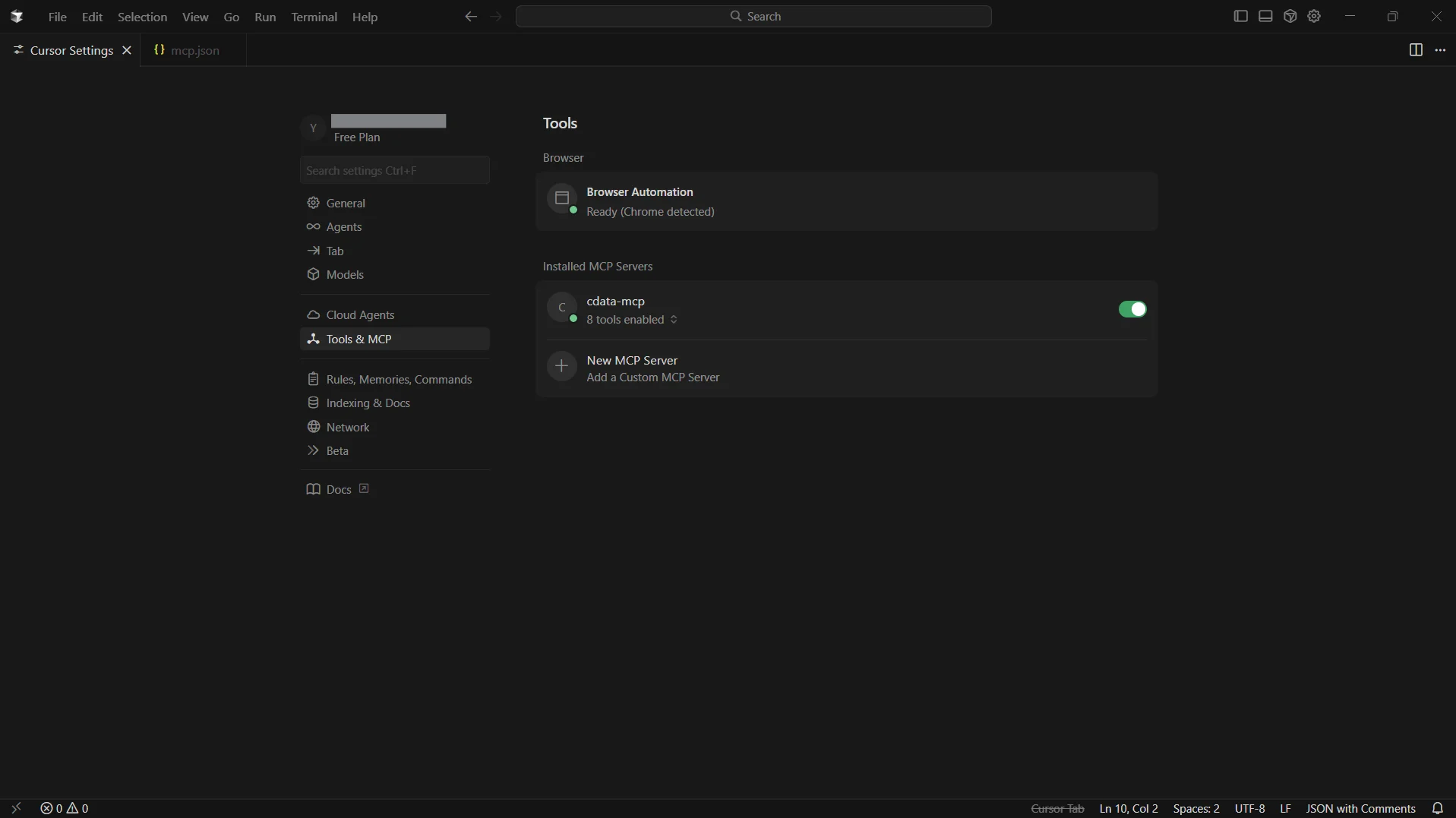
Return to Settings and then select Tools & MCP. You can now see cdata-mcp enabled with an active indicator
Step 3: Chat with CData Connect AI from Cursor
-
From the top bar, click Toggle AI Pane to open the chat window
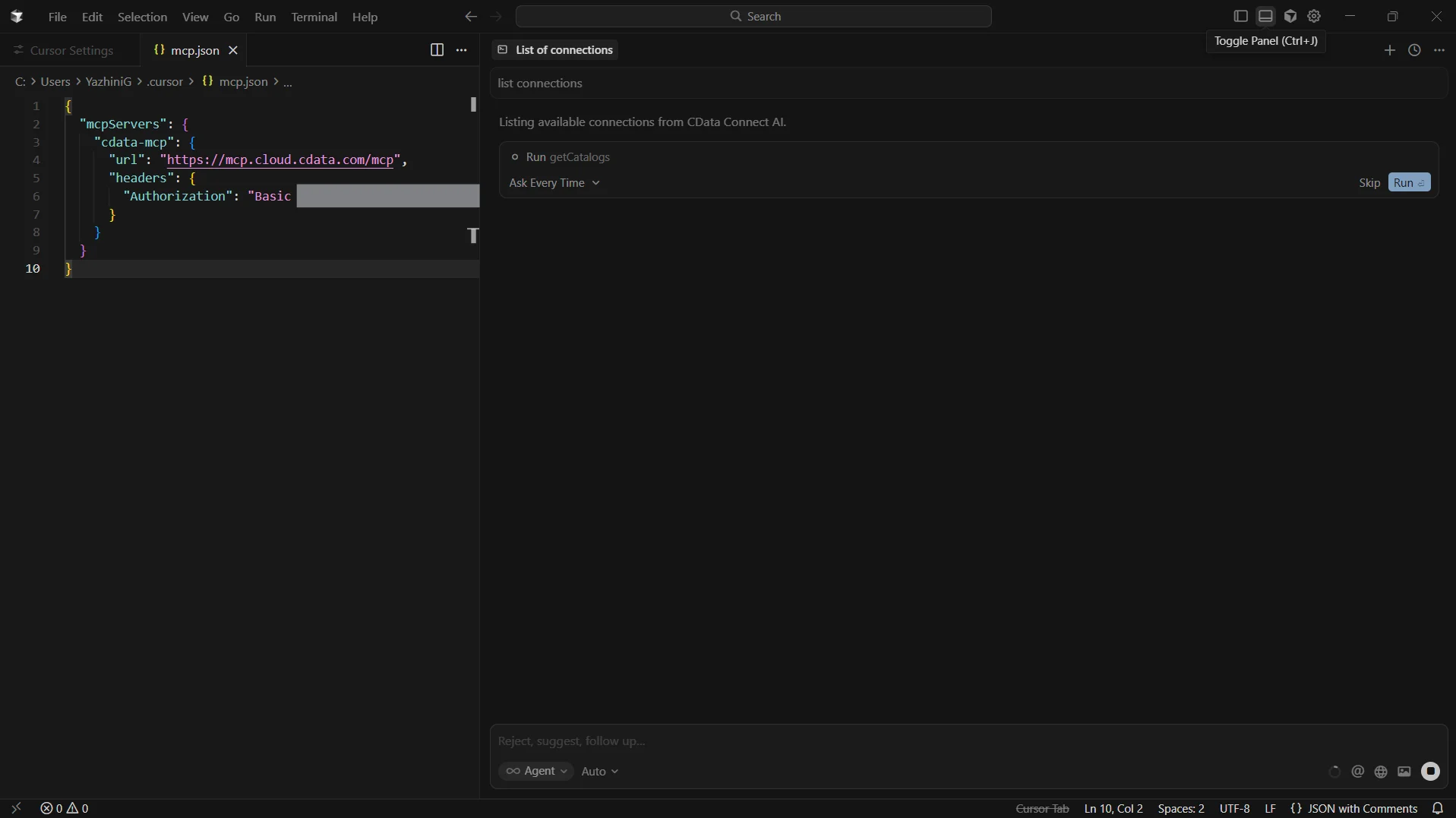
- Test the connection by entering "List connections"
-
You can also run queries like "Query Mixpanel data and list the high priority accounts"
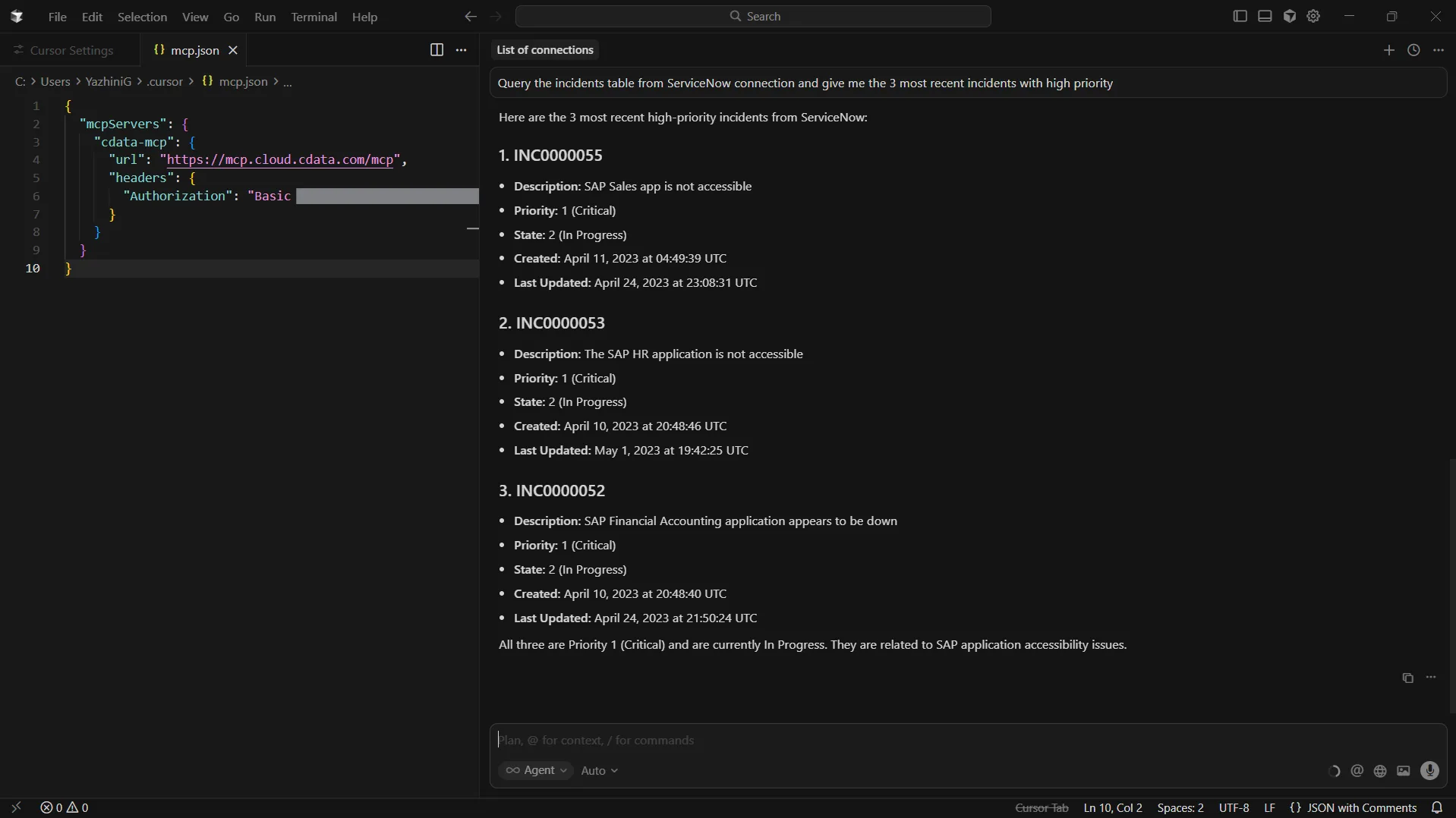
Cursor is now fully integrated with the CData Connect AI MCP Server and can act on live Mixpanel data directly from the editor.
Get CData Connect AI
To access hundreds of SaaS, Big Data, and NoSQL sources directly from your development tools, try CData Connect AI today!