





Search External Mixpanel Objects in Salesforce Connect

CData Connect AI, enables you to access Mixpanel data from cloud-based applications like the Salesforce console and mobile applications like the Salesforce Mobile App. In this article, you will use CData Connect AI and Salesforce Connect to access external Mixpanel objects alongside standard Salesforce objects.
Connect to Mixpanel from Salesforce
To work with live Mixpanel data in Salesforce Connect, we need to connect to Mixpanel from Connect AI, provide user access to the connection, and create a Workspace for the Mixpanel data.
Connect to Mixpanel from Connect AI
CData Connect AI uses a straightforward, point-and-click interface to connect to data sources.
- Log into Connect AI, click Sources, and then click Add Connection
- Select "Mixpanel" from the Add Connection panel
-
Enter the necessary authentication properties to connect to Mixpanel.
Start by setting the Profile connection property to the location of the Mixpanel Profile on disk (e.g. C:\profiles\Mixpanel.apip). Next, set the ProfileSettings connection property to the connection string for Mixpanel (see below).
Mixpanel API Profile Settings
Obtain Mixpanel service account credentials from your organization settings under Service Accounts, then use the service account username and secret to authenticate.

- Click Save & Test
-
Navigate to the Permissions tab in the Add Mixpanel Connection page and update the User-based permissions.



Add a Personal Access Token
When connecting to Connect AI through the REST API, the OData API, or the Virtual SQL Server, a Personal Access Token (PAT) is used to authenticate the connection to Connect AI. It is best practice to create a separate PAT for each service to maintain granularity of access.
- Click on the Gear icon () at the top right of the Connect AI app to open the settings page.
- On the Settings page, go to the Access Tokens section and click Create PAT.
-
Give the PAT a name and click Create.

- The personal access token is only visible at creation, so be sure to copy it and store it securely for future use.
Configure Mixpanel Endpoints for Salesforce Connect
After connecting to Mixpanel, create a workspace for your desired table(s).
-
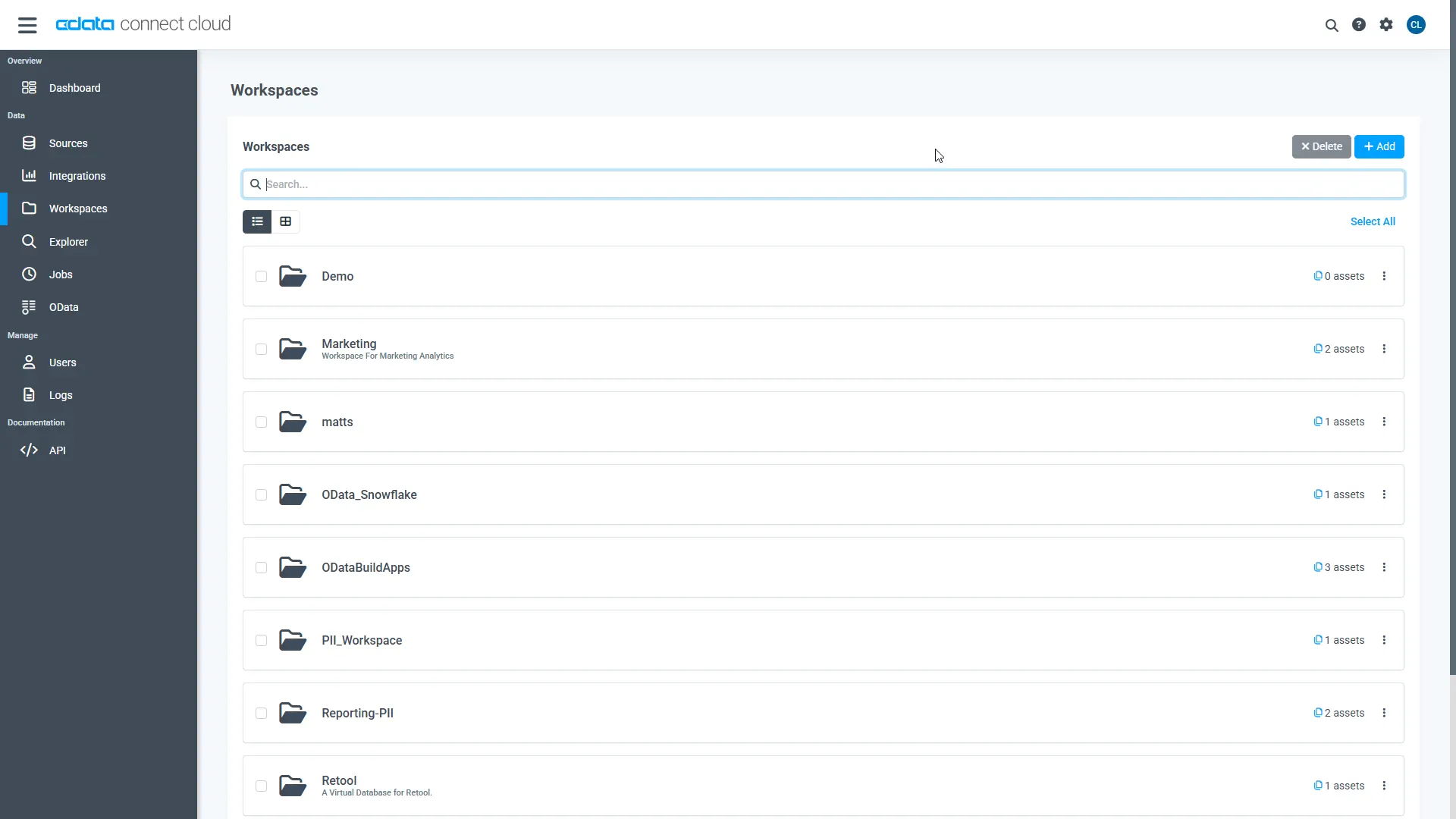
Navigate to the Workspaces page and click Add to create a new Workspace (or select an existing workspace).
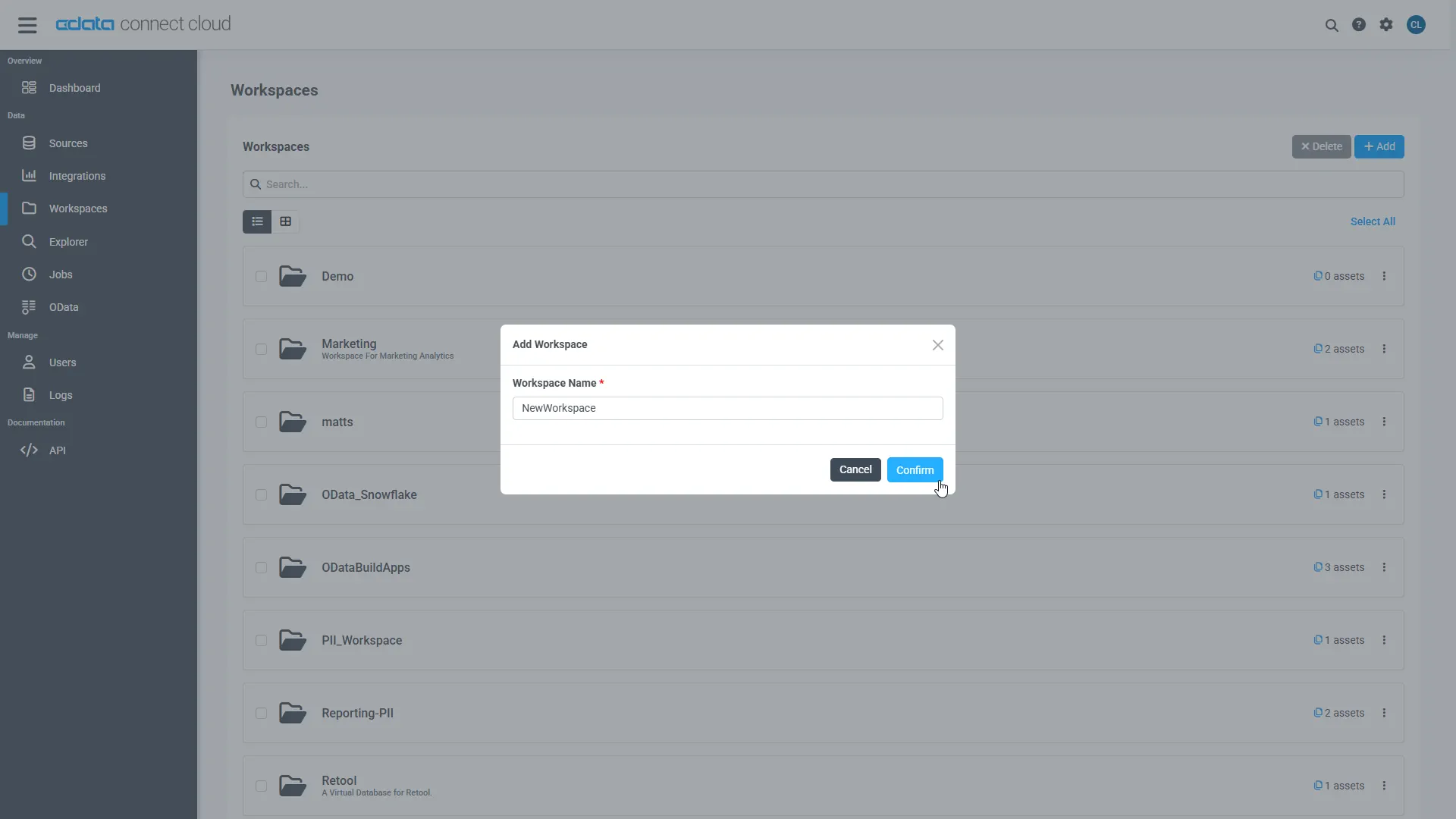
- Click Add to add new assets to the Workspace.
-
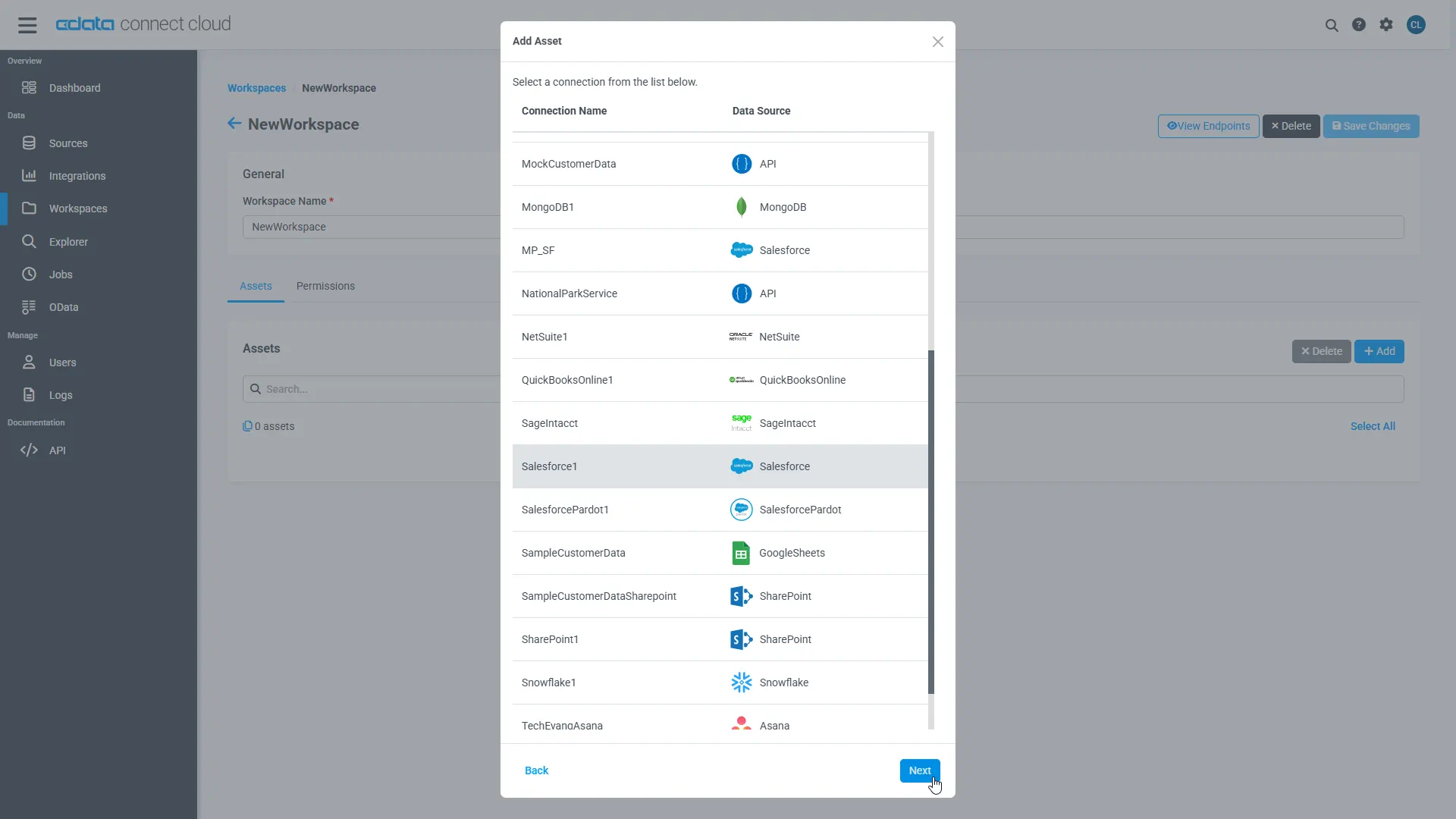
Select the Mixpanel connection (e.g. API1) and click Next.
-
Select the table(s) you wish to work with and click Confirm.
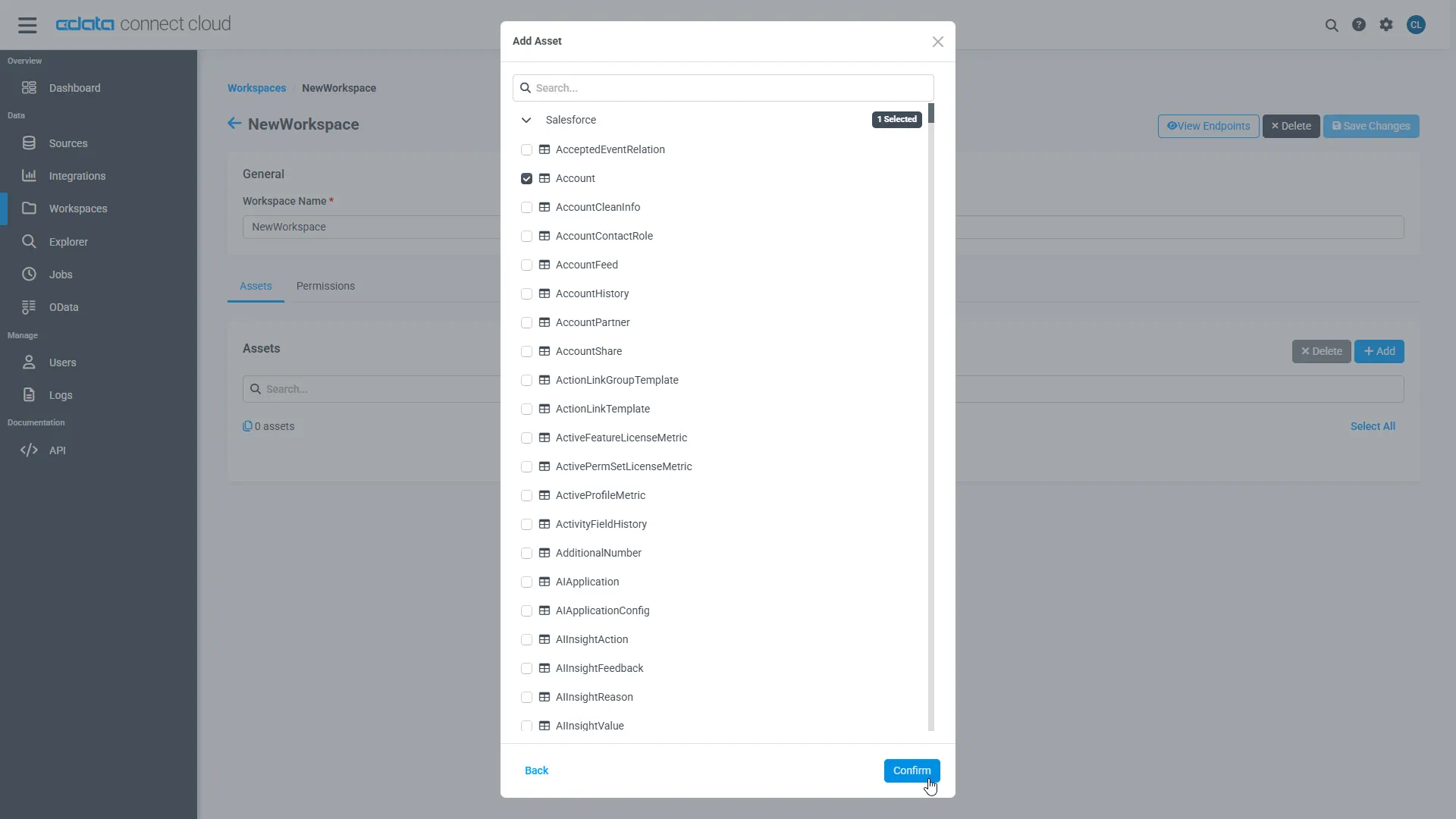
- Make note of the OData Service URL for your workspace, e.g. https://cloud.cdata.com/api/odata/{workspace_name}
With the connection, PAT, and Workspace configured, you are ready to connect to Mixpanel data from Salesforce Connect.
Connect to Mixpanel Data as an External Data Sources
Follow the steps below to connect to the feed produced by Connect AI.
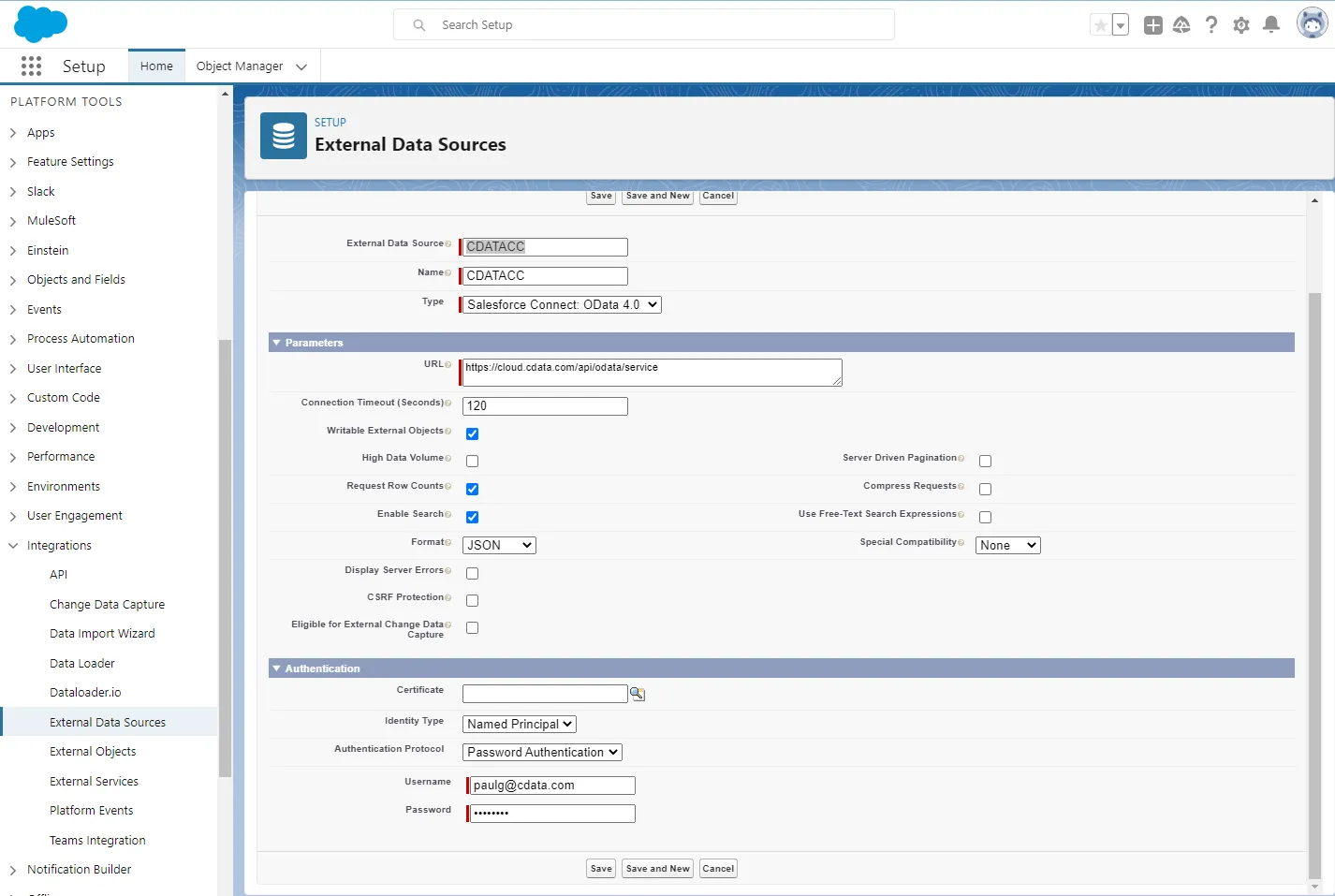
- Log into Salesforce and click Setup -> Integrations -> External Data Sources.
- Click Now External Data Sources.
- Enter values for the following properties:
- External Data Sources: Enter a label to be used in list views and reports.
- Name: Enter a unique identifier.
- Type: Select the option "Salesforce Connect: OData 4.0".
- URL: Enter the URL to the OData endpoint of Connect AI: https://cloud.cdata.com/api/odata/{workspace_name}
- Select JSON in the Format menu.
- In the Authentication section, set the following properties:
- Identity Type: If all members of your organization will use the same credentials to access Connect AI, select "Named Principal". If the members of your organization will connect with their own credentials, select "Per User".
- Authentication Protocol: Select Password Authentication to use basic authentication.
- Certificate: Enter or browse to the certificate to be used to encrypt and authenticate communications from Salesforce to your server.
- Username: Enter a CData Connect AI username (e.g. [email protected]).
- Password: Enter the user's PAT.
Synchronize Mixpanel Objects
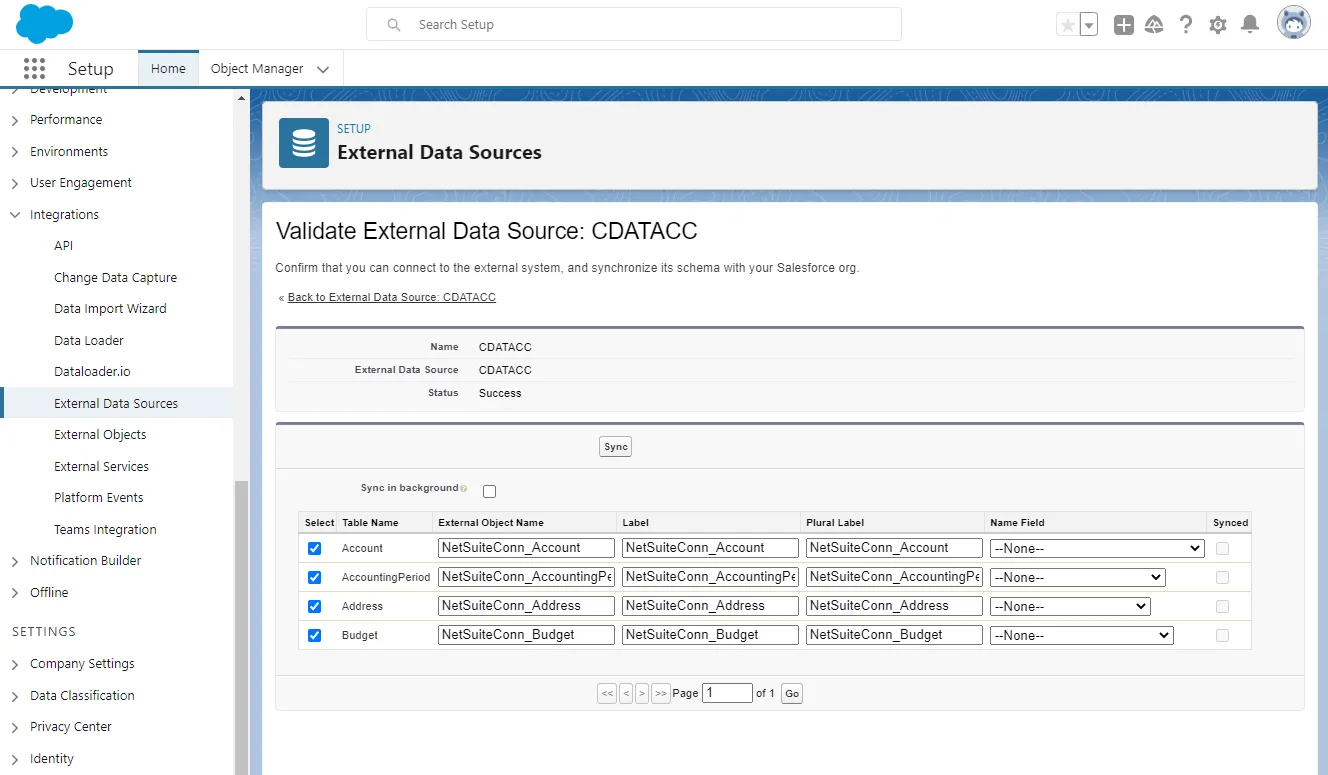
After you have created the external data source, follow the steps below to create Mixpanel external objects that reflect any changes in the data source. You will synchronize the definitions for the Mixpanel external objects with the definitions for Mixpanel tables.
- Click the link for the external data source you created.
- Click Validate and Scan.
- Select the Mixpanel tables you want to work with as external objects.
Access Mixpanel Data as Salesforce Objects
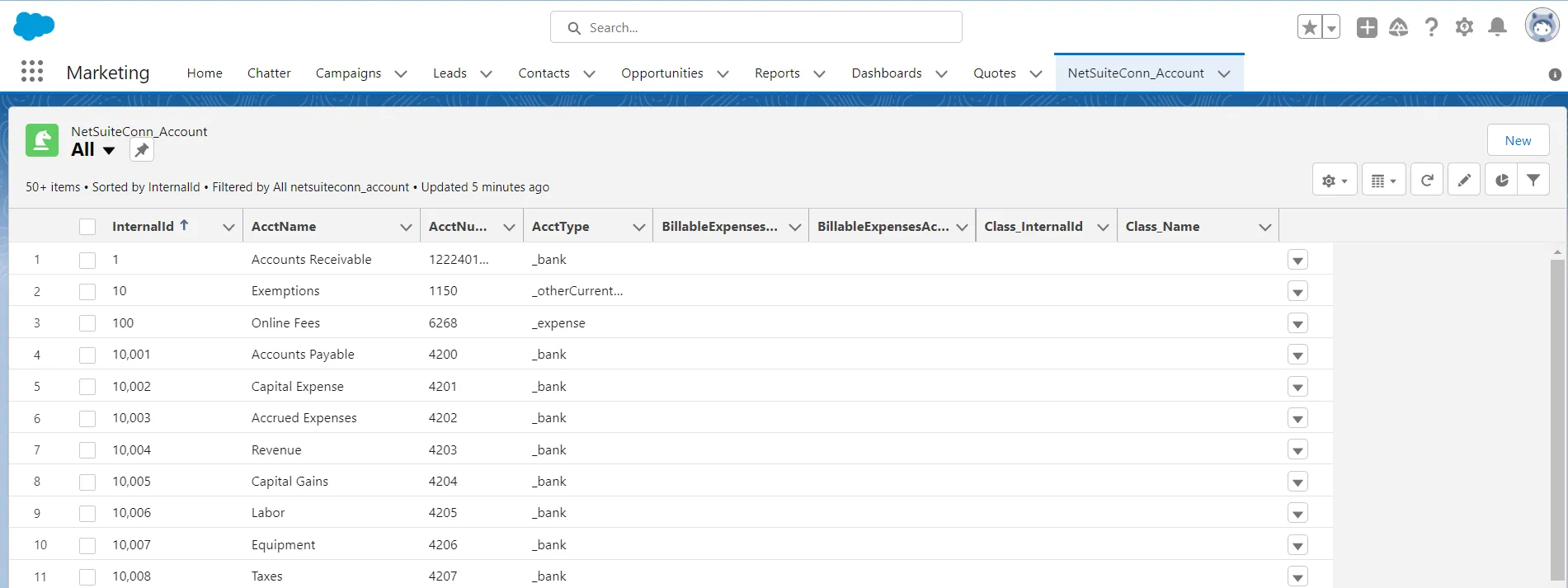
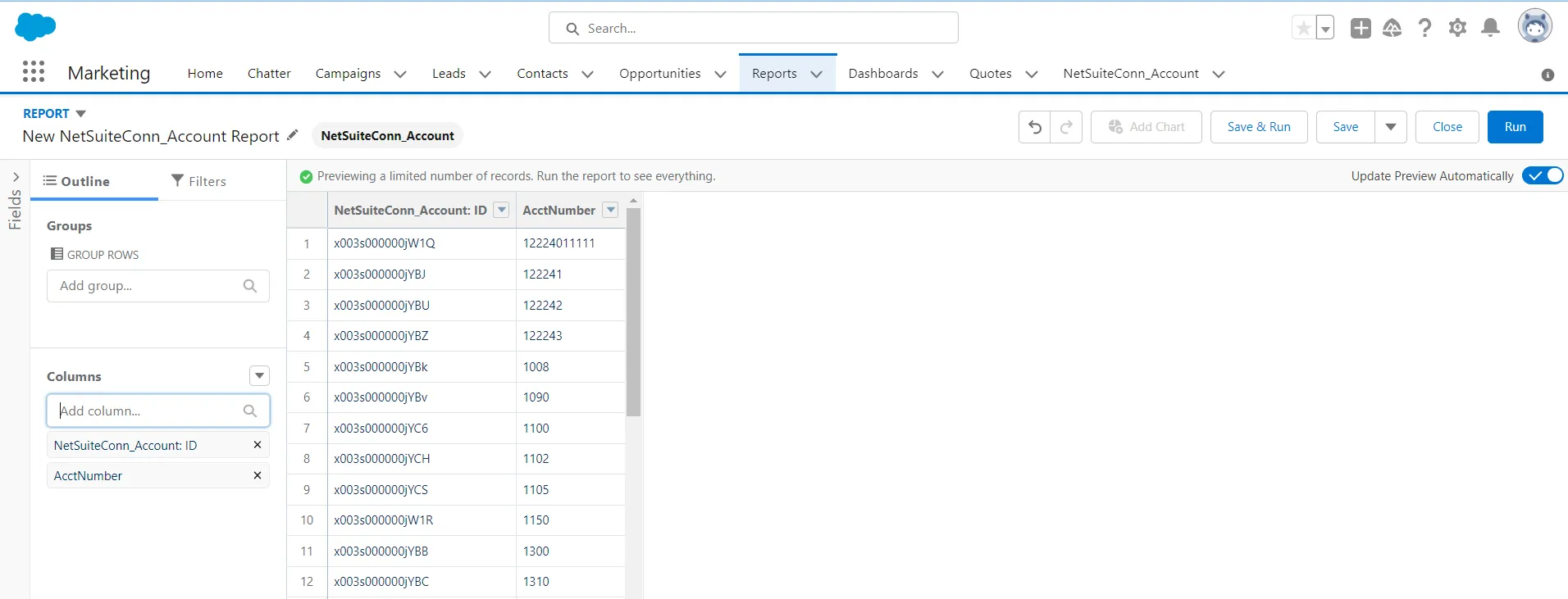
After adding Mixpanel data as an external data source and syncing Mixpanel tables as external objects, you can use the external Mixpanel objects just as you would standard Salesforce objects.
-
Create a new tab with a filter list view:
-
Create reports of external objects:
Simplified Access to Mixpanel Data from Cloud Applications
At this point, you have a direct, cloud-to-cloud connection to live Mixpanel data from Salesforce. For more information on gaining simplified access to data from more than 100 SaaS, Big Data, and NoSQL sources in cloud applications like Salesforce, refer to our Connect AI page.