





Connect to Mouseflow Data as an External Data Source using PolyBase

PolyBase for SQL Server allows you to query external data by using the same Transact-SQL syntax used to query a database table. When paired with the CData ODBC Driver for Mouseflow, you get access to your Mouseflow data directly alongside your SQL Server data. This article describes creating an external data source and external tables to grant access to live Mouseflow data using T-SQL queries.
NOTE: PolyBase is only available on SQL Server 19 and above.
CData Connect AI provides a pure SQL Server interface for Mouseflow, allowing you to query data from Mouseflow without replicating the data to a natively supported database. Using optimized data processing out of the box, CData Connect AI pushes all supported SQL operations (filters, JOINs, etc.) directly to Mouseflow, leveraging server-side processing to return the requested Mouseflow data quickly.
Configure Mouseflow Connectivity for PolyBase
Connectivity to Mouseflow from PolyBase is made possible through CData Connect AI. To work with Mouseflow data from PolyBase, we start by creating and configuring a Mouseflow connection.
- Log into Connect AI, click Sources, and then click Add Connection
- Select "Mouseflow" from the Add Connection panel
-
Enter the necessary authentication properties to connect to Mouseflow.
Start by setting the Profile connection property to the location of the Mouseflow Profile on disk (e.g. C:\profiles\Mouseflow.apip). Next, set the ProfileSettings connection property to the connection string for Mouseflow (see below).
Mouseflow API Profile Settings
Retrieve your API key from API > API Key within your Mouseflow account settings. Your region (us or eu) can be determined from your account URL.

- Click Save & Test
-
Navigate to the Permissions tab in the Add Mouseflow Connection page and update the User-based permissions.



Add a Personal Access Token
When connecting to Connect AI through the REST API, the OData API, or the Virtual SQL Server, a Personal Access Token (PAT) is used to authenticate the connection to Connect AI. It is best practice to create a separate PAT for each service to maintain granularity of access.
- Click on the Gear icon () at the top right of the Connect AI app to open the settings page.
- On the Settings page, go to the Access Tokens section and click Create PAT.
-
Give the PAT a name and click Create.

- The personal access token is only visible at creation, so be sure to copy it and store it securely for future use.
With the connection configured and a PAT generated, you are ready to connect to Mouseflow data from Polybase.
Create an External Data Source for Mouseflow Data
After configuring the connection, you need to create a credential database for the external data source.
Creating a Credential Database
Execute the following SQL command to create credentials for the external data source connected to Mouseflow data.
NOTE: Set IDENTITY to your Connect AI username and set SECRET to your Personal Access Token.
CREATE DATABASE SCOPED CREDENTIAL ConnectAICredentials
WITH IDENTITY = 'yourusername', SECRET = 'yourPAT';
Create an External Data Source for Mouseflow
Execute a CREATE EXTERNAL DATA SOURCE SQL command to create an external data source for Mouseflow with PolyBase:
CREATE EXTERNAL DATA SOURCE ConnectAIInstance
WITH (
  LOCATION = 'sqlserver://tds.cdata.com:14333',
  PUSHDOWN = ON,
  CREDENTIAL = ConnectAICredentials
);
Create External Tables for Mouseflow
After creating the external data source, use CREATE EXTERNAL TABLE statements to link to Mouseflow data from your SQL Server instance. The table column definitions must match those exposed by CData Connect AI. You can use the Data Explorer in Connect AI to see the table definition.
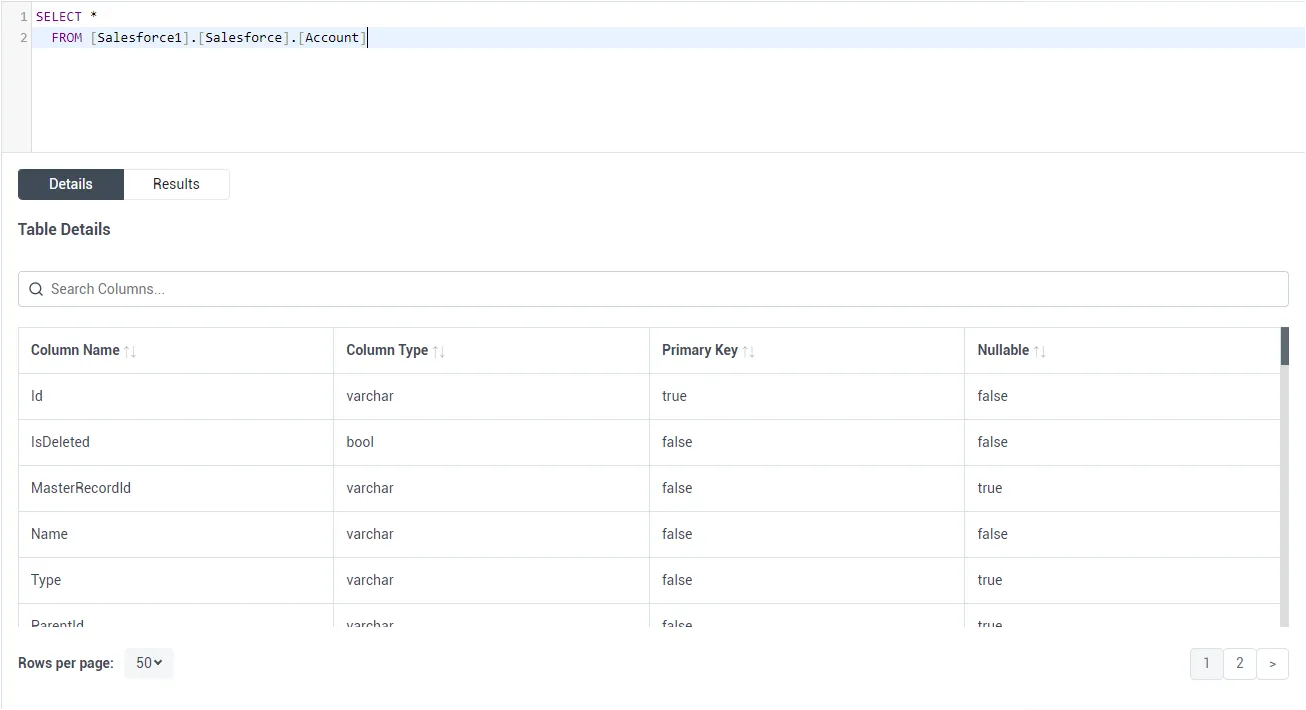
Sample CREATE TABLE Statement
Execute a CREATE EXTERNAL TABLE SQL command to create the external table(s), using the collation and setting the LOCATION to three-part notation for the connection, catalog, and table. The statement to create an external table based on a Mouseflow FeedbackCampaigns would look similar to the following.
CREATE EXTERNAL TABLE FeedbackCampaigns(
  WebsiteId COLLATE [nvarchar](255) NULL,
  CampaignId COLLATE [nvarchar](255) NULL,
  ...
) WITH (
  LOCATION='API1.API.FeedbackCampaigns',
  DATA_SOURCE=ConnectAIInstance
);
Having created external tables for Mouseflow in your SQL Server instance, you are now able to query local and remote data simultaneously. To get live data access to hundreds of SaaS, Big Data, and NoSQL sources directly from your SQL Server database, try CData Connect AI today!