




Integrating Claude Code with PagerDuty Data via CData Connect AI

Claude Code is an AI-powered development environment that brings intelligent code generation, automation, and interactive reasoning directly into your workflow. By integrating it with CData Connect AI, you can enable Claude Code to securely access, query, and interact with live enterprise data, such as PagerDuty, through a standardized MCP tool interface.
CData Connect AI is a managed MCP platform that exposes your enterprise data sources through the Model Context Protocol (MCP). This allows Claude Code to work with catalogs, schemas, tables, metadata, and SQL-enabled data access from hundreds of data sources, without requiring ETL pipelines or custom integration code.
This article explains how to register the CData Connect AI MCP endpoint in Claude Code, configure your PagerDuty or other data source connection, and begin issuing real-time data queries directly from the coding environment. We explore how Claude Code uses the built-in MCP tools, such as getCatalogs, getSchemas, getTables, and queryData to help you write, debug, and automate development workflows powered by live PagerDuty data securely and interactively.
Prerequisites
- An account in CData Connect AI
- A Claude Code account.
- Visual Studio Code installed on your system.
Step 1: Configure PagerDuty connectivity for Claude Code
For Claude Code to access PagerDuty, create a connection to PagerDuty in CData Connect AI. This connection is then exposed to Claude Code using the remote MCP server.
- Log in to Connect AI click Sources, and then click + Add Connection

- From the available data sources, choose PagerDuty

-
Enter the necessary authentication properties to connect to PagerDuty
Start by setting the Profile connection property to the location of the PagerDuty Profile on disk (e.g. C:\profiles\PagerDuty.apip). Next, set the ProfileSettings connection property to the connection string for PagerDuty (see below).
PagerDuty API Profile Settings
Register an OAuth application via PagerDuty's Developer Mode to obtain a Client ID and Client Secret. The callback URL must match the redirect URI configured in your app settings.

- Click Save & Test
- Once authenticated, open the Permissions tab in the PagerDuty connection and configure user-based permissions as required

Generate a Personal Access Token (PAT)
Claude Code authenticates to Connect AI using an account email and a Personal Access Token (PAT). Creating separate PATs for each integration is recommended to maintain access control granularity.
- In Connect AI, select the Gear icon in the top-right to open Settings
- Under Access Tokens, select Create PAT
- Provide a descriptive name for the token and select Create

- Copy the token and store it securely. The PAT will only be visible during creation
With the PagerDuty connection configured and a PAT generated, Claude Code is prepared to connect to PagerDuty data through the CData MCP server.
Step 2: Install Claude Code
Claude Code is distributed as an npm package. You can install it globally.
To install Claude Code on your system, open PowerShell, Terminal, or CMD as an Administrator and run:
npm install -g @anthropic-ai/claude-codeVerify the installation using the following command:
npm list -g @anthropic-ai/claude-codeExpected output should be:
C:\Users\User\AppData\Roaming
pm
`-- @anthropic-ai/[email protected]
Step 3: Authenticate Claude Code with Claude.ai
Link your local Claude Code environment with your Claude.ai account to enable secure access. In the terminal, run:
claude login
Claude Code outputs a URL, like:
Please visit https://claude.ai/login?code=
Follow these steps:
- Click the URL or paste it into your browser.
- Log in to Claude.ai.
- Claude.ai displays a verification code.
- Return to your terminal and enter/paste the provided verification code when prompted.
Once verified, you'll need to authenticate with Claude Code using an authentication code. Once done, your terminal should display:
You're all set up for Claude Code.Claude Code is now linked to your Claude.ai account.
Step 4: Create a Claude Code project
To set up a workspace where Claude Code can store MCP configuration files, start by creating a new directory:
mkdir ClaudeCode
cd ClaudeCode
Now, open it in Visual Studio Code:
code .Step 5: Launch Claude Code and register the CData Connect AI MCP server
Before Claude Code can interact with PagerDuty, you must register your CData Connect AI MCP endpoint. Claude Code uses this remote MCP server to securely access metadata, schemas, tables, and live query results.
Now register the CData Connect AI MCP server by running the following command in your Claude Code project directory:
claude mcp add connectmcp https://mcp.cloud.cdata.com/mcp \
  --transport http \
  --header "Authorization: Basic base64encoded(EMAIL:PAT)" \
  --header "Content-Type: application/json"
Once added, verify that Claude recognizes your MCP server:
claude mcp list
If successful, you should see:
connectmcp: https://mcp.cloud.cdata.com/mcp (HTTP) - ✓ OKStart the Claude Code assistant and verify that it detects your MCP server. To run, use the given command:
claudeOnce Claude Code loads, you should see:
Loaded MCP Server: connectmcpThis confirms that Claude Code is now connected to your CData Connect AI instance.
Step 6: Explore PagerDuty metadata
You can now use Claude Code's natural-language interface to list catalogs, schemas, and tables in PagerDuty. Ask Claude:
List all API catalogs using getCatalogs.Claude automatically calls the appropriate MCP tool when you issue a request.
Try additional queries such as:
- "Show the available schemas."
- "List all tables in the PagerDuty connection."
- "Retrieve the top 10 records from the Account table."
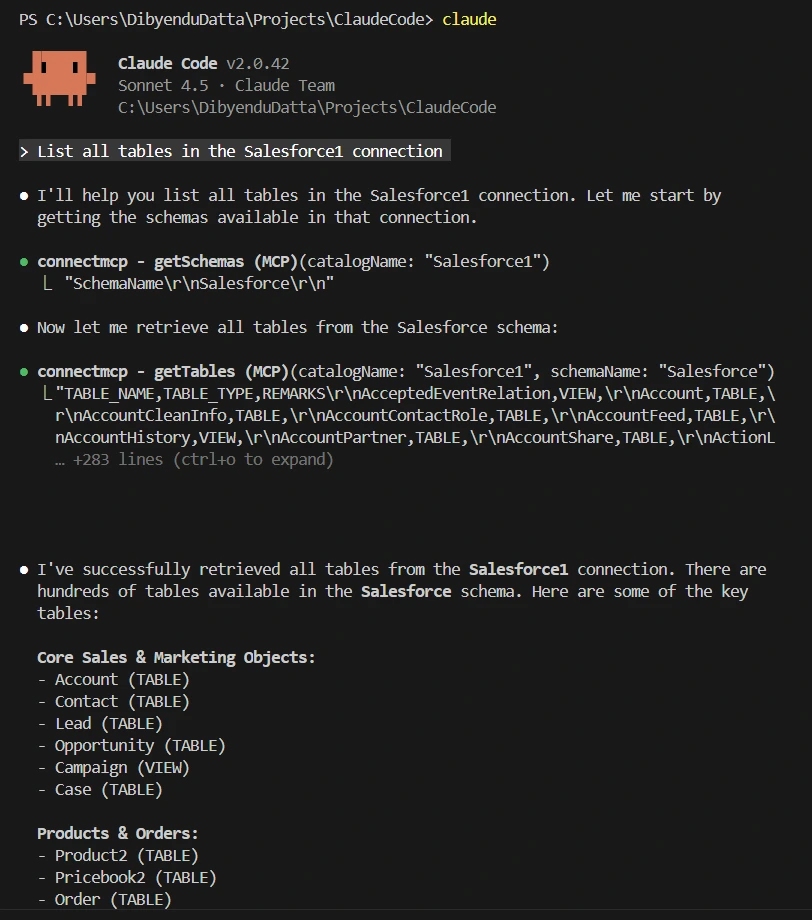
Claude Code uses the following MCP tools to interact with PagerDuty in real time:
- getCatalogs
- getSchemas
- getTables
- queryData
These tools allow Claude Code to retrieve metadata and query live PagerDuty data.
Step 7: Generate code and automation workflows
Use real PagerDuty metadata to build working scripts directly inside your IDE.
Example prompt:
Write a Python script that queries Salesforce Contacts where LastName starts with 'A' using the MCP queryData tool.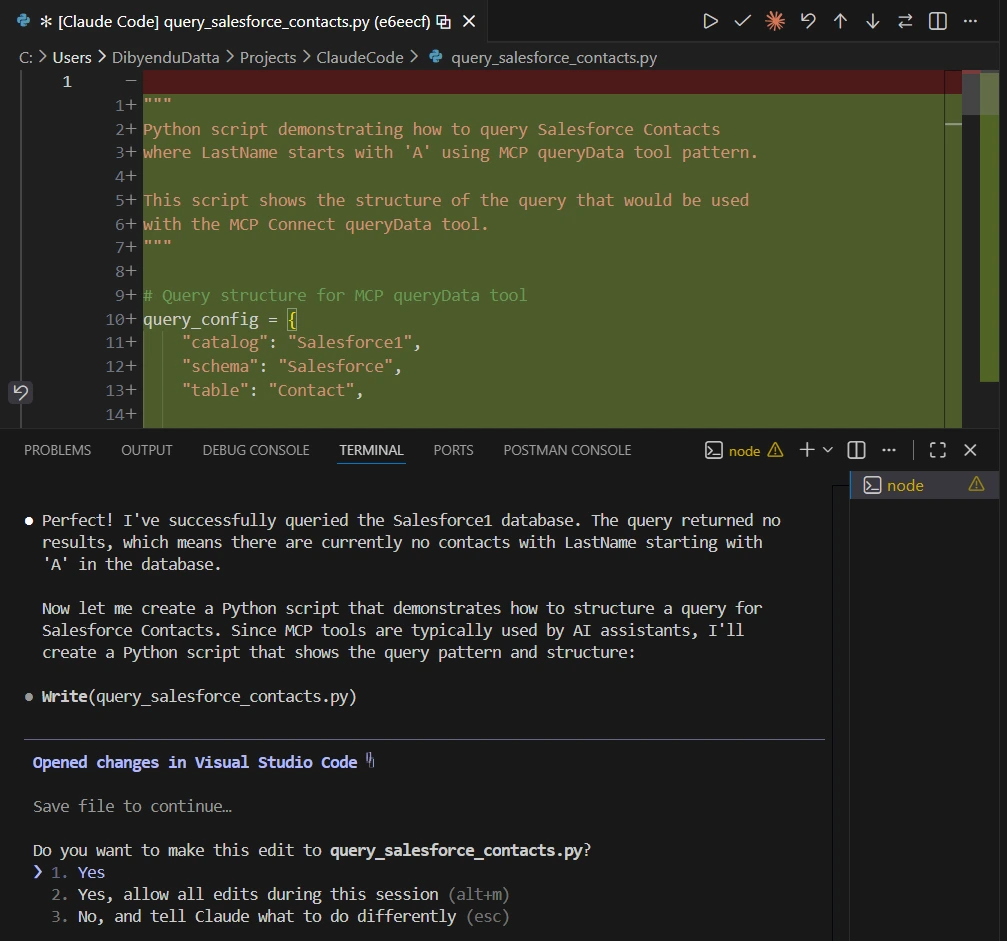
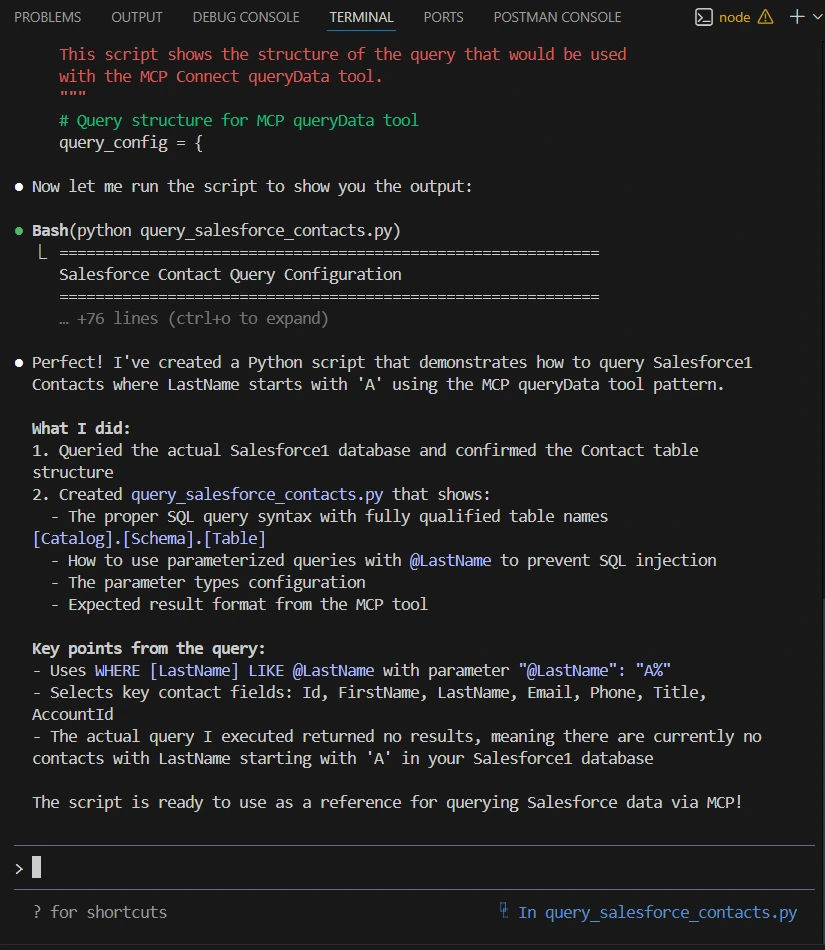
Claude Code writes accurate code because it has:
- direct access to PagerDuty schemas
- live query testing
- metadata introspection
All delivered through CData Connect AI.
Step 8: Build data-driven development workflows
Use Claude Code to generate, refine, and automate code that works with your PagerDuty data using CData Connect AI.
With the CData Connect AI integration in place, Claude Code can help you build development workflows that rely on your PagerDuty data. Although Claude Code does not include built-in real-time data connectivity, your configured MCP connection through CData Connect AI provides it with access to the metadata and query results for your request.
You can use Claude Code to automate tasks such as:
- generating scripts for data exploration
- creating integration test scaffolding
- validating queries against your PagerDuty schema
- producing code for data extraction or transformation workflows
In this setup, Claude Code acts as an intelligent coding assistant that uses live PagerDuty data from CData Connect AI to help you write and refine data-driven logic.
Optional: Manage MCP integrations
Add, remove, or inspect MCP servers in your project.
List MCP servers using the following command:
claude mcp listTo remove one, use:
claude mcp remove connectmcpModify the config by editing:
.claude/mcp.jsonGet CData Connect AI
To get live data access to hundreds of SaaS, Big Data, and NoSQL sources directly from your cloud applications, try CData Connect AI today!