





How to Generate SQL Command Schemas for the CData BizTalk Adapter for PingOne

This article will show how to generate a schema to process PingOne data retrieved using the CData BizTalk Adapter. You will generate a schema for a SELECT command.
This guide shows how to use the CData BizTalk Adapter for PingOne to execute SQL commands to PingOne.
Add the Adapter for PingOne to Your Project
Follow the steps below to add the adapter to a BizTalk Server project.
- If you have not already done so, create a new BizTalk Server project in Visual Studio.
- Right-click on the project in the Solution Explorer and click Add -> Add Generated Items.
- Select Add Adapter Metadata in the resulting dialog box.
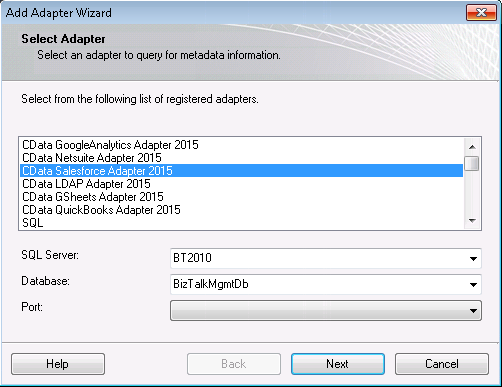
- In the resulting Add Adapter wizard, select the adapter from the list.
- In the Port menu, leave the selection blank. You can also select a receive location or send port that has the adapter configured as its transport type.
Generate a Schema for an SQL Command
After you select the adapter in the Add Adapter wizard, the Schema wizard is displayed. Follow the steps below to configure connection properties and retrieve the metadata for the results of the command.
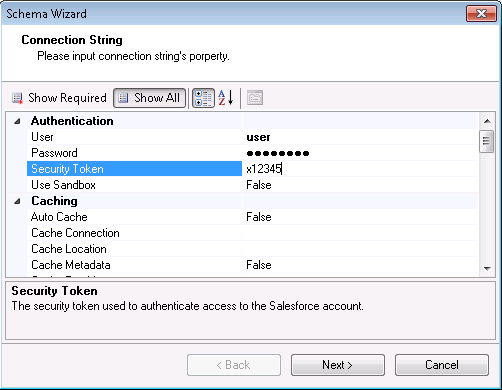
- In the Connection String page, enter authentication credentials and other connection properties, if you did not select an adapter that you have already configured in your BizTalk application. Below is a typical connection string:
AuthScheme=OAuth;WorkerAppEnvironmentId=eebc33a8-xxxx-4f3a-yyyy-d3e5262fd49e;Region=NA;OAuthClientId=client_id;OAuthClientSecret=client_secret;InitiateOAuth=GETANDREFRESH;
To connect to PingOne, configure these properties:
- Region: The region where the data for your PingOne organization is being hosted.
- AuthScheme: The type of authentication to use when connecting to PingOne.
- Either WorkerAppEnvironmentId (required when using the default PingOne domain) or AuthorizationServerURL, configured as described below.
Configuring WorkerAppEnvironmentId
WorkerAppEnvironmentId is the ID of the PingOne environment in which your Worker application resides. This parameter is used only when the environment is using the default PingOne domain (auth.pingone). It is configured after you have created the custom OAuth application you will use to authenticate to PingOne, as described in Creating a Custom OAuth Application in the Help documentation.
First, find the value for this property:
- From the home page of your PingOne organization, move to the navigation sidebar and click Environments.
- Find the environment in which you have created your custom OAuth/Worker application (usually Administrators), and click Manage Environment. The environment's home page displays.
- In the environment's home page navigation sidebar, click Applications.
- Find your OAuth or Worker application details in the list.
-
Copy the value in the Environment ID field.
It should look similar to:
WorkerAppEnvironmentId='11e96fc7-aa4d-4a60-8196-9acf91424eca'
Now set WorkerAppEnvironmentId to the value of the Environment ID field.
Configuring AuthorizationServerURL
AuthorizationServerURL is the base URL of the PingOne authorization server for the environment where your application is located. This property is only used when you have set up a custom domain for the environment, as described in the PingOne platform API documentation. See Custom Domains.
Authenticating to PingOne with OAuth
PingOne supports both OAuth and OAuthClient authentication. In addition to performing the configuration steps described above, there are two more steps to complete to support OAuth or OAuthCliet authentication:
- Create and configure a custom OAuth application, as described in Creating a Custom OAuth Application in the Help documentation.
- To ensure that the driver can access the entities in Data Model, confirm that you have configured the correct roles for the admin user/worker application you will be using, as described in Administrator Roles in the Help documentation.
- Set the appropriate properties for the authscheme and authflow of your choice, as described in the following subsections.
OAuth (Authorization Code grant)
Set AuthScheme to OAuth.
Desktop Applications
Get and Refresh the OAuth Access Token
After setting the following, you are ready to connect:
- InitiateOAuth: GETANDREFRESH. To avoid the need to repeat the OAuth exchange and manually setting the OAuthAccessToken each time you connect, use InitiateOAuth.
- OAuthClientId: The Client ID you obtained when you created your custom OAuth application.
- OAuthClientSecret: The Client Secret you obtained when you created your custom OAuth application.
- CallbackURL: The redirect URI you defined when you registered your custom OAuth application. For example: https://localhost:3333
When you connect, the driver opens PingOne's OAuth endpoint in your default browser. Log in and grant permissions to the application. The driver then completes the OAuth process:
- The driver obtains an access token from PingOne and uses it to request data.
- The OAuth values are saved in the location specified in OAuthSettingsLocation, to be persisted across connections.
The driver refreshes the access token automatically when it expires.
For other OAuth methods, including Web Applications, Headless Machines, or Client Credentials Grant, refer to the Help documentation.
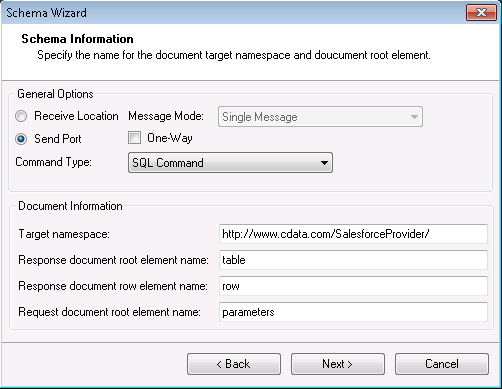
- In the General Options section on the next page, Schema Information, select Send Port or Receive Location, depending on the adapter configuration.
- If you want to generate the schema for the entire result set, select the Single Message option in the Message Mode menu. If you want to generate one schema for each row in the result set, select the Message Per Row option and confirm that the root element of the message is 'row'.
- In the Command Type menu, select SQL Command.
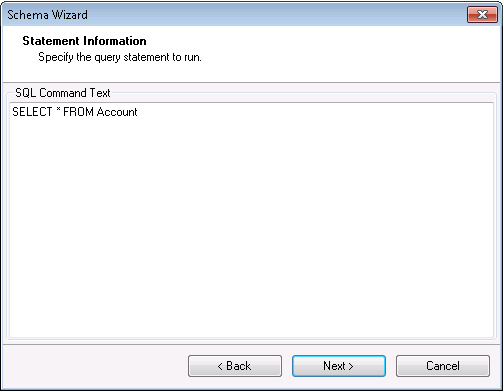
In the SQL Command Text box on the Statement Information page, enter an SQL command. (If you have configured a receive location or send port, the SQL command you configured is entered in the box.) This example uses the query below:
SELECT Id, Username FROM [CData].[Administrators].Users WHERE EmployeeType = 'Contractor'
- Confirm the settings in the summary displayed by the wizard and click Finish to generate the schema.xsd file.
Processing Schemas
To use schemas in a simple BizTalk application, see the tutorial.