





Integrating Claude Code CLI with Sage X3 Cloud Data via CData CLI

Claude Code is Anthropic's agentic command-line tool that brings AI assistance directly into your development workflow. Running natively in the terminal, it can plan and execute multi-step tasks: reading files, running commands, and making decisions across your project without constant manual input. Its ability to load and follow agent skill files makes it especially well-suited for structured workflows, making it a natural fit for connecting to external data sources through tools like CData CLI. With Claude Code, you can describe your data goals in plain language and let the agent handle driver setup, connection configuration, and query execution automatically.
This article details step-by-step directions for how to connect Sage X3 Cloud data to Claude Code CLI through CData CLI.
Prerequisites
- Claude Code installed (either Terminal CLI or Desktop):
- Terminal CLI installed
- Desktop installed
- CData CLI installed
Step 1: Download skill (one-time setup)
The CData CLI should always be used with the official Skill.
- The official CData CLI Skill on GitHub can be downloaded using npx skills through the terminal:
npx skills add CDataSoftware/cli-skills - Follow prompts in terminal to install skill for Claude Code

Step 2: Set up project directory
A project directory should be created to contain all project files. Below are examples for using Claude Code in either the Terminal or Desktop app:
Claude Code in Terminal CLI
Navigate to directory within the terminal and start a session using the claude command

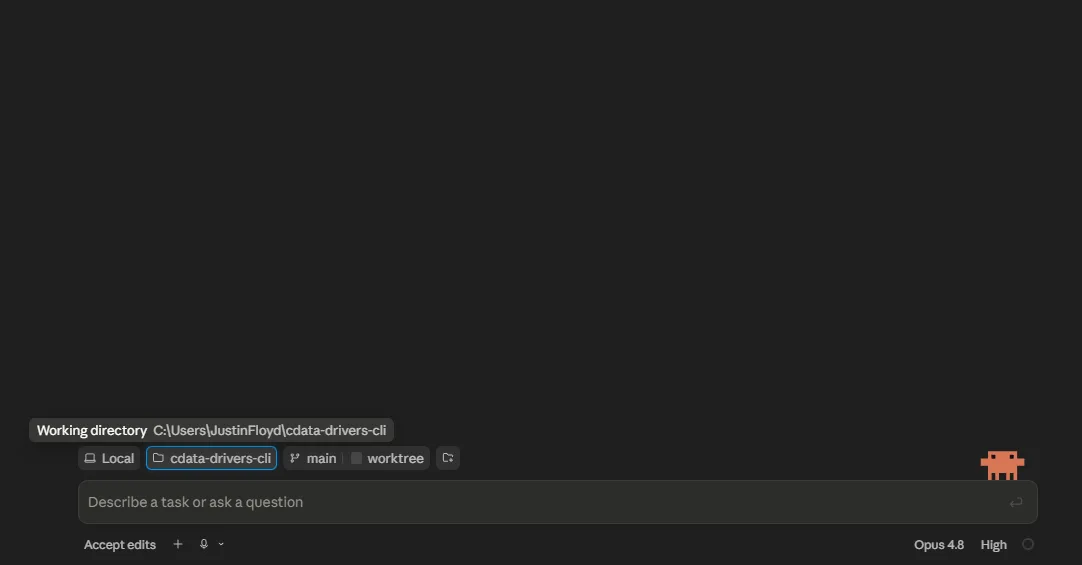
Claude Code Desktop application
Select the working directory within the desktop app as shown below.
Step 3: Establish driver and connection
Describe what you hope to accomplish in this session with the CLI and Sage X3 Cloud data. For example, consider the following prompt:
"I would like to build a command line app that connects to Sage X3 Cloud data and checks for updates from BPCUSTOMER. Make sure to include data from important columns like BPCNUM and BPCNAM."
This should automatically load the Skill and kick off the following process. You can always manually prompt the agent for each of the following steps.
- Driver setup: Check for existing CData Sage X3 Cloud driver, or search and download a new one:
cdatacli drivers listcdatacli drivers search --driver "Sage X3 Cloud"cdatacli drivers download --artifact-id <artifact-id>
- Activation: Activate Sage X3 Cloud driver with a single command for trial or full license:
cdatacli drivers activate "Sage X3 Cloud" --name "<name>" --email "<email>" --trialcdatacli drivers activate "Sage X3 Cloud" --name "<name>" --email "<email>" --key "<product-key>"
- Establish Sage X3 Cloud connection: Check for existing Sage X3 Cloud connections or create a new one:
cdatacli connection listcdatacli connection create --driver "Sage X3 Cloud" --name my_sagex3cloud_connection --connectionstring "Prop1=value1;Prop2=value2;..."
- Create Sage X3 Cloud skill (if applicable): CData provides driver instructions for popular sources that can be used to create a source specific skill to guide the agent through best practices for the driver.
Run the following command to generate a skill file and save the output to your skills directory. You can choose to save the skill either at the project level or globally. (Note: If "No instructions available for Sage X3 Cloud" error is returned, no driver instructions exist and you can continue to use main driver skill)
cdatacli drivers skill "Sage X3 Cloud" > ~/skills/cdata-sagex3cloud/SKILL.md
Step 4: Query Sage X3 Cloud data
With the CData Sage X3 Cloud Driver fully setup, your agent can now begin executing queries and writing code if desired.
cdatacli query sql --connection my_sagex3cloud_connection --sql "SELECT * FROM BPCUSTOMER"Query Sage X3 Cloud data directly from your terminal with CData CLI
Claude Code and CData CLI together give your AI coding agent a direct path to live Sage X3 Cloud data without custom middleware, scheduled syncs, or manual setup at each step. Describe your goal, and the agent handles driver configuration, connection setup, and query execution from start to finish in the terminal.
Download the free CData CLI and start a free, 30-day trial of the CData JDBC Driver for Sage X3 Cloud today.
Ready to get started?
Download a free trial of the Sage X3 Cloud Driver to get started:
Download NowLearn more:
 Sage X3 Cloud JDBC Driver
Rapidly create and deploy powerful Java applications that integrate with Sage X3 Cloud.