





Load Sage X3 Cloud Data to a Database Using Embulk

Embulk is an open source bulk data loader. When paired with the CData JDBC Driver for Sage X3 Cloud, Embulk easily loads data from Sage X3 Cloud to any supported destination. In this article, we explain how to use the CData JDBC Driver for Sage X3 Cloud in Embulk to load Sage X3 Cloud data to a MySQL dtabase.
With built-in optimized data processing, the CData JDBC Driver offers unmatched performance for interacting with live Sage X3 Cloud data. When you issue complex SQL queries to Sage X3 Cloud, the driver pushes supported SQL operations, like filters and aggregations, directly to Sage X3 Cloud and utilizes the embedded SQL engine to process unsupported operations client-side (often SQL functions and JOIN operations).
Configure a JDBC Connection to Sage X3 Cloud Data
Before creating a bulk load job in Embulk, note the installation location for the JAR file for the JDBC Driver (typically C:\Program Files\CData\CData JDBC Driver for Sage X3 Cloud\lib).
Embulk supports JDBC connectivity, so you can easily connect to Sage X3 Cloud and execute SQL queries. Before creating a bulk load job, create a JDBC URL for authenticating with Sage X3 Cloud.
Sage X3 Cloud uses the OAuth 2.0 Client Credentials flow, and an X-API-Key is also required for API access. Set AuthScheme to OAuth and specify the following connection properties:
- URL: The base URL of your Sage X3 Cloud instance.
- OAuthAccessTokenUrl: The OAuth token endpoint (e.g., https://your-auth-domain/oauth/token).
- OAuthClientId: Your OAuth application client ID.
- OAuthClientSecret: Your OAuth application client secret.
- Audience: The API audience value for the token request.
- XAPIKey: The X-API-Key provided by your Sage X3 Cloud administrator.
- Folder: The Sage X3 folder name (e.g., SEED). This folder is used as the default schema.
- Folders (optional): A comma-separated list of Sage X3 folders (e.g., SEED,PERF). Each folder is exposed as a separate schema, so you can query across folders with the Schema.Table syntax.
The driver obtains an access token with the Client Credentials flow and sends it with the X-API-Key on every API request. With InitiateOAuth set to GETANDREFRESH (the default), the driver acquires and refreshes the token automatically.
Built-in Connection String Designer
For assistance in constructing the JDBC URL, use the connection string designer built into the Sage X3 Cloud JDBC Driver. Either double-click the JAR file or execute the jar file from the command-line.
java -jar cdata.jdbc.sagex3cloud.jarFill in the connection properties and copy the connection string to the clipboard.
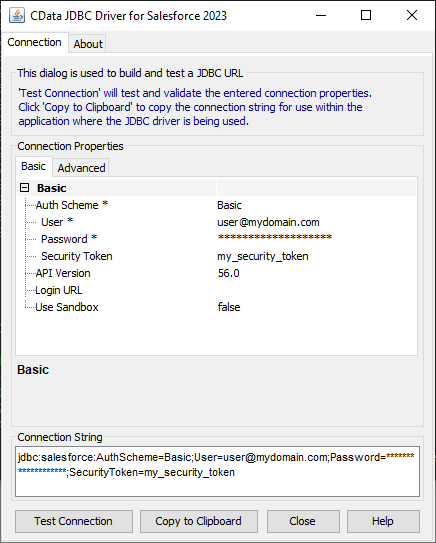
Below is a typical JDBC connection string for Sage X3 Cloud:
jdbc:sagex3cloud:AuthScheme=OAuth;URL=https://x3server/;OAuthAccessTokenUrl=https://auth-domain/oauth/token;OAuthClientId=your_client_id;OAuthClientSecret=your_client_secret;Audience=https://api-audience;XAPIKey=your_api_key;Folder=SEED;Load Sage X3 Cloud Data in Embulk
After installing the CData JDBC Driver and creating a JDBC connection string, install the required Embulk plugins.
Install Embulk Input & Output Plugins
- Install the JDBC Input Plugin in Embulk.
https://github.com/embulk/embulk-input-jdbc/tree/master/embulk-input-jdbc - In this article, we use MySQL as the destination database. You can also choose SQL Server, PostgreSQL, or Google BigQuery as the destination using the output Plugins.
https://github.com/embulk/embulk-output-jdbc/tree/master/embulk-output-mysqlembulk gem install embulk-output-mysql
embulk gem install embulk-input-jdbcWith the input and output plugins installed, we are ready to load Sage X3 Cloud data into MySQL using Embulk.
Create a Job to Load Sage X3 Cloud Data
Start by creating a config file in Embulk, using a name like sagex3cloud-mysql.yml.
- For the input plugin options, use the CData JDBC Driver for Sage X3 Cloud, including the path to the driver JAR file, the driver class (e.g. cdata.jdbc.sagex3cloud.SageX3CloudDriver), and the JDBC URL from above
- For the output plugin options, use the values and credentials for the MySQL database
Sample Config File (sagex3cloud-mysql.yml)
in:
    type: jdbc
    driver_path: C:\Program Files\CData\CData JDBC Driver for Sage X3 Cloud 20xx\lib\cdata.jdbc.sagex3cloud.jar
    driver_class: cdata.jdbc.sagex3cloud.SageX3CloudDriver
    url: jdbc:sagex3cloud:AuthScheme=OAuth;URL=https://x3server/;OAuthAccessTokenUrl=https://auth-domain/oauth/token;OAuthClientId=your_client_id;OAuthClientSecret=your_client_secret;Audience=https://api-audience;XAPIKey=your_api_key;Folder=SEED;
    table: "BPCUSTOMER"
out:
    type: mysql
    host: localhost
    database: DatabaseName
    user: UserId
    password: UserPassword
    table: "BPCUSTOMER"
    mode: insert
After creating the file, run the Embulk job.
embulk run sagex3cloud-mysql.ymlAfter running the the Embulk job, find the Salesforce data in the MySQL table.
Load Filtered Sage X3 Cloud Data
In addition to loading data directly from a table, you can use a custom SQL query to have more granular control of the data loaded. You can also perform increment loads by setting a last updated column in a SQL WHERE clause in the query field.
in:
    type: jdbc
    driver_path: C:\Program Files\CData\CData JDBC Driver for Sage X3 Cloud 20xx\lib\cdata.jdbc.sagex3cloud.jar
    driver_class: cdata.jdbc.sagex3cloud.SageX3CloudDriver
    url: jdbc:sagex3cloud:AuthScheme=OAuth;URL=https://x3server/;OAuthAccessTokenUrl=https://auth-domain/oauth/token;OAuthClientId=your_client_id;OAuthClientSecret=your_client_secret;Audience=https://api-audience;XAPIKey=your_api_key;Folder=SEED;
    query: "SELECT BPCNUM, BPCNAM FROM BPCUSTOMER WHERE [RecordId] = 1"
out:
    type: mysql
    host: localhost
    database: DatabaseName
    user: UserId
    password: UserPassword
    table: "BPCUSTOMER"
    mode: insert
More Information & Free Trial
By using CData JDBC Driver for Sage X3 Cloud as a connector, Embulk can integrate Sage X3 Cloud data into your data load jobs. And with drivers for more than 200+ other enterprise sources, you can integrate any enterprise SaaS, big data, or NoSQL source as well. Download a 30-day free trial and get started today.
Ready to get started?
Download a free trial of the Sage X3 Cloud Driver to get started:
Download NowLearn more:
 Sage X3 Cloud JDBC Driver
Rapidly create and deploy powerful Java applications that integrate with Sage X3 Cloud.