




Consume Sage X3 Cloud OData Feeds in PowerBuilder

The CData API Server produces secure feeds of Sage X3 Cloud data that you can consume in PowerBuilder DataWindows. The API Server supports the major Web services, including OData, Atom, JSON, HTML, CSV, TSV, and RSS. It also supports the major authentication schemes and SSL.
This article shows how to create a DataWindow that uses the CData API Server to retrieve data.
Set Up the API Server
Follow the steps below to begin producing secure Sage X3 Cloud OData services:
Deploy
The API Server runs on your own server. On Windows, you can deploy using the stand-alone server or IIS. On a Java servlet container, drop in the API Server WAR file. See the help documentation for more information and how-tos.
The API Server is also easy to deploy on Microsoft Azure, Amazon EC2, and Heroku.
Connect to Sage X3 Cloud
After you deploy the API Server, provide authentication values and other connection properties needed to connect to Sage X3 Cloud by clicking Settings -> Connections and adding a new connection in the API Server administration console.
Sage X3 Cloud uses the OAuth 2.0 Client Credentials flow, and an X-API-Key is also required for API access. Set AuthScheme to OAuth and specify the following connection properties:
- URL: The base URL of your Sage X3 Cloud instance.
- OAuthAccessTokenUrl: The OAuth token endpoint (e.g., https://your-auth-domain/oauth/token).
- OAuthClientId: Your OAuth application client ID.
- OAuthClientSecret: Your OAuth application client secret.
- Audience: The API audience value for the token request.
- XAPIKey: The X-API-Key provided by your Sage X3 Cloud administrator.
- Folder: The Sage X3 folder name (e.g., SEED). This folder is used as the default schema.
- Folders (optional): A comma-separated list of Sage X3 folders (e.g., SEED,PERF). Each folder is exposed as a separate schema, so you can query across folders with the Schema.Table syntax.
The driver obtains an access token with the Client Credentials flow and sends it with the X-API-Key on every API request. With InitiateOAuth set to GETANDREFRESH (the default), the driver acquires and refreshes the token automatically.
You can then choose the Sage X3 Cloud entities you want to allow the API Server access to by clicking Settings -> Resources.
Additionally, click Settings -> Server and change the following settings for compatibility with PowerBuilder:
- Default Format: Select XML (Atom) in the menu.
- Default Version: Select 2.0 in the menu.
Authorize API Server Users
After determining the OData services you want to produce, authorize users by clicking Settings -> Users. The API Server uses authtoken-based authentication and supports the major authentication schemes. Access can also be restricted based on IP address; by default, only connections to the local machine are allowed. You can authenticate as well as encrypt connections with SSL.
Create a Profile for Sage X3 Cloud
Follow the steps below to use the Database Painter tool to create a database profile for the OData API of the API Server. In the Database Painter, you can graphically manipulate data as well as execute SQL queries.
- Click Tools -> Database Painter.
- Right-click the OData node and click New Profile.
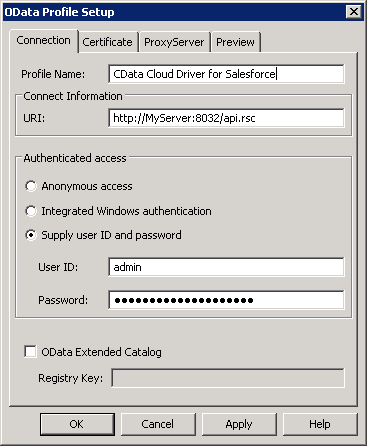
- In the Database Profile Setup dialog, enter the following:
- Profile Name: Enter a user-friendly name for the profile.
- URI: Enter the URL to the OData endpoint of the API Server. This URL will resemble the one below:
http://MyServer:8080/api.rsc - Supply User Id and Password: Click this option to use HTTP Basic authentication. Note that the API Server also supports Windows authentication.
- User Id: Enter the name of an user in the API Server.
- Password: Enter the authtoken of an user in the API Server.
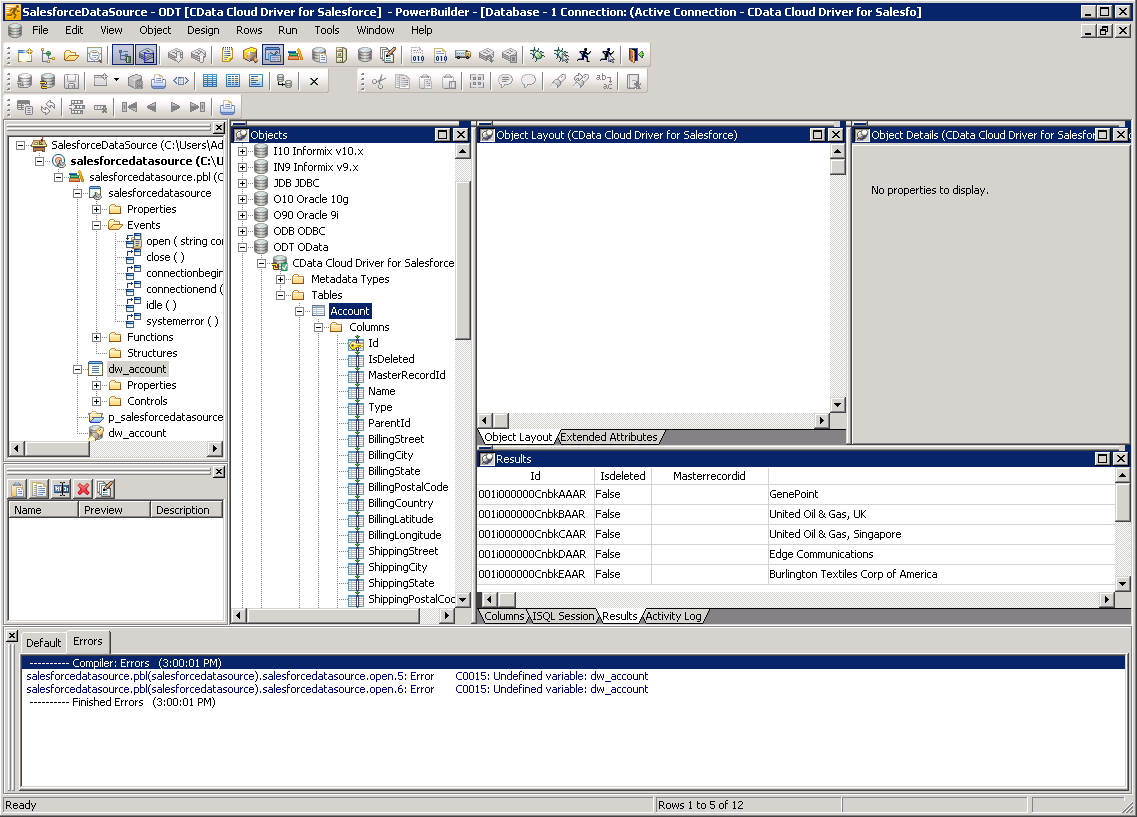
- To view and modify a table, right-click a table and then click Edit Data -> Grid.
Using Sage X3 Cloud Data with PowerBuilder Controls
You can use standard PowerBuilder objects to connect to OData feeds and execute queries. The following example shows how to retrieve Sage X3 Cloud data into a DataWindow.
You can add the following code to the open method:
SQLCA.DBMS = "ODT"
SQLCA.DBParm = "ConnectString='URI=http://MyServer:8080/api.rsc;UID=MyAPIUser;PWD=MyAuthtoken'";
CONNECT USING SQLCA;
dw_bpcustomer.SetTransObject(SQLCA);
dw_bpcustomer.Retrieve();