






Connect to and Query SAP SuccessFactors LMS Data in QlikView over ODBC

The CData ODBC drivers expand your ability to work with data from more than 200 data sources. QlikView is a business discovery platform that provides self-service BI for all business users in an organization. This article outlines simple steps to connect to SAP SuccessFactors LMS data using the CData ODBC driver and create data visualizations in QlikView.
The CData ODBC drivers offer unmatched performance for interacting with live SAP SuccessFactors LMS data in QlikView due to optimized data processing built into the driver. When you issue complex SQL queries from QlikView to SAP SuccessFactors LMS, the driver pushes supported SQL operations, like filters and aggregations, directly to SAP SuccessFactors LMS and utilizes the embedded SQL engine to process unsupported operations (often SQL functions and JOIN operations) client-side. With built-in dynamic metadata querying, you can visualize and analyze SAP SuccessFactors LMS data using native QlikView data types.
Connect to SAP SuccessFactors LMS as an ODBC Data Source
If you have not already, first specify connection properties in an ODBC DSN (data source name). This is the last step of the driver installation. You can use the Microsoft ODBC Data Source Administrator to create and configure ODBC DSNs.
SAP SuccessFactors LMS uses OAuth authentication. Before connecting, you must configure an OAuth application tied to your SAP SuccessFactors LMS account.
To establish a connection, set the following properties:
- User: Your SAP SuccessFactors LMS username.
- CompanyId: Your SAP SuccessFactors company identifier.
- Url: The SAP SuccessFactors API URL (e.g., https://api4.successfactors.com).
- OAuthClientId: The client Id assigned when you registered your custom OAuth application.
- OAuthClientSecret: The client secret assigned when you registered your custom OAuth application.
See the Getting Started chapter of the help documentation for a guide to creating a custom OAuth app and using OAuth.
When you configure the DSN, you may also want to set the Max Rows connection property. This will limit the number of rows returned, which is especially helpful for improving performance when designing reports and visualizations.
Populate a Chart with SAP SuccessFactors LMS Data
The steps below supply the results of an SQL query to a visualization in QlikView. In this article, you will create a bar chart with the query below:
SELECT ItemID, ItemTitle FROM [Admin].[Search_Service].[Items] WHERE Active = true
- Click File -> Edit Script (or click the Edit Script button in the Toolbar).
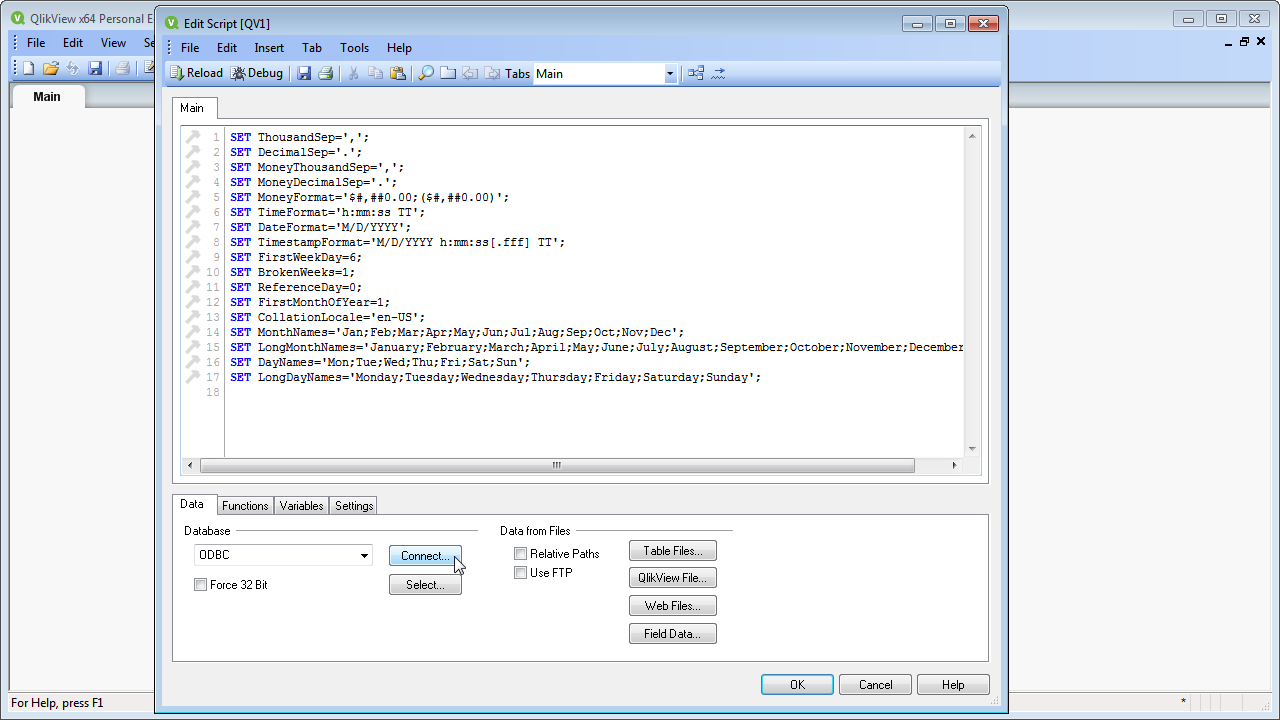
- On the Data tab, select ODBC in the Database menu and click Connect.
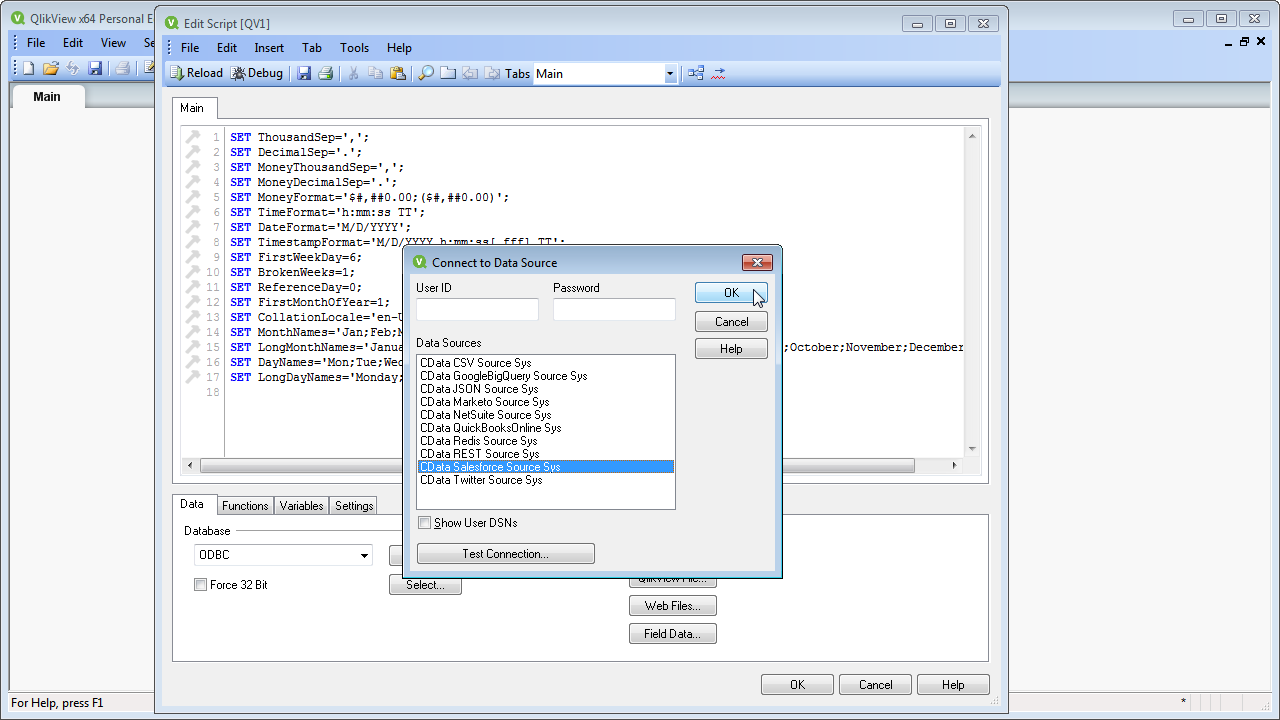
- Select the DSN (CData SAPSuccessFactorsLMS Sys) in the resulting dialog.
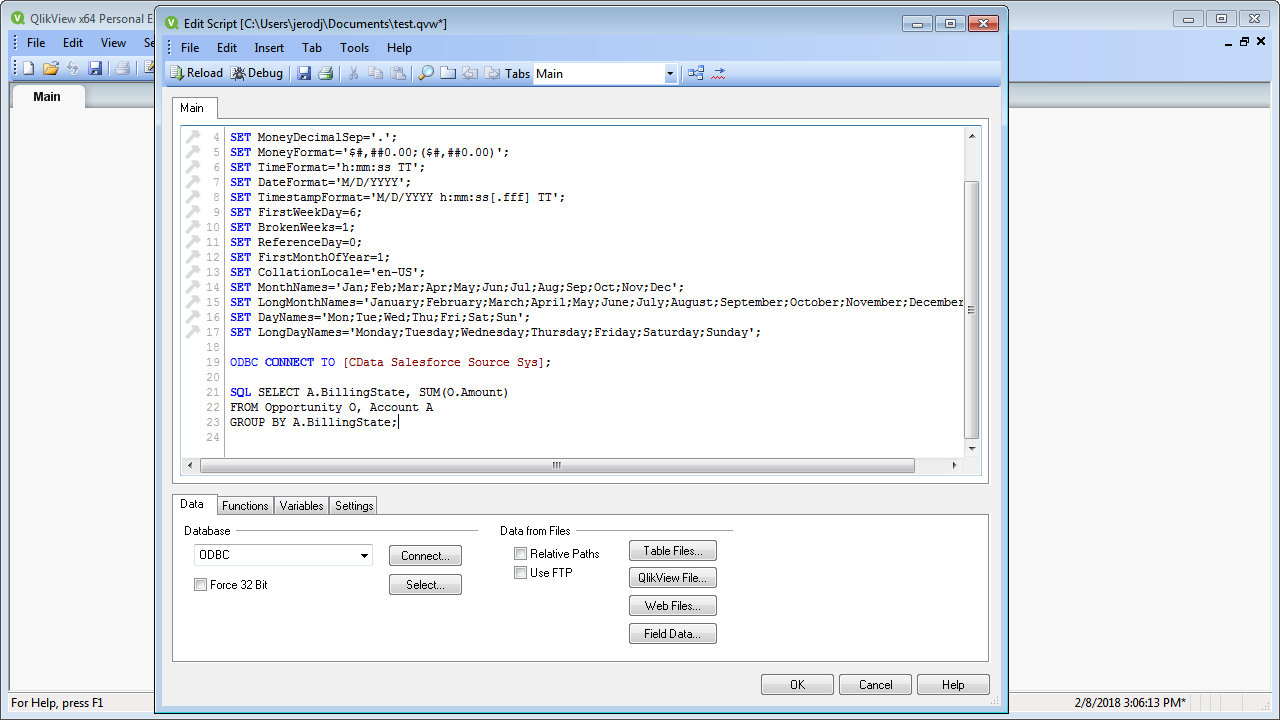
 A command like the following is generated:
ODBC CONNECT TO [CData SAPSuccessFactorsLMS Sys];
- Enter the SQL query directly into the script with the SQL command (or click Select to build the query in the SELECT statement wizard).
SQL SELECT ItemID, ItemTitle FROM [Admin].[Search_Service].[Items] WHERE Active = true;
Where possible, the SQL operations in the query, like filters and aggregations, will be pushed down to SAP SuccessFactors LMS, while any unsupported operations (which can include SQL functions and JOIN operations) will be managed client-side by the CData SQL engine embedded in the driver.
- Close the script editor and reload the document to execute the script.
- Click Tools -> Quick Chart Wizard. In the wizard, select the chart type. This example uses a bar chart. When building the chart, you have access to the fields from SAP SuccessFactors LMS, typed appropriately for QlikView, thanks to built-in dynamic metadata querying.
- When defining Dimensions, select ItemID in the First Dimension menu.
- When defining Expressions, click the summary function you want and select ItemTitle in the menu.
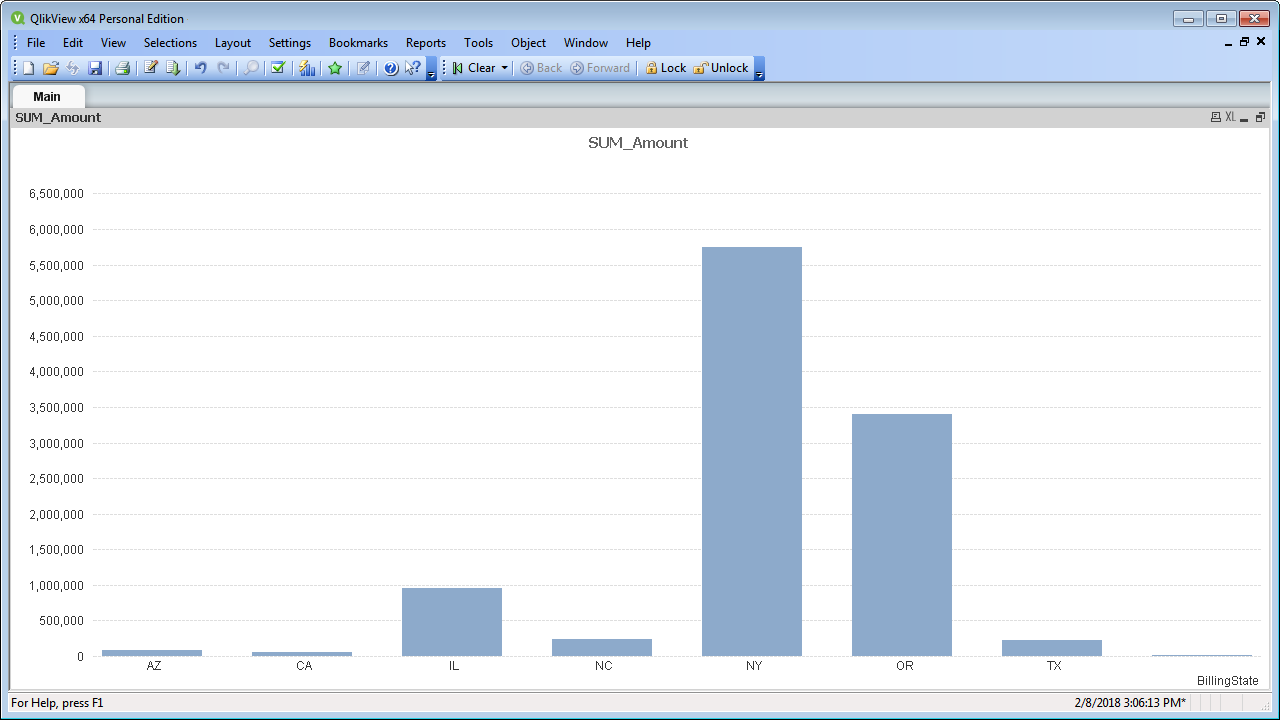
Finish the wizard to generate the chart. The CData ODBC Driver for SAP SuccessFactors LMS connects to live SAP SuccessFactors LMS data, so the chart can be refreshed to see real-time changes. Live connections are possible and effective, thanks to the high-performance data processing native to CData ODBC Drivers.
Ready to get started?
Download a free trial of the SAP SuccessFactors LMS ODBC Driver to get started:
Download NowLearn more:
 SAP SuccessFactors LMS ODBC Driver
The SAP SuccessFactors LMS ODBC Driver is a powerful tool that allows you to connect with live data from SAP SuccessFactors LMS, directly from any applications that support ODBC connectivity.
Access SAP SuccessFactors LMS data like you would a database - read, write, and update SAP SuccessFactors LMS 0, etc. through a standard ODBC Driver interface.
