





Search External Stack Exchange Objects in Salesforce Connect

CData Connect AI, enables you to access Stack Exchange data from cloud-based applications like the Salesforce console and mobile applications like the Salesforce Mobile App. In this article, you will use CData Connect AI and Salesforce Connect to access external Stack Exchange objects alongside standard Salesforce objects.
Connect to Stack Exchange from Salesforce
To work with live Stack Exchange data in Salesforce Connect, we need to connect to Stack Exchange from Connect AI, provide user access to the connection, and create a Virtual Schema for the Stack Exchange data.
Connect to Stack Exchange from Connect AI
CData Connect AI uses a straightforward, point-and-click interface to connect to data sources.
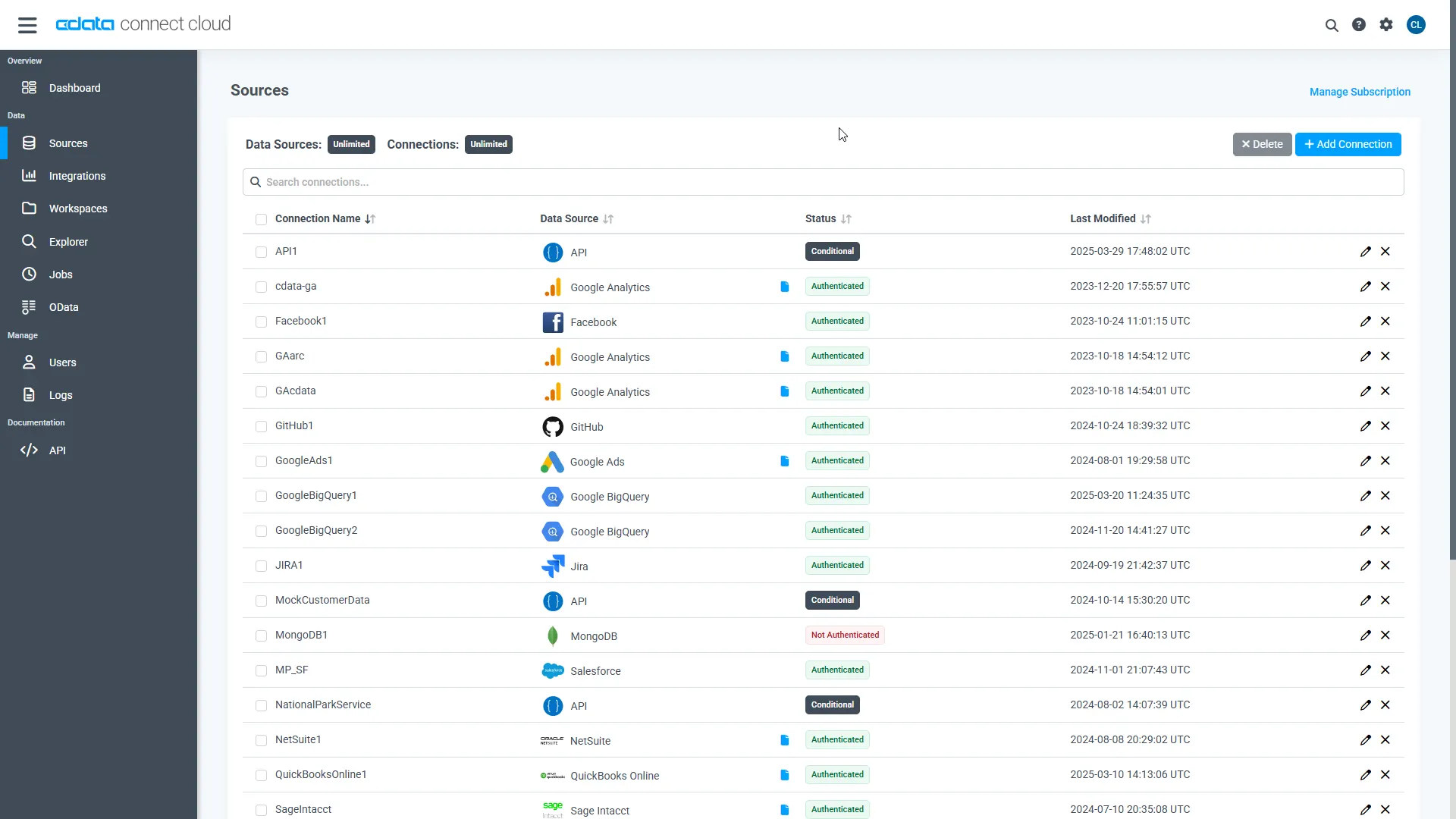
- Log into Connect AI, click Sources, and then click Add Connection
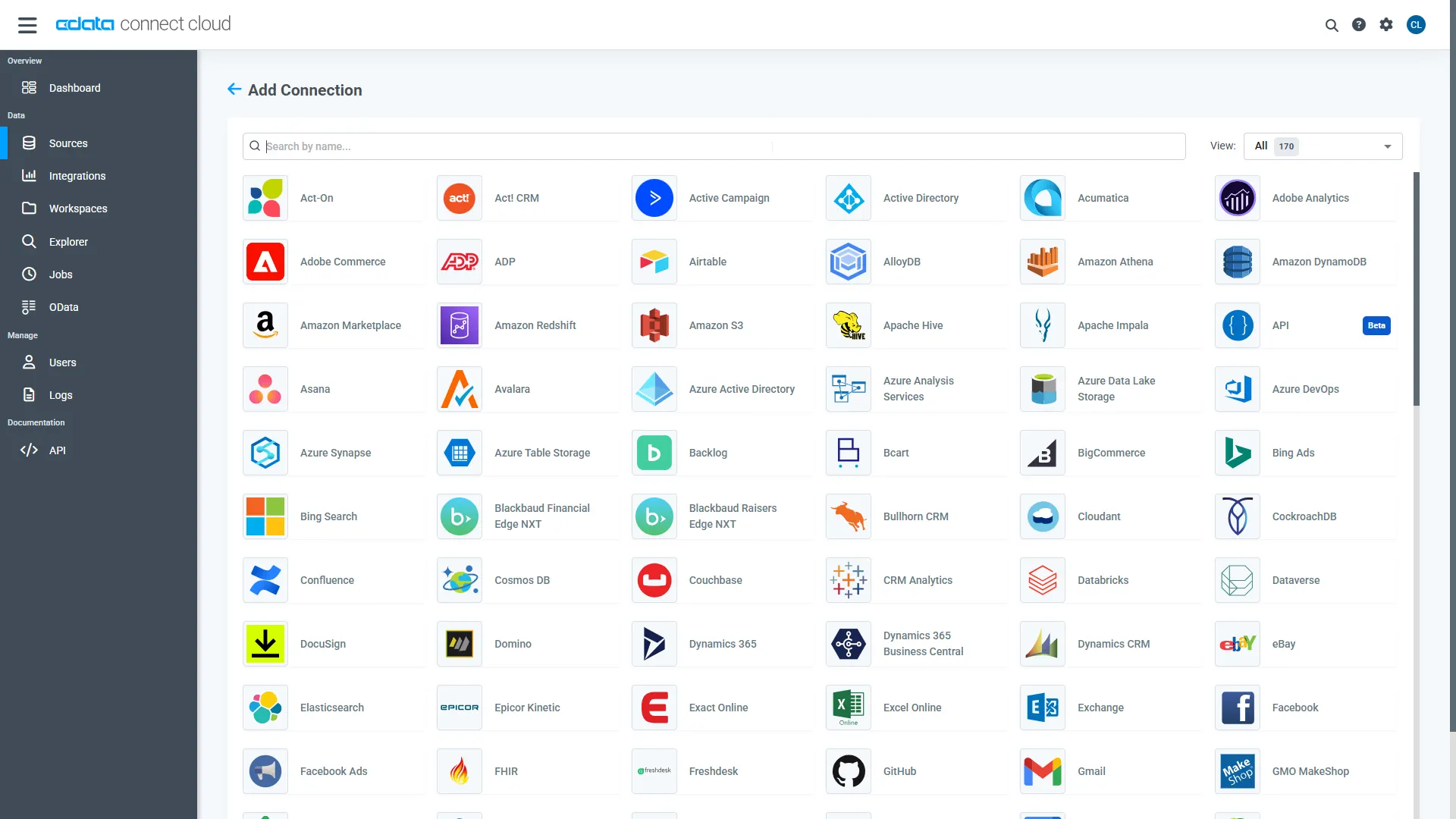
- Select "Stack Exchange" from the Add Connection panel
-
Enter the necessary authentication properties to connect to Stack Exchange.
Start by setting the Profile connection property to the location of the Stack Exchange Profile on disk (e.g. C:\profiles\StackExchange.apip). Next, set the ProfileSettings connection property to the connection string for Stack Exchange (see below).
Stack Exchange API Profile Settings
Register an application on StackApps to obtain an API Key. The Site property specifies which Stack Exchange site to query (e.g., stackoverflow).
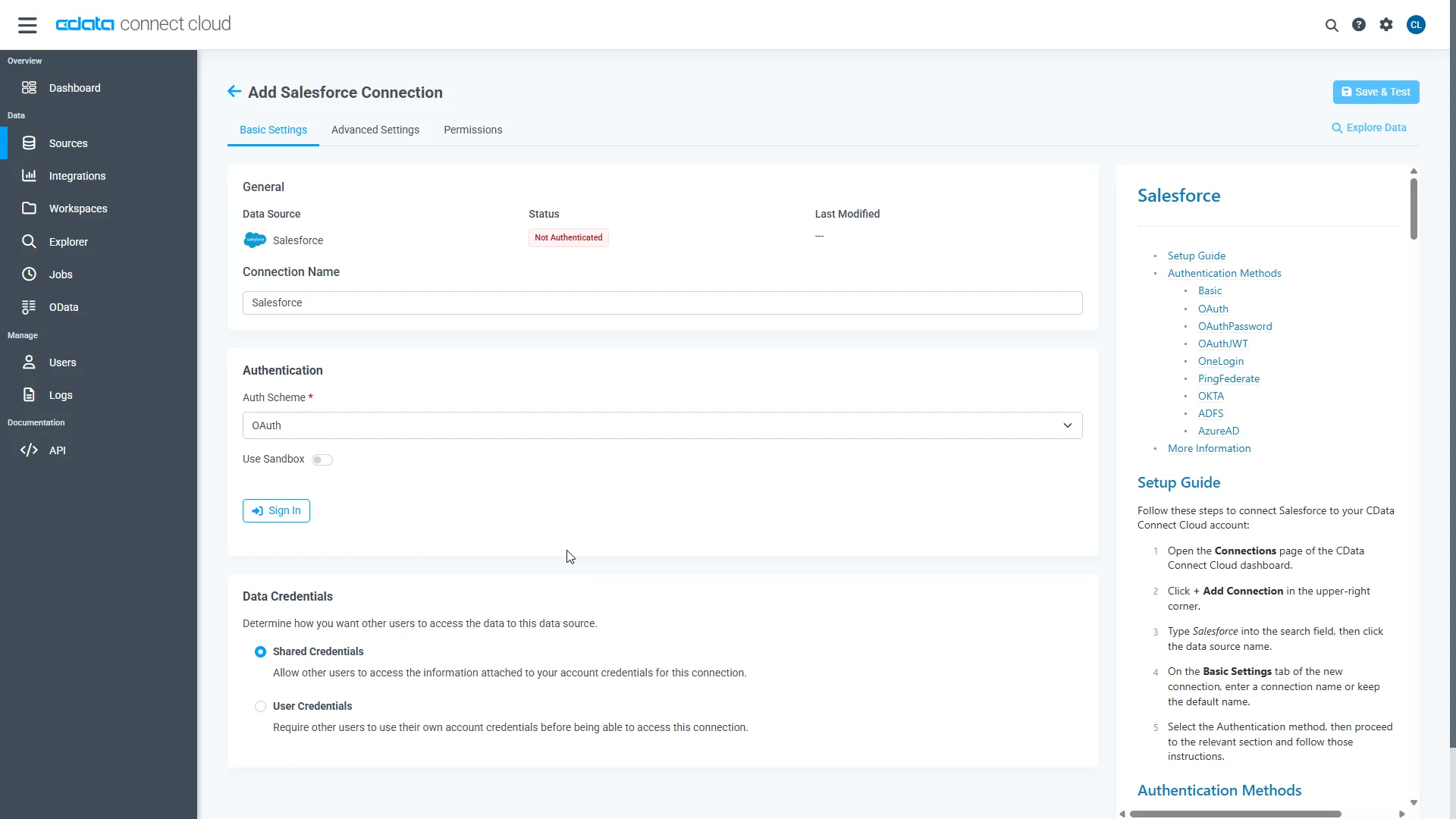
- Click Save & Test
-
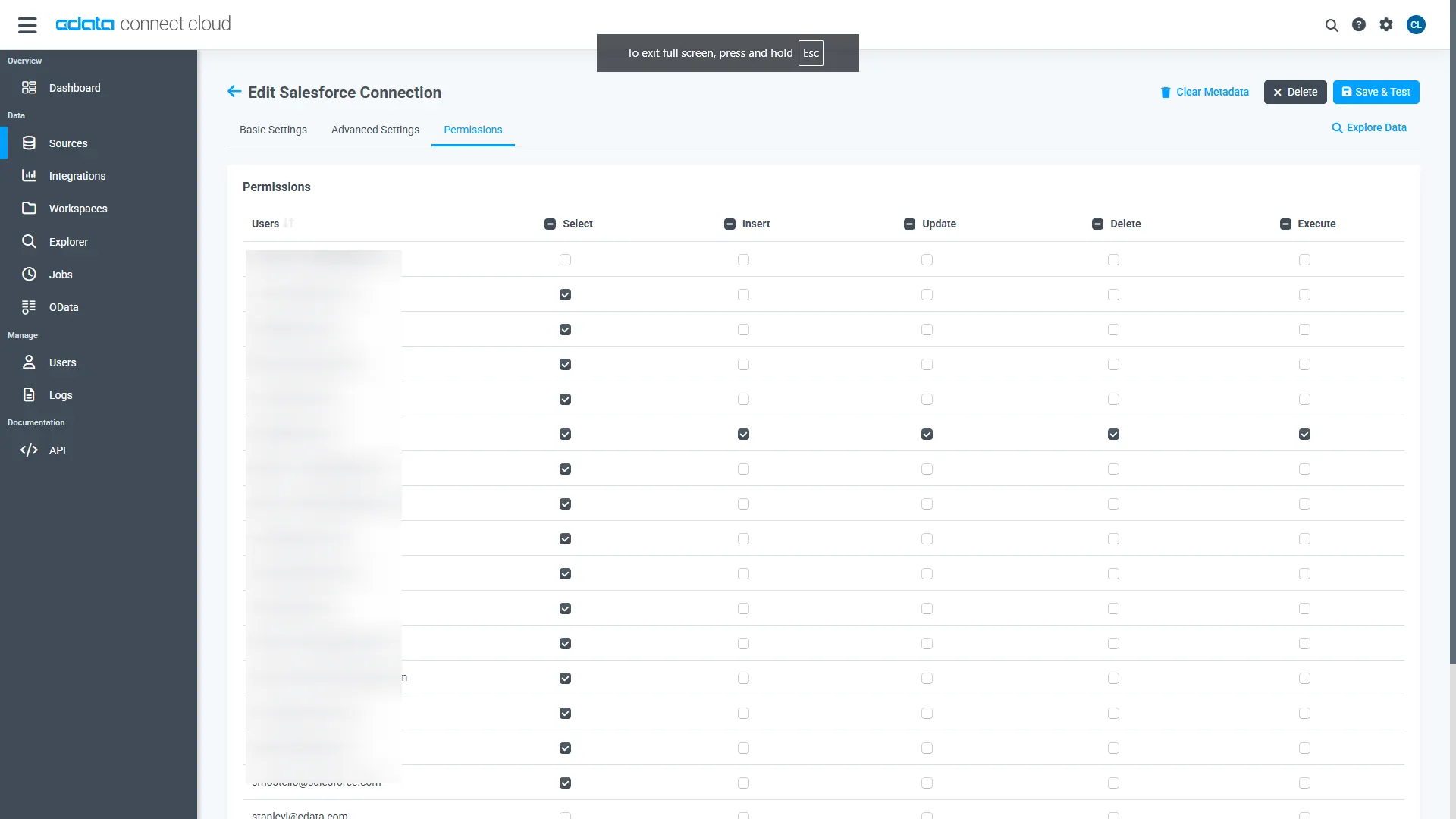
Navigate to the Permissions tab in the Add Stack Exchange Connection page and update the User-based permissions.
Add a Personal Access Token
When connecting to Connect AI through the REST API, the OData API, or the Virtual SQL Server, a Personal Access Token (PAT) is used to authenticate the connection to Connect AI. It is best practice to create a separate PAT for each service to maintain granularity of access.
- Click on the Gear icon () at the top right of the Connect AI app to open the settings page.
- On the Settings page, go to the Personal Access Tokens section and click Create PAT.
-
Give the PAT a name and click Create.
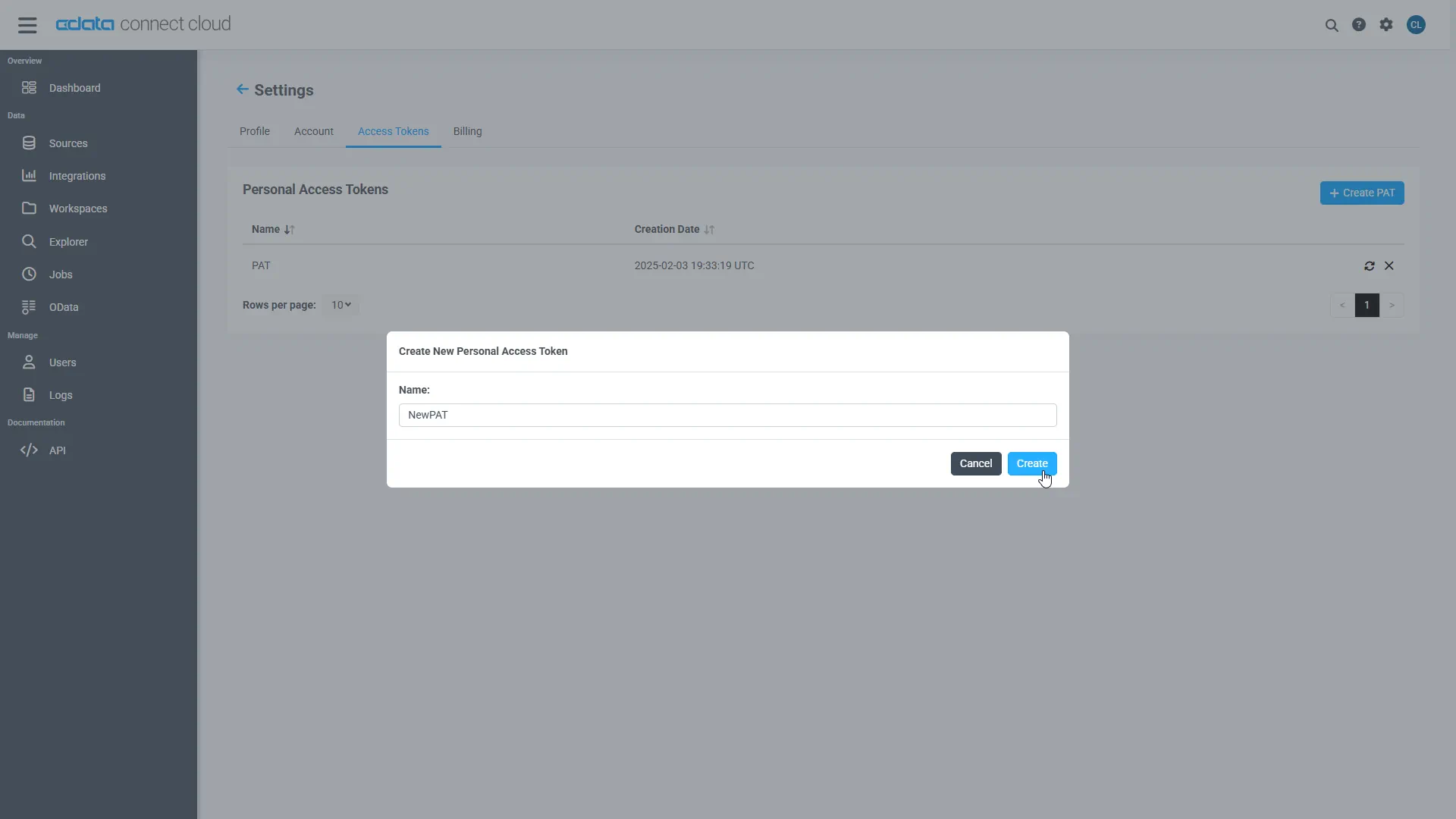
- The personal access token is only visible at creation, so be sure to copy it and store it securely for future use.
Configure Stack Exchange Endpoints for Salesforce Connect
After connecting to Stack Exchange, create a virtual schema for your desired table(s).
-
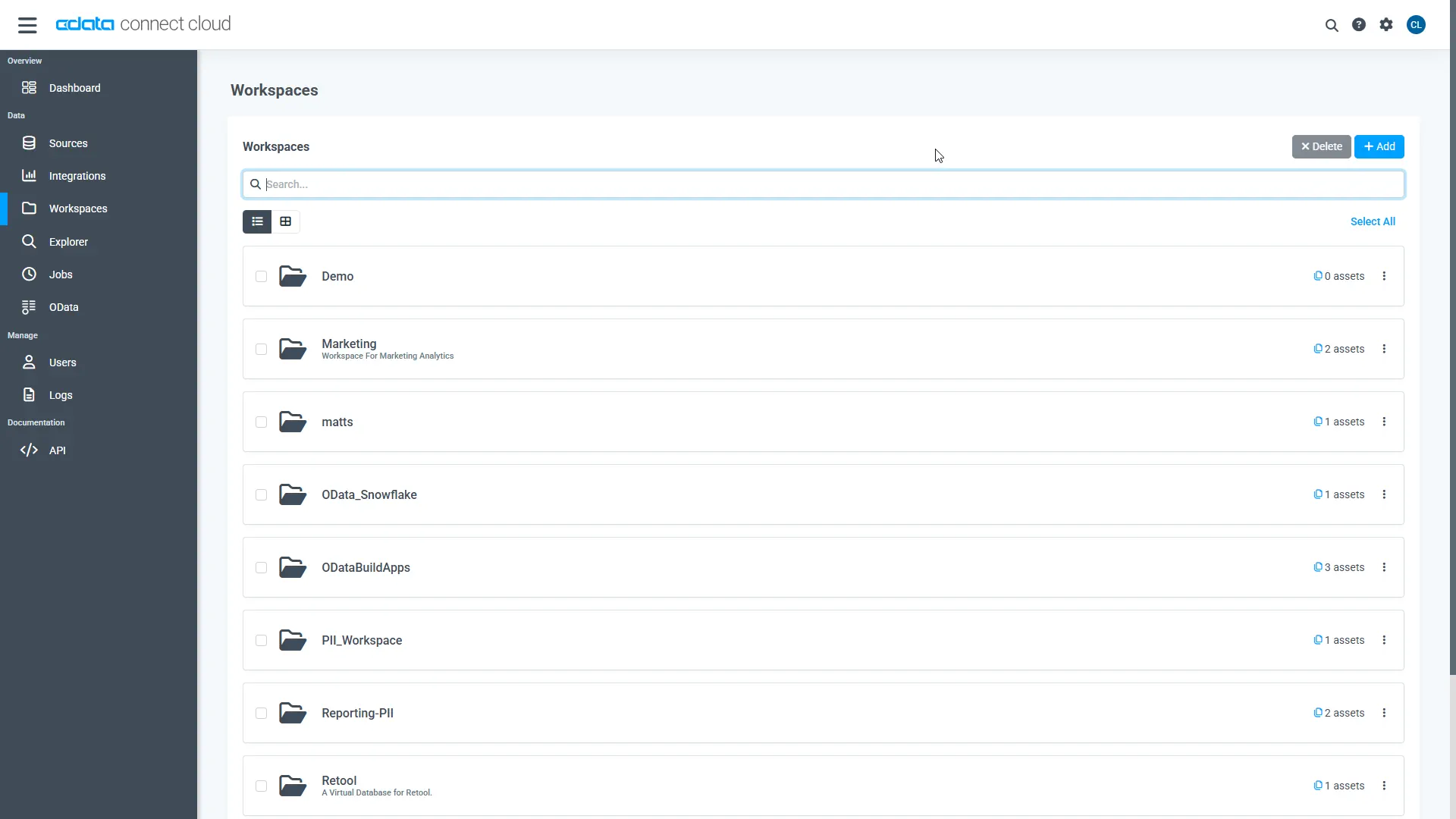
Navigate to the Virtual Schemas page and click Add to create a new Virtual Schema (enter a Virtual Schema Name and click Confirm), or select an existing one.
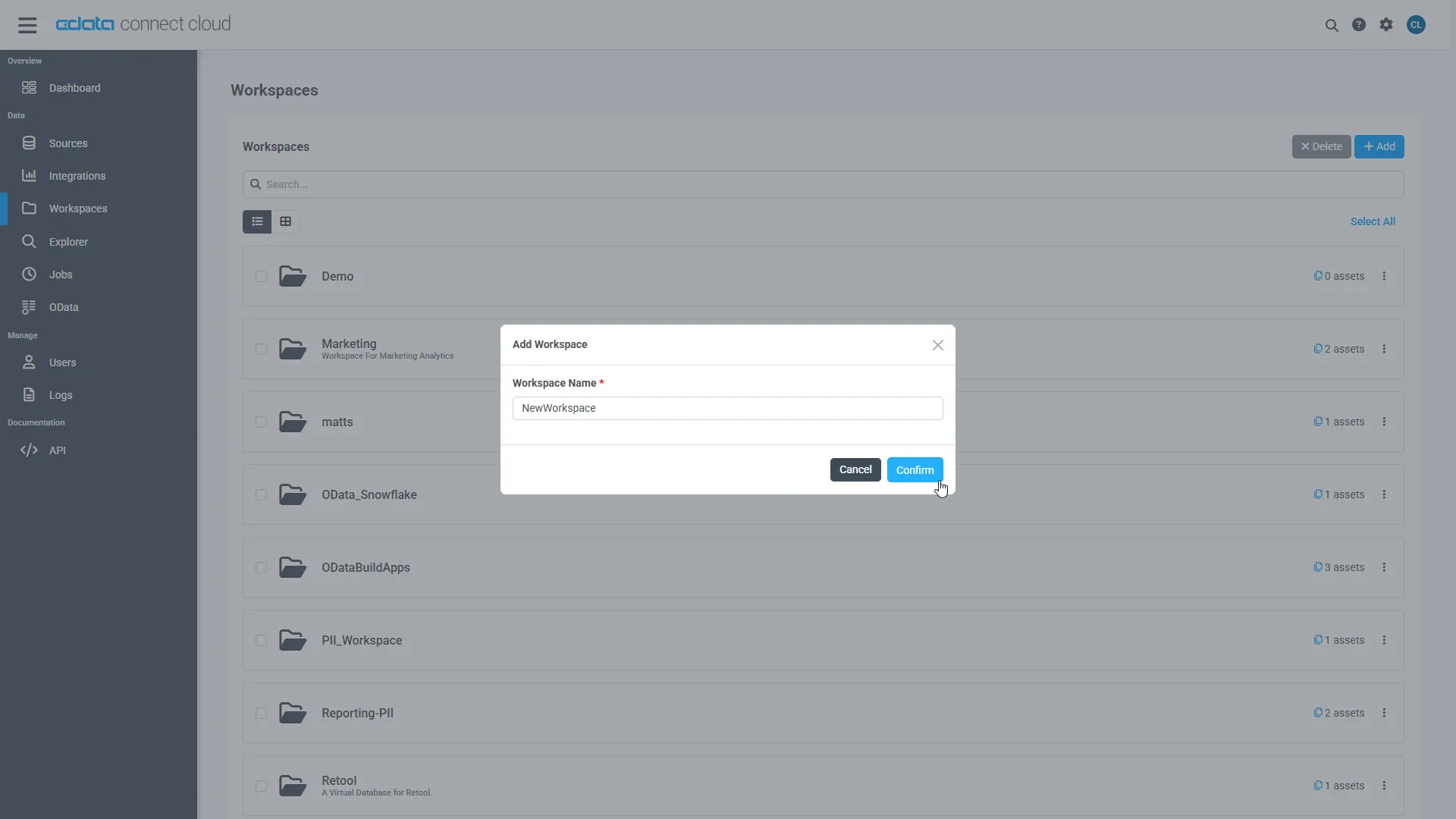
- Click Add to open the Add Asset dialog and add new assets to the Virtual Schema.
-
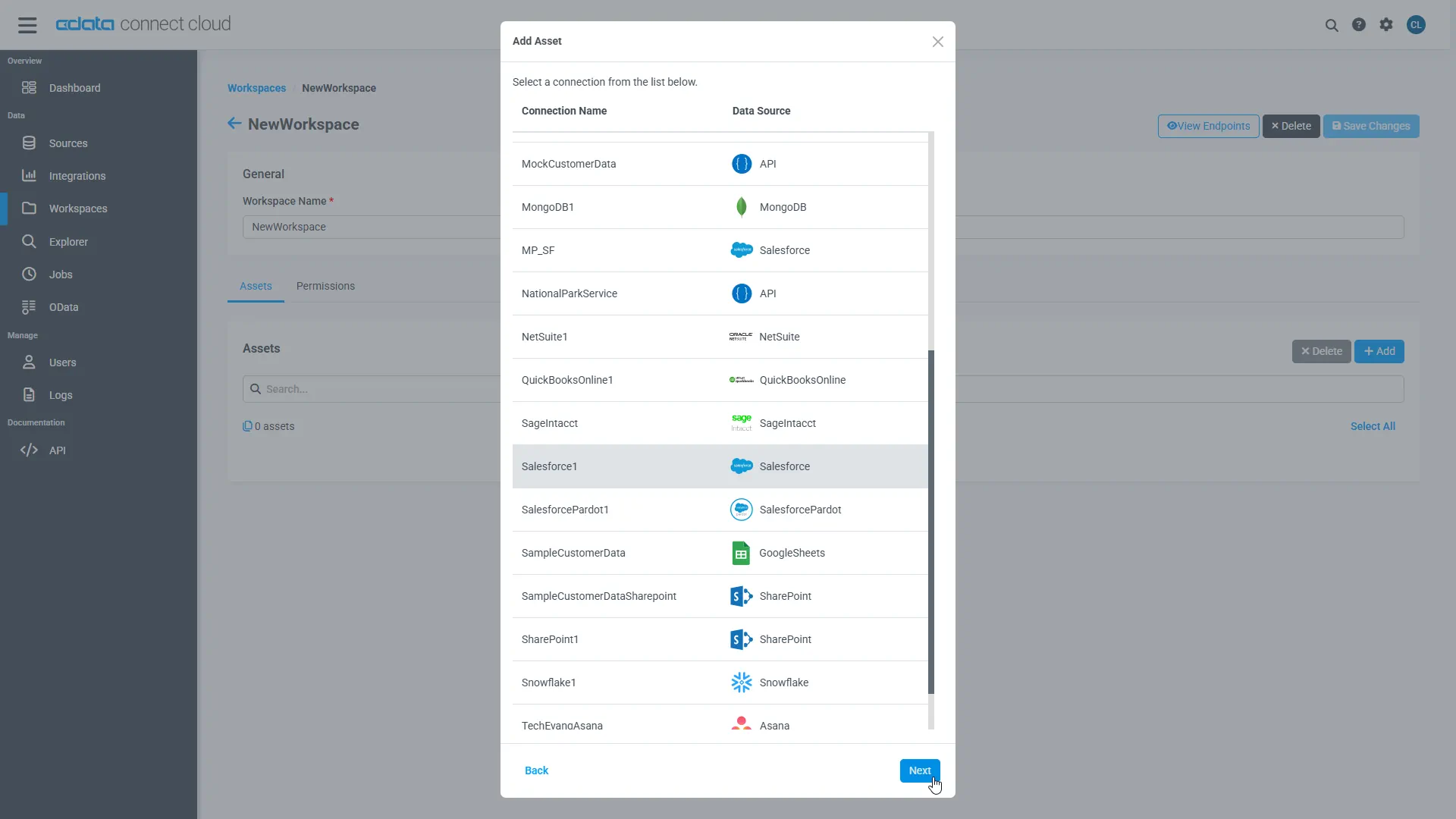
Select the Stack Exchange connection (e.g. API1) and click Next.
-
Select the table(s) you wish to work with and click Confirm.
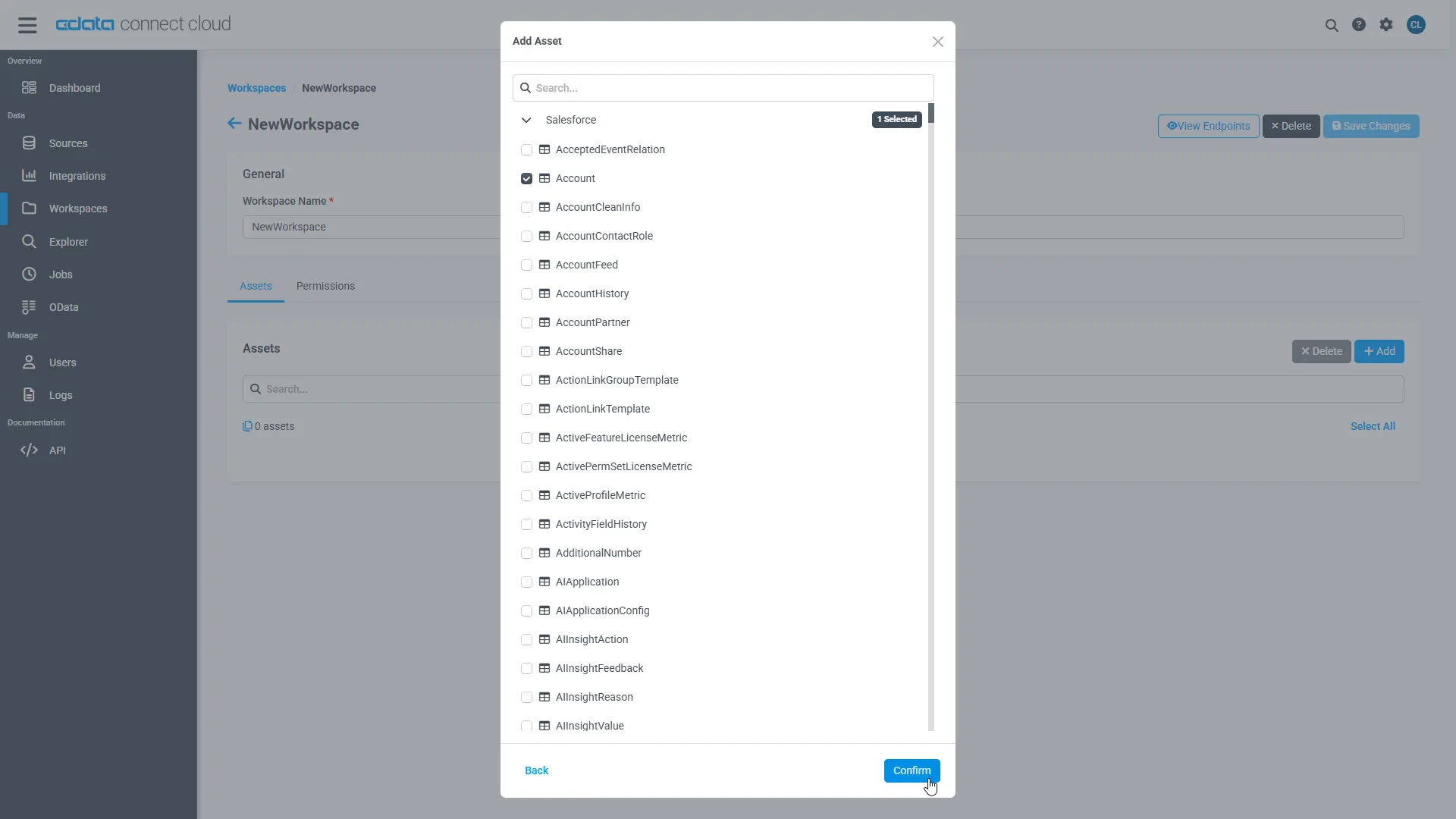
- Click View Endpoints and make note of the OData Service URL for your virtual schema, e.g. https://cloud.cdata.com/api/odata/{virtual_schema_name}
With the connection, PAT, and Virtual Schema configured, you are ready to connect to Stack Exchange data from Salesforce Connect.
Connect to Stack Exchange Data as an External Data Sources
Follow the steps below to connect to the feed produced by Connect AI.
- Log into Salesforce and click Setup -> Integrations -> External Data Sources.
- Click Now External Data Sources.
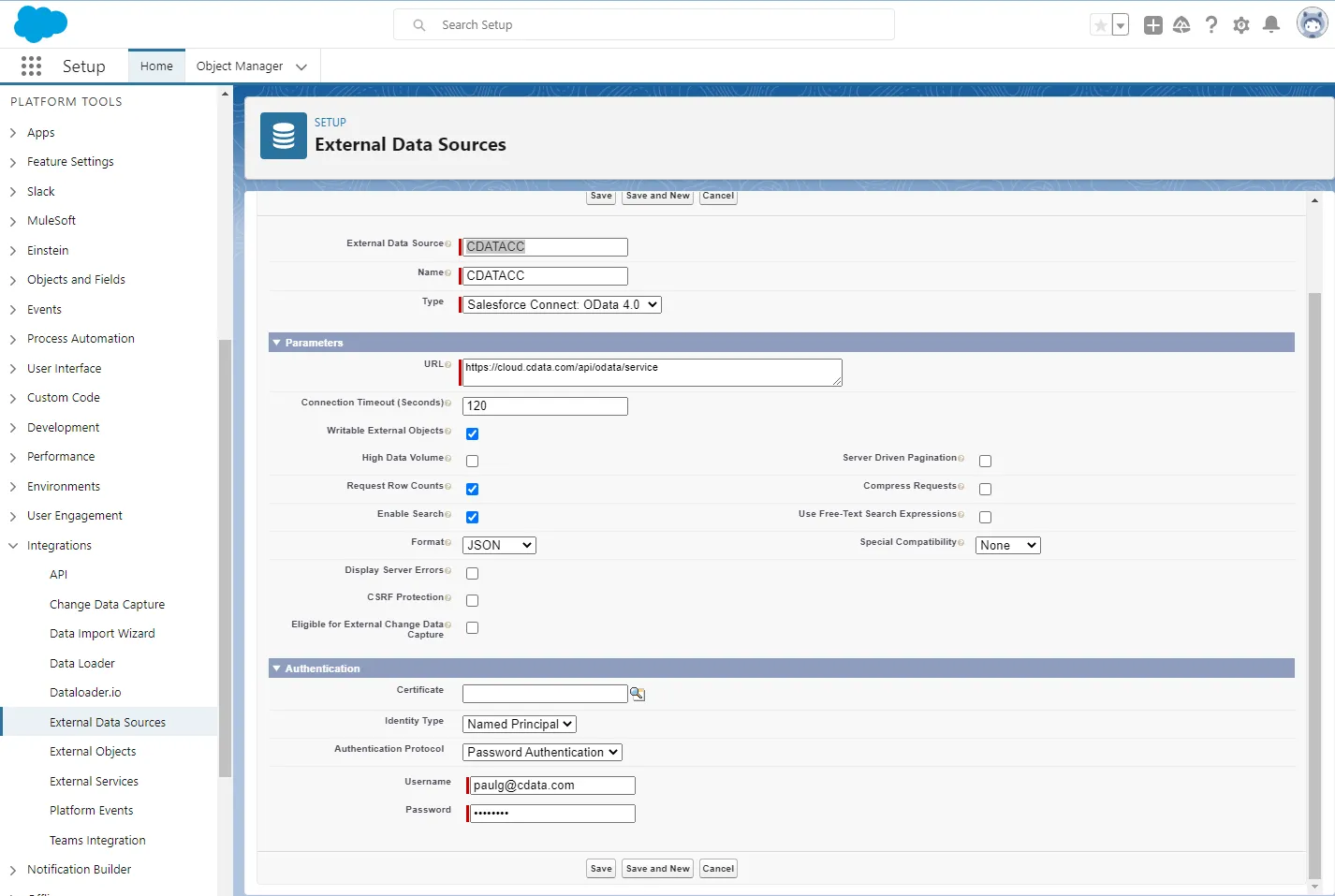
- Enter values for the following properties:
- External Data Sources: Enter a label to be used in list views and reports.
- Name: Enter a unique identifier.
- Type: Select the option "Salesforce Connect: OData 4.0".
- URL: Enter the URL to the OData endpoint of Connect AI: https://cloud.cdata.com/api/odata/{virtual_schema_name}
- Select JSON in the Format menu.
- In the Authentication section, set the following properties:
- Identity Type: If all members of your organization will use the same credentials to access Connect AI, select "Named Principal". If the members of your organization will connect with their own credentials, select "Per User".
- Authentication Protocol: Select Password Authentication to use basic authentication.
- Certificate: Enter or browse to the certificate to be used to encrypt and authenticate communications from Salesforce to your server.
- Username: Enter a CData Connect AI username (e.g. [email protected]).
- Password: Enter the user's PAT.
Synchronize Stack Exchange Objects
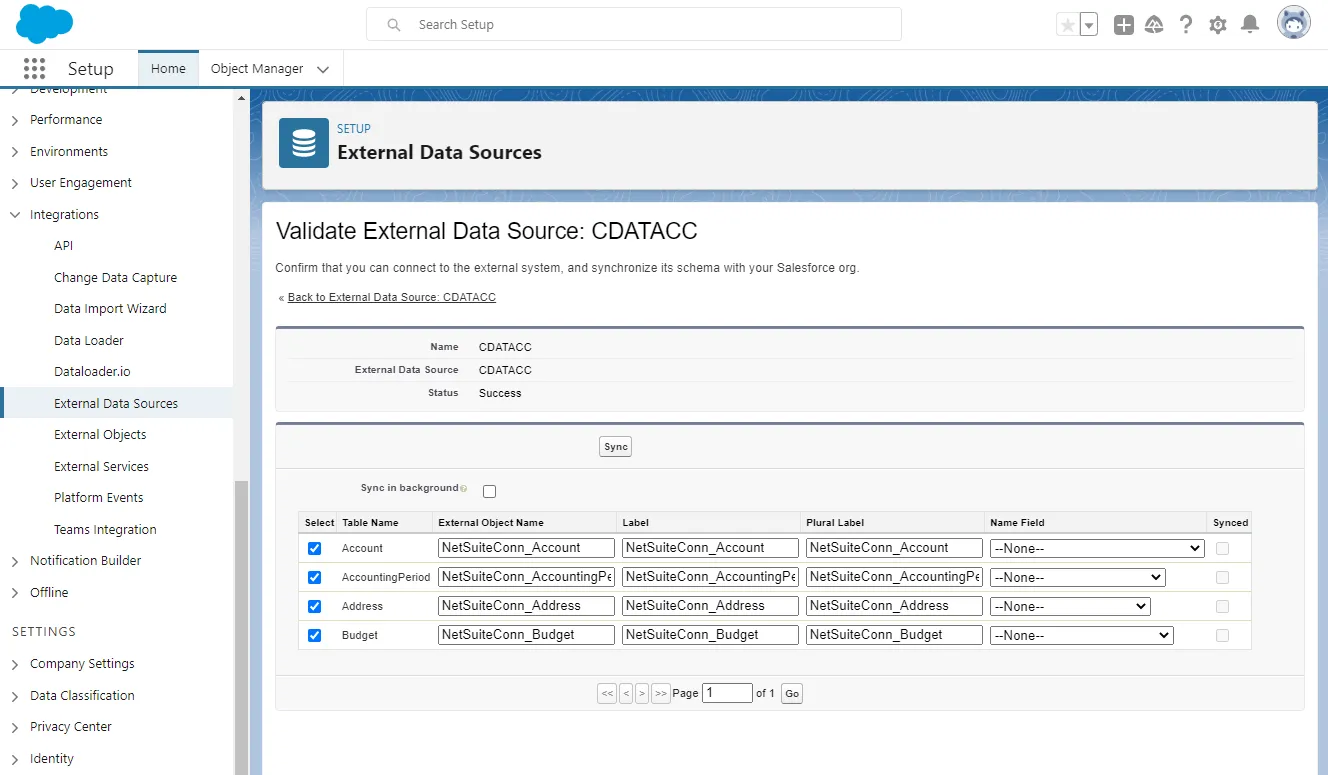
After you have created the external data source, follow the steps below to create Stack Exchange external objects that reflect any changes in the data source. You will synchronize the definitions for the Stack Exchange external objects with the definitions for Stack Exchange tables.
- Click the link for the external data source you created.
- Click Validate and Scan.
- Select the Stack Exchange tables you want to work with as external objects.
Access Stack Exchange Data as Salesforce Objects
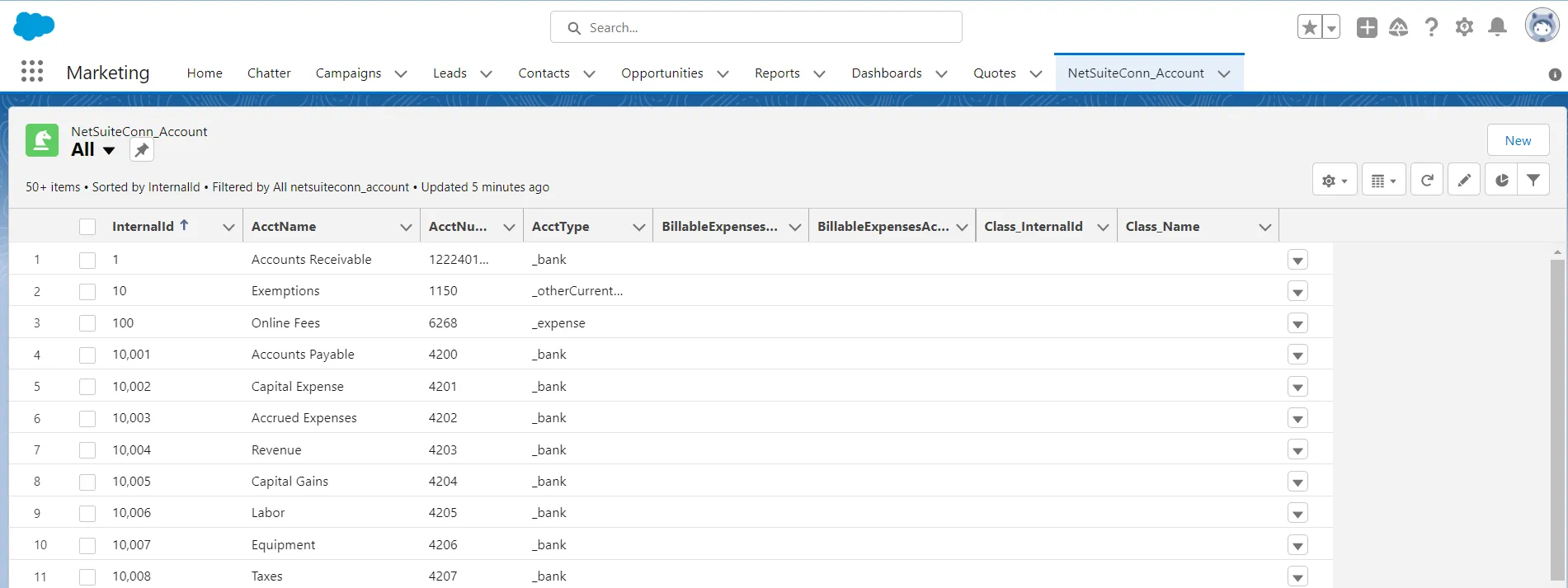
After adding Stack Exchange data as an external data source and syncing Stack Exchange tables as external objects, you can use the external Stack Exchange objects just as you would standard Salesforce objects.
-
Create a new tab with a filter list view:
-
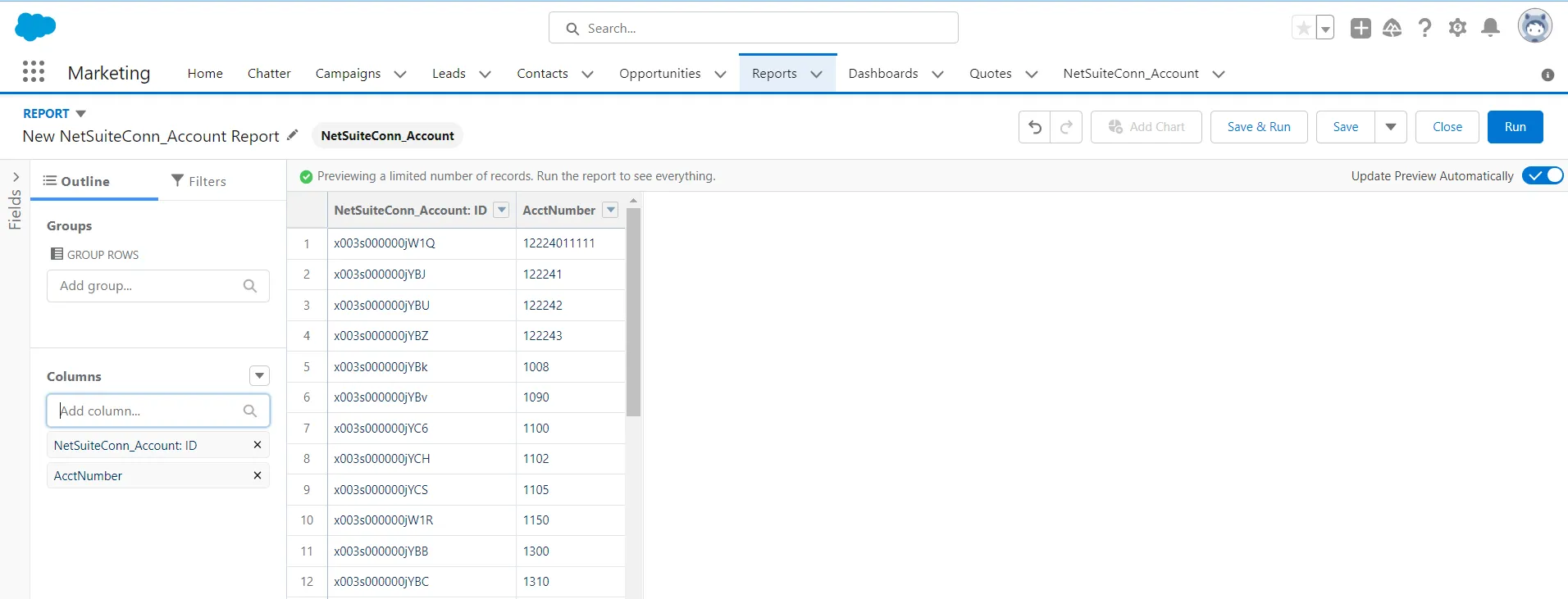
Create reports of external objects:
Simplified Access to Stack Exchange Data from Cloud Applications
At this point, you have a direct, cloud-to-cloud connection to live Stack Exchange data from Salesforce. For more information on gaining simplified access to data from more than 100 SaaS, Big Data, and NoSQL sources in cloud applications like Salesforce, refer to our Connect AI page.