Consume Talkdesk OData Feeds in SAP Lumira

You can use the CData API Server to create data visualizations based on Talkdesk data in SAP Lumira. The API Server enables connectivity to live data: dashboards and reports can be refreshed on demand. This article shows how to create a chart that is always up to date.
Set Up the API Server
If you have not already done so, download the CData API Server. Once you have installed the API Server, follow the steps below to begin producing secure Talkdesk OData services:
Connect to Talkdesk
To work with Talkdesk data from SAP Lumira, we start by creating and configuring a Talkdesk connection. Follow the steps below to configure the API Server to connect to Talkdesk data:
- First, navigate to the Connections page.
-
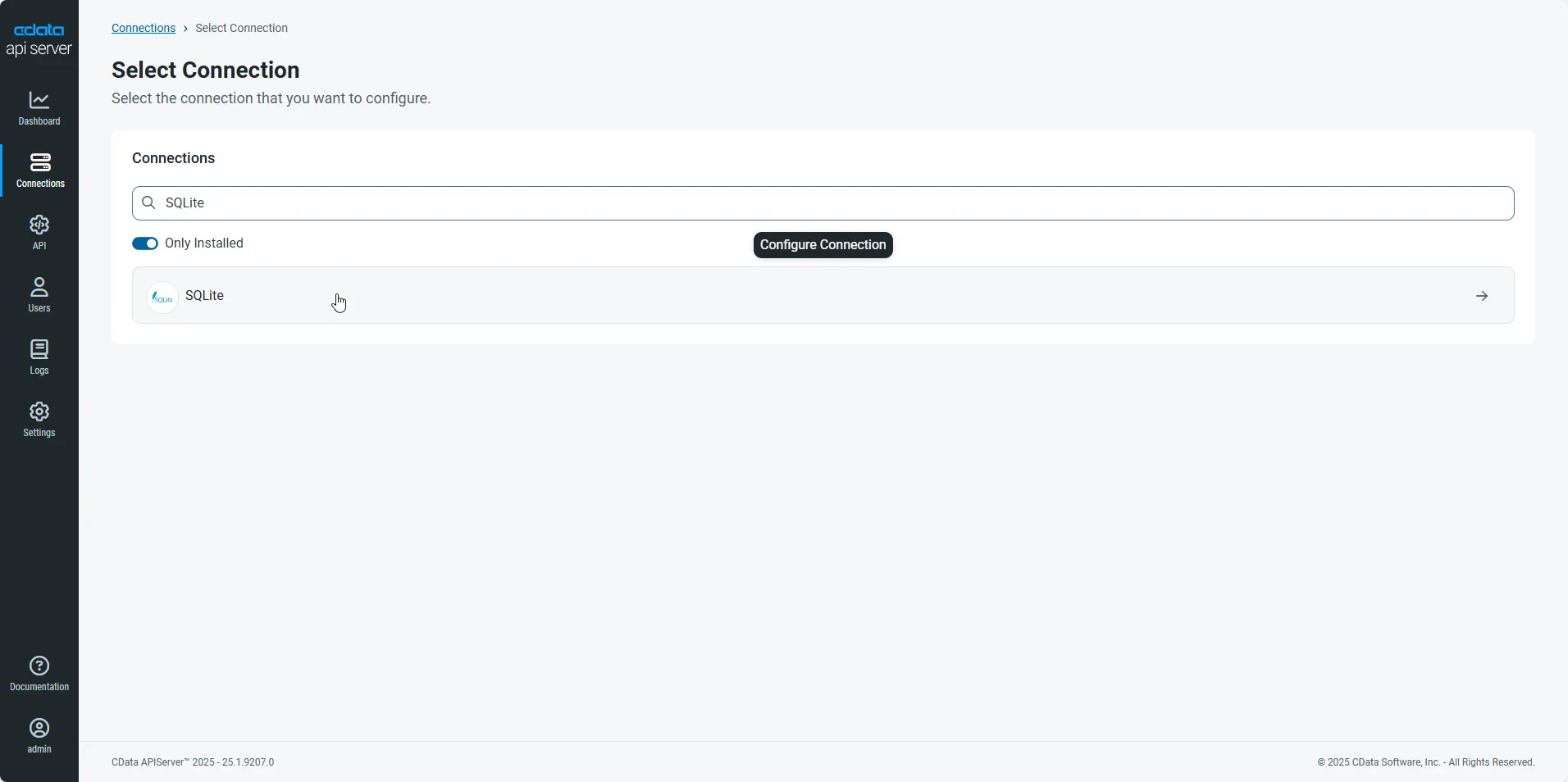
Click Add Connection and then search for and select the Talkdesk connection.
-
Enter the necessary authentication properties to connect to Talkdesk.
Talkdesk uses the OAuth 2.0 Client Credentials grant. There is no browser-based authorization step and no callback URL.
Set the following connection properties:
- AccountName: The name of your Talkdesk account.
- Region: The region where your Talkdesk instance is deployed. Supported values are US (default), EU, CA, AU, UK, and FedRamp.
- OAuthClientId: The Client Id assigned when you registered your custom OAuth application.
- OAuthClientSecret: The Client Secret assigned to your custom OAuth application.
Creating a Custom OAuth Application
- Log in to your Talkdesk account and select OAuth Clients from the navigation menu.
- Click Create OAuth Client and give the client a descriptive name.
- Set Grant Type to Client Credentials.
- Click Add scopes and select the scopes for the data you want to access.
- Click Create and copy the Client Id and Client Secret.
When you connect, the driver automatically requests an access token from Talkdesk, caches it, and refreshes it when it expires. Make sure the scopes selected for the application match the views you plan to query, or the token request can fail.
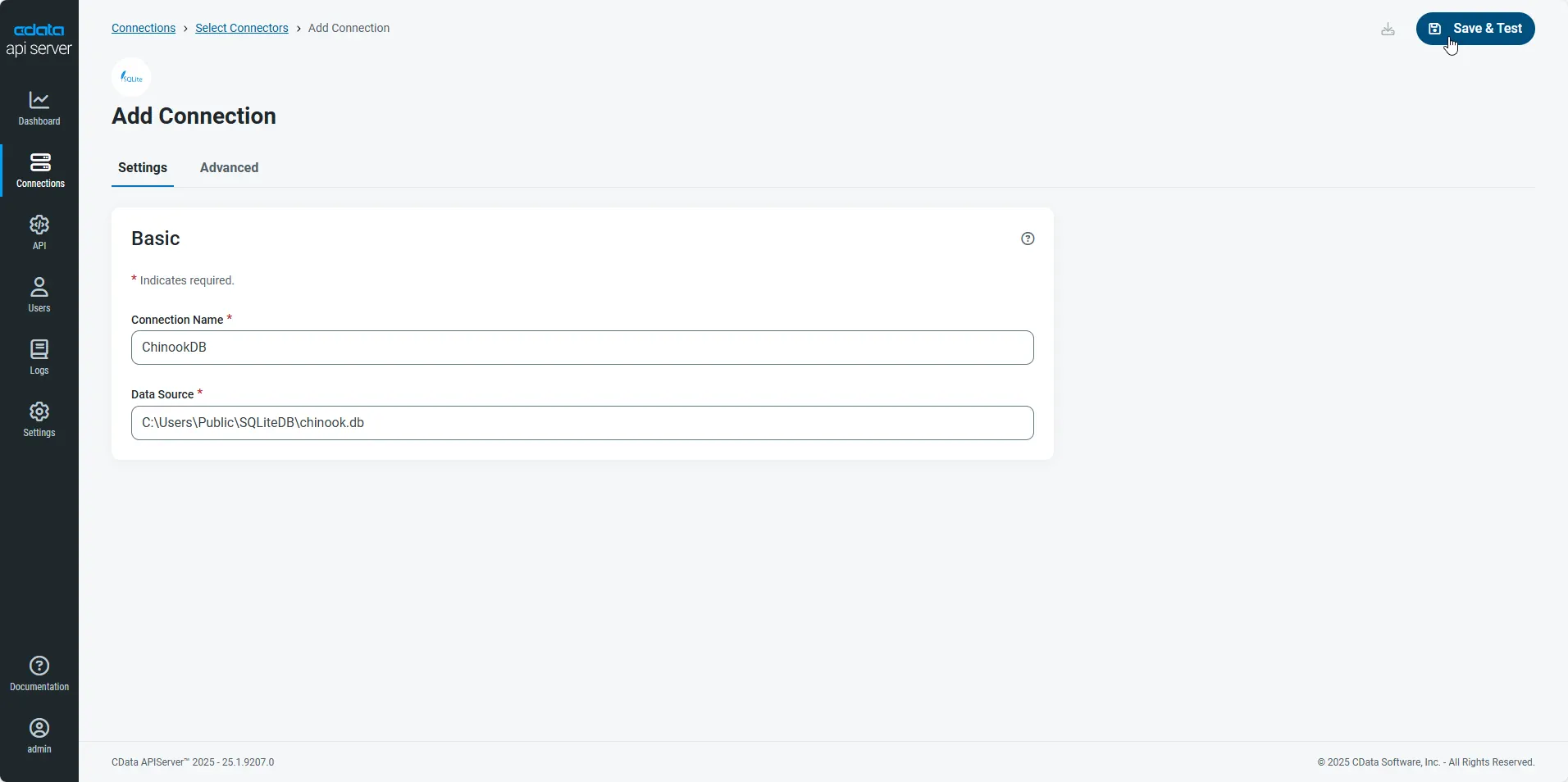
- After configuring the connection, click Save & Test to confirm a successful connection.
Configure API Server Users
Next, create a user to access your Talkdesk data through the API Server. You can add and configure users on the Users page. Follow the steps below to configure and create a user:
- On the Users page, click Add User to open the Add User dialog.
-
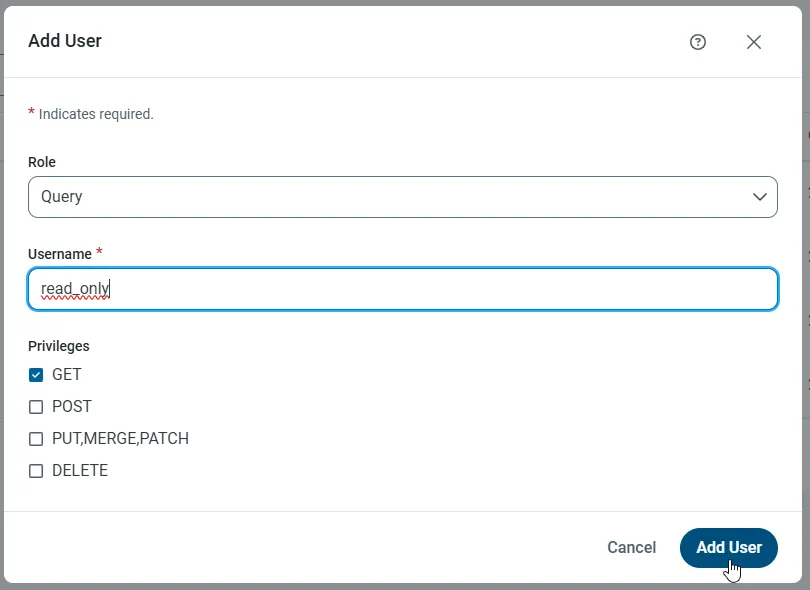
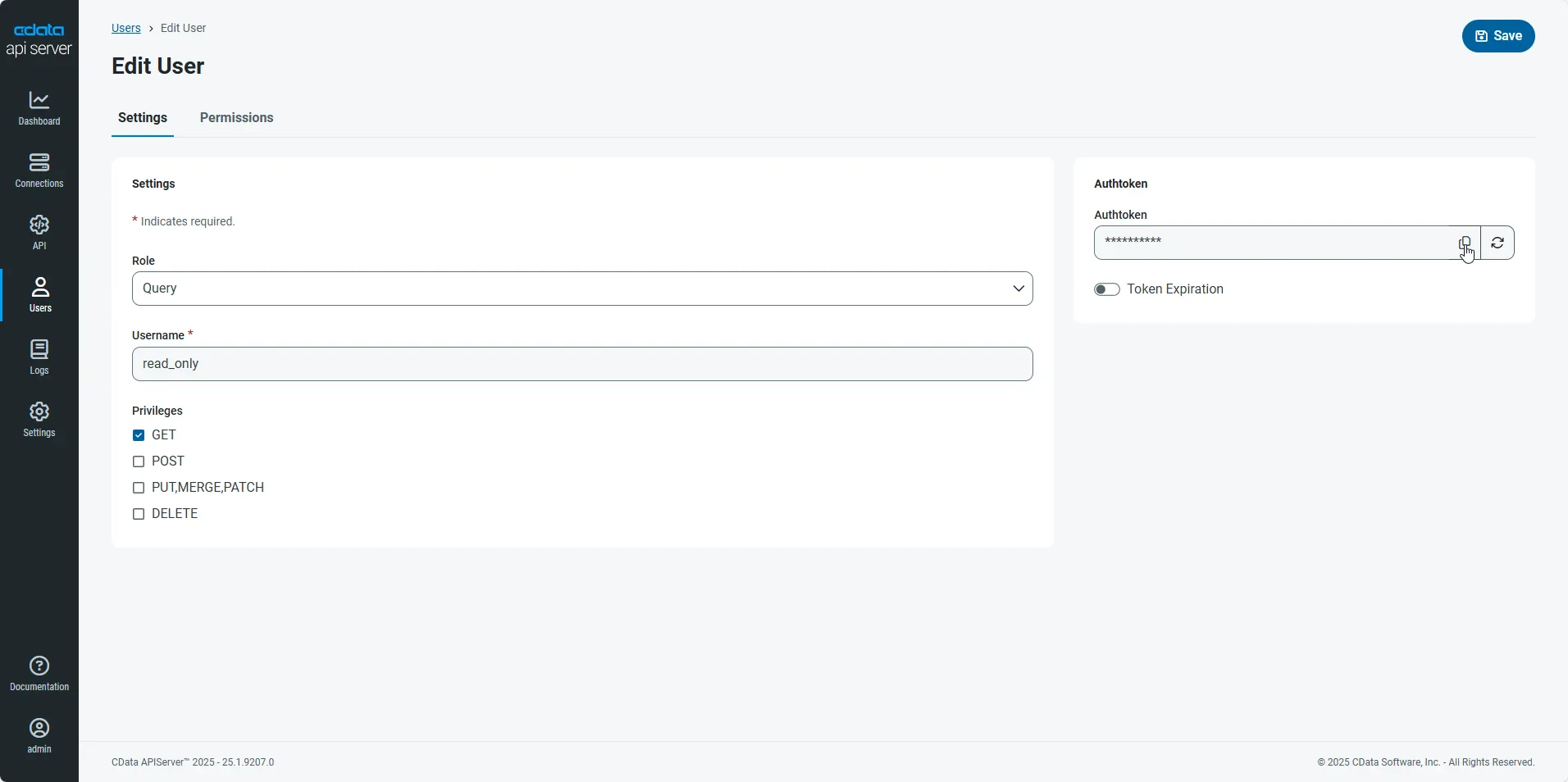
Next, set the Role, Username, and Privileges properties and then click Add User.
-
An Authtoken is then generated for the user. You can find the Authtoken and other information for each user on the Users page:
Creating API Endpoints for Talkdesk
Having created a user, you are ready to create API endpoints for the Talkdesk tables:
-
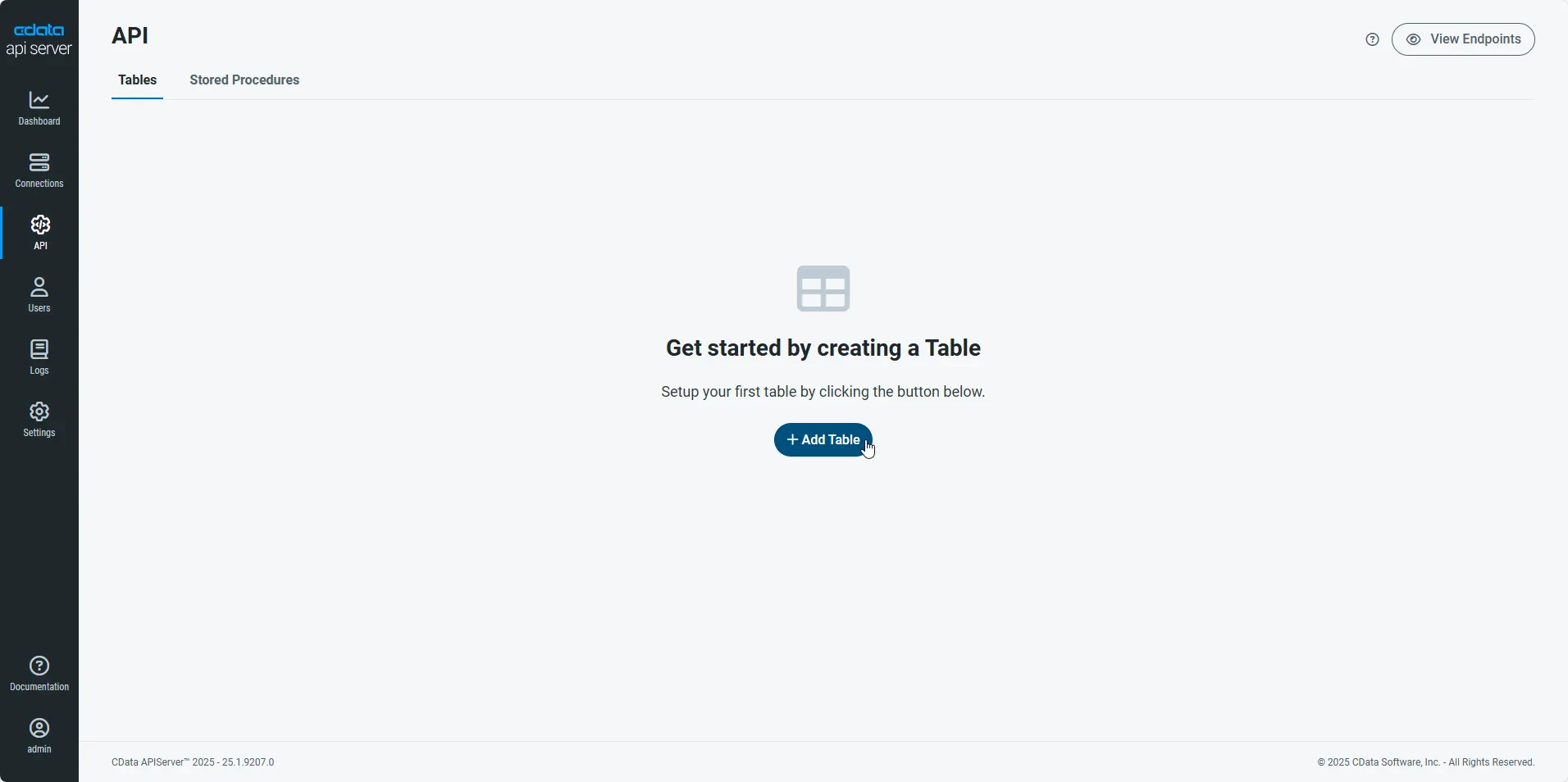
First, navigate to the API page and then click
Add Table
.
-
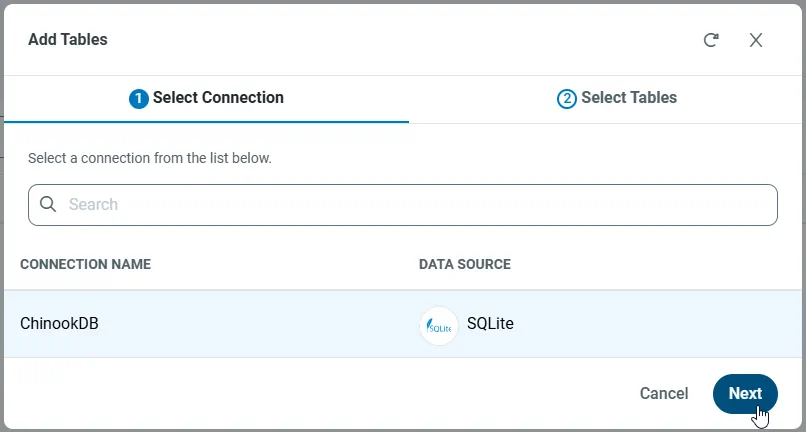
Select the connection you wish to access and click Next.
-
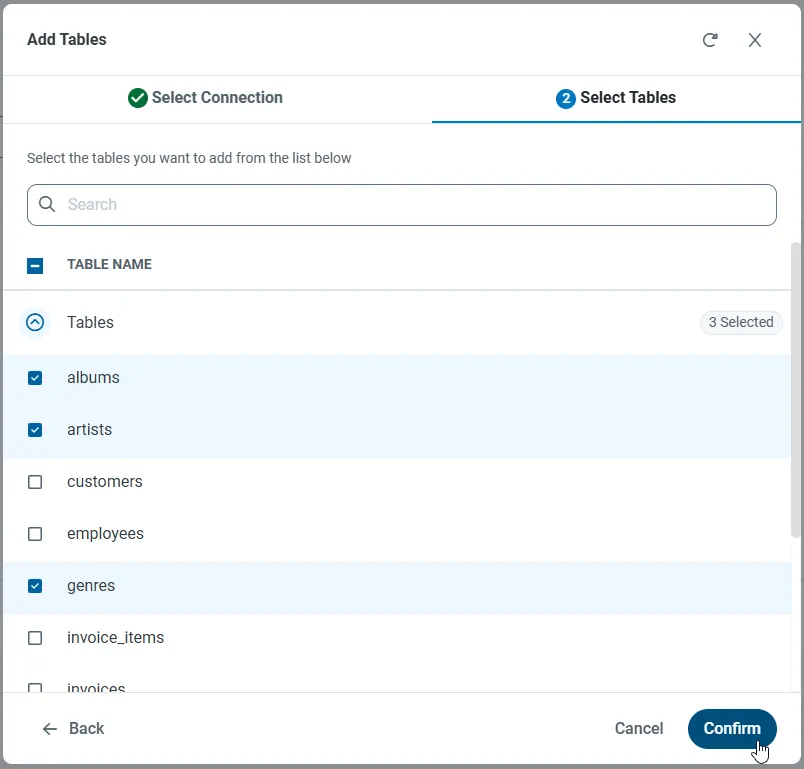
With the connection selected, create endpoints by selecting each table and then clicking Confirm.
Gather the OData Url
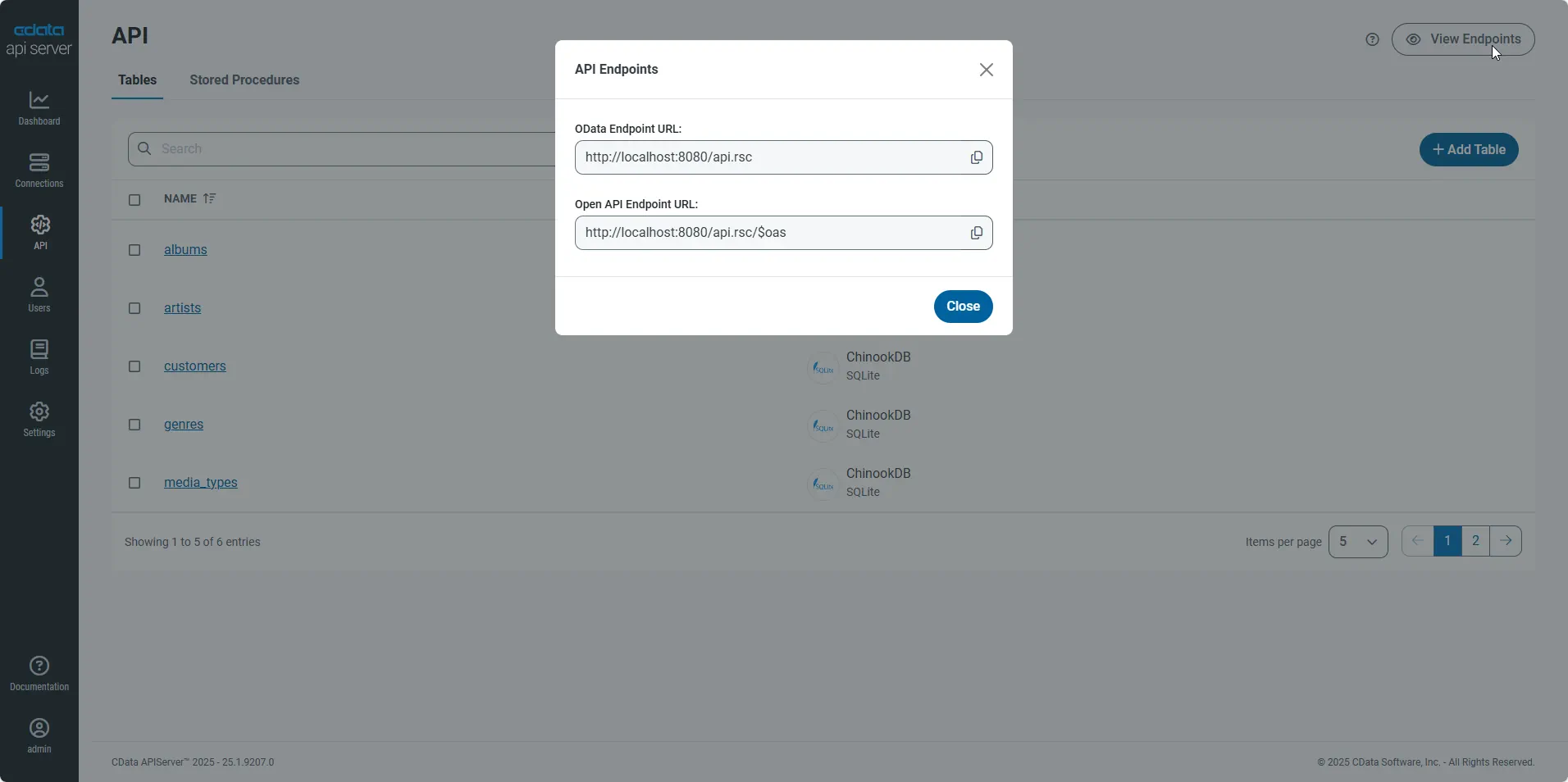
Having configured a connection to Talkdesk data, created a user, and added resources to the API Server, you now have an easily accessible REST API based on the OData protocol for those resources. From the API page in API Server, you can view and copy the API Endpoints for the API:
Connect to Talkdesk from SAP Lumira
Follow the steps below to retrieve Talkdesk data into SAP Lumira. You can execute an SQL query or use the UI.
- In SAP Lumira, click File -> New -> Query with SQL. The Add New Dataset dialog is displayed.
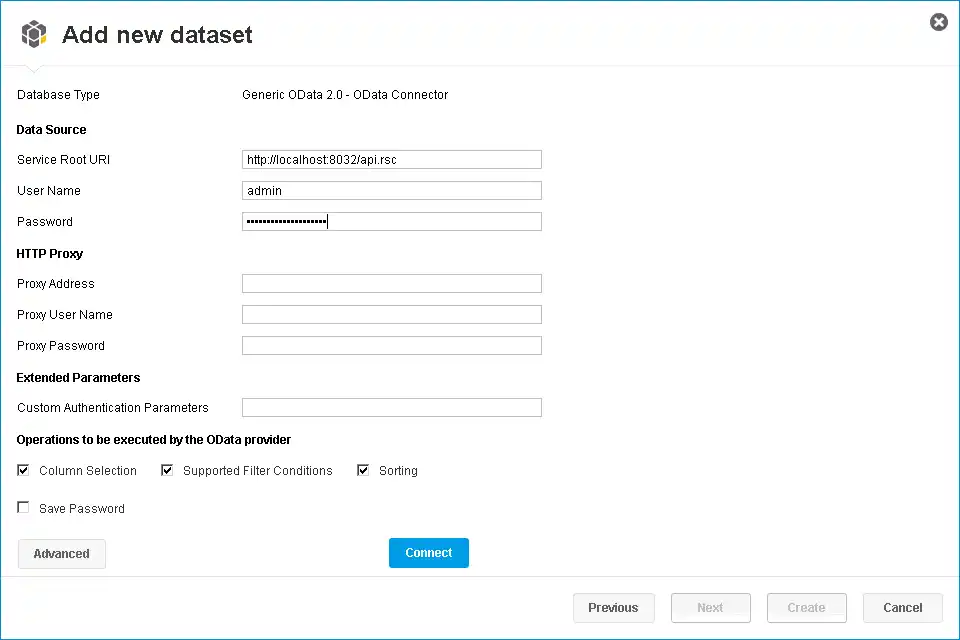
- Expand the Generic section and click the Generic OData 2.0 Connector option.
-
In the Service Root URI box, enter the OData endpoint of the API Server. This URL will resemble the following:
https://your-server:8080/api.rsc -
In the User Name and Password boxes, enter the username and authtoken of an API user. These credentials will be used in HTTP Basic authentication.
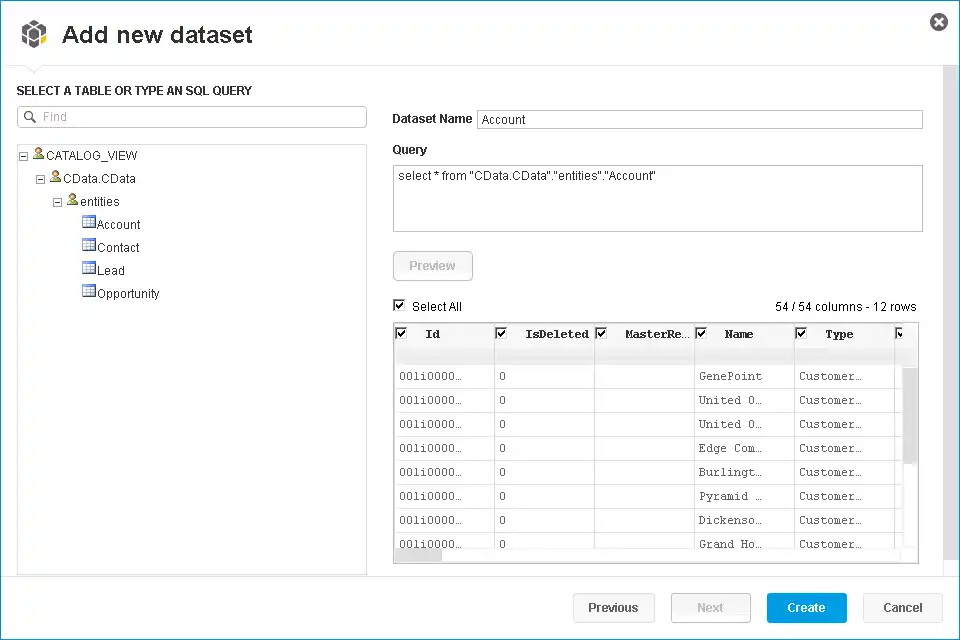
Select entities in the tree or enter an SQL query. This article imports Talkdesk Users entities.
-
When you click Connect, SAP Lumira will generate the corresponding OData request and load the results into memory. You can then use any of the data processing tools available in SAP Lumira, such as filters, aggregates, and summary functions.
Create Data Visualizations
After you have imported the data, you can create data visualizations in the Visualize room. Follow the steps below to create a basic chart.
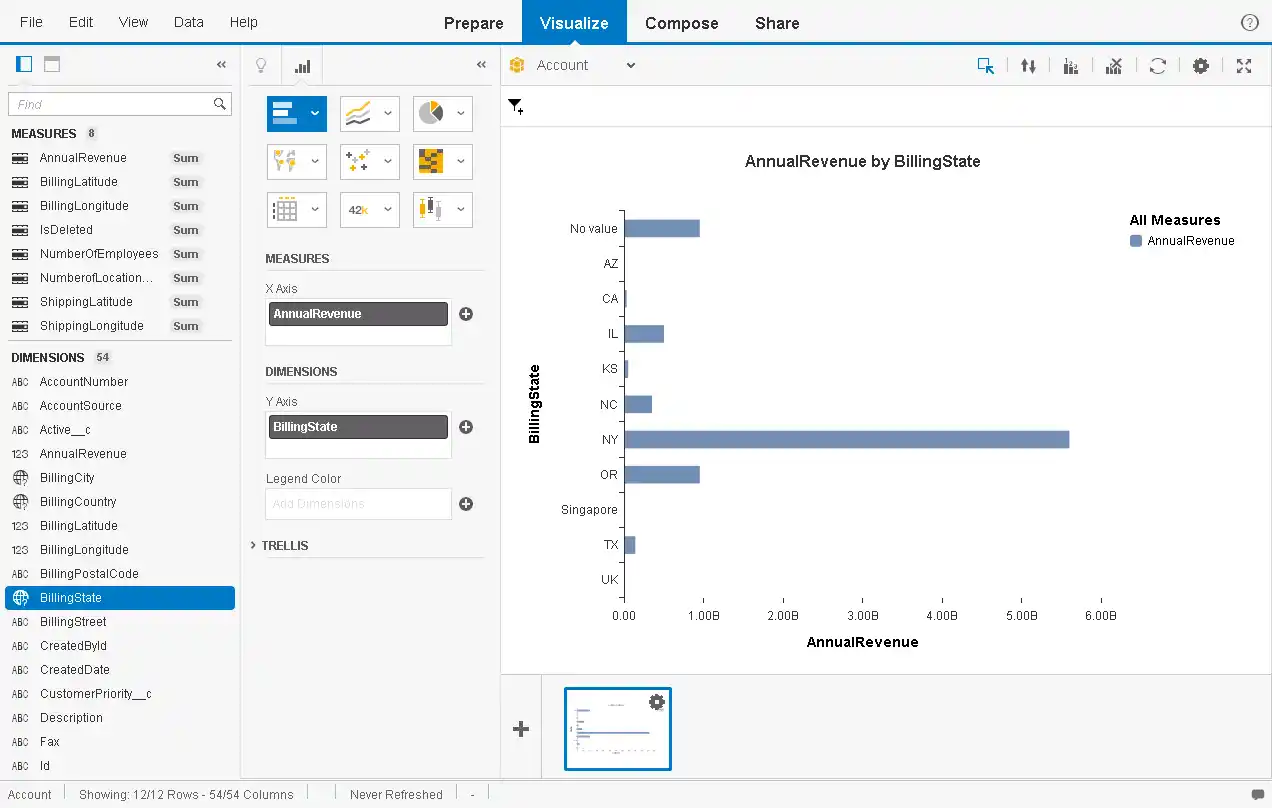
In the Measures and Dimensions pane, drag measures and dimensions onto the x-axis and y-axis fields in the Visualization Tools pane. SAP Lumira automatically detects dimensions and measures from the metadata service of the API Server.
By default, the SUM function is applied to all measures. Click the gear icon next to a measure to change the default summary.
- In the Visualization Tools pane, select the chart type.
- In the Chart Canvas pane, apply filters, sort by measures, add rankings, and update the chart with the current Talkdesk data.