






Reporting on directory data in Power BI sounds simple until the report has to refresh without you. These are the questions that tend to come up, in roughly the order you hit them.
Can Power BI report on Active Directory users at all?
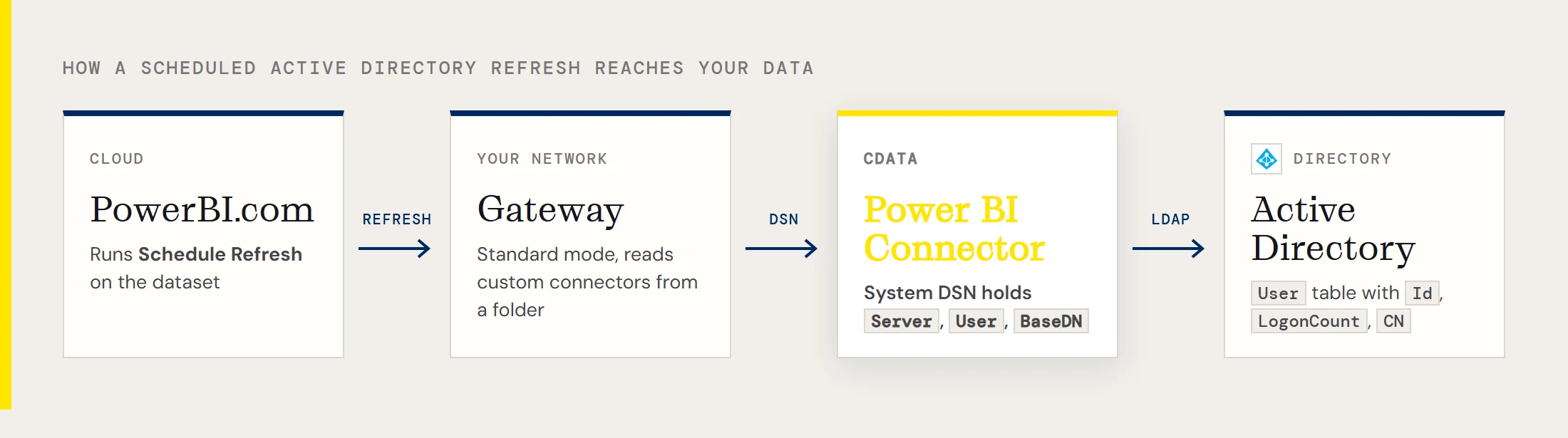
Yes, with the CData Power BI Connector for Active Directory. It installs a DSN named CData Power BI ActiveDirectory that Power BI Desktop reads like any other data source, and directory objects show up as tables. The User table, for example, has columns such as Id, LogonCount and CN.
What goes in the DSN?
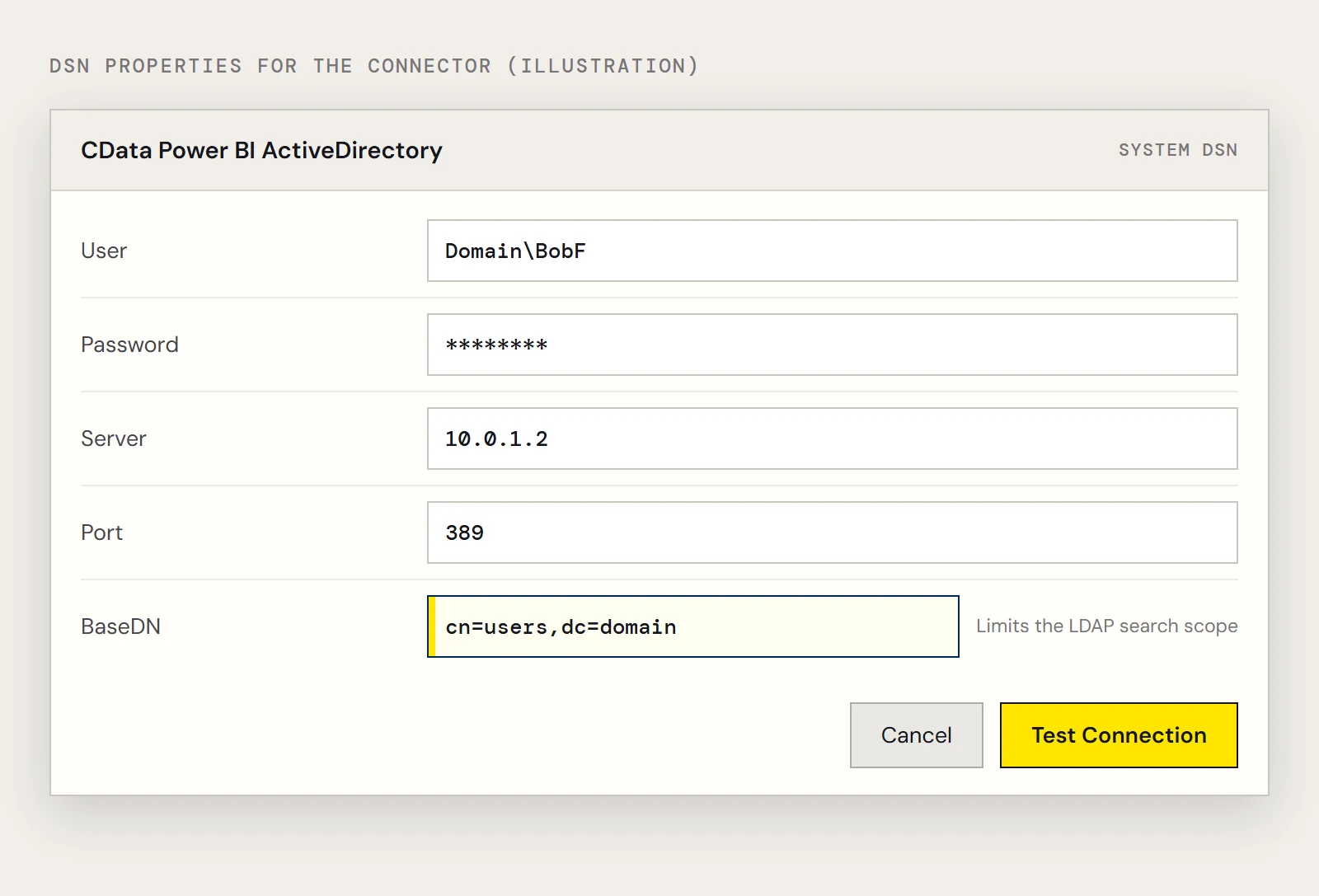
You need a user and password, the server and the port, and ideally a base DN. The user can be written as Domain\BobF or as a distinguished name. A sample set of properties looks like this:
User=cn=Bob F,ou=Employees,dc=Domain;Password=bob123;Server=10.0.1.2;Port=389;BaseDN=cn=users,dc=domain;Open the Microsoft ODBC Data Source Administrator, choose the version that matches your Power BI Desktop bitness (32-bit or 64-bit), and edit the installed DSN.
How do I get users into a report?
In Power BI Desktop, choose Get Data, pick the CData Active Directory connector, select the DSN and keep Import as the connectivity mode. Expand the folder and the schema, tick User and click Load. If you want to trim the data first, click Edit instead, and filter rows or remove columns in the Query Editor. A pie chart of LogonCount by Id is the quickest way to see that it works, though a table visual is more useful for audits.
Why is the load slow?
An unbounded search walks the whole directory. The BaseDN property limits the scope of LDAP searches to the distinguished name you give it, so cn=users,dc=domain returns only objects inside cn=users and its children. A narrow base DN can make a large difference to speed, so set one before you blame the network.
Do I need personal mode or standard mode for the gateway?
Standard mode is the recommended choice. It needs a system DSN, which every account on the machine can use, and several people can share the gateway. Personal mode runs under your Windows account and suits a single report author who just wants to publish and refresh.
Install the gateway on a machine that can reach the domain controller at the address you put in Server. That's general networking, not something specific to the connector.
Why can't the gateway find the connector?
The gateway reads custom connectors from a folder you pick in its Connectors step. Copy the connector's .pqx files from C:\Users\USERNAME\Documents\Power BI Desktop\Custom Connectors\ into that folder, and make sure the service account NT SERVICE\PBIEgwService can read it. The entry CData.PowerBI.ActiveDirectory should then appear in the gateway's Connectors list.
How do I connect the published dataset to the gateway?
In PowerBI.com choose Manage Gateways, select the gateway and allow custom data connectors to refresh through the cluster, then Apply. Add a data source of type CData Power BI Connector for Active Directory with your system DSN as the Data Source Name. In the dataset's settings, enable the gateway connection. If the data source doesn't appear, use Manually add to gateway with a connection name, the same DSN, Anonymous authentication and a privacy level.
How do I keep it fresh?
Open the dataset's options menu from your workspace and choose Refresh Now to test, then Schedule Refresh to switch on automatic refresh and set how often it runs. Because user data changes slowly in most organizations, a daily schedule is usually enough.
Should the data go somewhere else first?
If many reports read the same directory data, or you want history of attributes over time, you can replicate it with CData Sync and point Power BI at the copy. For a single report with a schedule, the direct connection is fine.
To try it on your own directory, download the CData Power BI Connector for Active Directory.
Ready to get started?
Download a free trial of the Active Directory Power BI Connector to get started:
Download NowLearn more:
 Active Directory Power BI Connector
The fastest and easiest way to connect Power BI to Active Directory data. Includes comprehensive high-performance data access, real-time integration, extensive metadata discovery, and robust SQL-92 support.