






The DAG shows up in the Airflow list and you've unpaused it, but one of three things happened: the connection test failed, the task failed with a Java error, or the task went green and no file showed up. The third is the nastiest, so it comes first. The setup here is the CData JDBC Driver for Active Directory called from Airflow's JdbcHook.
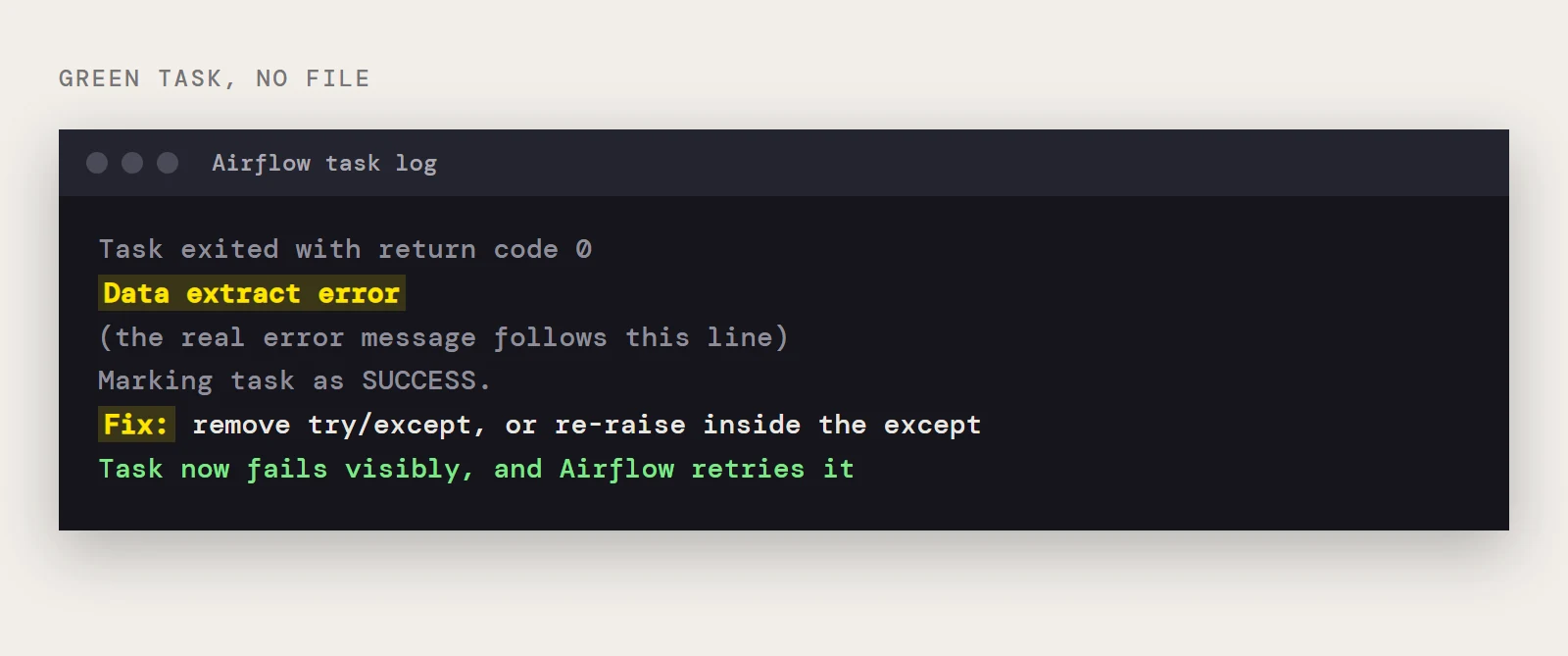
The task is green but there is no CSV
CData's sample DAG wraps its query in try/except and prints "Data extract error" when something goes wrong. Airflow only sees a task that returned normally, so it reports success. Open the task log and search for that text. If it's there, the query failed and the real message follows it. Remove the try/except, or re-raise inside the except, so Airflow marks the task failed and retries it. Once failures are visible, the rest of this page applies.
The connection test fails
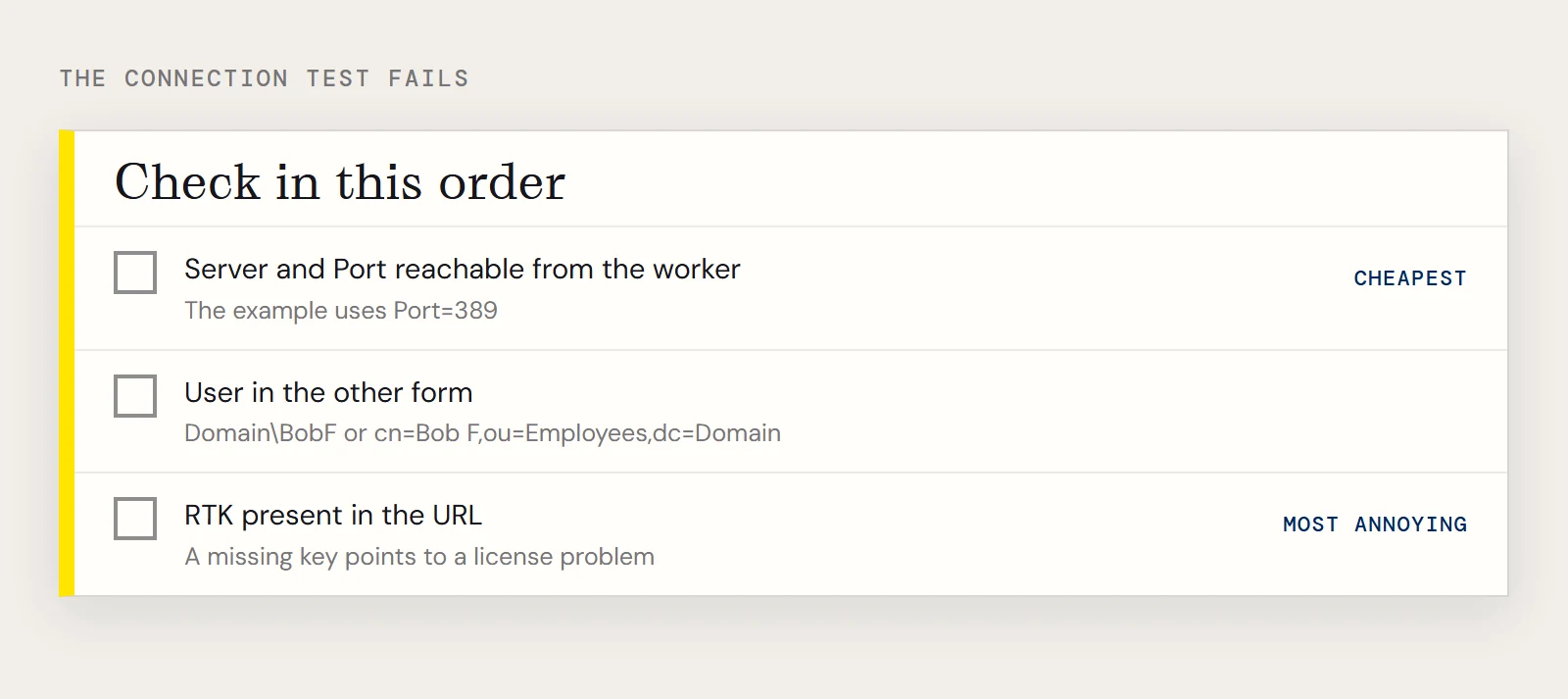
Work through these in order, because they go from cheapest to most annoying.
- The Server and Port values must be reachable from the Airflow worker. The example uses Port=389. A directory that answers from your desktop may not answer from a container.
- The User value takes either the Domain\BobF form or a distinguished name like cn=Bob F,ou=Employees,dc=Domain. If one form is rejected, try the other with the same password.
- The Runtime Key. The URL carries RTK=..., which is needed when the driver is hosted on a server. A missing key points to a license problem, not a directory one.
Airflow cannot find the driver or the connection
If the log complains about the class, confirm the value is cdata.jdbc.activedirectory.ActiveDirectoryDriver and that the jar named in the driver path exists on the machine that ran the task. Workers and the webserver are often different hosts, and the Test button only exercises the one serving the page.
If the log says the connection id isn't found, compare the id in JdbcHook(jdbc_conn_id="...") with the saved connection. CData's sample uses the id jdbc in code while the instructions suggest another name, and that mismatch costs people an afternoon. The Airflow JDBC provider's newer releases also put the URL into the Host field, and driver_path and driver_class into Extra guarded by two settings (allow_driver_path_in_extra and allow_driver_class_in_extra). If your form looks different from older screenshots, that's why.
The query runs but takes forever
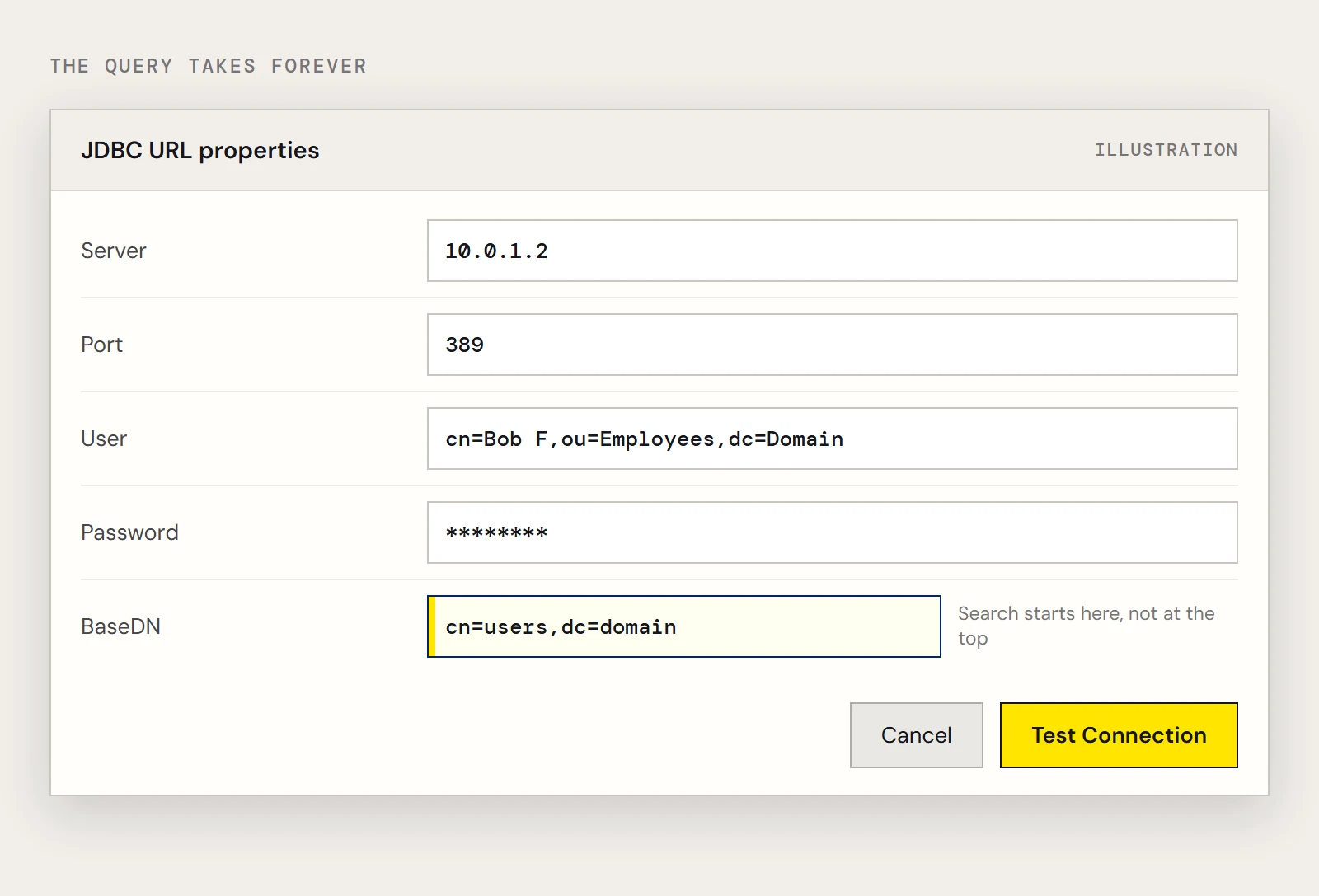
An unscoped search starts at the top of the directory. Set BaseDN in the URL to the part of the tree you care about, for example cn=users,dc=domain, which returns results inside cn=users and its children only. Select named columns and add a WHERE clause too, since the driver pushes supported filters down to the directory. Recent driver release notes also describe an IncludeLinkedColumns option that exposes additional Linked columns containing whole related rows. If a result looks much wider than you expect and that property is on, that's a likely reason.
A working AD task for comparison
Once the failures above are handled, the configuration is short. The URL:
jdbc:activedirectory:RTK=5246...;User=cn=Bob F,ou=Employees,dc=Domain;Password=bob123;Server=10.0.1.2;Port=389;And a task that lets errors surface:
from datetime import datetime
from airflow.decorators import dag, task
from airflow.providers.jdbc.hooks.jdbc import JdbcHook
@dag(dag_id="ad_user_export", schedule="0 6 * * *", start_date=datetime(2026, 11, 1), catchup=False)
def ad_user_export():
    @task()
    def export_users():
        hook = JdbcHook(jdbc_conn_id="ad_jdbc")
        df = hook.get_pandas_df("SELECT Id, LogonCount FROM User WHERE CN = 'Administrator'")
        df.to_csv("/tmp/ad_users.csv", index=False)
        return len(df)
    export_users()
ad_user_export()
User is the example table, and Id, LogonCount and CN are the example columns from CData's data. Drop the WHERE once you know the connection works.
If you don't have the driver yet, you can download the CData JDBC Driver for Active Directory with a free trial.
Ready to get started?
Download a free trial of the Active Directory Driver to get started:
Download NowLearn more:
 Active Directory JDBC Driver
Rapidly create and deploy powerful Java applications that integrate with Active Directory data including Users, Groups, Roles, Contacts, and more!