






If your Databricks jobs get Dynamics 365 data from files that someone, or some scheduled job, exports and drops into storage, you've probably felt the gaps: the data is as old as the last export, and every new entity means a new export to build. A JDBC read from a notebook can replace that feed table by table. This guide moves one table, proves it matches, and leaves the old path in place until you're sure.
What changes when the feed goes live
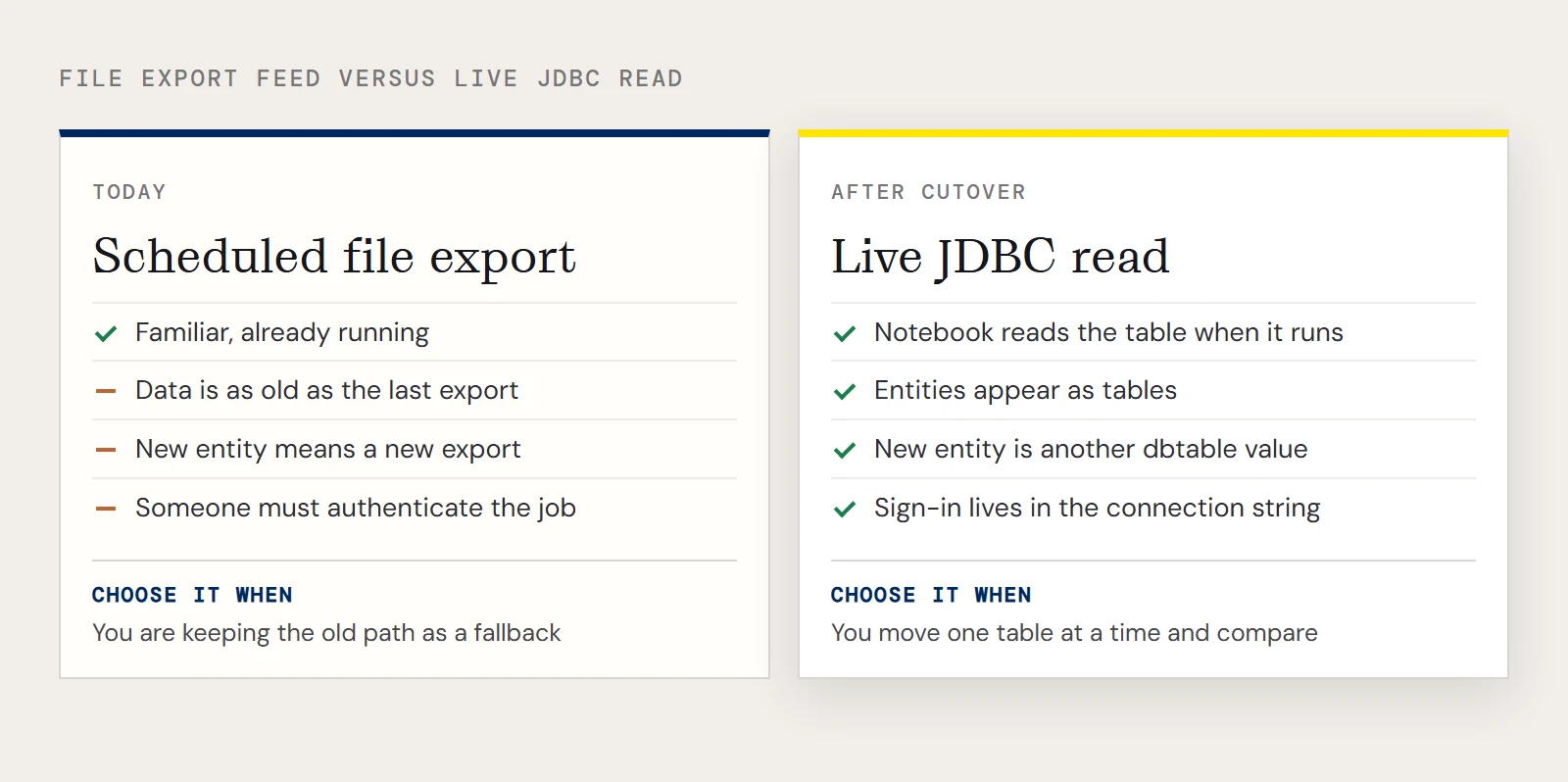
| In the file-export setup | With the CData JDBC Driver for Dynamics 365 |
|---|---|
| A job writes files to storage on a schedule | The notebook reads the table when it runs |
| The export defines which fields you get | The driver exposes entities as tables you select from |
| Someone authenticates the export job | The connection string carries the sign-in settings |
| A new entity needs a new export | A new entity is another dbtable value |
The left column describes a generic export pipeline, so adjust it to match yours.
Pick the edition and the organization URL
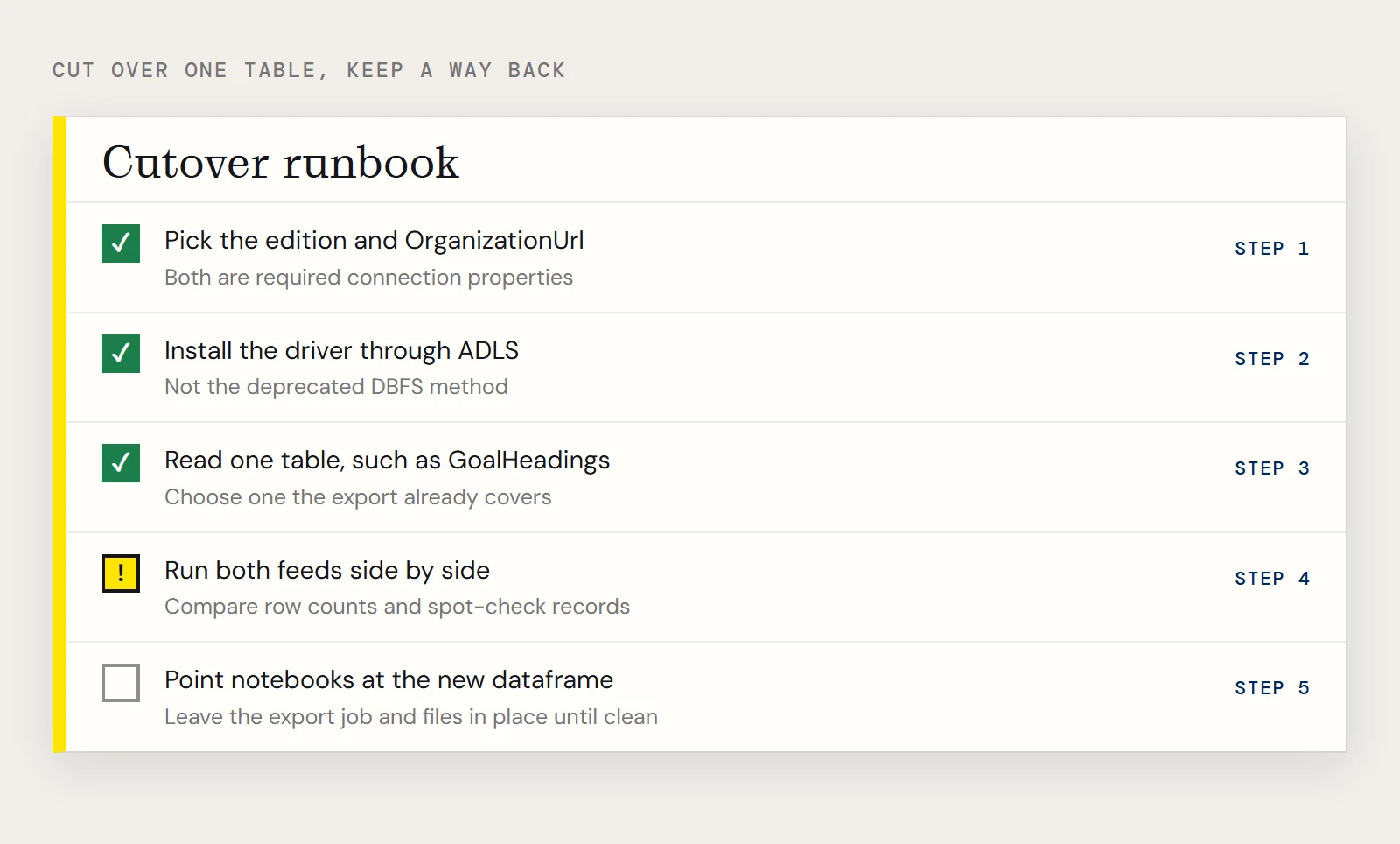
Two connection properties are required: Edition and OrganizationUrl. The driver supports these editions: CustomerService, FieldService, FinOpsOnline, FinOpsOnPremise, HumanResources, Marketing, ProjectOperations and Sales. OrganizationUrl is the address of your Dynamics 365 organization, for example https://orgcb42e1d0.crm.dynamics.com. If your data is in Business Central, that is a different product with its own driver.
For sign-in, the driver supports Microsoft Entra ID, Azure managed identity, and an Azure service principal with either a client secret or a certificate. The simplest string uses InitiateOAuth=GETANDREFRESH.
Install the driver the supported way
Upload the JAR to a blob container, add spark.hadoop.fs.azure.account.key.<storage account>.blob.core.windows.net to the cluster's Spark configuration with the storage key as the value, and install the library from the cluster's Libraries tab as an ADLS library using the JAR's abfss:// URL. If a colleague already installed a driver through DBFS, plan to move it: that method is deprecated, though no end-of-life has been published.
Cut over one table
Choose a table that today's export already covers, so you have something to compare against. The sample below uses GoalHeadings.
driver = "cdata.jdbc.dynamics365.Dynamics365Driver"
url = "jdbc:dynamics365:RTK=5246...;OrganizationUrl=https://myaccount.operations.dynamics.com/;Edition=Sales;InitiateOAuth=GETANDREFRESH;"
remote_table = (spark.read.format("jdbc")
    .option("driver", driver)
    .option("url", url)
    .option("dbtable", "GoalHeadings")
    .load())
remote_table.createOrReplaceTempView("goal_headings")
result = spark.sql("SELECT GoalHeadingId, Name FROM goal_headings WHERE Name = 'MyAccount'")
display(result)
The RTK property carries the license key unless you use a beta driver. To build the URL without guessing at property names, run java -jar cdata.jdbc.dynamics365.jar and fill in the designer.
One thing to settle before you schedule anything: the browser-based OAuth sign-in. That flow is meant for a person at a desk. For an unattended job, plan for the non-interactive settings (InitiateOAuth=REFRESH with OAuthSettingsLocation, or a service principal) and test that the job runs without a prompt.
Prove it matches, then switch
Run the live read and the file-based read side by side for a few cycles. Compare row counts and spot-check a few records on the columns your reports use. When they agree, point the downstream notebooks at the new dataframe, or save it as a table so other users can query it. Data held in a temp view is visible only in that notebook, so shared use needs the saved table.
remote_table.write.format("parquet").saveAsTable("d365_goal_headings")Keep the way back open
Leave the export job and its files alone until the live read has run clean for as long as your reporting cycle is long. Rolling back is then a matter of pointing readers at the old location again. For workloads where a copy in your own warehouse is the better target, CData Sync replicates Dynamics 365 data on a schedule, but most teams start with the live read for the tables they use most.
To try the live read, download the CData JDBC Driver for Dynamics 365.
Ready to get started?
Download a free trial of the Dynamics 365 Driver to get started:
Download NowLearn more:
 Dynamics 365 JDBC Driver
Rapidly create and deploy powerful Java applications that integrate with Dynamics 365 data including Leads, Contacts, Opportunities, Accounts, and more!