






Getting Active Directory users into a spreadsheet raises a handful of predictable questions:
What is the fastest way to export Active Directory users to Excel?
Use an ODBC driver that speaks LDAP, define one data source for your domain controller, and query it from Excel with Microsoft Query. You write a normal SELECT against the User table and return the rows to a worksheet. Unlike a one-time CSV export, the sheet can be refreshed whenever you need current data.
What do I need to connect?
Three things go into the ODBC data source for the CData ODBC Driver for Active Directory:
- A User and Password, either in Domain\BobF form or as a distinguished name such as cn=Bob F,ou=Employees,dc=Domain.
- The Server (an IP or host name for a domain controller) and the Port, which is 389 in the usual example.
- Optionally, but worth doing, a BaseDN that sets where in the directory tree searches start.
A connection string looks like this:
User=cn=Bob F,ou=Employees,dc=Domain;Password=bob123;Server=10.0.1.2;Port=389;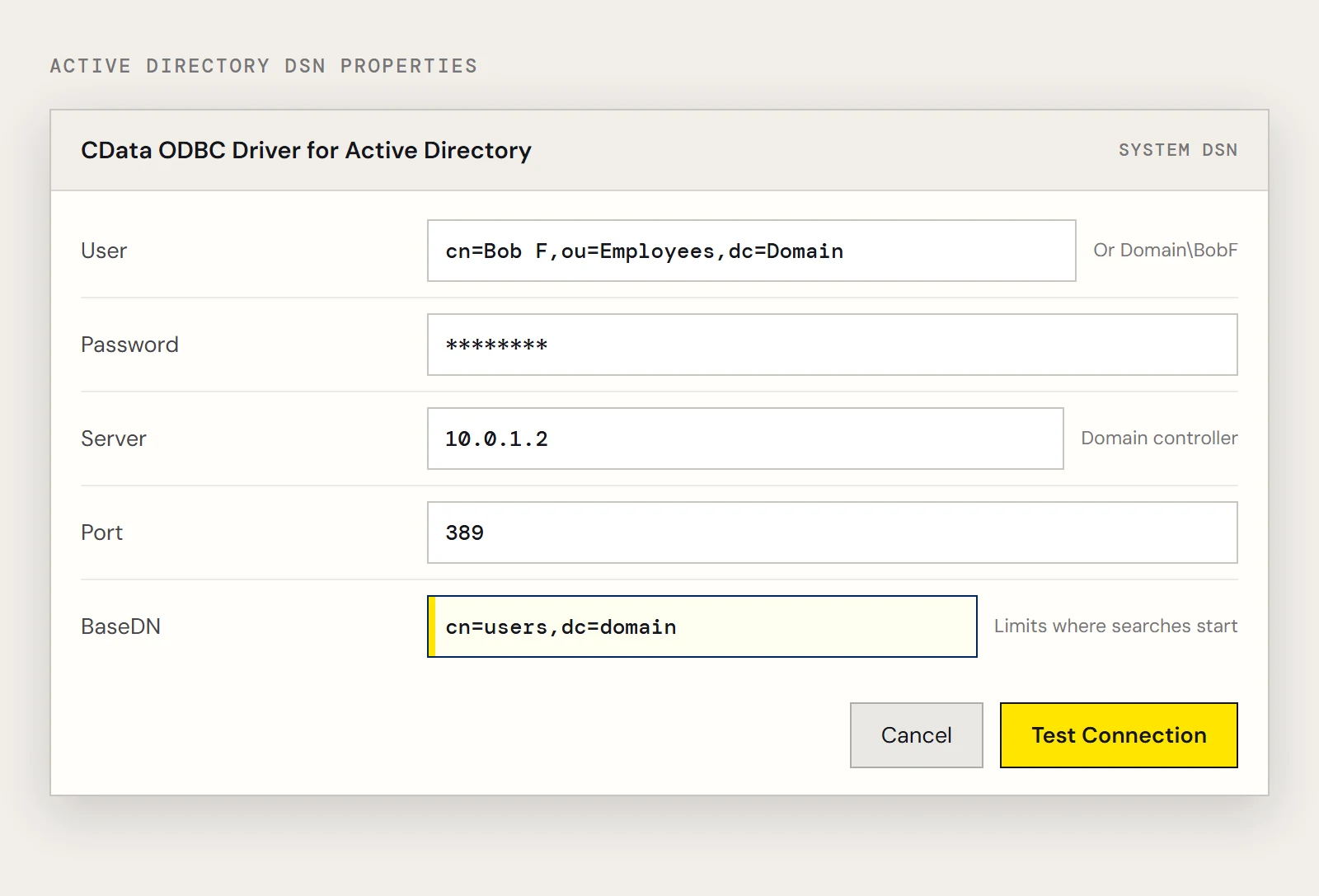
How do I get the users into a worksheet?
- Create a System DSN for the driver in the Windows ODBC Data Source Administrator and test it.
- In Excel, go to Data > Get Data > Legacy Wizards > From Microsoft Query (Legacy). If that entry is missing, enable it under File > Options > Data by ticking From Microsoft Query (Legacy).
- Choose your Active Directory DSN and expand the User table.
- Pick the columns you want. Id and LogonCount make a good starting pair.
- Finish the wizard and return the data to a sheet.
If you'd rather type the SQL, open the query in Microsoft Query, click SQL, and use:
SELECT Id, LogonCount
FROM User
How do I find one person, or one group of people?
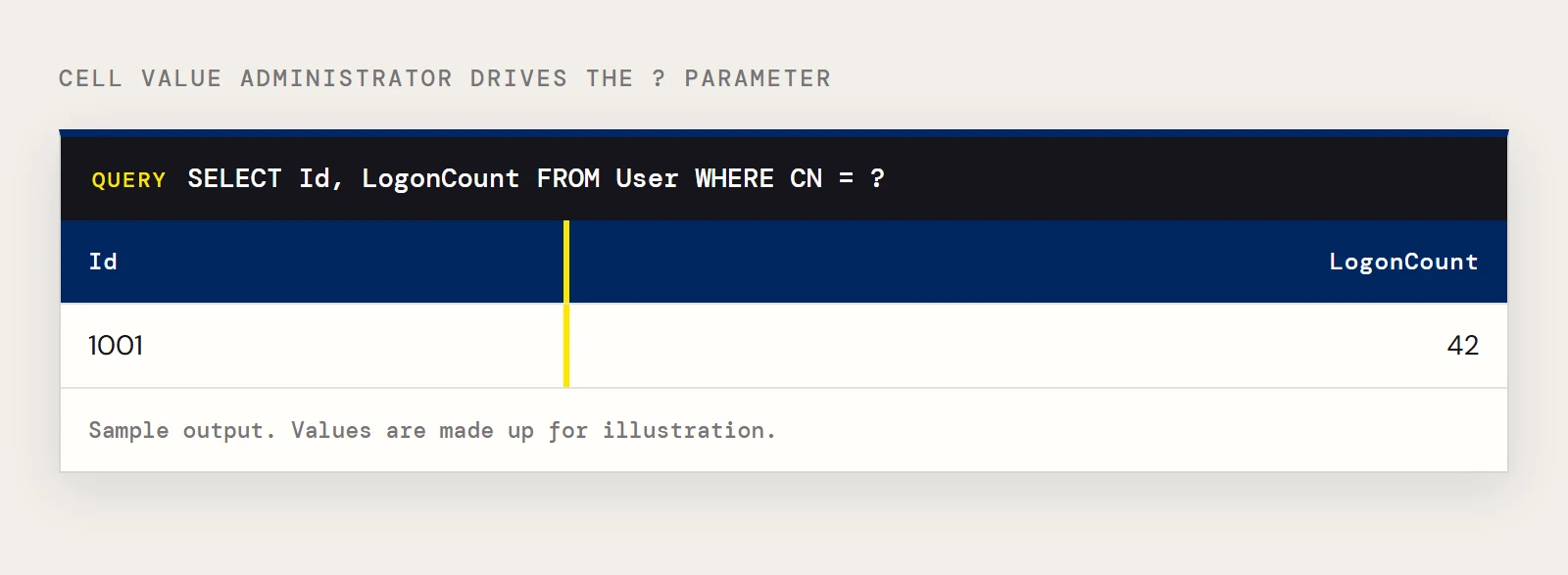
Add a parameter by changing the SQL so the filter uses a question mark:
SELECT Id, LogonCount
FROM User
WHERE CN = ?
When you return the data to Excel, point the parameter at a cell and choose to refresh when it changes. Type Administrator in the cell and you see that account; type another common name and the list updates.
Want to try it on your own directory? Download a free trial of the ODBC Driver for Active Directory and run the query above.
How do I limit the export to one OU?
Set the BaseDN connection property. It restricts LDAP searches to the distinguished name you give and everything beneath it. For example, cn=users,dc=domain returns only results contained in cn=users and its children, so the driver doesn't walk the whole directory.
Why is the query slow?
Usually the search starts at the root of a large directory. A narrow BaseDN can improve performance a great deal, and selecting only the columns you need and filtering with a WHERE clause helps too.
Can I keep the list refreshed?
Yes. Right-click the table, open External Data Properties, and choose to refresh when the file opens or on a timer. Data > Refresh All does it manually.
Can I use something other than Microsoft Query?
Any ODBC-aware tool can use the same data source. In current Excel you can also go through Data > Get Data > From Other Sources > From ODBC and select the DSN.
Ready to get started?
Download a free trial of the Active Directory ODBC Driver to get started:
Download NowLearn more:
 Active Directory ODBC Driver
The Active Directory ODBC Driver is a powerful tool that allows you to connect with live data from Active Directory, directly from any applications that support ODBC connectivity.
Access Active Directory data like you would a database - read, write, and update Active Directory Users, Groups, Roles, Contacts, etc. through a standard ODBC Driver interface.