






If pyodbc.connect() fails on a Linux box, the message usually says nothing about Sybase. It comes from unixODBC, which sits between Python and the driver, and it tends to mean one of a handful of configuration slips. The CData ODBC Driver for Sybase installs on Debian and Red Hat family systems, registers itself with unixODBC and creates a system DSN, so most failures come from what happens after that: who is running Python, which odbc.ini they can see, and what the DSN is called. The checks below go in the order that tends to save time. Work down them until the connection opens, then run the short script at the end to confirm.
Is the driver registered, and where does unixODBC look?
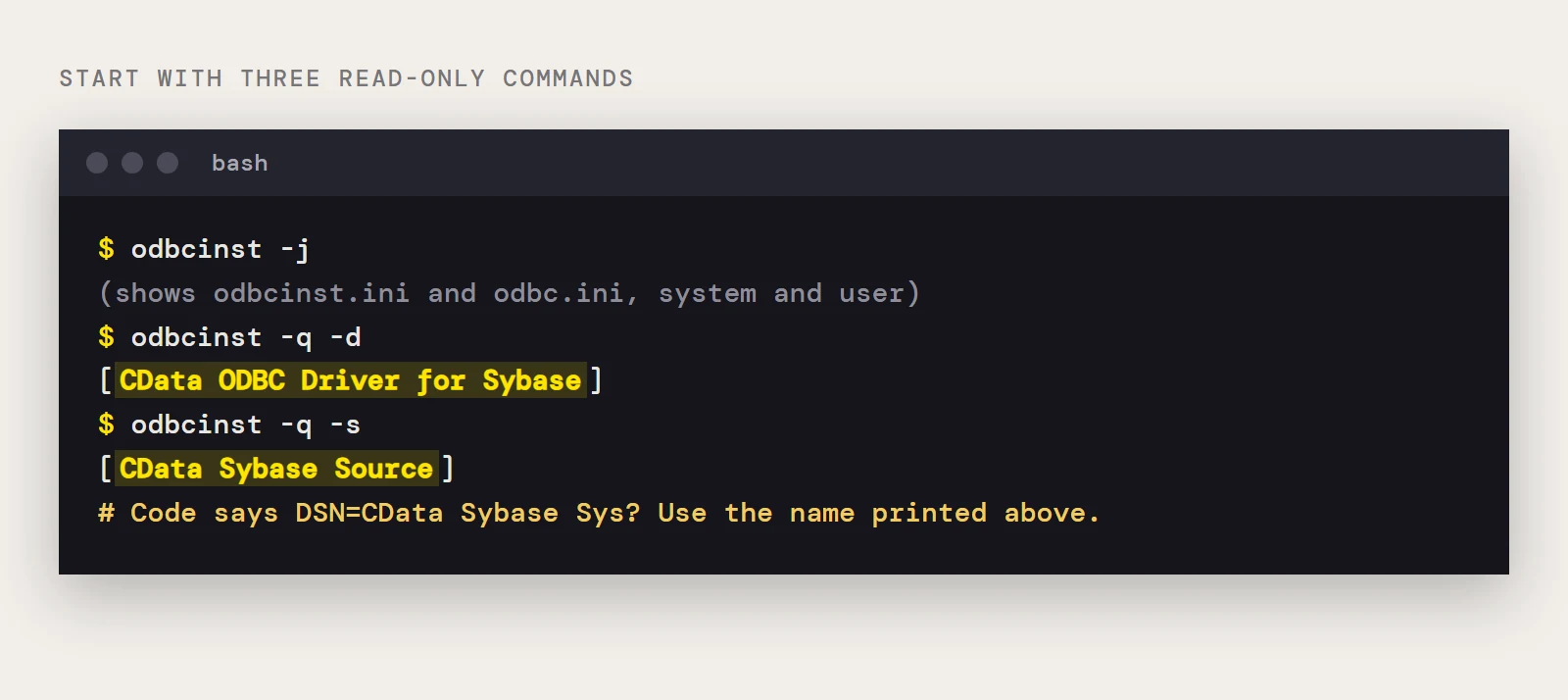
Start with three read-only commands. They tell you whether the installer did its job and which configuration files are in play.
odbcinst -j
odbcinst -q -d
odbcinst -q -s
The first prints the locations of odbcinst.ini (drivers) and odbc.ini (data sources), for both the system and your user account. The second should list CData ODBC Driver for Sybase. The third should list a data source named CData Sybase Source. If the driver is missing from the second list, the package install did not complete under sudo or root, so install the .deb with dpkg -i or the .rpm with rpm -i again and re-run the check. Also confirm that unixODBC itself is present: the unixodbc and unixodbc-dev packages on Debian-based systems, unixODBC and unixODBC-devel on Red Hat family systems. Without the development package, pip install pyodbc may fail before you ever reach a connection.
Which user is running Python?
User data sources live in ~/.odbc.ini and only that account can read them. System data sources in /etc/odbc.ini are visible to everyone. A DSN you edited while logged in as yourself won't be found by a cron job or a service account, and the reverse is also true. If a script works in your shell and fails under a scheduler, compare the odbcinst -j output for both users before touching anything else.
Does the DSN name in your code match the one that exists?
Copied snippets often use a name that the installer never created. The installer's data source is CData Sybase Source, as the odbcinst -q -s output shows, while some example code uses DSN=CData Sybase Sys. Pass whatever name your own listing prints:
cnxn = pyodbc.connect('DSN=CData Sybase Source')You can also skip the DSN and give the driver name plus properties directly, which removes the odbc.ini lookup from the picture while you debug:
cnxn = pyodbc.connect(
    'DRIVER={CData ODBC Driver for Sybase};'
    'User=myuser;Password=mypassword;'
    'Server=localhost;Database=mydatabase;Charset=iso_1;'
)
Is the driver set to UTF-16?
CData's setup for unixODBC requires one edit that's easy to forget. Open the driver's INI file, cdata.odbc.sybase.ini, in the lib folder of the install location (typically /opt/cdata/cdata-odbc-driver-for-sybase) and make sure it contains this:
[Driver]
DriverManagerEncoding = UTF-16
The sample connection also sets Charset=iso_1. If your Sybase server uses a different character set and text comes back wrong, that property is the next one to review.
Do the connection properties describe your server?
Two properties are required: Server, the name or network address of the Sybase instance, and Database, the database on that server. Add UseSSL=true if you want TLS on the connection. For a user name and password login, set AuthScheme to Password and fill in User and Password. If your Sybase server delegates to LDAP, configure that on the server side and connect with the same user and password properties. For Kerberos, set AuthScheme to Kerberos. The driver's example string for that case looks like this:
Server=MyServer;Port=MyPort;User=SampleUser;Password=SamplePassword;Database=MyDB;Kerberos=true;KerberosKDC=MyKDC;KerberosRealm=MYREALM.COM;KerberosSPN=server-nameThe help documentation has a Using Kerberos section with the rest of the setup. A typical /etc/odbc.ini entry for password login uses these keys:
[CData Sybase Source]
Driver = CData ODBC Driver for Sybase
Description = My Description
User = myuser
Password = mypassword
Server = localhost
Database = mydatabase
Charset = iso_1
Did the write actually happen?
Reads work, but an INSERT, UPDATE or DELETE seems to vanish. pyodbc opens transactions implicitly, so you have to call commit() on the connection after execute(), or the change is lost when the connection closes. A related slip is passing too many values to a parameterized query. Supply one value for each question mark:
cursor.execute("SELECT Id, ProductName FROM Products WHERE ProductName = ?", 'Konbu')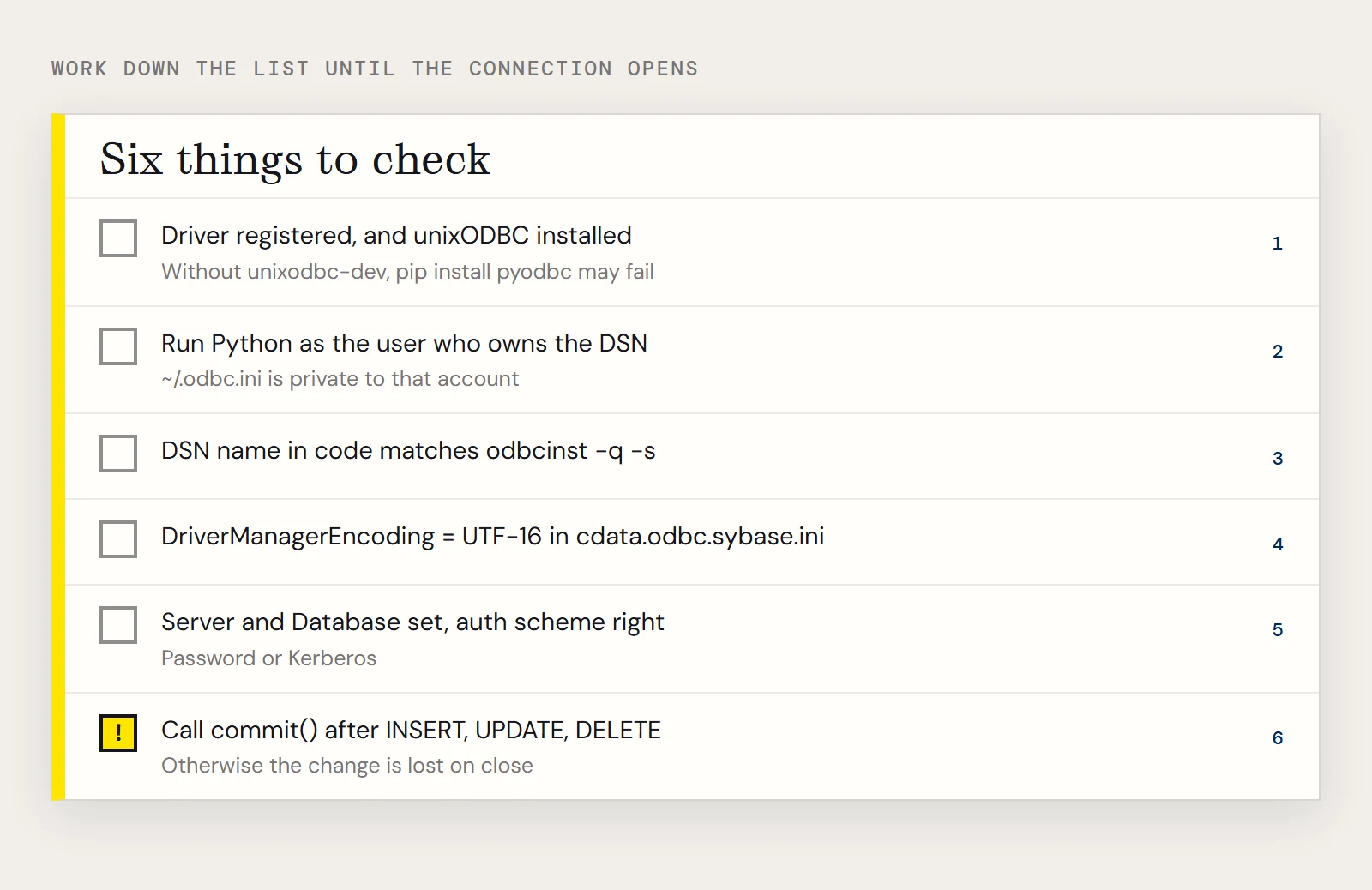
A script that proves the whole chain
Once the checks above pass, this short script exercises the driver manager, the DSN, authentication and a query. It uses the Products table from the driver's examples, so swap in a table from your own database.
import pyodbc
cnxn = pyodbc.connect('DSN=CData Sybase Source;User=myuser;Password=mypassword')
print(cnxn.getinfo(pyodbc.SQL_DATA_SOURCE_NAME))
cursor = cnxn.cursor()
cursor.execute("SELECT Id, ProductName FROM Products WHERE ProductName = ?", 'Konbu')
for row in cursor.fetchall():
    print(row.Id, row.ProductName)
cnxn.close()
The getinfo call goes straight to the ODBC SQLGetInfo function, so if it prints the data source name, the driver manager and driver are talking. If the query then fails, the problem is on the Sybase side (credentials, database name, network), and you can stop looking at odbc.ini. For pipelines that copy Sybase tables somewhere else on a schedule, CData Sync can handle the replication so the Python script only reads the copy.
Want to try it on your own system? Download a free trial of the ODBC Driver for Sybase and run these snippets today.
Ready to get started?
Download a free trial of the Sybase ODBC Driver to get started:
Download NowLearn more:
 Sybase ODBC Driver
The Sybase ODBC Driver is a powerful tool that allows you to connect with live data from Sybase, directly from any applications that support ODBC connectivity.
Access Sybase data like you would a database - read, write, and update Sybase data through a standard ODBC Driver interface.