






A directory isn't shaped like a table, which is why scripts that read one tend to be full of search filters and attribute lists. The CData ADO.NET Provider for LDAP takes the other route: it exposes the directory as SQL tables, so a PowerShell script can run a SELECT and get back a DataTable to loop over, sort or export. This guide builds that script: it connects, lists entries from the User table, and then changes one entry through a parameterized command.
What the script gives you
Everything lives in the System.Data.CData.LDAP namespace, and each piece has one job.
| Piece | What it does |
|---|---|
| LDAPConnection | Opens the session to your directory server |
| LDAPDataAdapter | Runs a SELECT and fills a DataTable |
| LDAPCommand with LDAPParameter | Runs UPDATE, INSERT or DELETE with bound values |
Connect with a user, a server and a narrow BaseDN
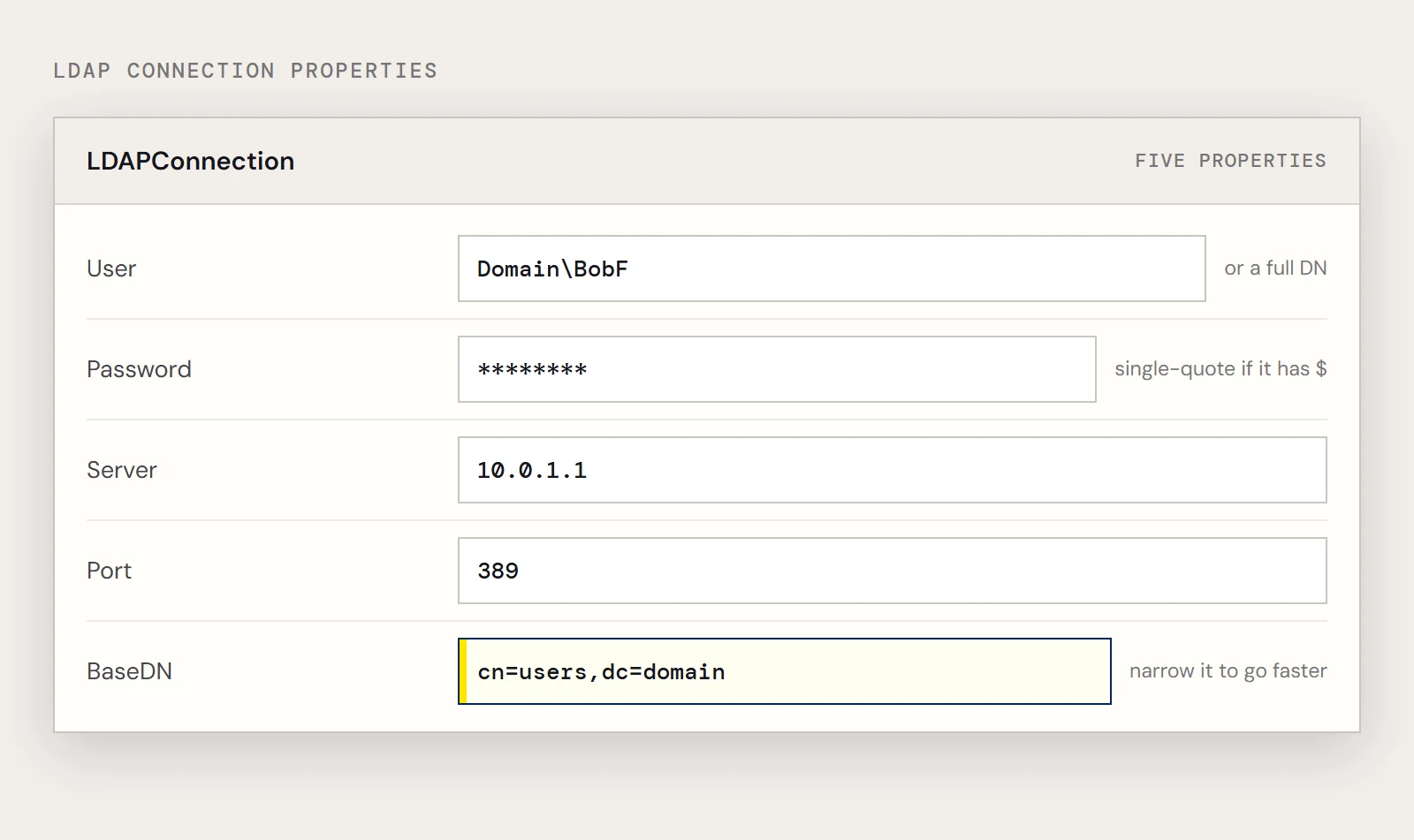
The connection needs a User and Password, written either as Domain\BobF or as a distinguished name such as cn=Bob F,ou=Employees,dc=Domain, plus the Server (host name or IP) and the Port. The fifth property is the one to think about: BaseDN sets where in the tree searches start, so cn=users,dc=domain returns only that container and its children. A narrow BaseDN can speed queries up a great deal.
Load the provider's assembly from its install folder, then open the connection:
[Reflection.Assembly]::LoadFile("C:\Program Files\CData\CData ADO.NET Provider for LDAP\lib\System.Data.CData.LDAP.dll")
$conn = New-Object System.Data.CData.LDAP.LDAPConnection("User=Domain\BobF;Password=bob123456;Server=10.0.1.1;Port=389;BaseDN=cn=users,dc=domain;")
$conn.Open()
If the password contains a dollar sign, wrap the whole string in single quotes so PowerShell doesn't try to expand it.
Read entries into a DataTable
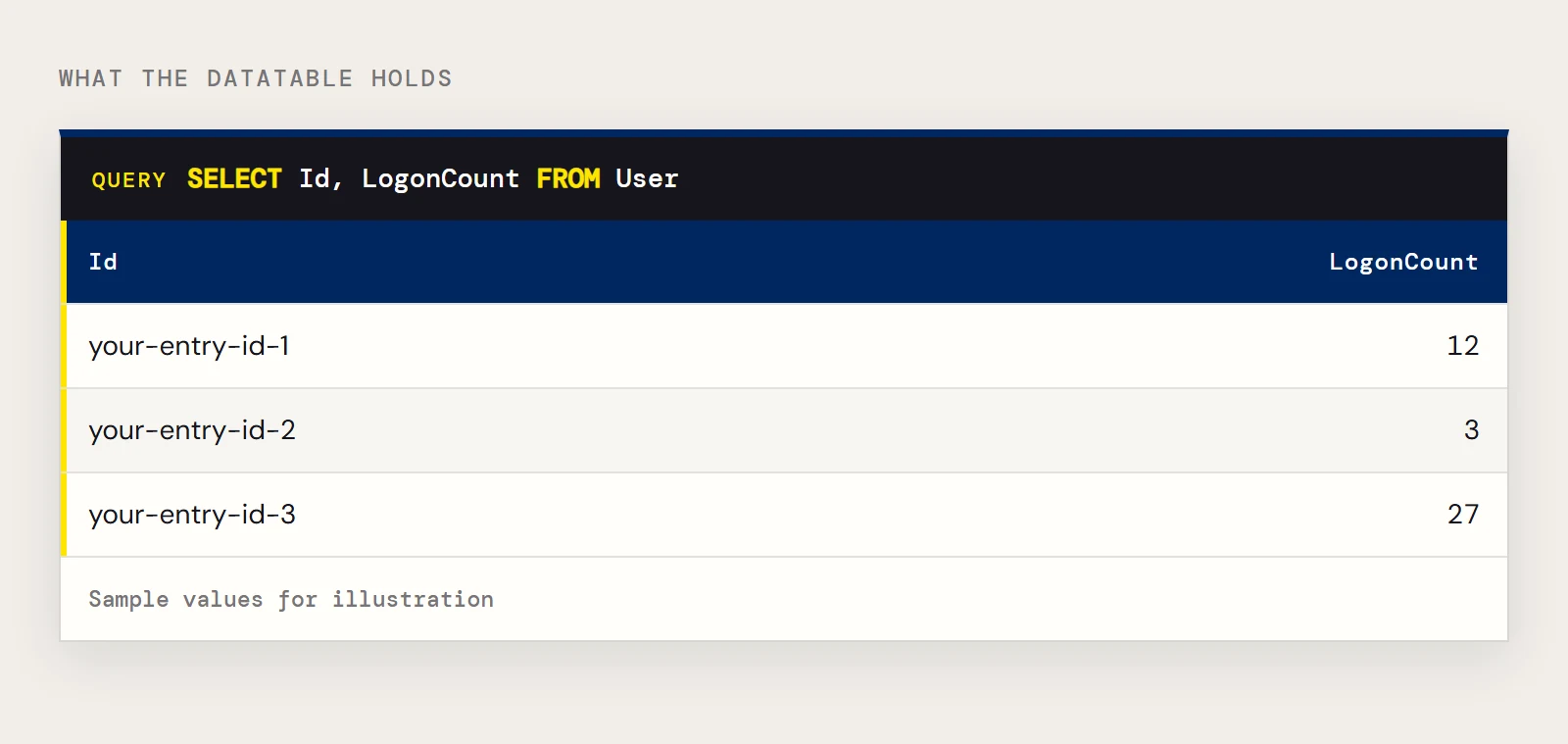
The adapter takes a SQL string and the open connection. Fill loads the rows, and from there it's an ordinary DataTable:
$sql = "SELECT Id, LogonCount FROM User"
$da  = New-Object System.Data.CData.LDAP.LDAPDataAdapter($sql, $conn)
$dt  = New-Object System.Data.DataTable
[void]$da.Fill($dt)
$dt.Rows | foreach {
    Write-Host $_.id $_.logoncount
}
The [void] keeps the row count that Fill returns from printing into your output. Swap Write-Host for Export-Csv or a Where-Object filter when you want something more useful than a console listing.
Look up one entry
A directory with thousands of accounts rarely needs a full listing. Add a WHERE clause on a column such as CN and the same adapter code returns only that entry:
SELECT Id, LogonCount FROM User WHERE CN = 'Administrator'The Id that comes back is what you pass to the UPDATE and DELETE commands below, so a lookup followed by a write is the usual two-step flow. Keep one connection open for both instead of reconnecting, and call $conn.Close() when the script finishes.
Change an entry by Id
Writes go through LDAPCommand, with values passed as parameters so you never splice strings into SQL. This sets the CN of one entry:
$cmd = New-Object System.Data.CData.LDAP.LDAPCommand("UPDATE User SET CN='Administrator' WHERE Id = @myId", $conn)
$cmd.Parameters.Add((New-Object System.Data.CData.LDAP.LDAPParameter("@myId", "your-entry-id")))
$cmd.ExecuteNonQuery()
INSERT and DELETE follow the same pattern:
$cmd = New-Object System.Data.CData.LDAP.LDAPCommand("INSERT INTO User (CN) VALUES (@myCN)", $conn)
$cmd.Parameters.Add((New-Object System.Data.CData.LDAP.LDAPParameter("@myCN", "Administrator")))
$cmd.ExecuteNonQuery()
$cmd = New-Object System.Data.CData.LDAP.LDAPCommand("DELETE FROM User WHERE Id=@myId", $conn)
$cmd.Parameters.Add((New-Object System.Data.CData.LDAP.LDAPParameter("@myId", "your-entry-id")))
$cmd.ExecuteNonQuery()
Try these against a test entry first. Running the same WHERE Id = ... as a SELECT before a DELETE takes a few seconds and shows exactly what the delete will hit.
What goes wrong
| What you see | Likely cause | Fix |
|---|---|---|
| Could not load file or assembly System.Data.CData.LDAP | The path in LoadFile doesn't match the install folder | Open the provider's lib folder and copy the real path |
| Open() fails | Wrong Server, Port or credential format | Check the host, try port 389, and confirm the user as Domain\BobF or a full DN |
| Queries are slow or return far more than you want | No BaseDN, so the search starts at the top | Set BaseDN to the container you actually need |
Want to try it against your own directory? Download a free trial of the ADO.NET Provider for LDAP.
Ready to get started?
Download a free trial of the LDAP Data Provider to get started:
Download NowLearn more:
 LDAP ADO.NET Provider
Rapidly create and deploy powerful .NET applications that integrate with LDAP.