






A query that works at your desk can fail at 6 a.m. for reasons that have nothing to do with SQL. Somebody has to type an MFA passcode, the password sits in the script, or the job dies halfway and nothing notices. This walkthrough takes the CData ADO.NET Provider for Snowflake from a one-off snippet to a job that can run by itself.
Choose an authentication method nobody has to babysit
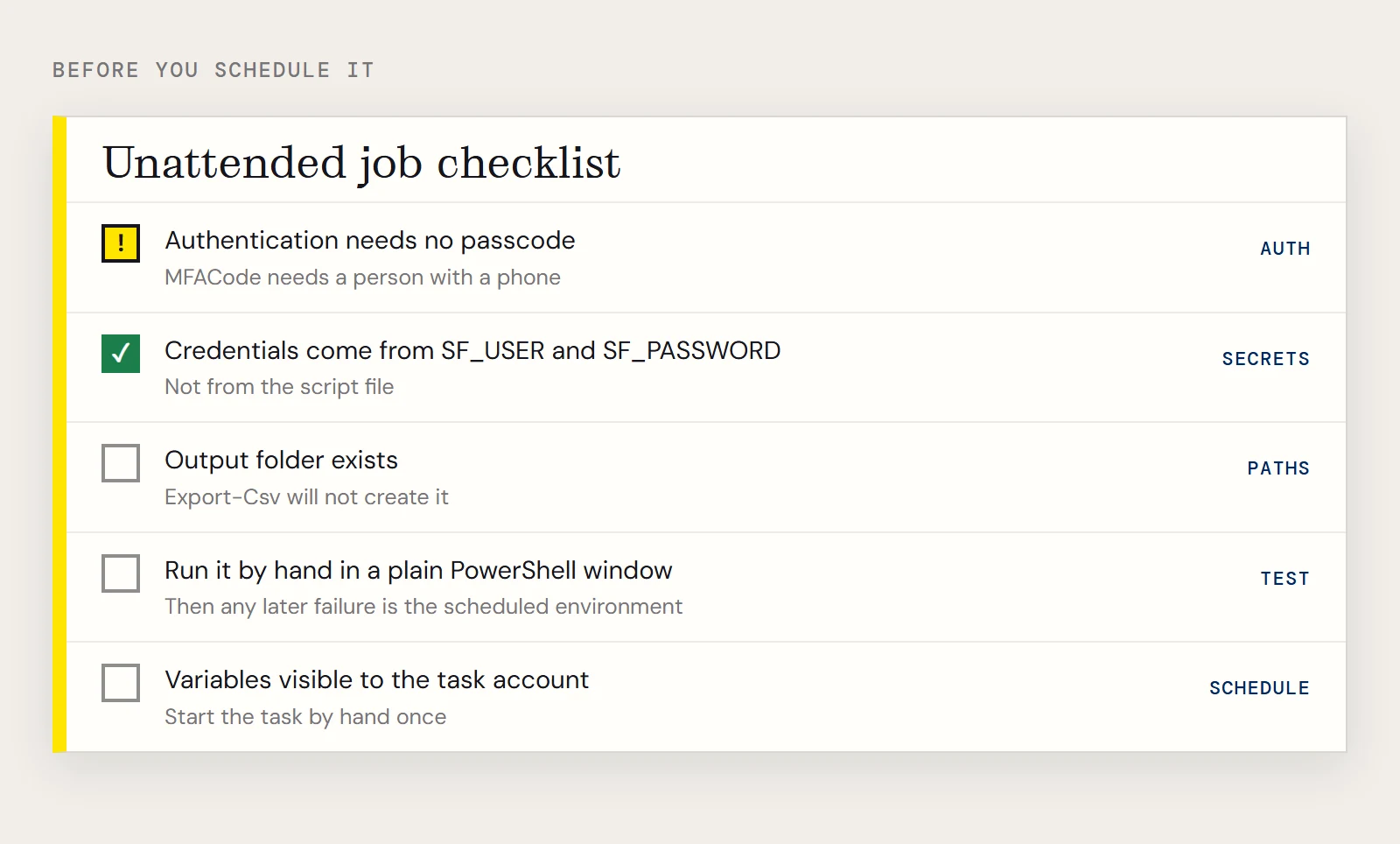
The connection can use User and Password with the AuthScheme set to PASSWORD or OKTA. If your account has MFA through Duo Security, you'd also set MFACode to the passcode from the authenticator app, and that is the part that can't run unattended: the passcode comes from a person with a phone.
CData's overview lists other ways to authenticate, including OAuth, Azure AD, Azure Managed Service Identity, PingFederate and private key. Ask your Snowflake administrator for a service account that uses one of them, then look up the matching properties in the driver's help. This article sticks to the password scheme so the rest of the script stays readable.
The script
Credentials come from environment variables, not from the file. The other properties are the ones the driver needs to find your data: URL, Warehouse, and optionally Database. Add Account if your URL doesn't follow the myaccount.snowflakecomputing.com format.
$ErrorActionPreference = 'Stop'
[Reflection.Assembly]::LoadFile("C:\Program Files\CData\CData ADO.NET Provider for Snowflake\lib\System.Data.CData.Snowflake.dll") | Out-Null
$cs = "Authscheme=Password;URL=https://myaccount.snowflakecomputing.com;" +
      "User=$($env:SF_USER);Password=$($env:SF_PASSWORD);" +
      "Database=Northwind;Warehouse=TestWarehouse;"
$conn = New-Object System.Data.CData.Snowflake.SnowflakeConnection($cs)
try {
    $conn.Open()
    $sql = "SELECT Id, ProductName FROM Products"
    $da  = New-Object System.Data.CData.Snowflake.SnowflakeDataAdapter($sql, $conn)
    $dt  = New-Object System.Data.DataTable
    [void]$da.Fill($dt)
    $stamp = Get-Date -Format 'yyyyMMdd-HHmm'
    $dt | Select-Object Id, ProductName | Export-Csv "C:\jobs\out\products-$stamp.csv" -NoTypeInformation
}
finally {
    $conn.Close()
}
$ErrorActionPreference = 'Stop' turns any failure into a terminating error, and the finally block closes the connection whether the query worked or not. A dated file name keeps one night's output from overwriting the last. Run the script by hand before you schedule it, in a plain PowerShell window that has the two environment variables set. If it works there, any later failure comes from the scheduled environment (the account, the variables, the paths), not the query. Create the output folder first, too, because Export-Csv won't make it for you.
Put it on a schedule
On Windows, Task Scheduler can run the script under a service account. The same PowerShell session can register the task:
$action  = New-ScheduledTaskAction -Execute 'powershell.exe' -Argument '-NoProfile -File C:\jobs\snowflake-report.ps1'
$trigger = New-ScheduledTaskTrigger -Daily -At 6:00am
Register-ScheduledTask -TaskName 'Snowflake products export' -Action $action -Trigger $trigger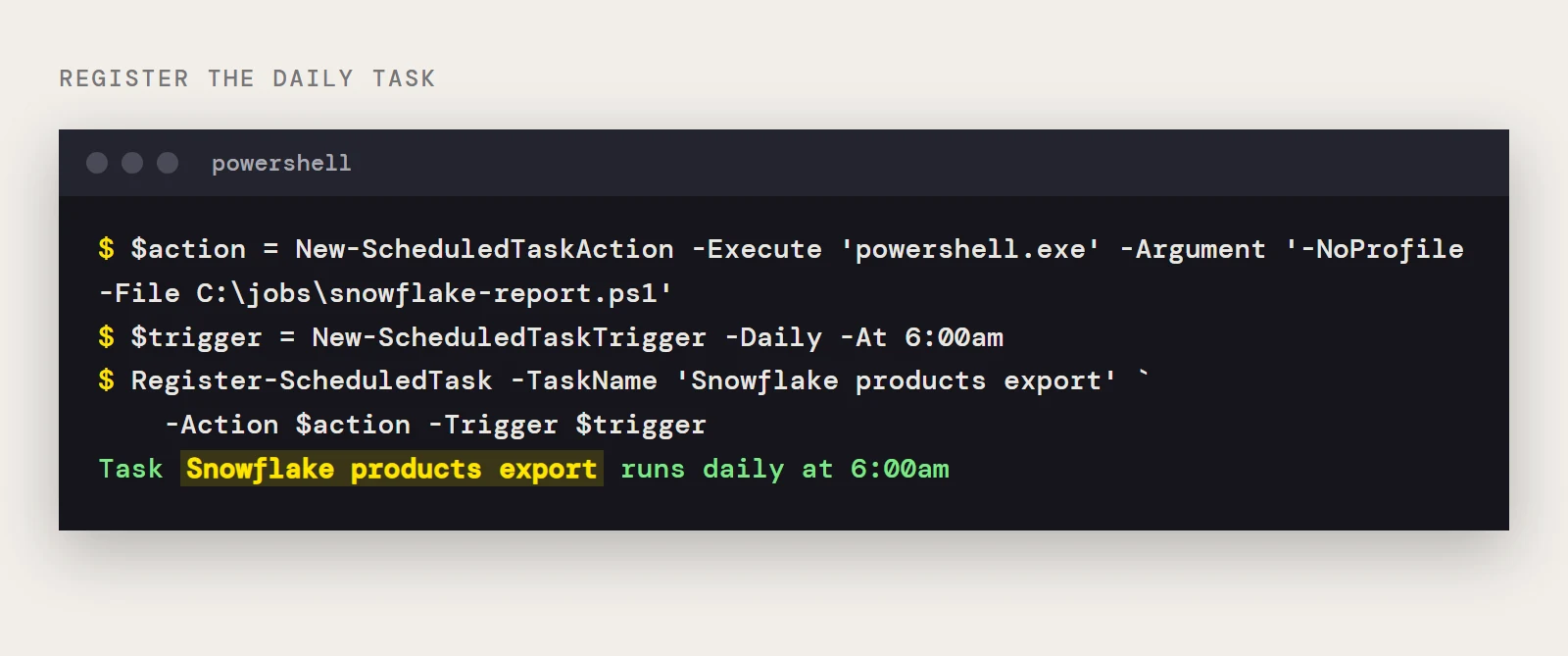
The environment variables have to be visible to the account the task runs as, so set them for that account (or at machine level) and test by starting the task by hand once.
Make failures easy to spot
A scheduled script that fails quietly is worse than one that never ran. Because of Stop, a failed Open() or Fill() ends the script with an error, and Task Scheduler records the last run result. If you want something more explicit, wrap the body in a catch that writes the message to a log file and exits with a nonzero code.
When a run fails, check the LoadFile line first. If PowerShell can't load System.Data.CData.Snowflake, the path doesn't match your install, so open the provider's lib folder and correct it. After that, look at the credentials the task account can see and at the warehouse named in the connection string, since every run queries it. If the real goal is copying whole tables on a timetable, CData Sync is built for replication and may fit better than a hand-written export.
To build this job against your own account, download a free trial of the ADO.NET Provider for Snowflake.
Ready to get started?
Download a free trial of the Snowflake Data Provider to get started:
Download NowLearn more:
 Snowflake ADO.NET Provider
Rapidly create and deploy powerful .NET applications that integrate with Snowflake.