






To get SAP material master data into Excel, install the CData ODBC Driver for SAP ERP, create a DSN that points at your SAP system over RFC (or SOAP), and run SELECT statements against tables like MARA from Excel's Microsoft Query. You end up with a worksheet that refreshes from SAP on demand, without an ABAP report or a SAP GUI export.
Most of the effort isn't in Excel. It goes into getting the right access and picking the right connection type, so this guide follows the decisions that tend to stall SAP-to-Excel projects, in the order you'll hit them.
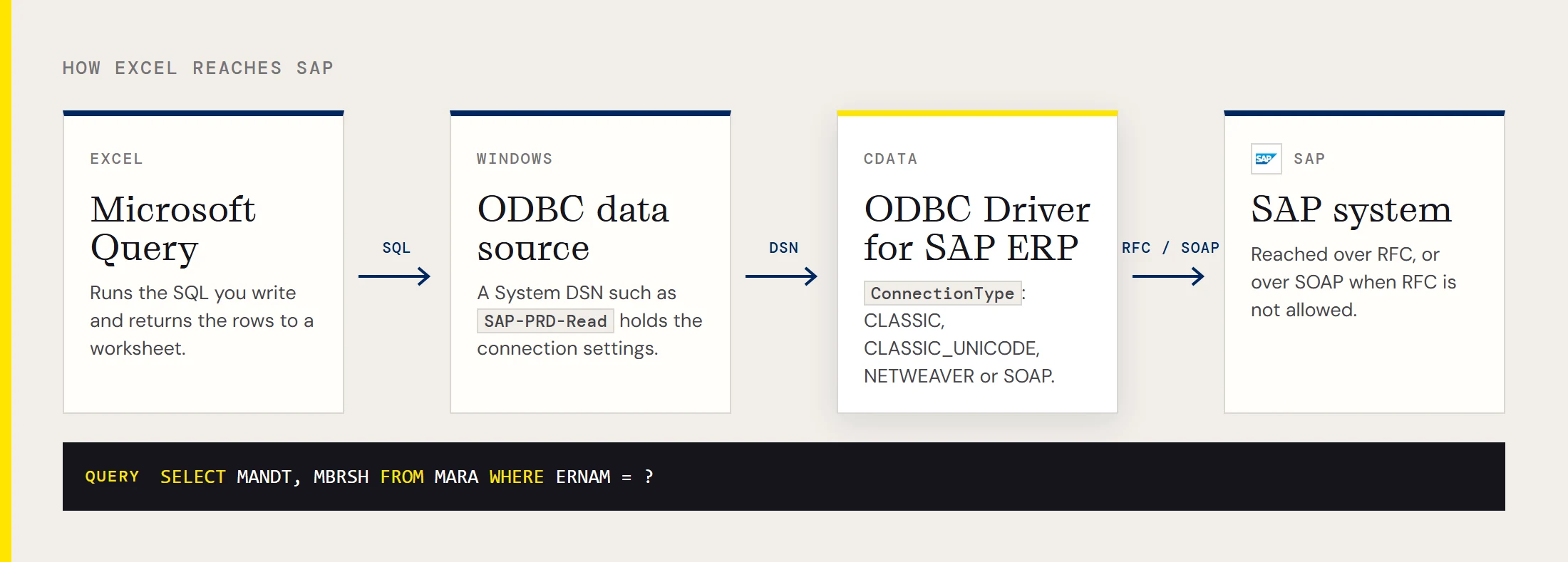
What to ask your Basis team for
SAP security teams answer faster when the request is specific. Ask for the following:
| Request | Why you need it |
|---|---|
| A dedicated, read-only dialog or communication user | Keeps report access auditable and separate from a person's login |
| Authorization to read the tables you report on | Table reads over RFC are checked against SAP authorizations, so a missing authorization surfaces as an error, not an empty result |
| Host, client number and system number | These are the core connection properties for RFC |
| The RFC library files for your platform | CData doesn't ship librfc32.dll or other SAP assemblies, so they have to come from your SAP installation |
If RFC isn't allowed in your landscape, ask whether SOAP access can be enabled for the system instead. It uses a different set of properties but needs no SAP library files on the Excel machine.
Choose the connection type
The ConnectionType property selects the transport:
| ConnectionType | Choose it when |
|---|---|
| CLASSIC | You have librfc32.dll and a standard RFC setup |
| CLASSIC_UNICODE | Your system is Unicode and you have librfc32u.dll |
| NETWEAVER | You use the SAP NetWeaver RFC SDK |
| SOAP | RFC is locked down and SOAP access has been enabled |
Over RFC, set Host, User, Password, Client and SystemNumber. Over SOAP, set Client, RFCUrl, SystemNumber, User and Password. If you're not sure where to find those values, the guide to obtaining SAP connection properties walks through it.
Build the report in eight steps
- Install the driver, then open the ODBC Data Source Administrator and add a System DSN for it, for example SAP-PRD-Read.
- Enter the connection properties for your connection type and click Test Connection.
- In Excel, enable the legacy wizard if you can't see it: File > Options > Data > From Microsoft Query (Legacy).
- Choose Data > Get Data > Legacy Wizards > From Microsoft Query (Legacy) and pick your DSN.
- Add the MARA columns you need. MANDT (client) and MBRSH (industry sector) are a safe first pair.
- Open the query in Microsoft Query and click SQL.
- Add a filter on ERNAM, the user who created the material, using a ? as a parameter (the SQL is below).
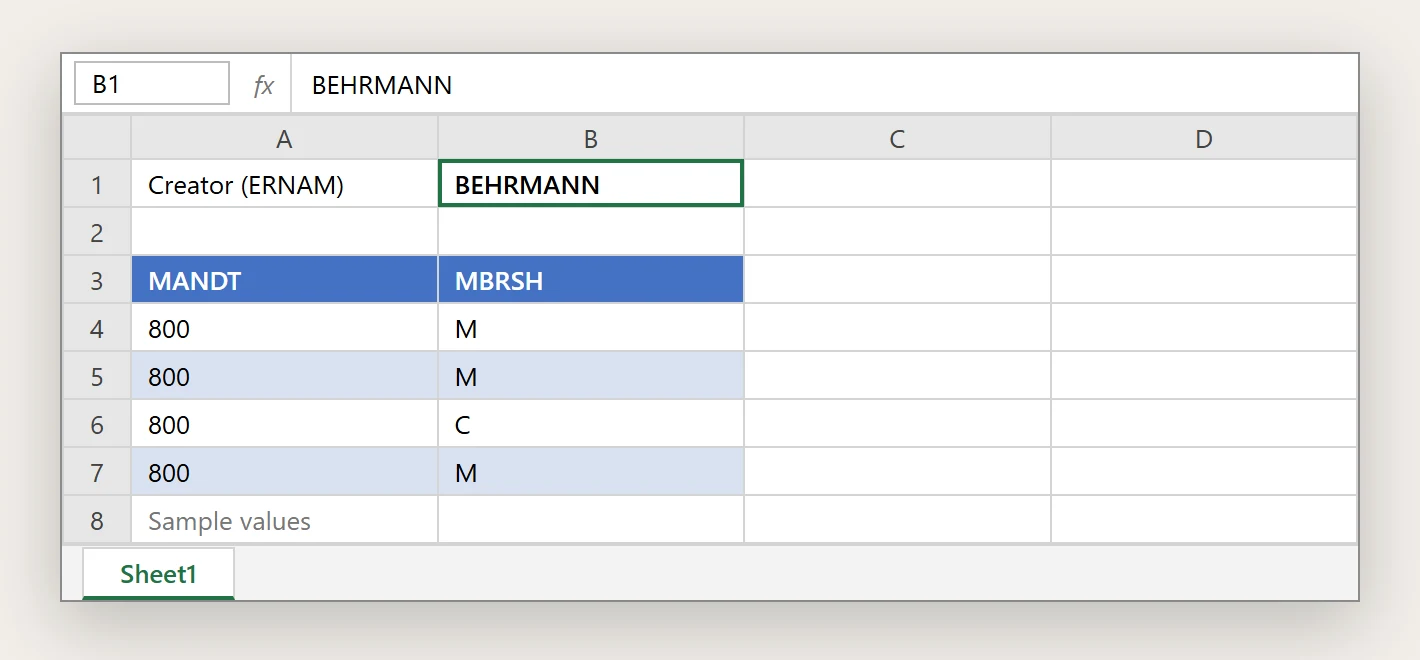
- Return the data to Excel, point the parameter at a cell such as B1, and tick Refresh automatically when cell value changes.
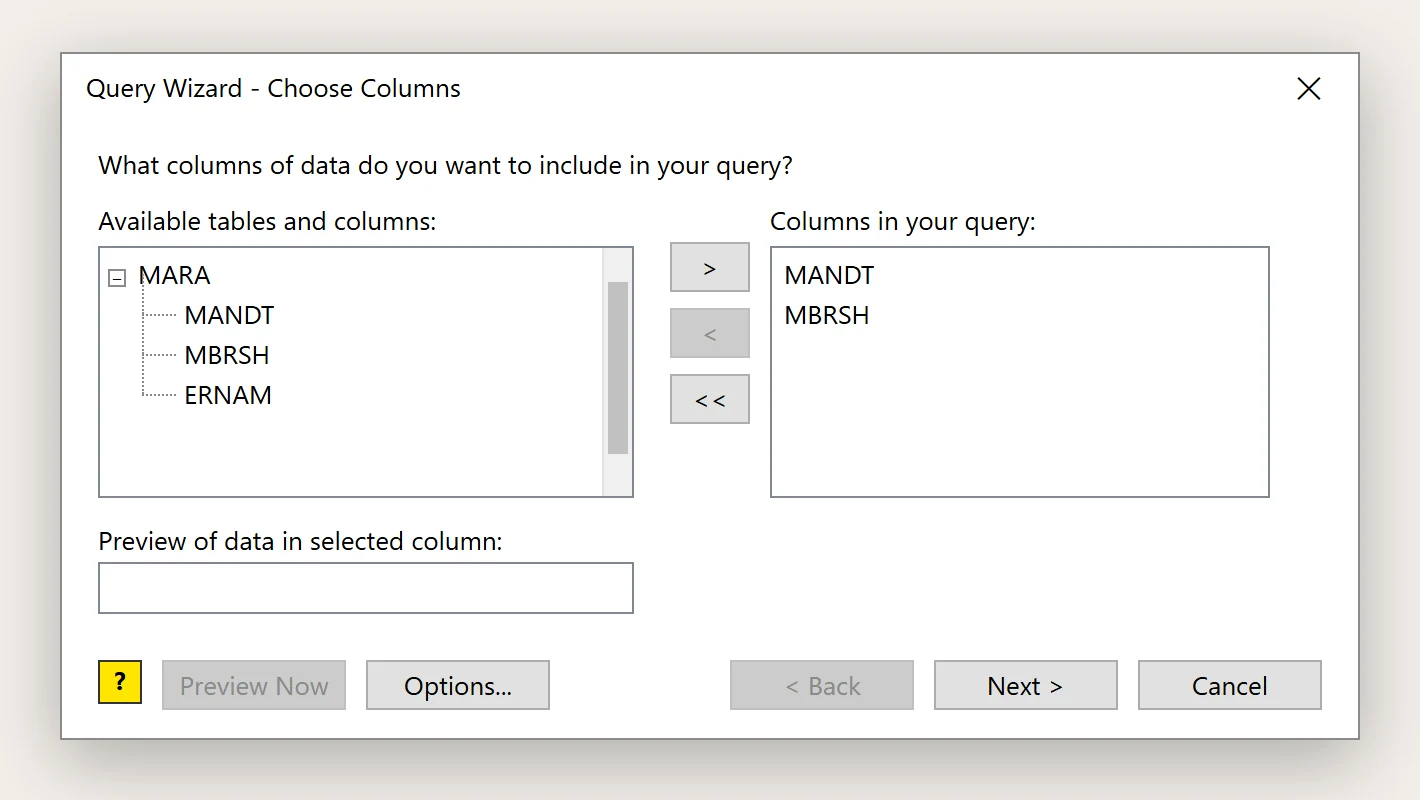
The SQL for step 7:
SELECT MANDT, MBRSH
FROM MARA
WHERE ERNAM = ?
Type a creator ID like BEHRMANN into B1 and the sheet narrows to that user's materials. Change the ID and it refreshes.
Want to try it against your own system? Download a free trial of the ODBC Driver for SAP ERP and have the report running before your Basis request is answered.
Connection string reference
Here's a Classic RFC example for the DSN or a connection string:
Host=sap.mydomain.com;User=EXT90033;Password=xxx;Client=800;System Number=09;ConnectionType=Classic;Location=C:/mysapschemafolder;Location is a folder where the driver caches the schemas it generates for SAP tables and functions. Use a path the Windows user running Excel can write to.
Audit and performance notes
Material master tables can be large, so start narrow: select a few columns and filter early, or set the MaxRows property while you design the report. A dedicated read-only SAP user for the workbook also makes it obvious in SAP's logs which reads came from it. And keep passwords out of shared workbooks by storing the credentials in the DSN on each machine.
When Excel is the wrong destination
If people keep asking for the same SAP extract every week, a refreshable workbook is a decent start but probably not where you want to end up. Copying SAP data into a database or warehouse on a schedule, and pointing Excel and BI tools at that copy, takes load off SAP and gives everyone the same numbers. CData Sync handles that replication.
Ready to get started?
Download a free trial of the SAP ERP ODBC Driver to get started:
Download NowLearn more:
 SAP ERP ODBC Driver
The SAP ODBC Driver is a powerful tool that allows you to connect with live SAP ERP, directly from any applications that support ODBC connectivity.
With the SAP ODBC Driver, accessing SAP R/3 and SAP ERP is as easy as querying a database.