






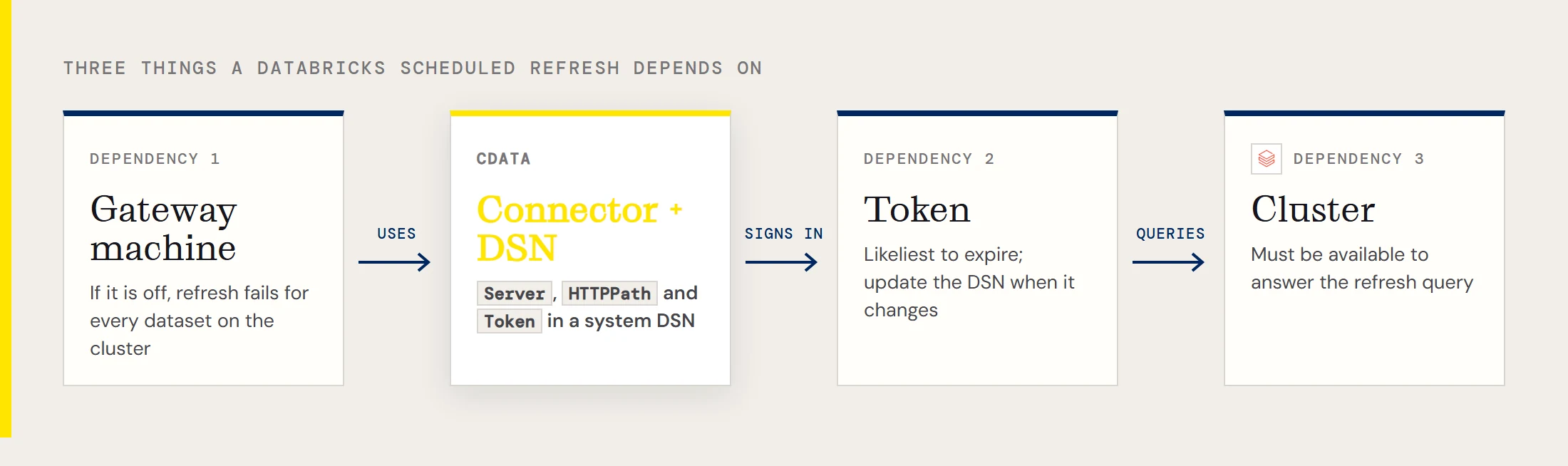
A scheduled refresh is a small job that runs while you're asleep, and it depends on three things staying healthy: the gateway machine, the Databricks cluster and the token the connector signs in with. If one of them lapses, the dataset goes stale and you hear about it from a business user. This walkthrough sets up the schedule with the CData Power BI Connector for Databricks and points out what each dependency needs.
Gather the cluster details once
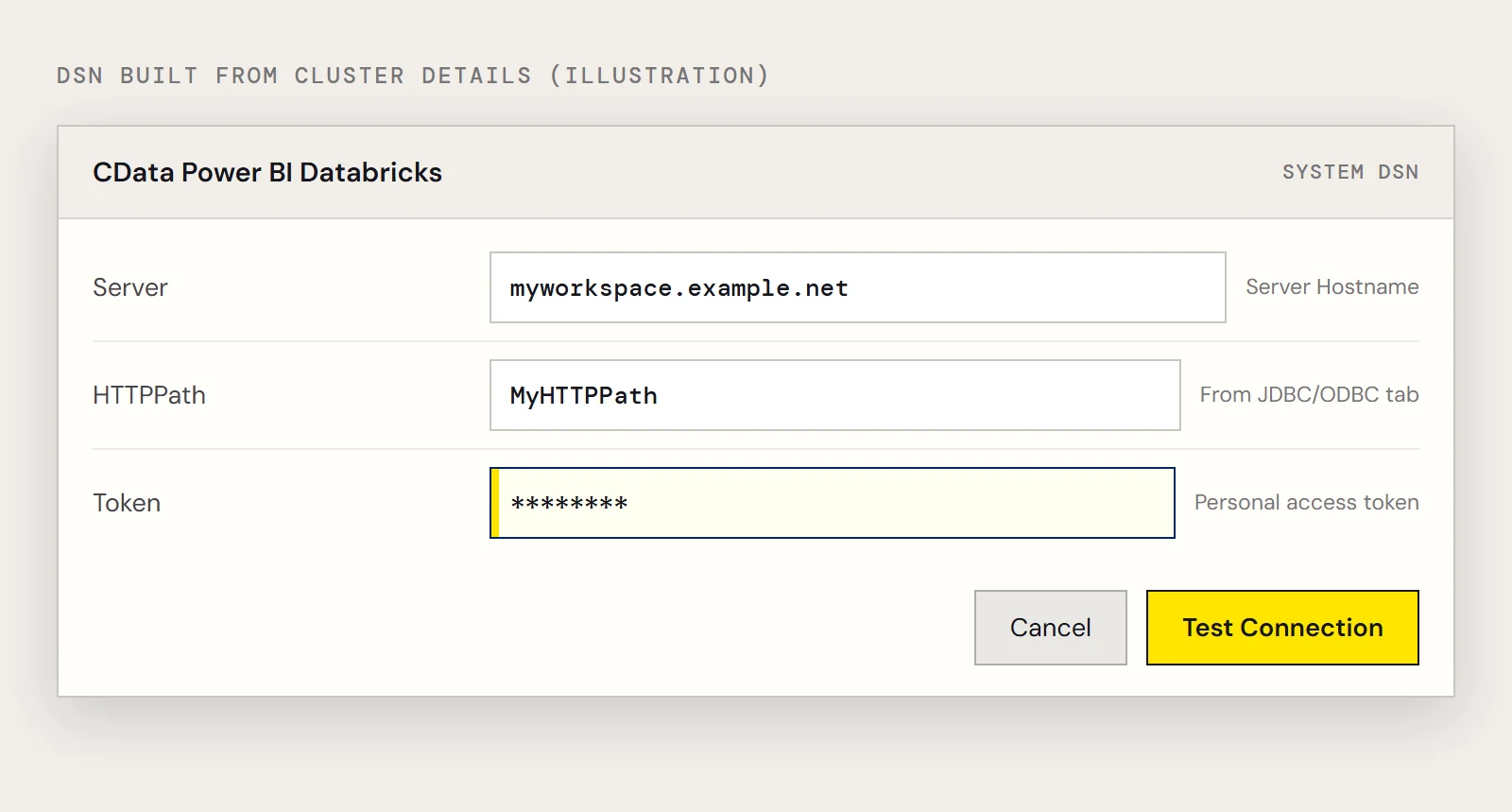
The connector needs three values, and all of them come from Databricks. Open Clusters, select the cluster, and look at the JDBC/ODBC tab under Advanced Options. Copy the Server Hostname into the Server property and the HTTP Path into HTTPPath. For Token, go to User Settings, open the Access Tokens tab and generate a personal access token.
A DSN built from those values looks roughly like this, with the token in place of a user and password:
Server=myworkspace.example.net;HTTPPath=MyHTTPPath;Token=mytoken;The installer creates a DSN named CData Power BI Databricks. Edit it in the ODBC Data Source Administrator, using the version that matches your Power BI Desktop bitness.
Build and publish the dataset
In Power BI Desktop choose Get Data, pick the CData Databricks connector, select the DSN and choose Import. Open the schema folder and select a table, or click Edit to shape the data first. For a scheduled job it pays to filter in the Query Editor, because Power BI records the steps and adjusts the query sent to Databricks. The equivalent SQL for a filtered load is:
SELECT City, CompanyName
FROM Customers
WHERE Country = 'US'
Click Publish on the Home ribbon and choose a workspace.
Put the gateway behind it
Install the gateway in standard mode, sign in, name it and set a recovery key. Use a system DSN so the service can see it. In the Connectors step, choose a folder and copy the .pqx files from C:\Users\USERNAME\Documents\Power BI Desktop\Custom Connectors\ into it. The service account NT SERVICE\PBIEgwService has to be able to read that folder. You're looking for CData.PowerBI.Databricks in the Connectors list.
Then in PowerBI.com, open Manage Gateways, select the gateway, allow custom connectors to refresh through the cluster and click Apply. Add a data source of type CData Power BI Connector for Databricks and enter the DSN name. Back on the dataset, open Settings, turn on the gateway connection and choose your gateway. If it isn't offered, use Manually add to gateway, set the connection name, the same DSN, Anonymous authentication and a privacy level.
Turn on the schedule
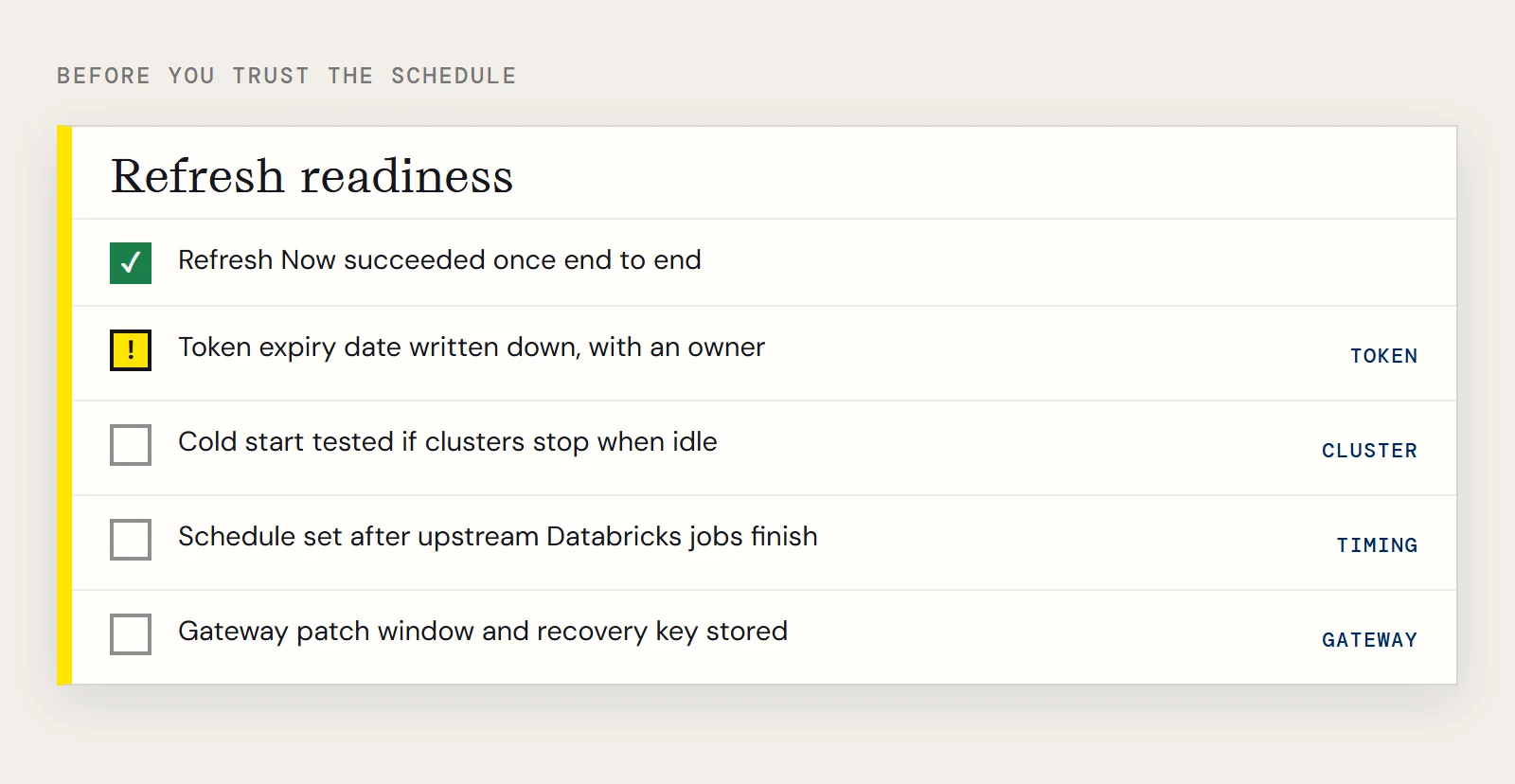
From your workspace, open the dataset's options menu and choose Refresh Now once to confirm the whole chain works. Then open Schedule Refresh, switch on the option to keep the data up to date, and pick the frequency from the menus. Start with a time well after your upstream Databricks jobs finish, so the dataset reads finished tables.
What the schedule quietly depends on
The token is the likeliest thing to expire. Personal access tokens can be created with a lifetime, so write down when yours ends and who regenerates it. When it changes, update the Token value in the system DSN on the gateway machine. A token tied to someone who leaves the company will stop working when they go. To avoid depending on a person's token, the driver also supports Azure Service Principal and Azure AD authentication.
The cluster is the second dependency. A refresh runs a query, so it needs a cluster that is available to answer it. If your clusters stop when idle, test a refresh from a cold start and leave extra time in the schedule. This is general Databricks behavior, so check it against your own workspace settings.
The gateway machine is the third. If it's off, the refresh fails for everyone using that gateway cluster. Patch it on a known schedule like any server, and keep the recovery key somewhere safe.
When a nightly refresh isn't enough
If dashboards need to combine Databricks with other systems, or many reports run the same heavy query, consider copying the data on its own schedule with CData Sync. Power BI then refreshes against the copy instead.
To set up the Databricks connection, download the CData Power BI Connector for Databricks.
Ready to get started?
Download a free trial of the Databricks Power BI Connector to get started:
Download NowLearn more:
 Databricks Power BI Connector
The fastest and easiest way to connect Power BI to Databricks data. Includes comprehensive high-performance data access, real-time integration, extensive metadata discovery, and robust SQL-92 support.