







Workday holds the data that security teams worry about most, and business users can spin up a Power Automate flow in an afternoon. Before the first flow touches a worker record, someone will ask who it runs as, what it can read, and where the data goes. This article is meant to let you answer with specifics.
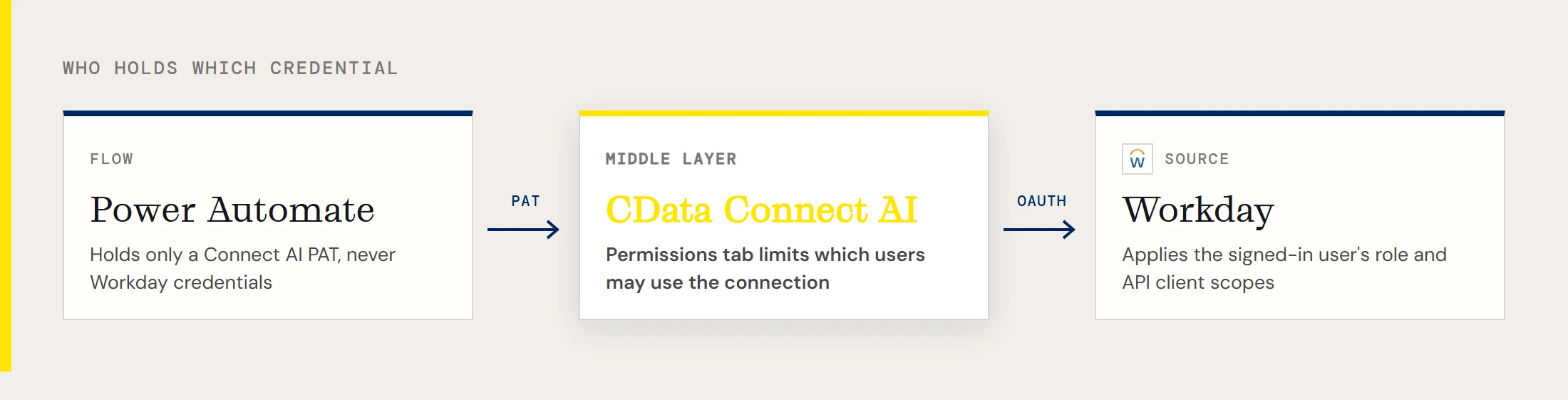
The route is CData Connect AI. Workday is registered once as a Connect AI connection, Power Automate sees it as a SQL Server database at tds.cdata.com,14333, and the flow queries it with ordinary SQL Server actions. CData's Workday documentation says access is secured at the user level, based on the authenticated user's identity and role, and the flow doesn't copy Workday into another store.
Start with the Workday side
First decide which Workday API the flow will use. The ConnectionType property selects it.
| API | ConnectionType value | Authentication |
|---|---|---|
| WQL | WQL | OAuth |
| Reports as a Service | Reports | OAuth |
| REST | REST | OAuth |
| SOAP | SOAP | Basic or OAuth |
WQL is the usual starting point. CData's guidance for it is to confirm in Workday that the user belongs to one of the allowed security group types for the Workday Query Language domain, which you can inspect by running the View Domain task and entering "Workday Query Language".
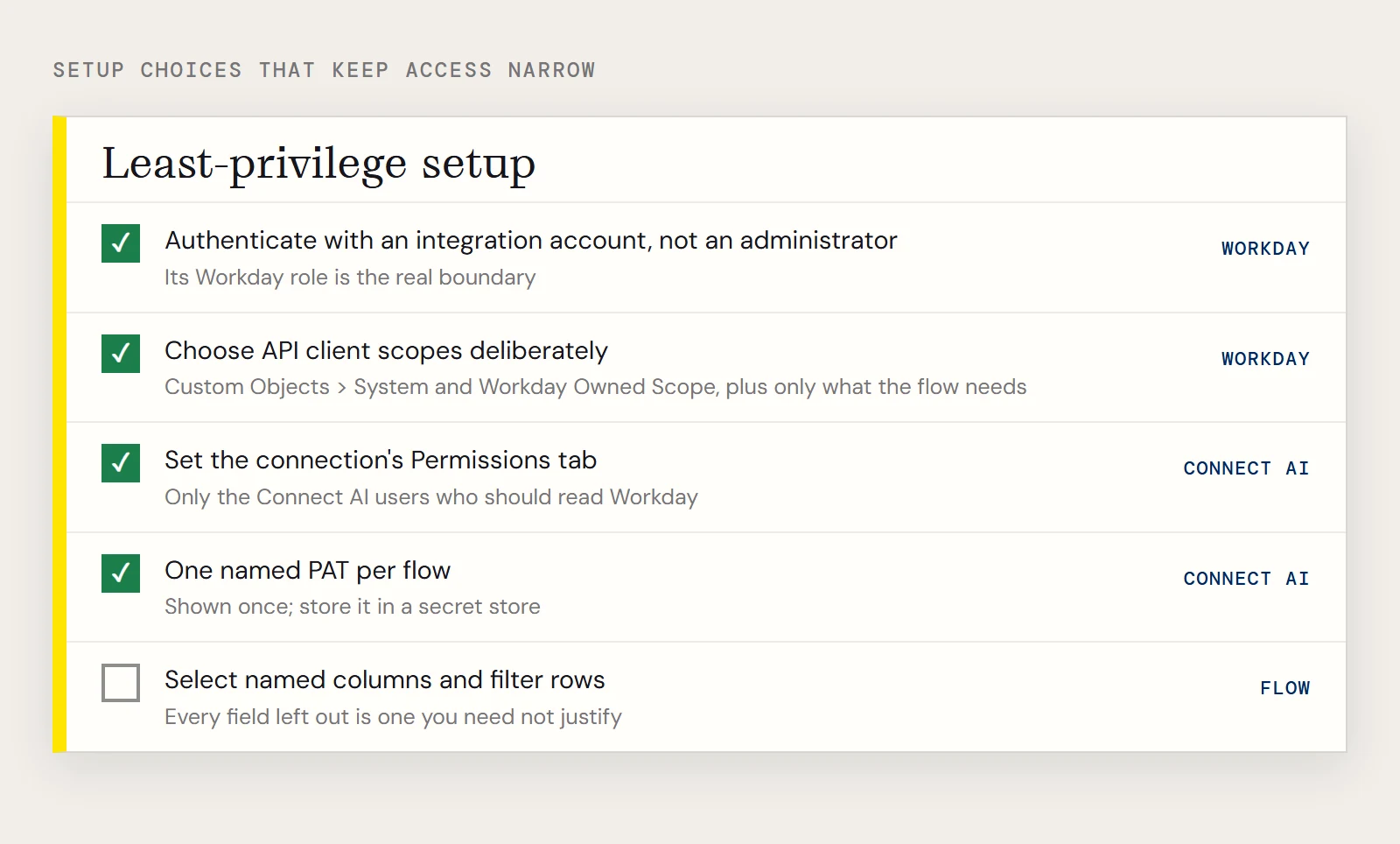
Authentication runs through an API client you register in Workday with the Register API Client task. CData's instructions call for the Authorization Code Grant type and a Bearer access token. For the redirect URI, they say to use https://oauth.cdata.com/oauth when the client is for CData Connect AI. In the scope section, enable Custom Objects > System, because the driver uses system endpoints to list views and columns, and select Include Workday Owned Scope. CData's instructions say to add any other scopes the driver should reach, and when you're unsure, to enable everything under a subsection. A security review is a good moment to choose those scopes deliberately.
Register the connection and find the identifiers
In Connect AI, choose Sources > Add Connection > Workday. You need the Tenant and BaseURL. In Workday, search for View API Clients and copy the Workday REST API Endpoint, for example https://wd3-impl-services1.workday.com/ccx/api/v1/mycompany. In that example the BaseURL is https://wd3-impl-services1.workday.com and the Tenant is mycompany, the part after the last slash.
Choose the ConnectionType, sign in with OAuth, and save. Open the Permissions tab on the connection and set the user-based permissions. Because Workday applies the signed-in user's role, the account you authenticate with is the real boundary, so use an integration account whose Workday role is limited to what the flow needs, not an administrator.
Give the flow its own token
Power Automate never sees the Workday credentials. It authenticates to Connect AI with a personal access token. Create one from the gear icon, under Personal Access Tokens > Create PAT, and give it a name that identifies the flow. Connect AI recommends a separate PAT for each service, which gives you one revocable credential per consumer. The token is displayed once, so it needs to go straight into a secret store.
In Power Automate, choose Data > Connections > New connection > SQL Server, and connect directly. Enter tds.cdata.com,14333 as the SQL server name and the Workday connection name in Connect AI as the SQL database name. The Username is the Connect AI user, and the Password is the PAT.
What a flow can read
With ConnectionType=WQL, a query uses Workday tables such as Workers. A narrow example:
SELECT Worker_Reference_WID, Legal_Name_Last_Name
FROM Workers
WHERE Legal_Name_Last_Name = 'Morgan'
Selecting named columns and filtering means the flow carries only the fields it needs, and each field you leave out is one you don't have to justify to a reviewer. Connect AI pushes supported filters down to Workday.
For data that lives in a report, Reports as a Service reads reports exposed as web services. CData's walkthrough covers creating the custom report and using its URL, and the Workday WQL and Reports-as-a-Service article has the steps.
Sign-off checklist
| Question a reviewer will ask | Where it is answered |
|---|---|
| Which Workday identity does the flow use? | The account that signed in during OAuth on the Connect AI connection |
| What can that identity see? | Its Workday role and the scopes on the API client |
| Who can use the Connect AI connection? | The Permissions tab on the connection |
| What does Power Automate hold? | Only a Connect AI PAT, not Workday credentials |
| Is the data copied elsewhere? | No, queries go to Workday live; anything the flow writes to later steps is its own decision |
| How is the credential revoked? | Delete or replace the PAT in Connect AI settings |