Microsoft Dynamics 365 holds a significant share of enterprise operational data, from customer relationships and sales pipelines to financial records and supply chain activity. Connecting that data to Claude, opens the door to real-time analysis, automated workflows, and contextual reasoning grounded in live business data.
Getting that connection right requires understanding what integration options exist, which use case each serves, and how to maintain security and compliance at scale. This blog covers the full picture, from basic document access to advanced MCP-driven entity integrations, whether building the connection manually or using CData Connect AI to simplify governed Dynamics 365 connectivity, with clear guidance on when to use each approach.
Understanding Dynamics 365 and Claude integration options
Dynamics 365 is a cloud-based CRM and ERP platform that organizes business-critical data across finance, sales, procurement, HR, and more. Claude is Anthropic's enterprise AI assistant, built for advanced reasoning, summarization, and agent workflow automation.
Connecting the two platforms means giving Claude governed access to live Dynamics 365 data, either for content-level analysis or structured entity operations. Connect AI is a consolidated MCP platform that acts as the bridge, giving AI agents live, governed access to Dynamics 365 and hundreds of other enterprise systems through a single managed endpoint, without requiring custom integration code.
Two primary connectivity levels exist. Claude's Microsoft 365 connector provides rapid, low-code access to SharePoint, OneDrive, Outlook, and Teams content, making it suitable for summarization, search, and contextual document grounding. For deeper integration, Connect AI exposes structured Dynamics 365 entities, such as Accounts, Leads, and Opportunities, to Claude for querying, automation, and write operations through a governed MCP endpoint.
The table below summarizes the key differences:
Feature | Microsoft 365 connector | CData Connect AI (MCP) |
Access type | Read-only | Read and write |
Data scope | Documents, emails, files | CRM/ERP entities (Accounts, Leads, etc.) |
Primary use cases | Summarization, search, contextual grounding | Lead management, ticket automation, forecasting |
Setup complexity | Low-code, connector-based | No-code via Connect AI managed endpoint |
Best for | Content analysis and knowledge retrieval | Live data operations and agent workflows |
Choosing the right integration path
The Microsoft 365 connector in Claude provides read-only access to SharePoint, OneDrive, Outlook, and Teams, making it well-suited for document grounding, email summarization, and knowledge retrieval tasks. However, it does not support accessing Dynamics 365 for reviewing CRM records or interacting with structured ERP data.
Connect AI is enables read and write operations on Dynamics 365 records, including custom entity access, for conversational analytics, agent-based automation such as automated lead updates or ticket creation, or when live structured CRM and ERP data must flow into Claude with governance controls in place. Connect AI handles the full connectivity layer, including OAuth, credential management, role-based access control, and audit logging, so teams can focus on building agent workflows rather than maintaining integration infrastructure.
Preparing Claude and Dynamics 365 for connection
Before enabling Connect AI, confirm that admin-level permissions are in place on both the Microsoft Dynamics 365 tenant and the Claude organization, and that app registration has been completed in Microsoft Entra ID (formerly Azure Active Directory). Scope delegated permissions appropriately, for example Files.Read and Sites.Read.All for document access, or Dynamics-specific scopes for entity access, with least-privilege OAuth scopes assigned throughout.
Enabling the CData Connect AI Connector
Navigate to Claude Organization Settings or Customize
Select Connectors, then CData Connect AI
In Connect AI, configure role-based access and data masking rules within the Connect AI dashboard to control what each agent can see and do
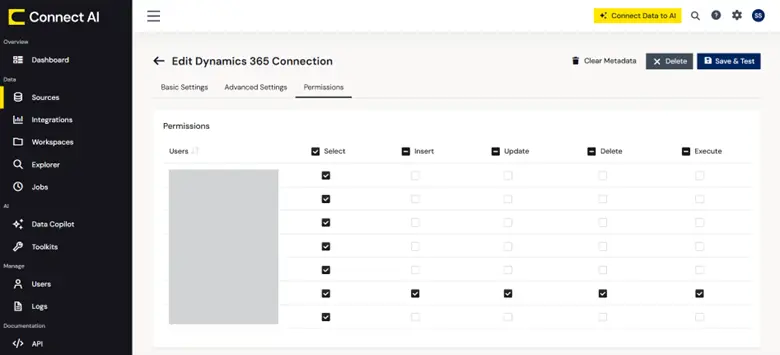
Test connectivity against a sandbox environment before moving to production
Mapping Dynamics 365 entities for Claude access
Entity mapping is the process of making both standard and custom Dynamics 365 entities, such as Accounts, Leads, Contacts, and Opportunities, understandable to Claude for effective retrieval and automation. Data types should be normalized consistently, including date formats, currency codes, and record IDs, before data reaches Claude.
Privacy filters or Personally Identifiable Information (PII) redaction should be applied at the mapping layer to prevent sensitive fields from being exposed in Claude responses. Composite key logic should be documented, and teams should prepare for schema changes that may occur after Dynamics upgrades. Connect AI simplifies this process by providing a universal discovery layer that makes Dynamics 365 entities queryable without manual schema configuration, and supports custom tool definitions for deterministic workflows where precise entity control is required.
Building effective prompts and automation flows
Effective prompt engineering combines data retrieval instructions with user queries to deliver context-aware answers from Claude. For Dynamics 365 integrations, this means structuring prompts to specify the entity, the retrieval scope, and the expected output format.
More complex agent workflows follow a plan, act, verify pattern. Connect AI supports both non-deterministic discovery workflows, where Claude selects the right tool at runtime, and deterministic workflows with custom-defined tools built for specific Dynamics 365 operations. A typical automation flow starts by retrieving a qualifying lead from Dynamics 365 based on defined criteria, sending that record to Claude for summary and next-step analysis, creating a follow-up task in Dynamics 365 based on Claude's output, and logging the completed action for audit and compliance purposes.
This pattern works equally well for revenue forecasting, ticket routing, and financial close automation. The key is keeping approval gates explicit for high-risk or write operations.
Securing and operating the integration at scale
Governance is not optional when AI agents interact with live business data. Identity-first security models, where user permissions and data access are governed centrally through OAuth and SSO, are the recommended foundation for any Dynamics 365-to-Claude integration.
Connect AI addresses this directly with native role-based access control, dynamic data masking, and full audit logging built into the managed endpoint, so governance is enforced at the connectivity layer rather than left to individual agent implementations. Tenant-scoped authentication ensures Claude only accesses data within the authorized Microsoft tenant, and granular role-based access control (RBAC) controls which users and agents can query or modify specific Dynamics 365 entities.
Explicit approval gates are necessary for sensitive or irreversible operations such as record deletions or bulk updates. Audit logs can be routed to enterprise monitoring tools to support SOC 2, GDPR, and internal IT compliance requirements, and adversarial testing, including prompt-injection simulations, should be run regularly to validate that guardrails hold under real-world conditions.
Developer tips and best practices
Developers building Dynamics 365-to-Claude integrations can use Claude Code for fast prototyping of plugins and transformation logic. For teams that need to move faster, CData Code Assist MCP accelerates Dynamics 365-powered Claude applications by providing a pre-built MCP server that exposes Dynamics 365 data directly to Claude Code, eliminating manual connector setup and letting developers focus on building agent logic rather than integration plumbing.
Connect AI provides broader connectivity with Change Data Capture (CDC) support, automated scheduling, and secure on-premises agent deployment, which removes much of the production overhead. Custom flows should always be isolated in a sandbox environment before promoting to production, and explicit approval gates with RBAC safeguards should be applied on every write operation.
Claude agent runners should be deployed within Microsoft Azure Foundry or a managed Azure environment for observability and quota governance. Pin dependency versions and review them regularly against security advisories. Never hardcode credentials, use environment variables or a secrets manager like Azure Key Vault.
Frequently asked questions
How do I enable Microsoft 365 connectors for Claude?
To enable Microsoft 365 connectors in Claude, navigate to Organization Settings or Customize > Connectors, select Microsoft 365, then follow the prompts to authenticate and authorize access using your Microsoft account.
Can Claude perform write actions on Dynamics 365 data?
Write actions on Dynamics 365 data require a dedicated MCP/driver solution with explicit permissions and approval gates, like CData Connect AI.
What permissions are required to connect Claude with Dynamics 365?
Connecting Claude to Dynamics 365 requires specific OAuth scopes, such as Files.Read and Dynamics-specific permissions, which are assigned during app registration in your Entra ID settings.
Why might the Microsoft 365 connector not appear in Claude?
The connector may not appear if admin consent has not been granted or if your organization account does not meet the required licensing; an Entra Global Administrator can resolve this by completing connector setup.
How can I ensure data privacy and compliance when connecting Claude to Dynamics 365?
Data privacy and compliance are maintained by applying least privilege access, enabling RBAC, and ensuring that all access is logged and auditable; you can also disconnect connectors anytime from Claude's settings.
Connect Dynamics 365 to Claude with CData Connect AI
CData Connect AI provides a governed, production-ready MCP platform with native support for Dynamics 365 and hundreds of other enterprise systems, with role-based access control, dynamic data masking, audit trails, and compatibility with Claude, Microsoft Copilot, and other leading AI platforms.





