





Connect Excel to Smartsheet
Read, Write, and Update Smartsheet Data from Excel
Connect with live Smartsheet data directly from Microsoft Excel. The free Excel Add-In for CData Connect AI for Spreadsheets gives you real-time access to Smartsheet data, right from the Excel tool bar.
Install the Add-In, configure your Smartsheet connection, and go!
Get The Excel Add-In Now
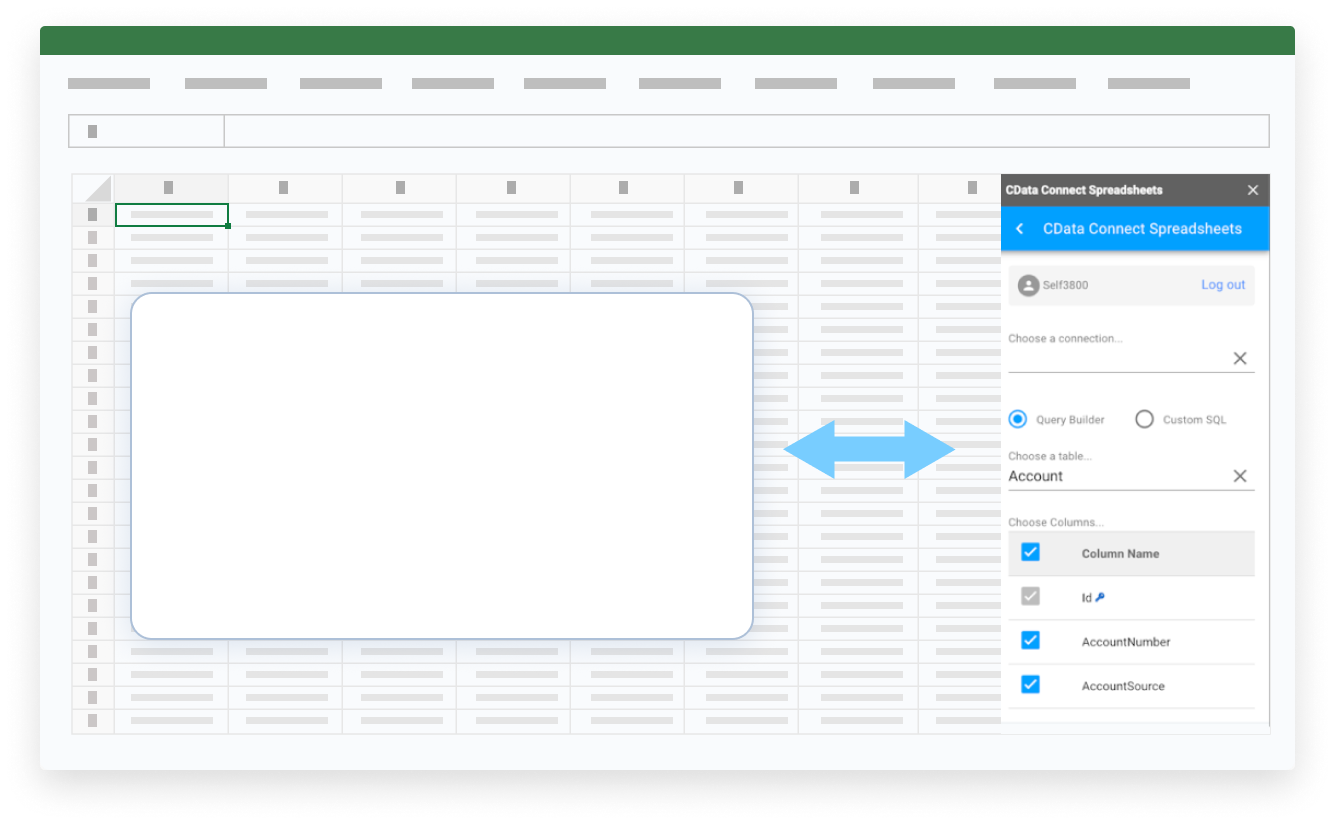

Discover What's Possible with Your Smartsheet Data in Excel

Say Farewell to Copy/Paste
Real-time, seamless access to data removes the burden of manual data entry in Excel.

Never Rely on Stale Data
Work with live data in Online, Windows, and Mac editions of Excel to create up-to-date reports.

Point and Click Configuration
Integrate data and manage connections with no code or special skills required.

Secure Access and Encryption
Securely govern your data with specific user permissions and built-in TLS / SSL data encryption.
Real-Time Access to Smartsheet Data from Excel
Get Started with Smartsheet in 3 Simple Steps:
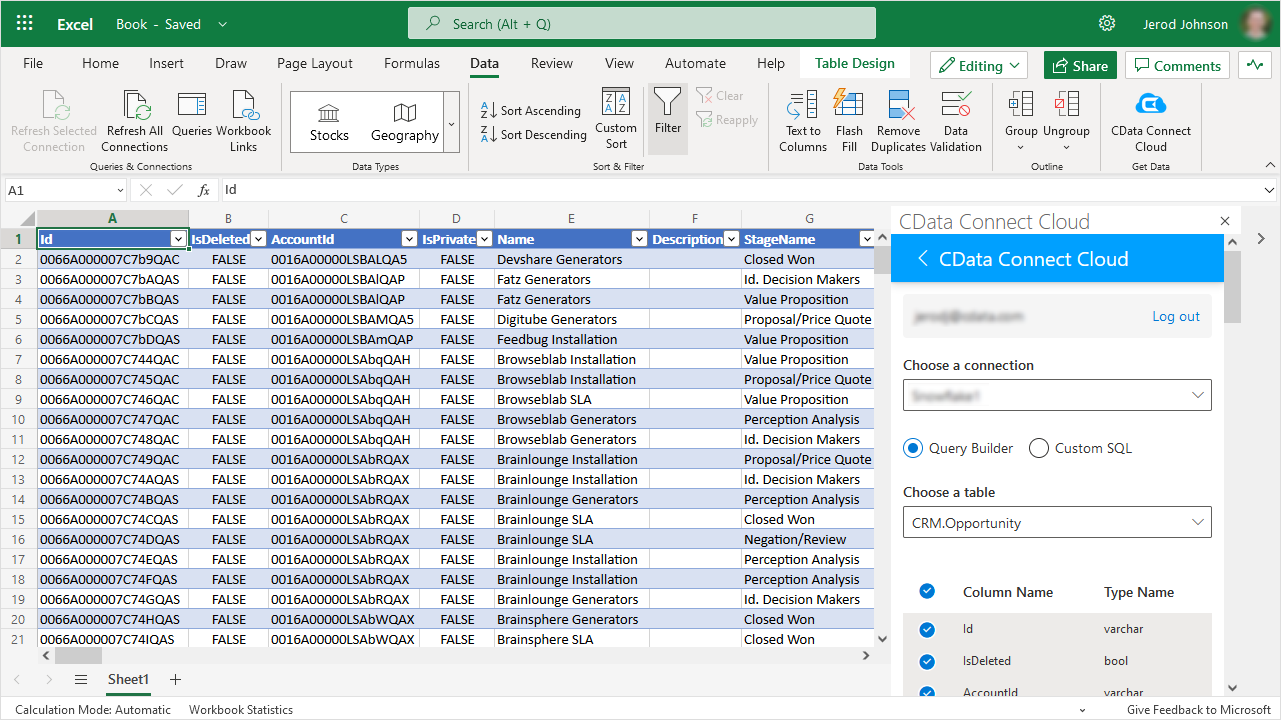
- Install the Excel Add-In - After installation look for the CData Connect AI for Spreadsheets button on the Excel Ribbon.
- Configure your Smartsheet Connection - Click on the Connect Spreadsheets add-in from within Excel to setup an account and configure a connection to Smartsheet.
- Run your first query - Select any Smartsheet data that you want to access. All data is exposed as standard tables and data views. You can even write custom queries with SQL to filter and join data.
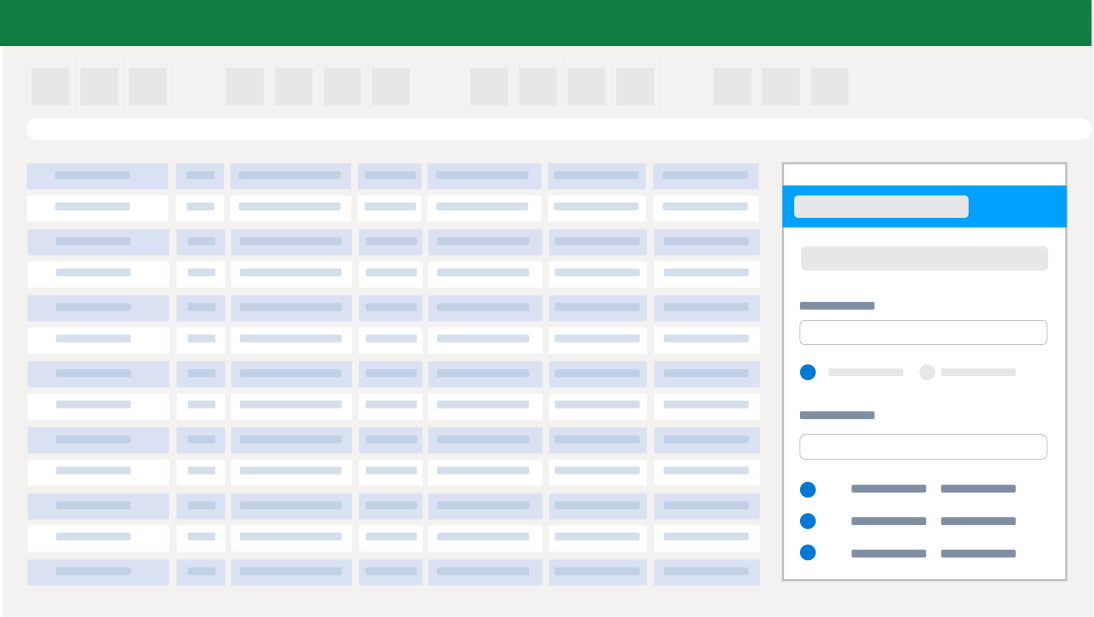
Automate Your Workflow
Spend less time copying, pasting, and importing data. Build custom reports and dashboards with automatic refreshes (hourly, daily, weekly, monthly) for real-time insights.
Bring Data to Life in Excel
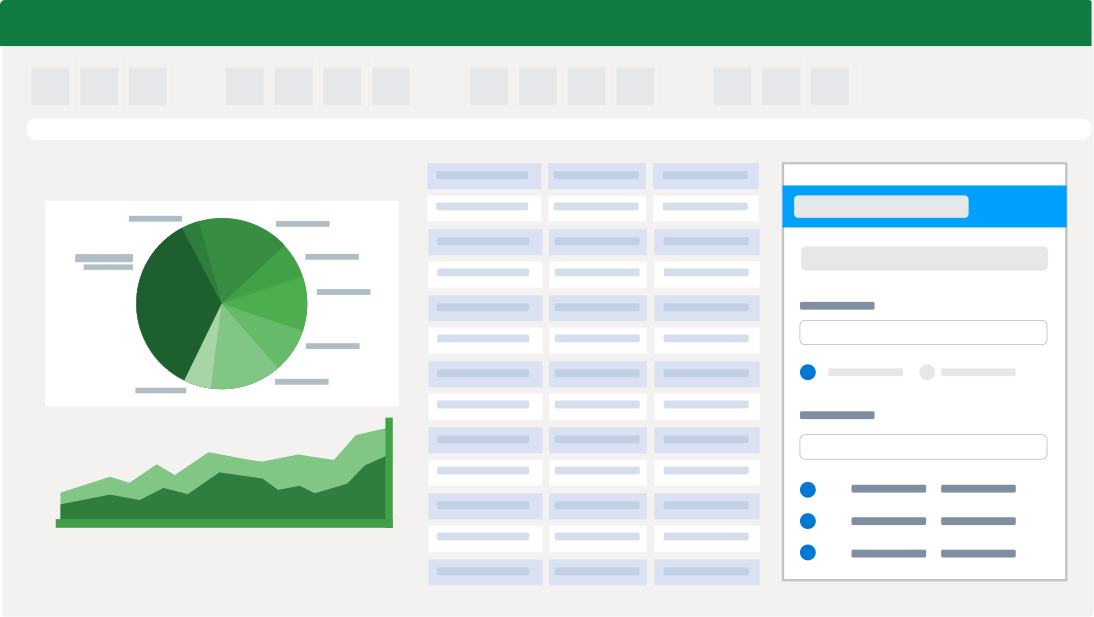
Bring your Smartsheet data into Excel for up-to-date insights with Connect Spreadsheets. Easily combine that information with data from other sources in Excel to form a complete picture of the customer journey.
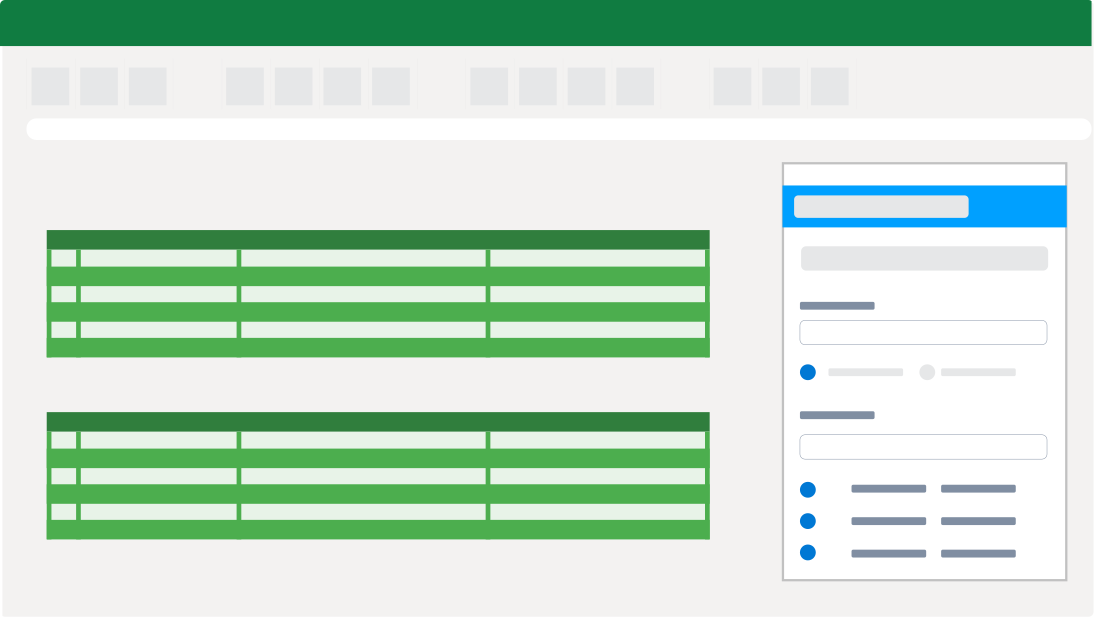
Smartsheet Reporting, Analysis, & Data Manipulation
Perfect for mass imports / exports / updates, data cleansing & de-duplication, Excel based data analysis, and more!
- Modify and delete records and push updates back to Smartsheet
- Quickly export and backup data.
- Operate on data with Charts and Pivot Tables.
Frequent Smartsheet Excel Connectivity questions
Common questions about integrating Smartsheet with Microsoft Excel.
How do I connect Smartsheet to Excel?
The best way to integrate Smartsheet with Excel is by using the CData Connect AI for Spreadsheets Excel Add-In. The Smartsheet Excel Connector provides easy Smartsheet Excel integration directly from Desktop, Mac, or Web (Excel 365). Simply configure your connection to Smartsheet from the easy-to-use cloud interface, and access Smartsheet just like you would another native Excel data source.
Can I export Smartsheet to Excel?
Configuring a Smartsheet export to Excel is a thing of the past — no more downloading or copying & pasting to make sure you have the freshest data. CData Connect AI for Spreadsheets Excel Add-In provides live direct connectivity to Smartsheet and does not require a Smartsheet Excel export. Instead, simply click the Refresh button from the Excel Smartsheet plugin toolbar and the tool will download Smartsheet to excel instantly. You can even schedule refreshes to export from Smartsheet to Excel automatically, so your Excel reporting is always fresh and up to date when you need it.
Is it possible to edit Smartsheet data from Excel?
Our integration enables live, bi-directional access to Smartsheet data directly from Excel. Easily pull live data into your spreadsheet, make changes, and push updates back to Smartsheet — all without leaving Excel. Edited cells are automatically highlighted to show differences from the source data. When ready, click the Update Rows button in the CData Add-In toolbar to sync your changes.
Is there a free trial available?
Absolutely. Free trials are available for all CData products. For the CData Connect AI for Spreadsheets Excel Add-In all accounts start on a 15-day free trial of the unlimited Pro plan. The Pro plan includes unlimited access to all of the powerful features and capabilities of the platform. After the 15-day trial period, you have the option to purchase the product and continue at the Pro level, or your account will be automatically downgraded to the Forever-Free plan. You can continue to use the free plan indefinitely, but wou will be limited to 5,000 records per query, 1 user, 3 data sources, and 50 total queries per month.
Start your trial today: Smartsheet Excel Add-In free download.
Popular Excel Videos:

Get the Excel Add-In for Smartsheet
Building custom dashboards & reports that connect with live Smartsheet data has never been easier. Get the CData Excel Add-In for Smartsheet now, and get connected.