






Build a Jira Dashboard with C# and Code Assist MCP
Jira is a widely used issue and project tracking platform that helps development teams plan work, track progress, and manage releases. While Jira provides a rich user interface, developers often require a more focused and customizable way to monitor tickets, analyze issue data, and build workflows outside of the standard Jira UI.
CData Code Assist MCP for Jira and the CData ADO.NET Provider for Jira simplify Jira integration by exposing Jira issues, comments, projects, and related metadata through standard data interfaces. The MCP add-on enables schema-aware, AI-assisted development, while the ADO.NET provider delivers secure, production-ready access to live Jira data using familiar SQL and ADO.NET patterns.
In this article, we demonstrate how to configure CData Code Assist MCP for Jira, connect to Jira using the CData ADO.NET Provider for Jira, and build a developer-focused web dashboard to monitor Jira tickets in real time.
Prerequisites
Before you begin, ensure the following components are installed and configured:
- Install CData Code Assist MCP for Jira
- Install the CData ADO.NET Provider for Jira
- Ensure you have a Jira account
- Install Cursor or any AI-powered code editor
- Install the .NET 9.0 SDK or later
Install and set up the CData ADO.NET for Jira
- Download and install the CData ADO.NET Provider for Jira
- Provide a valid trial or product subscription key during installation to complete the license activation process
Note: If you require a subscription license, contact the CData Orders Team at [email protected] to obtain your license key.
Configure the CData Code Assist MCP for Jira
The first step is to configure the CData Code Assist MCP add-on so Cursor can discover Jira schema and connection metadata during application development.
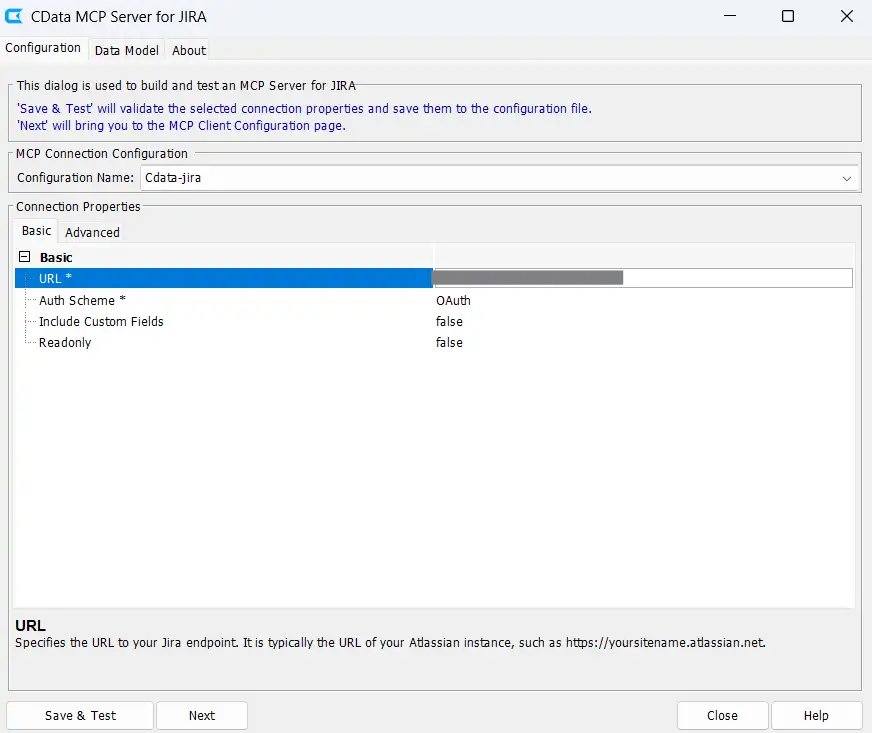
- Launch the CData Code Assist MCP for Jira and create a new Jira connection
- Enter a configuration name (for example, "cdata-jira")
-
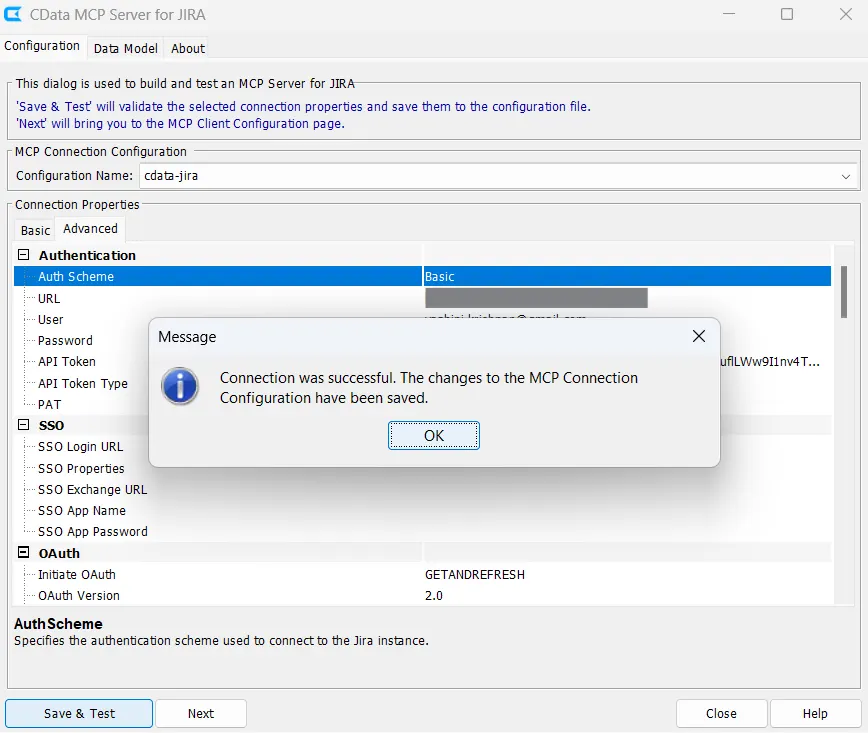
In the CData Connection Editor, configure your connection properties. Multiple authentication methods are supported, including Basic, OAuth, PAT, etc.
-
Click Save & Test to validate the connection
Generate the MCP configuration for Cursor
-
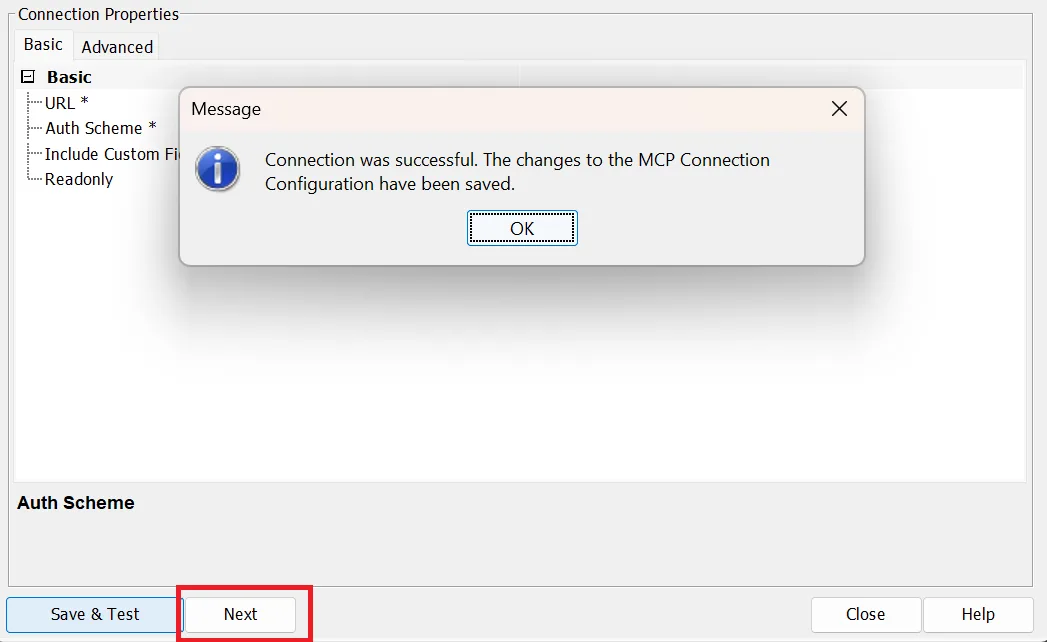
After saving and testing your connection in the configuration wizard, click Next
-
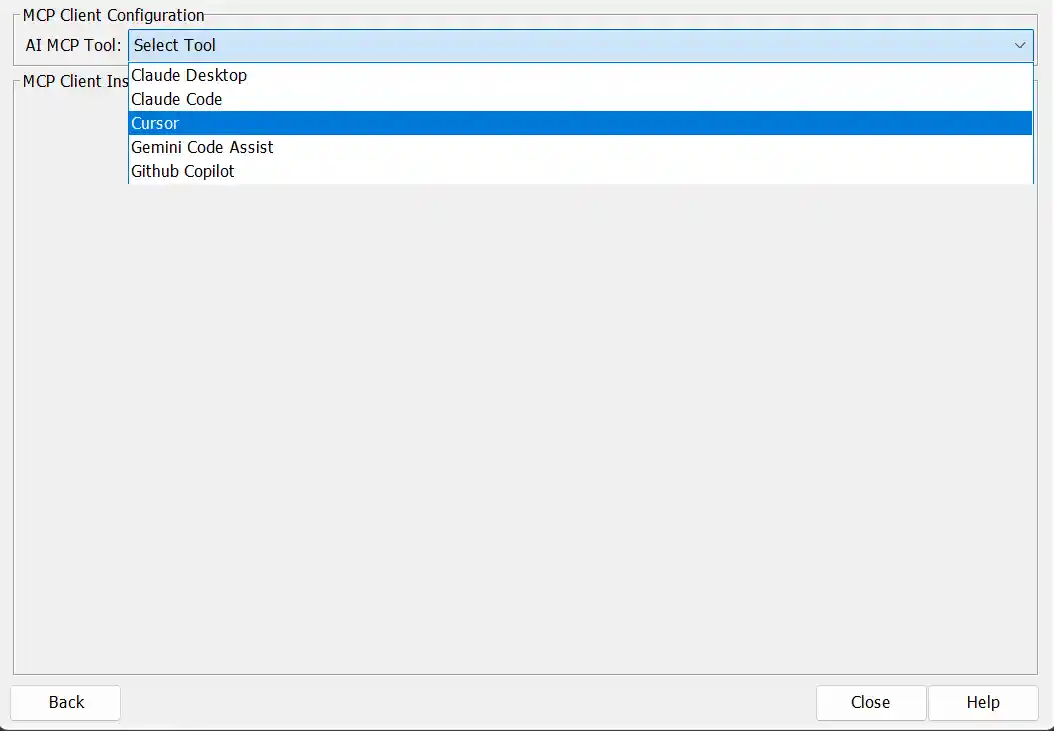
Select Cursor from the AI MCP Tool dropdown. If you are using a different AI MCP tool, choose the appropriate one from the dropdown
-
Follow the MCP Client Instructions to create the required folders and add the MCP configuration file
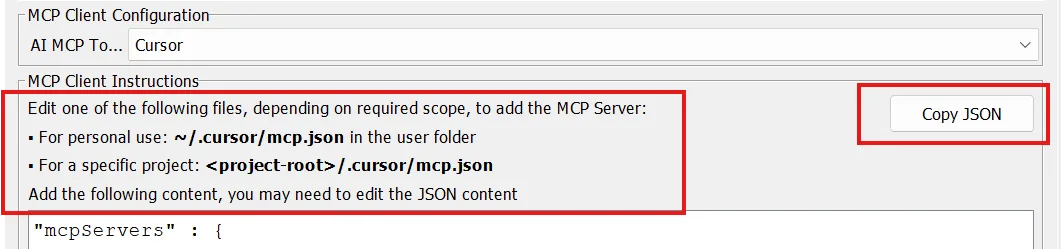
- Copy the displayed JSON configuration and add it to the required file
- In Cursor, open the project folder you created that contains the mcp.json configuration
-
Click Enable to enable your MCP connection in Cursor
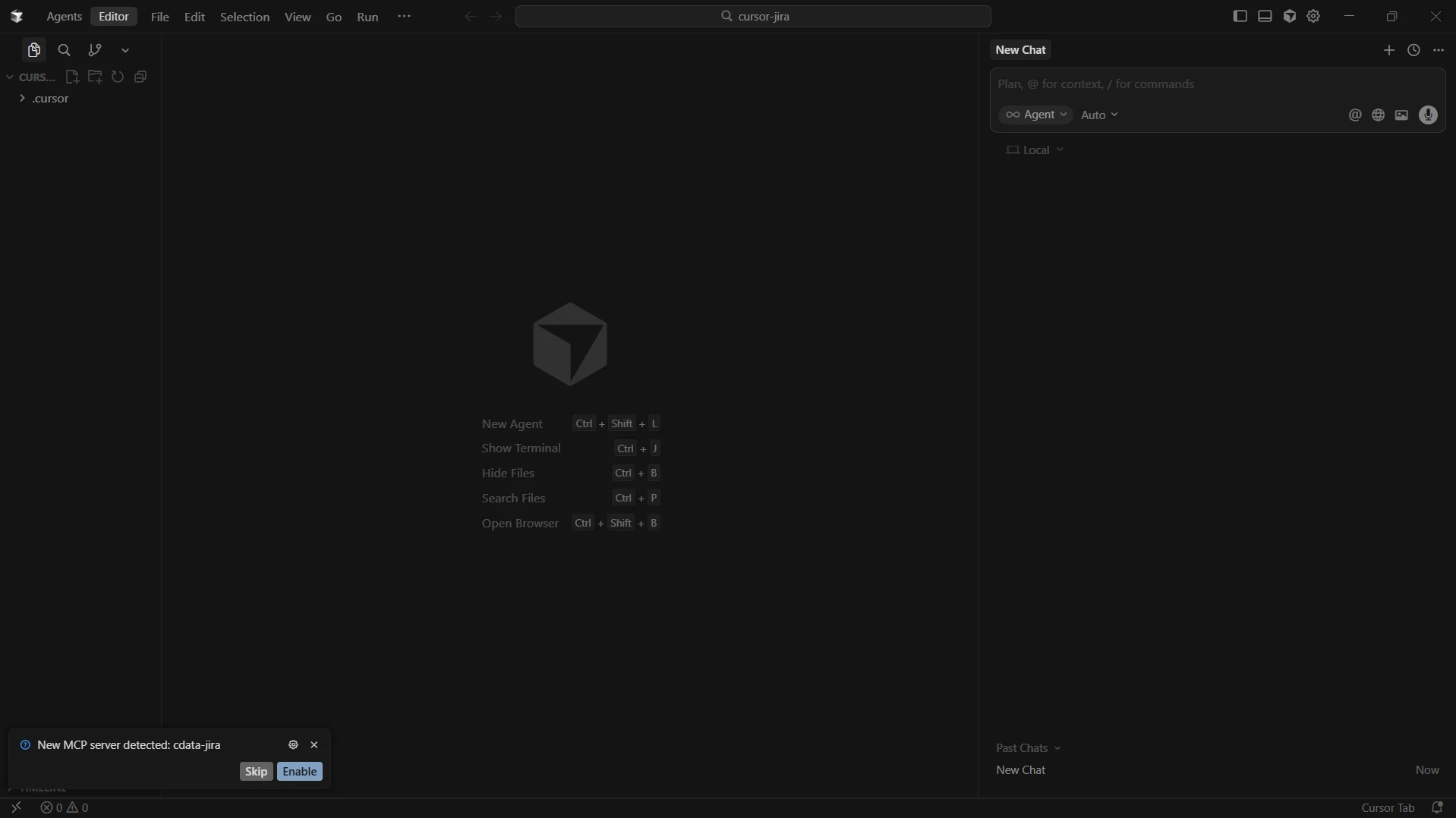
Verify the Code Assist MCP add-on in Cursor
-
In Cursor, navigate to Settings → Tools & MCP
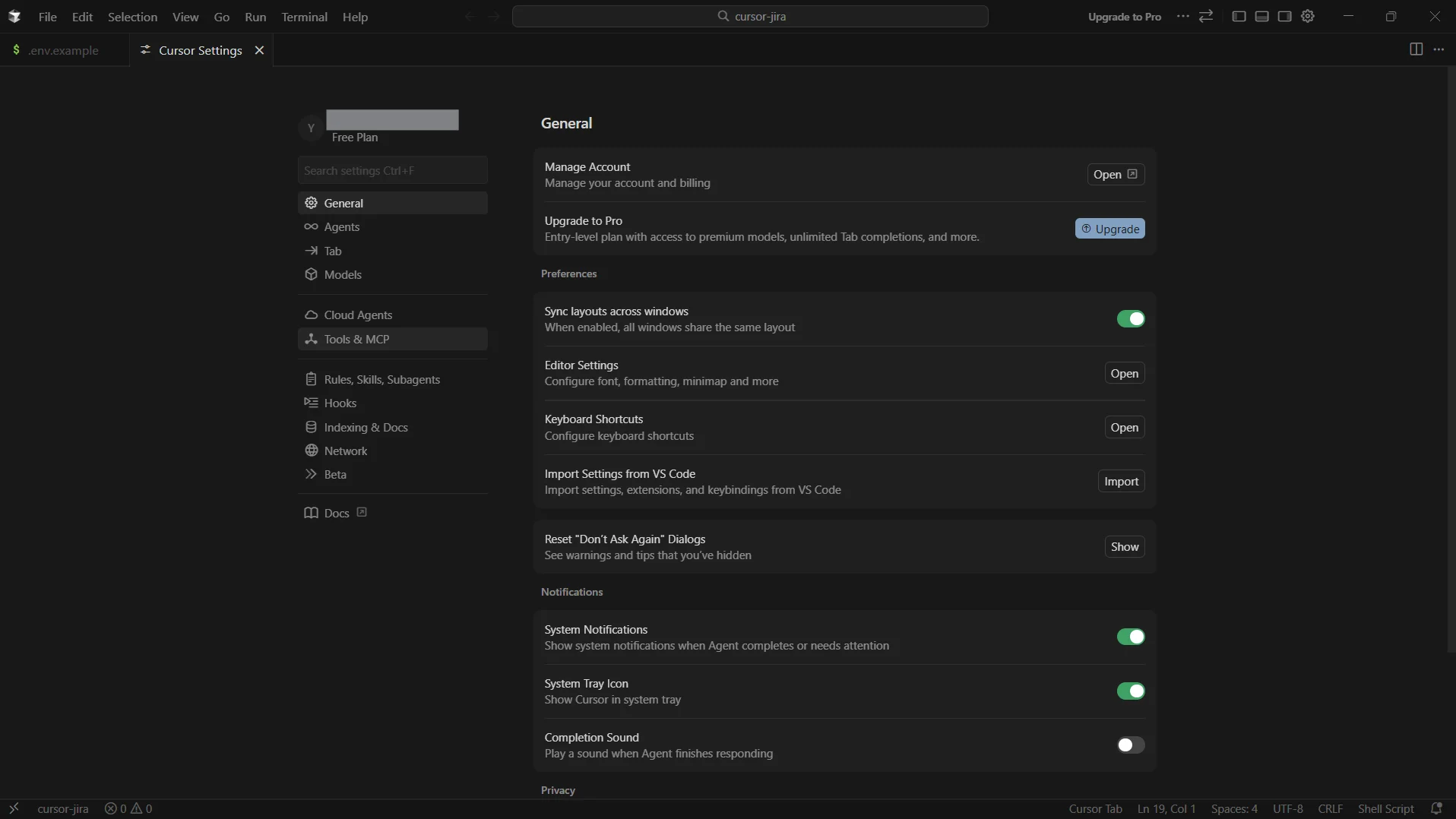
-
Confirm that your configured MCP add-on (for example, "cdata-jira") is listed and enabled. The MCP add-on should appear as Running under Installed MCP Servers
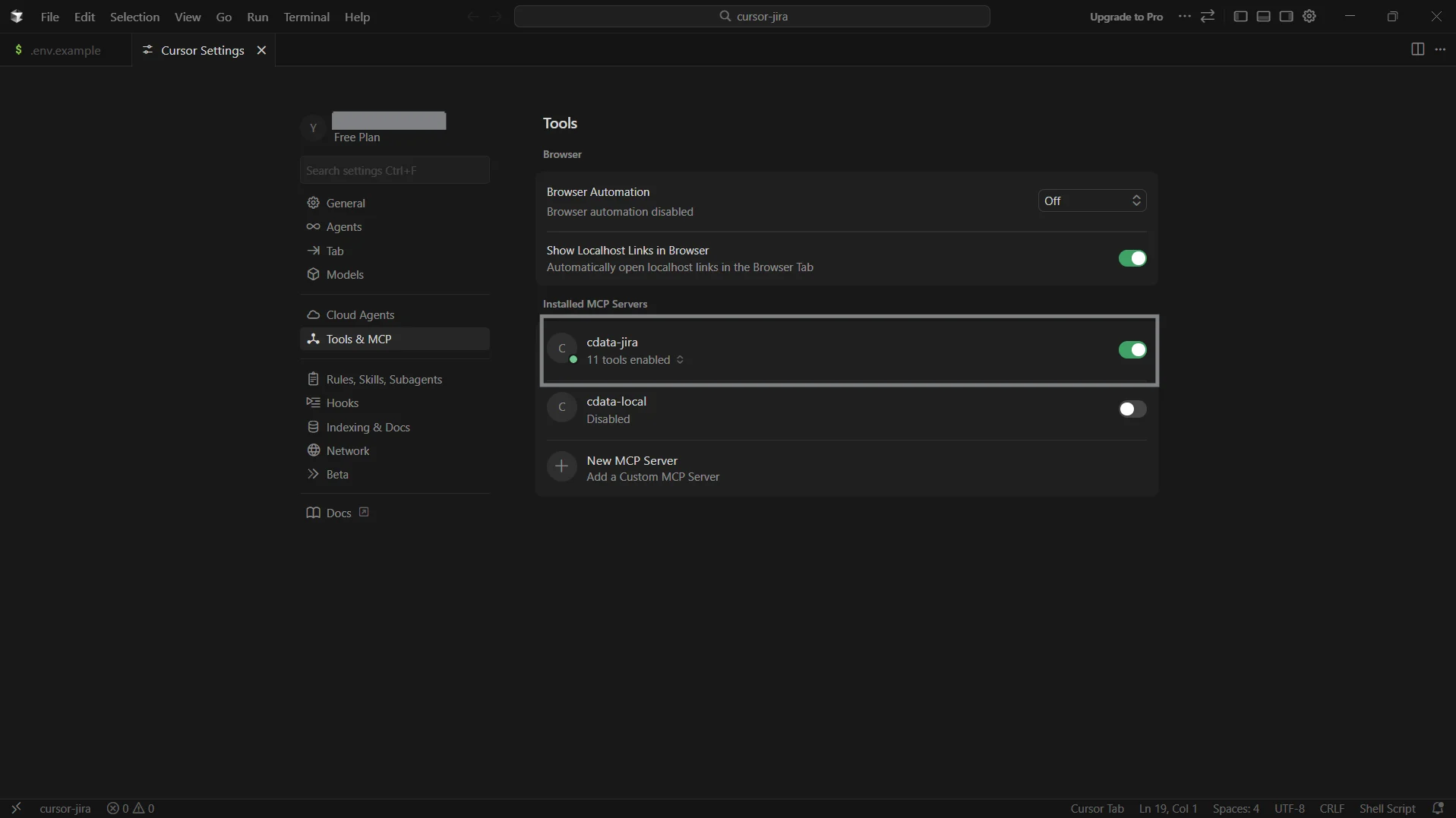
Build the Jira dashboard using Cursor
- Open the Toggle AI pane or press Ctrl+Alt+B in Cursor to open a new chat
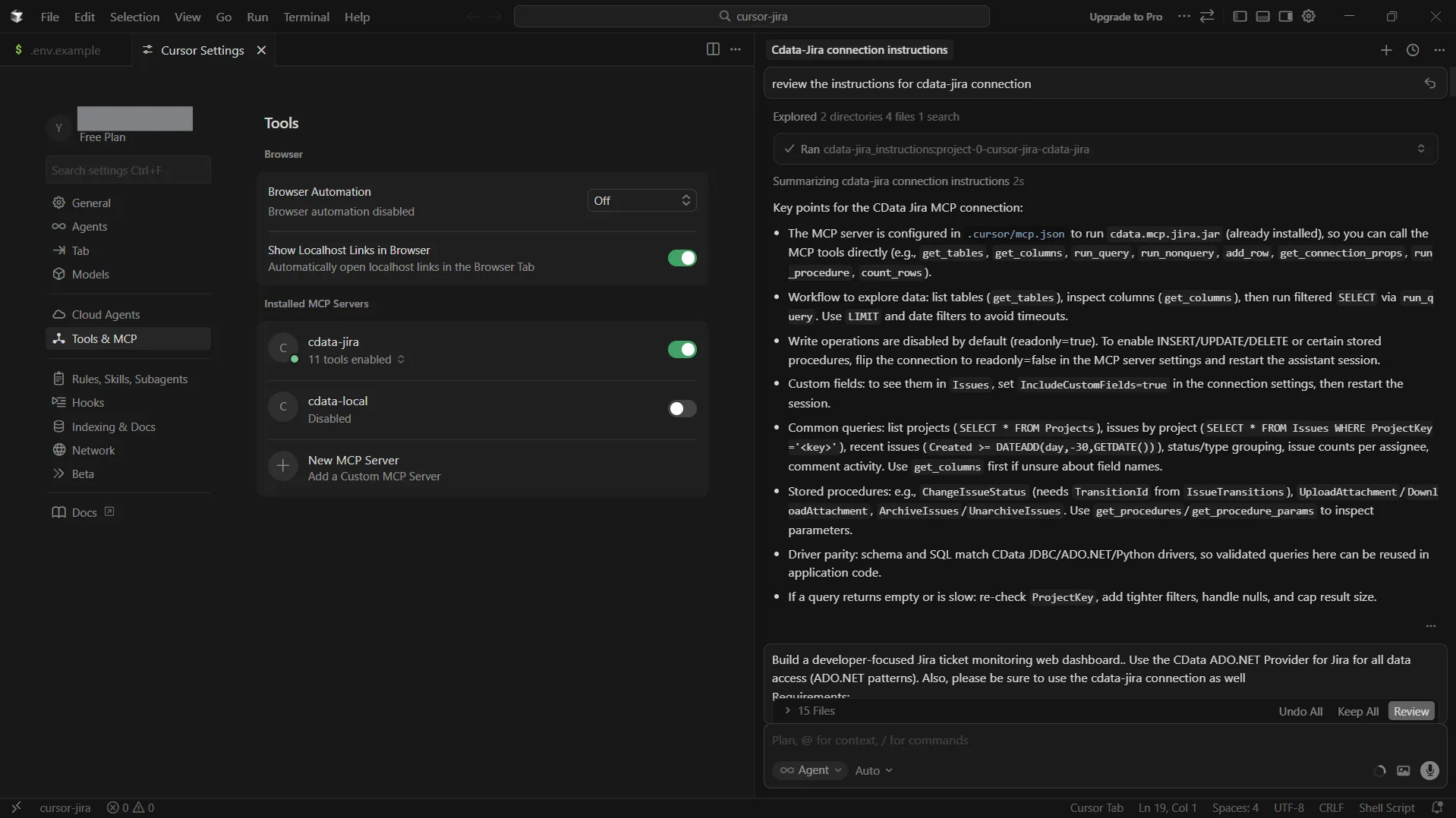
- Before generating your application code, ask Cursor to review the Jira connection instructions to ensure it has the correct context
- You can prompt by asking:
- Now, prompt Cursor to generate the application:
- Ticket list page with filters, text search, pagination, stale highlighting, due-date risk badges, and polling/refresh
- Ticket details page showing key fields + comments
- Cursor will now create a project plan and write the application
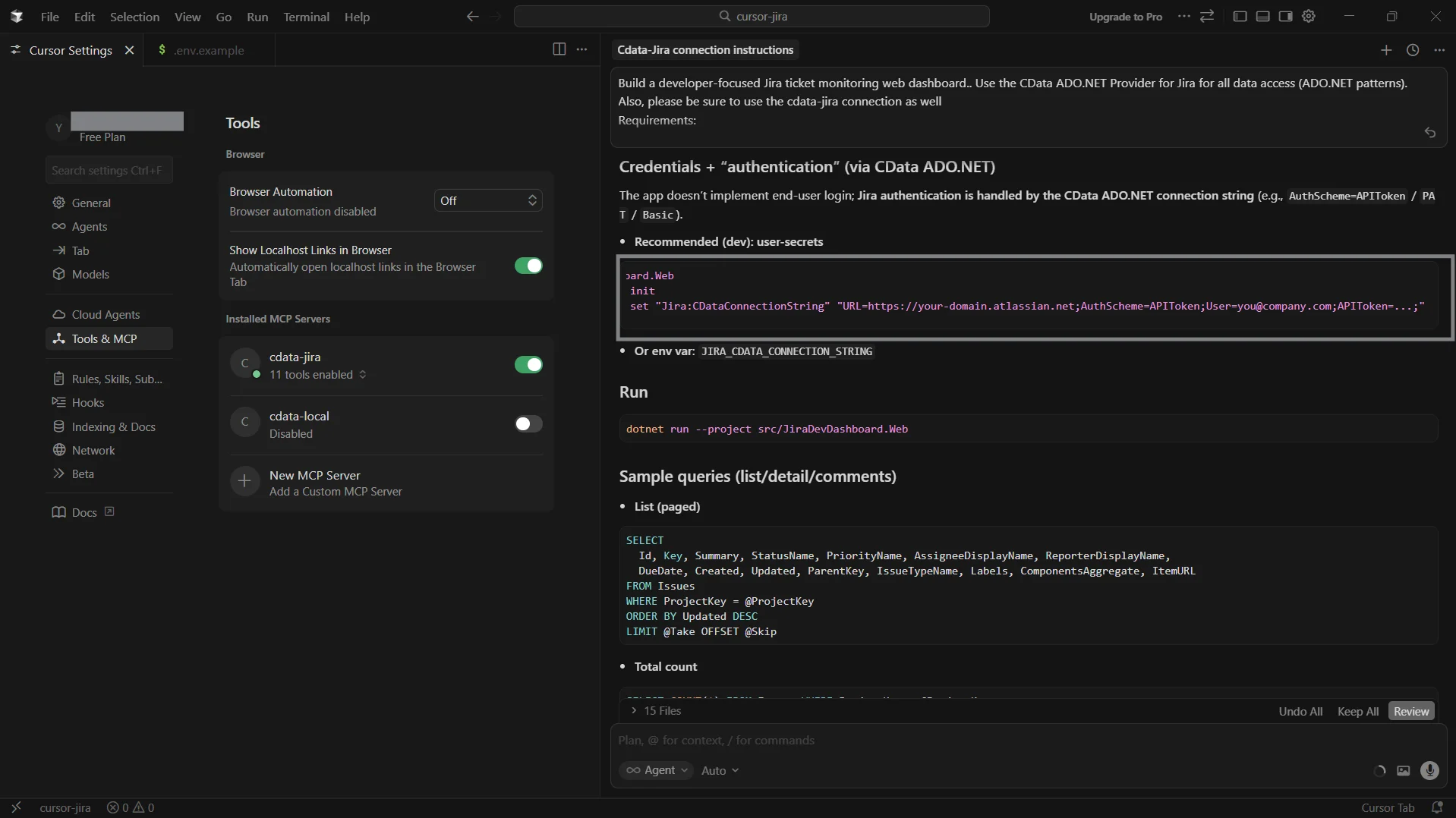
- During the process, Cursor will prompt you to provide the connection properties to configure your CData ADO.NET for Jira connection
-
Review the instructions for my cdata-jira connection (or enter the name of your connection)
Build a developer-focused Jira ticket monitoring web dashboard. Use the CData ADO.NET Provider for Jira for all runtime data access via standard ADO.NET patterns. Store the Jira connection string securely via environment variable or dotnet user-secrets. Include basic memory caching.
Before coding, use the CData Jira MCP add-on connection to discover tables/columns and validate SQL. Now implement the following:
Also ensure the provider license file (System.Data.CData.Jira.lic) is copied to the app output so it runs without license errors.
Run the Jira dashboard
-
Open your terminal and follow the commands to access your application
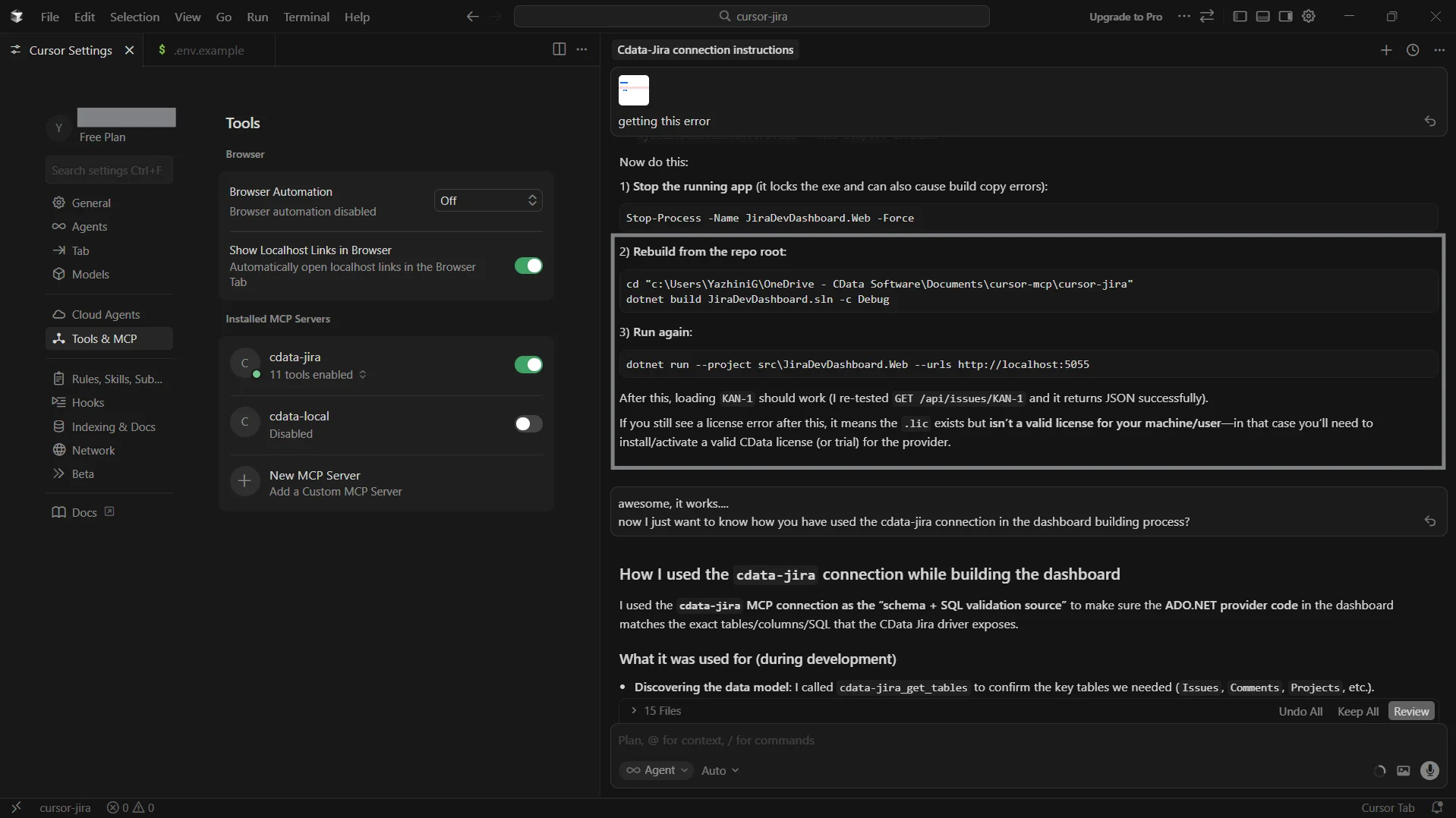
- Open the localhost link on your browser
-
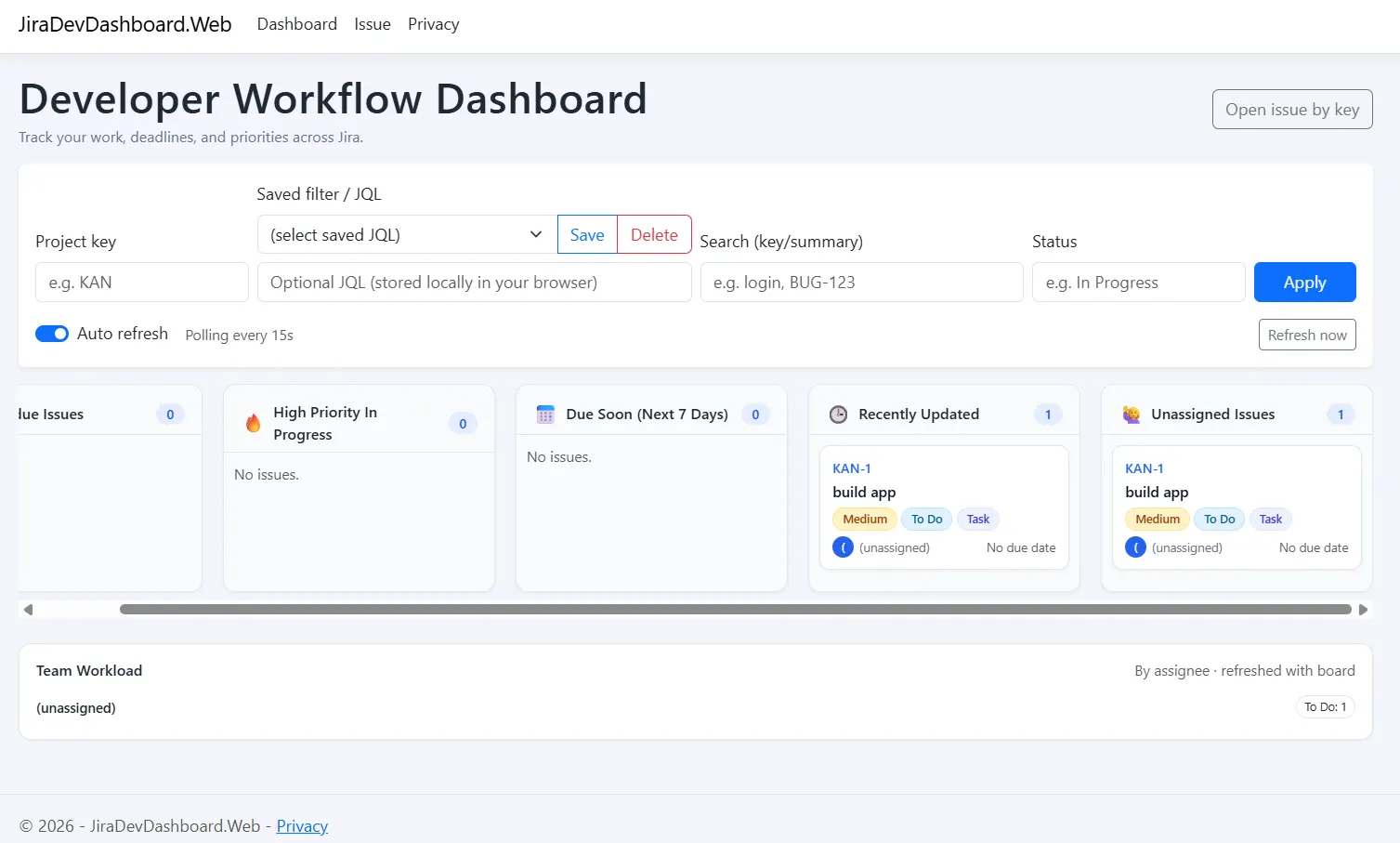
Now, you can view your developer-focused Jira dashboard
-
You can also filter or search for an issue by its "Issue Key"
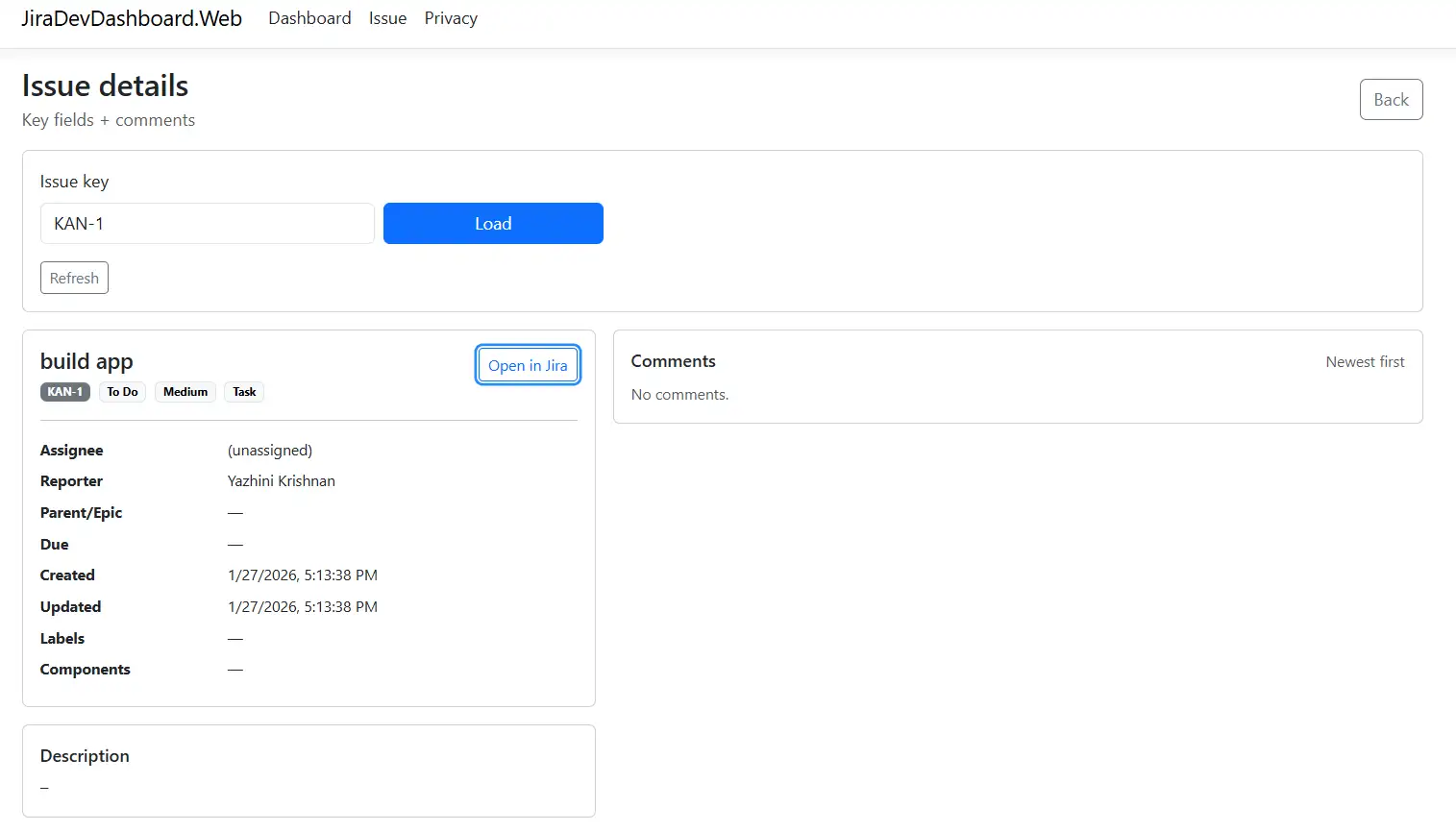
You now have a working Jira dashboard that retrieves and displays live issue data using the CData ADO.NET Provider for Jira and CData Code Assist MCP for Jira.
Simplify Jira developer dashboard development with CData
CData simplifies Jira integration by providing a consistent, SQL-based data access layer and AI-assisted schema discovery. This allows you to build Jira dashboards using standard ADO.NET interfaces while avoiding the complexity of working directly with Jira REST APIs.
By combining CData Code Assist MCP for Jira with the CData ADO.NET for Jira, developers can discover schema during development, validate queries early, and reuse the same data model from development through production.
Ready to get started? Download a free 30-day trial of the CData Code Assist MCP for Jira and contact our Support Team for any assistance.
